2017 RENAULT CAPTUR Media
[x] Cancel search: MediaPage 3 of 96

GB.1
User precautions . . . . . . . . . . . . . . . . . . . . . . . . . . . . . . . . . . . . \
. . . . . . . . . . . . . . . . . . . . . . . . . . . . GB.3
general information . . . . . . . . . . . . . . . . . . . . . . . . . . . . . . . . . . . .\
. . . . . . . . . . . . . . . . . . . . . . . . . . GB.4General description . . . . . . . . . . . . . . . . . . . . . . . . . . . . . . . . . . . .\
. . . . . . . . . . . . . . . . . . . . GB.4
Introduction to the controls . . . . . . . . . . . . . . . . . . . . . . . . . . . . . . . . . . . . \
. . . . . . . . . . . . . . . GB.5
SD card: use, initialisation . . . . . . . . . . . . . . . . . . . . . . . . . . . . . . . . . . . .\
. . . . . . . . . . . . . . . GB.14
operating principles . . . . . . . . . . . . . . . . . . . . . . . . . . . . . . . . . . . .\
. . . . . . . . . . . . . . . . . . . . GB.16
Switching on/off . . . . . . . . . . . . . . . . . . . . . . . . . . . . . . . . . . . .\
. . . . . . . . . . . . . . . . . . . . . . . GB.20
Add and manage favourites . . . . . . . . . . . . . . . . . . . . . . . . . . . . . . . . . . . . \
. . . . . . . . . . . . . . GB.21
Using voice recognition . . . . . . . . . . . . . . . . . . . . . . . . . . . . . . . . . . . .\
. . . . . . . . . . . . . . . . . GB.22
Navigation . . . . . . . . . . . . . . . . . . . . . . . . . . . . . . . . . . . .\
. . . . . . . . . . . . . . . . . . . . . . . . . . . . . . . . . GB.28 Enter a destination . . . . . . . . . . . . . . . . . . . . . . . . . . . . . . . . . . . . \
. . . . . . . . . . . . . . . . . . . . . GB.28
Volume and voice . . . . . . . . . . . . . . . . . . . . . . . . . . . . . . . . . . . . \
. . . . . . . . . . . . . . . . . . . . . . GB.33
Reading a map . . . . . . . . . . . . . . . . . . . . . . . . . . . . . . . . . . . . \
. . . . . . . . . . . . . . . . . . . . . . . . GB.34
Guidance . . . . . . . . . . . . . . . . . . . . . . . . . . . . . . . . . . . .\
. . . . . . . . . . . . . . . . . . . . . . . . . . . . GB.35
Preparing a route . . . . . . . . . . . . . . . . . . . . . . . . . . . . . . . . . . . . \
. . . . . . . . . . . . . . . . . . . . . . GB.39
Traffic information . . . . . . . . . . . . . . . . . . . . . . . . . . . . . . . . . . . . \
. . . . . . . . . . . . . . . . . . . . . . GB.40
Displaying the map . . . . . . . . . . . . . . . . . . . . . . . . . . . . . . . . . . . . \
. . . . . . . . . . . . . . . . . . . . . GB.43
Navigation services . . . . . . . . . . . . . . . . . . . . . . . . . . . . . . . . . . . . \
. . . . . . . . . . . . . . . . . . . . GB.44
Z.E. Services . . . . . . . . . . . . . . . . . . . . . . . . . . . . . . . . . . . .\
. . . . . . . . . . . . . . . . . . . . . . . . . GB.46
Recharging station . . . . . . . . . . . . . . . . . . . . . . . . . . . . . . . . . . . . \
. . . . . . . . . . . . . . . . . . . . . GB.47
Range . . . . . . . . . . . . . . . . . . . . . . . . . . . . . . . . . . . . \
. . . . . . . . . . . . . . . . . . . . . . . . . . . . . . . GB.48
Adding, managing saved addresses . . . . . . . . . . . . . . . . . . . . . . . . . . . . . . . . . . . .\
. . . . . . . GB.49
Navigation settings . . . . . . . . . . . . . . . . . . . . . . . . . . . . . . . . . . . . \
. . . . . . . . . . . . . . . . . . . . . GB.50
Multimedia . . . . . . . . . . . . . . . . . . . . . . . . . . . . . . . . . . . . \
. . . . . . . . . . . . . . . . . . . . . . . . . . . . . . . . . GB.52 Listen to the radio . . . . . . . . . . . . . . . . . . . . . . . . . . . . . . . . . . . . \
. . . . . . . . . . . . . . . . . . . . . . GB.52
Media . . . . . . . . . . . . . . . . . . . . . . . . . . . . . . . . . . . . \
. . . . . . . . . . . . . . . . . . . . . . . . . . . . . . . GB.57
Photo reader . . . . . . . . . . . . . . . . . . . . . . . . . . . . . . . . . . . .\
. . . . . . . . . . . . . . . . . . . . . . . . . GB.58
Video playback . . . . . . . . . . . . . . . . . . . . . . . . . . . . . . . . . . . . \
. . . . . . . . . . . . . . . . . . . . . . . . GB.59
Multimedia settings . . . . . . . . . . . . . . . . . . . . . . . . . . . . . . . . . . . .\
. . . . . . . . . . . . . . . . . . . . GB.60
Page 5 of 96

GB.3
PRECAUTIONS DURING USE
The prior acceptance of the General Conditions of Sale is mandatory befo\
re using the system.
The description of the models given in this manual is based on the speci\
fications at the time of writing. This manual covers
all existing functions for the models described. Whether or not they are\
fitted depends on the equipment model, op-
tions selected and the country where they are sold. This manual may also\
contain information about functions to be
introduced later in the model year. Depending on the make and model of your telephone, some functions may b\
e partially
or completely incompatible with your vehicle’s multimedia system.
For more details, please consult an Authorised Dealer.
Precautions when operating the system
– Operate the controls and read the information on the screen only when ro\
ad conditions allow.
– Set the volume to a reasonable level so that outside noise can be heard.\
Precautions regarding navigation
– Use of the navigation system does not in any way replace the responsibil\
ity or vigilance of the driver when driving the vehi- cle.
– Depending on the geographical area, the map on the SD card may not have \
the latest information on new roads. Be alert. In all cases, Road Traffic Regulations and road signs always take precedence over the direction\
s of the navigation system.
Precautions concerning the equipment
– Do not attempt to dismantle or modify the system, as there is a risk of \
damage to equipment and fire.
– Contact a representative of the manufacturer in the event of malfunction\
and for all operations involving disassembly.
– Do not insert foreign objects or a damaged or dirty SD card into the rea\
der.
– Always clean your screen with a microfibre cloth.
– Use an SD card which is suitable for your navigation system.
It is essential to follow the precautions below when using the system, b\
oth in the interest of safety and to prevent material d amage.
You must always comply with the laws of the country in which you are trav\
elling.
Page 9 of 96

GB.7
INTRODUCTION TO THE CONTROLS (3/9)
Multimedia screen
91911112013
1817151016
91011111213
1417151816
Page 13 of 96

GB.11
Function
29 Select the audio source.
30 Answer/end a call (phone mode)
31, 37 Increase the volume of the audio source currently in use.
32, 39 Decrease the volume of the audio source currently in use.
31 + 32 Radio mute on/off.
Pause/play an audio track.
33 Change radio mode (preset/list/frequency) or confirm an action.
34 Search for radio stations/change track or audio file.
35 Change media (CD/USB/etc).
36 Change radio band (AM/FM1/FM2/DR1/DR2).
38 Short press:
– answer/end a call (phone mode);
– mute on/off.
40 Search for radio stations/change track or audio file.
INTRODUCTION TO THE CONTROLS (7/9)
Steering column control
2930
31
32
3334
3536
40
37
38
39
Page 19 of 96

GB.17
OPERATING PRINCIPLES (2/4)
5
678
Multimedia screen
Navigating a menu
Use the rotating control 5 to move from
menu to menu. Confirm by pressing the
central 6 button to enter the menu.
14
For safety reasons, carry
out these operations when
the vehicle is stationary.
Confirming/cancelling a selection
Press the central button 6 to confirm a
change.
Press the 7 button to cancel a choice
and return to the previous menu.
Press the 8 button to go back to the
welcome screen.
Page 21 of 96
GB.19
OPERATING PRINCIPLES (4/4)Introduction to the main
menu
To access the main menu, press “Menu”
from the welcome screen.
The system is made up of six major
sections, all of which can be accessed
from the main menu:
Navigation
This function includes all the satellite
navigation features, road maps, traffic
information, services LIVE and warning
areas.
Multimedia
This function enables management of
the radio, and audio and video play-
back.
Phone
This function is used to pair the system
with a mobile phone and to use the
hands-free mode.
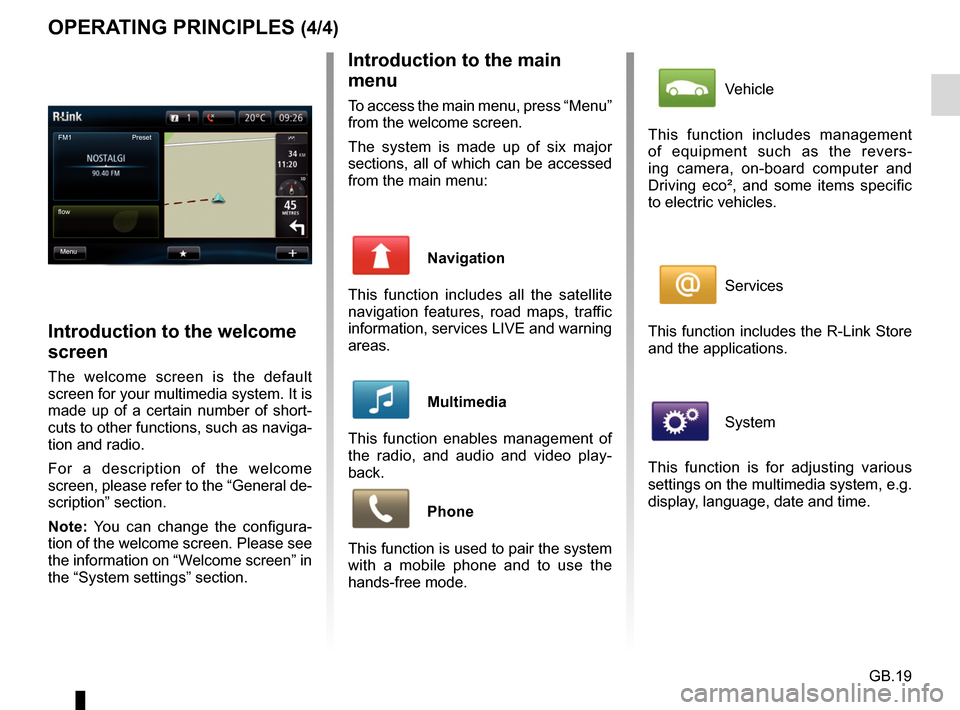
Introduction to the welcome
screen
The welcome screen is the default
screen for your multimedia system. It is
made up of a certain number of short-
cuts to other functions, such as naviga-
tion and radio.
For a description of the welcome
screen, please refer to the “General de-
scription” section.
Note: You can change the configura-
tion of the welcome screen. Please see
the information on “Welcome screen” in
the “System settings” section.
FM1
flow Preset
Menu
Vehicle
This function includes management
of equipment such as the revers-
ing camera, on-board computer and
Driving eco², and some items specific
to electric vehicles.
Services
This function includes the R-Link Store
and the applications.
System
This function is for adjusting various
settings on the multimedia system, e.g.
display, language, date and time.
Page 22 of 96
GB.20
SWITCHING ON/OFF
Switching on
The multimedia system switches on au-
tomatically when the ignition is switched
on. In other cases, press the start/stop
button
.
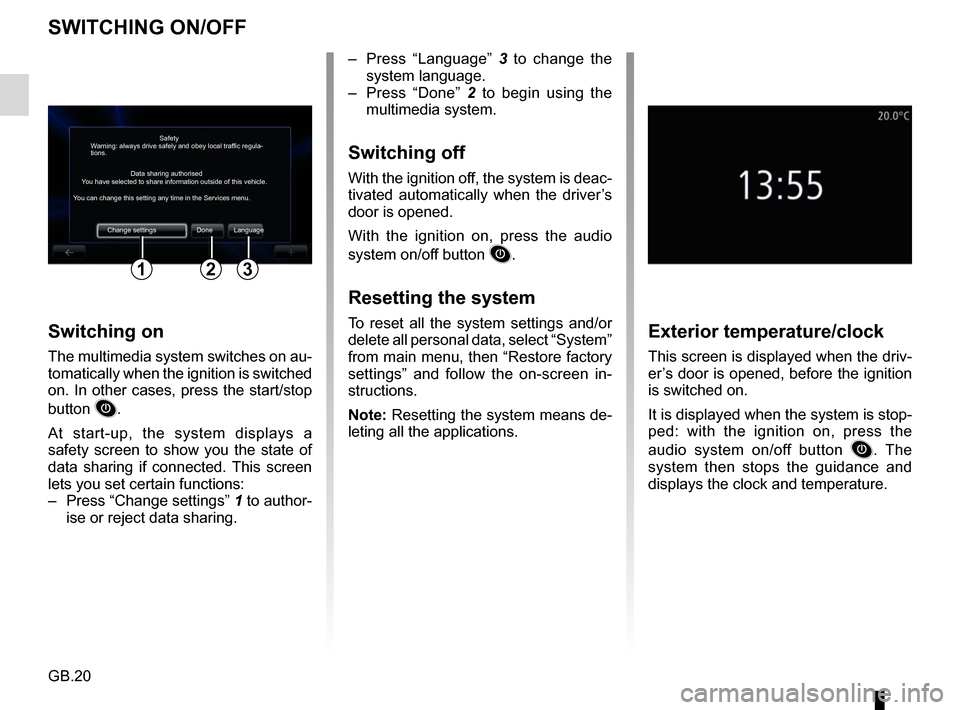
At start-up, the system displays a
safety screen to show you the state of
data sharing if connected. This screen
lets you set certain functions:
– Press “Change settings” 1 to author-
ise or reject data sharing.
Exterior temperature/clock
This screen is displayed when the driv-
er’s door is opened, before the ignition
is switched on.
It is displayed when the system is stop-
ped: with the ignition on, press the
audio system on/off button
. The
system then stops the guidance and
displays the clock and temperature.
– Press “Language” 3 to change the
system language.
– Press “Done” 2 to begin using the
multimedia system.
Switching off
With the ignition off, the system is deac-
tivated automatically when the driver’s
door is opened.
With the ignition on, press the audio
system on/off button
.
Resetting the system
To reset all the system settings and/or
delete all personal data, select “System”
from main menu, then “Restore factory
settings” and follow the on-screen in-
structions.
Note: Resetting the system means de-
leting all the applications.
Safety
Data sharing authorised
Warning: always drive safely and obey local traffic regula-
tions.
You have selected to share information outside of this vehicle.
You can change this setting any time in the Services menu.
Change settings Done Language
123
Page 24 of 96

GB.22
USING VOICE RECOGNITION (1/6)
Voice recognition system
Your multimedia system has a voice
recognition system
which allows
voice control of some functions and ap-
plications of the multimedia system and
your phone. This enables you to use
your multimedia system or your phone
while keeping your hands on the steer-
ing wheel.
From the main voice control menu, you
can use voice control to control three
functions of your multimedia system:
– navigation;
– telephone;
– installed applications.
Note: the position of the voice recogni-
tion button
varies (control on steer-
ing wheel or column). To find out more,
please see your driver’s handbook.
Activation of the multimedia
system's voice recognition
To activate the voice recognition
system, press the voice recognition
button
in your vehicle. The touch-
screen will display the main voice con-
trol menu.