2017 RENAULT CAPTUR Media
[x] Cancel search: MediaPage 26 of 96
GB.24
Controlling navigation with
your multimedia system's
voice recognition
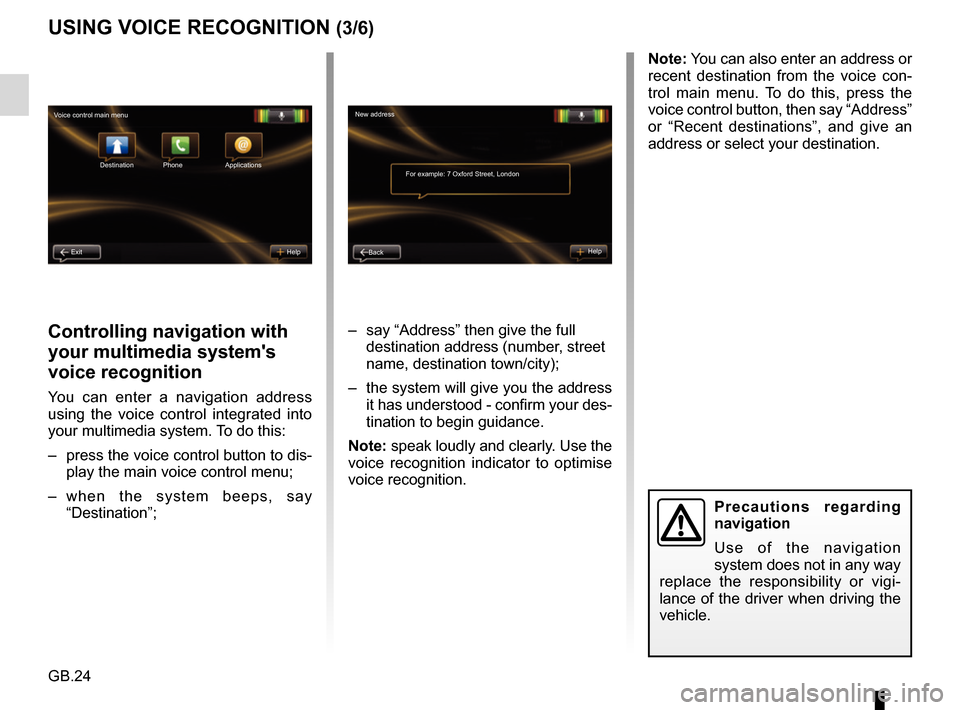
You can enter a navigation address
using the voice control integrated into
your multimedia system. To do this:
– press the voice control button to dis-play the main voice control menu;
– when the system beeps, say “Destination”; – say “Address” then give the full
destination address (number, street
name, destination town/city);
– the system will give you the address it has understood - confirm your des-
tination to begin guidance.
Note: speak loudly and clearly. Use the
voice recognition indicator to optimise
voice recognition.
USING VOICE RECOGNITION (3/6)
Precautions regarding
navigation
Use of the navigation
system does not in any way
replace the responsibility or vigi-
lance of the driver when driving the
vehicle.
Note: You can also enter an address or
recent destination from the voice con-
trol main menu. To do this, press the
voice control button, then say “Address”
or “Recent destinations”, and give an
address or select your destination.
New address
For example: 7 Oxford Street, London
Back Help
Voice control main menu
Destination
Exit Help Phone Applications
Page 27 of 96
GB.25
USING VOICE RECOGNITION (4/6)
Dialling a contact/number
using voice recognition
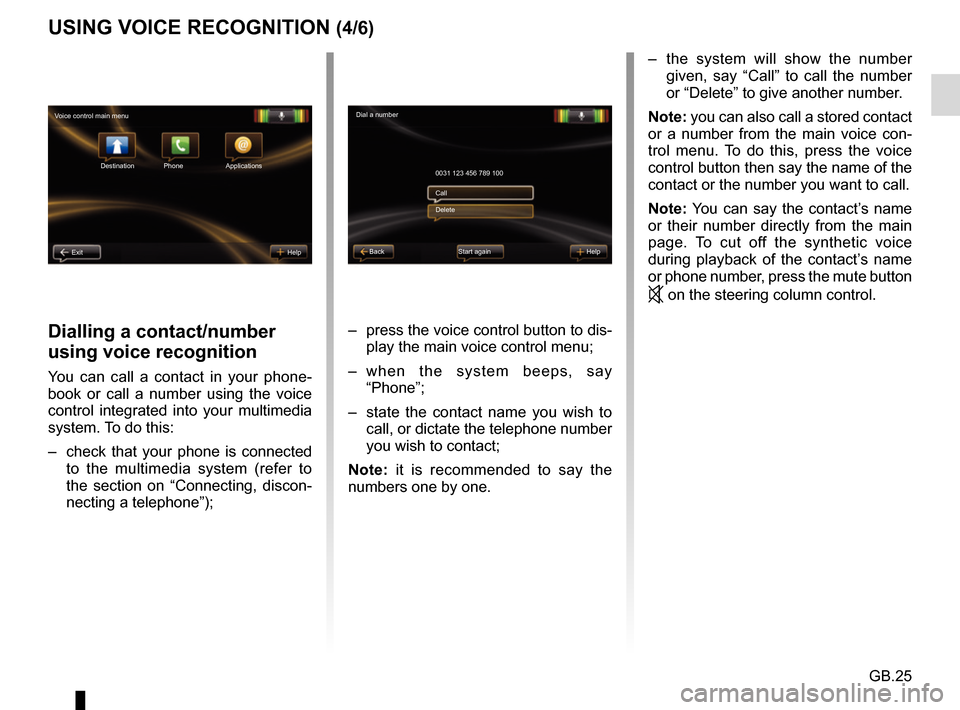
You can call a contact in your phone-
book or call a number using the voice
control integrated into your multimedia
system. To do this:
– check that your phone is connected to the multimedia system (refer to
the section on “Connecting, discon-
necting a telephone”); – press the voice control button to dis-
play the main voice control menu;
– when the system beeps, say “Phone”;
– state the contact name you wish to call, or dictate the telephone number
you wish to contact;
Note: it is recommended to say the
numbers one by one.
Dial a number
0031 123 456 789 100
Start again Help
Call
Delete
Voice control main menu
Destination
Exit Help Phone Applications
Back
– the system will show the number given, say “Call” to call the number
or “Delete” to give another number.
Note: you can also call a stored contact
or a number from the main voice con-
trol menu. To do this, press the voice
control button then say the name of the
contact or the number you want to call.
Note: You can say the contact’s name
or their number directly from the main
page. To cut off the synthetic voice
during playback of the contact’s name
or phone number, press the mute button
on the steering column control.
Page 28 of 96
GB.26
USING VOICE RECOGNITION (5/6)
Launching a multimedia
system application using
voice recognition
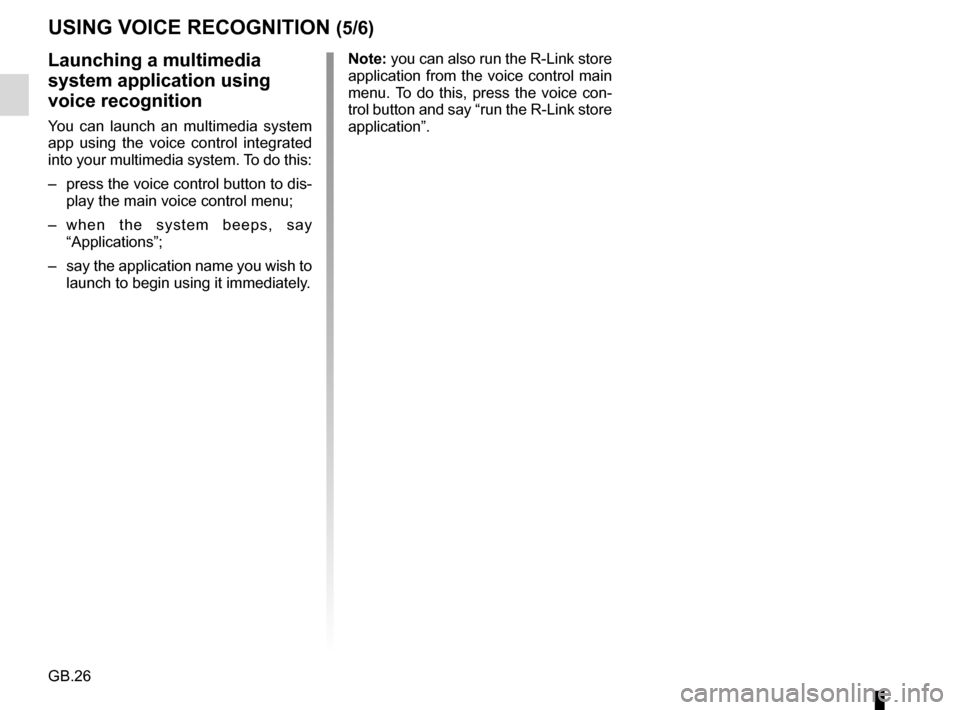
You can launch an multimedia system
app using the voice control integrated
into your multimedia system. To do this:
– press the voice control button to dis-play the main voice control menu;
– when the system beeps, say “Applications”;
– say the application name you wish to launch to begin using it immediately. Note: you can also run the R-Link store
application from the voice control main
menu. To do this, press the voice con-
trol button and say “run the R-Link store
application”.
Page 29 of 96
GB.27
USING VOICE RECOGNITION (6/6)
Bastien's phoneAdd device
Activating the phone's
voice recognition with the
multimedia system
To use your phone's voice recognition
system with your multimedia system
you should:
– connect your telephone to the mul-timedia system (refer to the section
on “Connecting, disconnecting a tel-
ephone”);
– ensure that your phone has a voice recognition function compatible with
your multimedia system.
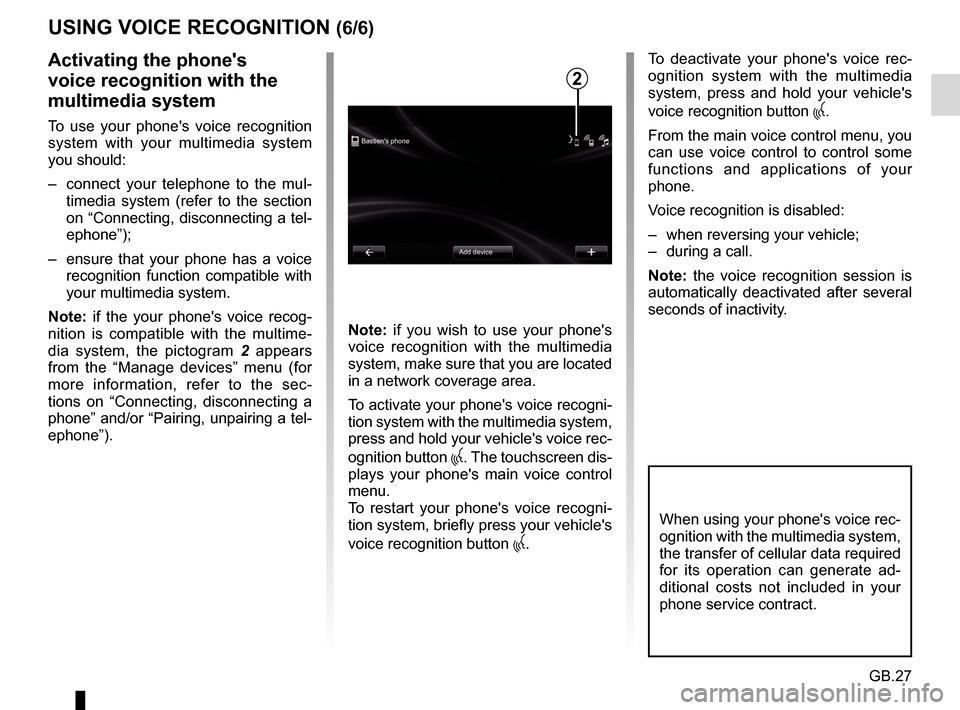
Note: if the your phone's voice recog-
nition is compatible with the multime-
dia system, the pictogram 2 appears
from the “Manage devices” menu (for
more information, refer to the sec-
tions on “Connecting, disconnecting a
phone” and/or “Pairing, unpairing a tel-
ephone”). Note: if you wish to use your phone's
voice recognition with the multimedia
system, make sure that you are located
in a network coverage area.
To activate your phone's voice recogni-
tion system with the multimedia system,
press and hold your vehicle's voice rec-
ognition button
. The touchscreen dis-
plays your phone's main voice control
menu.
To restart your phone's voice recogni-
tion system, briefly press your vehicle's
voice recognition button
.
To deactivate your phone's voice rec-
ognition system with the multimedia
system, press and hold your vehicle's
voice recognition button
.
From the main voice control menu, you
can use voice control to control some
functions and applications of your
phone.
Voice recognition is disabled:
– when reversing your vehicle;
– during a call.
Note: the voice recognition session is
automatically deactivated after several
seconds of inactivity.
2
When using your phone's voice rec-
ognition with the multimedia system,
the transfer of cellular data required
for its operation can generate ad-
ditional costs not included in your
phone service contract.
Page 34 of 96
GB.32
ENTERING A DESTINATION (5/5)
Note: if you do not confirm, this page
will close after ten seconds and guid-
ance will start automatically.
Note: depending on the vehicle charge
level, if you can reach your destination,
guidance is launched – if the charge
level is too low, the system offers to
search for a recharging terminal on the
way.
Note: “ IQ Routes™” is a function which
optimises the journey time using statis-
tical data and calculates routes based
on the average traffic levels on that day
and time. To activate or deactivate this
function, refer to the “Navigation set-
tings” section.
Latest map guarantee
After delivery of your new vehicle you
have about 60 days in which to update
the map free of charge.
Once this time has elapsed, you will
need to pay for updates.
For more information, please see an
Authorised Dealer.54
Go to...ConfirmLIVE
Magny-les-hameaux 0:15 h
8.5 km
The quickest way IQ Routes
1 Janvier, 0:32
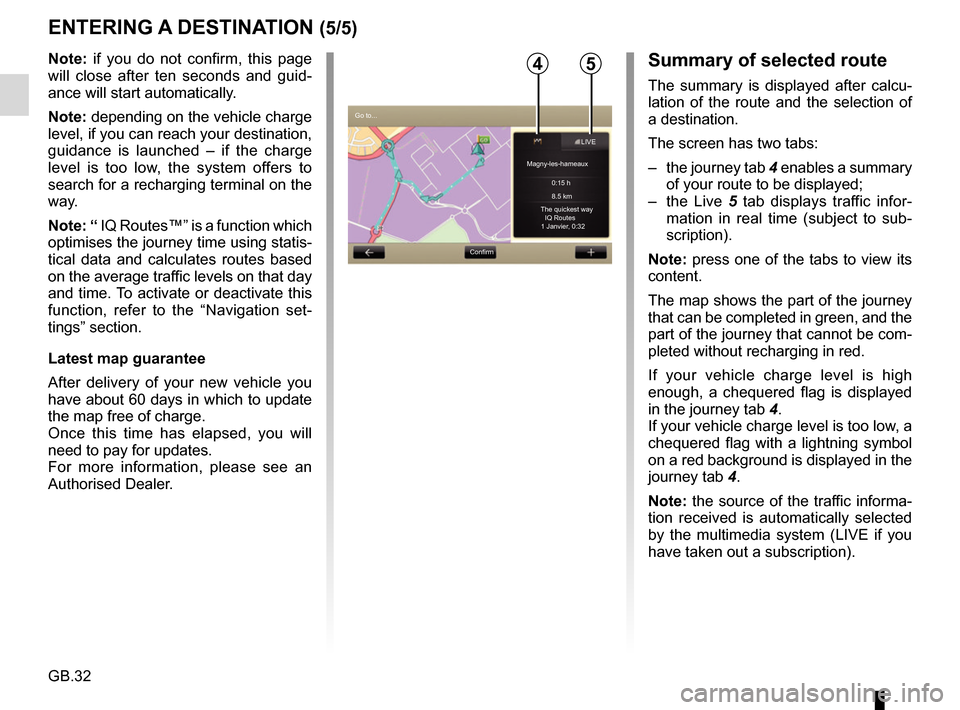
Summary of selected route
The summary is displayed after calcu-
lation of the route and the selection of
a destination.
The screen has two tabs:
– the journey tab 4 enables a summary
of your route to be displayed;
– the Live 5 tab displays traffic infor-
mation in real time (subject to sub-
scription).
Note: press one of the tabs to view its
content.
The map shows the part of the journey
that can be completed in green, and the
part of the journey that cannot be com-
pleted without recharging in red.
If your vehicle charge level is high
enough, a chequered flag is displayed
in the journey tab 4.
If your vehicle charge level is too low, a
chequered flag with a lightning symbol
on a red background is displayed in the
journey tab 4.
Note: the source of the traffic informa-
tion received is automatically selected
by the multimedia system (LIVE if you
have taken out a subscription).
Page 54 of 96
GB.52
LISTENING TO THE RADIO (1/5)
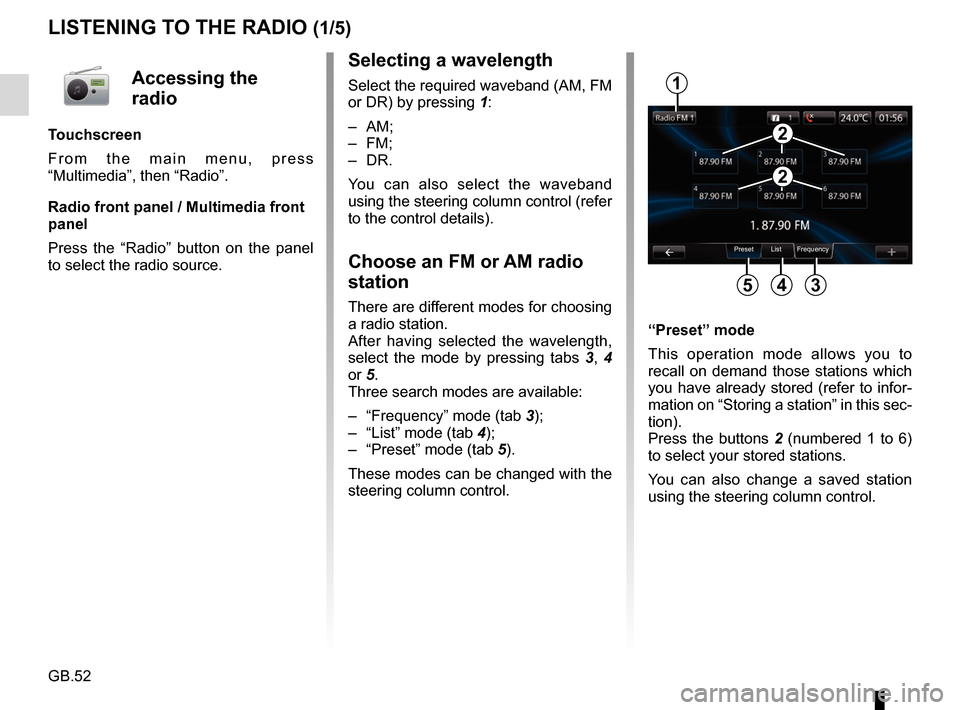
Selecting a wavelength
Select the required waveband (AM, FM
or DR) by pressing 1:
– AM;
– FM;
– DR.
You can also select the waveband
using the steering column control (refer
to the control details).
Choose an FM or AM radio
station
There are different modes for choosing
a radio station.
After having selected the wavelength,
select the mode by pressing tabs 3, 4
or 5.
Three search modes are available:
– “Frequency” mode (tab 3);
– “List” mode (tab 4);
– “Preset” mode (tab 5).
These modes can be changed with the
steering column control. “Preset” mode
This operation mode allows you to
recall on demand those stations which
you have already stored (refer to infor-
mation on “Storing a station” in this sec-
tion).
Press the buttons 2 (numbered 1 to 6)
to select your stored stations.
You can also change a saved station
using the steering column control.
Preset List Frequency
1
345
2
2
Accessing the
radio
Touchscreen
From the main menu, press
“Multimedia”, then “Radio”.
Radio front panel / Multimedia front
panel
Press the “Radio” button on the panel
to select the radio source.
Page 59 of 96
GB.57
MEDIA
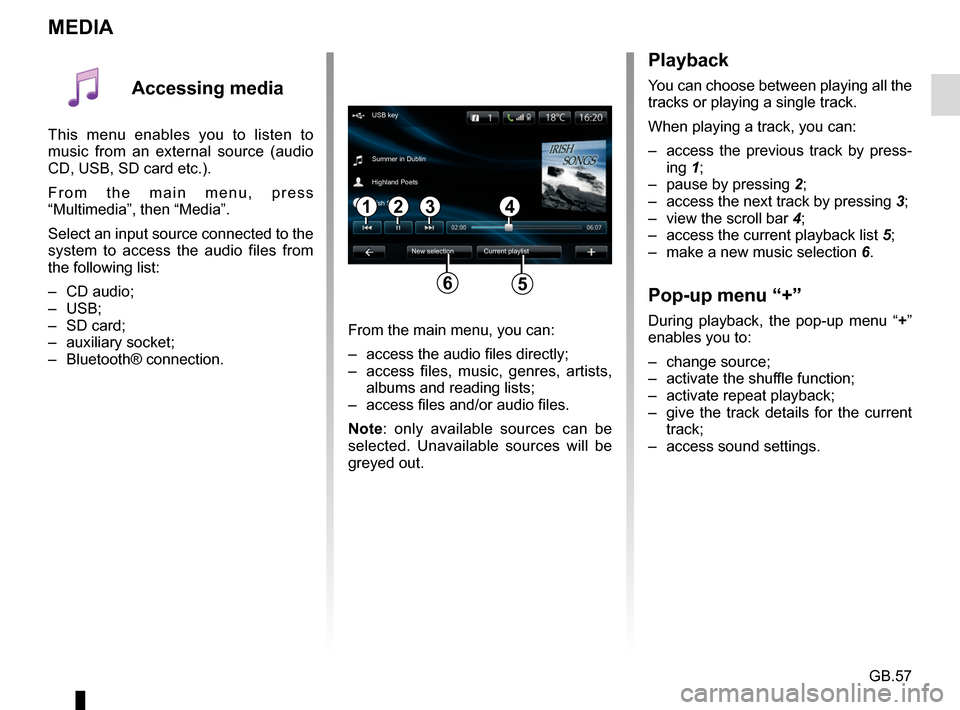
Playback
You can choose between playing all the
tracks or playing a single track.
When playing a track, you can:
– access the previous track by press-ing 1;
– pause by pressing 2;
– access the next track by pressing 3;
– view the scroll bar 4;
– access the current playback list 5;
– make a new music selection 6.
Pop-up menu “+”
During playback, the pop-up menu “ +”
enables you to:
– change source;
– activate the shuffle function;
– activate repeat playback;
– give the track details for the current track;
– access sound settings.From the main menu, you can:
– access the audio files directly;
– access files, music, genres, artists, albums and reading lists;
– access files and/or audio files.
Note: only available sources can be
selected. Unavailable sources will be
greyed out.
34
New selection
USB key
Summer in Dublin
Highland Poets
Current playlist
Irish Songs
21
56
Accessing media
This menu enables you to listen to
music from an external source (audio
CD, USB, SD card etc.).
From the main menu, press
“Multimedia”, then “Media”.
Select an input source connected to the
system to access the audio files from
the following list:
– CD audio;
– USB;
– SD card;
– auxiliary socket;
– Bluetooth® connection.
Page 60 of 96
GB.58
Accessing photos
From the “Multimedia” menu, press
“Pictures” then select the connected
source (Card SD, USB, etc.) to access
the photos. The system offers you two
options:
– “read all photos”;
– “Read a photo”.
Note: Some formats may not be rea-
dable by the system.
Options from folders
From the list of folders/photos, press
“+” to:
– change the source;
– display full screen;
– display the slideshow;
– access zoom in;
– access photo settings.
Note: For more information on compa-
tible photo formats, please consult an
Authorised Dealer.
PHOTO READER
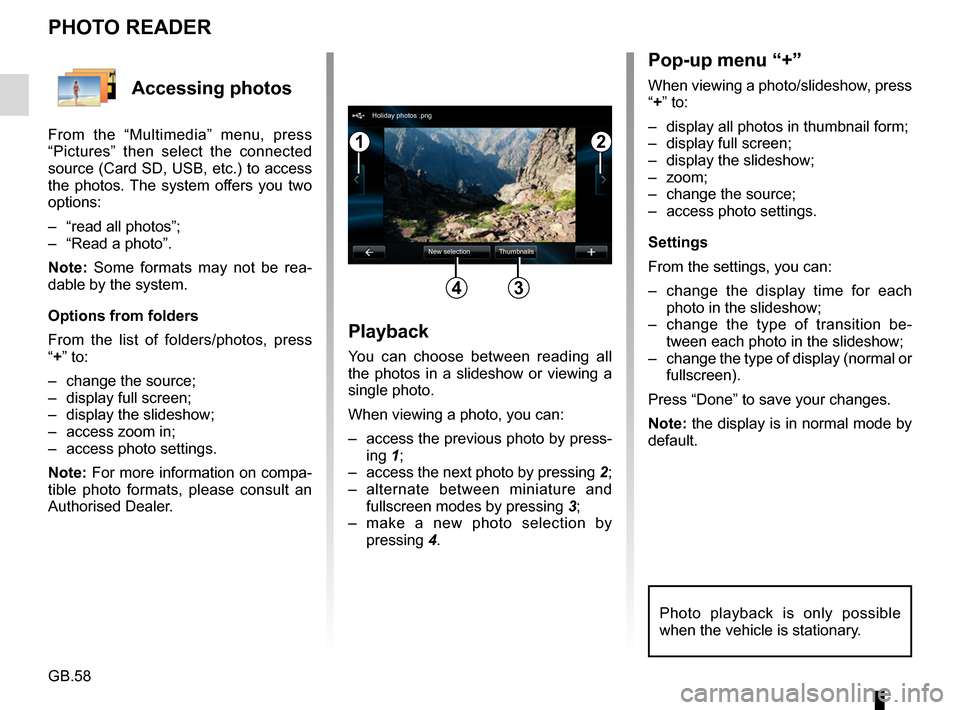
Playback
You can choose between reading all
the photos in a slideshow or viewing a
single photo.
When viewing a photo, you can:
– access the previous photo by press-ing 1;
– access the next photo by pressing 2;
– alternate between miniature and fullscreen modes by pressing 3;
– make a new photo selection by pressing 4.
Pop-up menu “+”
When viewing a photo/slideshow, press
“+” to:
– display all photos in thumbnail form;
– display full screen;
– display the slideshow;
– zoom;
– change the source;
– access photo settings.
Settings
From the settings, you can:
– change the display time for each
photo in the slideshow;
– change the type of transition be- tween each photo in the slideshow;
– change the type of display (normal or fullscreen).
Press “Done” to save your changes.
Note: the display is in normal mode by
default.
12
34
Holiday photos .png
New selection Thumbnails
Photo playback is only possible
when the vehicle is stationary.