Page 61 of 96
GB.59
Accessing videos
From the “Multimedia” menu, press
“Video” then select the source con-
nected (SD card, USB, etc.) to access
videos. The system offers you two op-
tions:
– “play all videos”;
– “play a video”.
Note: Some formats may not be read-
able by the system.
Options from folders
From the list of folders/videos, press “+”
to:
– change the source;
– access the settings.
Note: For more information on compat-
ible video formats, please consult an
Authorised Dealer.
VIDEO PLAYBACK
Playback
You can choose between playing all the
videos or playing a single video.
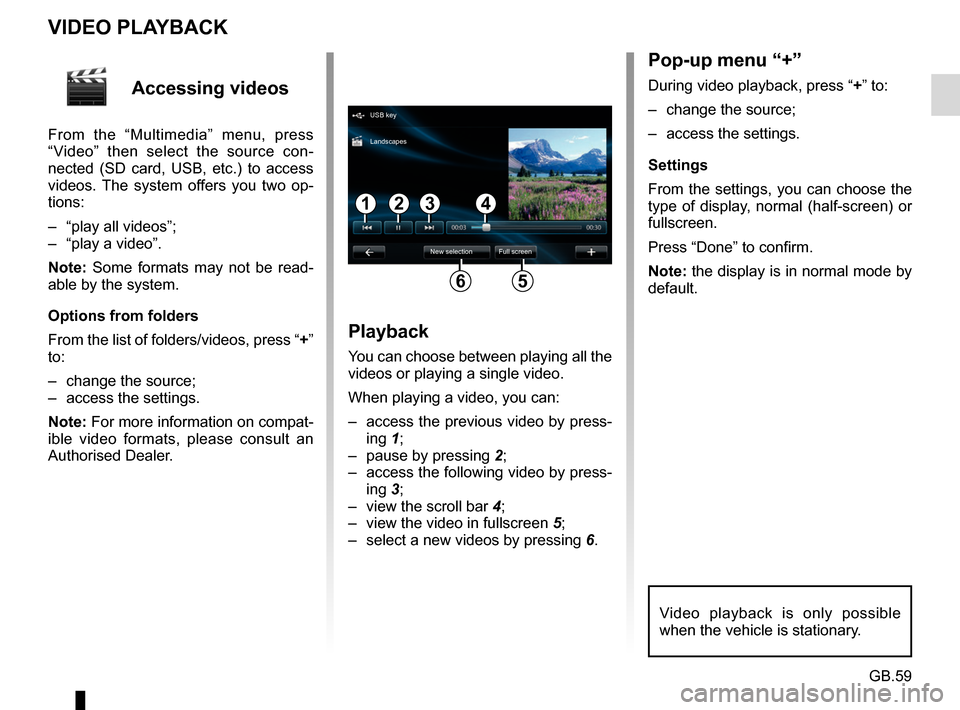
When playing a video, you can:
– access the previous video by press-ing 1;
– pause by pressing 2;
– access the following video by press- ing 3;
– view the scroll bar 4;
– view the video in fullscreen 5;
– select a new videos by pressing 6.
Pop-up menu “+”
During video playback, press “+” to:
– change the source;
– access the settings.
Settings
From the settings, you can choose the
type of display, normal (half-screen) or
fullscreen.
Press “Done” to confirm.
Note: the display is in normal mode by
default.
Video playback is only possible
when the vehicle is stationary.
1324
56
USB key
New selection Full screen
Landscapes
Page 62 of 96
GB.60
MULTIMEDIA SETTINGS (1/2)
Accessing
multimedia
settings
From the “Multimedia” menu, press
“Settings”, then select the element you
wish to modify:
– Sound;
– Radio;
– Media;
– Pictures;
– Video.
Radio
This menu enables you to adjust the
radio settings:
– activate/deactivate searching for alternative frequencies;
– activate/deactivate i-traffic;
– activate/deactivate programme type;
– update list of saved radio sta- tions.
Media
This menu allows you to adjust the mul-
timedia settings:
– activate/deactivate track repeat;
– activate/deactivate shuffle;
– activate/deactivate album image display;
– manage Bluetooth® devices connected.
Sound
This menu allows you to configure dif-
ferent sound settings:
– Spatialisation , for setting sound
distribution in the vehicle;
– “Bass Treble” , to set the treble
and bass levels. Once you have
made the adjustments, press
“Confirm” to confirm your set-
tings.
– Bass Boost Arkamys - to acti-
vate/deactivate bass amplifica-
tion.
– “ AGC Arkamys ”, to achieve an
even sound volume between two
audio tracks.
Page 63 of 96
GB.61
MULTIMEDIA SETTINGS (2/2)
Pictures
This menu allows you to adjust the mul-
timedia settings:
– set the timing of each picture in the slideshow;
– configure the default view for pic- tures.Video
This menu enables you to set the
type of video display:
– “Normal view”;
– “Full screen”.
Page 64 of 96
GB.62
PAIRING AND UNPAIRING A TELEPHONE (1/2)
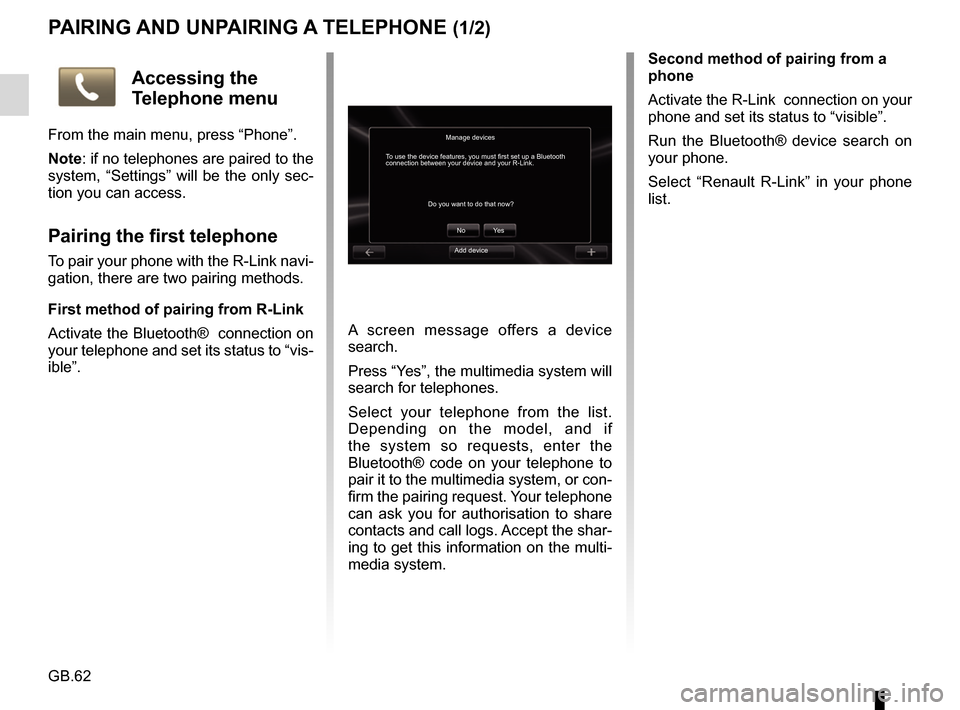
A screen message offers a device
search.
Press “Yes”, the multimedia system will
search for telephones.
Select your telephone from the list.
Depending on the model, and if
the system so requests, enter the
Bluetooth® code on your telephone to
pair it to the multimedia system, or con-
firm the pairing request. Your telephone
can ask you for authorisation to share
contacts and call logs. Accept the shar-
ing to get this information on the multi-
media system.Second method of pairing from a
phone
Activate the R-Link connection on your
phone and set its status to “visible”.
Run the Bluetooth® device search on
your phone.
Select “Renault R-Link” in your phone
list.
Manage devices
No
Do you want to do that now?
To use the device features, you must first set up a Bluetooth
connection between your device and your R-Link.
Ye s
Accessing the
Telephone menu
From the main menu, press “Phone”.
Note: if no telephones are paired to the
system, “Settings” will be the only sec-
tion you can access.
Pairing the first telephone
To pair your phone with the R-Link navi-
gation, there are two pairing methods.
First method of pairing from R-Link
Activate the Bluetooth® connection on
your telephone and set its status to “vis-
ible”.Add device
Page 65 of 96
GB.63
PAIRING, UNPAIRING A TELEPHONE (2/2)
Pairing another telephone
From your telephone, activate the
Bluetooth® connection.
From the “Telephone” menu, press
“Settings”, then “Manage devices”.
From the list of paired phones in the
“Manage devices” menu, press the
“Add device” button to add a phone to
the list.
For safety reasons, carry
out these operations when
the vehicle is stationary.
Unpairing a phone
From the main menu, select
“Telephone”, “Settings”, then “Manage
devices”.
From the list of paired telephones in
the “Manage devices” menu, press
the button on the pop-up menu, then
“Delete device(s)”. Select the device
you want to unpair on the multimedia
system screen, then press “Delete”.
Page 67 of 96
GB.65
MANAGING THE PHONEBOOK
Downloading the phone
memory
By default, when pairing and connect-
ing a telephone, the contacts are syn-
chronised automatically.
To deactivate automatic synchronisa-
tion, please refer to the “Telephone set-
tings” section in this document.
The system memory is restricted and
it is possible that all your contacts may
not be imported from your phone.
Adding a contact to the
Favourites page
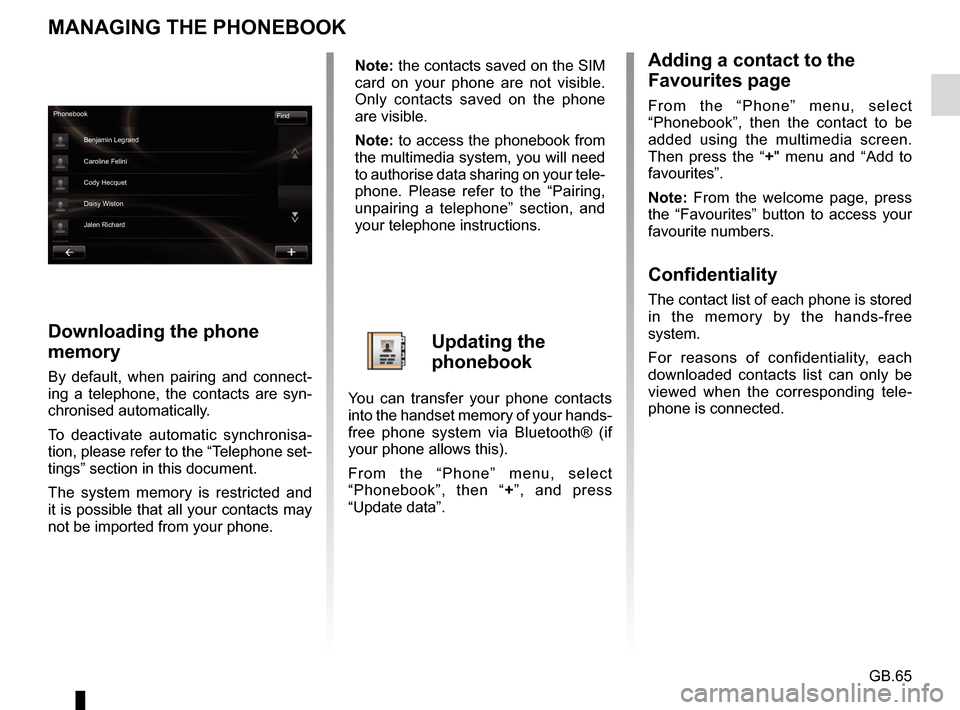
From the “Phone” menu, select
“Phonebook”, then the contact to be
added using the multimedia screen.
Then press the “+" menu and “Add to
favourites”.
Note: From the welcome page, press
the “Favourites” button to access your
favourite numbers.
Confidentiality
The contact list of each phone is stored
in the memory by the hands-free
system.
For reasons of confidentiality, each
downloaded contacts list can only be
viewed when the corresponding tele-
phone is connected.
Phonebook Find
Benjamin Legrand
Caroline Felini
Cody Hecquet
Daisy Wiston
Jalen Richard
Note: the contacts saved on the SIM
card on your phone are not visible.
Only contacts saved on the phone
are visible.
Note: to access the phonebook from
the multimedia system, you will need
to authorise data sharing on your tele-
phone. Please refer to the “Pairing,
unpairing a telephone” section, and
your telephone instructions.
Updating the
phonebook
You can transfer your phone contacts
into the handset memory of your hands-
free phone system via Bluetooth® (if
your phone allows this).
From the “Phone” menu, select
“Phonebook”, then “ +”, and press
“Update data”.
Page 72 of 96
GB.70
Accessing
telephone settings
From the “Phone” menu, press
“Settings”.
The following choices are offered:
– Manage devices;
– Sound levels;
– Voice mail;
– Turn Bluetooth on;
– Automatically download phone data.
PHONE SETTINGS
Turn Bluetooth on
Tick this option to activate or deacti-
vate the Bluetooth® on the hands-free
system.
Automatically download phone data
Tick this option to activate or deacti-
vate the automatic download of data
from the telephone to the multimedia
system.
settingsManaging devices
Voicemail Sound levels
Activating Bluetooth
Automatically download telephone data
Confirm
Manage devices
Refer to the information on “Pairing/un-
pairing a phone”.
Sound levels
This option allows you to adjust the
audio level of the hands-free system
and the ringtone.
Voice mail
Please refer to the information on
“Configuring voicemail” in the “Making,
Receiving a call” section.
Page 77 of 96
GB.75
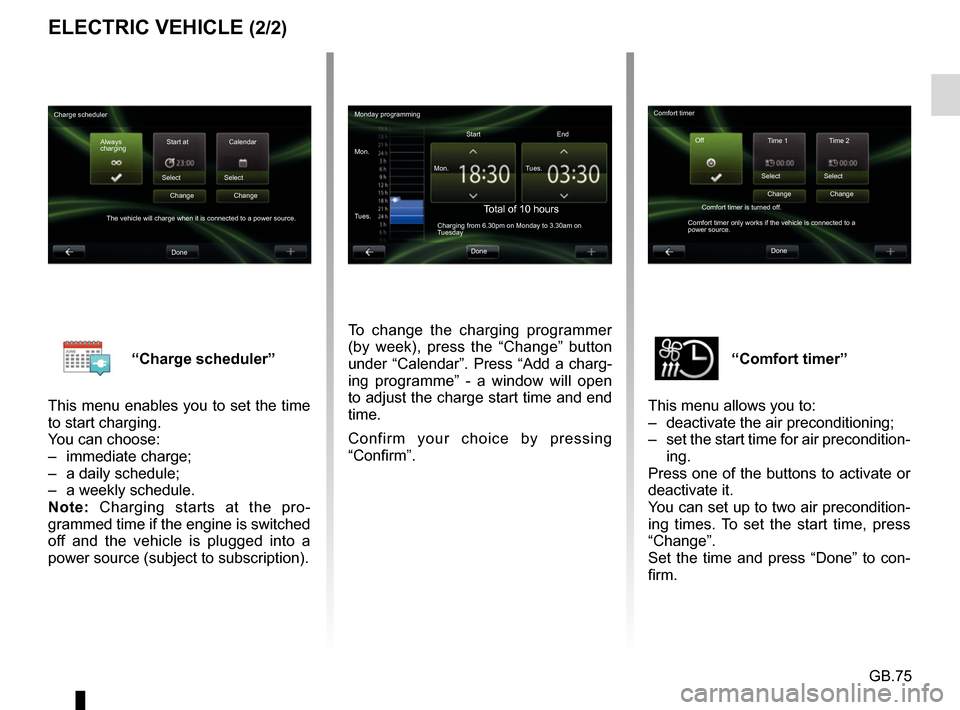
“Comfort timer”
This menu allows you to:
– deactivate the air preconditioning;
– set the start time for air precondition- ing.
Press one of the buttons to activate or
deactivate it.
You can set up to two air precondition-
ing times. To set the start time, press
“Change”.
Set the time and press “Done” to con-
firm.“Charge scheduler”
This menu enables you to set the time
to start charging.
You can choose:
– immediate charge;
– a daily schedule;
– a weekly schedule.
Note: Charging starts at the pro-
grammed time if the engine is switched
off and the vehicle is plugged into a
power source (subject to subscription).
ELECTRIC VEHICLE (2/2)
To change the charging programmer
(by week), press the “Change” button
under “Calendar”. Press “Add a charg-
ing programme” - a window will open
to adjust the charge start time and end
time.
Confirm your choice by pressing
“Confirm”.
Monday programming
Mon. Mon.Start
Total of 10 hoursCharging from 6.30pm on Monday to 3.30am on
Tuesday
Tues. Tues.
End
Done
Charge scheduler Always
charging Start at
Select
The vehicle will charge when it is connected to a power source. Change
Done Calendar
Select Change Comfort timer
Time 1 Time 2
Select
Comfort timer is turned off.
Comfort timer only works if the vehicle is connected to a
power source. Change
Done Select
Change
Off


