2017 PEUGEOT PARTNER TEPEE ELECTRIC USB
[x] Cancel search: USBPage 223 of 252
11
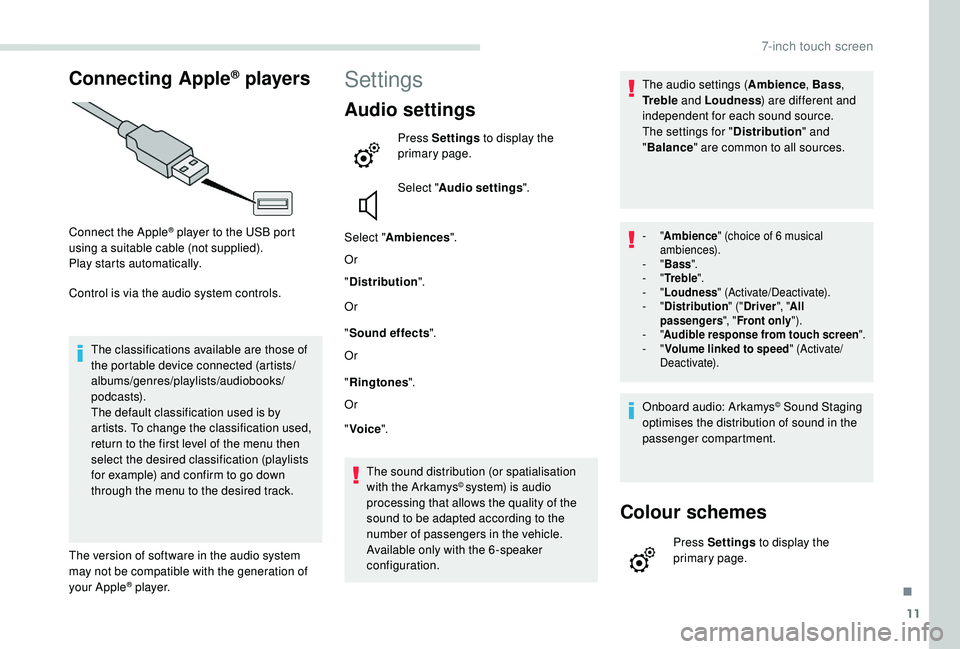
Connecting Apple® players
Connect the Apple® player to the USB port
using a suitable cable (not supplied).
Play starts automatically.
Control is via the audio system controls.
The classifications available are those of
the portable device connected (artists/
albums/genres/playlists/audiobooks/
podcasts).
The default classification used is by
artists. To change the classification used,
return to the first level of the menu then
select the desired classification (playlists
for example) and confirm to go down
through the menu to the desired track.
The version of software in the audio system
may not be compatible with the generation of
your Apple
® p l aye r.
Settings
Audio settings
Press Settings to display the
primary page.
Select " Audio settings ".
Select " Ambiences ".
Or
" Distribution ".
Or
" Sound effects ".
Or
" Ringtones ".
Or
" Voice ".
The sound distribution (or spatialisation
with the Arkamys
© system) is audio
processing that allows the quality of the
sound to be adapted according to the
number of passengers in the vehicle.
Available only with the 6 -speaker
configuration. The audio settings (
Ambience, Bass,
Tr e b l e and Loudness ) are different and
independent for each sound source.
The settings for " Distribution" and
" Balance " are common to all sources.
- "Ambience " (choice of 6 musical
ambiences).
-
"Bass ".
-
"Tr e b l e ".
-
"Loudness " (Activate/Deactivate).
-
"Distribution " ("Driver ", "All
passengers ", "Front only ").
-
"Audible response from touch screen ".
-
"Volume linked to speed " (Activate/
Deactivate).
Onboard audio: Arkamys© Sound Staging
optimises the distribution of sound in the
passenger compartment.
Colour schemes
Press Settings to display the
primary page.
.
7-inch touch screen
Page 225 of 252
13
The synchronisation of a smartphone
allows users to display the smartphone's
applications adapted to the
MirrorLink
TM technology on the vehicle
sc
reen.
The principles and standards
are constantly changing, for the
communication process between the
smartphone and the system to operate,
it is essential that the smartphone is
unlocked; update the operating system of
the smartphone as well as the date and
time of the smartphone and the system.
For the list of supported smartphones, go
to the brand's website in your country.
As a safety measure, some applications
can only be viewed with the vehicle
stationary; display is interrupted once the
vehicle is moving.
Please note:
-
i
f your smartphone is supported, to
make it "MirrorLink
TM" compatible,
some phone manufacturers
nevertheless invite you to first
download a dedicated application. When connecting a smartphone
to the system, it is recommended
that Bluetooth
® is started on the
smartphone.
Connect a USB cable. The
smartphone charges when
connected by a USB cable.
From the system, press " Connected
services " to display the primary
page.
Press "MirrorLink
TM" to start
the application of the system.
Start the application on the
smartphone (optional, depending
on the smartphone and operating
syste m).
During the procedure, several screen
pages relating to the association of
certain functions are displayed.
Accept to start and complete the
connection. If only one application has been downloaded to
the smartphone, it starts automatically.
Access to the different audio sources remains
accessible in the margin of the MirrorLink
TM
display, using touch buttons in the upper bar.
Access to the system’s menus is possible at
any time using the dedicated buttons.
Voice recognition
Press the end of the lighting control stalk to
start the voice recognition of your smartphone
via the system.
Voice recognition requires the use of a
compatible smartphone first connected to the
vehicle by Bluetooth.
CarPlay®
CarPlay® smartphone connection
As a safety measure and because it
requires sustained attention by the driver,
using a smartphone when driving is
prohibited.
All operations must be done with the
vehicle stationary .
Once the connection is established, a page
is displayed with the applications already
downloaded to your smartphone and adapted
to MirrorLink
TM technology.
.
7-inch touch screen
Page 226 of 252
14
The synchronisation of a smartphone
allows users to display the smartphone's
applications adapted to the
CarPlay
® technology on the vehicle
sc
reen.
As the processes and standards are
constantly changing, it is recommended
that you keep your smartphone's operating
system updated.
For the list of supported smartphones, go
to the brand's website in your country.
As a safety measure, some applications
can only be viewed with the vehicle
stationary; display is interrupted once the
vehicle is moving.
Connect a USB cable. The
smartphone charges when
connected by the USB cable.
On connecting the USB cable, the
" Telephone " function changes to
" CarPlay " in the menu carousel.
Press " CarPlay " to display the
CarPlay
® inter face. Or
Connect a USB cable. The
smartphone charges when
connected by the USB cable.
From the system, press " Connected
services " to display the primary
page.
Press " CarPlay " to display the
CarPlay
® inter face.
During the procedure, one or more screen
pages relating to the association of certain
functions are displayed on connection.
When the telephone menu is displayed, on
connecting the USB cable the display changes
automatically to CarPlay mode.
When another menu is displayed, on
connecting the USB cable a message is
displayed in the upper bar indicating activation
of CarPlay mode.
Press Open to display the CarPlay mode.
Voice recognition
Press the end of the lighting control stalk to
start thye voice recognition of your smartphone
via the system.
Telephone
Pairing a Bluetooth®
telephone
For reasons of safety and because
it requires sustained attention by the
driver, the pairing of a Bluetooth
® mobile
telephone with the hands-free system of
your audio system must be done with the
vehicle stationary .
Procedure (short) from the
telephone
In the Bluetooth® menu of your device, select
the system name in the list of devices detected.
Enter a code of at least 4 figures in the device
and confirm.
Enter this same code in the system,
select "OK" and confirm.
7-inch touch screen
Page 232 of 252
20
Media
QUESTIONRESPONSESOLUTION
Playback of my USB memory stick starts only
after a very long wait (around 2 to 3
minutes).Some files supplied with the memory stick
may greatly slow down access to reading
the memory stick (multiplication by 10 of the
catalogue time). Delete the files supplied with the memory stick
and limit the number of sub-folders in the file
structure on the memory stick.
When I connect my iPhone as a telephone and
to the USB port at the same time, I am unable to
play the music files. When the iPhone connects automatically as a
telephone, it forces the streaming function. The
streaming function takes the place of the USB
function which is then not usable, there is a
period without sound of the track being played
with Apple
® players.Disconnect and reconnect to the USB port (the
USB function takes priority over streaming).
Some characters of the information for the
currently playing medium are not displayed
c o r r e c t l y. The audio system does not display some types
of character.
Use standard characters to name tracks and
folders.
The streaming of files does not start. The connected device does not support
automatic playback.Start playback from the device.
The names of tracks and the track length are not
displayed on the screen during audio streaming.The Bluetooth® profile does not allow the
transfer of this information.
7-inch touch screen
Page 235 of 252
1
Peugeot Connect Sound (RD5)
Audio system/Bluetooth®
Contents
First steps
1
S
teering mounted controls
2
M
enus
2
R
adio 3
Media
4
Telephone
6
Frequently asked questions
8T
he system is coded in such a way that it
will only operate in your vehicle.
As a safety measure, the driver must
only carry out operations which require
sustained attention when the vehicle is
stationary.
To avoid discharging the battery, the audio
system may switch off after a few minutes
if the engine is not running.
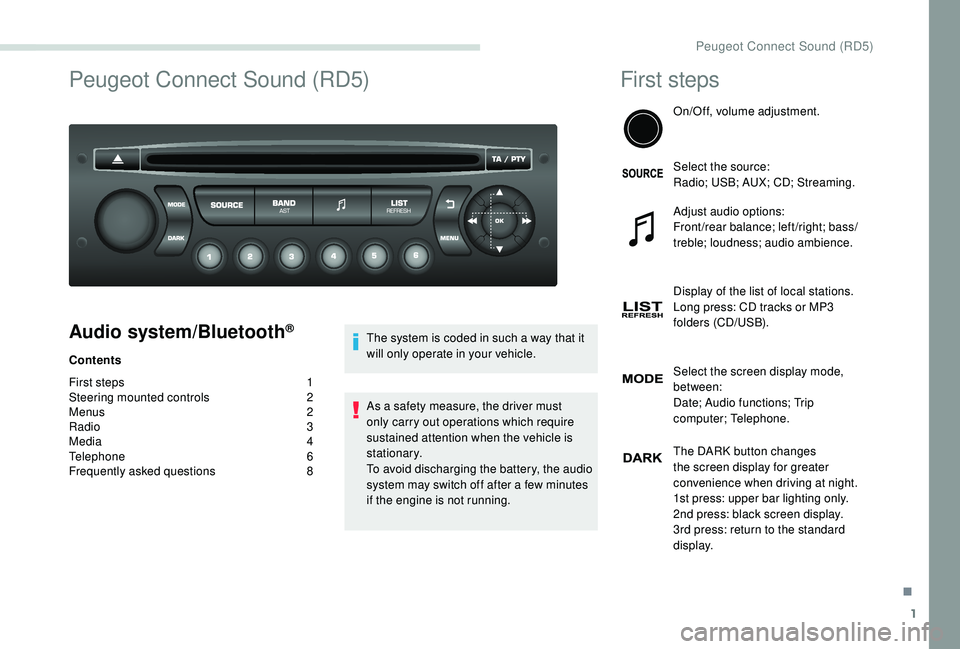
First steps
On/Off, volume adjustment.
Select the source:
Radio; USB; AUX; CD; Streaming.
Adjust audio options:
Front/rear balance; left/right; bass/
treble; loudness; audio ambience.
Display of the list of local stations.
Long press: CD tracks or MP3
folders (CD/USB).
Select the screen display mode,
between:
Date; Audio functions; Trip
computer; Telephone.
The DARK button changes
the screen display for greater
convenience when driving at night.
1st press: upper bar lighting only.
2nd press: black screen display.
3rd press: return to the standard
display.
.
Peugeot Connect Sound (RD5)
Page 236 of 252
2
Cancel the current operation.
Display main menu.
Buttons 1 to 6
Select a preset radio station.
Long press: memorise a radio
station.
Automatic frequency search down/
up.
Select previous/next CD, MP3 or
USB track.
Select next frequency down/up.
Select previous/next MP3 folder.
Select previous/next folder/genre/
artist/playlist (USB).
Confirm.
TA (Traffic Announcement) function
On/Off.
Long press: access to PT Y mode*
(radio Programme TYpes).Eject CD.
Select AM/FM wavebands.
Steering mounted controls
Radio: select the previous/next
preset radio station.
USB: select the genre/artist /
folder from the list depending on
classification.
Select the previous/next item in a
menu.
Radio: automatic search for a higher
frequency.
CD/MP3/USB: select the next track.
CD/USB: press and hold: fast
forward.
Skip in the list.
Change the audio source.
Confirm a selection.
Hang up/pick up the telephone.
Press for more than 2
seconds:
access the telephone menu. Radio: automatic search for a lower
frequency.
CD/MP3/USB: selection of the
previous track.
CD/USB: press and hold: rewind.
Skip in the list.
Increase volume.
Decrease volume.
Mute on: cut the sound by
simultaneously pressing the volume
up and down buttons.
Mute off: press one of the two
volume buttons.
*
A
vailable depending on version.
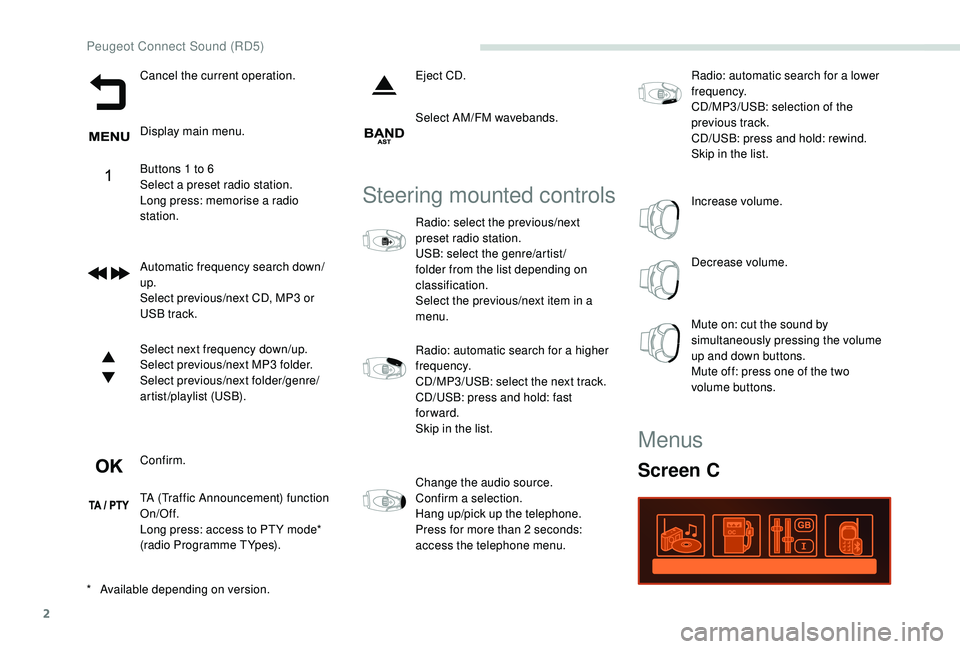
Menus
Screen C
Peugeot Connect Sound (RD5)
Page 237 of 252
3
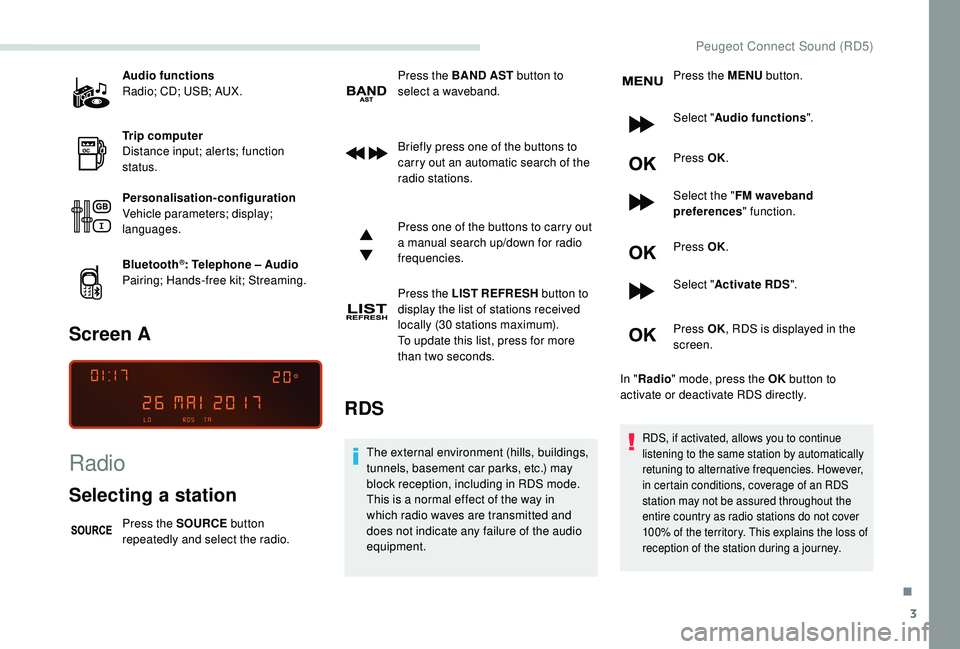
Audio functions
Radio; CD; USB; AUX.
Trip computer
Distance input; alerts; function
status.
Personalisation-configuration
Vehicle parameters; display;
languages.
Bluetooth
®: Telephone – Audio
Pairing; Hands-free kit; Streaming.
Screen A
Radio
Selecting a station
Press the SOURCE button
repeatedly and select the radio. Press the BAND
AST button to
select a waveband.
Briefly press one of the buttons to
carry out an automatic search of the
radio stations.
Press one of the buttons to carry out
a manual search up/down for radio
frequencies.
Press the LIST REFRESH button to
display the list of stations received
locally (30 stations maximum).
To update this list, press for more
than two seconds.
RDS
The external environment (hills, buildings,
tunnels, basement car parks, etc.) may
block reception, including in RDS mode.
This is a normal effect of the way in
which radio waves are transmitted and
does not indicate any failure of the audio
equipment. Press the MENU
button.
Select " Audio functions ".
Press OK.
Select the " FM waveband
preferences " function.
Press OK.
Select " Activate RDS ".
Press OK , RDS is displayed in the
screen.
In " Radio " mode, press the OK button to
activate or deactivate RDS directly.RDS, if activated, allows you to continue
listening to the same station by automatically
retuning to alternative frequencies. However,
in certain conditions, coverage of an RDS
station may not be assured throughout the
entire country as radio stations do not cover
100% of the territory. This explains the loss of
reception of the station during a journey.
.
Peugeot Connect Sound (RD5)
Page 238 of 252
4
Playing TA messages
The TA (Traffic Announcement) function
gives priority to TA alert messages.
To operate, this function needs good
reception of a radio station that carries
this type of message. When a traffic
report is transmitted, the current audio
source (Radio, CD, etc.) is interrupted
automatically to play the TA message.
Normal play of the medium previously
playing is resumed at the end of the
message.Press the TA button to activate or
deactivate traffic messages.
Media
USB port
To protect the system, do not use a USB
hub.
The system builds playlists (in temporary
memory), an operation which can take
from a few seconds to several minutes at
the first connection.
Reduce the number of non-music files
and the number of folders to reduce the
waiting time. The playlists are updated
every time the ignition is switched off or a
USB memory stick is connected.
The lists are memorised: if they are not
modified, the subsequent loading time will
b e s h o r t e r.
Make a long press on the LIST
REFRESH button to display the
different classifications.
Select by " Folder"/ "Artist "/
" Genre "/ "Playlist ". Press OK
to select the desired
classification, then press OK again
to confirm.
Press LIST REFRESH briefly to
display the previously selected
classification.
Navigate in the list using the left /
right and up/down buttons.
Confirm the selection by pressing
OK.
Press one of these buttons to go to
the previous/next track in the list.
Press and hold one of these buttons
for fast for ward or rewind.
Press one of these buttons to gain
access to the previous/next " Folder"/
" Artist "/ "Genre "/ "Playlist " in the list.
Insert the USB memory stick into the USB port
or connect the USB device to the USB port
using a suitable cable (not supplied).
Peugeot Connect Sound (RD5)