2017 NISSAN JUKE display
[x] Cancel search: displayPage 185 of 416
4-26Heater, air conditioner, audio and phone systems
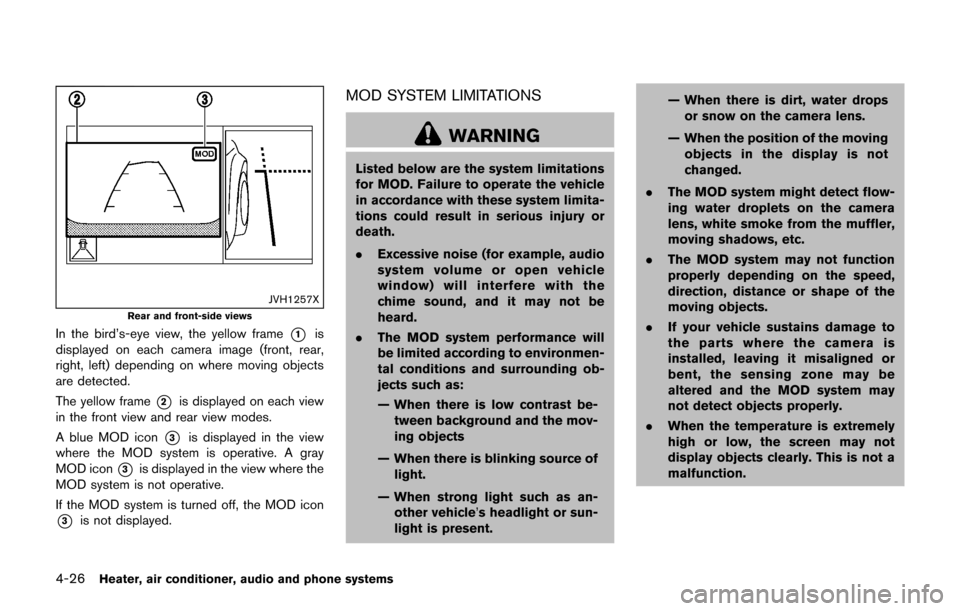
JVH1257X
Rear and front-side views
In the bird’s-eye view, the yellow frame*1is
displayed on each camera image (front, rear,
right, left) depending on where moving objects
are detected.
The yellow frame
*2is displayed on each view
in the front view and rear view modes.
A blue MOD icon
*3is displayed in the view
where the MOD system is operative. A gray
MOD icon
*3is displayed in the view where the
MOD system is not operative.
If the MOD system is turned off, the MOD icon
*3is not displayed.
MOD SYSTEM LIMITATIONS
WARNING
Listed below are the system limitations
for MOD. Failure to operate the vehicle
in accordance with these system limita-
tions could result in serious injury or
death.
. Excessive noise (for example, audio
system volume or open vehicle
window) will interfere with the
chime sound, and it may not be
heard.
. The MOD system performance will
be limited according to environmen-
tal conditions and surrounding ob-
jects such as:
— When there is low contrast be-
tween background and the mov-
ing objects
— When there is blinking source of light.
— When strong light such as an- other vehicle’s headlight or sun-
light is present. — When there is dirt, water drops
or snow on the camera lens.
— When the position of the moving objects in the display is not
changed.
. The MOD system might detect flow-
ing water droplets on the camera
lens, white smoke from the muffler,
moving shadows, etc.
. The MOD system may not function
properly depending on the speed,
direction, distance or shape of the
moving objects.
. If your vehicle sustains damage to
the parts where the camera is
installed, leaving it misaligned or
bent, the sensing zone may be
altered and the MOD system may
not detect objects properly.
. When the temperature is extremely
high or low, the screen may not
display objects clearly. This is not a
malfunction.
Page 191 of 416

4-32Heater, air conditioner, audio and phone systems
SAA3443
1. AUTO button/Temperature control dial
2. OFF button
3. A/C button
4. CLIMATE button
5. Display screen*
6. Air flow control buttons
7. Fan speed control
dial8. Front defroster
button
9. Air intake button (Outside air circulation/Air
recirculation)
10. Rear window defroster
button (See “Rear
window and outside mirror defroster switch”
(P.2-38) .)
*: Temperature is displayed in 8F (US) or 8C
(Canada) .
AUTOMATIC AIR CONDITIONER (with
Integrated Control System)
Automatic operation (AUTO)
The AUTO mode may be used year-round as the
system automatically controls constant tempera-
ture, air flow distribution and fan speed.
To turn off the heater and air conditioner, push
the CLIMATE button to change to the Climate
Control Mode, then push the OFF button.
Cooling and dehumidified heating:
1. Push the AUTO button. (The AUTO indicator will be displayed.)
2. Turn the temperature control dial to set the preferred temperature. The temperature
range is between 608F (188C) and 908F
(328C) .
A visible mist may be seen coming from the
ventilators in hot, humid conditions as the air is
cooled rapidly. This does not indicate a mal-
function.
Dehumidified defrosting/defogging:
1. Push the front defroster
button. (The
indicator light will illuminate.)
2. Turn the temperature control dial to set the preferred temperature.
Page 193 of 416

4-34Heater, air conditioner, audio and phone systems
JVH1245X
Air conditioner mode screen
SAA3379Drive mode screen
Displaying Climate control
When in Climate Control Mode, the selected
temperature and airflow, and automatic mode or
manual mode are indicated on the display.
When in Drive Mode, the same items as above
are indicated, but on the bottom of the display.
To switch to Climate Control Mode, push the
CLIMATE control mode select button.
Setting climate ECO
When in Drive Mode, CLIMATE ECO can be
switched on or off. When CLIMATE ECO is
switched on, the climate control system oper-
ates to enhance fuel economy.
See “Setting the climate ECO mode” (P.5-24).
SAA2368
SAA3441
Page 197 of 416
4-38Heater, air conditioner, audio and phone systems
—CDs that are not round
— CDs with a paper label
— CDs that are warped, scratched, or
have abnormal edges
. This audio system can only play pre-
recorded CDs. It has no capabilities to
record or burn CDs.
. If the CD cannot be played, error
messages as the following examples
will be displayed.
Check Disc:
—Confirm that the CD is inserted
correctly (the label side is facing
up, etc.) .
— Confirm that the CD is not bent or
warped and it is free of scratches.
Push Eject:
This is an error due to the temperature
inside the player is too high. Remove
the CD by pushing the EJECT button,
and after a short time reinsert the CD.
The CD can be played when the tem-
perature of the player returns to nor-
mal.
Unplayable Track:
The file is unplayable in this audio
system (only MP3 or WMA CD) .USB (Universal Serial Bus) Connection
Port
WARNING
Do not connect, disconnect or operate
the USB device while driving. Doing so
can be a distraction. If distracted you
could lose control of your vehicle and
cause an accident or serious injury.
CAUTION
. Do not force the USB device into the
USB port. Inserting the USB device
tilted or up-side-down into the port
may damage the port. Make sure
that the USB device is connected
correctly into the USB port.
. Do not grab the USB port cover (if
so equipped) when pulling the USB
device out of the port. This could
damage the port and the cover.
. Do not leave the USB cable in a
place where it can be pulled unin-
tentionally. Pulling the cable may
damage the port. The vehicle is not equipped with a USB device.
USB devices should be purchased separately
as necessary.
This system cannot be used to format USB
devices. To format a USB device, use a personal
computer.
In some states/area, the USB device for the
front seats plays only sound without images for
regulatory reasons, even when the vehicle is
parked.
This system supports various USB memory
devices, USB hard drives and iPod
Šplayers.
Some USB devices may not be supported by
this system.
. Partitioned USB devices may not be played
correctly.
. Some characters used in other languages
(Chinese, Japanese, etc.) are not displayed
properly on display. Using English language
characters with a USB device is recom-
mended.
General notes for USB use:
Refer to your device manufacturer’s owner
information regarding the proper use and care
of the device.
Page 198 of 416

Notes for iPodŠuse:
iPodŠis a trademark of Apple Inc., registered in
the U.S. and other countries.
. Improperly plugging in the iPod
Šmay cause
a checkmark to be displayed on and off
(flickering) . Always make sure that the iPod
Š
is connected properly.
. An iPod nanoŠ(1st Generation) may remain
in fast forward or rewind mode if it is
connected during a seek operation. In this
case, please manually reset the iPod
Š.
. An iPod nanoŠ(2nd Generation) will con-
tinue to fast-forward or rewind if it is
disconnected during a seek operation.
. An incorrect song title may appear when the
Play Mode is changed while using an iPod
nano
Š(2nd Generation)
. Audiobooks may not play in the same order
as they appear on an iPod
Š.
. Large video files cause slow responses in an
iPod
Š. The vehicle center display may
momentarily black out, but will soon recover.
. If an iPod
Šautomatically selects large video
files while in the shuffle mode, the vehicle
center display may momentarily black out,
but will soon recover.
Compressed Audio Files (MP3/WMA)
Explanation of terms:
. MP3 — MP3 is short for Moving Pictures
Experts Group Audio Layer 3. MP3 is the
most well known compressed digital audio
file format. This format allows for near “CD
quality” sound, but at a fraction of the size of
normal audio files. MP3 conversion of an
audio track can reduce the file size by
approximately a 10:1 ratio (Sampling: 44.1
kHz, Bit rate: 128 kbps) with virtually no
perceptible loss in quality. The compression
reduces certain parts of sound that seem
inaudible to most people.
. WMA — Windows Media Audio (WMA) is a
compressed audio format created by Micro-
soft as an alternative to MP3. The WMA
codec offers greater file compression than
the MP3 codec, enabling storage of more
digital audio tracks in the same amount of
space when compared to MP3s at the same
level of quality.
. Bit rate — Bit rate denotes the number of
bits per second used by a digital music file.
The size and quality of a compressed digital
audio file is determined by the bit rate used
when encoding the file.
. Sampling frequency — Sampling frequency
is the rate at which the samples of a signal are converted from analog to digital (A/D
conversion) per second.
. Multisession — Multisession is one of the
methods for writing data to media. Writing
data once to the media is called a single
session, and writing more than once is
called a multisession.
. ID3/WMA Tag — The ID3/WMA tag is the
part of the encoded MP3 or WMA file that
contains information about the digital music
file such as song title, artist, album title,
encoding bit rate, track time duration, etc.
ID3 tag information is displayed on the
Album/Artist/Track title line on the display.
* Windows
Šand Windows MediaŠare regis-
tered trademarks or trademarks of Microsoft
Corporation in the United States of America
and/or other countries.
Heater, air conditioner, audio and phone systems4-39
Page 199 of 416

4-40Heater, air conditioner, audio and phone systems
Playback order:
SAA1025Playback order chart
Music playback order of a CD with MP3 or
WMA files is as illustrated.
.The names of folders not containing MP3 or
WMA files are not shown in the display. .
If there is a file in the top level of the disc,
“Root Folder” is displayed.
. The playback order is the order in which the
files were written by the writing software.
Therefore, the files might not play in the
desired order.
Page 200 of 416

Specification chart (for models without navigation system) :
Supported mediaCD, CD-R, CD-RW, USB2.0
Supported file systems CD, CD-R, CD-RW: ISO9660 LEVEL1, ISO9660 LEVEL2, Romeo, Joliet
* ISO9660 Level 3 (packet writing) is not supported.
* Files saved using the Live File System component (on a Windows Vista-based computer) are
not supported.
USB memory: FAT16, FAT32
Supported versions*1 MP3
Version
MPEG1 Audio Layer 3
Sampling frequency 32 kHz - 48 kHz
Bit rate 32 kbps - 320 kbps, VBR*4
WMA*2 Version
WMA7, WMA8, WMA9
Sampling frequency 32 kHz - 48 kHz
Bit rate 32 kbps - 192 kbps, VBR4, 32 kbps - 320 kbps (WMA9 only)
Tag information (Song title and Artist name) ID3 tag VER1.0, VER1.1, VER2.2, VER2.3, VER2.4 (MP3 only)
WMA tag (WMA only)
Folder levels CD, CD-R, CD-RW Folder levels: 8, Folders: 255, Files: 999 (Max. 255 files for one folder)
USB
Folder levels: 8, Folders 255, Files: 2500 (Max. 255 files for one folder)
Memory size: 4GB
Displayable character codes*3 01: ASCII, 02: ISO-8859-1, 03: UNICODE (UTF-16 BOM Big Endian) , 04: UNICODE (UTF-16
Non-BOM Big Endian) , 05: UNICODE (UTF-8)
*1 Files created with a combination of 48 kHz sampling frequency and 64 kbps bit rate cannot be played.
*2 Protected WMA files (DRM) cannot be played.
*3 Available codes depend on what kind of media, versions and information are going to be displayed.
*4 When VBR files are played, the playback time may not be displayed correctly.
Heater, air conditioner, audio and phone systems4-41
Page 201 of 416

4-42Heater, air conditioner, audio and phone systems
Specification chart (for models with navigation system):
Supported mediaCD, CD-R, CD-RW
Supported file systems ISO9660 LEVEL1, ISO9660 LEVEL2, Apple ISO, Romeo, Joliet * ISO9660 Level 3 (packet writing) is not
supported.
Supported
versions*1 MP3
Version
MPEG1, MPEG2, MPEG2.5
Sampling frequency 8 kHz - 48 kHz
Bit rate 8 kbps - 320 kbps, VBR
WMA*2 Version
WMA7, WMA8, WMA9
Sampling frequency 32 kHz - 48 kHz
Bit rate 48 kbps - 192 kbps, VBR
Tag information ID3 tag VER1.0, VER1.1, VER2.2, VER2.3 (MP3 only)
Folder levels Folder levels: 8, Max folders: 255 (including root folder) , Files: 512 (Max. 255 files for one folder)
Text character number limitation 128 characters
Displayable character codes*2 01: ASCII, 02: ISO-8859-1, 03: UNICODE (UTF-16 BOM Big Endian) , 04: UNICODE (UTF-16 Non-BOM Big
Endian) , 05: UNICODE (UTF-8) , 06: UNICODE (Non-UTF-16 BOM Little Endian)
*1 Files created with a combination of 48 kHz sampling frequency and 64 kbps bit rate cannot be played.
*2 Available codes depend on what kind of media, versions and information are going to be displayed.