2017 MITSUBISHI OUTLANDER reset
[x] Cancel search: resetPage 410 of 521

Listen to Radio
Comfort controls 7-27
7
Press the RADIO key to switch the band. Switch between AM and FM bands. The selected band is indicated on the display. *: When a satellite tuner is connected Turn the /SEL key to the frequency to lis- ten to.
Collective search for stations that can be received. Press the SCAN key. When a station is received, this is played for 5 seconds, then the product searches for thenext station. Register the broadcast st
ation in advance, and
select this at a later time. 1. Tune in to the frequency to register. 2. Hold down any of the keys from the 1RPT key to the 6 key.
A “Beep” sounds, and the preset key is registered.
During RBDS broadcast
reception, select
CAT (category content), and automaticallyscan for stations. 1. During FM reception, press the CAT key. This switches to the CAT selection mode. 2. Press the CAT key to select CAT. 3. Press the key or key. The CAT (category content) indicator will flash, and station selection will automati- cally start.When a station is received, the frequency is displayed.
To Listen to the Radio
NOTE
Bands switch in the order AM, FM1, FM2, SIR1*, SIR2*, SIR3*, and SIR4*. If no signal is received, bands will not be switched to SIR2, SIR3, or SIR4.
Manual/Seek Station Selection
/SEL key (counter- clockwise)
Reduces the frequency being received.
/SEL key (clockwise)
Increases the frequency being received.
key
(hold down)
Release the button to start seek station selection, and when a station is received, scanning stops.
key
(hold down)Scan Station Selection
NOTE
Press this button again while receiving the station to return to normal reception.
Preset Memory
NOTE
The preset memory can register a maximum of 6 stations for each band. If a preset key that al
ready has a station reg-
istered is selected, then this is overwritten with the new preset. Pressing the preset key will select the previ- ously registered frequency.
CAT Search
NOTE
This receives the station detected first.
BK0239700US.book 27 ページ 2016年6月16日 木曜日 午前10時58分
Page 412 of 521

Listen to Satellite Radio (if so equipped)
Comfort controls 7-29
7
Channels are received
in order and take 10
seconds each. Press the SCAN key. All of the channels are scanned. 1. Press the CAT key. Switches to the category search mode, and the category name is indicated on thedisplay. 2. Turn the /SEL key to select the cate- gory.3. Press the SCAN key. The channels in the selected category are scanned.
Register the channel in
advance, and select
this at a later time. 1. Tune in to the channel to register. 2. Hold down any of the keys from the 1RPT key to the 6 key. A “Beep” sounds, and the preset key isregistered.
Other channels can be selected while listen- ing to a channel. 1. Press the CAT key. Switches to the category search mode,and the category name is indicated on the display. 2. Turn the /SEL key to select the cate- gory. 3. Press the /SEL key. Switches to channel search mode. 4. Turn the /SEL key to select the chan- nel. 5. Press the /SEL key. A “Beep” sounds, and the selected chan- nel is received. (Channel preliminary set-ting mode) The channel name shown on the display flashes. Press the /SEL key again to cancel the search mode and return to normal recep- tion. 6. To continue the search, turn the /SEL key to select the channel. The selected channel is received. 7. Press the /SEL key. Cancels the search
mode and returns to
normal reception.
Scan Station Selection
Scan All Channels
NOTE
Press this key again while receiving the channel to return to normal reception. Selecting a channel will cancel this.
Scan Category Channels
NOTE
Press the SCAN key or CAT key again while receiving the channel to return to normalreception. Turning the /SET key will cancel.
Preset Memory
NOTE
The preset memory can register a maximum of 6 stations per band. If a preset key that al
ready has a channel reg-
istered is selected, then this is overwritten with the new preset. Pressing the preset key
will select the previ-
ously registered channel. The preset channels on the display are shownas “P1” though “P6”.
Channel Search
BK0239700US.book 29 ページ 2016年6月16日 木曜日 午前10時58分
Page 416 of 521

Listen to an iPod
Comfort controls 7-33
7
Press the MEDIA key to set the iPod as the source. The selected source is indicated on the dis- play.
Press the key or key to select the track. This enables selection of the next or previous track. Hold down the 3 key or the 4 key. Fast forward/rewind is possible. Repeat playback and
shuffle playback are
possible. Press the 1RPT key. Repeat playback of the track currently being played.
The types of devices
that can be connected
may vary.[For vehicles sold in U.S.A.]For details, access the Mitsubishi Motors North America website. [For vehicles sold in Canada and Mexico]For details, access the Mitsubishi Motors website. Please read and agree to the “Warn- ing about Links to the Web Sites of OtherCompanies”. The webs
ites mentioned above
may connect you to websites other than the Mitsubishi Motors website.http://www.mitsubishi-motors.com/en/prod- ucts/index.html Regarding how to connect the iPod/iPhone, refer to “How to connect an iPod” on page 5-264. When connecting the iPod/iPhone, use a commercially-availab
le iPod connection
cable. Set up the device in
order that no unsafe
actions, such as plugging in the connection cable are taken while driving. When inserting and removing the iPod/iPhone, for safety’s
sake first stop the
vehicle. Depending on the status of the iPod/iPhone, it may take some time unt
il the device is rec-
ognized, or playback starts. Buttons on the product will not operate while iPod/iPhone is
connected.
NOTE
iPod/iPhone spec
ifications and settings may
mean that connection
is not possible, or
result in differences
in operation or display.
Depending on audio data
in the iPod/iPhone,
track information may
not be displayed cor-
rectly. Depending on the status of the vehicle and device, the iPod/iPhone
may not play back
after starting
the engine.
Data containing copyri
ght information may
not play back. It is recommended that the iPod/iPhone equalizer settings be set to flat. Operate the iPod/iPhone
while connected to
this product. If the iPod/iPhone is c
onnected via Bluetooth
as a Bluetooth-capable
audio device, then do
not connect the iPod/
iPhone using an iPod
cable. Connection us
ing both methods will
result in err
oneous operation.
If an iPod/iPhone does not
operate correctly,
then remove the iPod/iPhone from the prod- uct, reset, then reconnect.
Play iPod
NOTE
Select the Track (File) Fast Forward or Rewind Switch Playback Mode Repeat Playback (RPT)
NOTE
Pressing again will cancel.
BK0239700US.book 33 ページ 2016年6月16日 木曜日 午前10時58分
Page 428 of 521
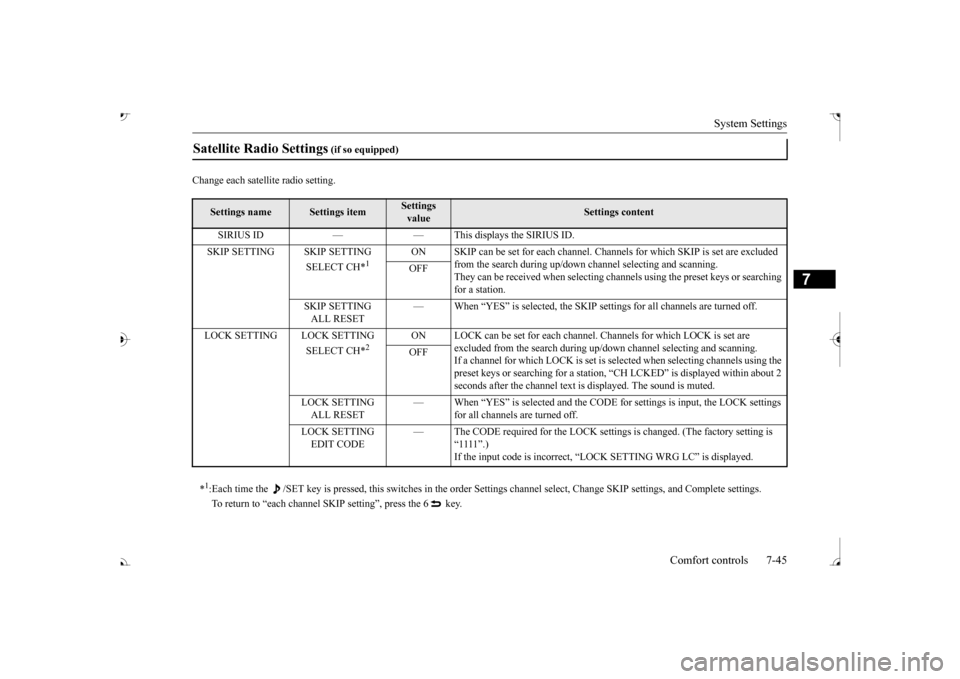
System Settings
Comfort controls 7-45
7
Change each satel
lite radio setting.
Satellite Radio Settings
(if so equipped)
Settings name
Settings item
Settings value
Settings content
SIRIUS ID — — This displays the SIRIUS ID. SKIP SETTING SKIP SETTING
SELECT CH*
1
ON SKIP can be set for each channel. Channels for which SKIP is set are excluded
from the search during up/down
channel selecting and scanning.
They can be received when selecting chan
nels using the preset keys or searching
for a station.
OFF
SKIP SETTING ALL RESET
— When “YES” is selected, the SKIP sett
ings for all channels are turned off.
LOCK SETTING LOCK SETTING
SELECT CH*
2
ON LOCK can be set for each channel.
Channels for which LOCK is set are
excluded from the search during up/dow
n channel selecting and scanning.
If a channel for which LOCK is set is sele
cted when selecting
channels using the
preset keys or searching for a station,
“CH LCKED” is displayed within about 2
seconds after the channel text is
displayed. The sound is muted.
OFF
LOCK SETTING ALL RESET
— When “YES” is selected and the CODE fo
r settings is input
, the LOCK settings
for all channels are turned off.
LOCK SETTING EDIT CODE
— The CODE required for the LOCK settings
is changed. (The
factory setting is
Page 429 of 521
System Settings 7-46 Comfort controls
7
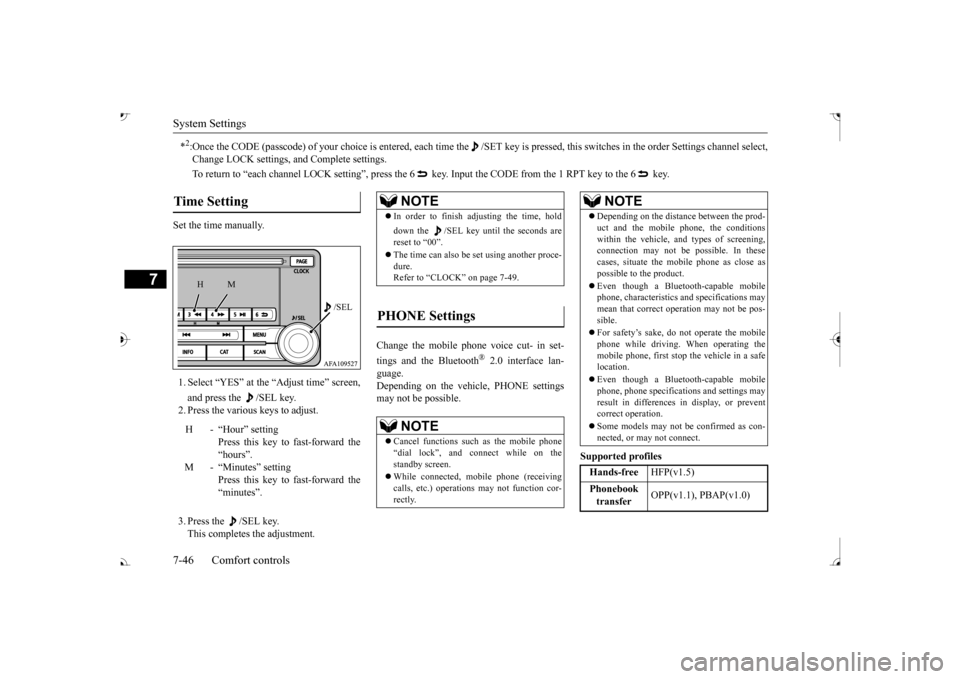
Set the time manually. 1. Select “YES” at the “Adjust time” screen, and press the /SEL key. 2. Press the various keys to adjust. 3. Press the /SEL key. This completes the adjustment.
Change the mobile phone voice cut- in set- tings and the Bluetooth
® 2.0 interface lan-
guage. Depending on the vehi
cle, PHONE settings
may not be possible.
Supported profiles
*2:Once the CODE (passcode) of your
choice is entered, each time th
e /SET key is pressed, this swit
ches in the order Settings chan
nel select,
Change LOCK settings, a
nd Complete settings.
To return to “each channel LOCK setting”, press the
6 key. Input the CODE from the 1 RPT key to the 6 key.
Time Setting
H - “Hour” setting
Press this key to fast-forward the “hours”.
M - “Minutes” setting
Press this key to fast-forward the “minutes”.
/SEL
M
H
NOTE
In order to finish adjusting the time, hold down the /SEL key until
the seconds are
reset to “00”. The time can also be
set using another proce-
dure. Refer to “CLOCK” on page 7-49.
PHONE Settings
NOTE
Cancel functions such as the mobile phone “dial lock”, and connect while on the standby screen. While connected, mobile phone (receiving calls, etc.) operations
may not function cor-
rectly.
Depending on the distance between the prod- uct and the mobile phone, the conditions within the vehicle, a
nd types of screening,
connection may not be
possible. In these
cases, situate the mobile phone as close as possible to the product. Even though a Bluet
ooth-capable mobile
phone, characteristics a
nd specifications may
mean that correct operation may not be pos-sible. For safety’s sake, do not operate the mobile phone while driving.
When operating the
mobile phone, first stop the vehicle in a safe location. Even though a Bluet
ooth-capable mobile
phone, phone specifications
and settings may
result in differences in display, or prevent correct operation. Some models may not
be confirmed as con-
nected, or may not connect.Hands-free
HFP(v1.5)
Phonebook transfer
OPP(v1.1), PBAP(v1.0)
NOTE
BK0239700US.book 46 ページ 2016年6月16日 木曜日 午前10時58分
Page 433 of 521
General information about your radio 7-50 Comfort controls
7
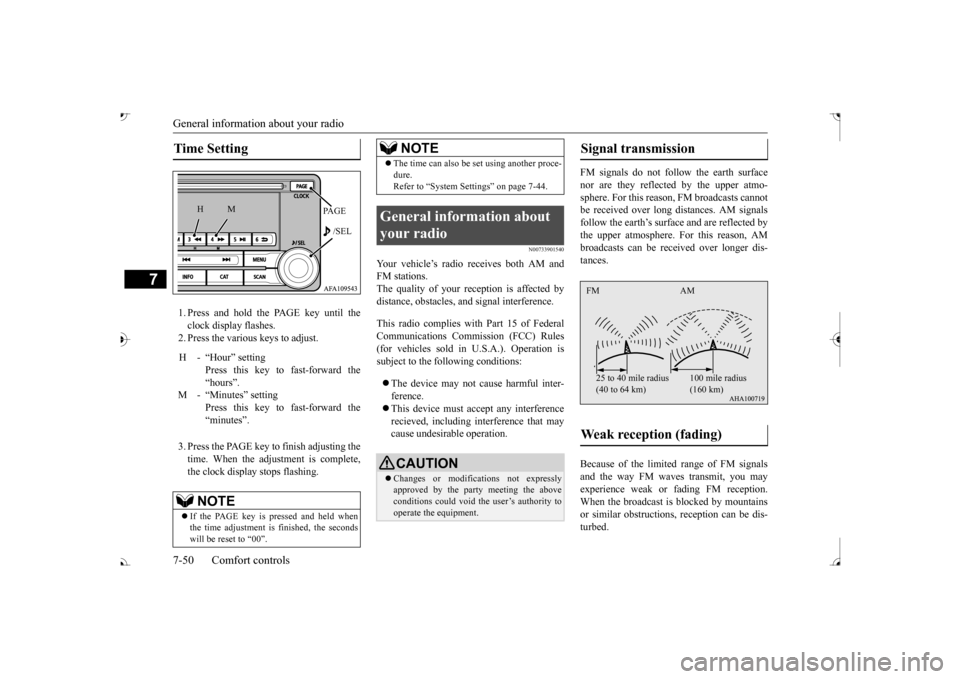
1. Press and hold the PAGE key until the clock display flashes. 2. Press the various keys to adjust. 3. Press the PAGE key to finish adjusting the time. When the adjustment is complete, the clock displa
y stops flashing.
N00733901540
Your vehicle’s radio receives both AM and FM stations. The quality of your reception is affected by distance, obstacles, a
nd signal interference.
This radio complies with
Part 15 of Federal
Communications Comm
ission (FCC) Rules
(for vehicles sold in U.S.A.). Operation is subject to the following conditions: The device may not cause harmful inter- ference. This device must ac
cept any interference
recieved, including interference that maycause undesirable operation.
FM signals do not foll
ow the earth surface
nor are they reflected by the upper atmo- sphere. For this reason,
FM broadcasts cannot
be received over long di
stances. AM signals
follow the earth’s surfa
ce and are reflected by
the upper atmosphere. For this reason, AM broadcasts can be rece
ived over longer dis-
tances. Because of the limite
d range of FM signals
and the way FM waves transmit, you may experience weak or fading FM reception.When the broadcast is blocked by mountains or similar obstructions,
reception ca
n be dis-
turbed.
Time Setting
H - “Hour” setting
Press this key to fast-forward the “hours”.
M - “Minutes” setting
Press this key to fast-forward the “minutes”.NOTE
If the PAGE key is pressed and held when the time adjustment is
finished, the seconds
will be reset to “00”.
PAGE /SEL
M
H
The time can also be
set using another proce-
dure.Refer to “System Se
ttings” on page 7-44.
General information about your radio
CAUTION Changes or modifica
tions not expressly
approved by the party meeting the aboveconditions could void th
e user’s authority to
operate the equipment.NOTE
Signal transmission Weak reception (fading) FM AM 25 to 40 mile radius (40 to 64 km)
100 mile radius (160 km)
BK0239700US.book 50 ページ 2016年6月16日 木曜日 午前10時58分