2017 MERCEDES-BENZ S-Class MAYBACH Multimedia
[x] Cancel search: MultimediaPage 277 of 382
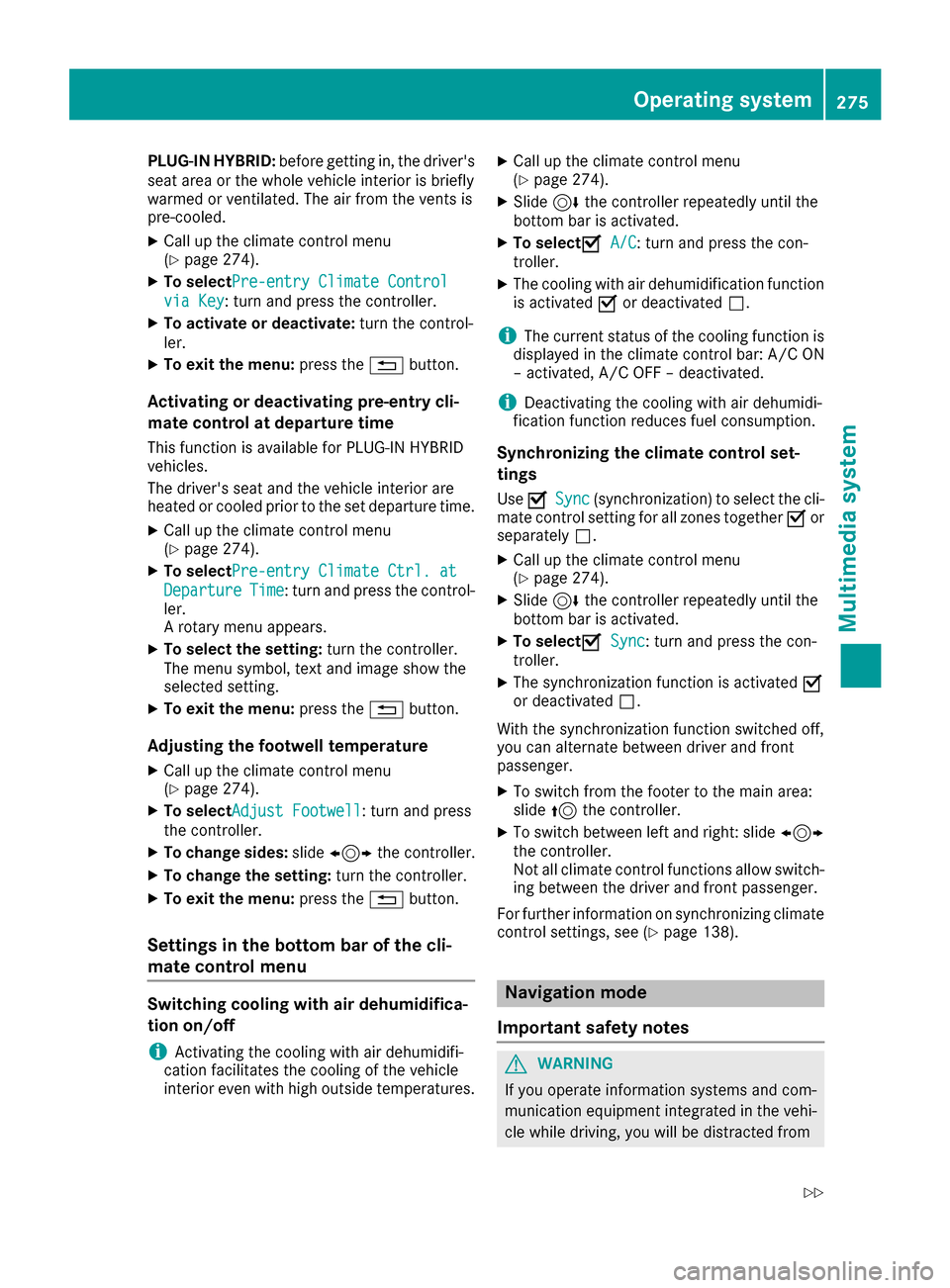
PLUG‑IN HYBRID:before getting in, the driver's
seat area or the whole vehicle interior is briefly
warmed or ventilated. The air from the vents is
pre-cooled.
XCall up the climate control menu
(Ypage 274).
XTo select Pre-entry Climate Control
via Key: turn and press the controller.
XTo activate or deactivate: turn the control-
ler.
XTo exit the menu: press the%button.
Activating or deactivating pre-entry cli-
mate control at departure time
This function is available for PLUG ‑IN HYBRID
vehicles.
The driver's seat and the vehicle interior are
heated or cooled prior to the set departure time.
XCall up the climate control menu
(Ypage 274).
XTo select Pre-entry Climate Ctrl. at
DepartureTime: turn and press the control-
ler.
A rotary menu appears.
XTo select the setting: turn the controller.
The menu symbol, text and image show the
selected setting.
XTo exit the menu: press the%button.
Adjusting the footwell temperature
XCall up the climate control menu
(Ypage 274).
XTo select Adjust Footwell: turn and press
the controller.
XTo change sides: slide1 the controller.
XTo change the setting: turn the controller.
XTo exit the menu:press the%button.
Settings in the bottom bar of the cli-
mate control menu
Switching cooling with air dehumidifica-
tion on/off
iActivating the cooling with air dehumidifi-
cation facilitates the cooling of the vehicle
interior even with high outside temperatures.
XCall up the climate control menu
(Ypage 274).
XSlide 6the controller repeatedly until the
bottom bar is activated.
XTo select OA/C: turn and press the con-
troller.
XThe cooling with air dehumidification function
is activated Oor deactivated ª.
iThe current status of the cooling function is
displayed in the climate control bar: A/C ON
– activated, A/C OFF – deactivated.
iDeactivating the cooling with air dehumidi-
fication function reduces fuel consumption.
Synchronizing the climate control set-
tings
Use OSync(synchronization) to select the cli-
mate control setting for all zones together Oor
separately ª.
XCall up the climate control menu
(Ypage 274).
XSlide6the controller repeatedly until the
bottom bar is activated.
XTo select OSync: turn and press the con-
troller.
XThe synchronization function is activated O
or deactivated ª.
With the synchronization function switched off,
you can alternate between driver and front
passenger.
XTo switch from the footer to the main area:
slide 5the controller.
XTo switch between left and right: slide 1
the controller.
Not all climate control functions allow switch-
ing between the driver and front passenger.
For further information on synchronizing climate
control settings, see (
Ypage 138).
Navigation mode
Important safety notes
GWARNING
If you operate information systems and com-
munication equipment integrated in the vehi-
cle while driving, you will be distracted from
Operating system275
Multimedia system
Z
Page 278 of 382
traffic conditions. You could also lose control
of the vehicle. There is a risk of an accident.
Only operate the equipment when the traffic
situation permits. If you are not sure that thisis possible, park the vehicle paying attention
to traffic conditions and operate the equip-
ment when the vehicle is stationary.
You must observe the legal requirements for the
country in which you are currently driving when
operating the navigation system.
General notes
Among other things, correct functioning of the
navigation system depends on GPS reception. In
certain situations, GPS reception may be
impaired, there may be interference or there
may be no reception at all, e.g. in tunnels or
parking garages.
Further information can be found in the Digital
Operator's Manual.
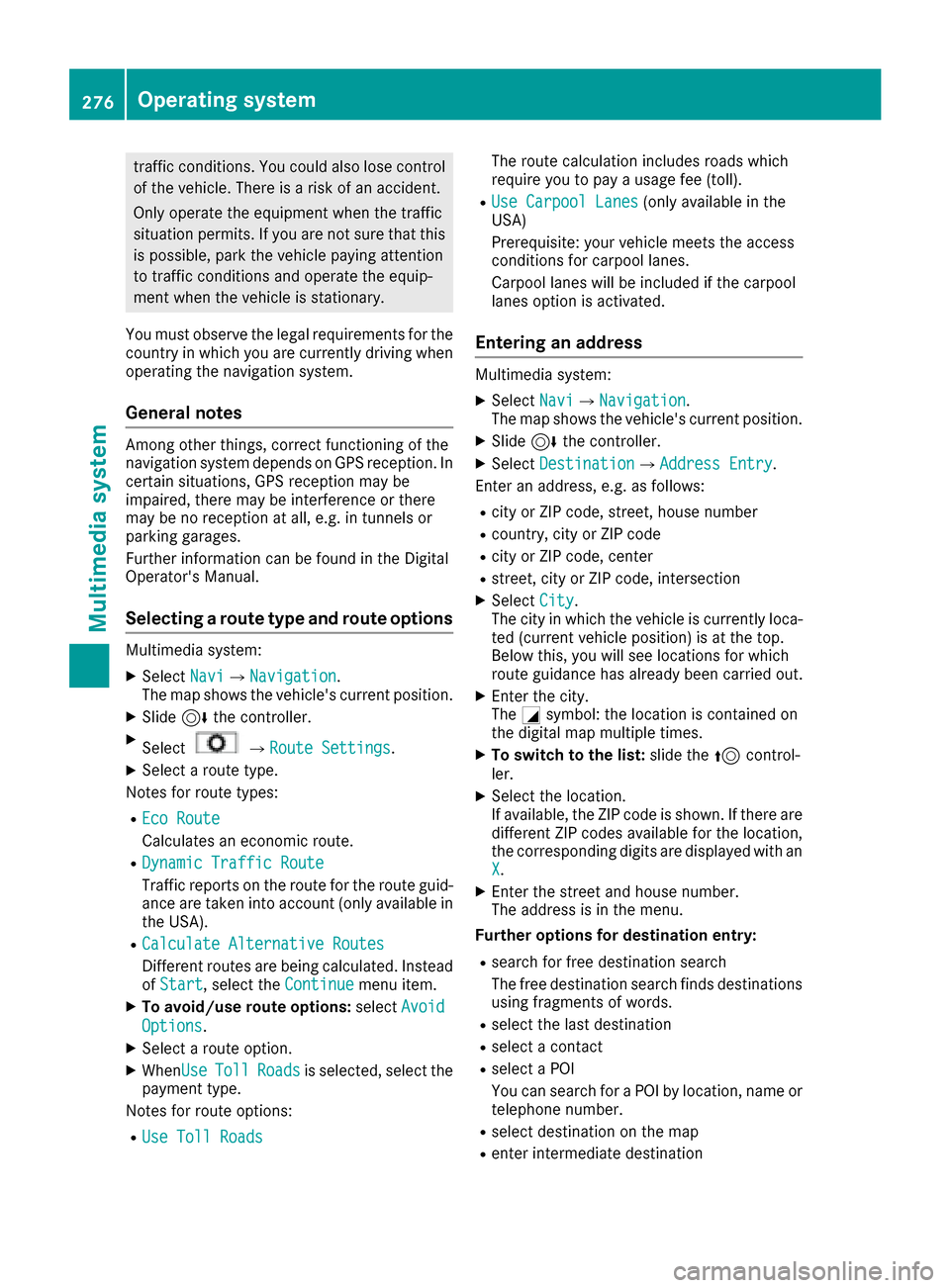
Selecting a route type and route options
Multimedia system:
XSelect NaviQNavigation.
The map shows the vehicle's current position.
XSlide 6the controller.
XSelectQRoute Settings.
XSelect a route type.
Notes for route types:
REco Route
Calculates an economic route.
RDynamic Traffic Route
Traffic reports on the route for the route guid-
ance are taken into account (only available in
the USA).
RCalculate Alternative Routes
Different routes are being calculated. Instead
of Start, select the Continuemenu item.
XTo avoid/use route options: selectAvoid
Options.
XSelect a route option.
XWhenUseTollRoadsis selected, select the
payment type.
Notes for route options:
RUse Toll Roads
The route calculation includes roads which
require you to pay a usage fee (toll).
RUse Carpool Lanes(only available in the
USA)
Prerequisite: your vehicle meets the access
conditions for carpool lanes.
Carpool lanes will be included if the carpool
lanes option is activated.
Entering an address
Multimedia system:
XSelect NaviQNavigation.
The map shows the vehicle's current position.
XSlide 6the controller.
XSelect DestinationQAddress Entry.
Enter an address, e.g. as follows:
Rcity or ZIP code, street, house number
Rcountry, city or ZIP code
Rcity or ZIP code, center
Rstreet, city or ZIP code, intersection
XSelect City.
The city in which the vehicle is currently loca-
ted (current vehicle position) is at the top.
Below this, you will see locations for which
route guidance has already been carried out.
XEnter the city.
The Gsymbol: the location is contained on
the digital map multiple times.
XTo switch to the list: slide the5control-
ler.
XSelect the location.
If available, the ZIP code is shown. If there are
different ZIP codes available for the location,
the corresponding digits are displayed with an
X
.
XEnter the street and house number.
The address is in the menu.
Further options for destination entry:
Rsearch for free destination search
The free destination search finds destinations
using fragments of words.
Rselect the last destination
Rselect a contact
Rselect a POI
You can search for a POI by location, name or
telephone number.
Rselect destination on the map
Renter intermediate destination
276Operating system
Multimedia system
Page 279 of 382
You can map the route to the destination
yourself with up to four intermediate destina-
tions.
Rselect destinations from Mercedes-Benz
Apps
Rselect geo-coordinates
Calculating the route
Prerequisite: the address has been entered and
is in the menu.
XSelect StartorContinue.
The route is calculated with the selected route
type and the selected route options.
If route guidance has already been activated,
a prompt will appear asking whether you wish
to end the current route guidance.
XSelect YesorSet as Intermediate Des‐tination.
Yescancels the current route guidance and
starts route calculation to the new destina-
tion.
Set as Intermediate Destination
adds
the new destination in addition to the existing
destination and opens the intermediate des-
tinations list.
Connecting a mobile phone
Requirements
For telephony via the Bluetooth®interface, you
require a Bluetooth®-capable mobile phone. The
mobile phone must support Hands-Free Profile
1.0 or above. You can also connect your mobile phone via NFC (N earField Communication) with
the multimedia system. For more information
(see the Digital Operator's Manual).
Multimedia system:
XSelect VehicleQSystem Set‐tingsQActivate Bluetooth.
XActivate Bluetooth®O.
Mobile phone:
XActivate Bluetooth®and, if necessary, Blue-
tooth®visibility for other devices (see the
manufacturer's operating instructions).
The Bluetooth
®device names for all of one man-
ufacturer's products might be identical. To
make it possible to clearly identify your mobile phone, change the device name (see the man-
ufacturer's operating instructions).
If the mobile phone supports the PBAP (Phone
B
ook Access Profile) and MAP (Message
Access Profile) Bluetooth
®profiles, the follow-
ing information will be transmitted after you
connect:
RPhone book
RCall lists
RMessages
iFurther information on suitable mobile
phones can be found at: http://
www.mercedes-benz.com/connect
iIn the USA, you can get in touch with the
Mercedes-Benz Customer Assistance Center
on 1-800-FOR-MERCedes (1-800-367-6372).
In Canada, you can get in touch with the Cus-
tomer Relations Center on 1-800-387-0100.
Searching for and authorizing a mobile
phone
Before using your mobile phone without NFC
with the multimedia system, you will need to
search for the phone and then authorize it.
Depending on the mobile phone, authorization
either takes place by means of Secure Simple
Pairing or by entering a passkey. The multimedia
system automatically makes the procedure that
is relevant for your mobile phone available. The
mobile phone is always connected automati-
cally after authorization. Further information on
using a mobile phone with the multimedia sys-
tem (see the Digital Operator's Manual).
If the multimedia system does not detect your
mobile phone, this may be due to particular
security settings on your mobile phone (see the
manufacturer's operating instructions).
Only one mobile phone can be connected to the
multimedia system at any one time.
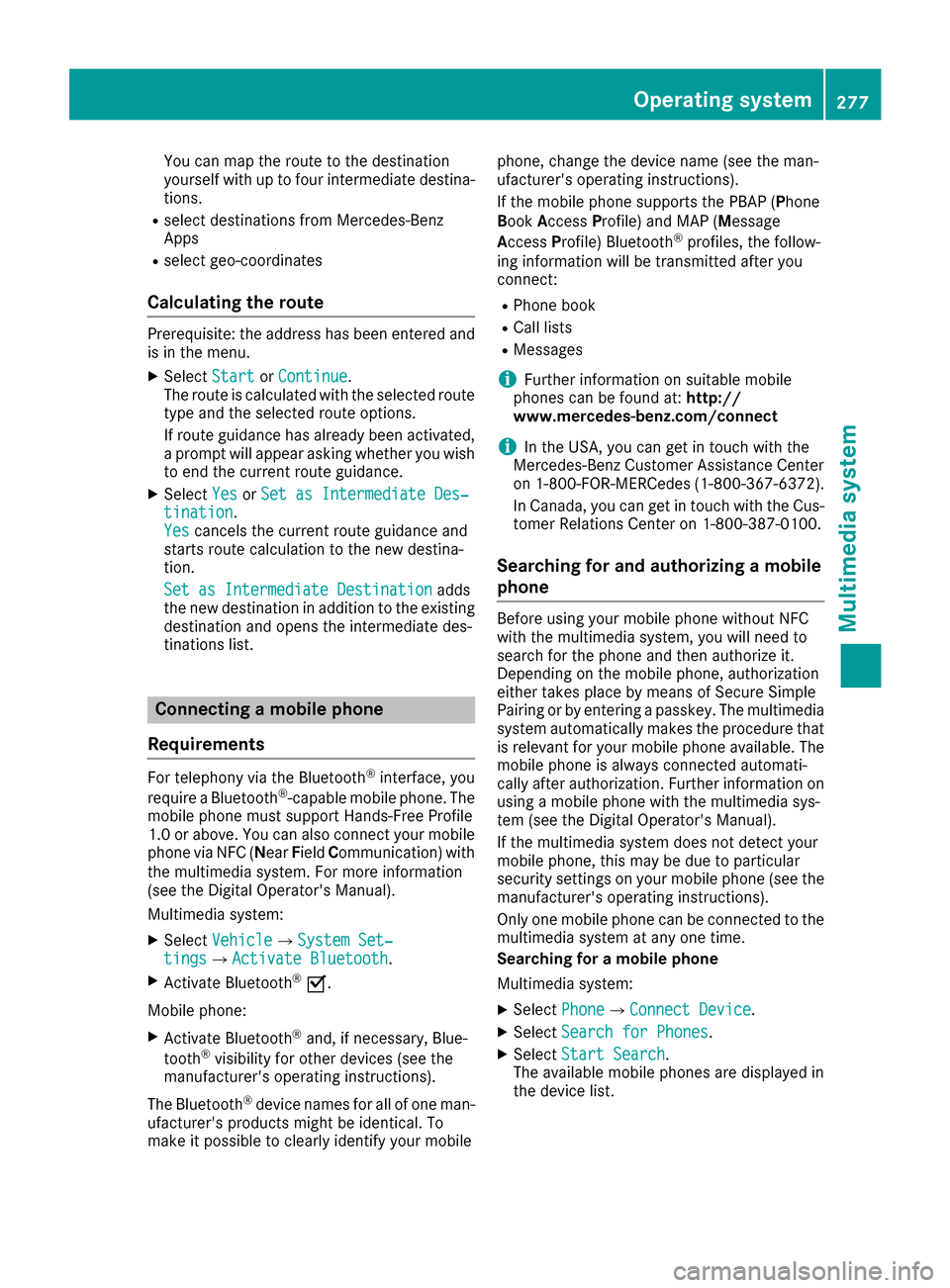
Searching for a mobile phone
Multimedia system:
XSelect PhoneQConnect Device.
XSelectSearch for Phones.
XSelectStart Search.
The available mobile phones are displayed in
the device list.
Operating system277
Multimedia system
Z
Page 280 of 382
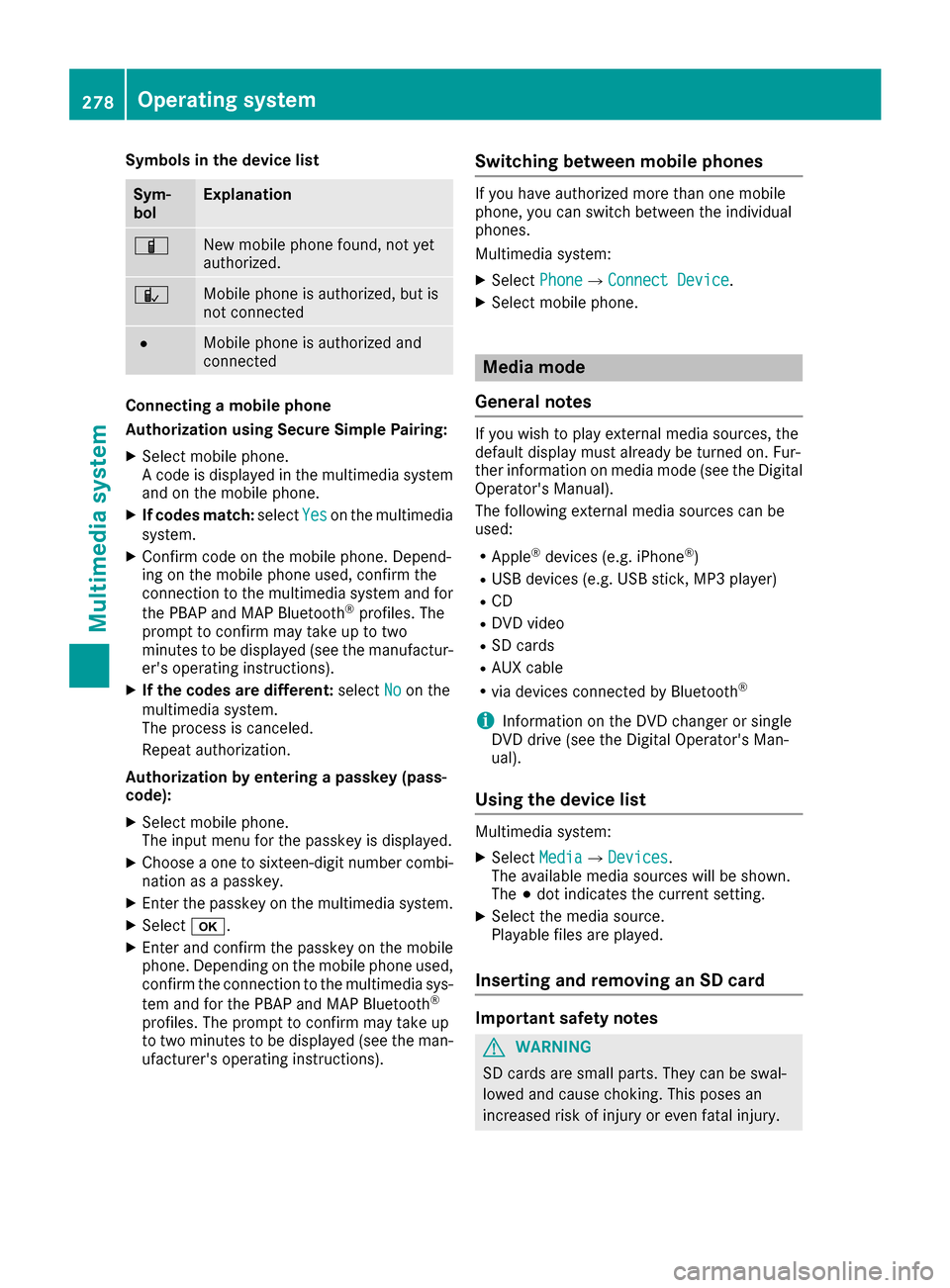
Symbols in the device list
Sym-
bolExplanation
ÏNew mobile phone found, not yet
authorized.
ÑMobile phone is authorized, but is
not connected
#Mobile phone is authorized and
connected
Connecting a mobile phone
Authorization using Secure Simple Pairing:
XSelect mobile phone.
A code is displayed in the multimedia system
and on the mobile phone.
XIf codes match:selectYeson the multimedia
system.
XConfirm code on the mobile phone. Depend-
ing on the mobile phone used, confirm the
connection to the multimedia system and for
the PBAP and MAP Bluetooth
®profiles. The
prompt to confirm may take up to two
minutes to be displayed (see the manufactur-
er's operating instructions).
XIf the codes are different: selectNoon the
multimedia system.
The process is canceled.
Repeat authorization.
Authorization by entering a passkey (pass-
code):
XSelect mobile phone.
The input menu for the passkey is displayed.
XChoose a one to sixteen-digit number combi- nation as a passkey.
XEnter the passkey on the multimedia system.
XSelect b.
XEnter and confirm the passkey on the mobile
phone. Depending on the mobile phone used,
confirm the connection to the multimedia sys-
tem and for the PBAP and MAP Bluetooth
®
profiles. The prompt to confirm may take up
to two minutes to be displayed (see the man-
ufacturer's operating instructions).
Switching between mobile phones
If you have authorized more than one mobile
phone, you can switch between the individual
phones.
Multimedia system:
XSelect PhoneQConnect Device.
XSelect mobile phone.
Media mode
General notes
If you wish to play external media sources, the
default display must already be turned on. Fur-
ther information on media mode (see the Digital
Operator's Manual).
The following external media sources can be
used:
RApple®devices (e.g. iPhone®)
RUSB devices (e.g. USB stick, MP3 player)
RCD
RDVD video
RSD cards
RAUX cable
Rvia devices connected by Bluetooth®
iInformation on the DVD changer or single
DVD drive (see the Digital Operator's Man-
ual).
Using the device list
Multimedia system:
XSelect MediaQDevices.
The available media sources will be shown.
The #dot indicates the current setting.
XSelect the media source.
Playable files are played.
Inserting and removing an SD card
Important safety notes
GWARNING
SD cards are small parts. They can be swal-
lowed and cause choking. This poses an
increased risk of injury or even fatal injury.
278Operating system
Multimedia system
Page 281 of 382
Keep the SD card out of the reach of children.If a SD card is swallowed, seek medical atten-
tion immediately.
!If you are no longer using the SD card, you
should remove it and store it outside the vehi-
cle. High temperatures can damage the card.
Inserting an SD card
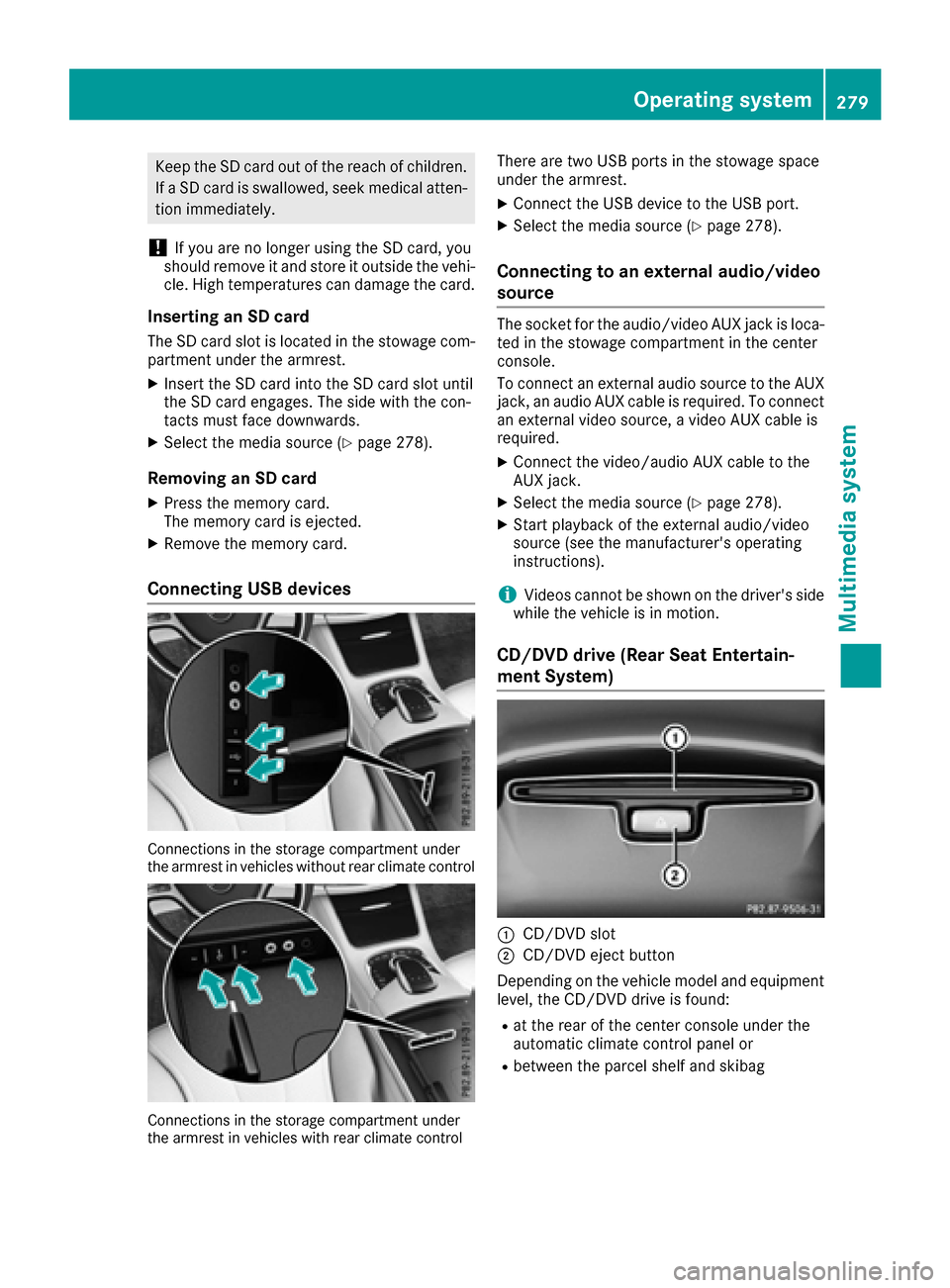
The SD card slot is located in the stowage com-
partment under the armrest.
XInsert the SD card into the SD card slot until
the SD card engages. The side with the con-
tacts must face downwards.
XSelect the media source (Ypage 278).
Removing an SD card
XPress the memory card.
The memory card is ejected.
XRemove the memory card.
Connecting USB devices
Connections in the storage compartment under
the armrest in vehicles without rear climate control
Connections in the storage compartment under
the armrest in vehicles with rear climate control
There are two USB ports in the stowage space
under the armrest.
XConnect the USB device to the USB port.
XSelect the media source (Ypage 278).
Connecting to an external audio/video
source
The socket for the audio/video AUX jack is loca-
ted in the stowage compartment in the center
console.
To connect an external audio source to the AUX
jack, an audio AUX cable is required. To connect
an external video source, a video AUX cable is
required.
XConnect the video/audio AUX cable to the
AUX jack.
XSelect the media source (Ypage 278).
XStart playback of the external audio/video
source (see the manufacturer's operating
instructions).
iVideos cannot be shown on the driver's side
while the vehicle is in motion.
CD/DVD drive (Rear Seat Entertain-
ment System)
:CD/DVD slot
;CD/DVD eject button
Depending on the vehicle model and equipment
level, the CD/DVD drive is found:
Rat the rear of the center console under the
automatic climate control panel or
Rbetween the parcel shelf and skibag
Operating system279
Multimedia system
Z
Page 282 of 382
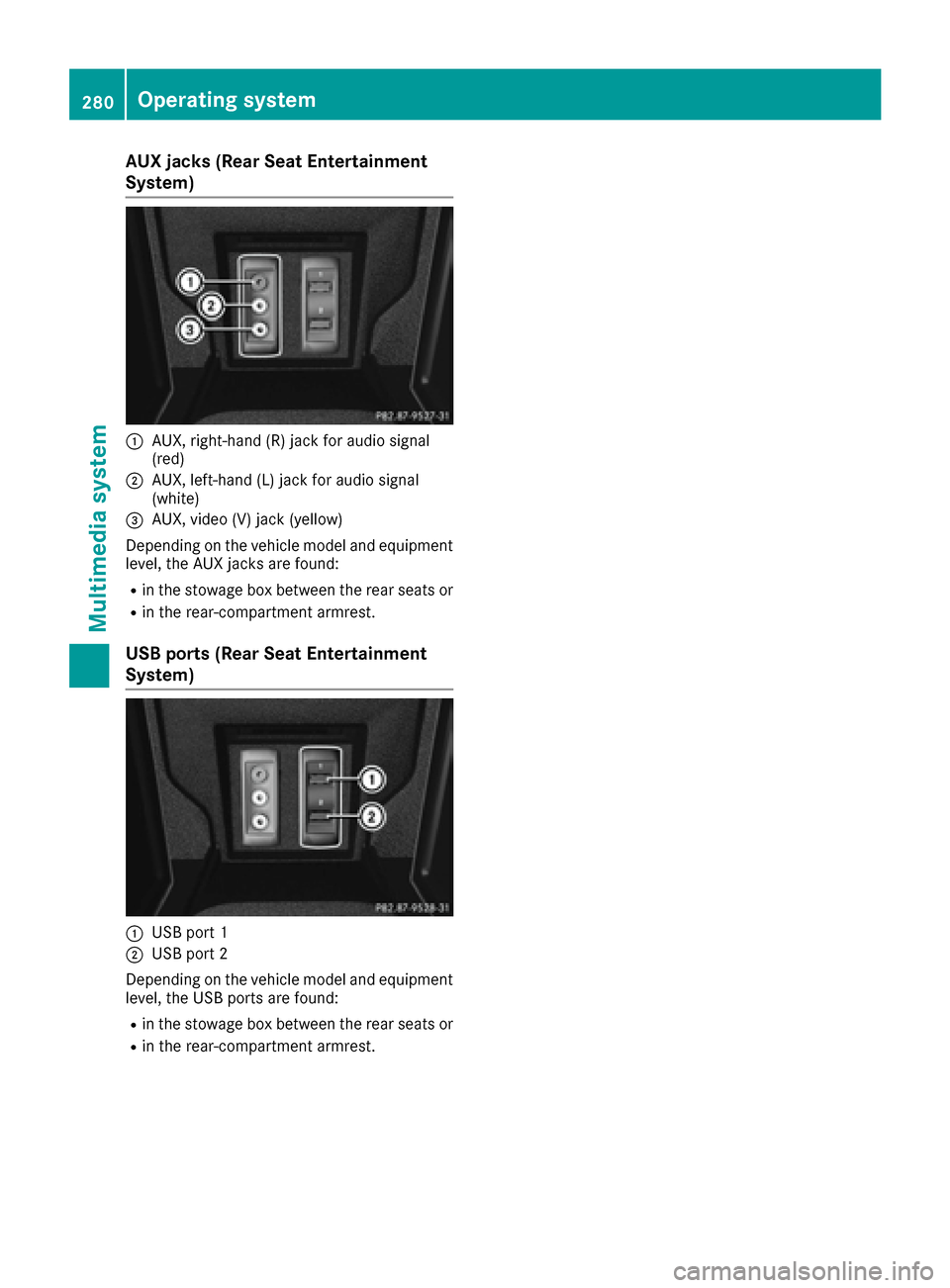
AUX jacks (Rear Seat Entertainment
System)
:AUX, right-hand (R) jac kfor audio signal
(red)
;AUX, left-han d(L) jac kfor audio signal
(white)
=AUX, video (V) jac k(yellow)
Dependin gon th evehicl emodel and equipmen t
level, th eAU Xjacks are found:
Rin th estowage box between th erear seat sor
Rin th erear-compartmen tarmrest.
USB ports (Rear Seat Entertainment
System)
:US Bpor t 1
;USBpor t 2
Dependin gon th evehicl emodel and equipmen t
level, th eUS Bports are found:
Rin th estowage box between th erear seat sor
Rin th erear-compartmen tarmrest.
280Operating system
Multimedia system
Page 284 of 382
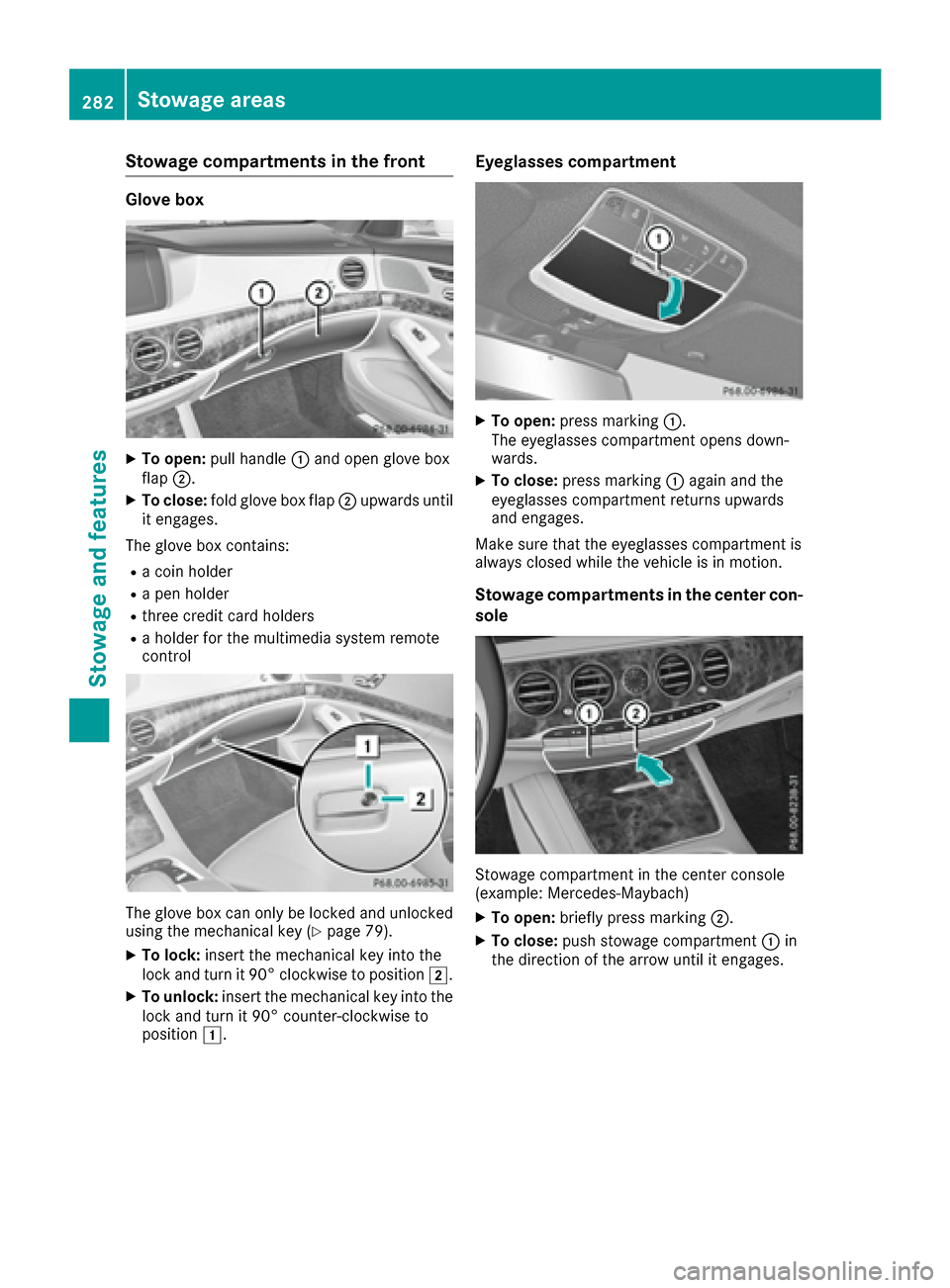
Stowage compartments in the front
Glove box
XTo open:pull handle :and open glove box
flap ;.
XTo close: fold glove box flap ;upwards until
it engages.
The glove box contains:
Ra coin holder
Ra pen holder
Rthree credit card holders
Ra holder for the multimedia system remote
control
The glove box can only be locked and unlocked
using the mechanical key (Ypage 79).
XTo lock: insert the mechanical key into the
lock and turn it 90° clockwise to position 2.
XTo unlock:insert the mechanical key into the
lock and turn it 90° counter-clockwise to
position 1.
Eyeglasses compartment
XTo open: press marking :.
The eyeglasses compartment opens down-
wards.
XTo close: press marking :again and the
eyeglasses compartment returns upwards
and engages.
Make sure that the eyeglasses compartment is
always closed while the vehicle is in motion.
Stowage compartments in the center con-
sole
Stowage compartment in the center console
(example: Mercedes ‑Maybach)
XTo open:briefly press marking ;.
XTo close:push stowage compartment :in
the direction of the arrow until it engages.
282Stowage areas
Stowage and features
Page 285 of 382
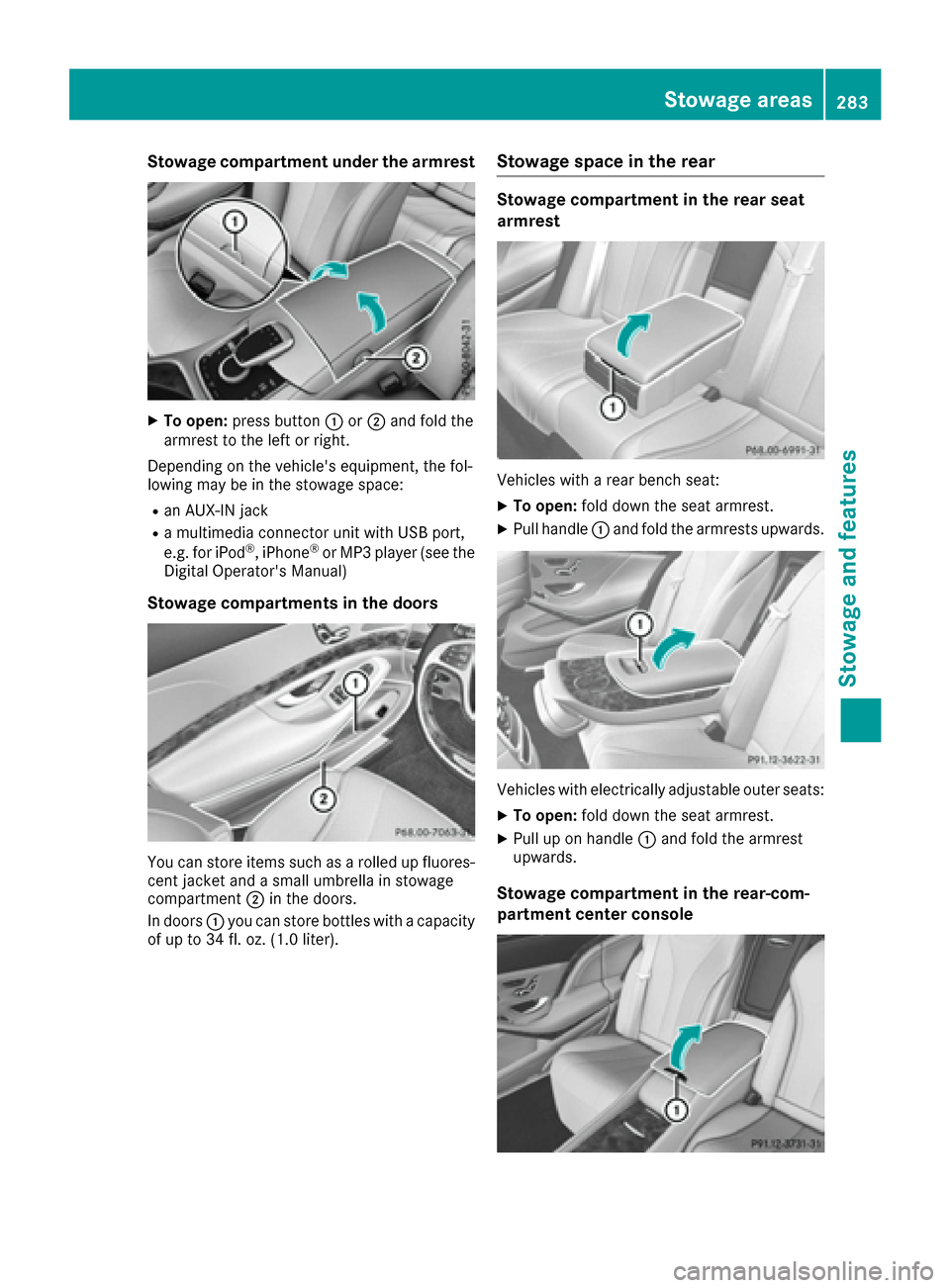
Stowage compartment under the armrest
XTo open:press button :or; and fold the
armrest to the left or right.
Depending on the vehicle's equipment, the fol-
lowing may be in the stowage space:
Ran AUX-IN jack
Ra multimedia connector unit with USB port,
e.g. for iPod®, iPhone®or MP3 player (see the
Digital Operator's Manual)
Stowage compartments in the doors
You can store items such as a rolled up fluores-
cent jacket and a small umbrella in stowage
compartment ;in the doors.
In doors :you can store bottles with a capacity
of up to 34 fl. oz. (1.0 liter).
Stowage space in the rear
Stowage compartment in the rear seat
armrest
Vehicles with a rear bench seat:
XTo open: fold down the seat armrest.
XPull handle :and fold the armrests upwards.
Vehicles with electrically adjustable outer seats:
XTo open: fold down the seat armrest.
XPull up on handle :and fold the armrest
upwards.
Stowage compartment in the rear-com-
partment center console
Stowage areas283
Stowage and features
Z