2017 MERCEDES-BENZ S-Class MAYBACH Multimedia
[x] Cancel search: MultimediaPage 221 of 382
XPress:or9 on the steering wheel to
select the Mediamenu.
XConfirm by pressing aon the steering
wheel.
XTo select an audio player or media: press
a briefly.
The list containing the media sources
appears.
XPress :or9 to select the correspond-
ing audio player or media.
XPress ato confirm the selection.
XTo open the track list:press the :or
9 button briefly.
XTo select the next or previous track from
the track list:press the :or9 button
briefly.
XTo select a track from the track list using
rapid scrolling: press and hold:or9
until the desired track is reached.
If you press and hold the button, the speed of
rapid scroll increases after a short time. Not
all audio drives or data carriers support this
function.
If the corresponding track information is stored
on the audio player or media, the multifunction
display shows the following:
Rtrack number
Rtrack name
Rartist
Ralbum
The track information does not appear in audio
AUX mode (Auxiliary audio mode: external
audio source connected).
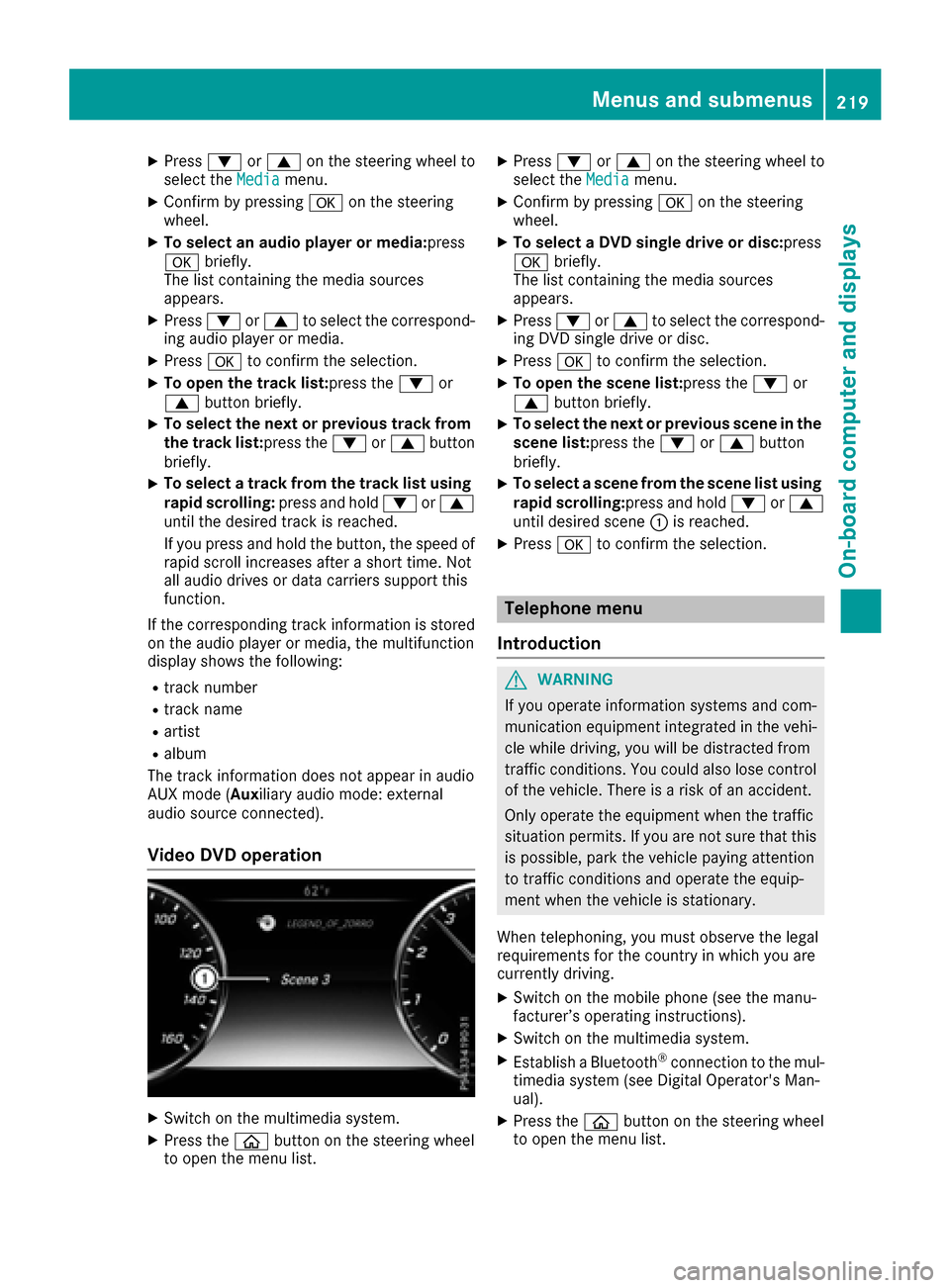
Video DVD operation
XSwitch on the multimedia system.
XPress the òbutton on the steering wheel
to open the menu list.
XPress :or9 on the steering wheel to
select the Mediamenu.
XConfirm by pressing aon the steering
wheel.
XTo select a DVD single drive or disc: press
a briefly.
The list containing the media sources
appears.
XPress :or9 to select the correspond-
ing DVD single drive or disc.
XPress ato confirm the selection.
XTo open the scene list: press the:or
9 button briefly.
XTo select the next or previous scene in the
scene list: press the:or9 button
briefly.
XTo select a scene from the scene list using
rapid scrolling: press and hold:or9
until desired scene :is reached.
XPress ato confirm the selection.
Telephone menu
Introduction
GWARNING
If you operate information systems and com-
munication equipment integrated in the vehi-
cle while driving, you will be distracted from
traffic conditions. You could also lose control
of the vehicle. There is a risk of an accident.
Only operate the equipment when the traffic
situation permits. If you are not sure that this
is possible, park the vehicle paying attention
to traffic conditions and operate the equip-
ment when the vehicle is stationary.
When telephoning, you must observe the legal
requirements for the country in which you are
currently driving.
XSwitch on the mobile phone (see the manu-
facturer’s operating instructions).
XSwitch on the multimedia system.
XEstablish a Bluetooth®connection to the mul-
timedia system (see Digital Operator's Man-
ual).
XPress the òbutton on the steering wheel
to open the menu list.
Menus and submenus219
On-board computer and displays
Z
Page 226 of 382
Head-up display submenu
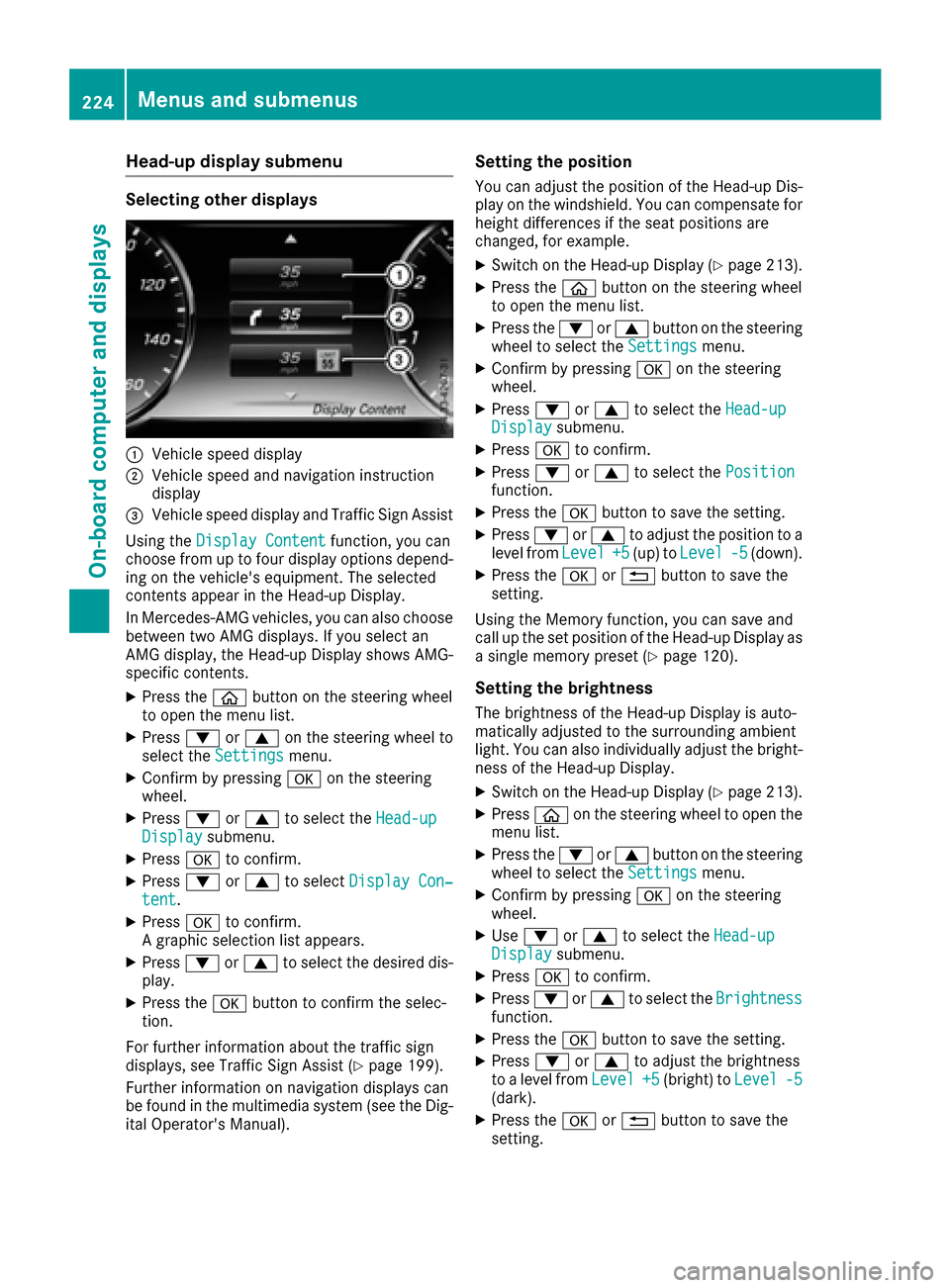
Selecting other displays
:Vehicle speed display
;Vehicle speed and navigation instruction
display
=Vehicle speed display and Traffic Sign Assist
Using the Display Content
function, you can
choose from up to four display options depend-
ing on the vehicle's equipment. The selected
contents appear in the Head-up Display.
In Mercedes-AMG vehicles, you can also choose
between two AMG displays. If you select an
AMG display, the Head-up Display shows AMG-
specific contents.
XPress the òbutton on the steering wheel
to open the menu list.
XPress :or9 on the steering wheel to
select the Settingsmenu.
XConfirm by pressing aon the steering
wheel.
XPress :or9 to select the Head-upDisplaysubmenu.
XPressato confirm.
XPress :or9 to select Display Con‐tent.
XPressato confirm.
A graphic selection list appears.
XPress :or9 to select the desired dis-
play.
XPress the abutton to confirm the selec-
tion.
For further information about the traffic sign
displays, see Traffic Sign Assist (
Ypage 199).
Further information on navigation displays can
be found in the multimedia system (see the Dig-
ital Operator's Manual).
Setting the position
You can adjust the position of the Head-up Dis-
play on the windshield. You can compensate for
height differences if the seat positions are
changed, for example.
XSwitch on the Head-up Display (Ypage 213).
XPress the òbutton on the steering wheel
to open the menu list.
XPress the :or9 button on the steering
wheel to select the Settingsmenu.
XConfirm by pressing aon the steering
wheel.
XPress :or9 to select the Head-upDisplaysubmenu.
XPressato confirm.
XPress :or9 to select the Positionfunction.
XPress theabutton to save the setting.
XPress :or9 to adjust the position to a
level from Level+5(up) toLevel-5(down).
XPress the aor% button to save the
setting.
Using the Memory function, you can save and
call up the set position of the Head-up Display as
a single memory preset (
Ypage 120).
Setting the brightness
The brightness of the Head-up Display is auto-
matically adjusted to the surrounding ambient
light. You can also individually adjust the bright-
ness of the Head-up Display.
XSwitch on the Head-up Display (Ypage 213).
XPress òon the steering wheel to open the
menu list.
XPress the :or9 button on the steering
wheel to select the Settingsmenu.
XConfirm by pressing aon the steering
wheel.
XUse : or9 to select the Head-upDisplaysubmenu.
XPressato confirm.
XPress :or9 to select the Brightnessfunction.
XPress theabutton to save the setting.
XPress :or9 to adjust the brightness
to a level from Level+5(bright) toLevel-5(dark).
XPress theaor% button to save the
setting.
224Menus and submenus
On-board computer and displays
Page 271 of 382
General notes
The multimedia system section in this Opera-
tor's Manual describes the basic principles for
operation. More information can be found in theDigital Operator's Manual.
Important safety notes
GWARNING
If you operate information systems and com-
munication equipment integrated in the vehi-
cle while driving, you will be distracted from
traffic conditions. You could also lose control
of the vehicle. There is a risk of an accident.
Only operate the equipment when the traffic
situation permits. If you are not sure that this
is possible, park the vehicle paying attention
to traffic conditions and operate the equip-
ment when the vehicle is stationary.
You must observe the legal requirements for the
country in which you are currently driving when
operating the multimedia system.
The multimedia system calculates the route to
the destination without taking the following into
account, for example:
Rtraffic lights
Rstop and yield signs
Rparking or stopping restrictions
Rroad narrowing
Rother road and traffic rules and regulations
The multimedia system may give incorrect nav-
igation recommendations if the actual street/
traffic situation does not correspond with the
digital map's data.
For example:
Ra diverted route
Rthe road layout or the direction of a one-way
street has been changed
For this reason, you must always observe road
and traffic rules and regulations during your
journey. Road and traffic rules and regulations
always have priority over multimedia system
driving recommendations.
Navigation announcements are intended to
direct you while driving without diverting your
attention from the road and driving. Please always use this feature instead of con-
sulting the map display for directions. Looking
at the icons or map display can distract you from
traffic conditions and driving, and increase the
risk of an accident.
This equipment complies with FCC radiation
exposure limits set forth for uncontrolled equip-
ment and meets the FCC radio frequency (RF)
Exposure Guidelines in Supplement C to OET65.
This equipment has very low levels of RF energy
that is deemed to comply without maximum
permissive exposure evaluation (MPE). How-
ever, it is recommended
to insta
ll it at a distance
of at least 8 inches (approx. 20 cm) between the
radiation source and a person's body (not
including limbs such as hands, wrists, feet and
legs).
GWARNING
Modifications to electronic components, their software as well as wiring can impair their
function and/or the function of other net-
worked components. In particular, systems
relevant to safety could also be affected. As a
result, these may no longer function as inten-
ded and/or jeopardize the operating safety of
the vehicle. There is an increased risk of an
accident and injury.
Never tamper with the wiring as well as elec-
tronic components or their software. You
should have all work to electrical and elec-
tronic equipment carried out at a qualified
specialist workshop.
If you make any changes to the vehicle elec-
tronics, the general operating permit is ren-
dered invalid.
Function restrictions
For safety reasons, some functions are restric-
ted or unavailable while the vehicle is in motion.
You will notice this, for example, because either
you will not be able to select certain menu items
or a message will appear to this effect.
Function restrictions269
Multimedia system
Z
Page 272 of 382
Operating system
Overview
General notes
Wearing polarized sunglasses may impair your
ability to read the display.
The display has an automatic temperature-con-
trolled switch-off feature. The brightness is
automatically reduced if the temperature is too
high. The display may temporarily switch off
completely.
Cleaning instructions
!Do not touch the display. The display has a
very sensitive high-gloss surface; there is a
risk of scratching. If you have to clean the
screen, however, use a mild cleaning agent
and a soft, lint-free cloth.
The display must be switched off and have
cooled down before you start cleaning. Do not
apply pressure to the display surface when
cleaning it, as this could cause irreversible dam-
age to the display.
Switching the multimedia system
on/off
XPress the Übutton on the center console
to the right of the controller.
When you switch the multimedia system on, a
warning message will appear. The multimedia
system calls up the previously selected menu.
If you switch the multimedia system off, play- back of the current media source will also be
switched off.
Adjusting the volume
XTurn the thumbwheel to the right of the con-
troller.
or
XPress the WorX button on the multi-
function steering wheel.
The volume of the media source currently
selected changes.
The volume is adjusted:
Rfor the currently selected media source
Rduring traffic or navigation announcements
Rin hands-free mode during a phone call
Switching the sound on or off
XPress the thumbwheel beside the controller.
or
XPress the 8button on the multifunction
steering wheel.
If the audio output is switched off, the status
line will show the 8symbol. If you switch
the media source or change the volume, the
sound is automatically switched on.
iNavigation announcements will be heard
even if the sound is muted.
Functions
The multimedia system has the following func-
tions:
RRadio mode
RMedia mode with media search
RSound systems
RNavigation system
RCommunication functions
RSIRIUS Weather
RVehicle functions with system settings
RFavorites functions
RMulti-Seat Entertainment System
Controller
The controller in the center console lets you:
Rselect menu items on the display
Renter characters
Rselect a destination on the map
Rsave entries
The controller can be:
Rturned 3
Rslid left or right 1
Rslid forwards or back 4
Rslid diagonally2
Rpressed briefly or pressed and held 7
Back button
You can use the%button to exit a menu or to
call up the basic display of the current operating
mode.
270Operating system
Multimedia system
Page 273 of 382
XTo exit the menu:briefly press the%
button.
The multimedia system changes to the next
higher menu level in the current operating
mode.
XTo call up the basic display: press the%
button for longer than two seconds.
The multimedia system changes to the basic
display of the current operating mode.
The telephone keypad or touchpad
The multimedia system is equipped with either a
telephone keypad or a touchpad.
The telephone keypad is touch-sensitive. As
soon as one or several of the keys are gently
touched, the telephone keypad is shown in the
multimedia system's display. The key being
touched is highlighted.
As an alternative to the controller, the touchpad
enables menu items to be selected and charac-
ter entry including handwriting recognition, for
example.
Touchpad
Switching the touchpad on/off
Multimedia system:
XSelect VehicleQSystem Set‐tingsQTouchpadQActivate Touch‐pad.
The touchpad is switched on Oor off ª.
Operating the touchpad
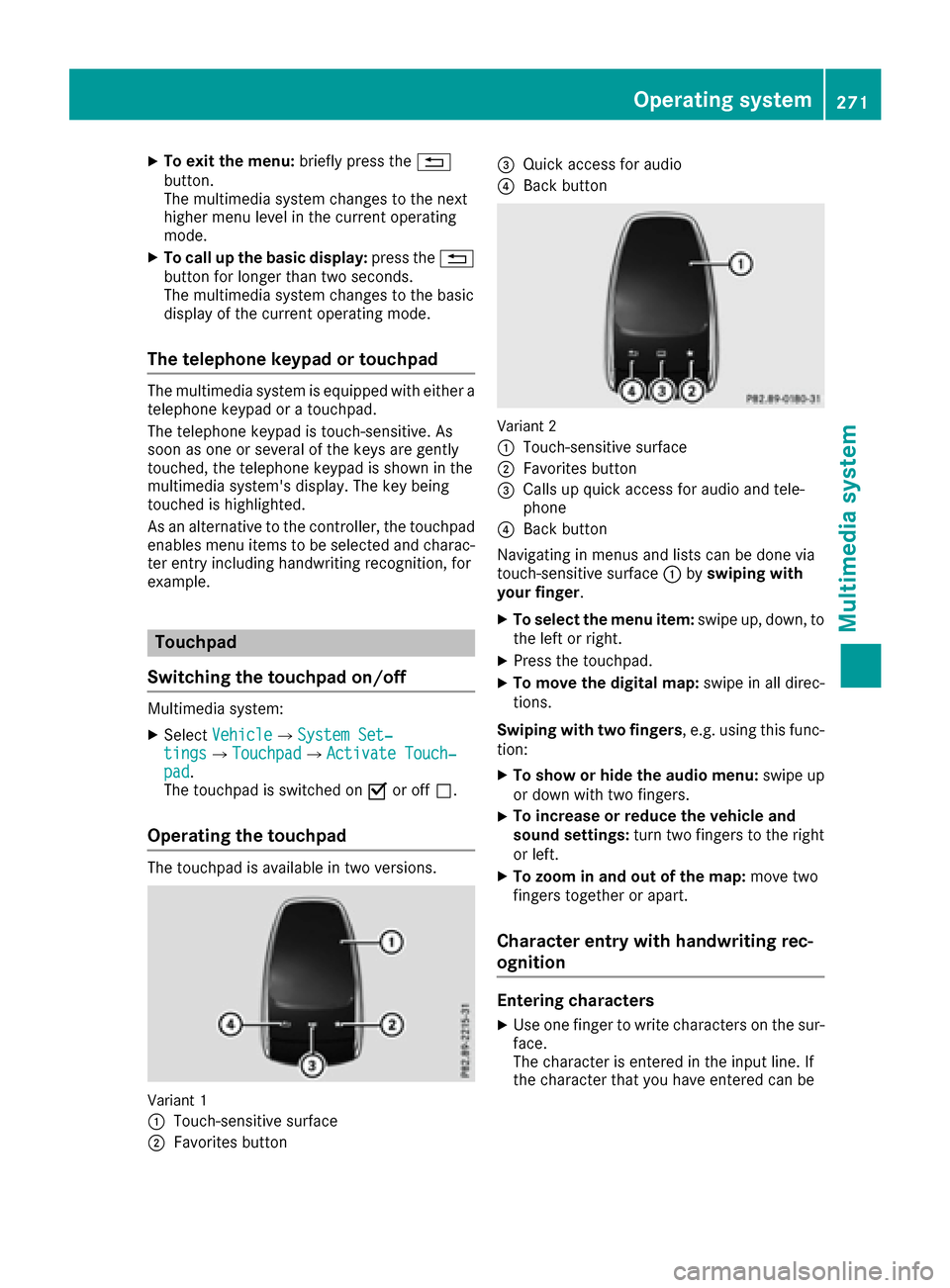
The touchpad is available in two versions.
Variant 1
:
Touch-sensitive surface
;Favorites button
=Quick access for audio
?Back button
Variant 2
:
Touch-sensitive surface
;Favorites button
=Calls up quick access for audio and tele-
phone
?Back button
Navigating in menus and lists can be done via
touch-sensitive surface :byswiping with
your finger.
XTo select the menu item: swipe up, down, to
the left or right.
XPress the touchpad.
XTo move the digital map: swipe in all direc-
tions.
Swiping with two fingers , e.g. using this func-
tion:
XTo show or hide the audio menu: swipe up
or down with two fingers.
XTo increase or reduce the vehicle and
sound settings: turn two fingers to the right
or left.
XTo zoom in and out of the map: move two
fingers together or apart.
Character entry with handwriting rec-
ognition
Entering characters
XUse one finger to write characters on the sur-
face.
The character is entered in the input line. If
the character that you have entered can be
Operating system271
Multimedia system
Z
Page 274 of 382
interpreted in different ways, these character
suggestions are displayed.
XIf character suggestions are shown, turn and
press the controller.
XResume the character entry on the touchpad.
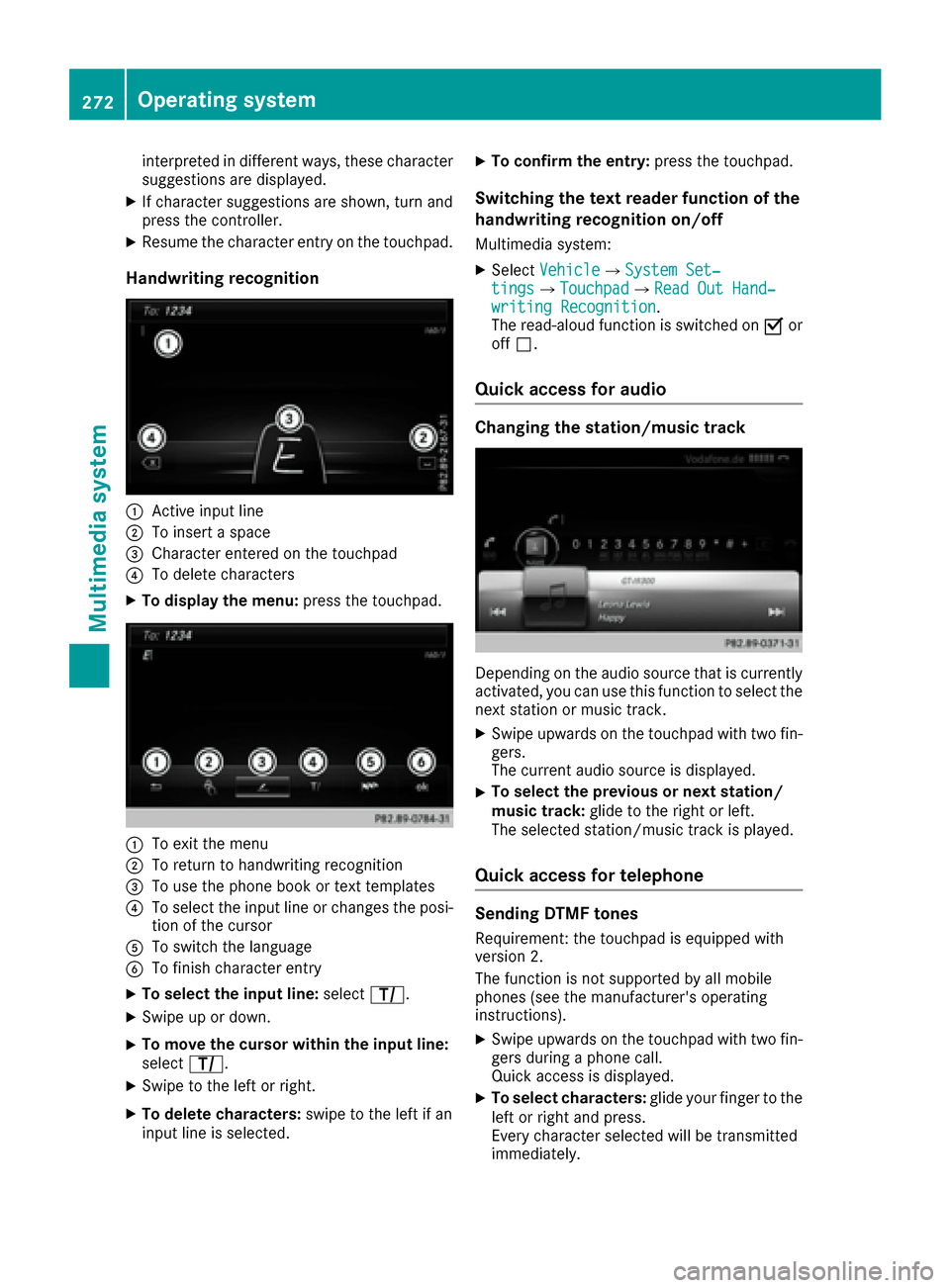
Handwriting recognition
:Active input line
;To insert a space
=Character entered on the touchpad
?To delete characters
XTo display the menu:press the touchpad.
:To exit the menu
;To return to handwriting recognition
=To use the phone book or text templates
?To select the input line or changes the posi-
tion of the cursor
ATo switch the language
BTo finish character entry
XTo select the input line: selectp.
XSwipe up or down.
XTo move the cursor within the input line:
select p.
XSwipe to the left or right.
XTo delete characters: swipe to the left if an
input line is selected.
XTo confirm the entry: press the touchpad.
Switching the text reader function of the
handwriting recognition on/off
Multimedia system:
XSelectVehicleQSystem Set‐tingsQTouchpadQRead Out Hand‐writing Recognition.
The read-aloud function is switched on Oor
off ª.
Quick access for audio
Changing the station/music track
Depending on the audio source that is currently
activated, you can use this function to select the
next station or music track.
XSwipe upwards on the touchpad with two fin-
gers.
The current audio source is displayed.
XTo select the previous or next station/
music track: glide to the right or left.
The selected station/music track is played.
Quick access for telephone
Sending DTMF tones
Requirement: the touchpad is equipped with
version 2.
The function is not supported by all mobile
phones (see the manufacturer's operating
instructions).
XSwipe upwards on the touchpad with two fin-
gers during a phone call.
Quick access is displayed.
XTo select characters: glide your finger to the
left or right and press.
Every character selected will be transmitted
immediately.
272Operating system
Multimedia system
Page 275 of 382
Switching the character entry between
touchpad and controller
Prerequisite: an input line for text, numbers or
characters has been selected.
XTo switch to the controller:press the con-
troller.
Character entry using the controller is active.
XTo switch to the touchpad: press the touch-
pad with your finger.
Handwriting recognition on the touchpad is
active.
Favorites
Calling up and exiting favorites
XTo call up: press thegbutton on the con-
troller or on the touchpad.
XSelect a favorite, e.g. Vehicle.
The favorites are displayed.
XTo exit: press the gbutton again.
Adding favorites
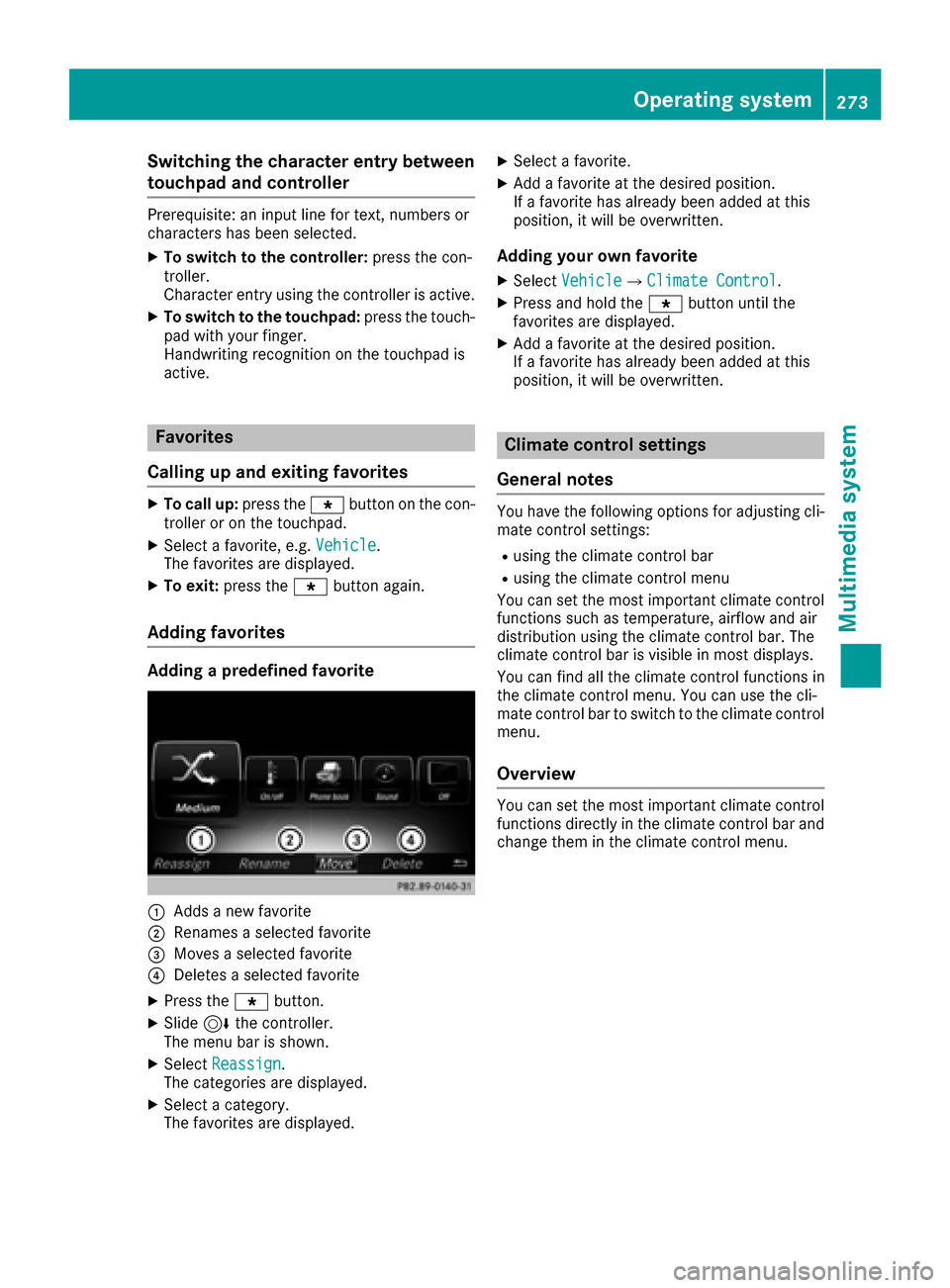
Adding a predefined favorite
:Adds a new favorite
;Renames a selected favorite
=Moves a selected favorite
?Deletes a selected favorite
XPress the gbutton.
XSlide6the controller.
The menu bar is shown.
XSelect Reassign.
The categories are displayed.
XSelect a category.
The favorites are displayed.
XSelect a favorite.
XAdd a favorite at the desired position.
If a favorite has already been added at this
position, it will be overwritten.
Adding your own favorite
XSelect VehicleQClimate Control.
XPress and hold the gbutton until the
favorites are displayed.
XAdd a favorite at the desired position.
If a favorite has already been added at this
position, it will be overwritten.
Climate control settings
General notes
You have the following options for adjusting cli-
mate control settings:
Rusing the climate control bar
Rusing the climate control menu
You can set the most important climate control
functions such as temperature, airflow and air
distribution using the climate control bar. The
climate control bar is visible in most displays.
You can find all the climate control functions in
the climate control menu. You can use the cli-
mate control bar to switch to the climate control
menu.
Overview
You can set the most important climate control
functions directly in the climate control bar and
change them in the climate control menu.
Operating system273
Multimedia system
Z
Page 276 of 382
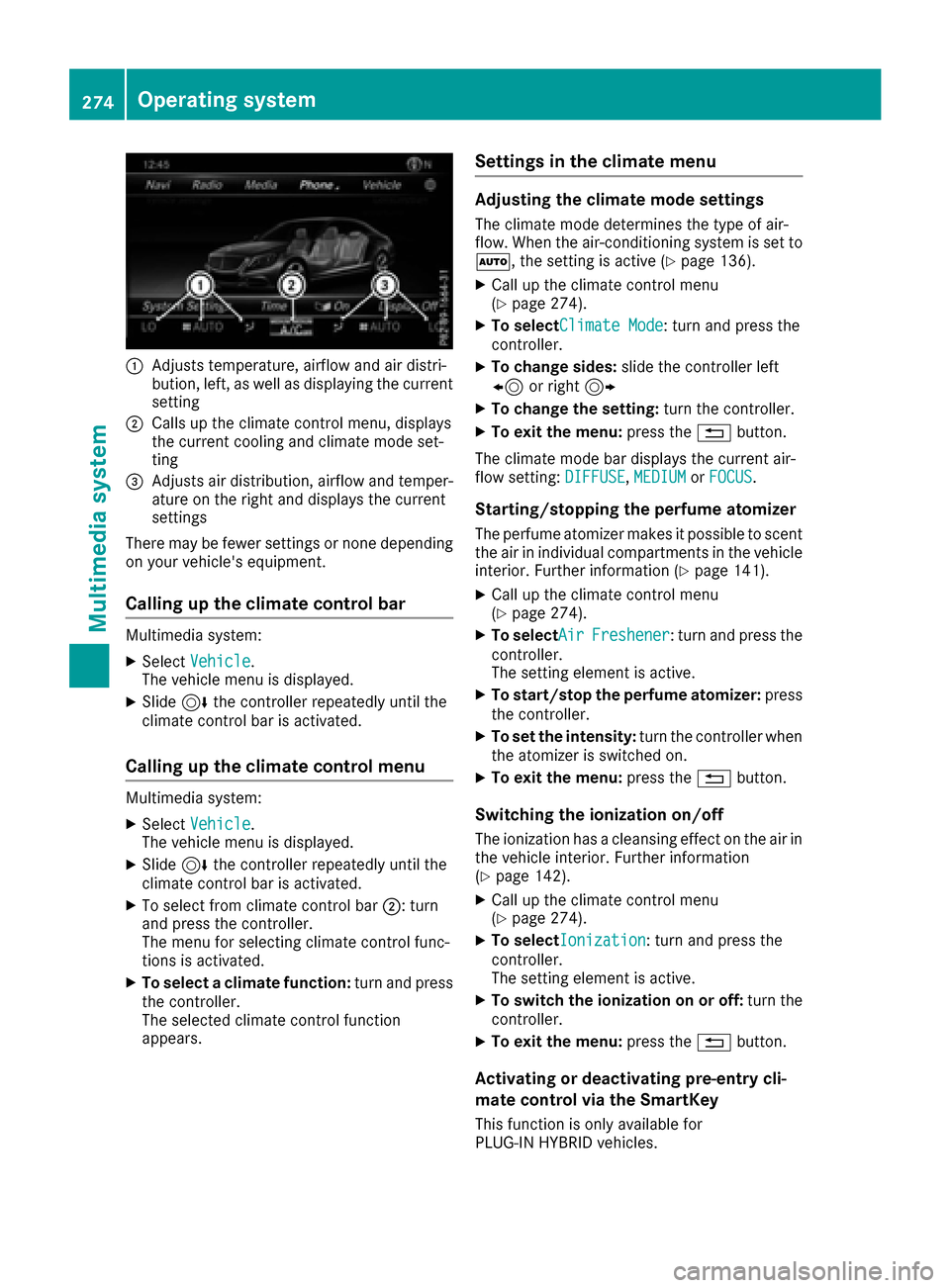
:Adjusts temperature, airflow and air distri-
bution, left, as well as displaying the current
setting
;Calls up the climate control menu, displays
the current cooling and climate mode set-
ting
=Adjusts air distribution, airflow and temper-
ature on the right and displays the current
settings
There may be fewer settings or none depending
on your vehicle's equipment.
Calling up the climate control bar
Multimedia system:
XSelect Vehicle.
The vehicle menu is displayed.
XSlide 6the controller repeatedly until the
climate control bar is activated.
Calling up the climate control menu
Multimedia system:
XSelect Vehicle.
The vehicle menu is displayed.
XSlide 6the controller repeatedly until the
climate control bar is activated.
XTo select from climate control bar ;: turn
and press the controller.
The menu for selecting climate control func-
tions is activated.
XTo select a climate function: turn and press
the controller.
The selected climate control function
appears.
Settings in the climate menu
Adjusting the climate mode settings
The climate mode determines the type of air-
flow. When the air-conditioning system is set to
Ã, the setting is active (
Ypage 136).
XCall up the climate control menu
(Ypage 274).
XTo selectClimate Mode: turn and press the
controller.
XTo change sides: slide the controller left
8 or right 9
XTo change the setting: turn the controller.
XTo exit the menu:press the%button.
The climate mode bar displays the current air-
flow setting: DIFFUSE
,MEDIUMor FOCUS.
Starting/stopping the perfume atomizer
The perfume atomizer makes it possible to scent
the air in individual compartments in the vehicle
interior. Further information (
Ypage 141).
XCall up the climate control menu
(Ypage 274).
XTo selectAirFreshener: turn and press the
controller.
The setting element is active.
XTo start/stop the perfume atomizer: press
the controller.
XTo set the intensity: turn the controller when
the atomizer is switched on.
XTo exit the menu: press the%button.
Switching the ionization on/off
The ionization has a cleansing effect on the air in
the vehicle interior. Further information
(
Ypage 142).
XCall up the climate control menu
(Ypage 274).
XTo selectIonization: turn and press the
controller.
The setting element is active.
XTo switch the ionization on or off: turn the
controller.
XTo exit the menu: press the%button.
Activating or deactivating pre-entry cli-
mate control via the SmartKey
This function is only available for
PLUG‑IN HYBRID vehicles.
274Operating system
Multimedia system