2017 MERCEDES-BENZ S-Class MAYBACH ECO mode
[x] Cancel search: ECO modePage 172 of 230

back continues once the disc has been ejected.
Before removing a disc, be aware that the CD or
DVD can become hot.
Ejecting a single disc
XPress theVbutton.
The magazine menu appears. The current disc
is marked.
XTo select a disc: turn the controller and press
to confirm.
The DVD changer ejects the disc.
XTake the disc out of the slot.
Ejecting all CDs/DVDs
XPress the Vbutton.
The magazine menu appears.
XSelect Eject All.
The last active disc is ejected.
A message appears, for example Please
remove disc 1..
XRemove the disc.
XRepeat the last step until the magazine is
empty.
If you take too long removing the disc, the disc
is re-loaded.
Exiting a menu:
XPress the Vbutton.
or
XSelect %in the magazine menu.
Inserting and removing an SD card
Important safety notes
GWARNING
SD cards are small parts. They can be swal-
lowed and cause choking. This poses an
increased risk of injury or even fatal injury.
Keep the SD card out of the reach of children. If a SD card is swallowed, seek medical atten-
tion immediately.
!If you are no longer using the SD card, you
should remove it and store it outside the vehi-
cle. High temperatures can damage the card. The multimedia system supports the following
memory cards:
RSD cards (Secure
Digital)
RSDHC cards (Secure DigitalHighCapacity)
RSDXC cards (Secure Digital eXtendedCapac-
ity)
Inserting an SD card
XInsert the SD card into the SD card slot until
the SD card engages. The side with the con-
tacts must face down.
Only if the memory card has been selected as
a media source, is the medium played and the
files loaded in the background. If there are no
supported audio or video files, you will see a
message to this effect.
XSelect the media source (Ypage 164).
Removing an SD card
XPress the SD card.
The SD card is ejected.
XRemove the SD card.
Connecting USB devices
There are two USB ports located in the stowage
compartment in the center console
(
Ypage 164).
XConnect the USB device to the USB port.
The data medium will only be played and the
files will only be loaded in the background if
the corresponding media display is visible.
Otherwise, the system does not automatically switch to USB. If there are no supported audio
or video files, you will see a message to this
effect.
XSelect the media source (Ypage 164).
iMP3 players must support Media Transfer
Protocol (MTP).
Selecting the playback option
XIn media mode, slide 6the controller.
The media menu bar is shown.
XTo select Options: turn and press the con-
troller.
170Audio/video mode
Media
Page 174 of 230

Selecting a track
Selecting a track using the current
track list
XTo display the current track list: press the
controller in the basic display.
The category list appears.
XSelect Current Tracklist.
XTo select a track: turn the controller and press
to confirm.
Selecting a track by skipping to a track
XTo skip forward or back to a track: turn or
briefly slide 1the controller in the media
basic display.
Selecting a track using the number key-
pad
XPress the ¯key on the number keypad.
A numerical entry field appears. The number
of positions offered corresponds to the num-
ber of tracks in the current track list. Only
numbers that correspond to a track number in
the current track list can be entered.
XTo enter the track number using the number
keys: briefly press the desired numbers on the
number keypad.
The track plays after the last possible number is entered.
iPressing and holding a number key for more
than two seconds completes the entry, and
the corresponding track is played.
Searching for a track
XIn media mode, slide 6the controller.
The media menu bar is shown.
XTo select Search: turn and press the control-
ler.
The category list is shown.
XSelect a category, e.g. Artists.
Sub-categories appear with the selection of
the main category (depends on the multime-
dia system default settings and the music
tracks available).
XSelect a sub-category.
If the sub-category Artists
contains music
tracks, these will be displayed.
Gracenote®Media Database
General notes
This function is available in CD mode.
There is a version of
Gracenote®music recognition technology,
Emeryville, California, USA on the multimedia
system hard disk. You will recognize this by the
logo in the bottom right-hand corner of certain
audio displays.
If the audio CD does not contain any CD text
information, the multimedia system can use the
Gracenote
®Media Database to identify
unknown audio tracks when in CD mode.
Carrying out an Internet update of met-
adata
The Updating Metadata Via Internetoption allows any missing metadata for an audio
CD (e.g. cover, track, album, artist) to be uploa-
ded retrospectively to the internal Gracenote
®
database.
An Internet connection is required for this
(
Ypage 146).
Selecting Internet update of metadata
XIn media mode, slide 6the controller.
The media menu bar is shown.
XTo select Options: turn and press the con-
troller.
XSelect Updating Metadata Via Internetin the selection list.
A connection with the Gracenote®data server
is established. The missing data is loaded,
saved and displayed in the main display field.
If there is no data found or there is no Internet
connection, a corresponding error message
will appear.
172Audio/video mode
Media
Page 175 of 230
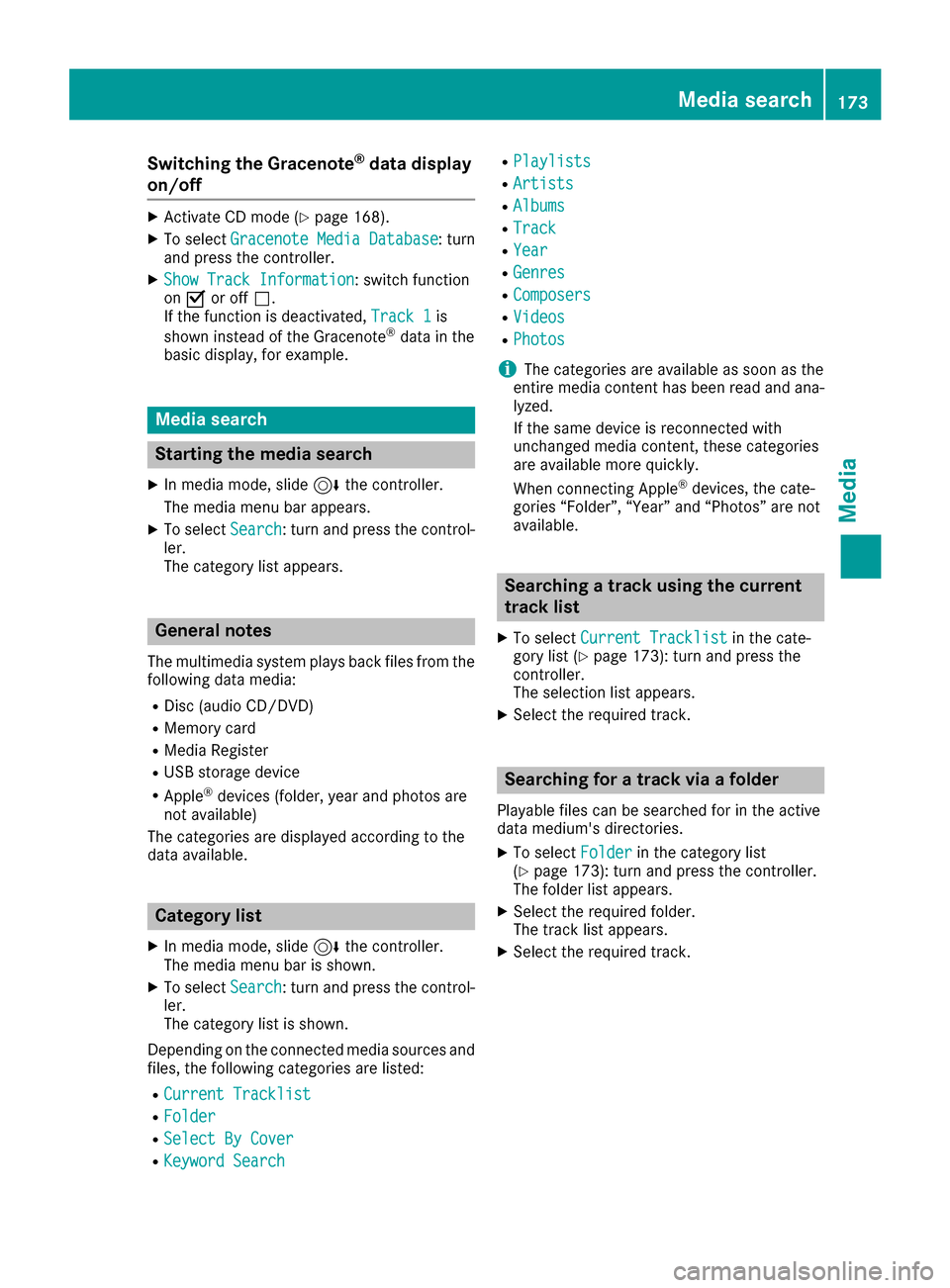
Switching the Gracenote®data display
on/off
XActivate CD mode (Ypage 168).
XTo select Gracenote Media Database: turn
and press the controller.
XShow Track Information: switch function
on O or off ª.
If the function is deactivated, Track 1
is
shown instead of the Gracenote®data in the
basic display, for example.
Media search
Starting the media search
XIn media mode, slide 6the controller.
The media menu bar appears.
XTo select Search: turn and press the control-
ler.
The category list appears.
General notes
The multimedia system plays back files from the following data media:
RDisc (audio CD/DVD)
RMemory card
RMedia Register
RUSB storage device
RApple®devices (folder, year and photos are
not available)
The categories are displayed according to the
data available.
Category list
XIn media mode, slide 6the controller.
The media menu bar is shown.
XTo select Search: turn and press the control-
ler.
The category list is shown.
Depending on the connected media sources and
files, the following categories are listed:
RCurrent Tracklist
RFolder
RSelect By Cover
RKeyword Search
RPlaylists
RArtists
RAlbums
RTrack
RYear
RGenres
RComposers
RVideos
RPhotos
iThe categories are available as soon as the
entire media content has been read and ana-
lyzed.
If the same device is reconnected with
unchanged media content, these categories
are available more quickly.
When connecting Apple
®devices, the cate-
gories “Folder”, “Year” and “Photos” are not
available.
Searching a track using the current
track list
XTo select Current Tracklistin the cate-
gory list (Ypage 173): turn and press the
controller.
The selection list appears.
XSelect the required track.
Searching for a track via a folder
Playable files can be searched for in the active
data medium's directories.
XTo select Folderin the category list
(Ypage 173): turn and press the controller.
The folder list appears.
XSelect the required folder.
The track list appears.
XSelect the required track.
Media search173
Media
Z
Page 180 of 230

Selecting Play mode
XIn media mode: press theÕbutton.
The menu appears with the available media
sources.
XTo select Media Register: turn and press
the controller.
XTo switch to the menu bar: slide 6the con-
troller.
XTo select Options: turn and press the con-
troller.
XSelect Playback Mode.
The options list appears. The #dot indicates
the current setting.
XSelect the desired option.
The option is switched on. For all options
except Normal Track Sequence
, a corre-
sponding icon appears in the main display.
Bluetooth®audio mode
Requirements
The Bluetooth®function must be activated in
the multimedia system (Ypage 45).
Bluetooth®audio mode requires a Bluetooth®-
capable audio device.
Check your Bluetooth
®audio device for the fol-
lowing; see the manufacturer's operating
instructions:
RBluetooth®audio profile
The Bluetooth®audio device must support
the A2DP and AVRCP Bluetooth®audio pro-
files.
RBluetooth®visibility
Certain Bluetooth®audio devices do not just
require activation of the Bluetooth®function.
In addition, your device must be made "visi-
ble" to other devices.
RBluetooth®device name
This device name is predetermined but can
usually be changed. For a clear selection of
the Bluetooth
®device, Mercedes-Benz rec-
ommends that you customize the device
name.
iA2DP (Advanced AudioDistribution Profile):
Bluetooth®audio profile for audio data trans-
mission AVRCP (Audio
VideoRemote ControlProfile):
Bluetooth
®audio profile for audio data play-
back
iThe Bluetooth®device must be visible to the
multimedia system for authorization. After
authorization, the multimedia system even
finds the Bluetooth
®device when it is not
visible.
General notes
Before using your Bluetooth®audio device with
the multimedia system for the first time, you will
need to authorize it.
When you authorize a new Bluetooth
®audio
device, it is connected automatically. Connec-
tion involves first searching for a Bluetooth
®
audio device and then authorizing it.
You can authorize up to 15 Bluetooth®devices.
iIf you authorize a mobile phone that sup-
ports Bluetooth®audio, the A2DP and AVRCP
Bluetooth®audio profiles are connected
automatically.
The mobile phone is then entered:
Rin the Bluetooth®telephone list
(Ypage 115)
Rin the Bluetooth®device list
(Ypage 179)
Mercedes-Benz recommends authorizing a
mobile phone in Bluetooth
®telephony
(Ypage 116).
Bluetooth®audio basic display
:Audio transmission status (depending on
the Bluetooth®audio device, also title name
and artist)
;Data medium position in the media list
178Bluetooth®audio mode
Media
Page 182 of 230

For some Bluetooth®audio devices, the pair-
ing must also be confirmed within 10 sec-
onds.
External authorization
If the multimedia system does not find your
Bluetooth®audio device, this may be due to
particular security settings on your Bluetooth®
audio device. In this case, check whether your
Bluetooth®audio device can locate the multi-
media system.
The Bluetooth
®device name of the multimedia
system is MB Bluetooth.
XSwitch on Bluetooth®audio mode
(Ypage 179).
XSlide 6the controller.
The media menu bar is shown.
XTo select Connect Device: turn and press
the controller.
XTo select ConnectviaAudioDevice: turn
and press the controller.
XStart the authorization on your Bluetooth®
audio device (see the manufacturer's operat- ing instructions).
After successful authorization, the Blue-
tooth
®audio device is connected and starts
playing.
With some Bluetooth
®audio devices, playback
must initially be started on the device itself, so
that the multimedia system can play the audio
data.
Device-specific information on authorizing and
connecting Bluetooth
®-capable mobile phones
can be found on the Internet at
http://www.mercedes-benz.com/connect.
Displaying details
XTo select a Bluetooth®audio device from the
Bluetooth®device list: turn the controller
(Ypage 179).
XTo select G: slide 9the controller.
XTo select Details: turn and press the con-
troller.
The following information concerning the
selected mobile phone is shown:
RBluetooth®name
RBluetooth®address
RAvailability status (shown after an update)
RAuthorization status
XTo close the detailed display: press the
% button.
Starting/stopping playback
XTo start playback: To selectÌ: turn and
press the controller.
Playback starts. Ëis selected.
XTo stop playback: selectË.
A message appears. Ìis selected.
XTo continue playback: selectÌ.
A message appears. Ëis selected.
Starting playback if the Bluetooth®
audio device has been stopped
During the search for mobile phones
(Ypage 115), the connection with the Blue-
tooth®audio device is terminated. The NoBluetooth Audio Device Connectedmes-
sage appears in the Bluetooth®audio basic dis-
play (Ypage 179). The Connect Last UsedPlayermessage cannot be confirmed.
When the search is finished, the Bluetooth®
audio device can be reconnected.
XTo confirm the ConnectLastUsedPlayermessage in the basic display: press the con-
troller.
Depending on the Bluetooth
®audio device
used, playback starts immediately or you
must start playback manually.
180Bluetooth®audio mode
Media
Page 183 of 230

In this case, you will see theBluetoothAudio Device Pausedmessage.
XTo selectStart playback: Ì: slide6
and press the controller.
Playback resumes from the beginning.
Selecting a track
The function is not supported by all Bluetooth®
audio devices.
Some mobile phones impair function with
regard to the following criteria:
Rthe number of tracks that can be selected.
Rthe time period until the next or previous track is played.
XUse the multifunction steering wheel to
switch to the media menu in the on-board
computer; see the vehicle Operator's Manual.
XTo skip forward or back to a track: press
the 9 or: button on the multifunction
steering wheel.
XRapid scroll: press and hold the 9
or : button on the multifunction steering
wheel until the desired track is reached.
If you press and hold the 9or: but-
tons, the rapid scrolling speed increases after a short time.
iDuring rapid scrolling, track names are not
displayed but only Track+1, Track+2, etc. (or
Track-1, Track-2, etc.). There are no playback
times shown for tracks that have been played.
This is available as an optional function start-
ing with AVRCP Version 1.3.
Playback options
General notes
If the Bluetooth®audio device supports the cor-
responding function, the following options are
available:
RNormal Track Sequence: the tracks are
played in the normal order (e.g. track 1, 2, 3
etc.).
Audio data playback is determined by the
order in which the tracks are written to the
data medium. Alphabetical order is the most
common. Once all the tracks in a folder have been played, the tracks in the next folder are
played.
RRandomTrackList: the current track list is
played in random order (e.g. 3, 8, 5 etc.).
RRandom Medium: all tracks on the data
medium are played in random order (e.g.
track 3, 8, 5 etc.).
Playback options are optional functions and
are not, or only partially, supported by Blue-
tooth
®audio devices.
Selecting the playback option
XSlide 6the controller.
XTo select Options: turn and press the con-
troller.
XSelect Playback Mode.
A # dot indicates the current setting.
XSelect the desired option.
If you select Random Track List, a corre-
sponding message appears in the display or
selection window.
Increasing the volume in the multime-
dia system
XSlide 6the controller in the Bluetooth®
audio basic display (Ypage 178).
XTo select Options: turn and press the con-
troller.
XTo select Volume: turn and press the control-
ler.
A menu appears. The #dot indicates the cur-
rent setting.
XSelect StandardorBoost.
Information on audio AUX mode
(
Ypage 185).
iIf play back on the Bluetooth®audio player
is too quiet, the Boostfunction may be used.
It is recommended, however, that you
increase the volume on the Bluetooth
®audio
player directly.
Bluetooth®audio mode181
Media
Z
Page 186 of 230
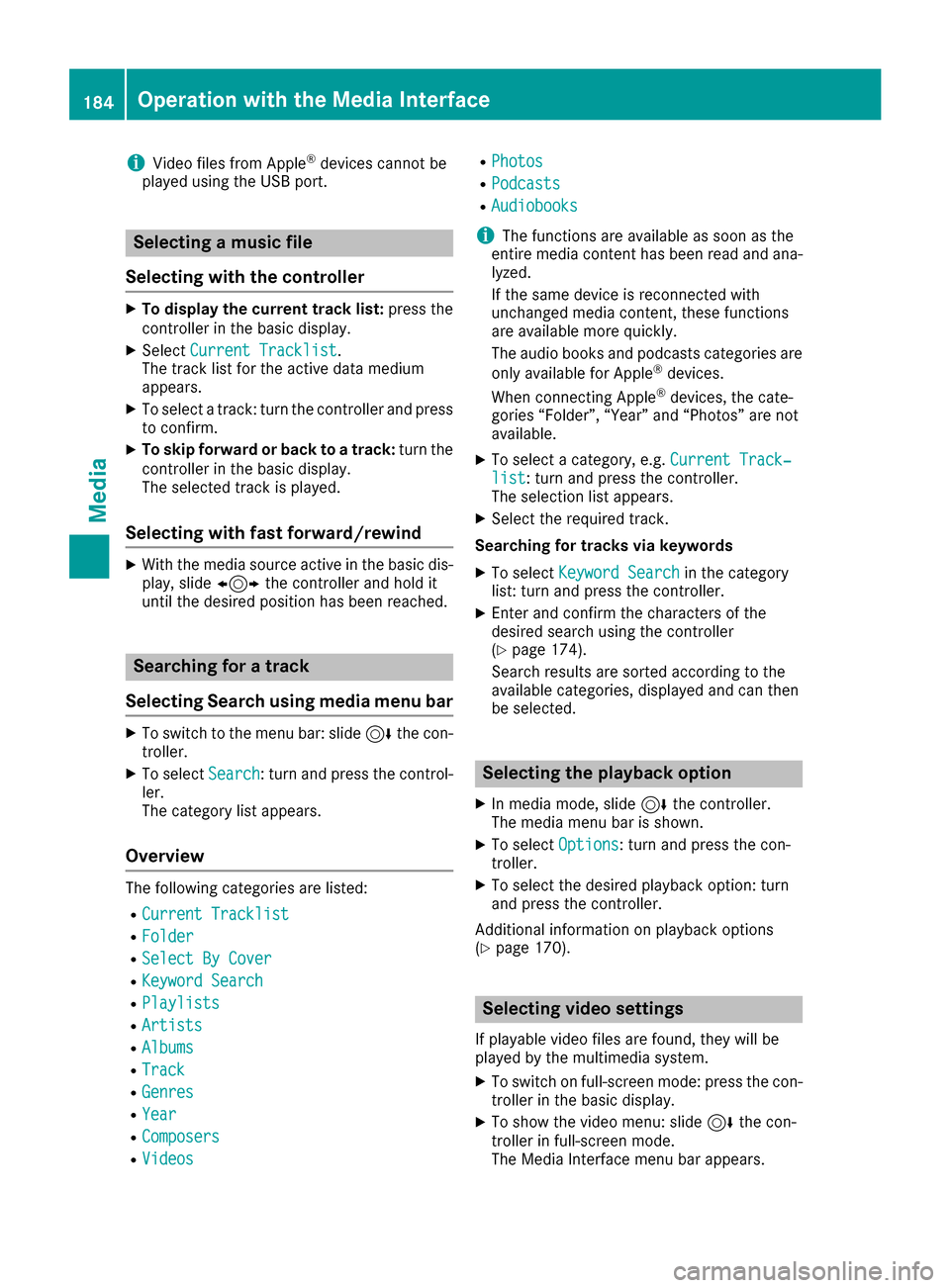
iVideo files from Apple®devices cannot be
played using the USB port.
Selecting a music file
Selecting with the controller
XTo display the current track list: press the
controller in the basic display.
XSelect Current Tracklist.
The track list for the active data medium
appears.
XTo select a track: turn the controller and press
to confirm.
XTo skip forward or back to a track: turn the
controller in the basic display.
The selected track is played.
Selecting with fast forward/rewind
XWith the media source active in the basic dis- play, slide 1the controller and hold it
until the desired position has been reached.
Searching for a track
Selecting Search using media menu bar
XTo switch to the menu bar: slide 6the con-
troller.
XTo select Search: turn and press the control-
ler.
The category list appears.
Overview
The following categories are listed:
RCurrent Tracklist
RFolder
RSelect By Cover
RKeyword Search
RPlaylists
RArtists
RAlbums
RTrack
RGenres
RYear
RComposers
RVideos
RPhotos
RPodcasts
RAudiobooks
iThe functions are available as soon as the
entire media content has been read and ana-
lyzed.
If the same device is reconnected with
unchanged media content, these functions
are available more quickly.
The audio books and podcasts categories are
only available for Apple
®devices.
When connecting Apple®devices, the cate-
gories “Folder”, “Year” and “Photos” are not
available.
XTo select a category, e.g. Current Track‐list: turn and press the controller.
The selection list appears.
XSelect the required track.
Searching for tracks via keywords
XTo select Keyword Searchin the category
list: turn and press the controller.
XEnter and confirm the characters of the
desired search using the controller
(
Ypage 174).
Search results are sorted according to the
available categories, displayed and can then
be selected.
Selecting the playback option
XIn media mode, slide 6the controller.
The media menu bar is shown.
XTo select Options: turn and press the con-
troller.
XTo select the desired playback option: turn
and press the controller.
Additional information on playback options
(
Ypage 170).
Selecting video settings
If playable video files are found, they will be
played by the multimedia system.
XTo switch on full-screen mode: press the con-
troller in the basic display.
XTo show the video menu: slide 6the con-
troller in full-screen mode.
The Media Interface menu bar appears.
184Operation with the Media Interface
Media
Page 195 of 230

Your multimediasystem equipment
These operating instructions describe all the
standard and optional equipment of your multi-
media system, as available at the time of going
to press. Country-specifi cdifferences are pos-
sible. Bear in mind that your vehicle may not
feature all functions described here. This also
applies to safety-relevant systems andfunc-
tions.
Read the information on qualified specialist
workshop s in the vehicle Operator's Manual.
Sound settings
Calls up th e sound menu
You can select various sound setting s while in
radio mode or another media mode. It is possi-
ble to set more bass fo r radio mode than for
audio CD mode, for example. The respective
sound men u can be called up from the menu bar
of the desired mode.
XSwitch to radio mode (Ypage 154).
or
XSwitch to media mode (Ypage 164).
XTo switch to th e menu bar: slide 6thecon-
troller.
XTo select à:turn an dpress th econtroller.
The menu appears with thelast setting
accessed, e.g. Balance/Fade r
.
Sound men u overview
FunctionOptions
EqualizerSets treble, mid-
range and bass
Balance/faderMoves thesound
focus : right/left and
front/rear
Changing loud-
speaker sourceOutputsaseat-based
media source on to
th eentire sound sys-
te m
Setting treble, mid-range and bass
XCall up the sound menu(Ypage 193).
XTurnthe controller until Equalizeris brought
to th efront.
XTo activate rotary menus fo r treble, mid-range
and base: slide 6thecontroller.
XTo switch between the rotary menus: slide
8 or9 thecontroller.
XTo make the desired Equalize rsettings: turn
th econtroller.
Rotary menus show the set values.
XTo return to th e menu: slide5thecontrol-
ler.
XTo return to th e basicmenu: press th e%
button briefly.
Adjusting th e balance/fader
Balance moves th efocus of th e sound between
left and right.
Fader moves th efocus of th e sound between
fron t and rear.
XCall up the sound menu(Ypage 193).
XTurnthe controller until Balance/Faderis
brought to th efront and then slide 6the
controller.
Sound settings193
Sound