2017 MERCEDES-BENZ S-Class MAYBACH ECO mode
[x] Cancel search: ECO modePage 114 of 230

Your multimediasystem equipment
These operating instructions describe all the
standard and optional equipment of your multi-
media system, as available at the time of going
to press. Country-specifi cdifferences are pos-
sible. Bear in mind that your vehicle may not
feature all functions described here. This also
applies to safety-relevant systems andfunc-
tions.
Read the information on qualified specialist
workshop s in the vehicle Operator's Manual.
Important safety notes
GWARNING
If you operate mobile communication equip-
ment while driving, you will be distracted from traffic conditions. You could also lose control
of th e vehicle. There is a risk of an accident.
Only operate this equipment when the vehicle
is stationary.
If you mak eacall on your mobile phone while
driving, always use hands-free mode. Only use
th e mobile phone when road, weather and traffic
conditions permit. Some jurisdictions prohibit
th e driver from usingamobile phone while driv-
ingavehicle.
Bear in mind that at a speed of 30 mph (approx-
imately 50 km/h), th e vehicle coversadistance
of 44 feet (approximately 14 m) per second.
Excessive levels of electromagnetic radiation
may cause damage to your health and the health
of others.
There is scientific discussion surroundingth e
possible health risks posed by electromagnetic
fields. You can reduce this risk by using an exte- rior antenna.
Therefore, connect your mobile communica-
tions equipment to the vehicle's exterior
antenna wherever possible.
General notes
Bluetooth®interface
A Bluetooth®interface is available for teleph-
ony. If your mobile phone supports the Bluetooth
®
profile PBAP (
PhoneBook Access Profile), the
contact s are automatically displayed in the mul-
timedia system. If your mobile phone does not
support the PBAP Bluetooth
®profile, the multi-
media system will attempt to display the con-
tact s using alternative methods.
You can use the message function if your mobile
phone supports th eMA P Bluetooth
®profile
( M essage Access Profile).
Withasuitable mobile phone, you can use the
hands-free syste m and receive vCards via the
Bluetooth
®interface.
You can obtain more information about suitable
mobile phones on the Internet athttp://
www.mercedes-benz.com/connect.
You can also obtain more information by calling.
In th e USA, you can get in touch with the
Mercedes-Benz Customer Assistanc e Center on
1-800-FOR-MERCedes (1-800-367-6372).
In Canada, you can get in touch with the Cus-
tomer Relations Center on 1-800-387-0100.
HD Voice®
The multimedia system supports telephone
calls in HD Voice®. The voice quality can be
improved with this procedure.
Requirements for HD Voice
®:
RYour mobile phone and mobile phone network
provider support HD Voice®.
RThe mobile phone and mobile phone network
provider of the person you are calling support
HD Voice
®.
Depending on the quality of the connection, the
voice quality may fluctuate.
Call disconnection while the vehicle is
in motion
A call may be disconnected if:
Rthere is insufficient network coverage in cer-
tain areas
Ryou move from one transmitter/receiver area
(cell) into another and no channels are free
Ryou use a SIM card that is not compatible with
the network available
112General notes
Telephone
Page 158 of 230

Using frequency entry
XIn radio mode: slide6the controller.
XTo select Options: turn and press the con-
troller.
XSelect Enter Frequency.
An additional menu appears.
HD FM radio mode:
XTo select the HDFM Frequencyoption: turn
and press the controller.
XEnter the frequency of the desired station in
the entry field.
HD MW radio mode:
XTo select the HDAM Frequencyoption: turn
and press the controller.
XEnter the frequency of the desired station in
the entry field.
Satellite radio mode:
XSelect the SatRadio Channeloption.
XEnter the number of the desired channel in
the entry field.
Station presets:
XSelect the Radio Station Presetsoption.
XEnter the station preset of the desired station.
Using the search function
XIn radio mode: slide 6the controller.
XSelect èand enter the first letters of the
required station using the controller.
XPress OKto confirm.
The multimedia system displays a list of avail-
able stations.
XTo select stations from the list: turn the con-
troller and press to confirm.
Using station presets
XQuick setting:
Briefly press a number key, e.g. l.
The station stored in second place is set.
Using the preset position
XIn radio mode: slide 6the controller.
XTo select Preset: turn and press the control-
ler.
XTo select Enter Preset: turn and press the
controller.
XEnter the station preset of the desired station.
Station list
XIn radio mode: press the controller.
The station list appears with the stations cur-
rently available.
Saving/deleting a station
Frequencies have already been stored in the
multimedia system. There are 100 preset posi-
tions available.
Quick save
XPress and hold a number key, e.g. l, until
a tone sounds. The station is saved to second
place in the radio station presets.
Storing current stations
XIn radio mode: slide 6the controller.
The radio menu bar appears.
XTo select Preset: turn and press the control-
ler.
XTo select the SaveCurrentStation/Chan‐neloption: turn and press the controller.
XTo select the position of the required preset
entry: turn and press the controller.
or
XSelect the Edit Station Presetoption.
XSelect the position of the required preset:
turn the controller.
This can also be a preset position that is
already occupied, which is then overwritten
by the current station.
XSlide9the controller.
An additional menu appears.
156Station
Radio
Page 160 of 230

Displaying information
This function is available in HD FM radio and HD
AM radio mode.
Reception is only possible if the radio stations
providethe relevant information.
XIn radio mode: slide 6thecontroller.
XTo select Info:turn and press th econtroller.
Information on th ecurrentl y received pro-
gram is displayed.
If available, you will see:
Rth etrack that is currentl y being played
Rtheartist of th etrack that is currentl y being
played
Rth e album name
Rthe channel abbreviation
Rthe logo of the station or Artist Experience®
Back to radi o display:
XTo selectInfo: slide 6and press th econ-
troller.
Satellite radio
General notes
The satellite radio mode requires satellite radio
equipment and registration withasatellite radio
provider.
Notethat th e categories and channels shown in
th e illustrations depend on the program content
offered by th e provider. The illustrations and
descriptions in these operating instructions may
therefore diffe rfrom th e channels and catego-
ries offered by th e provider.
Satellite radio mode may be temporarily unavail-
able or interrupted foravariety of reasons.
These include environmental or topographical
conditions as well as other factors beyond the contro
lof Mercedes-Benz USA, LLC. Thismeans
operation may not be possible in certain areas.
These include:
Rtunnels
Rparking garages
Rlocations inside or next to buildings
Rlocations in the vicinity of other structures
Sirius XM®Satellite Radio offers more than 140
digital-quality radio channels, providing 100%
commercial-free music, sports, news and enter-
tainment.
Sirius XM
®Satellite Radio uses a fleet of high-
performance satellites to broadcast around the
cloc kthroughout th eUS A and Canada.
The satellite radio pro gram is available fo
ra
monthly fee. Details are available from the Sirius
XM
®Service Center and at
http://www.siriusxm.com (USA) or
http://www.siriusxm.ca (Canada).
Your new Mercedes-Benz vehicle comes with
Sirius XM
®Satellite Radio pre-installed at the
factory. Thi s service is free fo rasix-month trial
period. About a month before the trial period
ends, information will be provided on how to
extend this subscription. An acoustic signal
sounds and a message is shown, describing how
th e subscription can be extended.
iSirius, XM and all related marks and logos
are trademarks of Sirius XM Radio Inc. and its
subsidiaries. Allother marks , channel names
and logos are the property of their respective
owners. Allright s reserved.
Registering satellite radio
:Phone number of provider
;Sirius XM®ID of your satellite receiver
158Satellite radio
Radio
Page 163 of 230

Keyword search
XIn satellite radio mode, slide6thecontrol -
ler.
XTo select the keyword search èin the
menu bar: turn and press thecontroller.
XTo enter the required search term : turn and
press th econtroller.
Direc t and indirect results are shown.
XSelect the required result.
The relevant channel is played.
Memory functions
Quick save:
XSe tth e desired channel in satellite radio
mode.
XPress and hold the controller until the preset
list appears.
XTo select the preset number: turn and press
th econtroller.
A tone confirm sthat th estoring process was
successful.
Saving a channel using the edit function:
XIn satellite radio mode, slide 6thecontrol -
ler.
XTo select Preset: turnand press th econtrol -
ler.
XTo select EditStatio nPreset: turn and
press th econtroller.
The list of saved channels appears.
XTo select the preset: turn the controller and
press for about 2 seconds.
The newly saved channel overwrites the exist-
ing preset.
iThere are 100 presets available.
Presets menu view
You can use this function to change to the sta-
tion presets display.
Activating
XIn radio mode: slide 6thecontroller.
XTo select Preset: turnand press th econtrol -
ler.
XTo select StationPreset View: On: turn
and press th econtroller.
The station preset display appears.
XTo switch between the stored stations: turn
th econtroller.
Deactivating
XIn radio mode: slide 6thecontroller.
XTo select Preset: turnand press th econtrol -
ler.
XTo select StationPresetView:Off: turn
and press th econtroller.
A view of the last waveband you listened to
appears.
Music and sports alerts
Gene ral notes
This function makes it possible to storea pro-
gram alert for your favorite artists, tracks or
sporting events.
You can store up to 30 music and sports alerts
(favorites).
Music alerts can only be saved whils tatrack is
being played. You can also specify sports alerts
via th e menu option. The system then continu-
ously searches through all the channels. Ifa
match is found withasaved message, you will
be informed. A window appears with the respec-
tive information.
Setting a music alert
XIn satellite radio mode, slide 6thecontrol -
ler.
XTo select Options: turnand press th econ-
troller.
XTo select Alert for Artist ,Track &SportsEvent: turnand press th econtroller.
A menu appears.
XSelect Add New Alert.
A window wit haprompt appears.
XSelectArtistorTrack.
The alert is set for the current artist or track.
iIf an alert cannot be set, theNo AlertsAvailablemessage appears.
Satellite radio161
Radio
Page 166 of 230
Your multimediasystem equipment
These operating instructions describe all the
standard and optional equipment of your multi-
media system, as available at the time of going
to press. Country-specifi cdifferences are pos-
sible. Bear in mind that your vehicle may not
feature all functions described here. This also
applies to safety-relevant systems andfunc-
tions.
Read the information on qualified specialist
workshop s in the vehicle Operator's Manual.
Activating media mode
General notes
There are several ways to activate media sour-
ce s using the multimedia system.
The relevant sections of the Operator's Manual
describe the simplest way to activateamedia
source. Thi s section describes all options for
activating media sources. If you wish to play
external media sources, the default display
must already be turned on.
Connections for external media sour-
ces
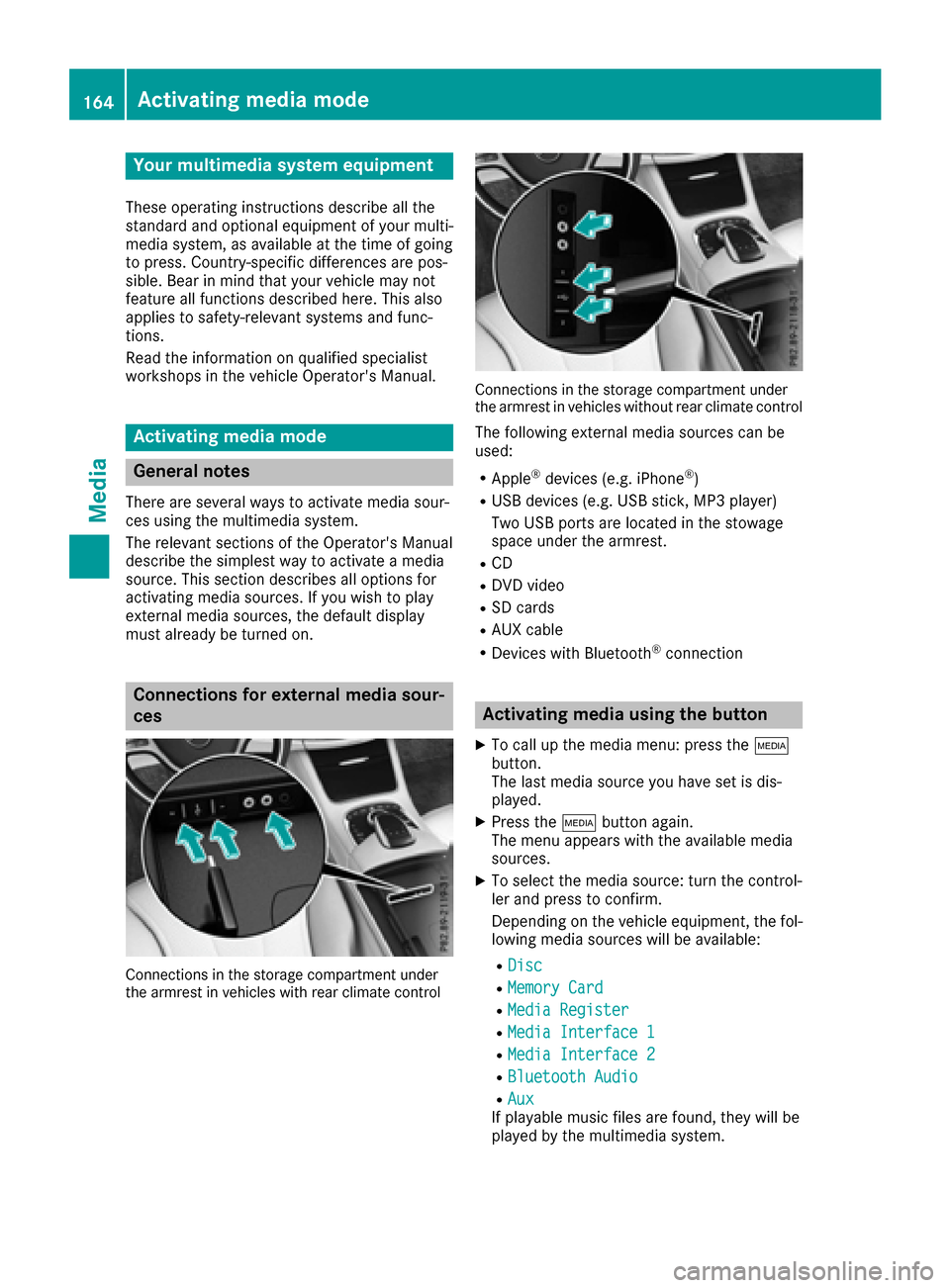
Connection s in thestorage compartmen t under
th earmres t in vehicles with rearclimate contro l
Connections in thestorage compartmen t under
th earmres t in vehicles without rearclimate contro l
The following external media sources can be
used:
RApple®devices (e.g. iPhone®)
RUSB devices (e.g. USB stick, MP3 player)
Two USB ports are located in the stowage
space under the armrest.
RCD
RDVD video
RSD cards
RAU X cable
RDevices with Bluetooth®connection
Activating media using the button
XTo call up the media menu: press the Õ
button.
The last media source you have set is dis-
played.
XPress the Õbutton again.
The menu appears with the available media
sources.
XTo select themedia source: turn th econtrol-
ler and press to confirm .
Depending on the vehicle equipment, thefol-
lowing media sources will be available:
RDisc
RMemory Card
RMedi aRegister
RMedi aInterfac e1
RMediaInterfac e2
RBluetoothAudi o
RAuxIf playable music files are found, they will be
played by the multimedia system.
164Activating media mode
Media
Page 167 of 230

Activating media using themain func-
ti on bar
XTo display the main function bar: slide 5the
controller.
XTo select Media: turnand press th econtroller.
The last media source you have set is dis-
played.
XTo select Mediain media mode: slide 5and
press th econtroller.
The menu appears with the available media
sources.
XTo select the media source: turn thecontrol -
ler and press to confirm .
If th e media source contains music or video
files, these will be played. The corresponding
basic menu will be shown.
Activating media using the number
keypad
i
If you touch a key in the touch-sensitive
number keypad, the number field is displayed
in the additional display area.
XTouch any number key when in media mode.
The number field is shown. The active media
source is highlighted.
XTo select a media source: press thecorre-
sponding number key.
If th e media source contains music or video
files, these will be played. The corresponding
basic menu will be shown.
XTo select a track from th e active media
source: press theg key on the number
keypad.
An input field appears.
XTo ente ratrack number: use the number key-
pad to enter the desired numbers.
The track is played.
XTo sho w track information: press thes
ke y on the number keypad
An additional field appears with thetrack
information.
Activating media using the device list
XIn media mode, slide 6thecontroller.
The media menu bar appears.
XTo select Devices: turnand press th econ-
troller.
The available media sources will be shown.
The #dot indicates the current setting.
XSelect the media source.
If th e media source contains music or video
files, these will be played. The corresponding
basic menu will be shown.
Switching on automatically
After inserting a CD or DVD, this media mode is
automatically switched on by the multimedia
system.
If playable music files are found, they will be
played by the multimedia system.
If a media function is already switched on in the
multimedia system, this will be interrupted and
th e basic display of the CD/DVD mode will
appear. If another function, such as navigation,
is being operated, the basic display will not
change. Only the music from the last inserted
CD or DVD will be played.
Activating media mode16 5
Media
Page 168 of 230

Starting an application at a different
seat
XIn media mode, slide6the controller.
The media menu bar appears.
XTo select Options: turn and press the con-
troller.
XSelect Start Application at OtherSeat.
An additional menu appears with the option of
switching the media source to SplitView
,
Rear Rightor Rear Left.
Use Additional Options…
to operate the
parental control screen for selected seats:
(
Ypage 63).
XTo switch the media source to, e.g. Split‐View: turn and press the controller
(Ypage 26).
Audio/video mode
Important safety notes
GWARNING
The CD/DVD drive is a class 1 laser product.
If you open the housing of the CD/DVD drive,
there is a risk of exposure to invisible laser
radiation. This laser radiation could damage
your retina. There is a risk of injury.
Never open the housing. Always have main-
tenance and repair work carried out at a quali- fied specialist workshop.
GWARNING
Handling discs while driving may distract you from traffic conditions. You could also lose
control of the vehicle. There is a risk of an
accident.
Handle discs only when the vehicle is station-
ary.
Bear in mind that at a speed of only 30 mph
(approximately 50 km/h), the vehicle covers a
distance of 44 ft (approximately 14 m)per sec-
ond.
Notes on audio/video mode
Permissible data carriers
RCD-R, CD-A and CD-RW
RDVD-R, DVD-V and DVD-RW
RSD card
RUSB storage device
Permissible file systems
RISO 9660/Joliet standard for CDs
RUDF for video DVDs
RFAT16, FAT32, exFAT and NTFS for SD card
and USB storage media
Multisession CDs
For multisession CDs, the content of the first
session determines how the multimedia system
processes the CD. The multimedia system plays
only one session and gives priority to the audio
CD session.
File structure of a data carrier
When you create a disc with compressed music
files, the tracks can be organized in folders. A
folder may also contain subfolders. The disc
may contain no more than eight directory levels.
Files beyond the eighth level will not be recog-
nized by the system.
iThe multimedia system supports data carri-
ers with up to 50,000 files.
In the case of data media with more than
64 GB of stored data, only files in folders with the following names are supported: Music,
Pictures, Video.
Track and file names
When you create a disc with compressed musicfiles, you can assign names to the tracks and
folders.
166Audio/video mode
Media
Page 170 of 230

Playback problems may occur when playing
copied discs.
There may be playback problems if you play CDs
that you have copied yourself with a storage
capacity of more than 700 MB.
iThe multimedia system is able to play back
audio CDs in multichannel audio format.
Inserting and removing a disc from
the single CD/DVD drive
Before inserting a CD or DVD, ensure that the
cup holder is empty and the protective flap is
open. Before removing a disc, be aware that the
CD or DVD can become hot.
Inserting
XPress the þbutton on the single drive.
If there is a disc already inserted, it will be
ejected.
XInsert a disc into the disc slot with the printed
side facing up.
The drive closes and the disc is played.
If the CD or DVD is started in Media mode, the
corresponding basic menu will be shown. If
the CD or DVD is started from another appli-
cation (e.g. navigation), the display will not
change.
iThe drive may not be able to play discs with
copy protection.
Removing
XPress the þbutton.
The drive ejects the disc.
XRemove the ejected disc from the slot.
If you do not take the disc out of the slot, it is
drawn in again automatically after a short
while.
Menu overview
:Cover view (if available)
;Artist and album
=Main function bar
?Media menu bar
ATrack display on the disc
168Audio/video mode
Media