2017 MERCEDES-BENZ S-Class MAYBACH AUX
[x] Cancel search: AUXPage 35 of 230

Rear Seat Entertainment System
Media overview
You can access various types of media from all
operating positions in the vehicle.
The media can be connected to any available
jacks in the vehicle or inserted into the various
drives.
RIf media from different sources are used, they
can be used separately from each of the oper- ating positions. Example: a film from the DVD
drive is played on the rear right-hand operat-
ing position. This means that another film
from the same DVD cannot be played sepa-
rately on the rear left-hand operating position. However, it is possible to use the radio, mem-
ory card, Media Register, Media Interface,
USB, online and Internet functions or AUX at
the same time from the rear left-hand oper-
ating position.
RIf you use the same medium on both sides,
you can both carry out the respective set-
tings. The "last one wins" principle applies
here, i.e. the last setting activated is favored.
RThe Internet can be used separately at all
operating positions.
RThe Internet can only be used if it is set up and
connected via a telephone (Ypage 142). You can select from the following media:
MEDIUMFunction/location
AUXDevices that are con-
nected to the AUX
socket. The AUX
socket is located
under the center con-
sole armrest in the
rear compartment.
COMAND discCDs or DVDs that are
inserted into the mul-
timedia system at the
front.
COMAND memory
cardMemory card that is
inserted into the mul-
timedia system at the
front.
COMAND Media
InterfaceDevices inserted into
the USB ports at the
front of the vehicle.
DiscCD or DVD inserted
into the rear-com-
partment drive.
Media RegisterMedia found in the
MEDIA REGISTER.
Media Interface 1
Media Interface 2Devices connected to
USB ports 1 and 2.
USB ports 1 and 2 are
located under the
center console arm-
rest in the rear com-
partment.
Bluetooth AudioDevices connected
with the multimedia
system via Blue-
tooth
®.
Rear Seat Entertainment System33
Overview and operation
Page 166 of 230
Your multimediasystem equipment
These operating instructions describe all the
standard and optional equipment of your multi-
media system, as available at the time of going
to press. Country-specifi cdifferences are pos-
sible. Bear in mind that your vehicle may not
feature all functions described here. This also
applies to safety-relevant systems andfunc-
tions.
Read the information on qualified specialist
workshop s in the vehicle Operator's Manual.
Activating media mode
General notes
There are several ways to activate media sour-
ce s using the multimedia system.
The relevant sections of the Operator's Manual
describe the simplest way to activateamedia
source. Thi s section describes all options for
activating media sources. If you wish to play
external media sources, the default display
must already be turned on.
Connections for external media sour-
ces
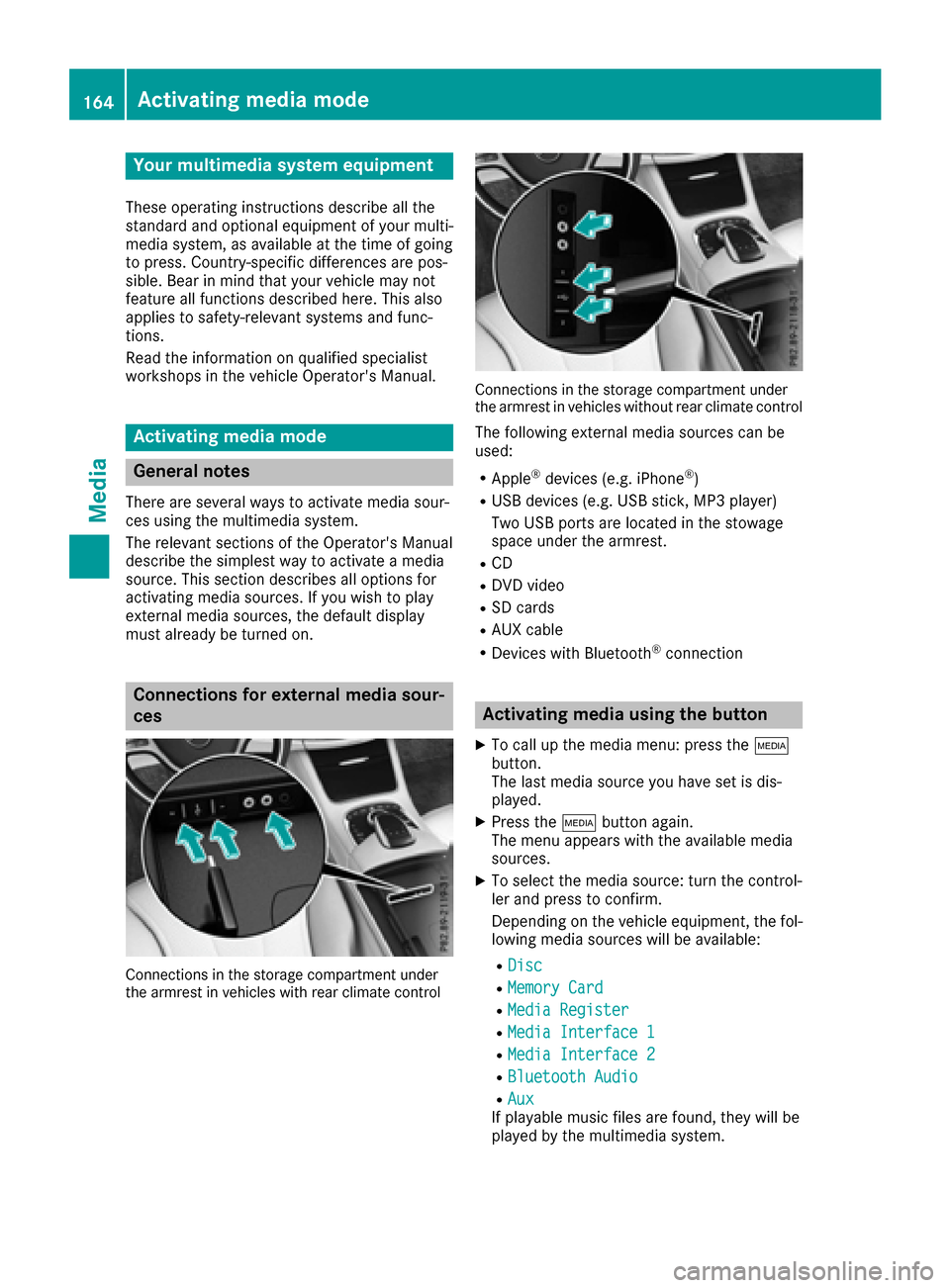
Connection s in thestorage compartmen t under
th earmres t in vehicles with rearclimate contro l
Connections in thestorage compartmen t under
th earmres t in vehicles without rearclimate contro l
The following external media sources can be
used:
RApple®devices (e.g. iPhone®)
RUSB devices (e.g. USB stick, MP3 player)
Two USB ports are located in the stowage
space under the armrest.
RCD
RDVD video
RSD cards
RAU X cable
RDevices with Bluetooth®connection
Activating media using the button
XTo call up the media menu: press the Õ
button.
The last media source you have set is dis-
played.
XPress the Õbutton again.
The menu appears with the available media
sources.
XTo select themedia source: turn th econtrol-
ler and press to confirm .
Depending on the vehicle equipment, thefol-
lowing media sources will be available:
RDisc
RMemory Card
RMedi aRegister
RMedi aInterfac e1
RMediaInterfac e2
RBluetoothAudi o
RAuxIf playable music files are found, they will be
played by the multimedia system.
164Activating media mode
Media
Page 183 of 230

In this case, you will see theBluetoothAudio Device Pausedmessage.
XTo selectStart playback: Ì: slide6
and press the controller.
Playback resumes from the beginning.
Selecting a track
The function is not supported by all Bluetooth®
audio devices.
Some mobile phones impair function with
regard to the following criteria:
Rthe number of tracks that can be selected.
Rthe time period until the next or previous track is played.
XUse the multifunction steering wheel to
switch to the media menu in the on-board
computer; see the vehicle Operator's Manual.
XTo skip forward or back to a track: press
the 9 or: button on the multifunction
steering wheel.
XRapid scroll: press and hold the 9
or : button on the multifunction steering
wheel until the desired track is reached.
If you press and hold the 9or: but-
tons, the rapid scrolling speed increases after a short time.
iDuring rapid scrolling, track names are not
displayed but only Track+1, Track+2, etc. (or
Track-1, Track-2, etc.). There are no playback
times shown for tracks that have been played.
This is available as an optional function start-
ing with AVRCP Version 1.3.
Playback options
General notes
If the Bluetooth®audio device supports the cor-
responding function, the following options are
available:
RNormal Track Sequence: the tracks are
played in the normal order (e.g. track 1, 2, 3
etc.).
Audio data playback is determined by the
order in which the tracks are written to the
data medium. Alphabetical order is the most
common. Once all the tracks in a folder have been played, the tracks in the next folder are
played.
RRandomTrackList: the current track list is
played in random order (e.g. 3, 8, 5 etc.).
RRandom Medium: all tracks on the data
medium are played in random order (e.g.
track 3, 8, 5 etc.).
Playback options are optional functions and
are not, or only partially, supported by Blue-
tooth
®audio devices.
Selecting the playback option
XSlide 6the controller.
XTo select Options: turn and press the con-
troller.
XSelect Playback Mode.
A # dot indicates the current setting.
XSelect the desired option.
If you select Random Track List, a corre-
sponding message appears in the display or
selection window.
Increasing the volume in the multime-
dia system
XSlide 6the controller in the Bluetooth®
audio basic display (Ypage 178).
XTo select Options: turn and press the con-
troller.
XTo select Volume: turn and press the control-
ler.
A menu appears. The #dot indicates the cur-
rent setting.
XSelect StandardorBoost.
Information on audio AUX mode
(
Ypage 185).
iIf play back on the Bluetooth®audio player
is too quiet, the Boostfunction may be used.
It is recommended, however, that you
increase the volume on the Bluetooth
®audio
player directly.
Bluetooth®audio mode181
Media
Z
Page 187 of 230

XTo selectOptions: turn and press the con-
troller.
XSelect Video Settings.
XChange the settings (Ypage 189).
Audio AUX mode
Notes on audio AUX mode
External audio sources may have different vol-
umes, which can mean that system messages
such as traffic announcements and navigation
system announcements are much louder. If nec-
essary, deactivate the system messages or
adjust their volume manually.
AUX also provides the option of connecting a
Media Player to the multimedia system.
To connect an external audio source to the audio
AUX, you will require an audio AUX cable.
iYou will find further information online at
http://www.mercedes-benz.com/connec t.
Or call the Mercedes-Benz Customer Assis-
tance Center at 1-800-FOR-MERCedes
(1-800-367-6372) (for the USA) or Customer
Relations at 1-800-387-0100 (for Canada).
Switching to audio AUX mode
XConnect an external audio source.
The AUX port is located in the stowage com-
partment in the center console.
The audio AUX is not selected automatically.
XPress the Õbutton.
The menu for the last accessed media source
appears.
XTo select Media: slide5and press the con-
troller.
The menu appears with the available media
sources.
XTo select Aux: turn and press the controller.
The medium is played if the audio source is
switched on and playback is activated.
iPlease see the manufacturer's operating
instructions for how to operate the external
audio source.
Setting the audio AUX options
XTo show the menu bar: slide 6the control-
ler.
XTo select Options: turn and press the con-
troller.
A menu appears. You can set Mono/Stereo
or
Volume.
Selecting Mono or Stereo
XTo select Mono/Stereo: turn and press the
controller.
A menu appears.
XSelect MonoorStereo.
The #dot indicates the current setting.
Selecting volume settings
XTo select Volume: turn and press the control-
ler.
XSelect StandardorBoost.
Standard: the volume of the external audio
source is adjusted to a standard value.
Boost
: the volume of the external audio
source is raised by approximately 10 dB.
The #dot indicates the current setting.
iA device which is connected as an external
audio source may seem quieter or louder in
the vehicle, or the usual maximum volume
cannot be achieved. On some devices, it is
possible to adjust the volume separately. In
this case, start at a medium volume and
increase it gradually. This enables you to
determine whether the system is able to play
the music at high volume without distorting it.
Video AUX mode
Notes on video AUX mode
External video sources may have different vol-
umes, which can mean that system messages
such as traffic announcements and navigation
system announcements are much louder. If nec-
essary, deactivate the system messages or
adjust their volume manually.
Video AUX is another option for playing videos
via the multimedia system.
To connect an external video source to the video
AUX, you will require a video AUX cable.
iIf you only use an audio AUX cable, you will
only be able to hear the sound from the video being played.
Video AUX mode185
Media
Z
Page 188 of 230

Videos cannot be shown on the driver's side
while the vehicle is in motion.
Switching to AUX video mode
XConnect the external video source.
The video AUX port is located in the stowage
compartment in the center console.
The video AUX is not selected automatically.
XPress theÕbutton.
The last media source you have set is dis-
played.
XTo select Media: slide5and press the con-
troller.
The menu appears with the available media
sources.
XTo select Aux: turn and press the controller.
The AUX video menu appears.
XTo select Audio/Videoin the menu bar: slide
6 and press the controller.
The Source
TypeSelectionmenu appears.
XTo select Video: turn and press the controller.
The #dot indicates the current setting.
If the video source is connected and playback
selected, the image from the external video
source will appear if Video
is selected.
Please see the manufacturer's operating
instructions for how to operate the external
video source.
Information about sound settings
(
Ypage 193)
Switching full-screen mode on/off
XTo switch on: in video AUX mode, slide 5
the controller.
The menu bars disappear.
XThe full-screen symbol appears: press the
controller.
The full screen appears.
XTo switch off: press the controller.
The menu is displayed.
Setting further options
XTo switch to the menu bar: slide 6the con-
troller.
XTo select Options: turn and press the con-
troller.
A menu appears. You can set Video Set‐
tings,Mono/Stereoand Volume.
Selecting video settings
XSelect Video Settings.
XSelect the preferred screen format, such as
16:9.
The #dot indicates the current setting.
The screen format is adjusted.
If the Automatic Daylight Adjustment
andDynamic Image Enhancementªfunc-
tions are deactivated, the following settings
can be made manually:
RBright.
RContrast
RColor
Selecting mono/stereo:
XTo select Mono/Stereo: turn and press the
controller.
XSelect MonoorStereo.
The #dot indicates the current setting.
Selecting volume settings
XSelect Volume.
XSelectStandardorBoost.
Standard: the volume of the external audio
source is adjusted to a standard value.
Boost
: the volume of the external audio
source is raised by approximately 10 dB.
The #dot indicates the current setting.
186Video AUX mode
Media
Page 211 of 230

Your multimediasystem equipment
These operating instructions describe all the
standard and optional equipment of your multi-
media system, as available at the time of going
to press. Country-specifi cdifferences are pos-
sible. Bear in mind that your vehicle may not
feature all functions described here. This also
applies to safety-relevant systems andfunc-
tions.
Read the information on qualified specialist
workshop s in the vehicle Operator's Manual.
Rear Seat Entertainment System
overview
Important safety notes
GWARNING
The CD/DVD drive is a class1 laser product.
If you ope nth e housing of the CD/DVD drive,
there is a risk of exposure to invisible laser
radiation. This laser radiation could damage
your retina. There is a risk of injury.
Never open the housing. Always have main-
tenanc e and repair work carried out at a quali-
fied specialist workshop.
GWARNING
If objects such as headphones/headsets or
external audio/video sources are not secured
in the passenger compartment, they can be
flung around and hit vehicle occupants. There
is a risk of injury, fo r example in the event of
sudden braking or a sudden change in direc-
tion .
Always stow these items or similar objects
carefully so that they cannot be flung around,
fo r example in a lockable vehicle stowage
compartment.
Components
The Rear Seat Entertainment System includes:
Rtwoscreens fo rth e rear behind the front-seat
head restraints
Rtw oremot econtrols fo rth e rear compart -
ment
Ra CD/DVD drive in th e rearcompartmen t
RAUXjack s
RtwoUS B ports
Rtwo sets of cordless headphones
General notes
RYou can only adjust the volume forth e head-
phone s supplied, directly on the headphones.
RIf media from differentsources are used,they
can be used separately from each of theoper-
ating positions. Example: a film from theDV D
drive is played on the rear right-hand operat-
ing position. This means that another film
from th e same DVDcanno t be played sepa-
rately on the rear left-hand operating position. However, all other media sources (e.g. radio,
Media Interface ) or the online and Internet
function s can be used.
RIf you use th e same medium on both sides,
you can both carry out the respective set-
tings. The "last one wins" principle applies
here, i.e. the last setting activated is favored.
RThe Internet can be used separately at all
operating positions.
RThe Internet can only be used if it is set up and
connecte d via a telephone(Ypage 142).
Rear-compartment screens
:Display
;Brightness sensor
Rear Seat Entertainment System overview209
Rear Seat Entertainment System
Z
Page 215 of 230

CD/DVD drive
:CD/DVD slot
;CD/DVD eject button
Depending on the vehicle model and equipment
level, the CD/DVD drive is found:
Rat the rear of the center console under the
automatic climate control panel or
Rbetween the parcel shelf and skibag
AUX jacks
:AUX, right-hand (R) jack for audio signal
(red)
;AUX, left-hand (L) jack for audio signal
(white)
=AUX, video (V) jack (yellow) Depending on the vehicle model and equipment
level, the AUX jacks are found:
Rin the stowage box between the rear seats or
Rin the rear-compartment armrest
USB ports
:USB port 1
;USB port 2
Depending on the vehicle model and equipment
level, the USB ports are found:
Rin the stowage box between the rear seats or
Rin the rear-compartment armrest
Rear Seat Entertainment System overview213
Rear Seat Entertainment System
Z
Page 219 of 230

Switching the display design
XSelectVehicleusing the
9:=; buttons on the remote
control and press the 9button to confirm.
XSelect System Settingsusing
the :=; buttons on the remote
control and press the 9button to confirm.
You see the System Settings
menu on the
selected rear screen.
XSelect Displayusing the 9: buttons
on the remote control and press the 9button
to confirm.
XSelect Day Mode,Night Modeor Automaticusing the 9: buttons and press the 9
button to confirm.
The dot indicates the current setting.
DesignExplanation
Day ModeThe display is set perma-
nently to day design.
Night ModeThe display is set perma-
nently to night design.
AutomaticThe display design
changes depending on
the vehicle instrument
cluster illumination.
Setting the brightness
XSelect Vehicleusing the
9:=; buttons on the remote
control and press the 9button to confirm.
XSelect System Settingsusing
the :=; buttons on the remote
control and press the 9button to confirm.
You see the System Settings
menu on the
selected rear screen.
XSelect Displayusing the :9 buttons
on the remote control and press the 9button
to confirm.
XSelect Brightnessusing the 9: but-
tons and press the 9button.
A scale appears.
XAdjust the brightness using the 9:
buttons and press the 9button to confirm.
The brightness bar moves up or down. The
picture becomes lighter or darker in accord-
ance with the scale.
Showing/hiding the picture
XSelect Vehicleusing the
9:=; buttons on the remote
control and press the 9button to confirm.
XPress button :on the remote control.
A menu appears.
XSelect Display Offusing the
9:=; buttons and press the
9 button to confirm.
XTo display the picture: press the9button.
Adjusting sound settings
You can select the sound settings in the radio,
audio CD/audio DVD/MP3, video DVD and AUX
modes.
XSelect a medium (e.g. CD mode)
(Ypage 221).
XTo show the menu: press the :button on
the remote control.
XSelect Soundusing the :=; but-
tons on the remote control and press the 9
button to confirm.
XSelect sound settings using
the :=; buttons on the remote
control and press the 9button.
XSelect the desired setting using the selector
wheel on the remote control.
XTo exit the menu: press the %button on
the remote control.
Picture settings
Overview
You can select the picture settings in video DVD and AUX mode.
System settings217
Rear Seat Entertainment System
Z