2017 MERCEDES-BENZ GLC display
[x] Cancel search: displayPage 184 of 374
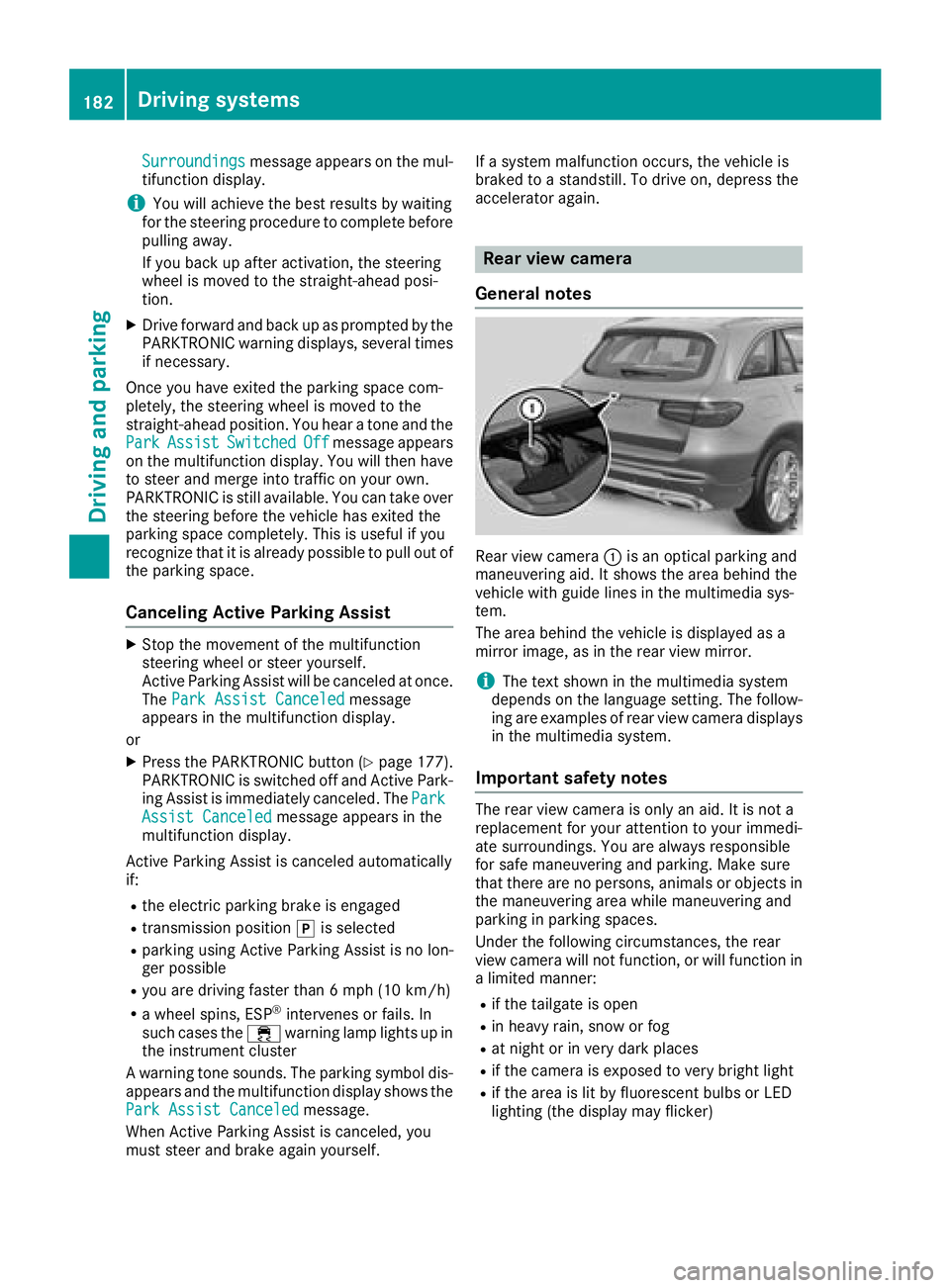
Surroundings message appears on the mul-
tifunction display.
i You will achieve the best results by waiting
for the steering procedure to complete before
pulling away.
If you back up after activation, the steering
wheel is moved to the straight-ahead posi-
tion. X
Drive forward and back up as prompted by the
PARKTRONIC warning displays, several times
if necessary.
Once you have exited the parking space com-
pletely, the steering wheel is moved to the
straight-ahead position. You hear a tone and the
Park Assist Switched Off message appears
on the multifunction display. You will then have
to steer and merge into traffic on your own.
PARKTRONIC is still available. You can take over
the steering before the vehicle has exited the
parking space completely. This is useful if you
recognize that it is already possible to pull out of
the parking space.
Canceling Active Parking Assist X
Stop the movement of the multifunction
steering wheel or steer yourself.
Active Parking Assist will be canceled at once.
The Park Assist Canceled message
appears in the multifunction display.
or X
Press the PARKTRONIC button ( Y
page 177).
PARKTRONIC is switched off and Active Park-
ing Assist is immediately canceled. The Park
Assist Canceled message appears in the
multifunction display.
Active Parking Assist is canceled automatically
if: R
the electric parking brake is engaged R
transmission position ] is selectedR
parking using Active Parking Assist is no lon-
ger possible R
you are driving faster than 6 mph (10 km/h) R
a wheel spins, ESP ®
intervenes or fails. In
such cases the
Page 185 of 374
R
if there is a sudden change in temperature,
e.g. when driving into a heated garage in win-
ter R
if the camera lens is dirty or obstructed
Observe the notes on cleaning
( Y
page 316) R
if the rear of your vehicle is damaged. In this
case, have the camera position and setting
checked at a qualified specialist workshop
The field of vision and other functions of the rear
view camera may be restricted due to additional
accessories on the rear of the vehicle (e.g.
license plate holder, rear bicycle rack).
The rear view camera is protected from rain-
drops and dust by means of a flap. When the rear
view camera is activated, this flap opens.
The flap closes again when: R
you have finished the maneuvering process R
you switch off the engine R
you open the cargo compartment
Observe the notes on cleaning ( Y
page 316).
For technical reasons, the flap may remain open
briefly after the rear view camera has been
deactivated.
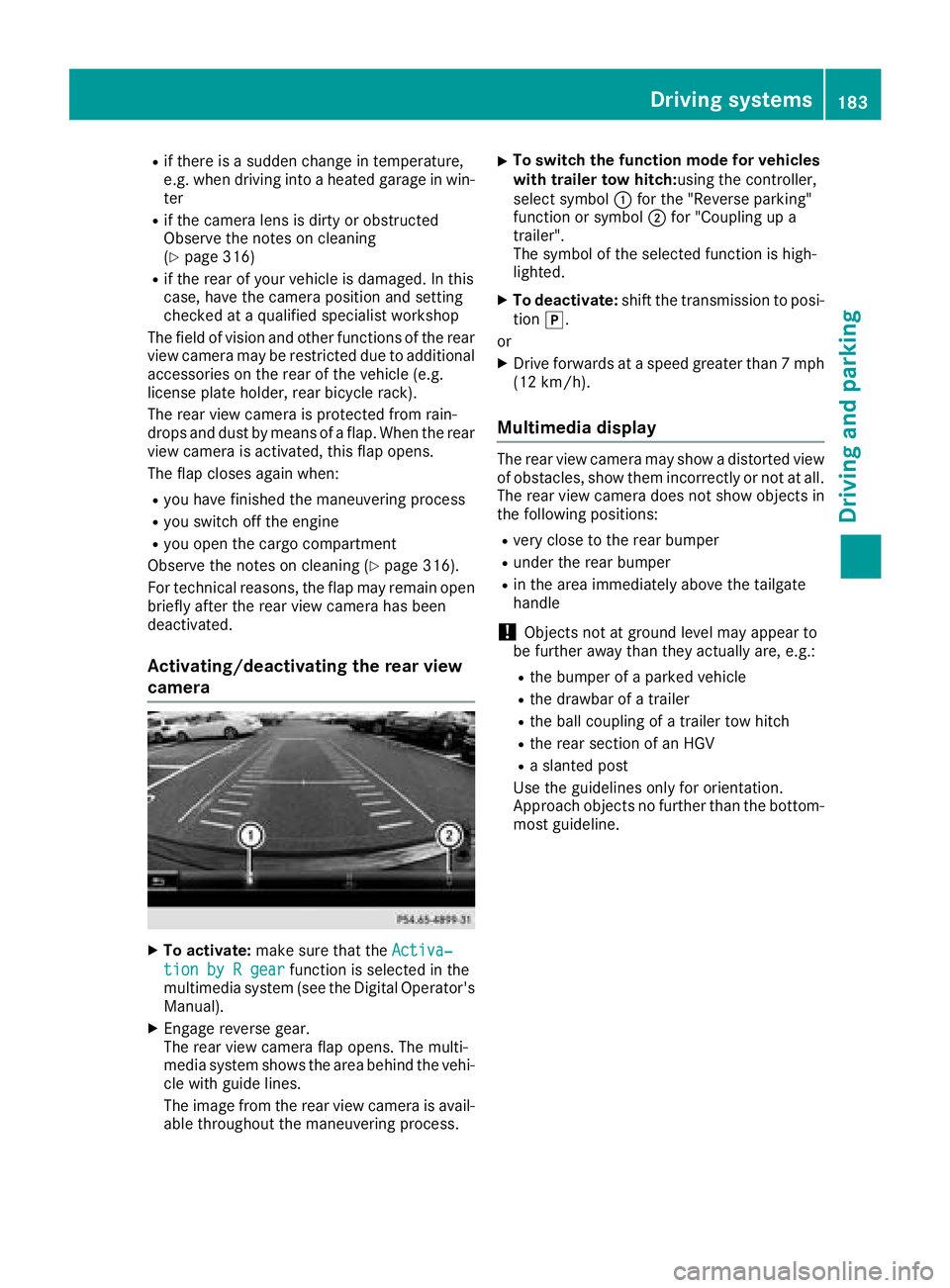
Activating/deactivating the rear view
camera
X
To activate: make sure that the Activa‐
tion by R gear function is selected in the
multimedia system (see the Digital Operator's
Manual). X
Engage reverse gear.
The rear view camera flap opens. The multi-
media system shows the area behind the vehi-
cle with guide lines.
The image from the rear view camera is avail-
able throughout the maneuvering process. X
To switch the function mode for vehicles
with trailer tow hitch: using the controller,
select symbol C for the "Reverse parking"
function or symbol D for "Coupling up a
trailer".
The symbol of the selected function is high-
lighted. X
To deactivate: shift the transmission to posi-
tion ] .
or X
Drive forwards at a speed greater than 7 mph
(12 km/h).
Multimedia display The rear view camera may show a distorted view
of obstacles, show them incorrectly or not at all.
The rear view camera does not show objects in
the following positions: R
very close to the rear bumper R
under the rear bumper R
in the area immediately above the tailgate
handle
! Objects not at ground level may appear to
be further away than they actually are, e.g.: R
the bumper of a parked vehicle R
the drawbar of a trailer R
the ball coupling of a trailer tow hitch R
the rear section of an HGV R
a slanted post
Use the guidelines only for orientation.
Approach objects no further than the bottom-
most guideline.Driving systems 183
Driving and parking Z
Page 189 of 374
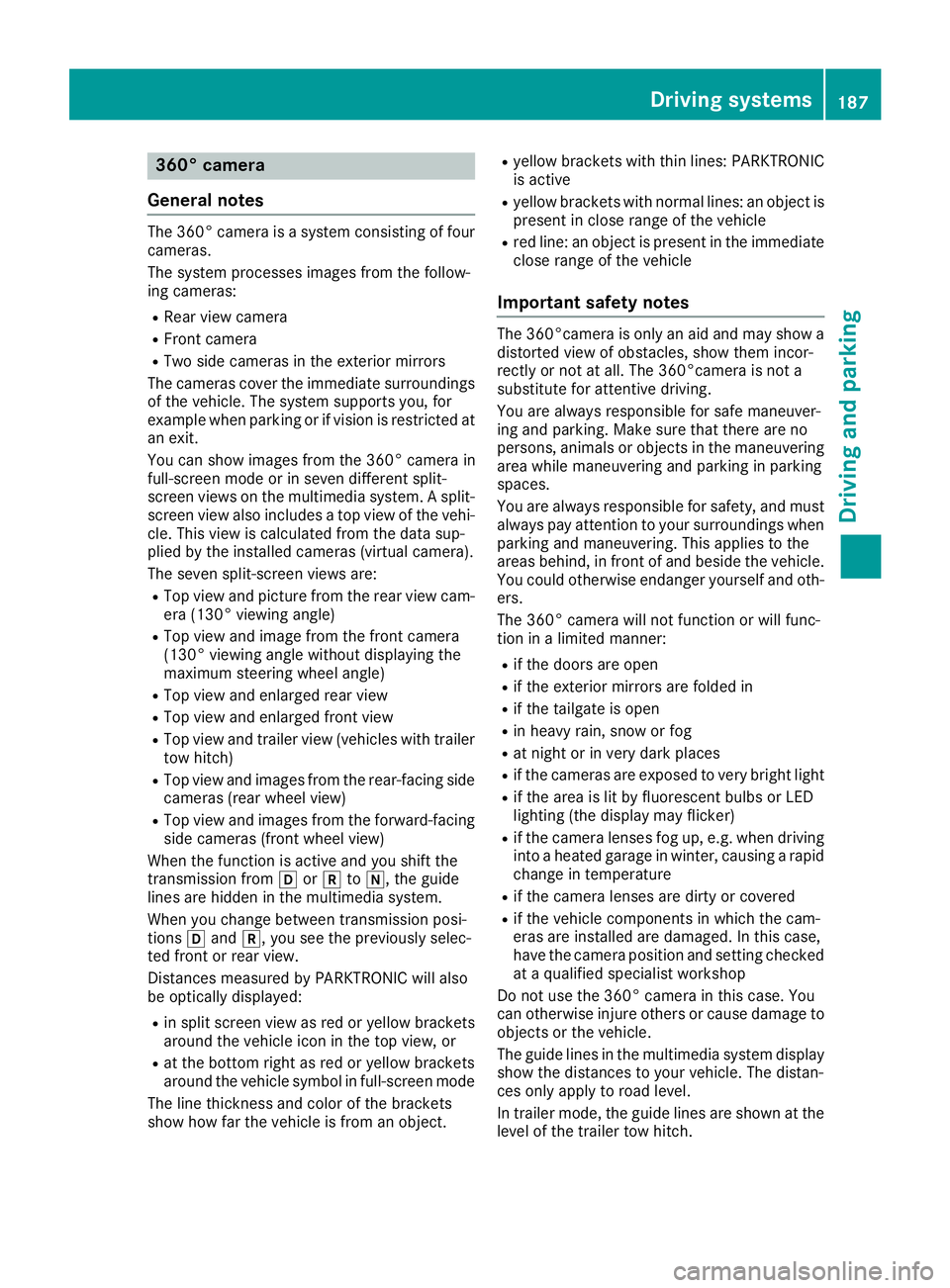
360° camera
General notes The 360° camera is a system consisting of four
cameras.
The system processes images from the follow-
ing cameras: R
Rear view camera R
Front camera R
Two side cameras in the exterior mirrors
The cameras cover the immediate surroundings
of the vehicle. The system supports you, for
example when parking or if vision is restricted at
an exit.
You can show images from the 360° camera in
full-screen mode or in seven different split-
screen views on the multimedia system. A split-
screen view also includes a top view of the vehi-
cle. This view is calculated from the data sup-
plied by the installed cameras (virtual camera).
The seven split-screen views are: R
Top view and picture from the rear view cam-
era (130° viewing angle) R
Top view and image from the front camera
(130° viewing angle without displaying the
maximum steering wheel angle) R
Top view and enlarged rear view R
Top view and enlarged front view R
Top view and trailer view (vehicles with trailer
tow hitch) R
Top view and images from the rear-facing side
cameras (rear wheel view) R
Top view and images from the forward-facing
side cameras (front wheel view)
When the function is active and you shift the
transmission from [ or ^ to \\ , the guide
lines are hidden in the multimedia system.
When you change between transmission posi-
tions [ and ^ , you see the previously selec-
ted front or rear view.
Distances measured by PARKTRONIC will also
be optically displayed: R
in split screen view as red or yellow brackets
around the vehicle icon in the top view, or R
at the bottom right as red or yellow brackets
around the vehicle symbol in full-screen mode
The line thickness and color of the brackets
show how far the vehicle is from an object. R
yellow brackets with thin lines: PARKTRONIC
is active R
yellow brackets with normal lines: an object is
present in close range of the vehicle R
red line: an object is present in the immediate
close range of the vehicle
Important safety notes The 360°camera is only an aid and may show a
distorted view of obstacles, show them incor-
rectly or not at all. The 360°camera is not a
substitute for attentive driving.
You are always responsible for safe maneuver-
ing and parking. Make sure that there are no
persons, animals or objects in the maneuvering
area while maneuvering and parking in parking
spaces.
You are always responsible for safety, and must
always pay attention to your surroundings when
parking and maneuvering. This applies to the
areas behind, in front of and beside the vehicle.
You could otherwise endanger yourself and oth-
ers.
The 360° camera will not function or will func-
tion in a limited manner: R
if the doors are open R
if the exterior mirrors are folded in R
if the tailgate is open R
in heavy rain, snow or fog R
at night or in very dark places R
if the cameras are exposed to very bright light R
if the area is lit by fluorescent bulbs or LED
lighting (the display may flicker) R
if the camera lenses fog up, e.g. when driving
into a heated garage in winter, causing a rapid
change in temperature R
if the camera lenses are dirty or covered R
if the vehicle components in which the cam-
eras are installed are damaged. In this case,
have the camera position and setting checked
at a qualified specialist workshop
Do not use the 360° camera in this case. You
can otherwise injure others or cause damage to
objects or the vehicle.
The guide lines in the multimedia system display
show the distances to your vehicle. The distan-
ces only apply to road level.
In trailer mode, the guide lines are shown at the
level of the trailer tow hitch.Driving systems 187
Driving and parking Z
Page 190 of 374
The camera in the rear area is protected by
means of a flap. This flap opens when the 360°
camera is activated. Observe the notes on
cleaning ( Y
page 316). For technical reasons,
the flap may remain open briefly after the 360°
camera has been deactivated.
The field of vision and other functions of the
camera system may be restricted due to addi-
tional attachments (e.g. license plate holder,
rear bicycle carrier).
On vehicles with height-adjustable chassis,
depending on technical conditions, leaving the
standard height can result in: R
inaccuracies in the guide lines R
inaccuracies in the display of generated
images (top view)
Activation conditions The image from the 360° camera appears if: R
the multimedia system is switched on R
the 360° Camera function is switched on
If you are driving faster than at a moderate
speed and you turn on the 360° camera, a warn-
ing message appears.
The warning message disappears if: R
you are again driving at a moderate speed The
360° camera is then activated R
the message is confirmed with the 8 but-
ton
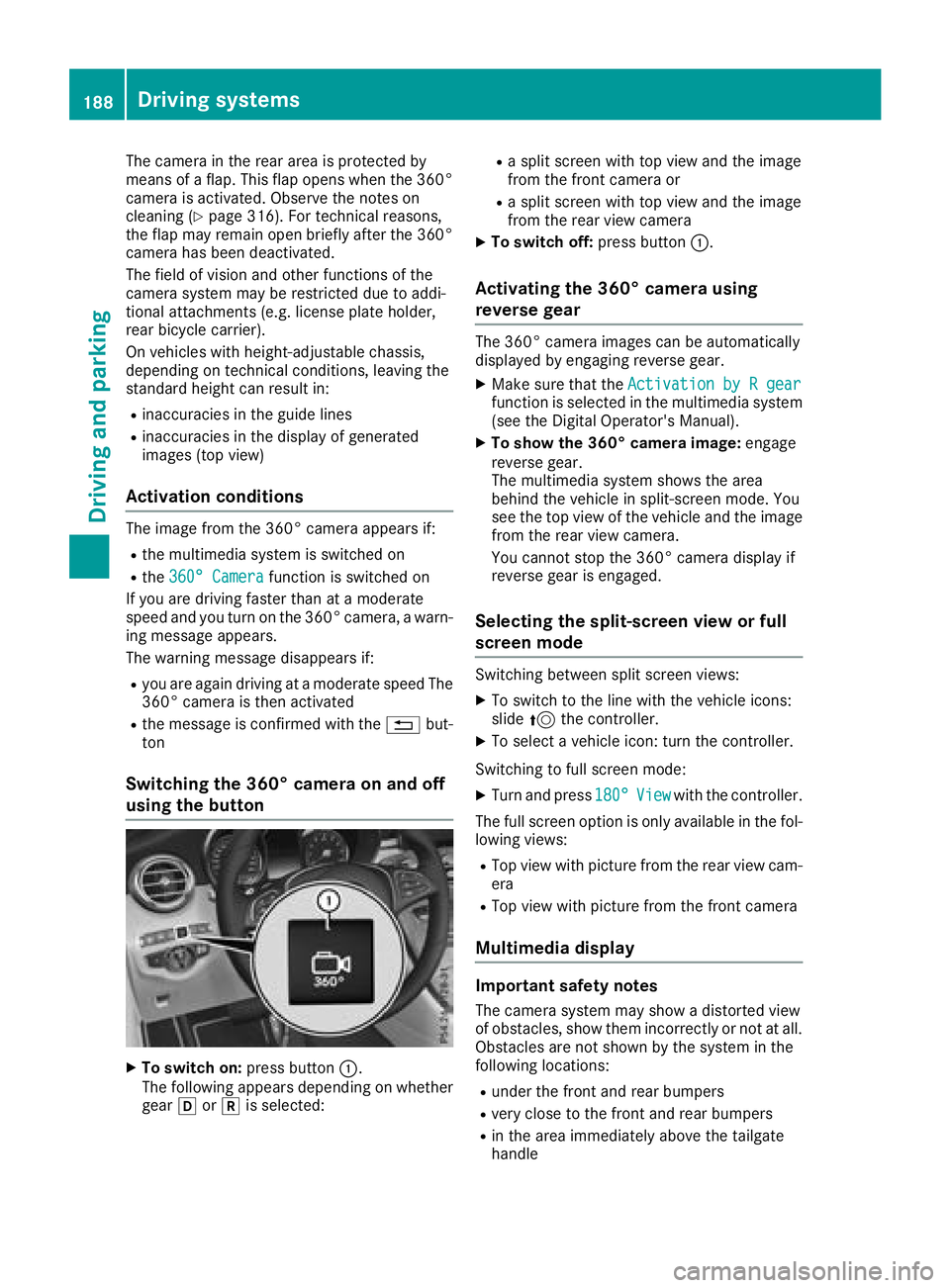
Switching the 360° camera on and off
using the button
X
To switch on: press button C .
The following appears depending on whether
gear [ or ^ is selected: R
a split screen with top view and the image
from the front camera or R
a split screen with top view and the image
from the rear view camera X
To switch off: press button C .
Activating the 360° camera using
reverse gear The 360° camera images can be automatically
displayed by engaging reverse gear. X
Make sure that the Activation by R gear
function is selected in the multimedia system
(see the Digital Operator's Manual). X
To show the 360° camera image: engage
reverse gear.
The multimedia system shows the area
behind the vehicle in split-screen mode. You
see the top view of the vehicle and the image
from the rear view camera.
You cannot stop the 360° camera display if
reverse gear is engaged.
Selecting the split-screen view or full
screen mode Switching between split screen views: X
To switch to the line with the vehicle icons:
slide 5 the controller. X
To select a vehicle icon: turn the controller.
Switching to full screen mode: X
Turn and press 180° View with the controller.
The full screen option is only available in the fol-
lowing views: R
Top view with picture from the rear view cam-
era R
Top view with picture from the front camera
Multimedia display
Important safety notes
The camera system may show a distorted view
of obstacles, show them incorrectly or not at all.
Obstacles are not shown by the system in the
following locations: R
under the front and rear bumpers R
very close to the front and rear bumpers R
in the area immediately above the tailgate
handle188
Driving systems
Driving and parking
Page 194 of 374
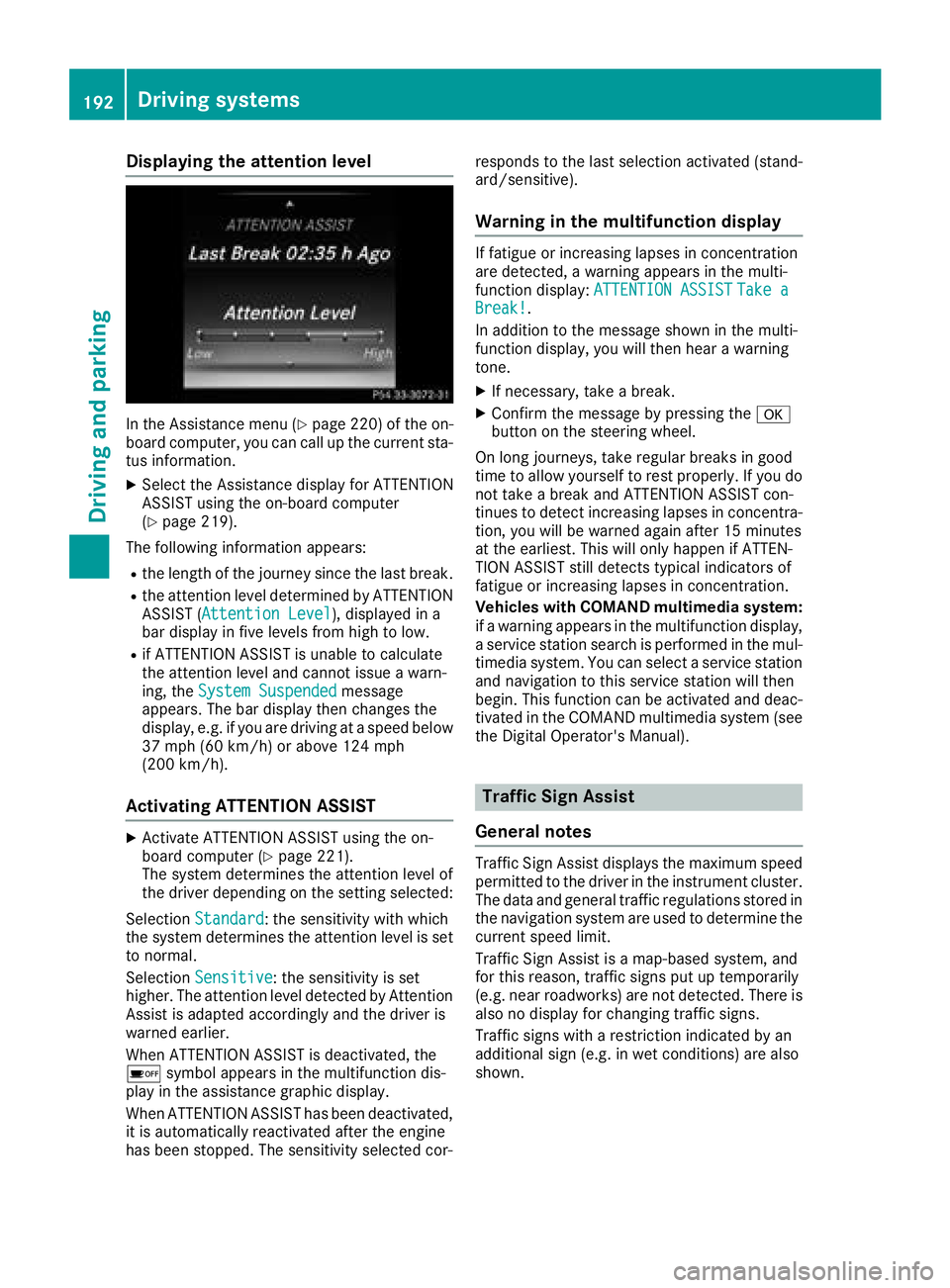
Displaying th e attention level
In th e Assistanc e men u ( Y
page 220) of th e on -
boar d computer, you can cal l up th e curren t sta-
tu s information .X
Selec t th e Assistanc e display fo r ATTENTION
ASSIST usin g th e on-boar d compute r
( Y
page 219).
The followin g information appears :R
th e lengt h of th e journey since th e last break .R
th e attention level determined by ATTENTION
ASSIST ( Attention Level ), displaye d in a
bar display in fiv e levels from hig h to low.R
if ATTENTION ASSIST is unable to calculat e
th e attention level and canno t issue a warn -
ing, th e System Suspended messag e
appears . The bar display then changes th e
display, e.g. if you are drivin g at a speed belo w
37 mph (60 km/h) or abov e 12 4 mph
(20 0 km/h).
Activating ATTENTIO N ASSIS TX
Activat e ATTENTION ASSIST usin g th e on -
boar d compute r ( Y
page 221).
The syste m determines th e attention level of
th e driver dependin g on th e setting selected:
Selection Standard : th e sensitivity wit h whic h
th e syste m determines th e attention level is set
to normal.
Selection Sensitive : th e sensitivity is set
higher . The attention level detecte d by Attention
Assis t is adapted accordingly and th e driver is
warned earlier .
Whe n ATTENTION ASSIST is deactivated, th e
Page 195 of 374

The sign indicating the end of a restriction only
appears with the restriction in the instrument
cluster when: R
The regulation must be observed with the
restriction, or R
Traffic Sign Assist is unable to determine
whether the restriction applies
If Traffic Sign Assist is unable to determine a
maximum permitted speed from any of the avail-
able sources, no speed limit appears in the
instrument cluster either.
Traffic Sign Assist is not available in all coun-
tries. In this case, display C appears in the
assistance graphic ( Y
page 219).
Important safety notes Traffic Sign Assist is only an aid and is not always
able to correctly display speed limits. Traffic
signs always have priority over the Traffic Sign
Assist display.
The system may be either functionally impaired
or temporarily unavailable if the information in
the digital street map of the navigation system is
incorrect or out of date.
Instrument cluster display
Displaying the assistance graphic X
Call up the assistance graphic display func-
tion using the on-board computer
( Y
page 219).
Detected traffic signs appear in the instru-
ment cluster. Speed limit with unknown restriction
C
Maximum permitted speed D
Maximum permitted speed for vehicles for
which the restriction in the additional sign is
relevant
Page 197 of 374
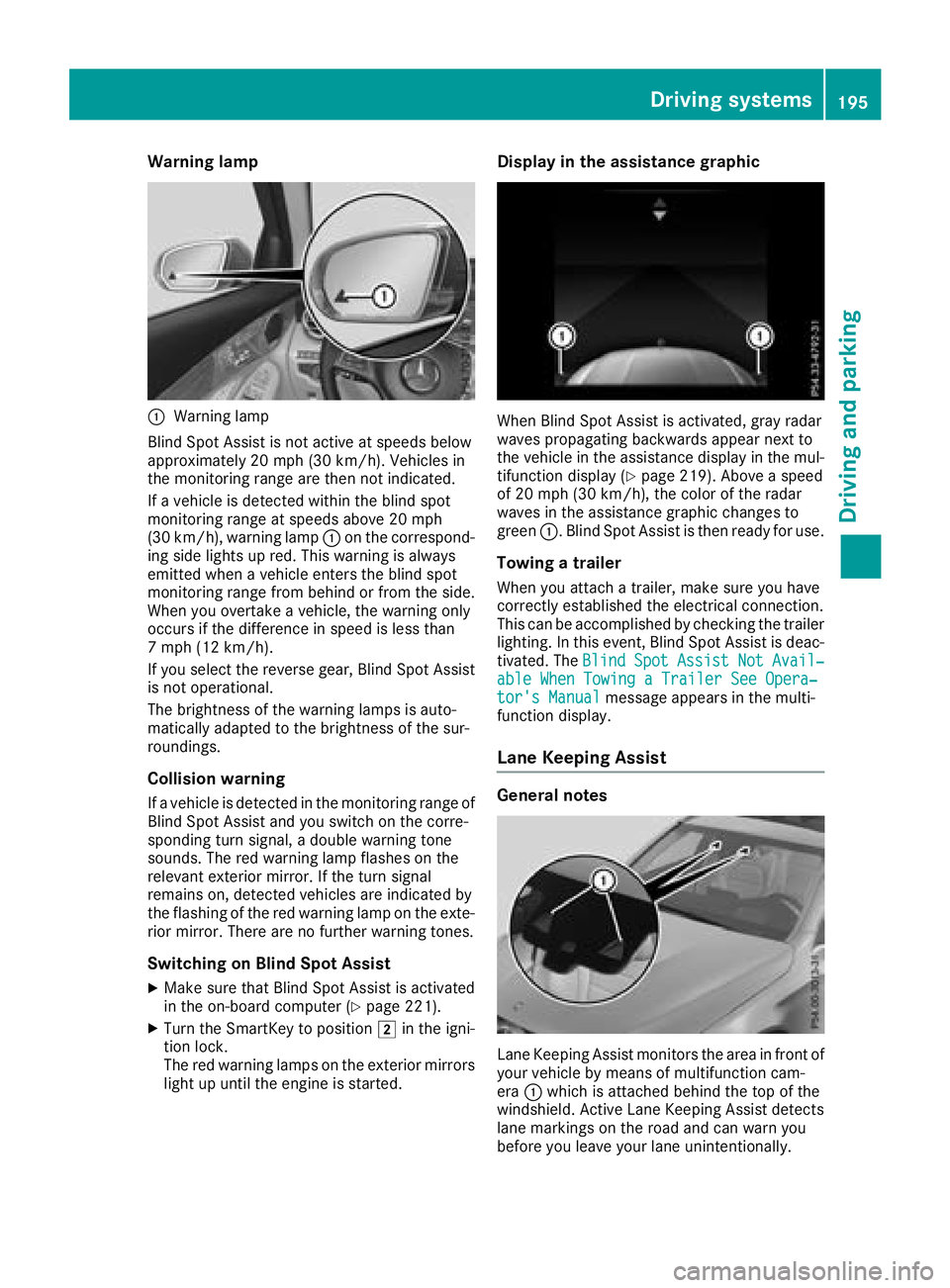
Warning lamp
C
Warning lamp
Blind Spot Assist is not active at speeds below
approximately 20 mph (30 km/h). Vehicles in
the monitoring range are then not indicated.
If a vehicle is detected within the blind spot
monitoring range at speeds above 20 mph
(30 km/h), warning lamp C on the correspond-
ing side lights up red. This warning is always
emitted when a vehicle enters the blind spot
monitoring range from behind or from the side.
When you overtake a vehicle, the warning only
occurs if the difference in speed is less than
7 mph (12 km/h).
If you select the reverse gear, Blind Spot Assist
is not operational.
The brightness of the warning lamps is auto-
matically adapted to the brightness of the sur-
roundings.
Collision warning If a vehicle is detected in the monitoring range of
Blind Spot Assist and you switch on the corre-
sponding turn signal, a double warning tone
sounds. The red warning lamp flashes on the
relevant exterior mirror. If the turn signal
remains on, detected vehicles are indicated by
the flashing of the red warning lamp on the exte-
rior mirror. There are no further warning tones.
Switching on Blind Spot Assist X
Make sure that Blind Spot Assist is activated
in the on-board computer ( Y
page 221).X
Turn the SmartKey to position H in the igni-
tion lock.
The red warning lamps on the exterior mirrors
light up until the engine is started. Display in the assistance graphic
When Blind Spot Assist is activated, gray radar
waves propagating backwards appear next to
the vehicle in the assistance display in the mul-
tifunction display ( Y
page 219). Above a speed
of 20 mph (30 km/h), the color of the radar
waves in the assistance graphic changes to
green C . Blind Spot Assist is then ready for use.
Towing a trailer When you attach a trailer, make sure you have
correctly established the electrical connection.
This can be accomplished by checking the trailer
lighting. In this event, Blind Spot Assist is deac-
tivated. The Blind Spot Assist Not Avail‐
able When Towing a Trailer See Opera‐
tor's Manual message appears in the multi-
function display.
Lane Keeping Assist
General notes
Lane Keeping Assist monitors the area in front of
your vehicle by means of multifunction cam-
era C which is attached behind the top of the
windshield. Active Lane Keeping Assist detects
lane markings on the road and can warn you
before you leave your lane unintentionally.Driving systems 195
Driving and parking Z
Page 198 of 374
This function is available in the range between
40 mph and 120 mph (60 km/ ha nd 200 km/h).
A warning may be given if a front wheel passes
over a lane marking. It will warn you by means of
intermittent vibration in the steering wheel for
up to 1.5 seconds.
Important safety notes
G WARNING
Lane Keeping Assist may not always clearly
recognize lane markings.
In this case, Lane Keeping Assist may: R
give an unnecessary warning R
not give a warning
There is a risk of an accident.
Always pay particular attention to the traffic
situation and stay in lane, in particular if
warned by Lane Keeping Assist.
G WARNING
The Lane Keeping Assist warning does not
return the vehicle to the original lane. There is
a risk of an accident.
You should always steer, brake or accelerate
yourself, in particular if warned by Lane Keep-
ing Assist.
Lane Keeping Assist can neither reduce the risk
of an accident if you fail to adapt your driving
style nor override the laws of physics. Lane
Keeping Assist cannot take into account the
road, traffic and weather conditions. Lane Keep-
ing Assist is merely an aid. You are responsible
for the distance to the vehicle in front, for vehi-
cle speed, for braking in good time and for stay-
ing in your lane.
The Lane Keeping Assist does not keep the vehi-
cle in the lane.
The system may be impaired or may not function
if: R
there is poor visibility, e.g. due to insufficient
illumination of the road, or due to snow, rain,
fog or spray R
there is glare, e.g. from oncoming traffic, the
sun or reflection from other vehicles (e.g. if
the road surface is wet) R
the windshield is dirty, fogged up, damaged or
covered, for instance by a sticker, in the vicin-
ity of the camera R
there are no, several or unclear lane markings
for a lane, e.g. in areas with road construction
work R
the lane markings are worn away, dark or cov-
e red up, e.g. by dirt or snow R
the distance to the vehicle in front is too small
and the lane markings thus cannot be detec-
ted R
the lane markings change quickly, e.g. lanes
branch off, cross one another or merge R
the road is narrow and winding R
there are highly variable shade conditions on
the roadway
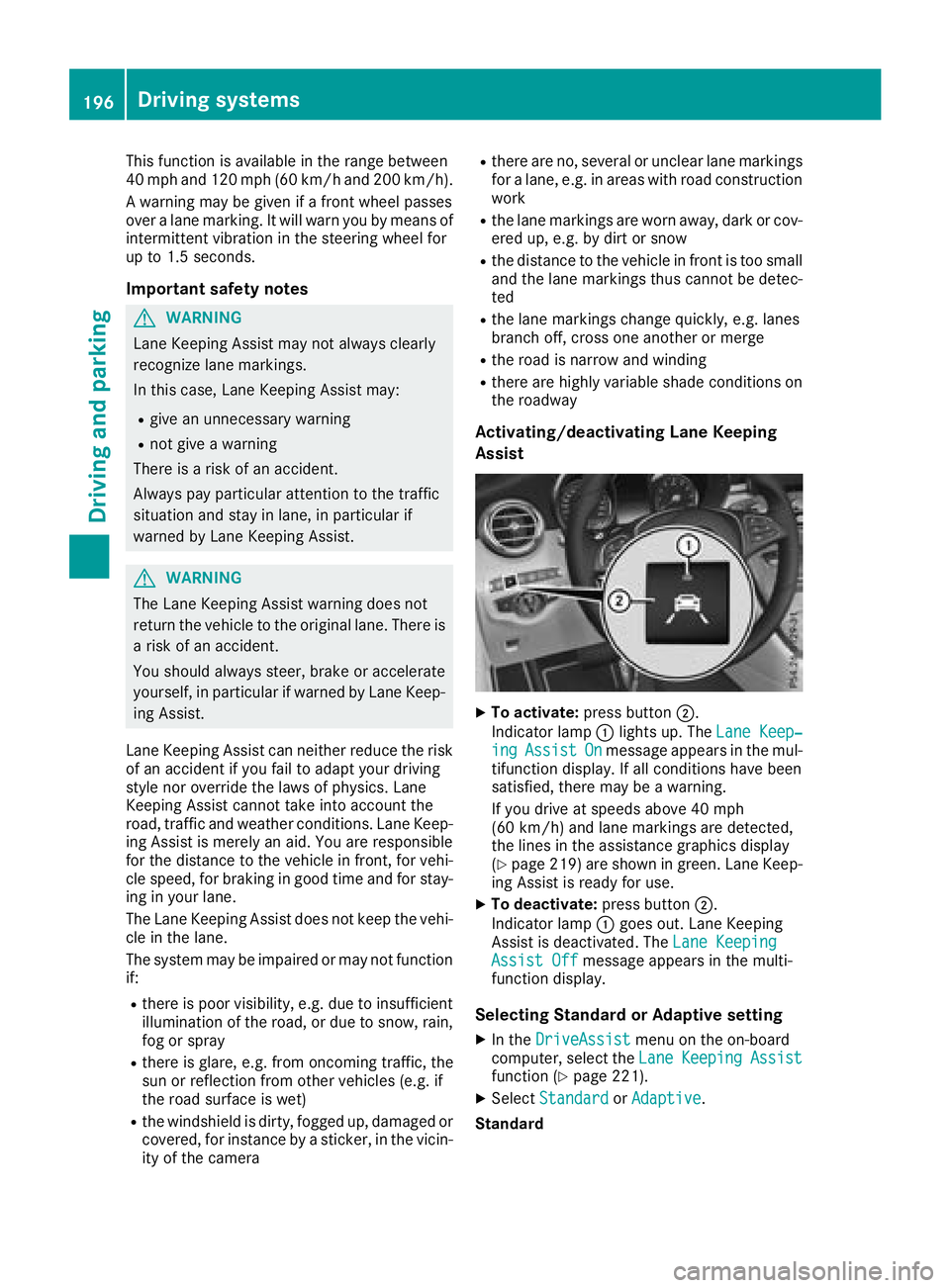
Activating/deactivating Lane Keeping
Assist
X
To activate: press button D .
Indicator lamp C lights up. The Lane Keep‐
ing Assist On message appears in the mul-
tifunction display. If all conditions have been
satisfied, there may be a warning.
If you drive at speeds above 40 mph
(60 km/h) and lane markings are detected,
the lines in the assistance graphics display
( Y
page 219) are shown in green. Lane Keep-
ing Assist is ready for use. X
To deactivate: press button D .
Indicator lamp C goes out. Lane Keeping
Assist is deactivated. The Lane Keeping
Assist Off message appears in the multi-
function display.
Selecting Standard or Adaptive setting X
In the DriveAssist menu on the on-board
computer, select the Lane Keeping Assist
function ( Y
page 221). X
Select Standard or Adaptive .
Standard196
Driving systems
Driving an d parking