2017 MERCEDES-BENZ GLA SUV bluetooth
[x] Cancel search: bluetoothPage 287 of 369
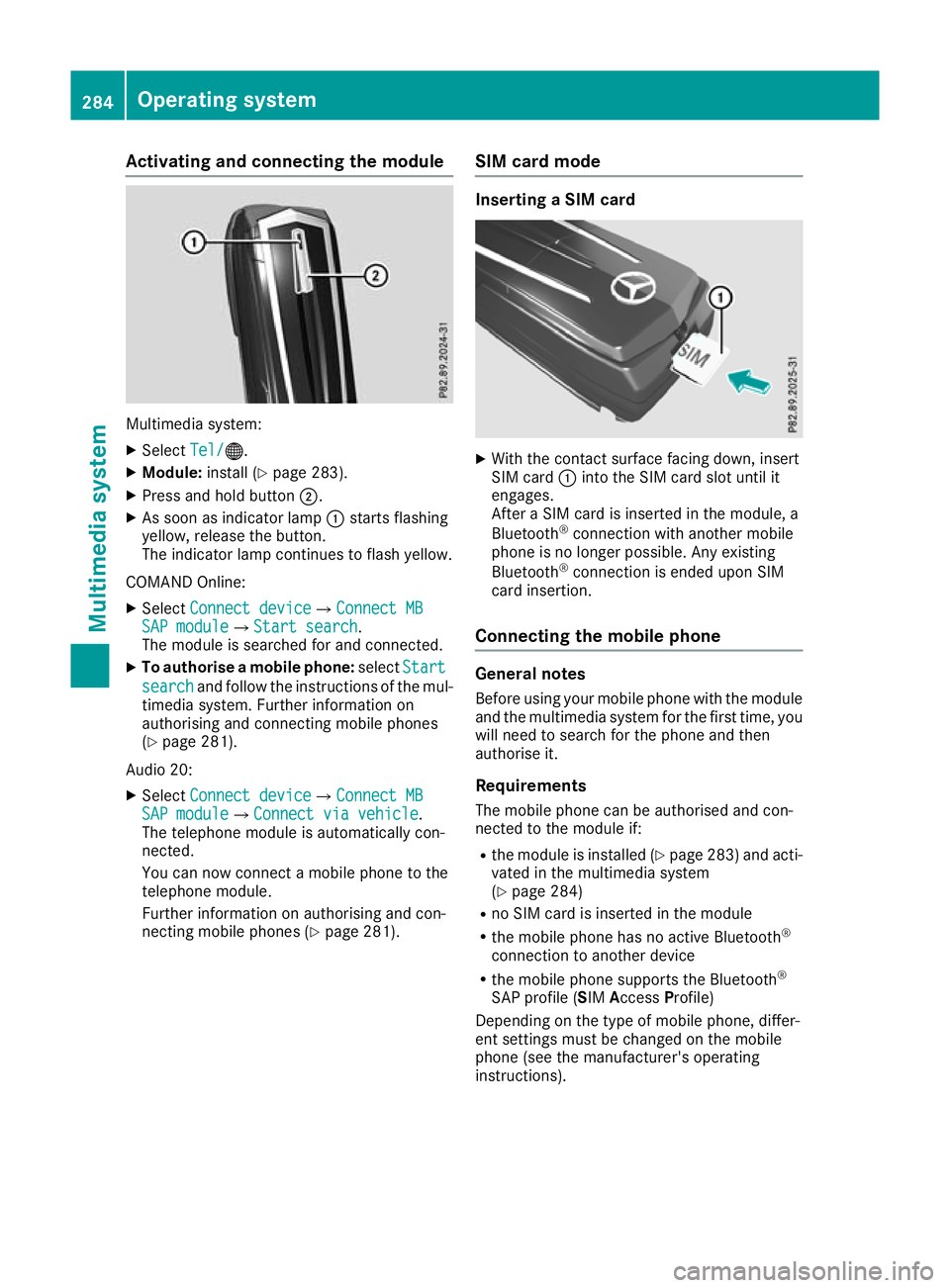
Activating and connecting the module
Multimedia system:
X Select Tel/
Tel/®.
X Module: install (Y page 283).
X Press and hold button ;.
X As soon as indicator lamp :starts flashing
yellow, release the button.
The indicator lamp continues to flash yellow.
COMAND Online: X Select Connect device
Connect device QConnect MBConnect MB
SAP module SAP module QStart searchStart search .
The module is searched for and connected.
X To authorise a mobile phone: selectStart
Start
search
search and follow the instructions of the mul-
timedia system. Further information on
authorising and connecting mobile phones
(Y page 281).
Audio 20:
X Select Connect device
Connect device QConnect MBConnect MB
SAP module SAP module QConnect via vehicleConnect via vehicle.
The telephone module is automatically con-
nected.
You can now connect a mobile phone to the
telephone module.
Further information on authorising and con-
necting mobile phones (Y page 281).SIM card mode Inserting a SIM card
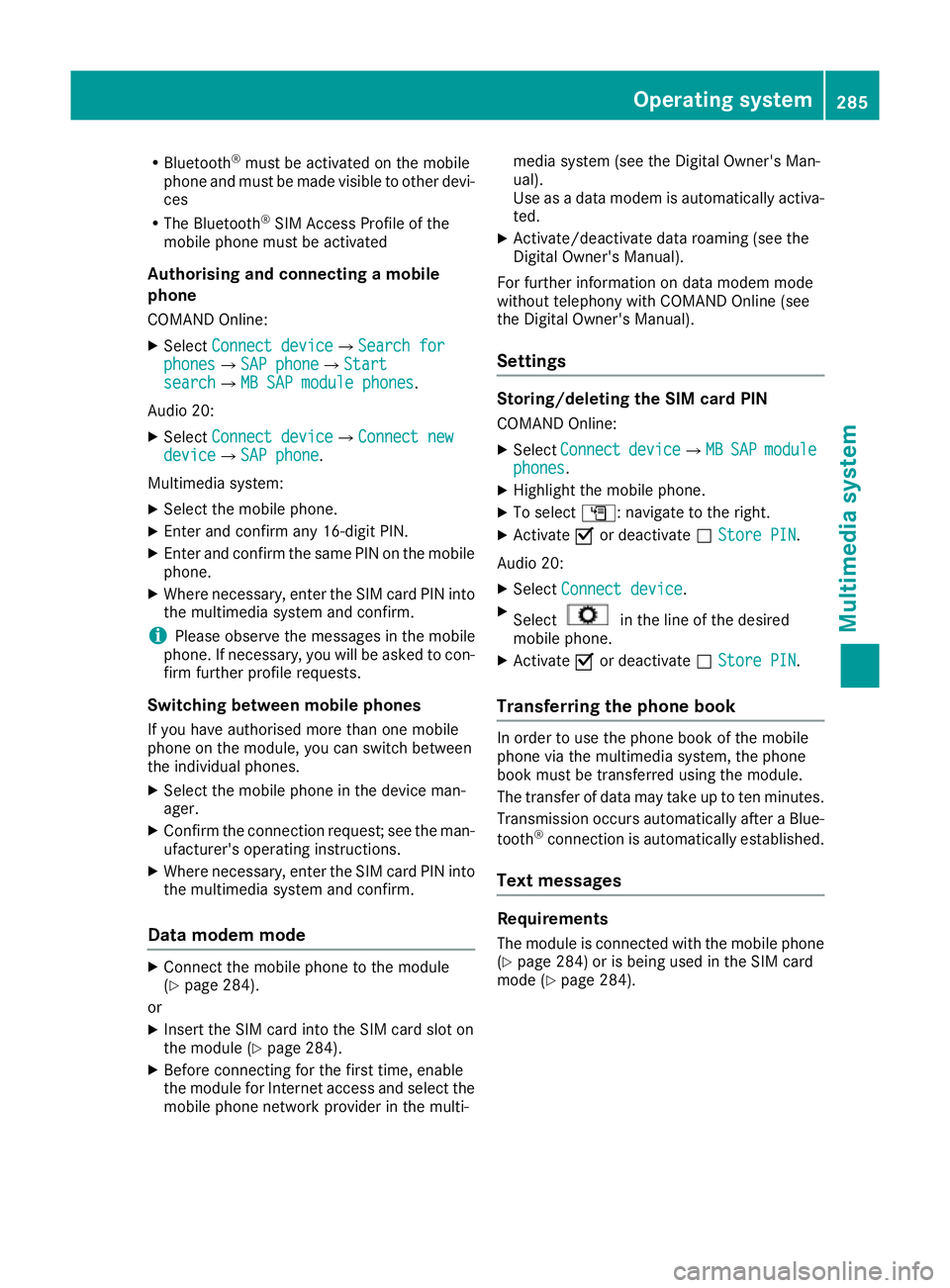
X
With the contact surface facing down, insert
SIM card :into the SIM card slot until it
engages.
After a SIM card is inserted in the module, a
Bluetooth ®
connection with another mobile
phone is no longer possible. Any existing
Bluetooth ®
connection is ended upon SIM
card insertion.
Connecting the mobile phone General notes
Before using your mobile phone with the module and the multimedia system for the first time, youwill need to search for the phone and then
authorise it.
Requirements The mobile phone can be authorised and con-
nected to the module if:
R the module is installed (Y page 283) and acti-
vated in the multimedia system
(Y page 284)
R no SIM card is inserted in the module
R the mobile phone has no active Bluetooth ®
connection to another device
R the mobile phone supports the Bluetooth ®
SAP profile (SIM AccessProfile)
Depending on the type of mobile phone, differ-
ent settings must be changed on the mobile
phone (see the manufacturer's operating
instructions). 284
Operating systemMultimedia system
Page 288 of 369
R
Bluetooth ®
must be activated on the mobile
phone and must be made visible to other devi-
ces
R The Bluetooth ®
SIM Access Profile of the
mobile phone must be activated
Authorising and connecting a mobile
phone
COMAND Online:
X Select Connect device
Connect deviceQSearch for Search for
phones
phonesQSAP phone SAP phoneQStart Start
search
searchQMB SAP module phones MB SAP module phones.
Audio 20:
X Select Connect device
Connect deviceQConnect new Connect new
device
deviceQSAP phone SAP phone.
Multimedia system: X Select the mobile phone.
X Enter and confirm any 16-digit PIN.
X Enter and confirm the same PIN on the mobile
phone.
X Where necessary, enter the SIM card PIN into
the multimedia system and confirm.
i Please observe the messages in the mobile
phone. If necessary, you will be asked to con-
firm further profile requests.
Switching between mobile phones If you have authorised more than one mobile
phone on the module, you can switch between
the individual phones.
X Select the mobile phone in the device man-
ager.
X Confirm the connection request; see the man-
ufacturer's operating instructions.
X Where necessary, enter the SIM card PIN into
the multimedia system and confirm.
Data modem mode X
Connect the mobile phone to the module
(Y page 284).
or
X Insert the SIM card into the SIM card slot on
the module (Y page 284).
X Before connecting for the first time, enable
the module for Internet access and select the mobile phone network provider in the multi- media system (see the Digital Owner's Man-
ual).
Use as a data modem is automatically activa-
ted.
X Activate/deactivate data roaming (see the
Digital Owner's Manual).
For further information on data modem mode
without telephony with COMAND Online (see
the Digital Owner's Manual).
Settings Storing/deleting the SIM card PIN
COMAND Online:
X Select Connect Connect device deviceQMB MBSAP
SAP module
module
phones
phones.
X Highlight the mobile phone.
X To select G: navigate to the right.
X Activate Oor deactivate ªStore PIN
Store PIN.
Audio 20:
X Select Connect device
Connect device.
X Select in the line of the desired
mobile phone.
X Activate Oor deactivate ªStore PIN
Store PIN.
Transferring the phone book In order to use the phone book of the mobile
phone via the multimedia system, the phone
book must be transferred using the module.
The transfer of data may take up to ten minutes.
Transmission occurs automatically after a Blue-
tooth ®
connection is automatically established.
Text messages Requirements
The module is connected with the mobile phone
(Y page 284) or is being used in the SIM card
mode (Y page 284). Operating system
285Multimedia system Z
Page 289 of 369
Activating/deactivating text message
downloading from the mobile phone Dial number Function
00080 Text message down-
loading is deactiva-
ted.
00081 Text message down-
loading is activated.
For further information on receiving text mes-
sages when using the telephone module (see
the Digital Owner's Manual).
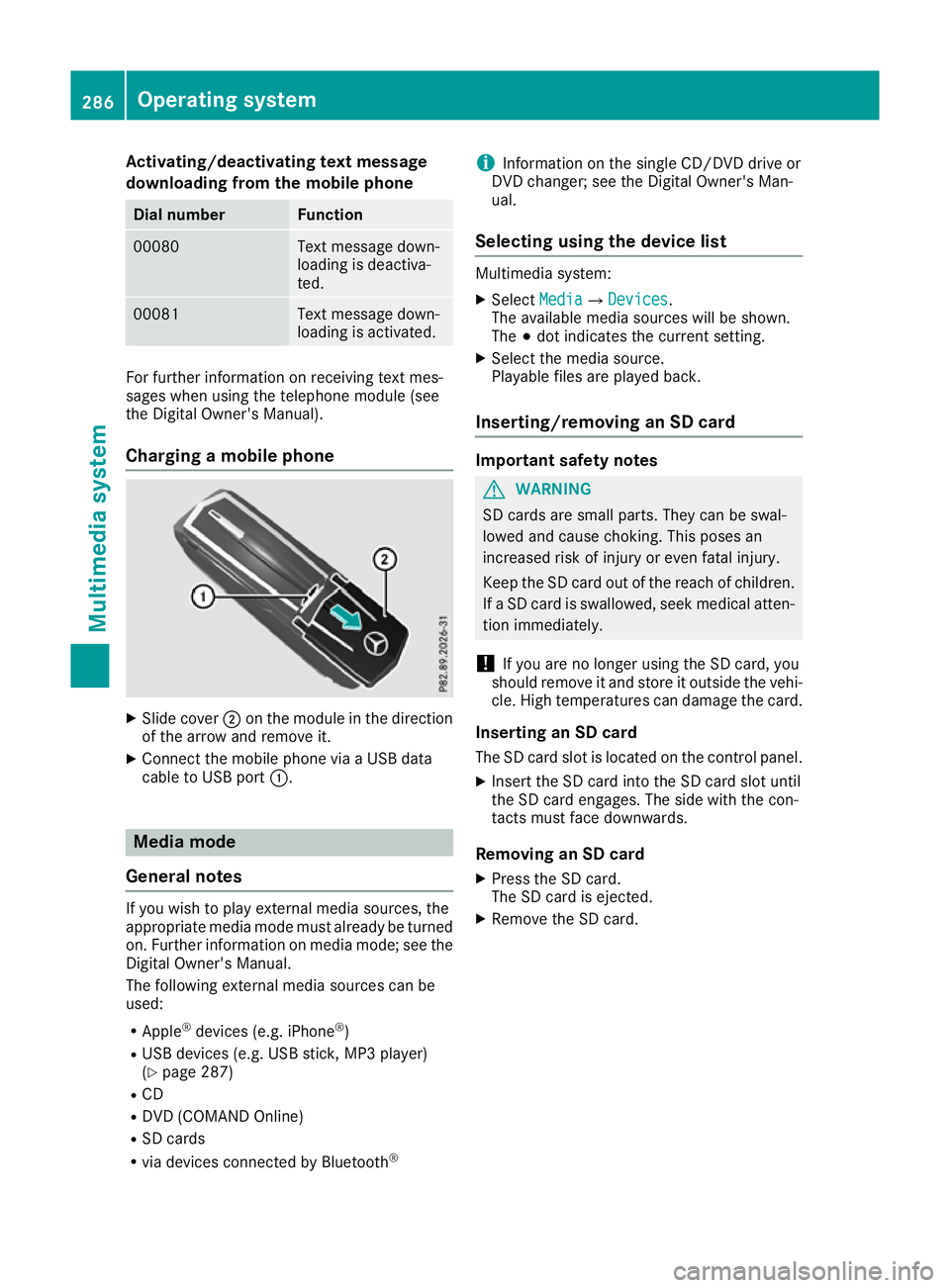
Charging a mobile phone X
Slide cover ;on the module in the direction
of the arrow and remove it.
X Connect the mobile phone via a USB data
cable to USB port :. Media mode
General notes If you wish to play external media sources, the
appropriate media mode must already be turned
on. Further information on media mode; see the Digital Owner's Manual.
The following external media sources can be
used:
R Apple ®
devices (e.g. iPhone ®
)
R USB devices (e.g. USB stick, MP3 player)
(Y page 287)
R CD
R DVD (COMAND Online)
R SD cards
R via devices connected by Bluetooth ®i
Information on the single CD/DVD drive or
DVD changer; see the Digital Owner's Man-
ual.
Selecting using the device list Multimedia system:
X Select Media MediaQ Devices
Devices.
The available media sources will be shown.
The #dot indicates the current setting.
X Select the media source.
Playable files are played back.
Inserting/removing an SD card Important safety notes
G
WARNING
SD cards are small parts. They can be swal-
lowed and cause choking. This poses an
increased risk of injury or even fatal injury.
Keep the SD card out of the reach of children. If a SD card is swallowed, seek medical atten-
tion immediately.
! If you are no longer using the SD card, you
should remove it and store it outside the vehi-
cle. High temperatures can damage the card.
Inserting an SD card
The SD card slot is located on the control panel. X Insert the SD card into the SD card slot until
the SD card engages. The side with the con-
tacts must face downwards.
Removing an SD card X Press the SD card.
The SD card is ejected.
X Remove the SD card. 286
Operating systemMultimedia system
Page 303 of 369
You will see a message if:
R a connection to the Mercedes-Benz emer-
gency call centre cannot be made
R a call has not been automatically forwarded
to the public emergency call centre
In this case, dial the 112emergency number
on your mobile phone.
You can find more information on the Mercedes-
Benz emergency call system in the separate
operating instructions. Mobile phone
Important safety notes G
WARNING
If you operate mobile communication equip-
ment while driving, you can be distracted from the traffic situation. This could also cause you
to lose control of the vehicle. There is a risk of an accident.
Only operate this equipment when the vehicleis stationary.
You must observe the legal requirements for the country in which you are currently driving whenoperating mobile communications equipment in
the vehicle.
If it is permitted by law to operate communica-
tions equipment while the vehicle is in motion,
you may do so only if the traffic situation per-
mits. You may otherwise be distracted from the traffic conditions, cause an accident and injure
yourself and others.
Excessive levels of electromagnetic radiation
may cause damage to your health and to the
health of others. The use of an exterior aerial
takes into consideration the scientific discus-
sion surrounding the possible health risk posed
by electromagnetic fields.
Mercedes-Benz recommends the use of an
approved exterior aerial. This ensures:
R optimal mobile phone reception quality in the
vehicle
R that mutual interference between the vehicle
electronics and mobile phones is minimised An exterior aerial has the following advantages:
R it conducts the electromagnetic fields gener-
ated by a wireless device to the exterior
R the field strength in the vehicle interior is
lower than in a vehicle that does not have an exterior aerial
Information on retrofitting two-way radios and
mobile phones (RF transmitters) (Y page 350).
General notes There are various mobile phone brackets that
may be fitted in your vehicle; in some cases,
these are country-specific.
You can connect a Bluetooth
®
-capable mobile
phone with the multimedia system via the Blue-
tooth ®
interface. This also applies if your vehicle
is equipped with convenience telephony.
More information on suitable mobile phones,
mobile phone brackets and on connecting Blue-
tooth ®
-capable mobile phones with the multi-
media system can be obtained:
R at your Mercedes-Benz Service Centre
R on the Internet at http://www.mercedes-
benz.com/connect
The functions and services available when you
use the phone depend on your mobile phone
model and service provider.
Using a mobile phone To connect a mobile phone to the exterior aerial
and charge it, insert it into the mobile phone
bracket.
X Open the telephone compartment
(Y page 290).
X Place the mobile phone bracket into the pre-
installed fitting; see the separate installation
instructions for the mobile phone fitting.
X Insert the mobile phone into the mobile phone
bracket; see the separate installation instruc-
tions for the mobile phone fitting.
i The mobile phone can also be operated
without being in the bracket. However, the
charging function and aerial function are not
available.
In order to use Bluetooth ®
(SAP profile) on your
telephone module, you must first insert the tele-
phone module into the pre-installed fitting. This connects it to the exterior aerial. If you wish to 300
FeaturesStowing and features
Page 304 of 369
charge the mobile phone, you must connect it to
a USB port.
Further information on the telephone module
with Bluetooth ®
(SAP profile) can be found in the
Digital Owner's Manual.
Operating the mobile phone You can operate the phone using the
6and
~ buttons on the multifunction steering
wheel. You can operate other mobile phone
functions via the on-board computer
(Y page 225).
When you remove the key from the ignition lock, the mobile phone is disconnected from the vehi-cle. You can then no longer make calls using the
hands-free system.
If a call is active and you remove the key from
the ignition lock, the conversation is transferred
over to the mobile phone. It is then possible to
continue the conversation on the mobile phone.
Mobile phone bracket in the stowage
compartment You can fold the pre-installed bracket up to
improve access to the stowage space beneath
it.
Further information about the stowage com-
partment (Y
page 290).
X To fold the bracket up: press button:.
X To fold the bracket down: press the bracket
down and allow it to engage. Floormats
G
WARNING
Objects in the driver's footwell may restrict
the clearance around the pedals or block a depressed pedal. This jeopardises the oper-
ating and road safety of the vehicle. There is a
risk of an accident.
Stow all objects securely in the vehicle so that
they do not get into the driver's footwell.
Always fit the floormats securely and as pre-
scribed in order to ensure that there is always sufficient room for the pedals. Do not use
loose floormats and do not place several floor-mats on top of one another. X
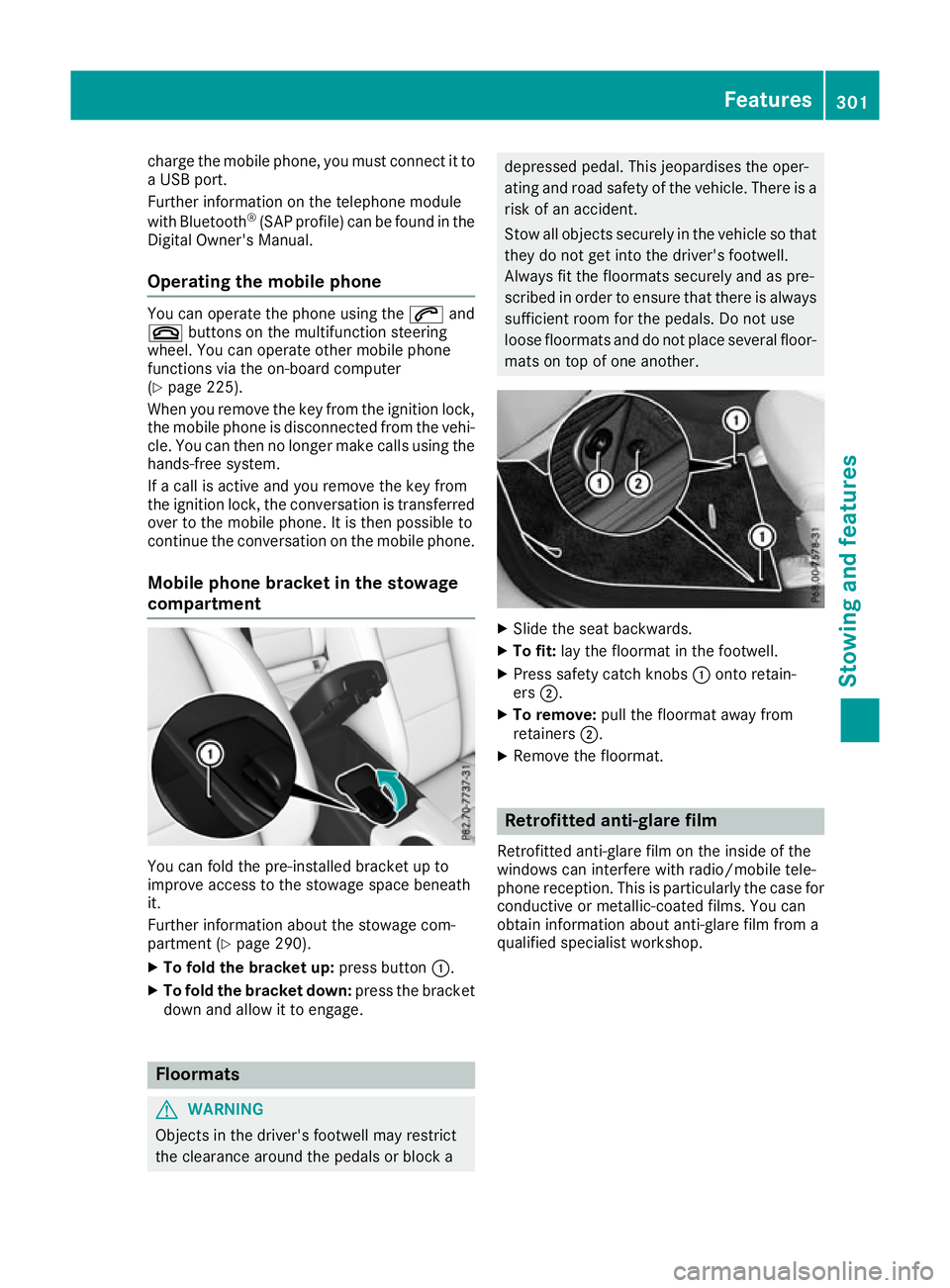
Slide the seat backwards.
X To fit: lay the floormat in the footwell.
X Press safety catch knobs :onto retain-
ers ;.
X To remove: pull the floormat away from
retainers ;.
X Remove the floormat. Retrofitted anti-glare film
Retrofitted anti-glare film on the inside of the
windows can interfere with radio/mobile tele-
phone reception. This is particularly the case for conductive or metallic-coated films. You can
obtain information about anti-glare film from a
qualified specialist workshop. Features
301Stowing and features Z