2017 Hyundai Sonata Back up
[x] Cancel search: Back upPage 243 of 563
3-158
Convenient features of your vehicle
Sunvisor
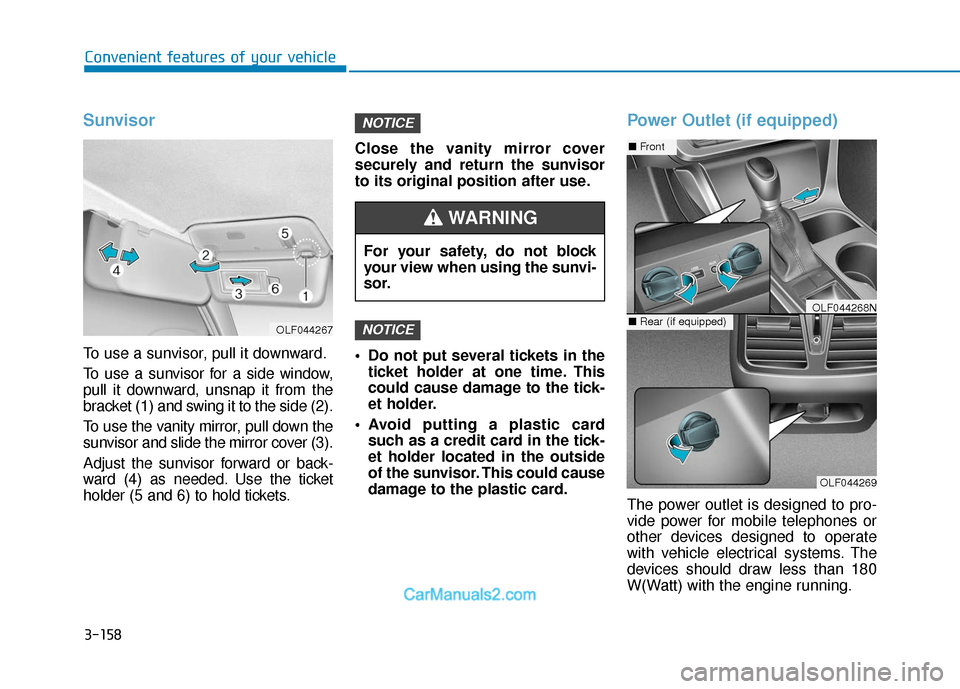
To use a sunvisor, pull it downward.
To use a sunvisor for a side window,
pull it downward, unsnap it from the
bracket (1) and swing it to the side (2).
To use the vanity mirror, pull down the
sunvisor and slide the mirror cover (3).
Adjust the sunvisor forward or back-
ward (4) as needed. Use the ticket
holder (5 and 6) to hold tickets.Close the vanity mirror cover
securely and return the sunvisor
to its original position after use.
Do not put several tickets in the
ticket holder at one time. This
could cause damage to the tick-
et holder.
Avoid putting a plastic card such as a credit card in the tick-
et holder located in the outside
of the sunvisor. This could cause
damage to the plastic card.
Power Outlet (if equipped)
The power outlet is designed to pro-
vide power for mobile telephones or
other devices designed to operate
with vehicle electrical systems. The
devices should draw less than 180
W(Watt) with the engine running.
NOTICE
NOTICE
OLF044267
For your safety, do not block
your view when using the sunvi-
sor.
WARNING
OLF044269
■ Front
■Rear (if equipped)OLF044268N
Page 245 of 563
3-160
Convenient features of your vehicle
Clock
With Audio system
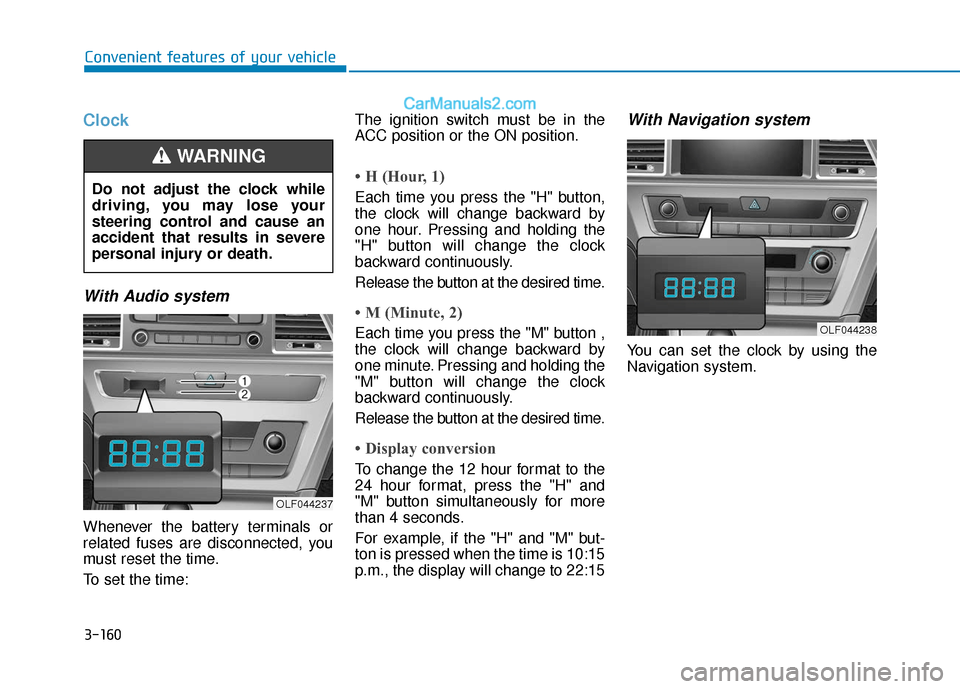
Whenever the battery terminals or
related fuses are disconnected, you
must reset the time.
To set the time:The ignition switch must be in the
ACC position or the ON position.
• H (Hour, 1)
Each time you press the "H" button,
the clock will change backward by
one hour. Pressing and holding the
"H" button will change the clock
backward continuously.
Release the button at the desired time.
• M (Minute, 2)
Each time you press the "M" button ,
the clock will change backward by
one minute. Pressing and holding the
"M" button will change the clock
backward continuously.
Release the button at the desired time.
• Display conversion
To change the 12 hour format to the
24 hour format, press the "H" and
"M" button simultaneously for more
than 4 seconds.
For example, if the "H" and "M" but-
ton is pressed when the time is 10:15
p.m., the display will change to 22:15
With Navigation system
You can set the clock by using the
Navigation system.
Do not adjust the clock while
driving, you may lose your
steering control and cause an
accident that results in severe
personal injury or death.
WARNING
OLF044237
OLF044238
Page 250 of 563
4-2
• If you install an aftermarket HIDhead lamp, your vehicle’s audio
and electronic device may mal-
function.
Prevent chemicals such as per- fume, cosmetic oil, sun cream,
hand cleaner, and air freshener
from contacting the interior
parts because they may cause
damage or discoloration.
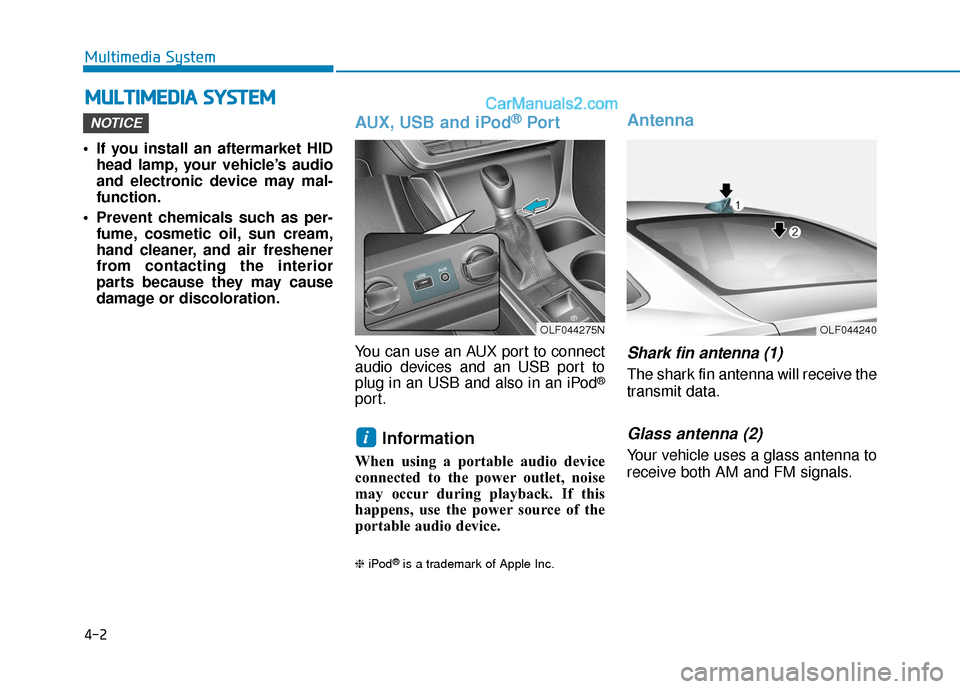
AUX, USB and iPod®Por t
You can use an AUX port to connect
audio devices and an USB port to
plug in an USB and also in an iPod
®
port.
Information
When using a portable audio device
connected to the power outlet, noise
may occur during playback. If this
happens, use the power source of the
portable audio device.
❈ iPod®is a trademark of Apple Inc.
Antenna
Shark fin antenna (1)
The shark fin antenna will receive the
transmit data.
Glass antenna (2)
Your vehicle uses a glass antenna to
receive both AM and FM signals.
i
NOTICE
M MU
UL
LT
T I
IM
M E
ED
D I
IA
A
S
S Y
Y S
ST
T E
EM
M
Multimedia System
OLF044275NOLF044240
Page 256 of 563
4-8
Caring for disc
If the temperature inside the car is toohigh, open the car windows to venti-
late before using the system.
It is illegal to copy and use MP3/WMA files without permission.
Use CDs that are created only by
lawful means.
Do not apply volatile agents, such as benzene and thinner, normal
cleaners and magnetic sprays
made for analogue disc onto CDs.
To prevent the disc surface from getting damaged, hold CDs by the
edges or the center hole only.
Clean the disc surface with a piece of soft cloth before playback (wipe
it from the center to the outside
edge).
Do not damage the disc surface or attach pieces of sticky tape or
paper.
Make certain only CDs are insert- ed into the CD player (Do not insert
more than one CD at a time).
Keep CDs in their cases after use to protect them from scratches or dirt. Depending on the type of CD-
R/CD-RW CDs, certain CDs may
not operate normally according to
the manufacturing companies. In
such circumstances, continued
use may cause malfunctions to
your audio system.
Information - Playing an
Incompatible Copy Protected
Audio CD
Some copy protected CDs, which do
not comply with international audio
CD standards (Red Book), may not
play on your car audio. Please note
that inabilities to properly play a copy
protected CD may indicate that the
CD is defective, not the CD player.
Using a cellular phone or a two- way radio
When a cellular phone is used inside
the vehicle, noise may be produced
from the audio system. This does not
mean that something is wrong with
the audio equipment. In such a case,
try to operate mobile devices as far
from the audio equipment as possible.
i
Multimedia System
When using a communication
system such as a cellular phone
or a radio set inside the vehicle, a
separate external antenna must
be fitted. When a cellular phone
or a radio set is used with an
internal antenna alone, it may
interfere with the vehicle's electri-
cal system and adversely affect
safe operation of the vehicle.
CAUTION
Do not use a cellular phone
while driving. Stop at a safe
location to use a cellular phone.
WARNING
Page 258 of 563
4-10
Do not place beverages close tothe audio system. Spilling bever-
ages may lead to system mal-
function.
In case of product malfunction, please contact your place of pur-
chase or After Service center.
Placing the audio system within an electromagnetic environment
may result in noise interference.
Prevent caustic solutions such as perfume and cosmetic oil
from contacting the dashboard
because they may cause dam-
age or discoloration.
Information- Using the discs
• This device has been manufactured to be compatible with software
bearing the following logo marks.
• Do not clean discs with chemical solutions, such as record sprays,
antistatic sprays, antistatic liquids,
benzene, or thinners.
• After using a disc, put the disc back in its original case to prevent disc
scratches.
• Hold discs by their edges or within the center hole to prevent damages
to disc surfaces.
• Do not introduce foreign substances into the disc insert/eject slot.
Introducing foreign substances
could damage the device interior.
• Do not insert two discs simultane- ously.
• When using CD-R/CD-RW discs, differences in disc reading and play-
ing times may occur depending on
the disc manufacturer, production
method and the recording method
as used by the user.
(Continued)iNOTICE
Multimedia System
Operating the device while
driving could lead to accidents
due to a lack of attention to
external surroundings. First
park the vehicle before operat-
ing the device.
Adjust the volume to levels that
allow the driver to hear sounds
from outside of the vehicle.
Driving in a state where exter-
nal sounds cannot be heard
may lead to accidents.
Pay attention to the volume
setting when turning the
device on. A sudden output of
extreme volume upon turning
the device on could lead to
hearing impairment. (Adjust
the volume to a suitable level
before turning off the device.)
CAUTION
Page 269 of 563
![Hyundai Sonata 2017 Owners Manual 4-21
Multimedia System
4
System Settings
Press the key Select [System]
through tune knob or key
Memory Information
Displays currently used memory and
total system memory.
Select [Memory Information]](/manual-img/35/16780/w960_16780-268.png "Hyundai Sonata 2017 Owners Manual 4-21
Multimedia System
4
System Settings
Press the key Select [System]
through tune knob or key
Memory Information
Displays currently used memory and
total system memory.
Select [Memory Information]")
4-21
Multimedia System
4
System Settings
Press the key Select [System]
through tune knob or key
Memory Information
Displays currently used memory and
total system memory.
Select [Memory Information] OK
The currently used memory is dis-
played on the left side while the total
system memory is displayed on the
right side.
Prompt Feedback
This feature is used to change voice
command feedback between Normal
and Expert modes.
Select [Prompt Feedback] Set
through
TUNEknob
Normal(On) : This mode is for beginner users and provides
detailed instructions during voice
command operation.
Expert(Off) : This mode is for expert
users and omits some information
during voice command operation.
(When using Expert mode, guid-
ance instructions can be heard
through the [Help] or [Menu] com-
mands. Language
This menu is used to set the display
and voice recognition language.
Select [Language] Set through TUNE
knob
❈
The system will reboot after the
language is changed.
❈ Language support by region
-
4
SETUP
Page 285 of 563
![Hyundai Sonata 2017 Owners Manual 4-37
Multimedia System
4
Pairing through [PHONE]
Setup
Press the key Select
[Phone] Select [Pair Phone]
Select TUNE knob
1.The following steps are the sameas those described in the section
"When No](/manual-img/35/16780/w960_16780-284.png "Hyundai Sonata 2017 Owners Manual 4-37
Multimedia System
4
Pairing through [PHONE]
Setup
Press the key Select
[Phone] Select [Pair Phone]
Select TUNE knob
1.The following steps are the sameas those described in the section
\"When No")
4-37
Multimedia System
4
Pairing through [PHONE]
Setup
Press the key Select
[Phone] Select [Pair Phone]
Select TUNE knob
1.The following steps are the sameas those described in the section
"When No Devices have been
Paired" on the previous page.
Information
•Bluetooth®Wireless Technology fea-
tures supported within the vehicle
are as follows. Some features may
not be supported depending on your
Bluetooth
®Wireless Technology
device.
- Outgoing/Incoming Handsfree calls (Continued)(Continued)
- Operations during a call (Switch toPrivate, Switch to call waiting, MIC
on/off)
- Downloading Call History
- Downloading Mobile Contacts
- Bluetooth
®Wireless Technology
device auto connection
- Bluetooth Audio Streaming
• Up to five Bluetooth
®Wireless
Technology devices can be paired to
the Car Handsfree system.
• Only one Bluetooth
®Wireless
Technology device can be connected
at a time.
• Other devices cannot be paired while a Bluetooth
®Wireless
Technology device is connected.
• Only Bluetooth
®Wireless
Technology Handsfree and
Bluetooth audio related features are
supported.
• Bluetooth related operations are possible only within devices that
support Handsfree or audio fea-
tures, such as a Bluetooth
®Wireless
Technology mobile phone or a
Bluetooth audio device.
(Continued)(Continued)
• If a connected Bluetooth
®Wireless
Technology device becomes discon-
nected due to being out of communi-
cation range, turning the device
OFF, or a Bluetooth
®Wireless
Technology communication error,
corresponding Bluetooth
®Wireless
Technology devices are automatical-
ly searched and reconnected.
• If the system becomes unstable due to communication errors between
the car Handsfree and the
Bluetooth
®Wireless Technology
device, reset the device by turning
off and back on again. Upon reset-
ting Bluetooth
®Wireless Technology
device, the system will be restored.
• After pairing is complete, a contacts download request is sent once to the
mobile phone. Some mobile phones
may require confirmation upon
receiving a download request,
ensure your mobile phone accepts
the connection. Refer to your
phones user’s manual for additional
information regarding phone pair-
ing and connections.
i
SETUP
Page 290 of 563
![Hyundai Sonata 2017 Owners Manual 4-42
Multimedia System
Downloading Contacts
Press the key Select
[Phone] Select [Contacts Download]
As the contacts are downloaded
from the mobile phone, a download
progress bar is displayed.
Informa](/manual-img/35/16780/w960_16780-289.png "Hyundai Sonata 2017 Owners Manual 4-42
Multimedia System
Downloading Contacts
Press the key Select
[Phone] Select [Contacts Download]
As the contacts are downloaded
from the mobile phone, a download
progress bar is displayed.
Informa")
4-42
Multimedia System
Downloading Contacts
Press the key Select
[Phone] Select [Contacts Download]
As the contacts are downloaded
from the mobile phone, a download
progress bar is displayed.
Information
• Upon downloading phone contacts,the previous corresponding data is
deleted.
• This feature may not be supported in some mobile phones.
• Voice Recognition may not operate while contacts are being down-
loaded.
Outgoing Volume
Press the key Select
[Phone] Select [Outgoing Volume]
Use TUNE knob to adjust the out-
going volume level.
Information
While on a call, the volume can be
changed by using the key.
Turning Bluetooth System Off
Press the key Select
[Phone] Select [Bluetooth System
Off]
Once
Bluetooth®Wireless Technology
is turned off,
Bluetooth®Wireless
Technology related features will not be
supported within the audio system.
Information
To turn Bluetooth®Wireless
Technology back on, go to
[Phone] and select “Yes”.SETUP
i
SETUP
SEEK
TRACK
i
SETUP
i
SETUP