2017 Hyundai Ioniq Electric audio
[x] Cancel search: audioPage 312 of 582
4-16
Multimedia System
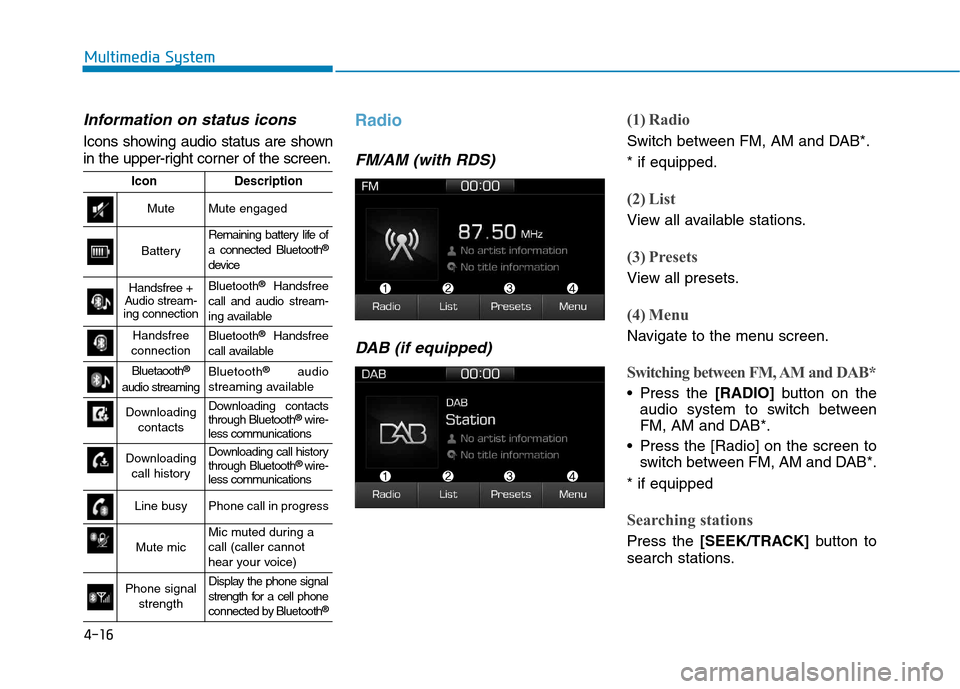
Information on status icons
Icons showing audio status are shown
in the upper-right corner of the screen.
Radio
FM/AM (with RDS)DAB (if equipped)
(1) Radio
Switch between FM, AM and DAB*. * if equipped.
(2) List
View all available stations.
(3) Presets
View all presets.
(4) Menu
Navigate to the menu screen.
Switching between FM, AM and DAB*
Press the [RADIO]button on the
audio system to switch between
FM, AM and DAB*.
Press the [Radio] on the screen to switch between FM, AM and DAB*.
* if equipped
Searching stations
Press the [SEEK/TRACK] button to
search stations.
IconDescription
MuteMute engaged
Battery
Remaining battery life of a connected Bluetooth ®
device
Handsfree +
Audio stream-
ing connectionBluetooth ®
Handsfree
call and audio stream-
ing available
Handsfree
connectionBluetooth ®
Handsfree
call available
Bluetaooth ®
audio streamingBluetooth ®
audio
streaming available
Downloading contactsDownloading contacts through Bluetooth ®
wire-
less communications
Downloading
call historyDownloading call history through Bluetooth ®
wire-
less communications
Line busyPhone call in progress
Mute micMic muted during a call (caller cannot
hear your voice)
Phone signal
strengthDisplay the phone signal
strength for a cell phone
connected by Bluetooth ®
Page 313 of 582
![Hyundai Ioniq Electric 2017 Owners Manual 4-17
Multimedia System
4
List
A list of all available stations in the
vehicle’s current location is dis-
played. Press the desired station.
Favourite stations can be saved to
[Presets] by pressin](/manual-img/35/14909/w960_14909-312.png "Hyundai Ioniq Electric 2017 Owners Manual 4-17
Multimedia System
4
List
A list of all available stations in the
vehicle’s current location is dis-
played. Press the desired station.
Favourite stations can be saved to
[Presets] by pressin")
4-17
Multimedia System
4
List
A list of all available stations in the
vehicle’s current location is dis-
played. Press the desired station.
Favourite stations can be saved to
[Presets] by pressing the [+].
Presets
Save up to 40 frequently used stations.
To listen to a preset, press the desired station list. Press and hold the desired slot from
1 through 40. This saves the currentstation in the selected slot.
If the slot is empty, simply pressing
saves the station to the slot.
Menu
Press the [Menu], and select the desired function.
Traffic Announcement (TA): Enableor disable Traffic Announcements.
Scan: All available stations are played for five seconds each.
Sound Settings: Audio sound set- tings can be changed.
FM/AM (without RDS)
(1) Band
Switch between FM, AM.
(2) Presets
View all presets.
(3) List
View all available stations.
(4) Menu
Navigate to the menu screen.
Switching between FM, AM
Press the [RADIO]button on the
audio system to switch between FM, AM.
Press the [Band] on the screen to switch between FM, AM.
Searching stations
Press the [SEEK/TRACK] button to
search stations.
List
A list of all available stations in the
vehicle’s current location is dis-
played. Press the desired station.
Favourite stations can be saved to
[Presets] by pressing the [save].
Page 314 of 582
4-18
Multimedia System
Presets
Save up to 40 frequently used stations.
To listen to a preset, press the desired station list. Press and hold the desired slot from
1 through 40. This saves the currentstation in the selected slot.
If the slot is empty, simply pressing
saves the station to the slot.
Menu
Press the [Menu], and select the desired function.
Scan: All available stations areplayed for five seconds each.
Sound Settings: Audio sound set- tings can be changed.
Media
Information - Using the Discs
This device has been manufactured to be compatible with software
bearing the following logo marks.
Do not clean discs with chemical solutions, such as record sprays,
antistatic sprays, antistatic liquids,
benzene, or thinners.
After using a disc, put the disc back in its original case to prevent disc
scratches.
Hold discs by their edges or within the center hole to prevent damages
to disc surfaces.
Do not introduce foreign substances into the disc insert/eject slot.
Introducing foreign substances
could damage the device interior.
Do not insert two discs simultaneously.
(Continued)(Continued)
When using CD-R/CD-RW discs,
differences in disc reading and play-
ing times may occur depending on
the disc manufacturer, production
method and the recording method
as used by the user.
Clean fingerprints and dust off the disc surface (coated side) with a soft
cloth.
The use of CD-R/CD-RW discs attached with labels may result in
disc slot jams or difficulties in disc
removal. Such discs may also result
in noise while playing.
Some CD-R/CD-RW discs may not properly operate depending on the
disc manufacturer, production
method and the record method as
used by the user. If problems persist,
trying using a different CD as con-
tinued use may result in malfunc-
tions.
The performance of this product may differ depending on the CDRW
Drive Software.
(Continued)i
Page 315 of 582
4-19
Multimedia System
4
(Continued)
Copy-protected CDs such as StypeCDs may not function in the device.
DATA discs cannot be played.
(However, such discs may still oper-
ate but will do so abnormally.)
Do not use abnormally shaped discs (8cm, heart-shaped, octagonshaped)
as such discs could lead to malfunc-
tions.
If the disc is straddled on the disc slot without removal for 10 seconds,
the disc will automatically be re-
inserted into the disc player.
Only genuine audio CDs are sup- ported. Other discs may result in
recognition failure (e.g. copy CDR,
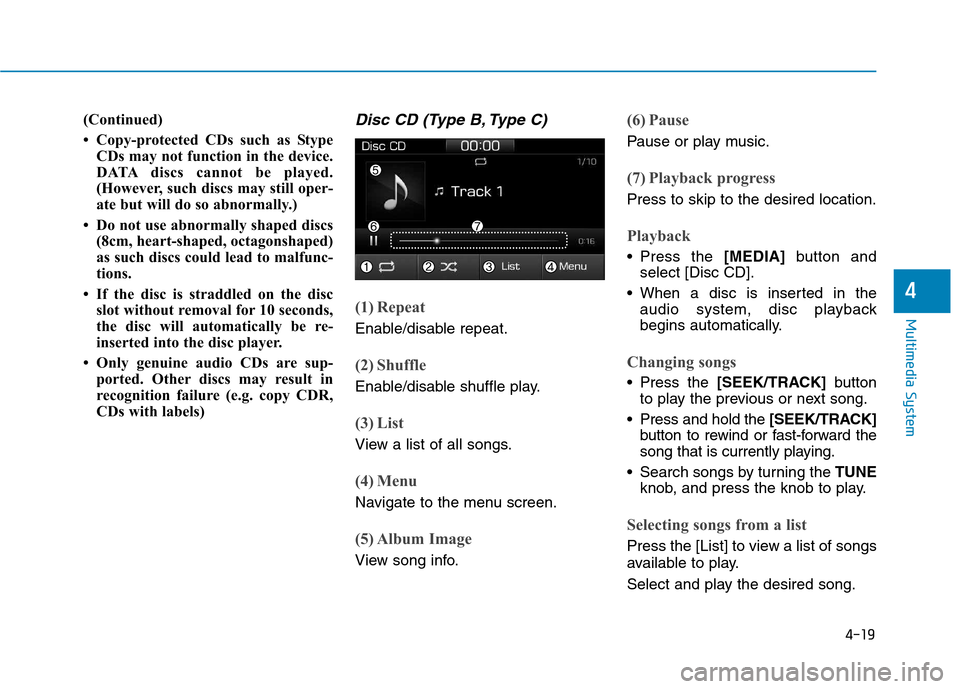
CDs with labels)Disc CD (Type B, Type C)
(1) Repeat
Enable/disable repeat.
(2) Shuffle
Enable/disable shuffle play.
(3) List
View a list of all songs.
(4) Menu
Navigate to the menu screen.
(5) Album Image
View song info.
(6) Pause
Pause or play music.
(7) Playback progress
Press to skip to the desired location.
Playback
Press the [MEDIA]button and
select [Disc CD].
When a disc is inserted in the audio system, disc playback
begins automatically.
Changing songs
Press the [SEEK/TRACK] button
to play the previous or next song.
Press and hold the [SEEK/TRACK]
button to rewind or fast-forward the
song that is currently playing.
Search songs by turning the TUNE
knob, and press the knob to play.
Selecting songs from a list
Press the [List] to view a list of songs
available to play.
Select and play the desired song.
Page 316 of 582
![Hyundai Ioniq Electric 2017 Owners Manual 4-20
Multimedia System
Repeat play
Press the [Repeat] to enable or dis-
able ‘Repeat all’, ‘Repeat currentsong’.
Repeat all: All songs in theplaylist are repeated.
Repeat current song: T](/manual-img/35/14909/w960_14909-315.png "Hyundai Ioniq Electric 2017 Owners Manual 4-20
Multimedia System
Repeat play
Press the [Repeat] to enable or dis-
able ‘Repeat all’, ‘Repeat currentsong’.
Repeat all: All songs in theplaylist are repeated.
Repeat current song: T")
4-20
Multimedia System
Repeat play
Press the [Repeat] to enable or dis-
able ‘Repeat all’, ‘Repeat currentsong’.
Repeat all: All songs in theplaylist are repeated.
Repeat current song: The song that is currently playing is repeated.
Shuffle play
Press the [Shuffle] to enable/disable
‘Shuffle’ play.
Shuffle: Songs are played in arandom order.
Menu
Press the [Menu] and select the desired function.
Information: Detailed informationon the song that is currently play-
ing is displayed.
Sound Settings: Audio sound set- tings can be changed Information
- Using MP3
Supported audio formats
File formats other than the formats
above may not be recognized or
playable. Information such as file-
name may not be displayed.
Range of supported compressed file
types
1. Bitrate range (Kbps)
BIT RATE(kbps)
MPEG1MPEG2MPEG2.5WMA
Layer3High Range
328848
40161664
48242480
56323296
644040128
804848160
965656192
1126464
1288080
1609696
192112112
224128128
256144144
320160160
NOTICE
File System
ISO 9660 Level 1
ISO 9660 Level 2
Romeo / Juliet (128 characters)
Compressed
audio formats
MPEG1 Audio Layer3
MPEG2 Audio Layer3
MPEG2.5 Audio Layer3
Windows Media Audio Ver 7.X & 8.X
i
Page 318 of 582
![Hyundai Ioniq Electric 2017 Owners Manual 4-22
Multimedia System
(6) Pause
Pause or play music.
(7) Playback progress
Press to skip to the desired location.
Playback
Press the [MEDIA]button and
select [Disc MP3].
When a disc is inserted in](/manual-img/35/14909/w960_14909-317.png "Hyundai Ioniq Electric 2017 Owners Manual 4-22
Multimedia System
(6) Pause
Pause or play music.
(7) Playback progress
Press to skip to the desired location.
Playback
Press the [MEDIA]button and
select [Disc MP3].
When a disc is inserted in")
4-22
Multimedia System
(6) Pause
Pause or play music.
(7) Playback progress
Press to skip to the desired location.
Playback
Press the [MEDIA]button and
select [Disc MP3].
When a disc is inserted in the audio system, disc playback
begins automatically.
Changing songs
Press the [SEEK/TRACK] button
to play the previous or next song.
Press and hold the [SEEK/TRACK]
button to rewind or fast-forward the
song that is currently playing.
Search songs by turning the TUNE
knob, and press the knob to play.
Selecting songs from a list
Press the [List] to view a list of songs
available to play.
Select and play the desired song.
Repeat play
Press the [Repeat] to enable or dis-
able ‘Repeat all’, ‘Repeat current
song’ or ‘Repeat folder’.
Repeat all: Repeat all songs in the playlist.
Repeat current song: The song that is currently playing is repeated.
Repeat folder: All songs in the current folder are repeated.
Shuffle play
Press the [Shuffle] to enable/disable
‘Shuffle’, ‘Shuffle folder’ play.
Shuffle: Songs are played in arandom order.
Shuffle folder: Songs within the current folder are played in ran-
dom order.
Menu
Press the [Menu] and select the desired function.
Information: Detailed informationon the song that is currently play-
ing is displayed.
Sound Settings: Audio sound set- tings can be changed. Information
- Using the USB Devices
Starting the vehicle while a USB device is connected can damage the
device. Please disconnect USB
devices before starting the vehicle.
Starting the vehicle or stopping the engine while an external USB device
is connected can result in failure of
the external USB device to operate.
Be cautious of static electricity when connecting/disconnecting external
USB devices.
An encrypted MP3 player is not rec- ognized when connected as an exter-
nal device.
External USB devices may not be recognized, depending on the state
of the external USB device.
Only products with byte/sectors for- matted at 4 KB or lower are recog-
nized.
Only USB devices in FAT12/16/32 format are recognized; NTFS and
ExFAT file systems are not recog-
nized.
(Continued)
i
Page 319 of 582
4-23
Multimedia System
4
(Continued)
Some USB devices are not recog-nized due to compatibility issues.
Do not touch the USB connections.
Connecting and disconnecting USB devices rapidly over a short period
of time can cause equipment failure.
Abnormal sounds may be audible when the USB device is disconnected.
Turn the audio off before connecting or disconnecting external USB
devices.
Recognition may take longer depending on the type, capacity or
file format of the external USB
device. This is not a product mal-
function.
Use of USB devices for purposes other than playing music files is pro-
hibited.
Image display and video playback are not supported.
(Continued)(Continued)
Use of USB accessories, including
charge and heat though the USB I/F,
can lead to reduced product per-
formance or malfunctions. Do not
use USB devices or accessories for
these purposes.
Use of aftermarket USB hubs and extension cables can result in the
vehicle’s audio system failing to rec-
ognize your USB device. Connect
the USB device directly to the multi-
media port of your vehicle.
When using high-capacity USB devices with logical drive divisions,
only files saved on the highest level
logical drive can be played.
If applications are loaded on a USB
drive, file playback may fail.
Some MP3 players, cell phones, dig- ital cameras, etc. (USB devices that
are not recognized as mobile stor-
age) may not operate normally
when connected.
USB charging may not be supported by some mobile devices.
(Continued)(Continued)
Operation is guaranteed only for
standard (Metal Cover Type) USB
Memory drives.
Operation of HDD, CF, SD and memory stick devices is not guaran-
teed.
DRM (Digital Rights Management) files cannot be played.
SD-type USB memory, CF-type USB memory, and other USB mem-
ory devices that require adapters
for connection are not supported.
Proper operation of USB HDDs or USB drives with connectors that
loosen due to vehicle vibrations is
not guaranteed. (iStick, etc.)
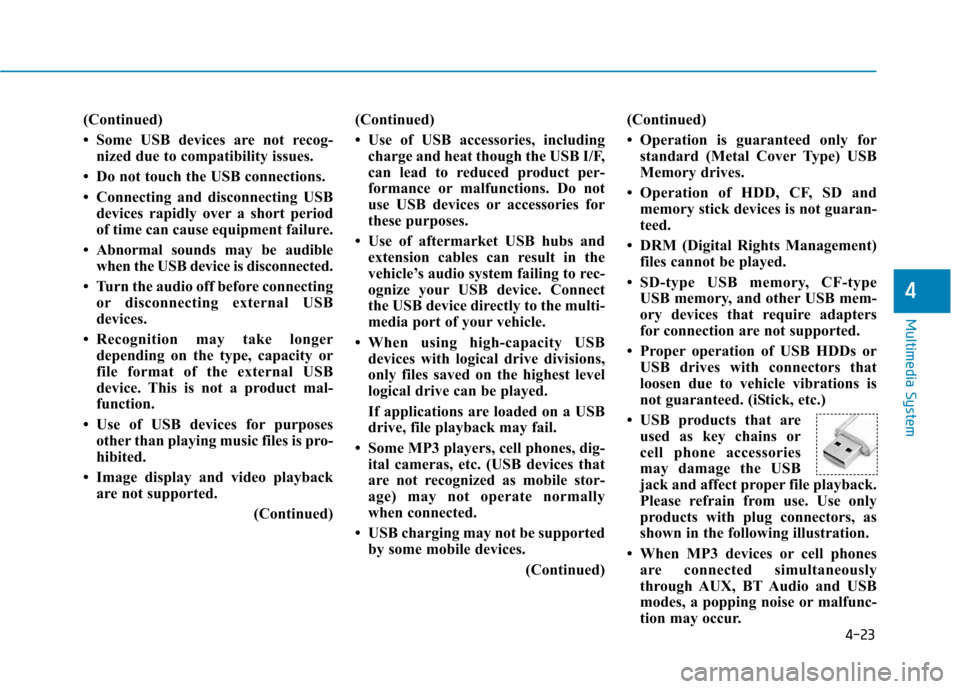
USB products that are used as key chains or
cell phone accessories
may damage the USB
jack and affect proper file playback.
Please refrain from use. Use only
products with plug connectors, as
shown in the following illustration.
When MP3 devices or cell phones are connected simultaneously
through AUX, BT Audio and USB
modes, a popping noise or malfunc-
tion may occur.
Page 321 of 582
![Hyundai Ioniq Electric 2017 Owners Manual 4-25
Multimedia System
4
Information
The repeat folder function is available
only when songs are playing from the
[File] category under [List].
Shuffle play
Press the [Shuffle] to enable/disable
‘](/manual-img/35/14909/w960_14909-320.png "Hyundai Ioniq Electric 2017 Owners Manual 4-25
Multimedia System
4
Information
The repeat folder function is available
only when songs are playing from the
[File] category under [List].
Shuffle play
Press the [Shuffle] to enable/disable
‘")
4-25
Multimedia System
4
Information
The repeat folder function is available
only when songs are playing from the
[File] category under [List].
Shuffle play
Press the [Shuffle] to enable/disable
‘Shuffle’, ‘Shuffle folder’ or ‘Shuffle
category’ play.
Shuffle: Songs are played in random order.
Shuffle folder: Songs within the current folder are played in ran- dom order
Shuffle category: Songs within the current category are played in
random order.
Menu
Press the [Menu], and select the desired function.
Save to My Music: Songs on yourUSB device can be saved to My Music.
(1) File: Select a file to save .
(2) Mark all: Select all files .
(3) Unmark all: Deselect all files. (4) Save: Save the selected file(s)
.
- Select the files you want to save, and press the [Save]. This savesthe selected files to My Music.
- Saving is canceled if phone calls are received or made while saving.
- Up to 6,000 files can be saved.
- The currently playing file on the USB device cannot be changed
while saving.
- My Music cannot be used while saving.
- Up to 700 MB can be saved.
Information: Detailed information on the currently playing song is dis-
played.
Sound Settings: Audio sound set- tings can be changed.i