Page 209 of 637
3-114
Convenient features of your vehicle
DRIVER ASSIST SYSTEM
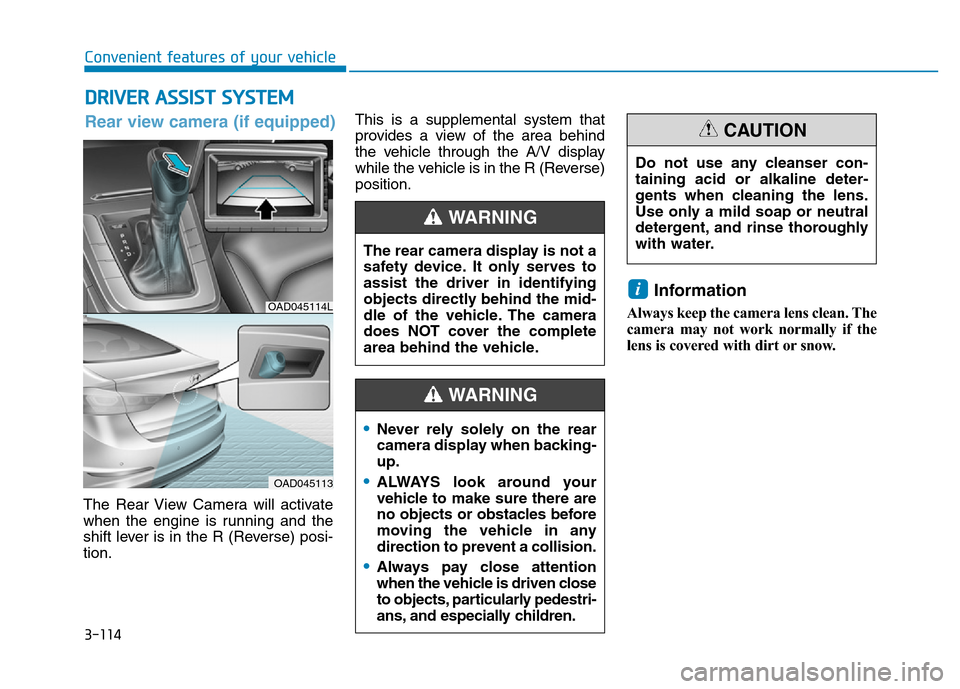
The Rear View Camera will activate
when the engine is running and the
shift lever is in the R (Reverse) posi-
tion.This is a supplemental system that
provides a view of the area behind
the vehicle through the A/V display
while the vehicle is in the R (Reverse)
position.
Information
Always keep the camera lens clean. The
camera may not work normally if the
lens is covered with dirt or snow.
i
The rear camera display is not a
safety device. It only serves to
assist the driver in identifying
objects directly behind the mid-
dle of the vehicle. The camera
does NOT cover the complete
area behind the vehicle.
WARNING
OAD045114L
OAD045113
Rear view camera (if equipped)
Do not use any cleanser con-
taining acid or alkaline deter-
gents when cleaning the lens.
Use only a mild soap or neutral
detergent, and rinse thoroughly
with water.
CAUTION
•Never rely solely on the rear
camera display when backing-
up.
•ALWAYS look around your
vehicle to make sure there are
no objects or obstacles before
moving the vehicle in any
direction to prevent a collision.
•Always pay close attention
when the vehicle is driven close
to objects, particularly pedestri-
ans, and especially children.
WARNING
Page 230 of 637
3-135
Convenient features of your vehicle
3
Automatic heating and air con-
ditioning
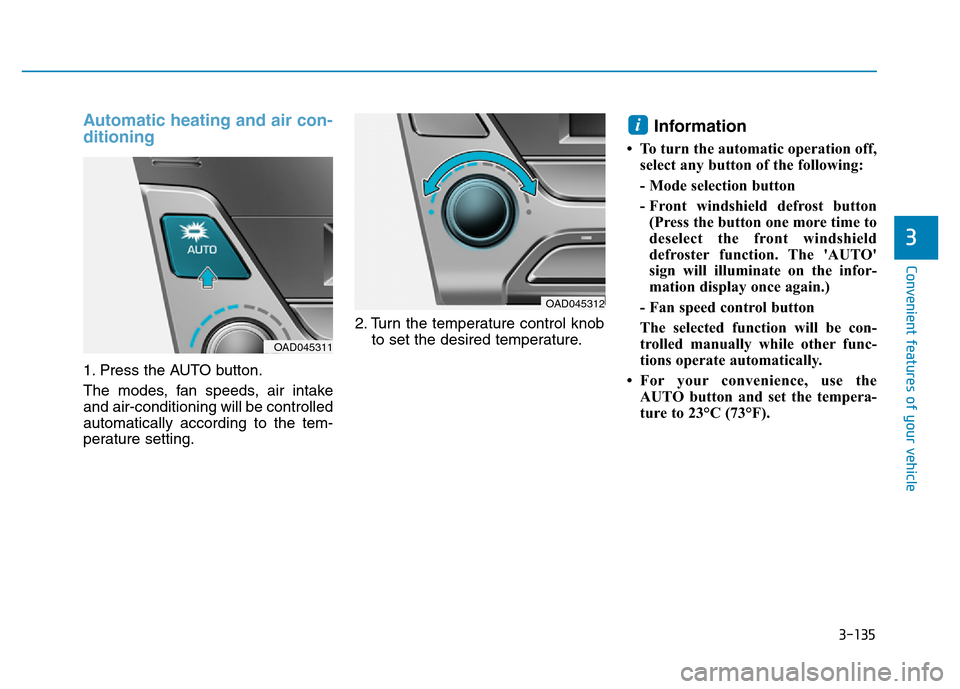
1. Press the AUTO button.
The modes, fan speeds, air intake
and air-conditioning will be controlled
automatically according to the tem-
perature setting.2. Turn the temperature control knob
to set the desired temperature.
Information
• To turn the automatic operation off,
select any button of the following:
- Mode selection button
- Front windshield defrost button
(Press the button one more time to
deselect the front windshield
defroster function. The 'AUTO'
sign will illuminate on the infor-
mation display once again.)
- Fan speed control button
The selected function will be con-
trolled manually while other func-
tions operate automatically.
• For your convenience, use the
AUTO button and set the tempera-
ture to 23°C (73°F).
i
OAD045311
OAD045312
Page 236 of 637
3-141
Convenient features of your vehicle
3
Temperature conversion
If the battery has been discharged or
disconnected, the temperature mode
display will reset to Centigrade.
This is a normal condition. You can
switch the temperature mode between
Centigrade to Fahrenheit as follows;
- Automatic climate control system
While pressing the OFF button,
press the AUTO button for 3 sec-
onds or more. The display will
change from Centigrade to
Fahrenheit, or from Fahrenheit to
Centigrade.
- “User setting mode” in the cluster :
You can change the temperature
unit in the “Other features -
Temperature unit”
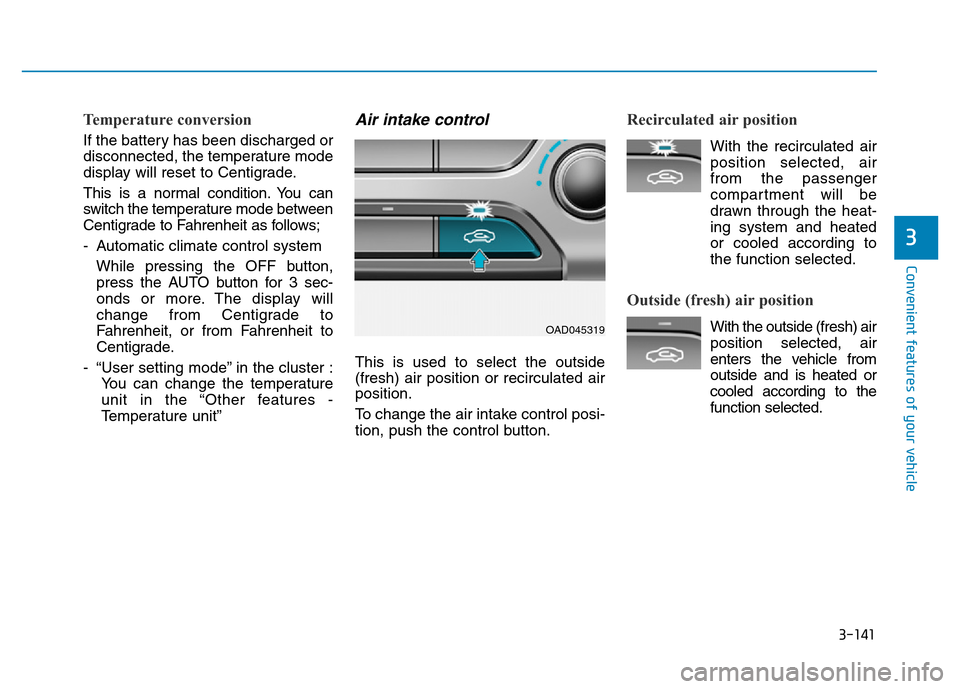
Air intake control
This is used to select the outside
(fresh) air position or recirculated air
position.
To change the air intake control posi-
tion, push the control button.
Recirculated air position
With the recirculated air
position selected, air
from the passenger
compartment will be
drawn through the heat-
ing system and heated
or cooled according to
the function selected.
Outside (fresh) air position
With the outside (fresh) air
position selected, air
enters the vehicle from
outside and is heated or
cooled according to the
function selected.OAD045319
Page 254 of 637

3-159
Convenient features of your vehicle
3
USB charger
The USB charger is located inside
the console box between the driver’s
seat and the front passenger’s seat.
Insert the USB charger into the USB
port, and re-charge a smart phone or
a tablet PC.
• A charging status/charging com-
pletion message is displayed on a
screen of a smart phone or a tablet
PC.
• A smart phone or a tablet PC may
get warmer during the re-charging
process. It does not indicate any
malfunction with the charging sys-
tem.• A smart phone or a tablet PC,
which adopts a different re-charg-
ing method, may not be properly
re-charged. In this case, use an
exclusive charger of your device.
• The charging terminal is only to re-
charge a device. Do not use the
charging terminal either to turn ON
an audio or to play media on the
AVN.
Cigarette lighter (if equipped)
To use the cigarette lighter, the igni-
tion switch must be in the ACC or ON
position.
Push the cigarette lighter all the way
into its socket. When the element is
heated, the lighter will pop out to the
“ready” position.
We recommend that you use parts
for replacement from an authorized
HYUNDAI dealer.
OAD045428OAD045440L
Page 267 of 637

4-10
Multimedia System
Feature of Your Audio
(1) EJECT
• Ejects the disc.
(2) RADIO (Type A-1)
• Changes to FM/AM mode.
• Each time the button is pressed,
the mode is changed in order of
FM1 ➟ FM2 ➟FMA ➟AM ➟AMA.(3) MEDIA
• Changes to CD, USB(iPod
®), AUX,
My Music*, BT Audio* mode.
• Each time the button is pressed,
the mode is changed in order of
CD, USB(iPod
®), AUX, My Music*,
BT Audio*.
*if equipped
(4) PHONE (Type A-1)
• Operates Phone Screen.
• When a phone is not connected,
the connection screen is displayed.
(5) SEEK TRACK
• Radio mode : Automatically search-
es for broadcast frequencies.
• CD, USB, iPod
®, My Music* mode
- Shortly press the button : Moves
to next or previous song (file).
- Press and hold the button :
Rewinds or fast-forwards the cur-
rent song.
*if equipped(6) POWER/VOLUMEknob
• Power knob : Turns power On/Off
by pressing the knob.
• Volume knob : Sets volume by
turning the knob left/right.
(7) [1] ~ [6](Preset)
• Radio mode : Saves frequencies
(channels) or receives saved fre-
quencies (channels).
• CD, USB, iPod
®, My Music* mode
-[RPT]: Repeat
-[RDM]: Random
In the Radio, Media, Setup, and
Menu pop up screen, the number
menu is selected.
*if equipped
Page 268 of 637

4-11
Multimedia System
4
(8) DISP
• Each time the button is shortly
pressed, sets Screen Off ➟Screen
On ➟Screen Off.
• Audio operation is maintained and
only the screen will be turned Off.
• In the Screen Off state, press any
button to turn the Screen On again.(9) TA/SCAN
• Radio mode
- Shortly press the button :
TA On/Off.
- Press and hold the button :
Previews each broadcast for 5
seconds each.
• CD, USB, My Music* mode
- Press and hold the button :
Previews each song (file) for 10
seconds each.
- Press and hold the button again
to continue listening to the cur-
rent song (file).
*if equipped
(10) SETUP/CLOCK
• Shortly press the button : Moves to
the Display, Sound, Clock, Phone,
System setting modes.
• Press and hold the button : Move to
the Time setting screen.(11) MENU
• Displays menus for the current
mode.
•iPod
®List : Move to parent category.
(12) FOLDER
• MP3 CD / USB mode : Folder
Search.
(13) TUNE knob
• Radio mode : Changes frequency
by turning the knob left/right.
• CD, USB, iPod
®, My Music* mode :
Searches songs (files) by turning
the knob left/right.
When the desired song is dis-
played, press the knob to play the
song.
• Moves focus in all selection menus
and selects menus.
*if equipped
Page 271 of 637

4-14
Multimedia System
Feature of Your Audio
(1) EJECT
• Ejects the disc.
(2) RADIO (Type A-3)
• Changes to FM/AM mode.
• Each time the button is pressed,
the mode is changed in order of
FM1 ➟ FM2 ➟FMA ➟AM ➟AMA.(3) MEDIA
• Changes to CD, USB(iPod
®), AUX,
My Music*, BT Audio* mode.
• Each time the button is pressed,
the mode is changed in order of
CD, USB(iPod
®), AUX, My Music*,
BT Audio*.
*if equipped
(4) PHONE (Type A-3)
• Operates Phone Screen.
• When a phone is not connected,
the connection screen is displayed.
(5) SEEK TRACK
• Radio mode : Automatically search-
es for broadcast frequencies.
• CD, USB, iPod
®, My Music* mode
- Shortly press the button : Moves
to next or previous song (file).
- Press and hold the button :
Rewinds or fast-forwards the cur-
rent song.
*if equipped(6) PWR/VOL knob
• Power knob : Turns power On/Off
by pressing the knob.
• Volume knob : Sets volume by
turning the knob left/right.
(7) [1] ~ [6](Preset)
• Radio mode : Saves frequencies
(channels) or receives saved fre-
quencies (channels).
• CD, USB, iPod
®, My Music* mode
-[RPT]: Repeat
-[RDM]: Random
In the Radio, Media, Setup, and
Menu pop up screen, the number
menu is selected.
*if equipped
Page 272 of 637

4-15
Multimedia System
4
(8) DISP
• Each time the button is shortly
pressed, sets Screen Off ➟Screen
On ➟Screen Off.
• Audio operation is maintained and
only the screen will be turned Off.
• In the Screen Off state, press any
button to turn the Screen On again.(9) TA/SCAN
• Radio mode
- Shortly press the button : TA
On/Off.
- Press and hold the button :
Previews each broadcast for 5
seconds each.
• CD, USB, My Music* mode
- Press and hold the button :
Previews each song (file) for 10
seconds each.
- Press and hold the button again
to continue listening to the cur-
rent song (file).
*if equipped
(10) SETUP/CLOCK
• Shortly press the button : Moves to
the Display, Sound, Clock, Phone,
System setting modes.
• Press and hold the button : Move to
the Time setting screen.(11) MENU
• Displays menus for the current
mode.
•iPod
®List : Move to parent category.
(12) FOLDER
• MP3 CD / USB mode : Folder
Search.
(13) TUNE knob
• Radio mode : Changes frequency
by turning the knob left/right.
• CD, USB, iPod
®, My Music* mode :
Searches songs (files) by turning
the knob left/right.
When the desired song is dis-
played, press the knob to play the
song.
• Moves focus in all selection menus
and selects menus.
*if equipped