Page 327 of 565
uuHomeLink ® Universal Transceiver*u Training HomeLink
326
Features
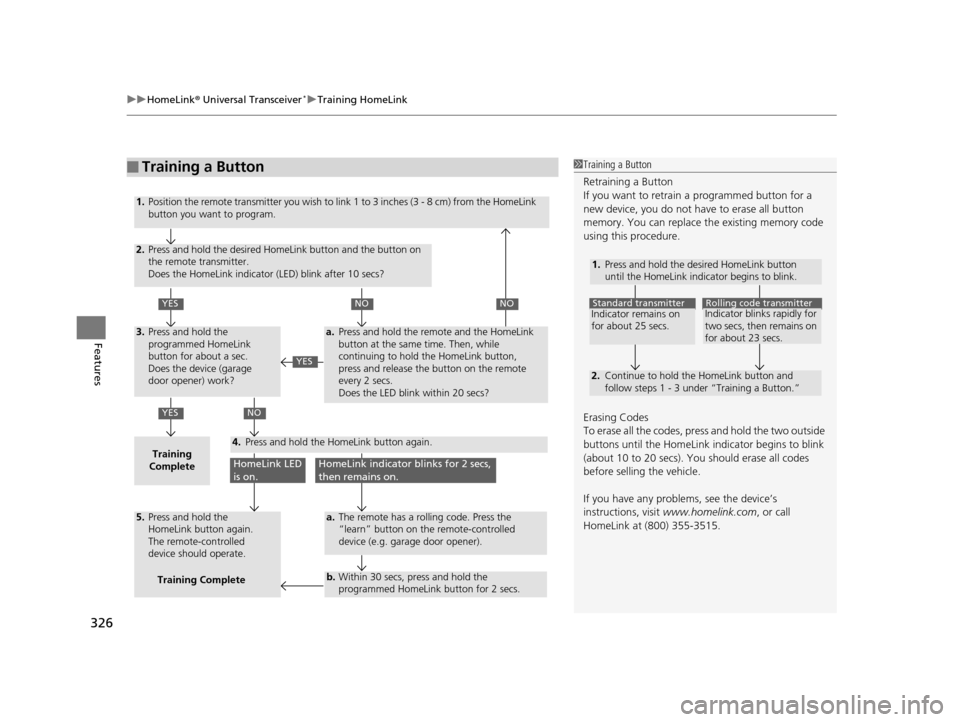
■Training a Button1Training a Button
Retraining a Button
If you want to retrain a programmed button for a
new device, you do not ha ve to erase all button
memory. You can replace the existing memory code
using this procedure.
Erasing Codes
To erase all the codes, press and hold the two outside
buttons until the HomeLink i ndicator begins to blink
(about 10 to 20 secs). You should erase all codes
before selling the vehicle.
If you have any problems, see the device’s
instructions, visit www.homelink.com , or call
HomeLink at (800) 355-3515.
1.
2.
Standard transmitterIndicator remains on
for about 25 secs.Rolling code transmitterIndicator blinks rapidly for
two secs, then remains on
for about 23 secs.
Press and hold the desired HomeLink button
until the HomeLink indicator begins to blink.
Continue to hold the HomeLink button and
follow steps 1 - 3 under “Training a Button.”
1.
2.
YES
YES
YES
NONO
NO
HomeLink LED
is on.HomeLink indicator blinks for 2 secs,
then remains on.
3.
Training
Complete4.
5.
a.
a.
b.
Position the remote transmitter you wish to link 1 to 3 inches (3 - 8 cm) from the HomeLink
button you want to program.
Press and hold the desired HomeLink button and the button on
the remote transmitter.
Does the HomeLink indicator (LED) blink after 10 secs?
Press and hold the
programmed HomeLink
button for about a sec.
Does the device (garage
door opener) work?
Press and hold the remote and the HomeLink
button at the same time. Then, while
continuing to hold the HomeLink button,
press and release the button on the remote
every 2 secs.
Does the LED blink within 20 secs?
The remote has a rolling code. Press the
“learn” button on the remote-controlled
device (e.g. garage door opener).
Within 30 secs, press and hold the
programmed HomeLink button for 2 secs.
Press and hold the HomeLink button again.
Press and hold the
HomeLink button again.
The remote-controlled
device should operate.Training Complete
17 US ODYSSEY (KA KC)-31TK86600.book 326 ページ 2016年10月24日 月曜日 午後4時2分
Page 328 of 565
327Continued
Features
Bluetooth® HandsFreeLink ®
See the Navigation System Manual for how to operate the Bluetooth® HandsFreeLink® .
Bluetooth ® HandsFreeLink ® (HFL) allows you to place and receive phone calls using
your vehicle’s audio system, without handling your cell phone.
Using HFL
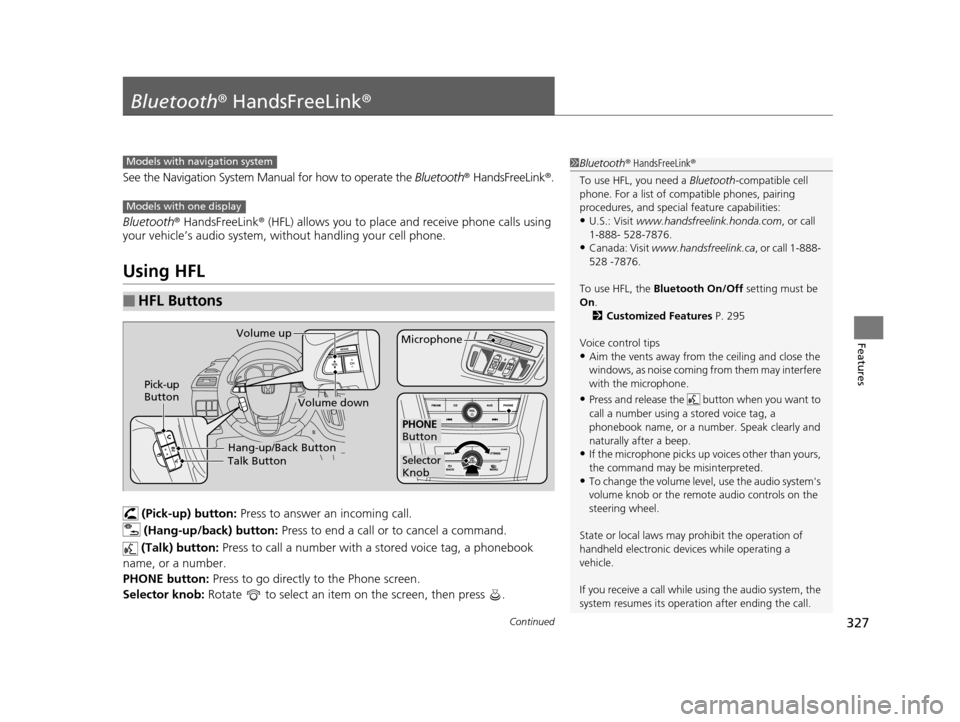
(Pick-up) button: Press to answer an incoming call.
(Hang-up/back) button: Press to end a call or to cancel a command.
(Talk) button: Press to call a number with a stored voice tag, a phonebook
name, or a number.
PHONE button: Press to go directly to the Phone screen.
Selector knob: Rotate to select an item on the screen, then press .
■HFL Buttons
1Bluetooth ® HandsFreeLink ®
To use HFL, you need a Bluetooth-compatible cell
phone. For a list of compatible phones, pairing
procedures, and special feature capabilities:
•U.S.: Visit www.handsfreelink.honda.com , or call
1-888- 528-7876.
•Canada: Visit www.handsfreelink.ca , or call 1-888-
528 -7876.
To use HFL, the Bluetooth On/Off setting must be
On .
2 Customized Features P. 295
Voice control tips
•Aim the vents away from the ceiling and close the
windows, as noise coming fr om them may interfere
with the microphone.
•Press and release the but ton when you want to
call a number using a stored voice tag, a
phonebook name, or a numbe r. Speak clearly and
naturally after a beep.
•If the microphone picks up vo ices other than yours,
the command may be misinterpreted.
•To change the volume level, use the audio system's
volume knob or the remote audio controls on the
steering wheel.
State or local laws may pr ohibit the operation of
handheld electronic devi ces while operating a
vehicle.
If you receive a call while using the audio system, the
system resumes its operati on after ending the call.
Models with navigation system
Models with one display
Talk ButtonVolume up
MicrophoneHang-up/Back Button
Pick-up
Button
Volume down
Selector
Knob
PHONE
Button
17 US ODYSSEY (KA KC)-31TK86600.book 327 ページ 2016年10月24日 月曜日 午後4時2分
Page 329 of 565
uuBluetooth ® HandsFreeLink ®u Using HFL
328
Features
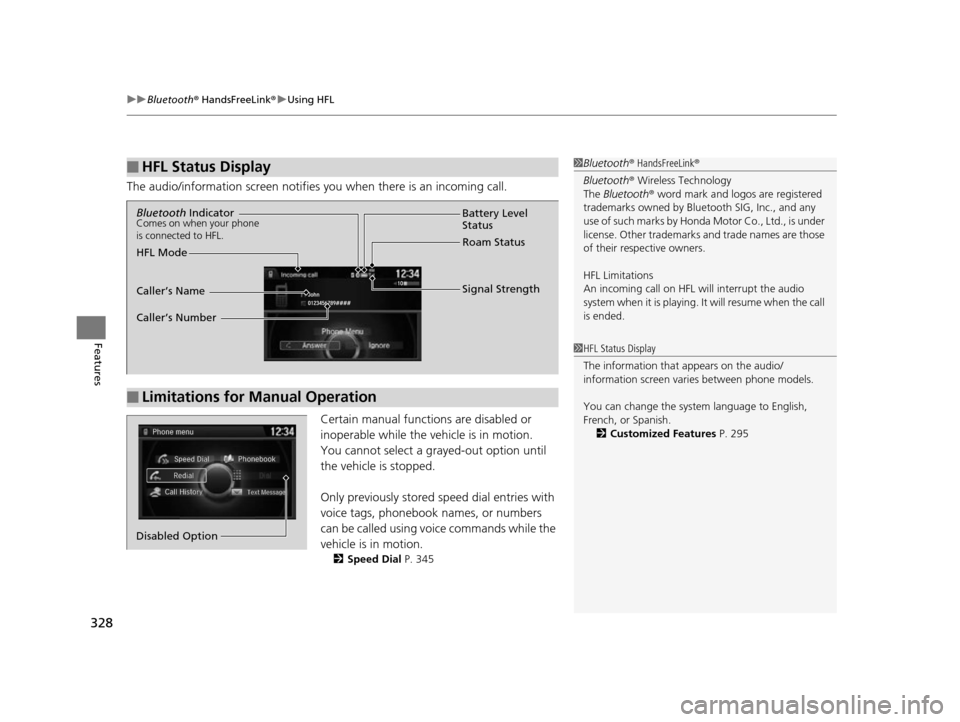
The audio/information screen notifies you when there is an incoming call.
Certain manual functions are disabled or
inoperable while the vehicle is in motion.
You cannot select a grayed-out option until
the vehicle is stopped.
Only previously stored speed dial entries with
voice tags, phonebook names, or numbers
can be called using voice commands while the
vehicle is in motion.
2 Speed Dial P. 345
■HFL Status Display1Bluetooth ® HandsFreeLink ®
Bluetooth ® Wireless Technology
The Bluetooth ® word mark and logos are registered
trademarks owned by Blue tooth SIG, Inc., and any
use of such marks by Honda Motor Co., Ltd., is under
license. Other trademarks and trade names are those
of their respective owners.
HFL Limitations
An incoming call on HFL will interrupt the audio
s y s te m wh e n it is p la y i n g . It wi ll re s u m e w h en t h e c a l l
is ended.
1 HFL Status Display
The information that appears on the audio/
information screen vari es between phone models.
You can change the system language to English,
French, or Spanish. 2 Customized Features P. 295
■Limitations for Manual Operation
Bluetooth IndicatorComes on when your phone
is connected to HFL.
Signal Strength
HFL Mode Battery Level
Status
Roam Status
Caller’s Name
Caller’s Number
Phone menu
Redial
Call History
Text Message
Dial
Phonebook
Speed Dial
Disabled Option
17 US ODYSSEY (KA KC)-31TK86600.book 328 ページ 2016年10月24日 月曜日 午後4時2分
Page 330 of 565
329
uuBluetooth ® HandsFreeLink ®u HFL Menus
Continued
Features
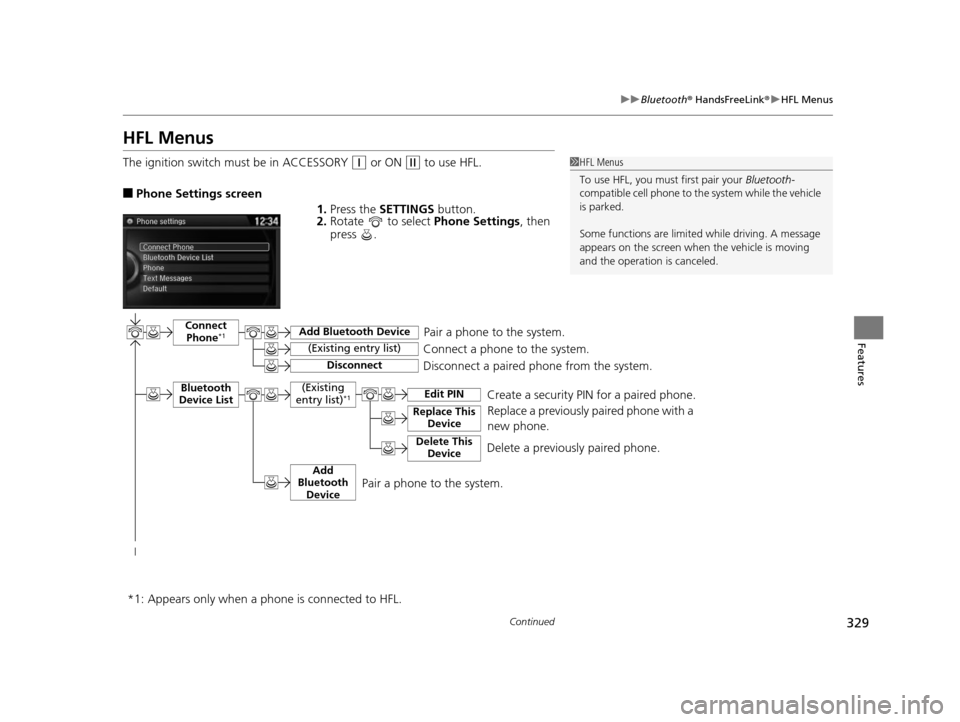
HFL Menus
The ignition switch mu st be in ACCESSORY (q or ON (w to use HFL.
■Phone Settings screen
1.Press the SETTINGS button.
2. Rotate to select Phone Settings, then
press .
1 HFL Menus
To use HFL, you must first pair your Bluetooth-
compatible cell phone to th e system while the vehicle
is parked.
Some functions are limited while driving. A message
appears on the screen when the vehicle is moving
and the operation is canceled.
Pair a phone to the system.
Replace a previously paired phone with a
new phone.Connect Phone*1
Bluetooth
Device List
Add Bluetooth Device
Edit PIN
(Existing entry list)
Disconnect
Connect a phone to the system.
Disconnect a paired phone from the system.
*1:
(Existing
entry list)*1
Replace This Device
Delete This DeviceDelete a previously paired phone.Create a security PIN for a paired phone.
Add
Bluetooth Device
Appears only when a phon e is connected to HFL.
Pair a phone to the system.
17 US ODYSSEY (KA KC)-31TK86600.book 329 ページ 2016年10月24日 月曜日 午後4時2分
Page 331 of 565
330
uuBluetooth ® HandsFreeLink ®u HFL Menus
Features
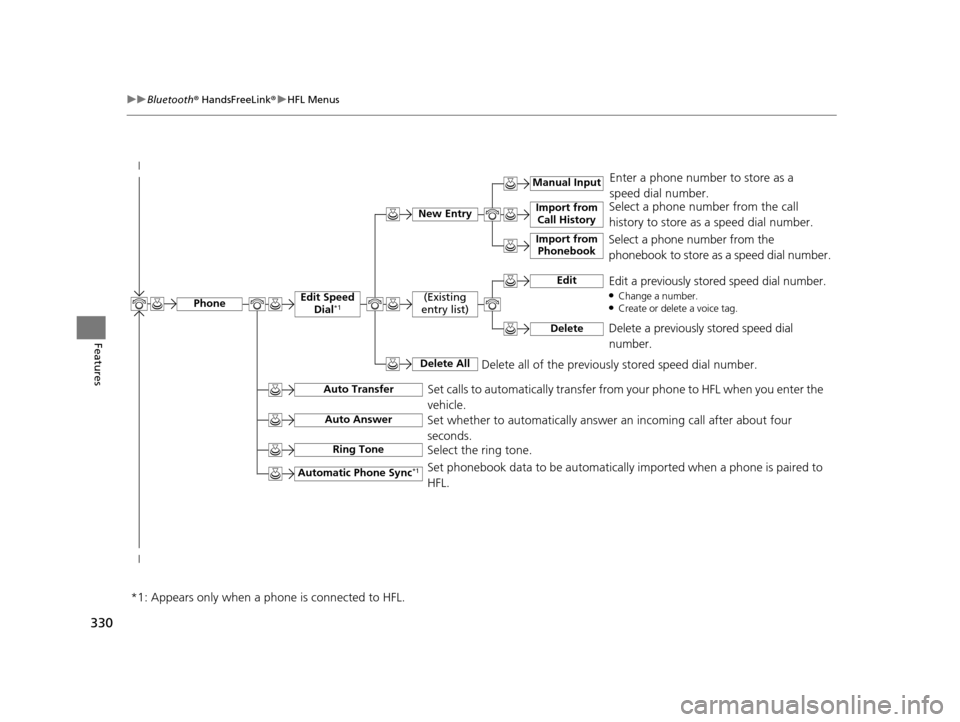
Select a phone number from the call
history to store as a speed dial number.
Manual Input
New Entry Import from
Call History
Import from Phonebook
Enter a phone number to store as a
speed dial number.
Delete all of the previously stored speed dial number.
Select a phone number from the
phonebook to store as a speed dial number.
EditEdit a previously stored speed dial number.●Change a number.●Create or delete a voice tag.
DeleteDelete a previously stored speed dial
number.
(Existing
entry list)
Delete All
Edit Speed Dial*1
Set calls to automatically transfer from your phone to HFL when you enter the
vehicle.Auto Transfer
Auto Answer
Ring Tone
Set whether to automatically answer an incoming call after about four
seconds.
Select the ring tone.
Automatic Phone Sync*1Set phonebook data to be automatically imported when a phone is paired to
HFL.
Phone
*1: Appears only when a phone is connected to HFL.
17 US ODYSSEY (KA KC)-31TK86600.book 330 ページ 2016年10月24日 月曜日 午後4時2分
Page 332 of 565
331
uuBluetooth ® HandsFreeLink ®u HFL Menus
Continued
Features
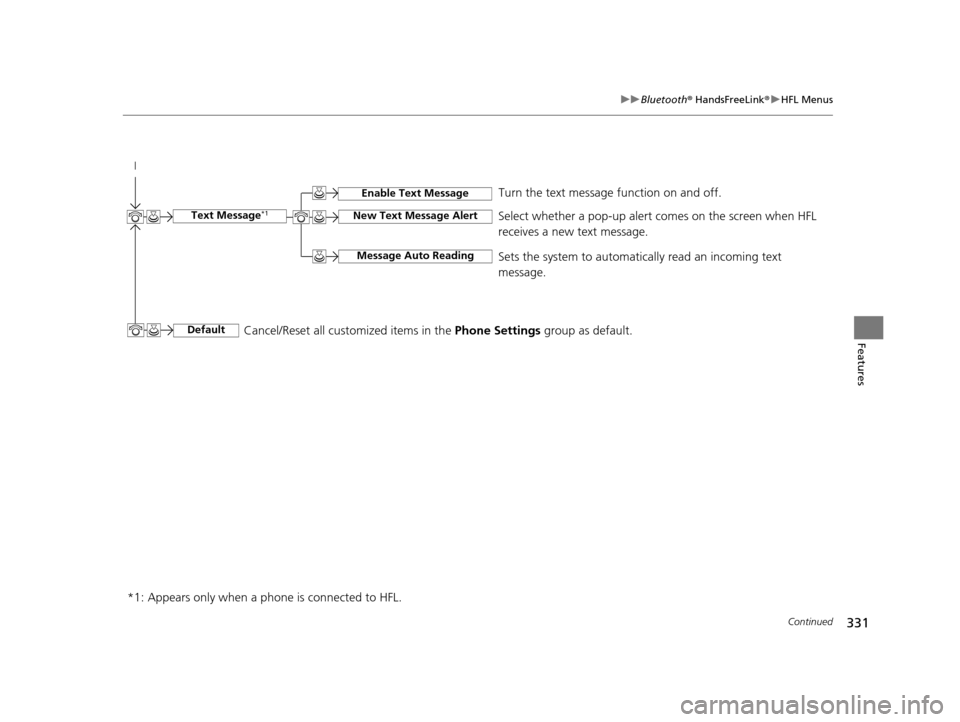
*1: Appears only when a p hone is connected to HFL. Turn the text message
function on and off.
New Text Message Alert
Message Auto Reading
Select whether a pop-up alert comes on the screen when HFL
receives a new text message.
Sets the system to automatically read an incoming text
message.Text Message*1
Default
Enable Text Message
Cancel/Reset all customized items in the Phone Settings group as default.
17 US ODYSSEY (KA KC)-31TK86600.book 331 ページ 2016年10月24日 月曜日 午後4時2分
Page 333 of 565
332
uuBluetooth ® HandsFreeLink ®u HFL Menus
Features
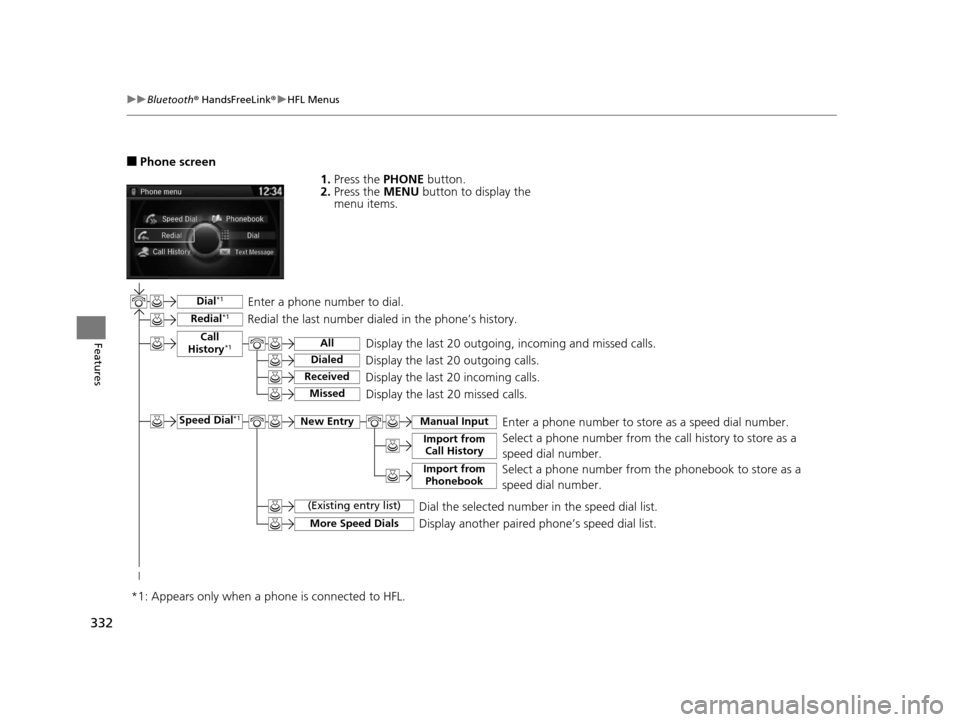
■Phone screen
1.Press the PHONE button.
2. Press the MENU button to display the
menu items.
Phone menu
Redial
Call History
Text Message
Dial
Phonebook
Speed Dial
Display the last 20 outgoing, incoming and missed calls.
Select a phone number from the call history to store as a
speed dial number.Call
History*1
Speed Dial*1
All
Manual Input
Dialed
Received
Display the last 20 outgoing calls.
Display the last 20 incoming calls.
New Entry
Import from Call History
Import from PhonebookSelect a phone number from the phonebook to store as a
speed dial number.Enter a phone number to store as a speed dial number.
More Speed DialsDisplay another paired phone’s speed dial list.
*1: Appears only when a pho ne is connected to HFL.
MissedDisplay the last 20 missed calls.
Dial*1
Redial*1Enter a phone number to dial.
Redial the last number dialed in the phone’s history.
(Existing entry list)Dial the selected number in the speed dial list.
17 US ODYSSEY (KA KC)-31TK86600.book 332 ページ 2016年10月24日 月曜日 午後4時2分
Page 334 of 565
333
uuBluetooth ® HandsFreeLink ®u HFL Menus
Continued
Features
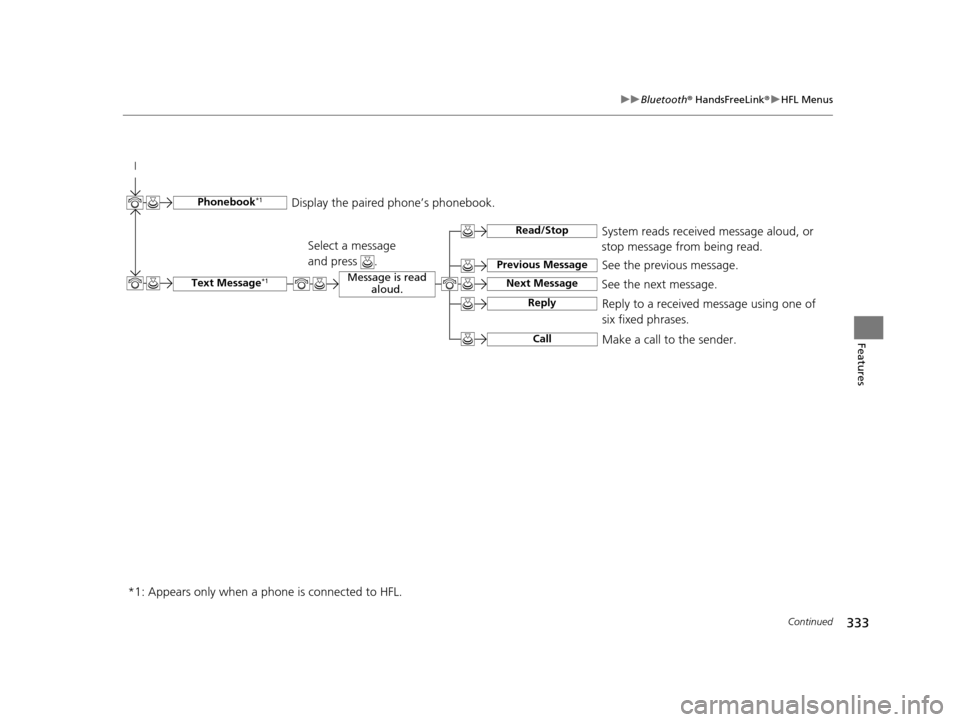
See the previous message.
Text Message*1
Read/Stop
Previous Message
Next MessageSee the next message.System reads received message aloud, or
stop message from being read.
Phonebook*1 Display the paired phone’s phonebook.
Message is read
aloud.
Reply
Call
Reply to a received message using one of
six fixed phrases.
Make a call to the sender.
Select a message
and press .
*1: Appears only when a phone is connected to HFL.
17 US ODYSSEY (KA KC)-31TK86600.book 333 ページ 2016年10月24日 月曜日 午後4時2分