Page 234 of 565
233
uuAudio System Basic Operation uPlaying Bluetooth ® Audio
Features
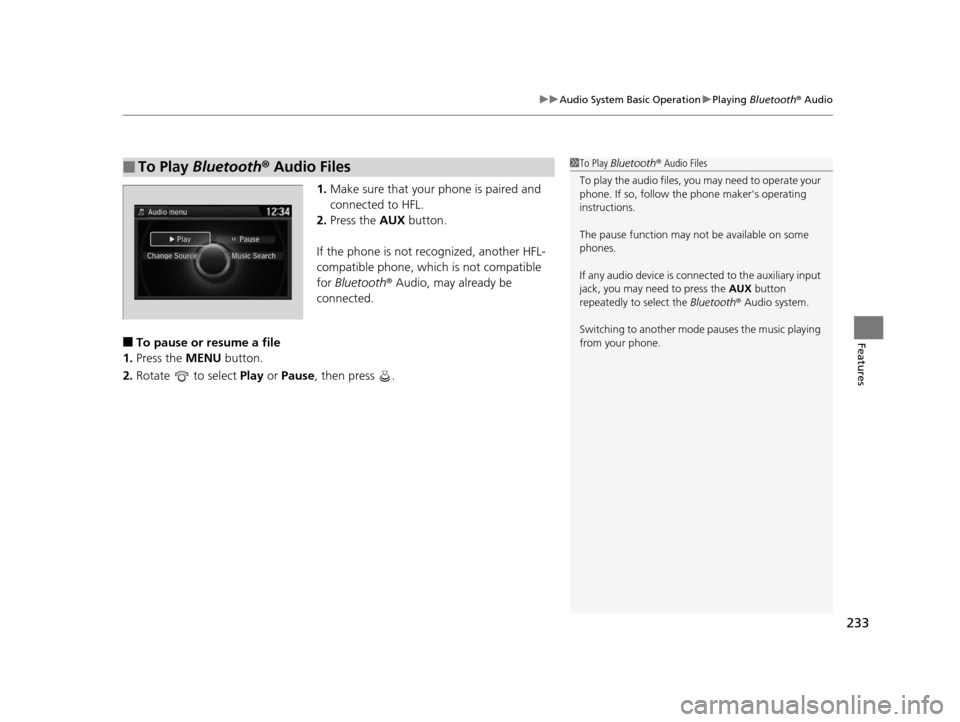
1. Make sure that your phone is paired and
connected to HFL.
2. Press the AUX button.
If the phone is not recognized, another HFL-
compatible phone, which is not compatible
for Bluetooth ® Audio, may already be
connected.
■To pause or resume a file
1. Press the MENU button.
2. Rotate to select Play or Pause , then press .
■To Play Bluetooth ® Audio Files1 To Play Bluetooth ® Audio Files
To play the audio files, y ou may need to operate your
phone. If so, follow the phone maker's operating
instructions.
The pause function may no t be available on some
phones.
If any audio device is conne cted to the auxiliary input
jack, you may need to press the AUX button
repeatedly to select the Bluetooth® Audio system.
Switching to another mode pauses the music playing
from your phone.
17 US ODYSSEY (KA KC)-31TK86600.book 233 ページ 2016年10月24日 月曜日 午後4時2分
Page 235 of 565
234
Features
Audio System Basic Operation
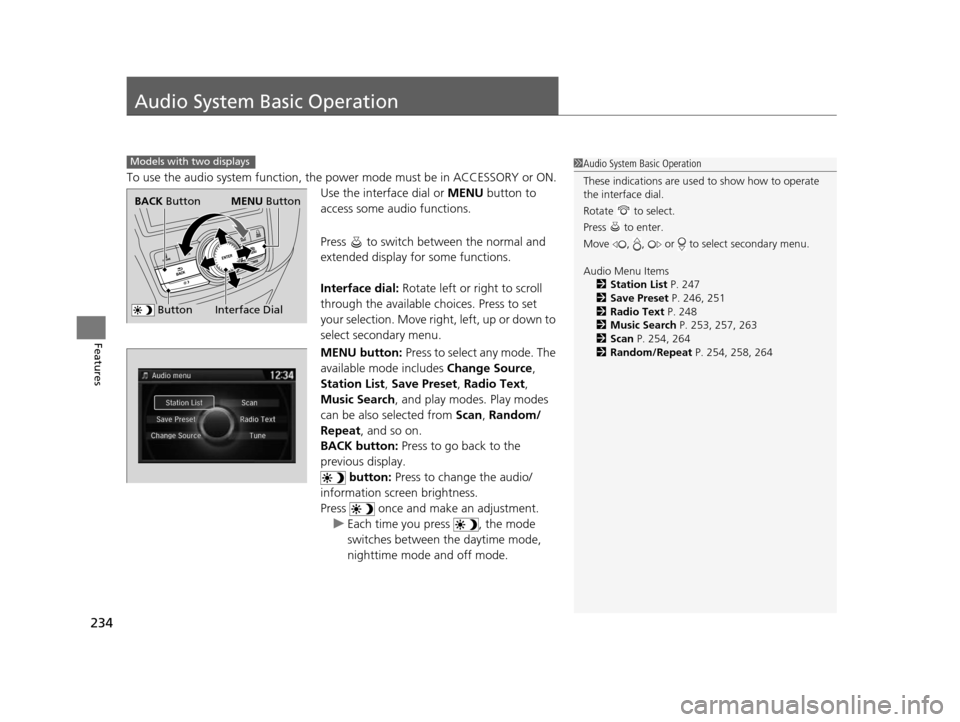
To use the audio system function, the power mode must be in ACCESSORY or ON.
Use the interface dial or MENU button to
access some audio functions.
Press to switch between the normal and
extended display fo r some functions.
Interface dial: Rotate left or right to scroll
through the available choices. Press to set
your selection. Move right, left, up or down to
select secondary menu.
MENU button: Press to select any mode. The
available mode includes Change Source,
Station List , Save Preset , Radio Text ,
Music Search, and play modes. Play modes
can be also selected from Scan, Random/
Repeat , and so on.
BACK button: Press to go back to the
previous display. button: Press to change the audio/
information screen brightness.
Press once and make an adjustment. u Each time you press , the mode
switches between the daytime mode,
nighttime mode and off mode.
Models with two displays1Audio System Basic Operation
These indications are used to show how to operate
the interface dial.
Rotate to select.
Press to enter.
Move , , or to select secondary menu.
Audio Menu Items 2 Station List P. 247
2 Save Preset P. 246, 251
2 Radio Text P. 248
2 Music Search P. 253, 257, 263
2 Scan P. 254, 264
2 Random/Repeat P. 254, 258, 264
Interface Dial
BACK Button
Button
MENU Button
17 US ODYSSEY (KA KC)-31TK86600.book 234 ページ 2016年10月24日 月曜日 午後4時2分
Page 236 of 565
235
uuAudio System Basic Operation uAudio with Touch Screen
Continued
Features
Audio with Touch Screen
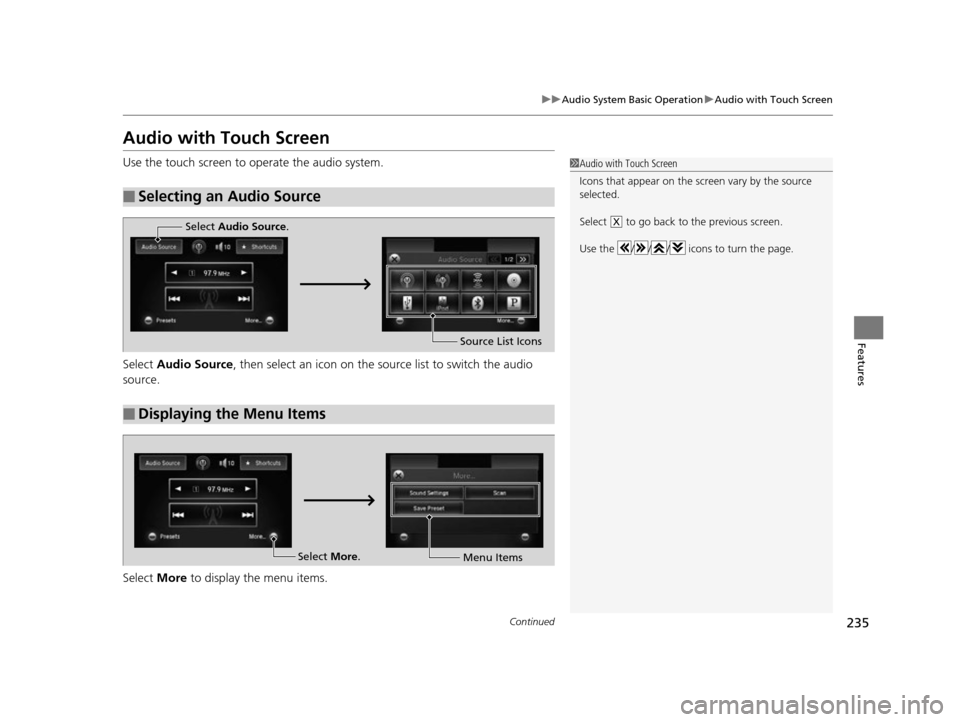
Use the touch screen to operate the audio system.
Select Audio Source , then select an icon on the s ource list to switch the audio
source.
Select More to display the menu items.
■Selecting an Audio Source
1Audio with Touch Screen
Icons that appear on the sc reen vary by the source
selected.
Select to go back to the previous screen.
Use the / / / icons to turn the page.
X
■Displaying the Menu Items
Select Audio Source .
Source List Icons
Select More.
Menu Items
17 US ODYSSEY (KA KC)-31TK86600.book 235 ページ 2016年10月24日 月曜日 午後4時2分
Page 239 of 565
238
uuAudio System Basic Operation uAudio/Information Screen
Features
Audio/Information Screen
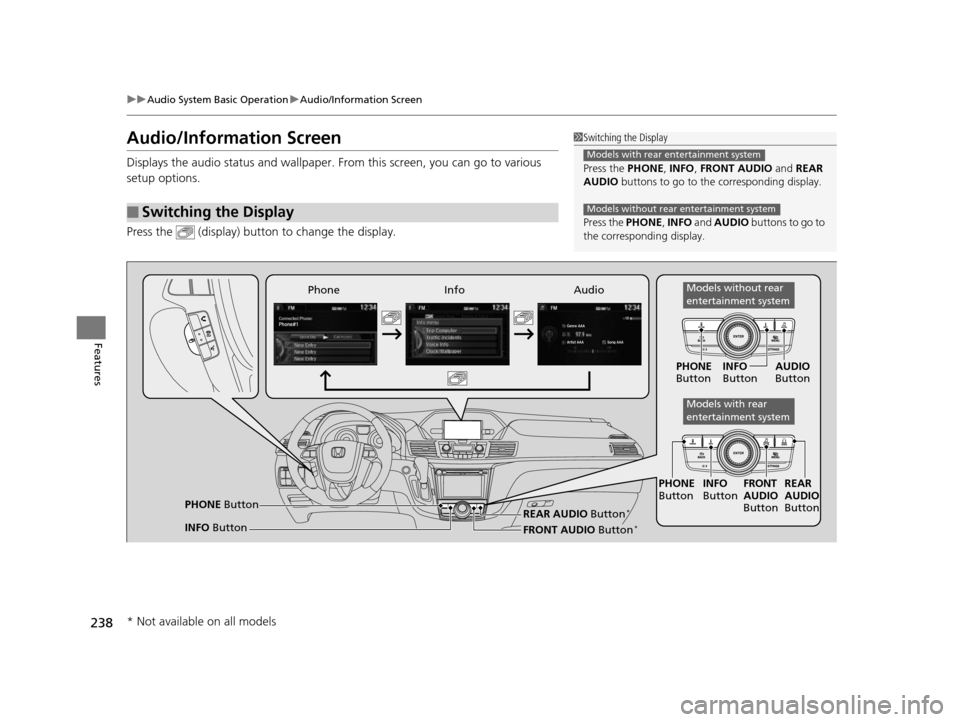
Displays the audio status and wallpaper. From this screen, you can go to various
setup options.
Press the (display) butto n to change the display.
■Switching the Display
1Switching the Display
Press the PHONE, INFO, FRONT AUDIO and REAR
AUDIO buttons to go to the corresponding display.
Press the PHONE, INFO and AUDIO buttons to go to
the corresponding display.
Models with rear entertainment system
Models without rear entertainment system
Audio
Info
Phone
FRONT AUDIO Button*
PHONE Button
INFO Button PHONE
Button INFO
Button FRONT
AUDIO
Button
PHONE
Button INFO
Button AUDIO
Button
REAR
AUDIO
ButtonREAR AUDIO Button*
Models without rear
entertainment system
Models with rear
entertainment system
* Not available on all models
17 US ODYSSEY (KA KC)-31TK86600.book 238 ページ 2016年10月24日 月曜日 午後4時2分
Page 247 of 565
uuAudio System Basic Operation uPlaying AM/FM Radio
246
Features
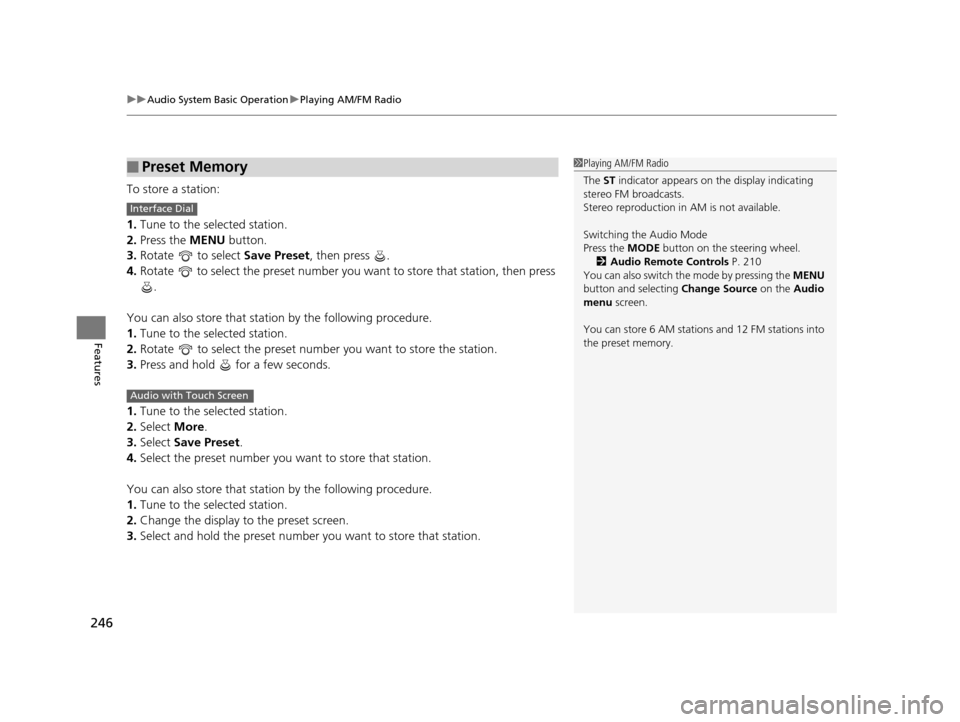
To store a station:
1. Tune to the selected station.
2. Press the MENU button.
3. Rotate to select Save Preset, then press .
4. Rotate to select the preset number you want to store that station, then press
.
You can also store that statio n by the following procedure.
1. Tune to the selected station.
2. Rotate to select the preset number you want to store the station.
3. Press and hold for a few seconds.
1. Tune to the selected station.
2. Select More.
3. Select Save Preset .
4. Select the preset number you wa nt to store that station.
You can also store that statio n by the following procedure.
1. Tune to the selected station.
2. Change the display to the preset screen.
3. Select and hold the preset number you want to store that station.
■Preset Memory1Playing AM/FM Radio
The ST indicator appears on the display indicating
stereo FM broadcasts.
Stereo reproduction in AM is not available.
Switching the Audio Mode
Press the MODE button on the steering wheel.
2 Audio Remote Controls P. 210
You can also switch the mode by pressing the MENU
button and selecting Change Source on the Audio
menu screen.
You can store 6 AM stations and 12 FM stations into
the preset memory.
Interface Dial
Audio with Touch Screen
17 US ODYSSEY (KA KC)-31TK86600.book 246 ページ 2016年10月24日 月曜日 午後4時2分
Page 267 of 565
uuAudio System Basic Operation uPlaying Bluetooth ® Audio
266
Features
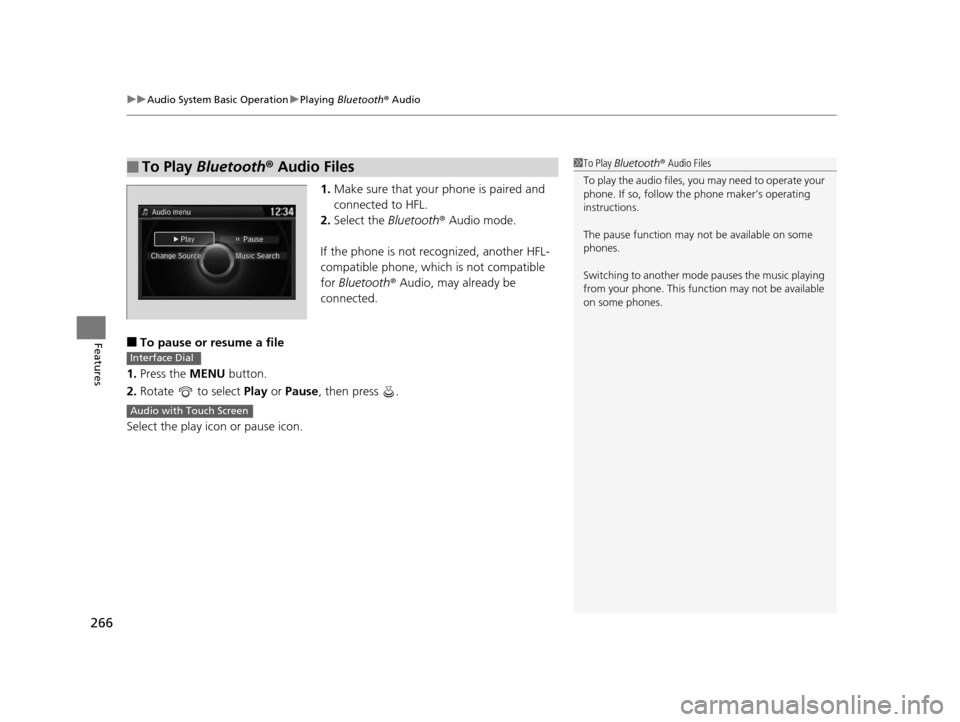
1. Make sure that your phone is paired and
connected to HFL.
2. Select the Bluetooth® Audio mode.
If the phone is not recognized, another HFL-
compatible phone, which is not compatible
for Bluetooth ® Audio, may already be
connected.
■To pause or resume a file
1. Press the MENU button.
2. Rotate to select Play or Pause , then press .
Select the play icon or pause icon.
■To Play Bluetooth® Audio Files1To Play Bluetooth ® Audio Files
To play the audio files, y ou may need to operate your
phone. If so, follow the phone maker’s operating
instructions.
The pause function may no t be available on some
phones.
Switching to another mode pauses the music playing
from your phone. This functi on may not be available
on some phones.
Interface Dial
Audio with Touch Screen
17 US ODYSSEY (KA KC)-31TK86600.book 266 ページ 2016年10月24日 月曜日 午後4時2分
Page 273 of 565
272
Features
General Information on the Audio System
SiriusXM® Radio Service*
1. You need your radio ID ready befo re registering for subscription.
To see the ID on the display: Turn the selector knob until 0 appears.
2. Have your radio ID and credit card number ready, and either call or visit the XM®
website to subscribe.
Switch to the SiriusXM mode by using the MODE button on the steering wheel, or
through the audio with touch screen, and st ay in this mode for about 30 minutes
until the service is activated. Make sure yo ur vehicle is in an open area with good
reception.
Loading:
SiriusXM ® is loading the audio or program information.
Ch off air:
The channel is not currently broadcasting.
Ch unauthorized:
SirusXM ® radio is receiving informat ion update from the network.
No signal:
The signal is too weak in the current location.
Ch unavailable:
No such channel exists, the ch annel is not part of your subscription, or the artist or
title information is unavailable.
Check antenna:
There is a problem with the SiriusXM ® antenna. Contact a dealer.
■Subscribing to SiriusXM® Radio
■Receiving SiriusXM® Radio
■SiriusXM® Radio Display Messages
1 Subscribing to SiriusXM ® Radio
Contact Information for SiriusXM® Radio:US: SiriusXM ® Radio at www.siriusxm.com or (800)
852-9696
Canada: SiriusXM ® Canada at www.xmradio.ca , or
(877) 209-0079
1 Receiving SiriusXM® Radio
The SiriusXM® satellites are in orbit over the equator,
therefore, objects south of the vehicle may cause
satellite reception interrupt ions. Satellite signals are
more likely to be blocked by tall buildings and
mountains the farther north you travel from the
equator.
You may experience rece ption problems under the
following circumstances:
•In a location with an obstruction to the south of
your vehicle.
•In tunnels
•On the lower level of a multi-tiered road•Large items carried on the roof rack
* Not available on all models
17 US ODYSSEY (KA KC)-31TK86600.book 272 ページ 2016年10月24日 月曜日 午後4時2分
Page 277 of 565
276
Features
Rear Entertainment System*
See the Navigation System Manual for how to operate the rear entertainment
system.
Allows the rear passengers to enjoy a diffe rent entertainment source, such as DVD,
CD, and radio, than the front passengers.
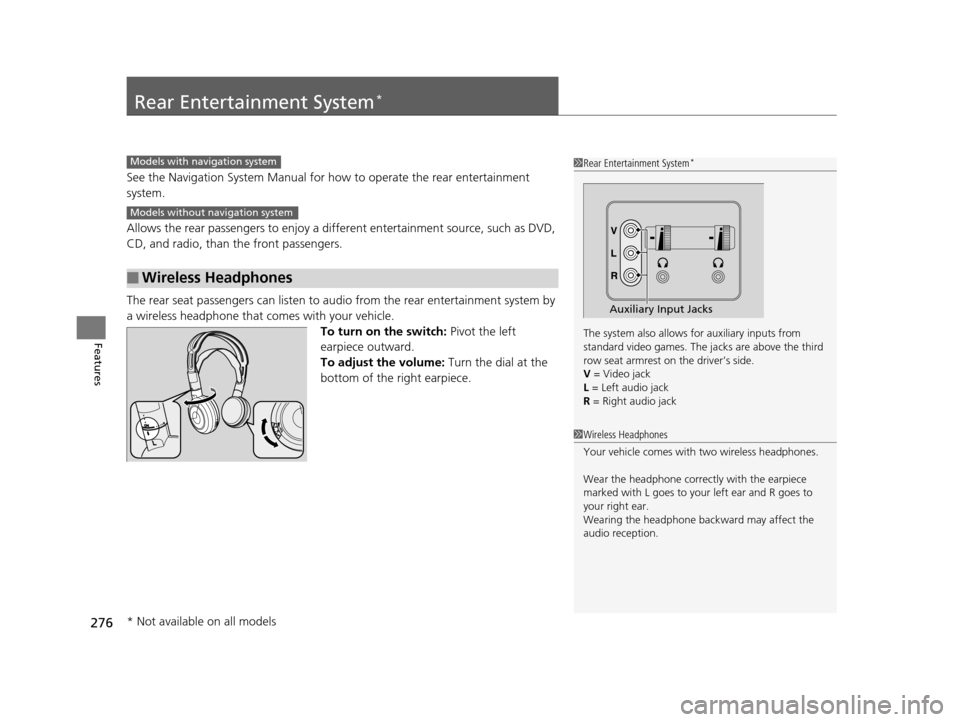
The rear seat passengers can listen to au dio from the rear entertainment system by
a wireless headphone that comes with your vehicle. To turn on the switch: Pivot the left
earpiece outward.
To adjust the volume: Turn the dial at the
bottom of the right earpiece.
■Wireless Headphones
1 Rear Entertainment System*
The system also allows for auxiliary inputs from
standard video games. The jacks are above the third
row seat armrest on the driver’s side.
V = Video jack
L = Left audio jack
R = Right audio jack
Auxiliary Input Jacks
Models with navigation system
Models without navigation system
1 Wireless Headphones
Your vehicle comes with two wireless headphones.
Wear the headphone correc tly with the earpiece
marked with L goes to y our left ear and R goes to
your right ear.
Wearing the headphone back ward may affect the
audio reception.
* Not available on all models
17 US ODYSSEY (KA KC)-31TK86600.book 276 ページ 2016年10月24日 月曜日 午後4時2分