Page 223 of 465

222
Features
Audio Error Messages
CD Player
If a disc error occurs, you may see the following error messages.
*1 : On the color audio system, the error messages are displayed in capitals.
Error Message*1CauseSolution
Unplayable FileTrack/file format not supported●Current track/file will be skipped. The next supported track/file
plays automatically.
Bad Disc
Please Check Owners
Manual
Push Eject
Mechanical error
●Press the (eject) button and remove the disc, and check that the
error message is cleared.
●Check that the disc is not damaged or deformed, and insert the
disc again.
2 Protecting CDs P. 227
●If the error message reappears, press the button, and pull out
the disc.
●Insert a different disc.
If the new disc plays, there is a problem with the first disc.
●If the error message repeats, or the disc cannot be removed,
contact a dealer.
Do not try to force the disc out of the player.
Mecha Error
Bad Disc
Please Check Owners
Manual
Servo error
Check DiscDisc error●Check that the disc is not damaged or deformed.
2Protecting CDs P. 227
Heat ErrorHigh temperature●Turn the audio system off and allo w the player to cool down until
the error message is cleared.
17 FIT -31T5A6200.book 222 ページ 2016年5月27日 金曜日 午後6時33分
Page 224 of 465
223
uuAudio Error Messages uiPod/USB Flash Drive
Features
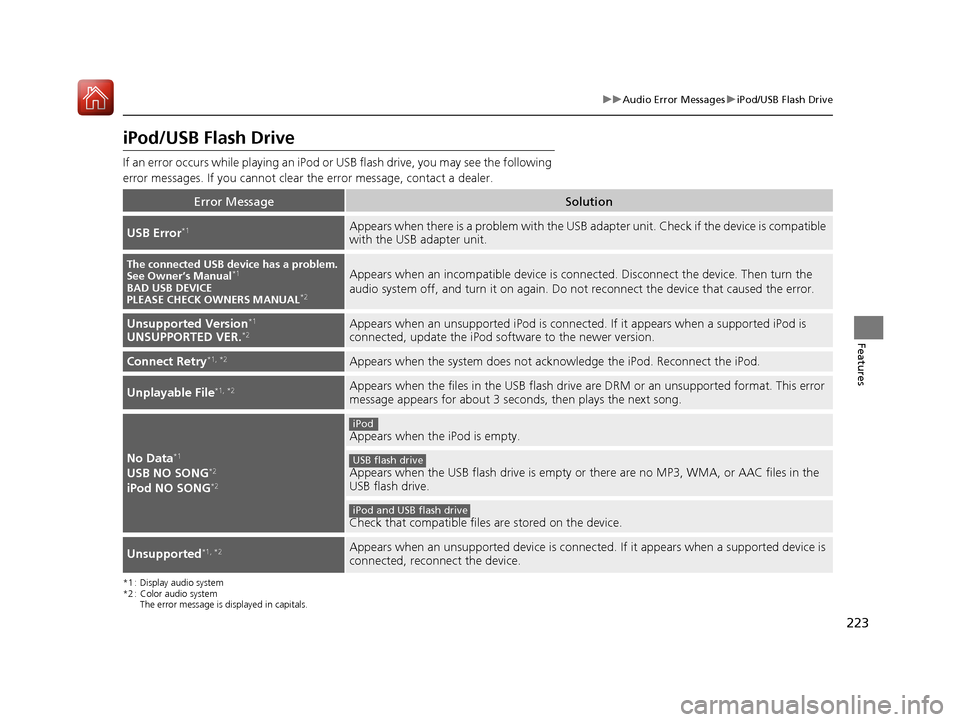
iPod/USB Flash Drive
If an error occurs while playing an iPod or USB flash drive, you may see the following
error messages. If you cannot clear the error message, contact a dealer.
*1 : Display audio system
*2 : Color audio system The error message is displayed in capitals.
Error MessageSolution
USB Error*1Appears when there is a problem with the USB ad apter unit. Check if the device is compatible
with the USB adapter unit.
The connected USB device has a problem.
See Owner’s Manual*1
BAD USB DEVICE
PLEASE CHECK OWNERS MANUAL*2
Appears when an incompatible device is conne cted. Disconnect the device. Then turn the
audio system off, and turn it on again. Do not reconnect the device that caused the error.
Unsupported Version*1
UNSUPPORTED VER.*2Appears when an unsupported iPod is connected. If it appears when a supported iPod is
connected, update the iPod software to the newer version.
Connect Retry*1, *2Appears when the system does not acknowledge the iPod. Reconnect the iPod.
Unplayable File*1, *2Appears when the files in the USB flash drive are DRM or an unsupported format. This error
message appears for about 3 seco nds, then plays the next song.
No Data*1
USB NO SONG*2
iPod NO SONG*2
Appears when the iPod is empty.
Appears when the USB flash drive is empty or there are no MP3, WMA, or AAC files in the
USB flash drive.
Check that compatible files are stored on the device.
Unsupported*1, *2Appears when an unsupported device is connected . If it appears when a supported device is
connected, reconnect the device.
iPod
USB flash drive
iPod and USB flash drive
17 FIT -31T5A6200.book 223 ページ 2016年5月27日 金曜日 午後6時33分
Page 225 of 465
224
uuAudio Error Messages uPandora®
Features
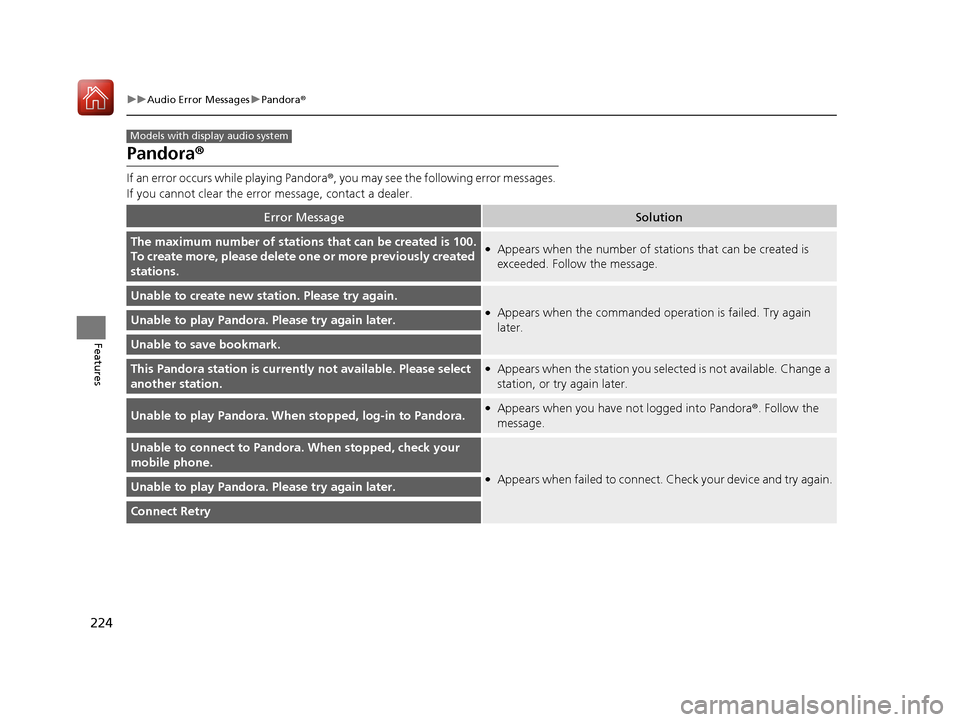
Pandora ®
If an error occurs while playing Pandora ®, you may see the following error messages.
If you cannot clear the error message, contact a dealer.
Error MessageSolution
The maximum number of stations that can be created is 100.
To create more, please delete on e or more previously created
stations.●Appears when the number of stations that can be created is
exceeded. Follo w the message.
Unable to create new station. Please try again.
●Appears when the commanded ope ration is failed. Try again
later.Unable to play Pandora. Please try again later.
Unable to save bookmark.
This Pandora station is currently not available. Please select
another station.●Appears when the station you select ed is not available. Change a
station, or try again later.
Unable to play Pandora. When stopped, log-in to Pandora.●Appears when you have not logged into Pandora ®. Follow the
message.
Unable to connect to Pandor a. When stopped, check your
mobile phone.
●Appears when failed to connect. Check your device and try again.Unable to play Pandora. Please try again later.
Connect Retry
Models with display audio system
17 FIT -31T5A6200.book 224 ページ 2016年5月27日 金曜日 午後6時33分
Page 227 of 465
226
Features
General Information on the Audio System
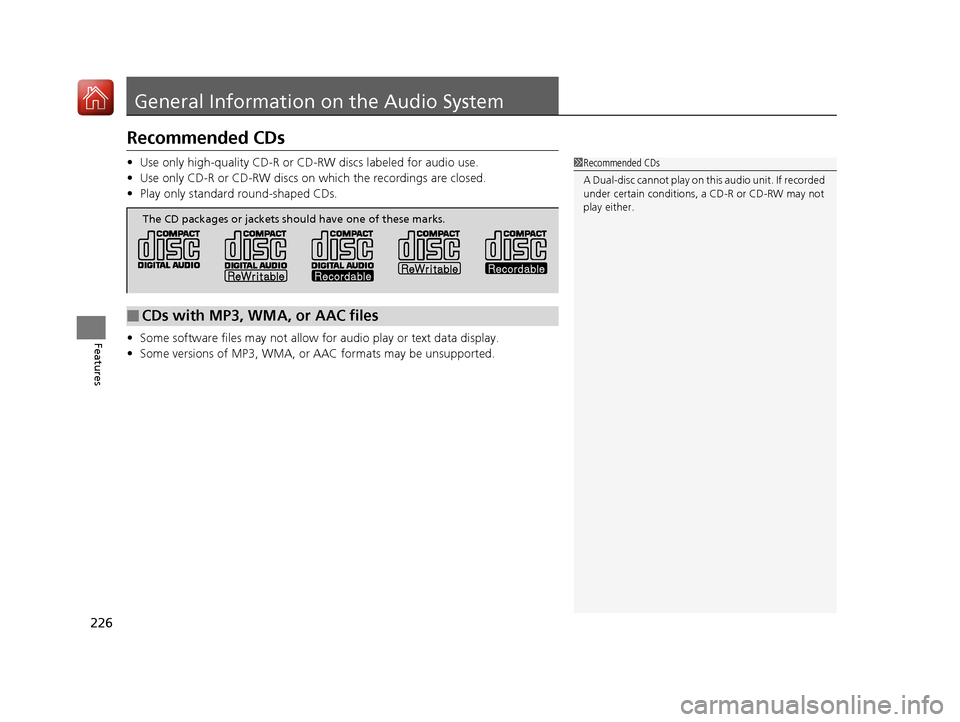
Recommended CDs
•Use only high-quality CD-R or CD-RW discs labeled for audio use.
• Use only CD-R or CD-RW discs on which the recordings are closed.
• Play only standard round-shaped CDs.
• Some software files may not allow for audio play or text data display.
• Some versions of MP3, WMA, or AAC formats may be unsupported.1Recommended CDs
A Dual-disc cannot play on th is audio unit. If recorded
under certain conditions, a CD-R or CD-RW may not
play either.
■CDs with MP3, WMA, or AAC files
The CD packages or jackets should have one of these marks.
17 FIT -31T5A6200.book 226 ページ 2016年5月27日 金曜日 午後6時33分
Page 229 of 465

228
uuGeneral Information on the Audio System uCompatible iPod, iPhone, and USB Flash Drives
Features
Compatible iPod, iPhone, and USB Flash Drives
• A USB flash drive of 256 MB or higher is recommended.
• Some digital audio players may not be compatible.
• Some USB flash drives (e.g., a device with security lockout) may not work.
• Some software files may not allow for audio play or text data display.
• Some versions of MP3, WMA, or AAC formats may be unsupported.
■iPod and iPhone Model Compatibility
Model
iPod (5th generation)
iPod classic 80GB/160GB (launch in 2007)
iPod classic 120GB (launch in 2008)
iPod classic 160GB (launch in 2009)
iPod nano (1st to 7th generation) released between 2005 and 2012
iPod touch (1st to 5th generation) released between 2005 and 2012
iPhone 3G/iPhone 3GS/iPhone 4/iPhone 4s/iPhone 5
■USB Flash Drives
1iPod and iPhone Model Compatibility
This system may not work with all software versions
of these devices.
1USB Flash Drives
Files on the USB flash drive are played in their stored
order. This order may be different from the order
displayed on your PC or device.
17 FIT -31T5A6200.book 228 ページ 2016年5月27日 金曜日 午後6時33分
Page 231 of 465
230
uuCustomized Features u
Features
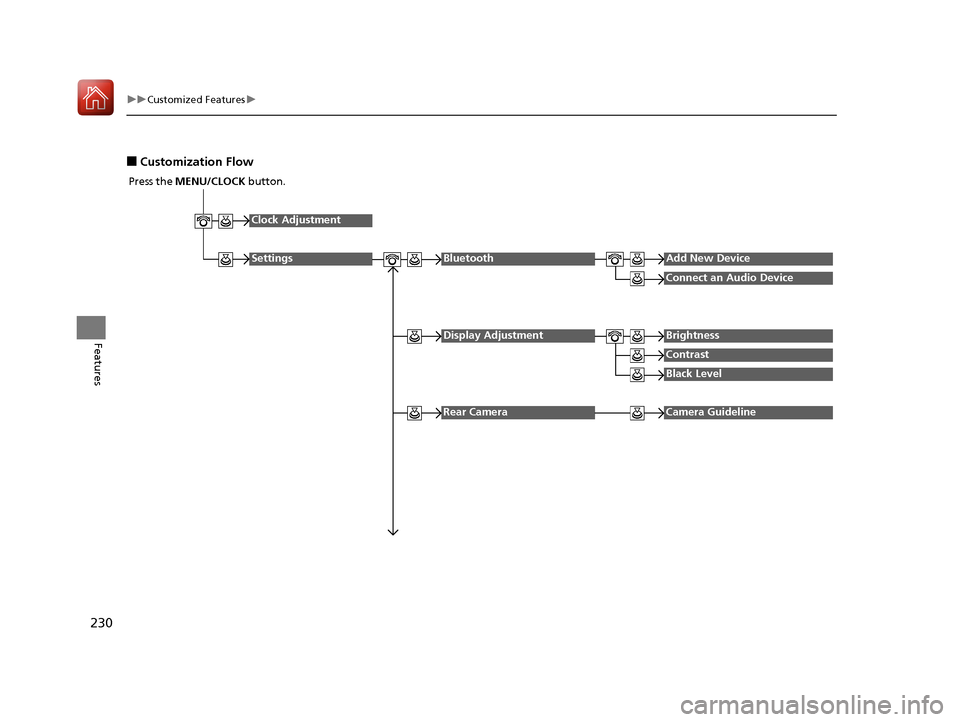
■Customization Flow
Press the MENU/CLOCK button.
Clock Adjustment
SettingsBluetoothAdd New Device
Connect an Audio Device
Display AdjustmentBrightness
Contrast
Black Level
Rear CameraCamera Guideline
17 FIT -31T5A6200.book 230 ページ 2016年5月27日 金曜日 午後6時33分
Page 232 of 465
231
uuCustomized Features u
Continued
Features
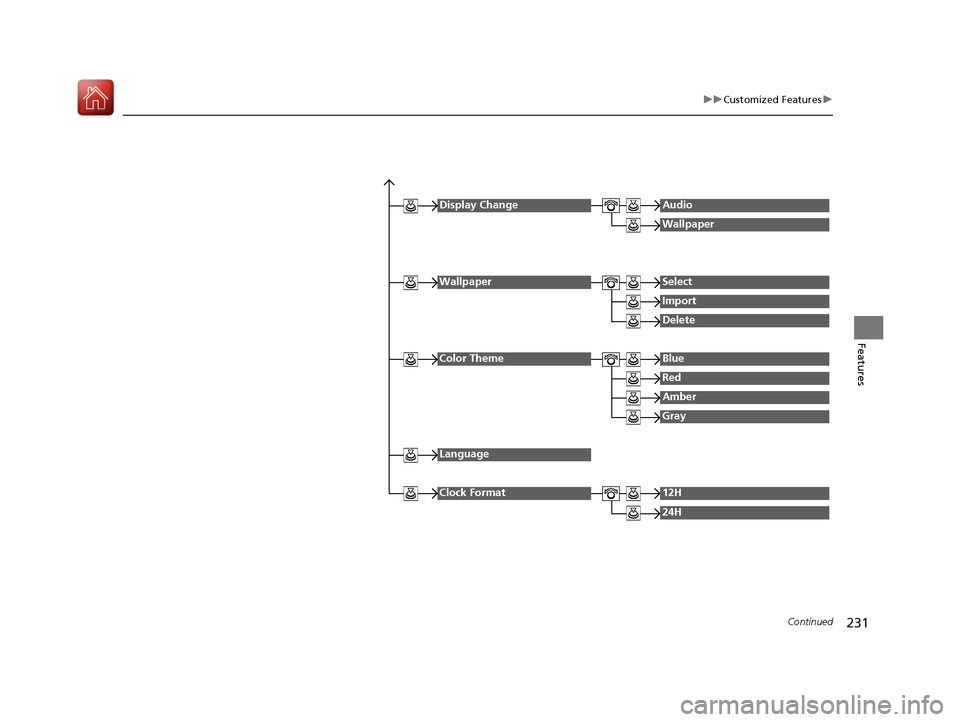
Display ChangeAudio
Wallpaper
WallpaperSelect
Import
Delete
Color ThemeBlue
Red
Amber
Gray
Language
Clock Format12H
24H
17 FIT -31T5A6200.book 231 ページ 2016年5月27日 金曜日 午後6時33分
Page 234 of 465
233
uuCustomized Features u
Continued
Features
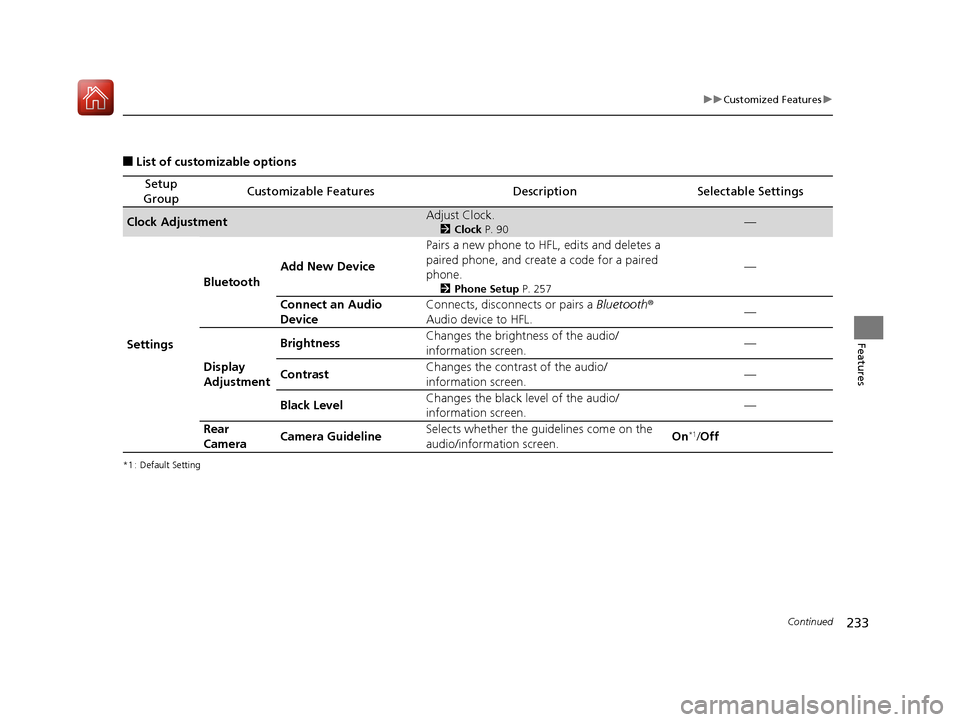
■List of customizable options
*1 : Default Setting
Setup
GroupCustomizable FeaturesDescriptionSelectable Settings
Clock AdjustmentAdjust Clock.
2 Clock P. 90—
Settings Bluetooth
Add New Device Pairs a new phone to HFL, edits and deletes a
paired phone, and create
a code for a paired
phone.
2 Phone Setup P. 257
—
Connect an Audio
Device Connects, disconnects or pairs a
Bluetooth®
Audio device to HFL. —
Display
Adjustment Brightness
Changes the brightness of the audio/
information screen.
—
Contrast Changes the contrast of the audio/
information screen. —
Black Level Changes the black level of the audio/
information screen. —
Rear
Camera Camera Guideline Selects whether the guidelines come on the
audio/information screen.
On
*1/
Off
17 FIT -31T5A6200.book 233 ページ 2016年5月27日 金曜日 午後6時33分