Page 212 of 465
211
uuAudio System Basic Operation uPlaying Internet Radio
Continued
Features
Playing Internet Radio
Connect a compatible phone through Bluetooth®.
2Phone Setup P. 284
You can also connect the phone using your USB connector to the USB port. Select
Source to select Pandora mode.
*1 : Some or all of the lists may not be displayed.
U.S. models
Compatible phones only
1Playing Internet Radio
Pandora ®, the Pandora logo, and the Pandora trade
dress are trademarks or registered trademarks of
Pandora Media, Inc., used with permission. Pandora
is currently available exclusively in the United States.
To find out if your phone is compatible with this
feature, visit www.handsfreelink.honda.com , or call
1-888-528-7876
To use this service in your vehicle, the Pandora ® app
must first be installed on your phone. Visit
www.pandora.com . for more information.
Pandora ® on the iPhone will only play through the
USB cable or Bluetooth® Audio, you cannot play
Pandora ® through the HondaLink ® Cable.
iPhone only
VOL
HOME
MENU
BACK
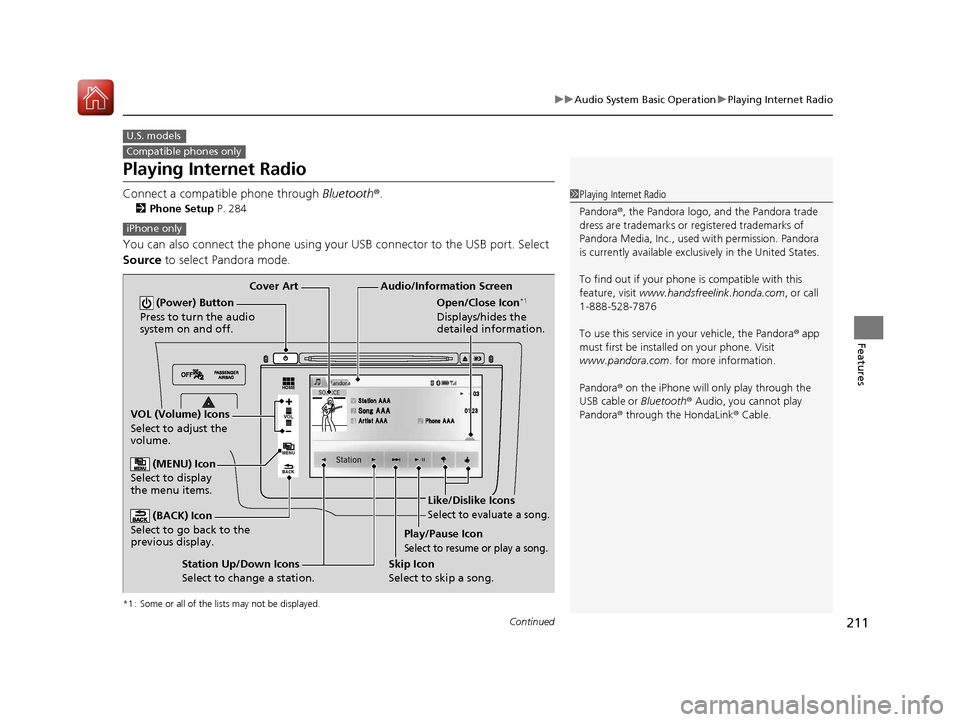
Audio/Information Screen
Cover Art
VOL (Volume) Icons
Select to adjust the
volume.
(BACK) Icon
Select to go back to the
previous display.
(Power) Button
Press to turn the audio
system on and off.
(MENU) Icon
Select to display
the menu items.
Play/Pause Icon
Select to resume or play a song.
Open/Close Icon*1
Displays/hides the
detailed information.
Station Up/Down Icons
Select to change a station. Skip Icon
Select to skip a song.
Like/Dislike Icons
Select to evaluate a song.
17 FIT -31T5A6200.book 211 ページ 2016年5月27日 金曜日 午後6時33分
Page 214 of 465
213
uuAudio System Basic Operation uPlaying a USB Flash Drive
Continued
Features
Playing a USB Flash Drive
Your audio system reads and plays sound files on a USB flash drive in either MP3,
WMA or AAC*1 format.
Connect your USB flash drive to the USB port, then select the USB mode.
2 USB Port(s) P. 167
*1 : Only AAC format files recorded with iTunes are playable on this unit.
*2 : Some or all of the lists may not be displayed.
VOL
HOME
MENU
BACK
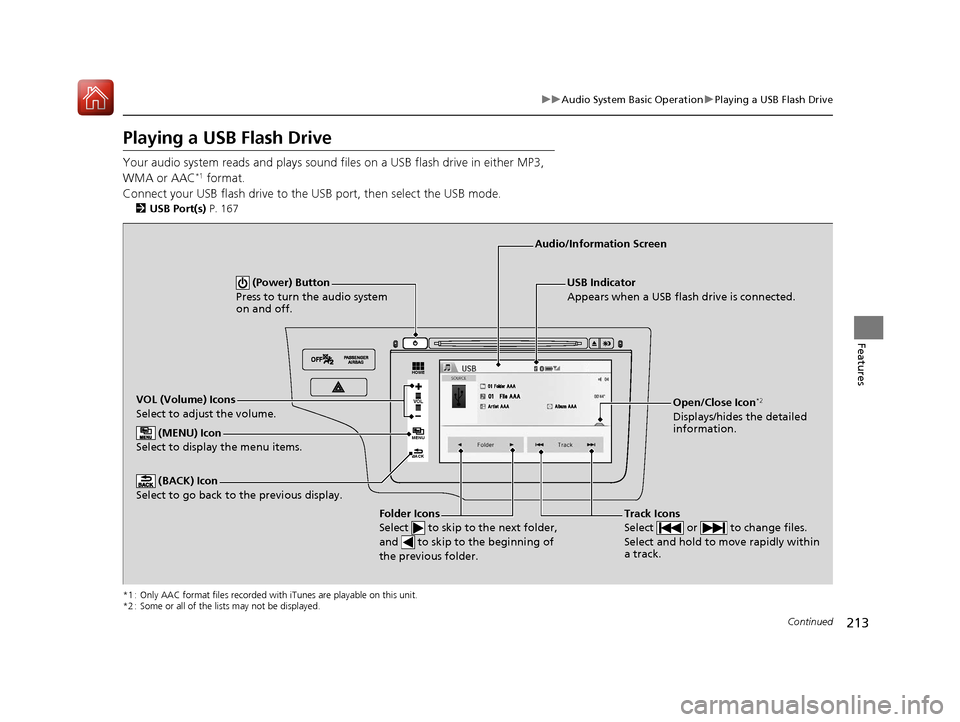
USB Indicator
Appears when a USB flash drive is connected.
Track Icons
Select or to change files.
Select and hold to move rapidly within
a track.
Audio/Information Screen
VOL (Volume) Icons
Select to adjust the volume. (BACK) Icon
Select to go back to the previous display.
(Power) Button
Press to turn the audio system
on and off.
Open/Close Icon*2
Displays/hides the detailed
information.
(MENU) Icon
Select to display the menu items.
Folder Icons
Select to skip to the next folder,
and to skip to the beginning of
the previous folder.
17 FIT -31T5A6200.book 213 ページ 2016年5月27日 金曜日 午後6時33分
Page 215 of 465
uuAudio System Basic Operation uPlaying a USB Flash Drive
214
Features
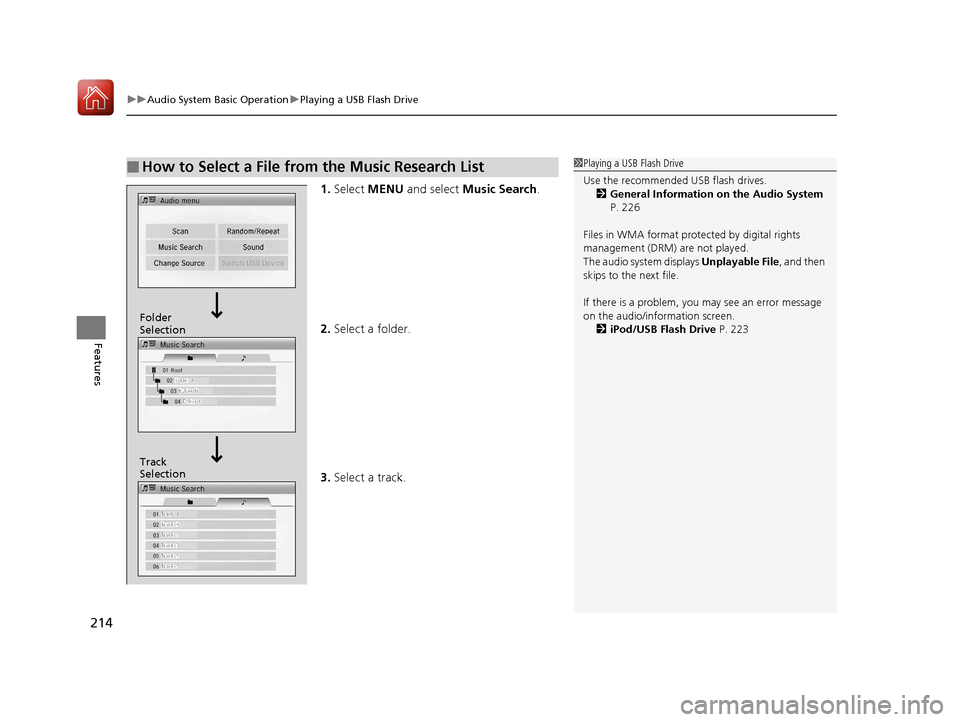
1. Select MENU and select Music Search .
2. Select a folder.
3. Select a track.
■How to Select a File from the Music Research List1Playing a USB Flash Drive
Use the recommended USB flash drives.
2 General Information on the Audio System
P. 226
Files in WMA format prot ected by digital rights
management (DRM) are not played.
The audio system displays Unplayable File, and then
skips to the next file.
If there is a problem, you may see an error message
on the audio/information screen.
2 iPod/USB Flash Drive P. 223
Track
Selection Folder
Selection
17 FIT -31T5A6200.book 214 ページ 2016年5月27日 金曜日 午後6時33分
Page 217 of 465
216
uuAudio System Basic Operation uPlaying Bluetooth ® Audio
Features
Playing Bluetooth® Audio
Your audio system allows you to listen to music from your Bluetooth-compatible
phone.
This function is available when the phone is paired and connected to the vehicle’s
Bluetooth ® HandsFreeLink ® (HFL) system.
2 Phone Setup P. 284
*1 : Depending on the Bluetooth device you connect, some or all of the lists may not be displayed.
1Playing Bluetooth ® Audio
Not all Bluetooth -enabled phones with streaming
audio capabilities are compatible with the system.
For a list of compatible phones:
•U.S.: Visit www.handsfreelink.honda.com , or call
1-888-528-7876.
•Canada: Visit www.handsfreelink.ca , or call 1-888-
528-7876.
In some states, it may be illegal to perform some data
device functions while driving.
Only one phone can be used with HFL at a time.
When there are more than two paired phones in the
vehicle, the first paired phone the system finds is
automatically linked.
If more than one phone is paired to the HFL system,
there may be a delay before the system begins to play.
In some cases, the name of the artist, album, or track
may not appear correctly.
A NO CONNECT message may be displayed if:
•The phone is not linked to HFL.
•The phone is not turned on.
•The phone is not in the vehicle.•An incompatible phone is connected.
The following functions may not be available on
some devices:
•Pause function
•Group selection
VOL
HOME
MENU
BACK
�_� �_�Š�€�“�‹�>�_�_�_�N�O�>�d�‡�Š�ƒ�>�_�_�_�n�†�
�Û�Û
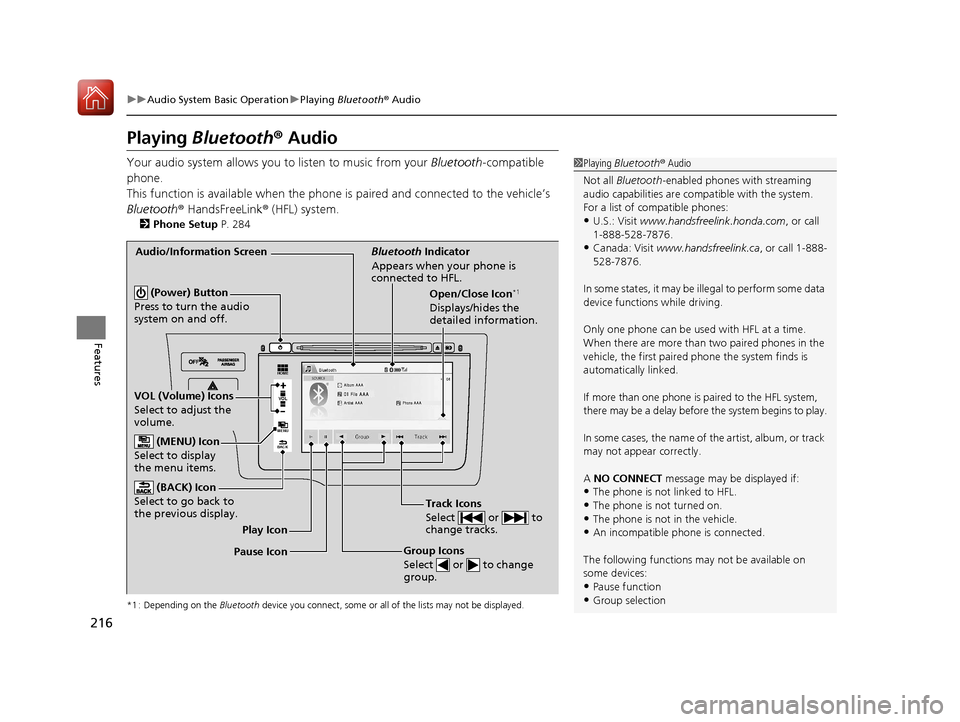
Audio/Information Screen Bluetooth Indicator
Appears when your phone is
connected to HFL.
Track Icons
Select or to
change tracks.
VOL (Volume) Icons
Select to adjust the
volume. (BACK) Icon
Select to go back to
the previous display.
(Power) Button
Press to turn the audio
system on and off.Open/Close Icon*1
Displays/hides the
detailed information.
(MENU) Icon
Select to display
the menu items.
Group Icons
Select or to change
group.Pause Icon Play Icon
17 FIT -31T5A6200.book 216 ページ 2016年5月27日 金曜日 午後6時33分
Page 218 of 465
217
uuAudio System Basic Operation uPlaying Bluetooth ® Audio
Features
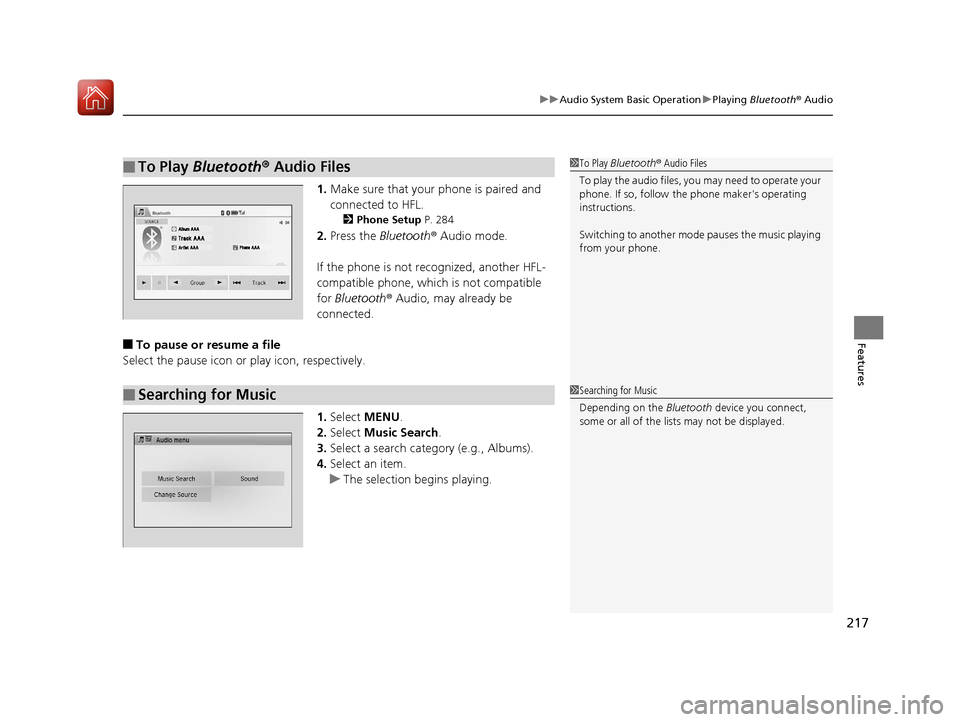
1. Make sure that your phone is paired and
connected to HFL.
2 Phone Setup P. 284
2.Press the Bluetooth ® Audio mode.
If the phone is not recognized, another HFL-
compatible phone, which is not compatible
for Bluetooth ® Audio, may already be
connected.
■To pause or resume a file
Select the pause icon or play icon, respectively.
1.Select MENU .
2. Select Music Search.
3. Select a search catego ry (e.g., Albums).
4. Select an item.
u The selection begins playing.
■To Play Bluetooth ® Audio Files1 To Play Bluetooth ® Audio Files
To play the audio files, y ou may need to operate your
phone. If so, follow the phone maker's operating
instructions.
Switching to another mode pauses the music playing
from your phone.
�Û�Û
■Searching for Music1 Searching for Music
Depending on the Bluetooth device you connect,
some or all of the list s may not be displayed.
17 FIT -31T5A6200.book 217 ページ 2016年5月27日 金曜日 午後6時33分
Page 219 of 465
218
uuAudio System Basic Operation uPlaying a Video Using the HDMI ®
Features
Playing a Video Using the HDMI ®
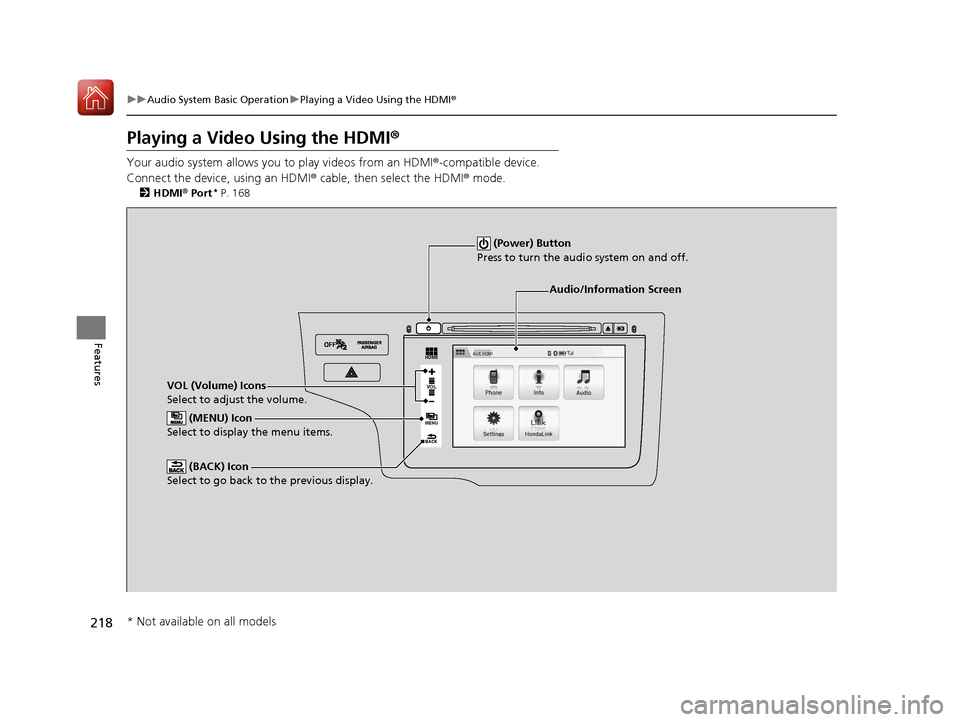
Your audio system allows you to play videos from an HDMI®-compatible device.
Connect the device, using an HDMI ® cable, then select the HDMI® mode.
2HDMI ® Port* P. 168
VOL
HOME
MENU
BACK
Audio/Information Screen
VOL (Volume) Icons
Select to adjust the volume. (BACK) Icon
Select to go back to the previous display.
(Power) Button
Press to turn the audi o system on and off.
(MENU) Icon
Select to display the menu items.
* Not available on all models
17 FIT -31T5A6200.book 218 ページ 2016年5月27日 金曜日 午後6時33分
Page 221 of 465
220
uuAudio System Basic Operation uSmartphone Apps
Features
Smartphone Apps
You can connect a compatible smartphone to the system to enable integration
between the smartphone’s approved apps and the vehicle. This allows you to
control the phone through the vehicle display. To check smart phone compatibility,
download the HondaLink app, and view connection instructions, visit
handsfreelink.honda.com . For the latest apps and feature details, check
hondalink.com .1Smartphone Apps
Park in a safe place be fore connecting your phone
and while operating the displayed apps.
Not all phones and apps ar e compatible with the
system. The system does not display all the available
apps on smartphone, and so me apps need to be
preinstalled. Ask a dealer for details.
You need to switch the Bluetooth connection to your
smartphone if another electr onic device is connected.
2 Changing the currently paired phone
P. 285
The following may vary by phone type:
•Connection methods.
•How to connect a smartphone to the system.•Apps that can be operated on the screen.
•Display response ti me/update time.
We do not support every app operation on the
display audio.
Ask the app provider for an y questions on the app’s
features.VOL
HOME
MENU
BACK
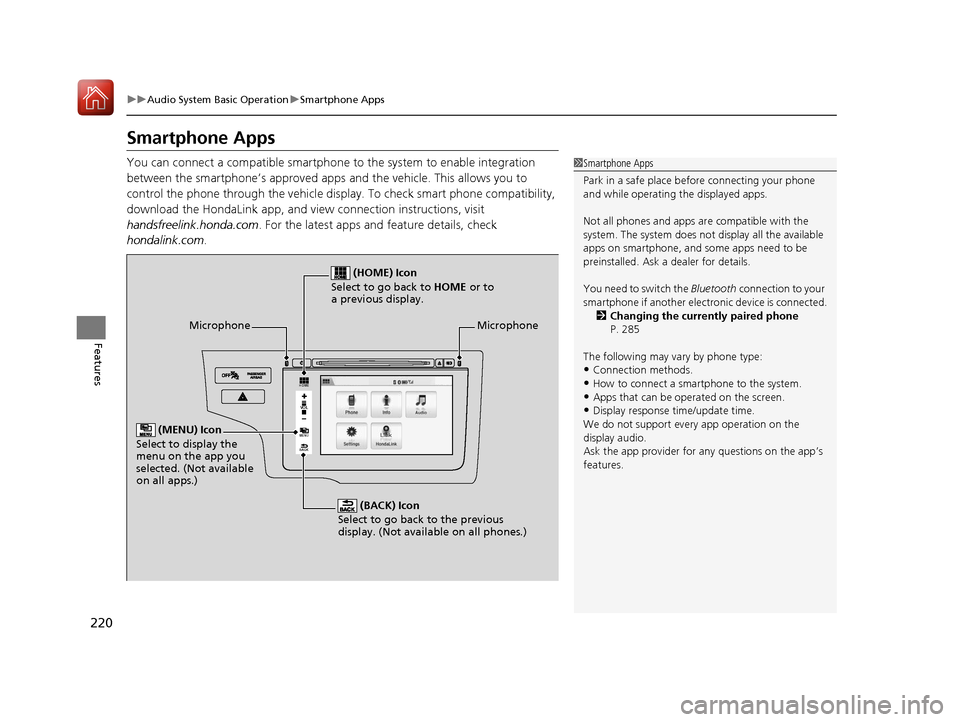
Microphone
(BACK) Icon
Select to go back to the previous
display. (Not available on all phones.)
(HOME) Icon
Select to go back to HOME or to
a previous display.
(MENU) Icon
Select to display the
menu on the app you
selected. (Not available
on all apps.)
Microphone
17 FIT -31T5A6200.book 220 ページ 2016年5月27日 金曜日 午後6時33分
Page 222 of 465
221
uuAudio System Basic Operation uSiri ® Eyes Free
Features
Siri® Eyes Free
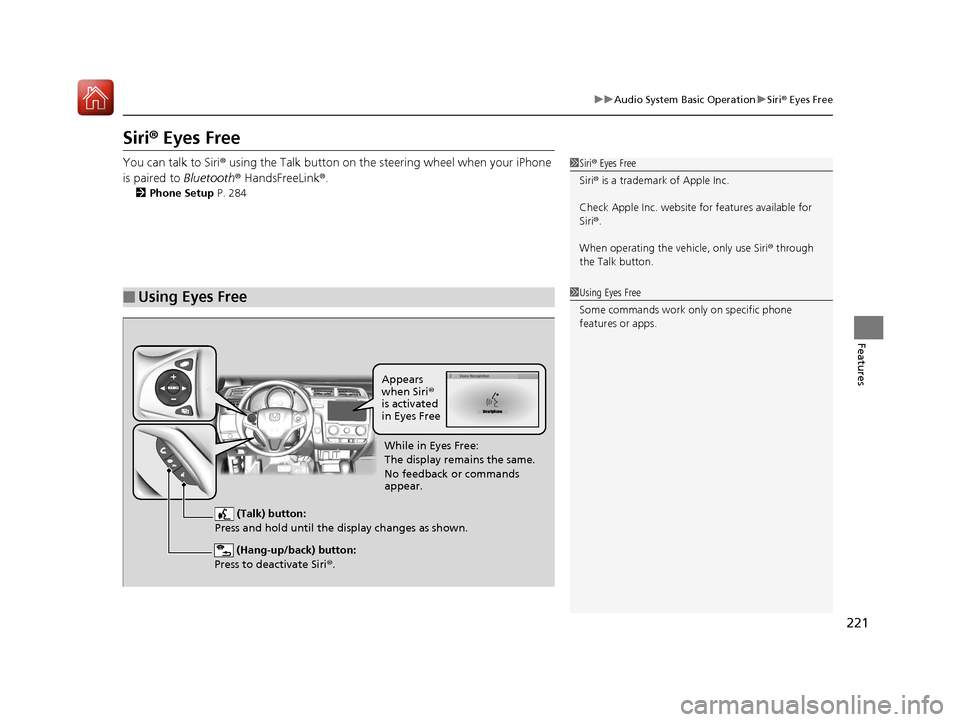
You can talk to Siri® using the Talk button on the steering wheel when your iPhone
is paired to Bluetooth® HandsFreeLink ®.
2Phone Setup P. 284
■Using Eyes Free
1Siri ® Eyes Free
Siri ® is a trademark of Apple Inc.
Check Apple Inc. website for features available for
Siri ®.
When operating the ve hicle, only use Siri® through
the Talk button.
1 Using Eyes Free
Some commands work only on specific phone
features or apps.
(Hang-up/back) button:
Press to deactivate Siri ®.
(Talk) button:
Press and hold until the display changes as shown.
Appears
when Siri®
is activated
in Eyes Free
While in Eyes Free:
The display remains the same.
No feedback or commands
appear.
17 FIT -31T5A6200.book 221 ページ 2016年5月27日 金曜日 午後6時33分