Page 231 of 601
230
uuAudio System Basic Operation uAudio/Information Screen
Features
Audio/Information Screen
Displays the audio status and wallpaper. From this display, you can go to various
setup options.
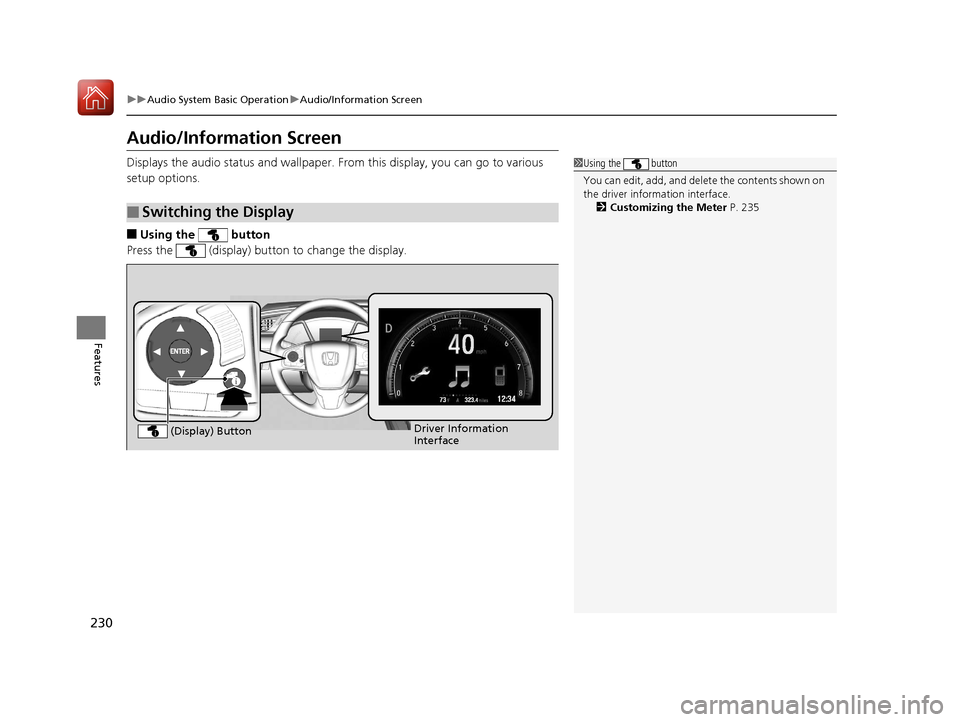
■Using the button
Press the (display) butto n to change the display.
■Switching the Display
1Using the button
You can edit, add, and dele te the contents shown on
the driver information interface. 2 Customizing the Meter P. 235
Driver Information
Interface
(Display) Button
17 CIVIC 4D HCM (KA KC KL)-31TBA6100.book 230 ページ 2016年8月31日 水曜日 午後6時5分
Page 232 of 601

Continued231
uuAudio System Basic Operation uAudio/Information Screen
Features
■Using the audio/in formation screen
Select to go to the home screen.
Select Phone , Info , Audio , Settings , Navigation
*, HondaLink , Smartphone
Connection (Apple CarPlay, Android Auto), App List , or Instrument Panel .
■Phone
Displays the HFL information.
2 Bluetooth ® HandsFreeLink ®* P. 362
1Using the audio/in formation screen
Touchscreen operation
•Use simple gestures - in cluding touching, swiping
and scrolling - to operate certain audio functions.
•Some items may be grayed out during driving to
reduce the potential for distraction.
•You can select them when the vehicle is stopped or
use voice commands.
•Wearing gloves may limit or prevent touchscreen
response.
You can change the touchs creen sensitivity setting.
2 Customized Features P. 330
Home Screen
Models without navigation system
Models with navigation system
* Not available on all models
17 CIVIC 4D HCM (KA KC KL)-31TBA6100.book 231 ページ 2016年8月31日 水曜日 午後6時5分
Page 236 of 601
Continued235
uuAudio System Basic Operation uAudio/Information Screen
Features
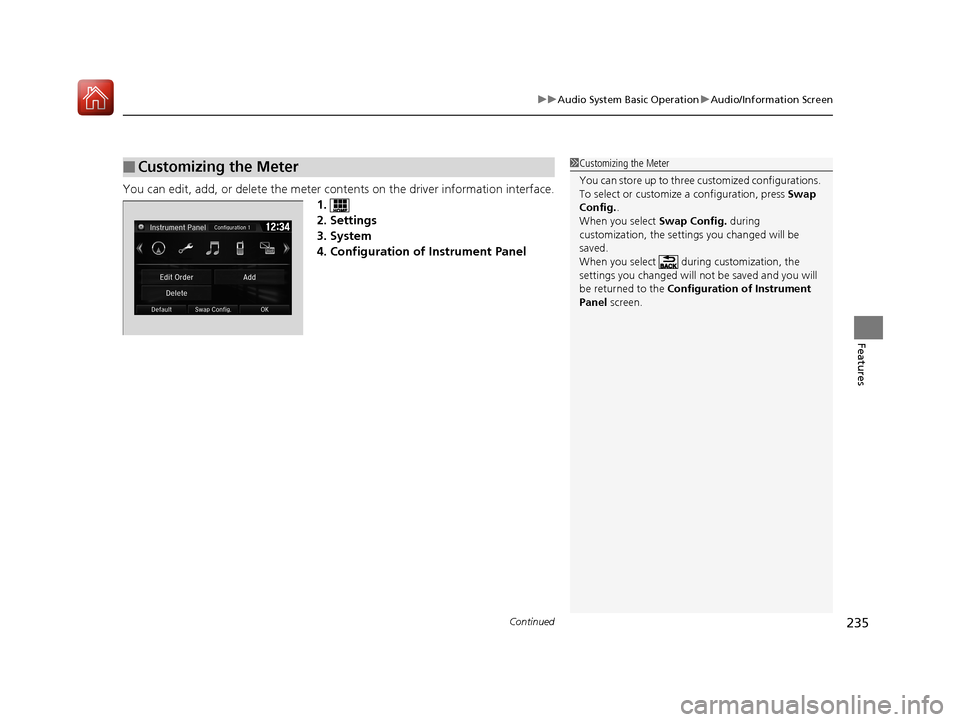
You can edit, add, or delete the meter cont ents on the driver information interface.
1.
2. Settings
3. System
4. Configuration of Instrument Panel
■Customizing the Meter1 Customizing the Meter
You can store up to three cu stomized configurations.
To select or customize a configuration, press Swap
Config. .
When you select Swap Config. during
customization, the settings you changed will be
saved.
When you select during customization, the
settings you changed will not be saved and you will
be returned to the Configuration of Instrument
Panel screen.
17 CIVIC 4D HCM (KA KC KL)-31TBA6100.book 235 ページ 2016年8月31日 水曜日 午後6時5分
Page 237 of 601
uuAudio System Basic Operation uAudio/Information Screen
236
Features
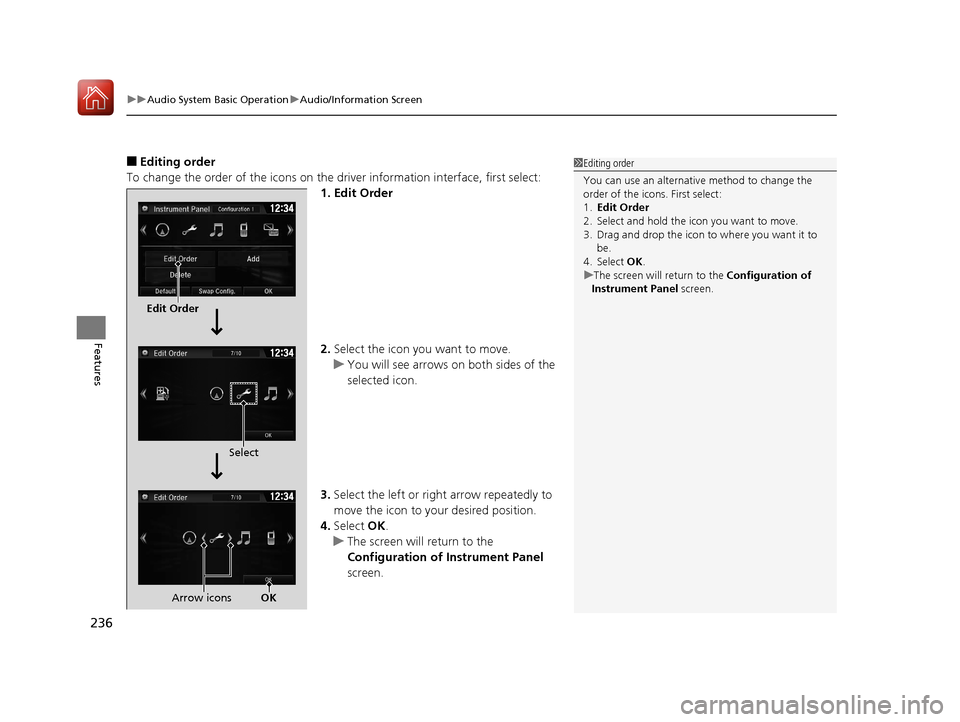
■Editing order
To change the order of the icons on the driver information interface, first select:
1. Edit Order
2. Select the icon you want to move.
u You will see arrows on both sides of the
selected icon.
3. Select the left or right arrow repeatedly to
move the icon to your desired position.
4. Select OK.
u The screen will return to the
Configuration of Instrument Panel
screen.1 Editing order
You can use an alternative method to change the
order of the icons. First select:
1. Edit Order
2. Select and hold the icon you want to move.
3. Drag and drop the icon to where you want it to be.
4. Select OK .
u The screen will return to the Configuration of
Instrument Panel screen.
Edit Order
Select
Arrow icons OK
17 CIVIC 4D HCM (KA KC KL)-31TBA6100.book 236 ページ 2016年8月31日 水曜日 午後6時5分
Page 240 of 601
Continued239
uuAudio System Basic Operation uAudio/Information Screen
Features
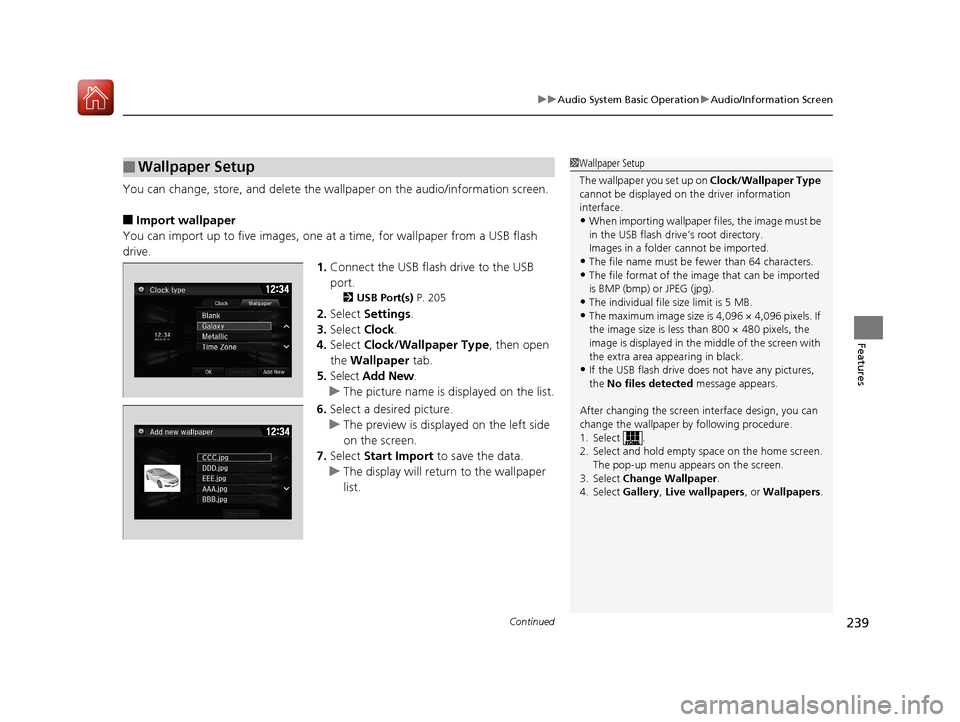
You can change, store, and delete the wallpaper on the audio/ information screen.
■Import wallpaper
You can import up to five images, one at a time, for wallpaper from a USB flash
drive. 1.Connect the USB flash drive to the USB
port.
2 USB Port(s) P. 205
2.Select Settings .
3. Select Clock.
4. Select Clock/Wallpaper Type , then open
the Wallpaper tab.
5. Select Add New .
u The picture name is displayed on the list.
6. Select a desired picture.
u The preview is displayed on the left side
on the screen.
7. Select Start Import to save the data.
u The display will return to the wallpaper
list.
■Wallpaper Setup1Wallpaper Setup
The wallpaper you set up on Clock/Wallpaper Type
cannot be displayed on th e driver information
interface.
•When importing wallpaper files, the image must be
in the USB flash driv e’s root directory.
Images in a folder cannot be imported.
•The file name must be fewer than 64 characters.•The file format of the im age that can be imported
is BMP (bmp) or JPEG (jpg).
•The individual file size limit is 5 MB.•The maximum image size is 4,096 × 4,096 pixels. If
the image size is less than 800 × 480 pixels, the
image is displayed in the middle of the screen with
the extra area appearing in black.
•If the USB flash drive doe s not have any pictures,
the No files detected message appears.
After changing the screen interface design, you can
change the wallpaper by following procedure.
1. Select .
2. Select and hold empty space on the home screen. The pop-up menu appears on the screen.
3. Select Change Wallpaper .
4. Select Gallery , Live wallpapers , or Wallpapers .
17 CIVIC 4D HCM (KA KC KL)-31TBA6100.book 239 ページ 2016年8月31日 水曜日 午後6時5分
Page 241 of 601
uuAudio System Basic Operation uAudio/Information Screen
240
Features
■Select wallpaper
1. Select Settings .
2. Select Clock.
3. Select Clock/Wallpaper Type , then open the Wallpaper tab.
u The screen changes to the wallpaper list.
4. Select a desired wallpaper.
u The preview is displayed on the left side on the screen.
u The pop-up menu appears on the screen.
5. Select Set.
u The display will return to the wallpaper list.
■To view wallpaper once it is set
1. Select .
2. Select Info.
3. Select .
4. Select Clock/Wallpaper .
■Delete wallpaper
1. Select Settings .
2. Select Clock.
3. Select Clock/Wallpaper Type , then open the Wallpaper tab.
u The screen changes to the wallpaper list.
4. Select a wallpaper that you want to delete.
u The preview is displayed on the left side on the screen.
u The pop-up menu appears on the screen.
5. Select Delete.
u A confirmation message appears on the screen.
6. Select Yes to delete completely.
u The display will return to the wallpaper list.
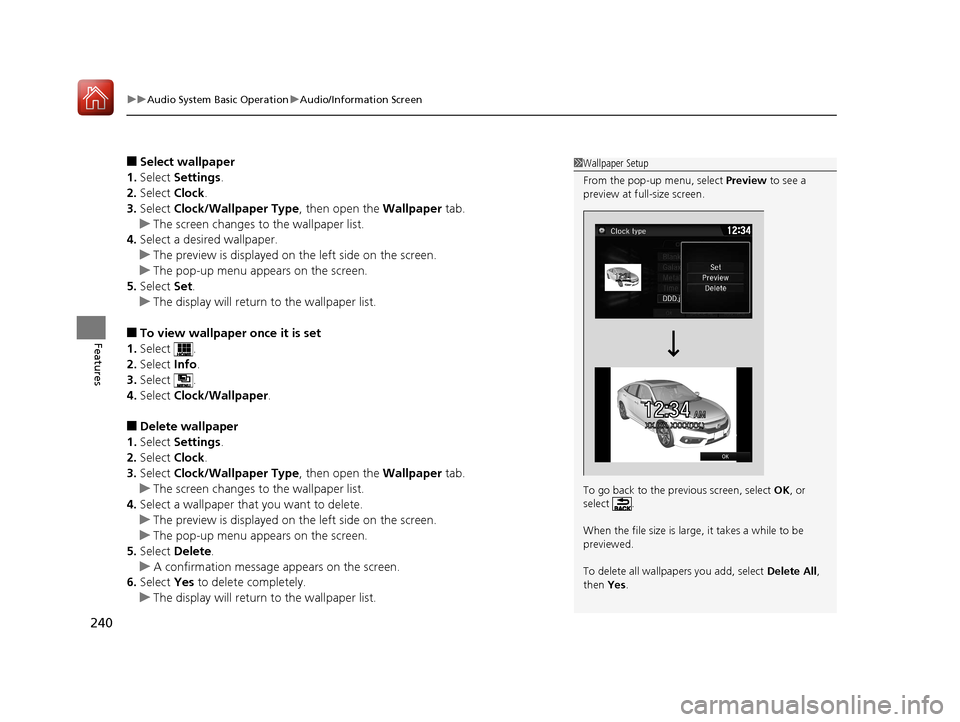
1Wallpaper Setup
From the pop-up menu, select Preview to see a
preview at full-size screen.
To go back to the previous screen, select OK, or
select .
When the file size is large, it takes a while to be
previewed.
To delete all wallpapers you add, select Delete All,
then Yes.
12:34AMXX.�XX. XXXX(XX.)
12�‰34
17 CIVIC 4D HCM (KA KC KL)-31TBA6100.book 240 ページ 2016年8月31日 水曜日 午後6時5分
Page 242 of 601
Continued241
uuAudio System Basic Operation uAudio/Information Screen
Features
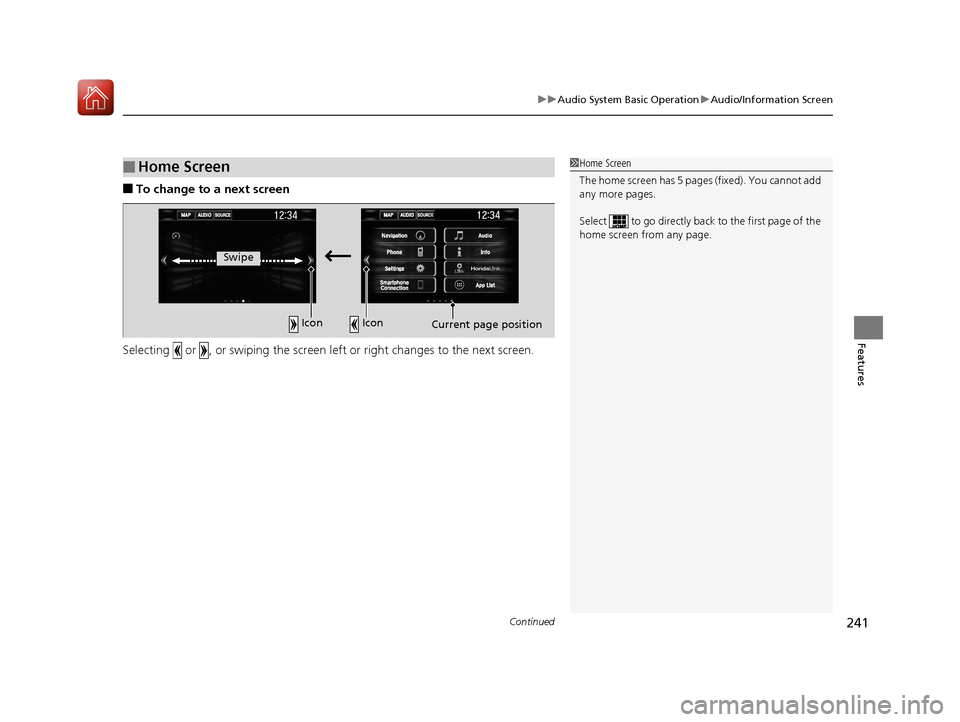
■To change to a next screen
Selecting or , or swiping the screen left or right changes to the next screen.
■Home Screen1Home Screen
The home screen has 5 pa ges (fixed). You cannot add
any more pages.
Select to go directly back to the first page of the
home screen from any page.
Swipe
Icon Icon
Current page position
17 CIVIC 4D HCM (KA KC KL)-31TBA6100.book 241 ページ 2016年8月31日 水曜日 午後6時5分
Page 246 of 601
Continued245
uuAudio System Basic Operation uAudio/Information Screen
Features
■To move icons on the home screen
You can change location on the home screen. 1.Select and hold an icon.
u The screen switches to the customization
screen.
2. Drag and drop the icon to where you want
it to be.
3. Select OK.
u The screen will return to the home
screen.1To move icons on the home screen
You can also move the Phone, Info, Audio ,
Settings , Navigation
*, HondaLink , Smartphone
Connection , App List , and Instrument Panel icons
in the same manner.
Select and hold.
Drag and drop.
* Not available on all models
17 CIVIC 4D HCM (KA KC KL)-31TBA6100.book 245 ページ 2016年8月31日 水曜日 午後6時5分