Page 249 of 601
uuAudio System Basic Operation uAudio/Information Screen
248
Features
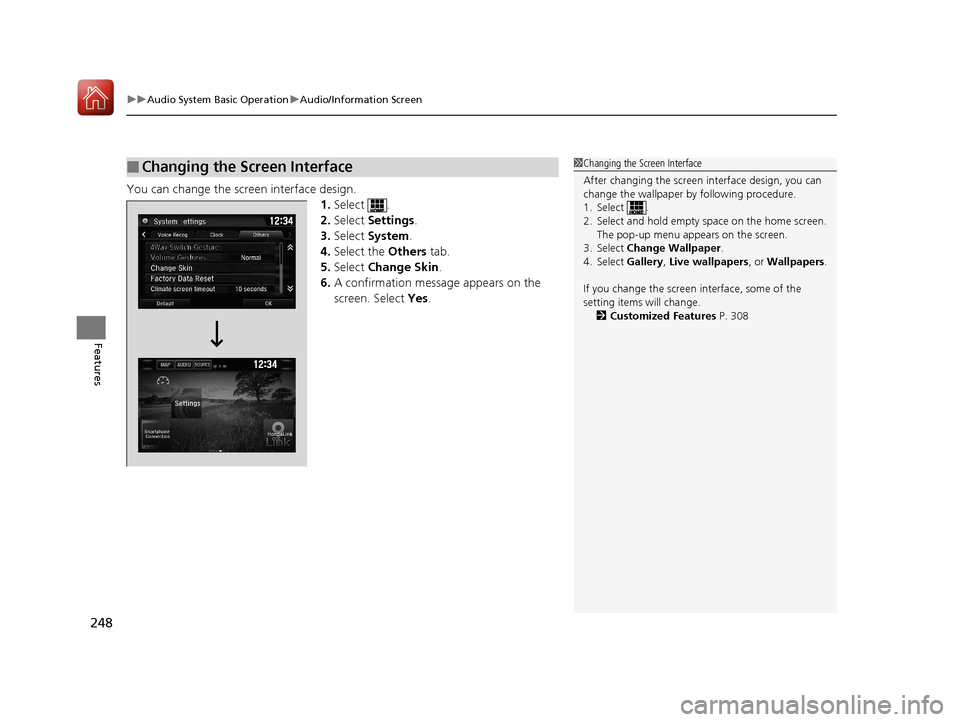
You can change the screen interface design.
1.Select .
2. Select Settings .
3. Select System .
4. Select the Others tab.
5. Select Change Skin .
6. A confirmation message appears on the
screen. Select Yes.
■Changing the Screen Interface1Changing the Screen Interface
After changing the screen interface design, you can
change the wallpaper by following procedure.
1. Select .
2. Select and hold empty space on the home screen.
The pop-up menu appears on the screen.
3. Select Change Wallpaper .
4. Select Gallery, Live wallpapers , or Wallpapers.
If you change the screen interface, some of the
setting items will change. 2 Customized Features P. 308
17 CIVIC 4D HCM (KA KC KL)-31TBA6100.book 248 ページ 2016年8月31日 水曜日 午後6時5分
Page 250 of 601
Continued249
uuAudio System Basic Operation uAudio/Information Screen
Features
You can change menu icons on the right side of Audio, Phone , and Info screen.
1. Select and hold menu icon.
2. Select or icon, then Audio, Phone ,
or Info from Menu Customize .
3. Select and hold the menu icon you want to
change, then drag and drop the icon to the
bottom.
4. Select and hold the menu icon you want to
add, then drag and drop the icon to above.
5. Select OK.
■Menu Customize1Menu Customize
You can also use the method below to change menu
icon:
Select Settings System Home tabMenu icon
position
Select and hold
Menu Icons
To change Menu Icon
To add
Drag and drop
Drag and drop
17 CIVIC 4D HCM (KA KC KL)-31TBA6100.book 249 ページ 2016年8月31日 水曜日 午後6時5分
Page 253 of 601
252
uuAudio System Basic Operation uDisplay Setup
Features
Display Setup
You can change the brightness or color theme of the audio/information screen.
1.Select .
2. Select Settings .
3. Select System .
4. Select the Display tab.
5. Select Display Settings .
6. Select the setting you want.
7. Select OK.
1. Select .
2. Select Settings .
3. Select System .
4. Select the Display tab.
5. Select Background Color .
6. Select the setting you want.
7. Select OK.
■Changing the Screen Brightness1Changing the Screen Brightness
You can change the Contrast and Black Level
settings in the same manner.
12 �‰34
■Changing the Screen’s Color Theme
12 �‰34
17 CIVIC 4D HCM (KA KC KL)-31TBA6100.book 252 ページ 2016年8月31日 水曜日 午後6時5分
Page 256 of 601

255
uuAudio System Basic Operation uVoice Control Operation
Continued
FeaturesWhen the (Talk) button is pressed,
available voice comma nds appear on the
screen.
For a complete list of commands, say “ Voice
Help ” after the beep or select Voice Help.
You can see the list of commands in Voice
Info on the Info menu screen. Select Info,
then select .
The system only recognizes the commands
on the following pages, at certain screens.
Free form voice commands are not
recognized.
*1: Models with navigation system
■Voice Portal Screen■Phone Call
This can be only used when the phone is
connected. When the sy stem recognizes the
Phone call command, the screen will
change to the voice re cognition screen for
phone commands.
• Dial by number
• Call history
• Redial
• Call
• Call
• Call Police
• Call 911
Phone Call commands are not available if
using Apple CarPlay.
■Music Search
This can be only used when the iPod or USB
device is connected.
■Climate Control*1
When the system recognizes the Climate
Control command, the screen will change
the dedicated screen to the climate control
voice recognition screen.
2 Climate Control Commands*1 P. 257
■Audio*1
When the system recognizes the Audio
command, the screen will change to the
audio voice recognition screen.
• Audio On
• Audio Off
• Radio FM
• Radio AM
• Radio SXM
*
•Pandora*
•iPod
• USB
• Other Sources
Pandora
* cannot be used with Android
Auto.
■Navigation*1
The screen changes to the navigation
screen.
2 Refer to the Navigation System Manual
■HondaLink
This can be only used when the phone is
connected.
■Voice Setting
The screen changes to the Voice Recog tab
on the System settings screen.
* Not available on all models
17 CIVIC 4D HCM (KA KC KL)-31TBA6100.book 255 ページ 2016年8月31日 水曜日 午後6時5分
Page 261 of 601

uuAudio System Basic Operation uPlaying AM/FM Radio
260
Features
Samples each of the strongest stations on th e selected band for 10 seconds. To turn
off scan, select Cancel or .
Displays the subchannel list when an HD Radio
TM station is selected while listening to
an FM station.
1. Select .
2. Select HD Subchannel.
3. Select the channel number.
Provides text data information related to your selected RDS-capable FM station.
■To find an RDS station from Station List
1. Select the open/close icon to display a list while listening to an FM station.
2. Select the Station List tab.
3. Select the station.
■Manual update
Updates your available station list at any time.
1. Select the open/close icon to display a list while listening to an FM station.
2. Select the Station List tab.
3. Select Refresh .
■Scan
■HD Subchannel
■Radio Data System (RDS)
Models with HD RadioTM
1Radio Data System (RDS)
When you select an RDS-capable FM station, the RDS
automatically turns on, and the frequency display
changes to the station name. However, when the
signals of that station become weak, the display
changes from the statio n name to the frequency.
17 CIVIC 4D HCM (KA KC KL)-31TBA6100.book 260 ページ 2016年8月31日 水曜日 午後6時5分
Page 263 of 601

262
uuAudio System Basic Operation uPlaying SiriusXM ® Radio*
Features
Playing SiriusXM ® Radio*
*1:Some or all of the lists may not be displayed.
VOL
HOME
MENU
BACK
AUDIO
VOL (Volume) Icons
Select to adjust the volume.
(Back) Icon
Select to go back to the previous display.
Channel Icons
Select or to the previous
or next channel.
Select and hold to rapidly skip 10
channels at a time.
/AUDIO (Power/Audio) Icon
Press to turn the audio system on
and off.
Open/Close Icon*1
Displays/hides the detailed
information.
(Menu) Icon
Select to display the menu items.
Category Icons
Select or to display and select a
SiriusXM ® Radio category.
Audio/Information Screen
Scan Icon
Select to scan each channel. Preset Icons
Tune the preset radio station. Select
and hold the preset icon to store that
station. Select to display preset 7
onwards.Skip Icons
Select or to change
section in the channel.Select and
hold to move rapidly within the
section.
Driver Information Interface
Album Art
Station Art
* Not available on all models
17 CIVIC 4D HCM (KA KC KL)-31TBA6100.book 262 ページ 2016年8月31日 水曜日 午後6時5分
Page 264 of 601
Continued263
uuAudio System Basic Operation uPlaying SiriusXM ® Radio*
Features
1. Select .
2. Select Tune Mode .
3. Select Channel Mode or Category Mode .
■To Change the Tune Mode1Playing SiriusXM ® Radio*
In the channel mode, all available channels are
selectable. In the categor y mode, you can select a
channel within a ca tegory (Jazz, Rock, Classical, etc.).
There may be instances when SiriusXM ® Radio does
not broadcast all the data fi elds (artist name, title).
This does not indicate a problem with your audio
system.
SiriusXM ® Radio stations load in ascending order,
which can take about a minute. Once they have
loaded you will be able to scroll up or down to make
your selections.
Switching the Audio Mode
Press the or button on the steering wheel or
select SOURCE on the screen.
2 Audio Remote Controls P. 207
Tune Start:
When you change to a preset channel, a song being
played on that channel restarts from the beginning
with this function. This can be turned on or off from
the Audio settings screen.
2 Customized Features P. 308
34
* Not available on all models
17 CIVIC 4D HCM (KA KC KL)-31TBA6100.book 263 ページ 2016年8月31日 水曜日 午後6時5分
Page 271 of 601
270
uuAudio System Basic Operation uPlaying an iPod
Features
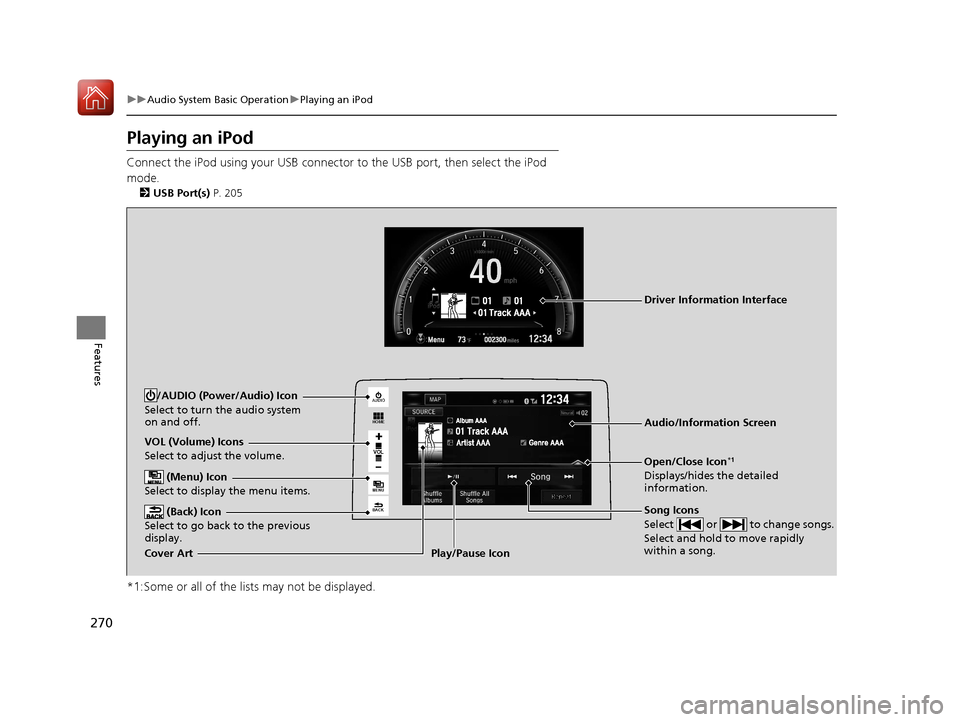
Playing an iPod
Connect the iPod using your USB connector to the USB port, then select the iPod
mode.
2 USB Port(s) P. 205
*1:Some or all of the lists may not be displayed.
VOL
HOME
MENU
BACK
AUDIO
VOL (Volume) Icons
Select to adjust the volume.
(Back) Icon
Select to go back to the previous
display.
Song Icons
Select or to change songs.
Select and hold to move rapidly
within a song.
/AUDIO (Power/Audio) Icon
Select to turn the audio system
on and off.
Open/Close Icon*1
Displays/hides the detailed
information.
(Menu) Icon
Select to display the menu items.
Cover Art Audio/Information ScreenPlay/Pause Icon
Driver Information Interface
17 CIVIC 4D HCM (KA KC KL)-31TBA6100.book 270 ページ 2016年8月31日 水曜日 午後6時5分