2017 FORD TAURUS ECO mode
[x] Cancel search: ECO modePage 359 of 504
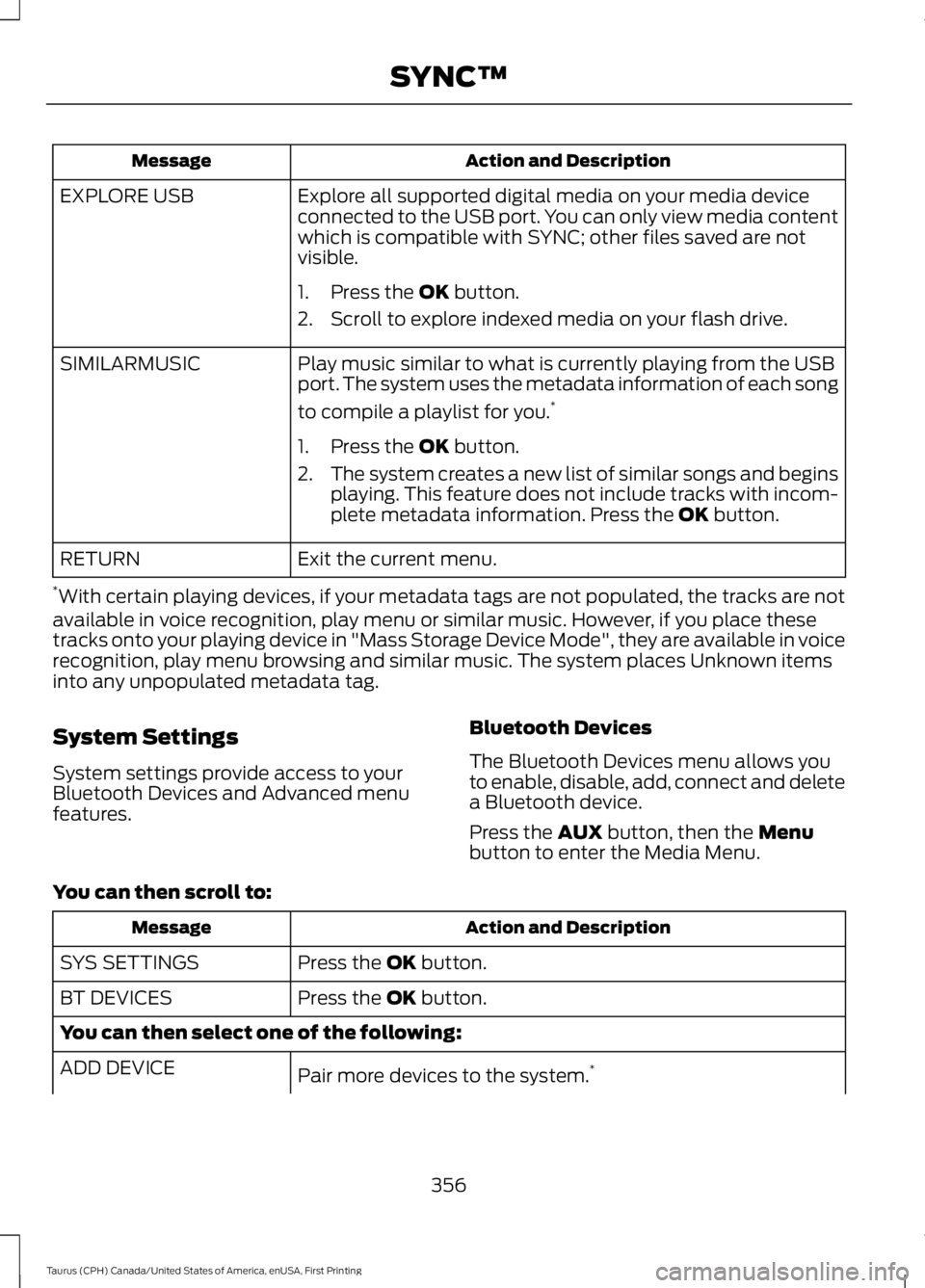
Action and DescriptionMessage
Explore all supported digital media on your media deviceconnected to the USB port. You can only view media contentwhich is compatible with SYNC; other files saved are notvisible.
EXPLORE USB
1. Press the OK button.
2. Scroll to explore indexed media on your flash drive.
Play music similar to what is currently playing from the USBport. The system uses the metadata information of each song
to compile a playlist for you.*
SIMILARMUSIC
1. Press the OK button.
2.The system creates a new list of similar songs and beginsplaying. This feature does not include tracks with incom-plete metadata information. Press the OK button.
Exit the current menu.RETURN
*With certain playing devices, if your metadata tags are not populated, the tracks are notavailable in voice recognition, play menu or similar music. However, if you place thesetracks onto your playing device in "Mass Storage Device Mode", they are available in voicerecognition, play menu browsing and similar music. The system places Unknown itemsinto any unpopulated metadata tag.
System Settings
System settings provide access to yourBluetooth Devices and Advanced menufeatures.
Bluetooth Devices
The Bluetooth Devices menu allows youto enable, disable, add, connect and deletea Bluetooth device.
Press the AUX button, then the Menubutton to enter the Media Menu.
You can then scroll to:
Action and DescriptionMessage
Press the OK button.SYS SETTINGS
Press the OK button.BT DEVICES
You can then select one of the following:
Pair more devices to the system.*ADD DEVICE
356
Taurus (CPH) Canada/United States of America, enUSA, First Printing
SYNC™
Page 375 of 504
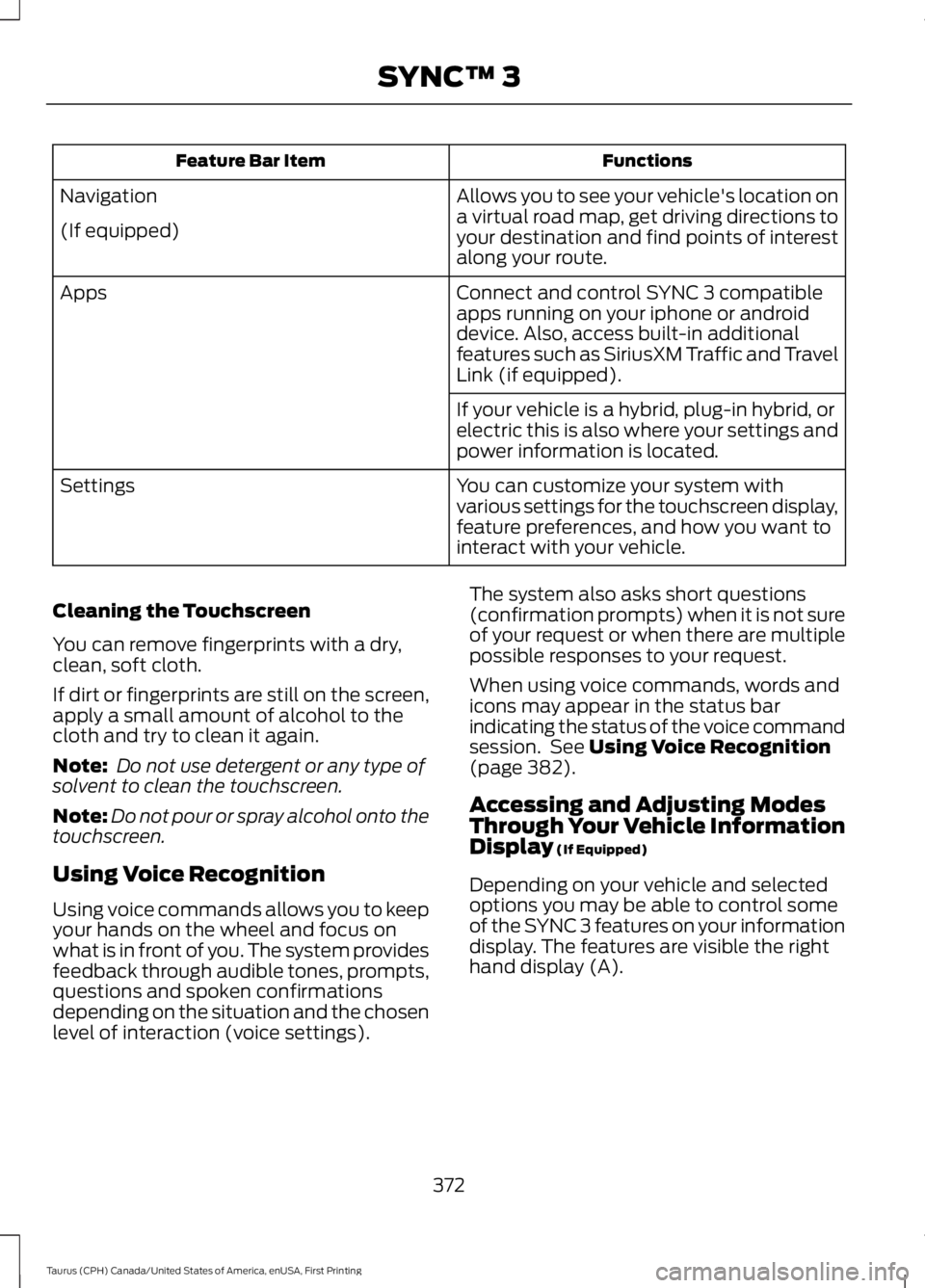
FunctionsFeature Bar Item
Allows you to see your vehicle's location ona virtual road map, get driving directions toyour destination and find points of interestalong your route.
Navigation
(If equipped)
Connect and control SYNC 3 compatibleapps running on your iphone or androiddevice. Also, access built-in additionalfeatures such as SiriusXM Traffic and TravelLink (if equipped).
Apps
If your vehicle is a hybrid, plug-in hybrid, orelectric this is also where your settings andpower information is located.
You can customize your system withvarious settings for the touchscreen display,feature preferences, and how you want tointeract with your vehicle.
Settings
Cleaning the Touchscreen
You can remove fingerprints with a dry,clean, soft cloth.
If dirt or fingerprints are still on the screen,apply a small amount of alcohol to thecloth and try to clean it again.
Note: Do not use detergent or any type ofsolvent to clean the touchscreen.
Note:Do not pour or spray alcohol onto thetouchscreen.
Using Voice Recognition
Using voice commands allows you to keepyour hands on the wheel and focus onwhat is in front of you. The system providesfeedback through audible tones, prompts,questions and spoken confirmationsdepending on the situation and the chosenlevel of interaction (voice settings).
The system also asks short questions(confirmation prompts) when it is not sureof your request or when there are multiplepossible responses to your request.
When using voice commands, words andicons may appear in the status barindicating the status of the voice commandsession. See Using Voice Recognition(page 382).
Accessing and Adjusting ModesThrough Your Vehicle InformationDisplay (If Equipped)
Depending on your vehicle and selectedoptions you may be able to control someof the SYNC 3 features on your informationdisplay. The features are visible the righthand display (A).
372
Taurus (CPH) Canada/United States of America, enUSA, First Printing
SYNC™ 3
Page 378 of 504
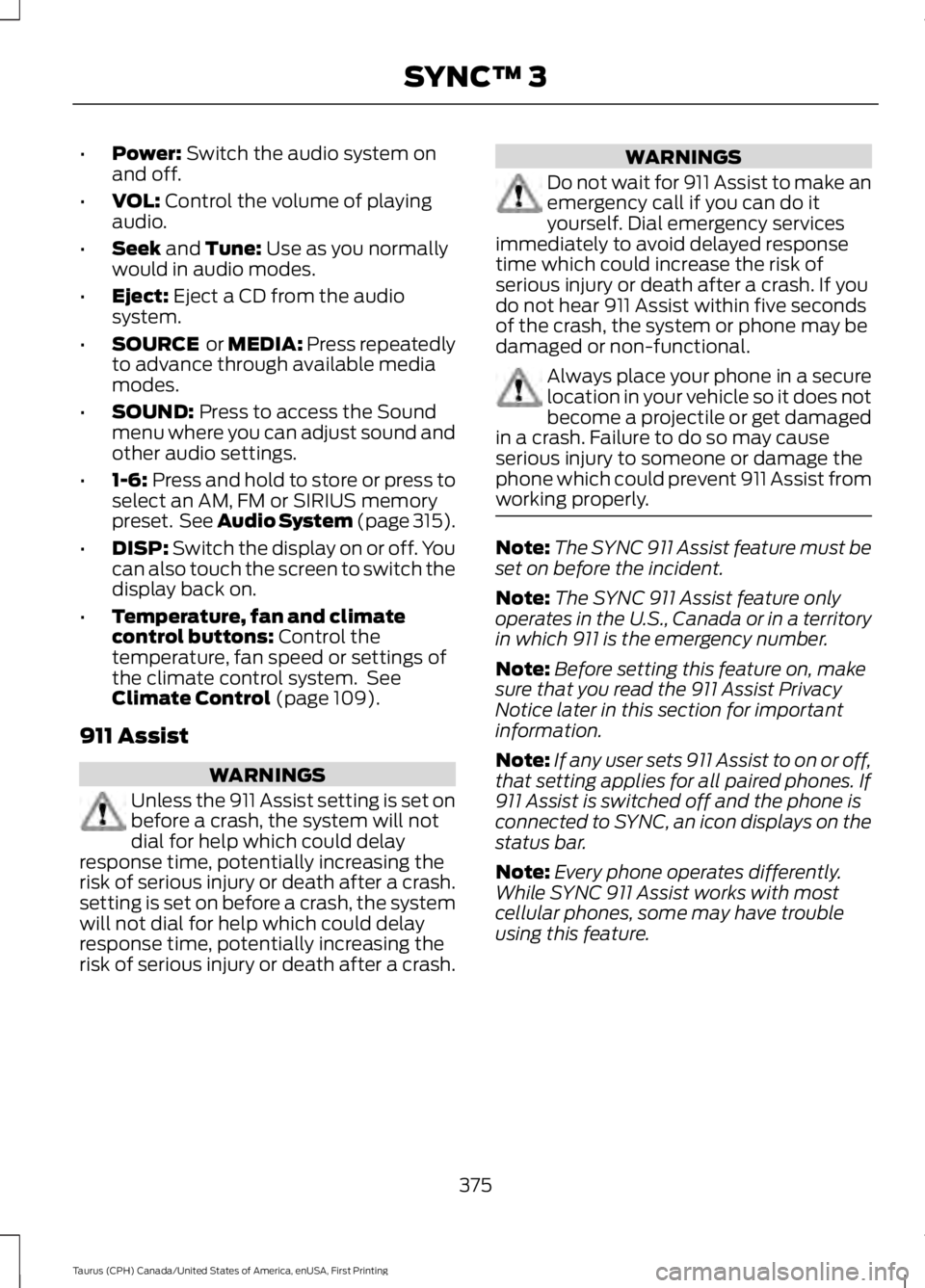
•Power: Switch the audio system onand off.
•VOL: Control the volume of playingaudio.
•Seek and Tune: Use as you normallywould in audio modes.
•Eject: Eject a CD from the audiosystem.
•SOURCE or MEDIA: Press repeatedlyto advance through available mediamodes.
•SOUND: Press to access the Soundmenu where you can adjust sound andother audio settings.
•1-6: Press and hold to store or press toselect an AM, FM or SIRIUS memorypreset. See Audio System (page 315).
•DISP: Switch the display on or off. Youcan also touch the screen to switch thedisplay back on.
•Temperature, fan and climatecontrol buttons: Control thetemperature, fan speed or settings ofthe climate control system. SeeClimate Control (page 109).
911 Assist
WARNINGS
Unless the 911 Assist setting is set onbefore a crash, the system will notdial for help which could delayresponse time, potentially increasing therisk of serious injury or death after a crash.setting is set on before a crash, the systemwill not dial for help which could delayresponse time, potentially increasing therisk of serious injury or death after a crash.
WARNINGS
Do not wait for 911 Assist to make anemergency call if you can do ityourself. Dial emergency servicesimmediately to avoid delayed responsetime which could increase the risk ofserious injury or death after a crash. If youdo not hear 911 Assist within five secondsof the crash, the system or phone may bedamaged or non-functional.
Always place your phone in a securelocation in your vehicle so it does notbecome a projectile or get damagedin a crash. Failure to do so may causeserious injury to someone or damage thephone which could prevent 911 Assist fromworking properly.
Note:The SYNC 911 Assist feature must beset on before the incident.
Note:The SYNC 911 Assist feature onlyoperates in the U.S., Canada or in a territoryin which 911 is the emergency number.
Note:Before setting this feature on, makesure that you read the 911 Assist PrivacyNotice later in this section for importantinformation.
Note:If any user sets 911 Assist to on or off,that setting applies for all paired phones. If911 Assist is switched off and the phone isconnected to SYNC, an icon displays on thestatus bar.
Note:Every phone operates differently.While SYNC 911 Assist works with mostcellular phones, some may have troubleusing this feature.
375
Taurus (CPH) Canada/United States of America, enUSA, First Printing
SYNC™ 3
Page 391 of 504
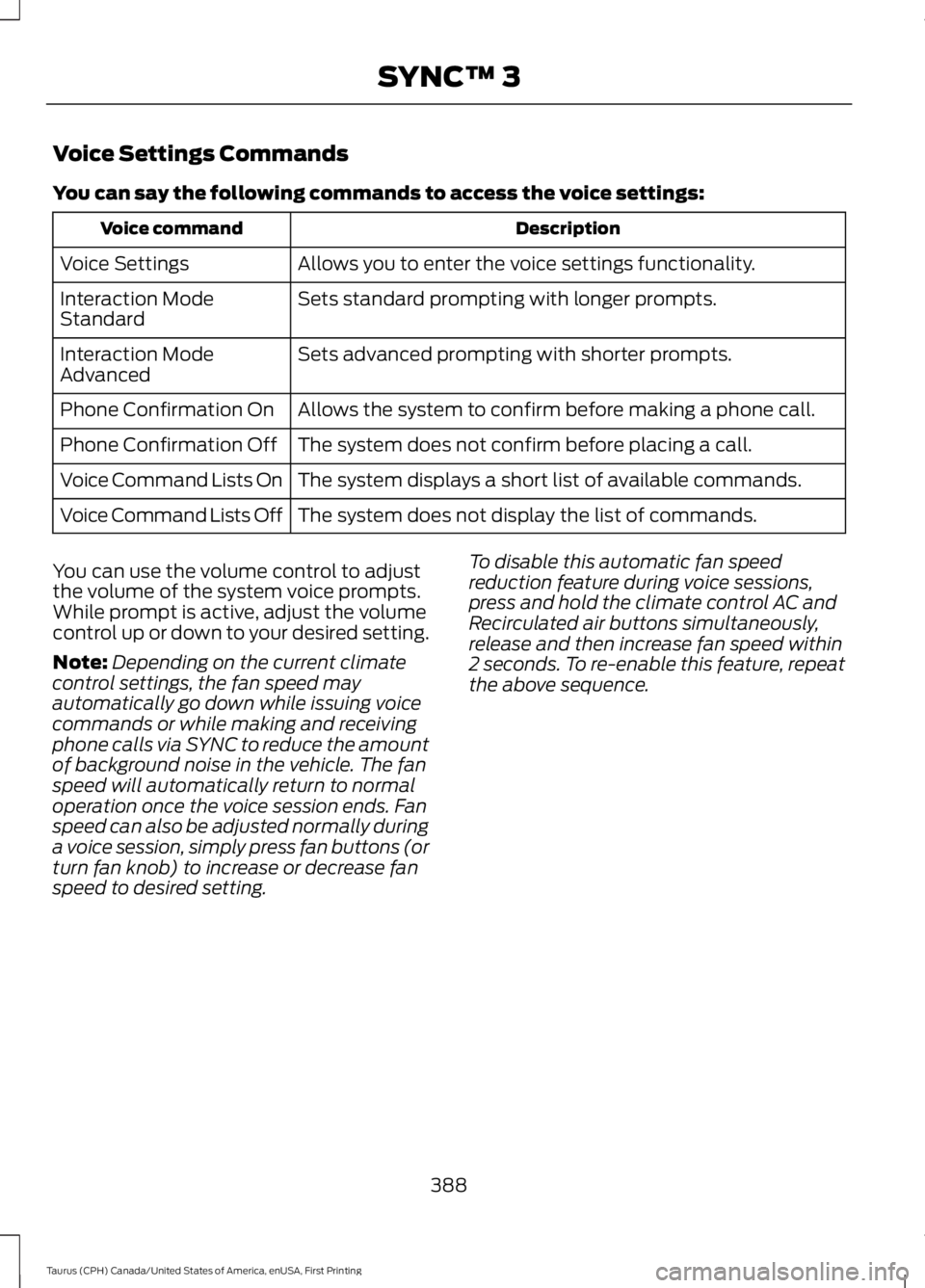
Voice Settings Commands
You can say the following commands to access the voice settings:
DescriptionVoice command
Allows you to enter the voice settings functionality.Voice Settings
Sets standard prompting with longer prompts.Interaction ModeStandard
Sets advanced prompting with shorter prompts.Interaction ModeAdvanced
Allows the system to confirm before making a phone call.Phone Confirmation On
The system does not confirm before placing a call.Phone Confirmation Off
The system displays a short list of available commands.Voice Command Lists On
The system does not display the list of commands.Voice Command Lists Off
You can use the volume control to adjustthe volume of the system voice prompts.While prompt is active, adjust the volumecontrol up or down to your desired setting.
Note:Depending on the current climatecontrol settings, the fan speed mayautomatically go down while issuing voicecommands or while making and receivingphone calls via SYNC to reduce the amountof background noise in the vehicle. The fanspeed will automatically return to normaloperation once the voice session ends. Fanspeed can also be adjusted normally duringa voice session, simply press fan buttons (orturn fan knob) to increase or decrease fanspeed to desired setting.
To disable this automatic fan speedreduction feature during voice sessions,press and hold the climate control AC andRecirculated air buttons simultaneously,release and then increase fan speed within2 seconds. To re-enable this feature, repeatthe above sequence.
388
Taurus (CPH) Canada/United States of America, enUSA, First Printing
SYNC™ 3
Page 400 of 504
FunctionButton
For MP3 CDs, this button allows you to toggle through repeatoff, repeat one track (a small number one displays), and repeatcurrent folder (a small folder displays).
Select the shuffle symbol to have the audio on the disk playin random order.Shuffle
You can use the forward, reverse, pause orplay buttons to control the audio playback.Bluetooth Stereo or USB
Bluetooth Stereo and USB allow you toaccess media that you store on yourBluetooth device or USB device such asmusic, audio books or podcasts.
The following buttons are available for Bluetooth and USB:
FunctionButton
Pressing the repeat button toggles the repeat setting throughthree modes: repeat off (button not highlighted), repeat all(button highlighted) and repeat track (button highlighted witha small number one).
Repeat
Play the tracks in random order.Shuffle
You can use the forward, reverse, pause orplay buttons to control the audio playback.
To get more information about thecurrently playing track, press the cover artor Info button.
For some devices, SYNC 3 is able toprovide 30-second skip buttons when youlisten to audio books or podcasts. Thesebuttons allow you to skip forward orbackward within a track.
While playing audio from a USB device youcan look for certain music by selecting thefollowing:
FunctionButton
If available, displays the list of tracks in theNow Playing playlist.Browse
This option, which is available underbrowse, allows you to play all tracks or tofilter the available media into one of thebelow categories.
New Search
Play All
397
Taurus (CPH) Canada/United States of America, enUSA, First Printing
SYNC™ 3
Page 404 of 504
DescriptionItemCallout
This button lights up when the passenger controls areactive. To switch the dual zone operation off and linkthe passenger temperature to the driver temperature,touch the DUAL button to switch it off.
DUALF
Touch up or down to adjust the temperature.Right-hand frontseat temper-ature
G
Touch up or down to increase or decrease the volumeof air circulated in your vehicle.Fan speedH
A popup appears on the screen to display the airconditioning options.A/CI
Touch to cool your vehicle with recircu-lated air. Touch again for normal A/Coperation. MAX A/C distributes air throughinstrument panel vents and may helpreduce odors from entering your vehicle.MAX A/C is more economical and efficientthan normal A/C mode.
MAX A/C
Touch to switch the air conditioning on oroff. Use A/C with recirculated air toimprove cooling performance and effi-ciency. A/C engages automatically in MAXA/C, defrost and footwell/defrost
A/C
Touch to switch the recirculated air on oroff which may reduce the amount of timeneeded to cool down the interior and helpreduce odors from reaching the interior.Recirculated air also engages automatic-ally when you select MAX A/C. You canengage this manually in any airflow modeexcept defrost. It may also turn off in allairflow modes except MAX A/C to reducefog potential.
Recircu-lated air:
Select these controls individually, together, or withDefrost to direct the air flow to the area you desire.Manual airflowdistributioncontrols
J
Distributes air through the instrument panel vents.Panel
Distributes air through the demister vents, floor ventsand rear seat floor vents.Floor
401
Taurus (CPH) Canada/United States of America, enUSA, First Printing
SYNC™ 3
Page 405 of 504
PHONE
WARNING
Driving while distracted can result inloss of vehicle control, crash andinjury. We strongly recommend thatyou use extreme caution when using anydevice that may take your focus off theroad. Your primary responsibility is the safeoperation of your vehicle. We recommendagainst the use of any hand-held devicewhile driving and encourage the use ofvoice-operated systems when possible.Make sure you are aware of all applicablelocal laws that may affect the use ofelectronic devices while driving.
Hands-free calling is one of the mainfeatures of the system. Once you pair yourcell phone, you can access many optionsusing the touchscreen or voice commands.While the system supports a variety offeatures, many are dependent on your cellphone’s functionality.
Pairing Your Cell Phone for theFirst Time
Pair your Bluetooth-enabled phone withthe system before using the functions inhands-free mode.
Switch on Bluetooth on your device tobegin pairing. See your phone’s manual ifnecessary.
To add a phone, select:
Menu Item
Add Phone
1. Follow the on-screen instructions.
2. A prompt alerts you to search for thesystem on your phone.
3. Select your vehicle's make and modelas it displays on your phone.
4. Confirm that the six-digit numberappearing on your phone matches thesix-digit number on the touchscreen.
5. The touchscreen indicates when thepairing is successful.
6. Your phone may prompt you to givethe system permission to accessinformation. To check your phone’scompatibility, see your phone’s manualor visit the website.
Alternatively, to add a phone, select:
Menu Item
Add Phone
Then select:
Discover Other Bluetooth Devices
1. Follow the on-screen instructions.
2. Select your phone's name when itappears on the touchscreen.
3. Confirm that the six-digit numberappearing on your phone matches thesix-digit number on the touchscreen.
4. The touchscreen indicates when thepairing is successful.
5. Your phone may prompt you to givethe system permission to accessinformation. To check your phone’scompatibility, see your phone’s manualor visit the website.
At a minimum, most cell phones withBluetooth wireless technology support thefollowing functions:
•Answering an incoming call.
•Ending a call.
•Dialing a number.
•Call waiting notification.
•Caller identification.
402
Taurus (CPH) Canada/United States of America, enUSA, First Printing
SYNC™ 3
Page 410 of 504
2. Select Apple CarPlay on thetouchscreen.
To disable this feature from theSettings screen, select:
Menu Item
Apple CarPlay Preferences
Your device is listed if SYNC detectsApple CarPlay. Select the name of yourdevice and select:
Disable
To return to SYNC 3, go to the AppleCarPlay home screen and select the SYNCapp.
Note:Contact Apple for Apple CarPlaysupport.
Android Auto
Android Auto is compatible with mostdevices with Android 5.0 or newer.
1. Download the Android Auto app toyour device from Google Play toprepare your device (this may requiremobile data usage).
Note:The Android Auto App may not beavailable within your current market.
2. To switch this feature on from theSettings screen, scroll left on thescreen and select:
Menu Item
Android Auto Preferences
Enable Android Auto
Note:Android Auto must be switched onprior to plugging your device.
You can then plug your device into a USBport. See USB Port (page 326).
To disable this feature from theSettings screen, select:
Menu Item
Android Auto Preferences
Your device is listed if SYNC detectsAndroid Auto. Select the name of yourdevice and select:
Disable
Note:You may need to slide your Settingsscreen to the left to select Apple CarPlayPreferences or Android Auto Preferences.
To return to SYNC 3, select thespeedometer icon in the Android Automenu bar at the bottom of thetouchscreen, and then touch the option toreturn to SYNC.
Note:Contact Google for Android Autosupport.
NAVIGATION
Your navigation system is comprised oftwo main features, destination mode andmap mode.
Map Mode
Map mode shows advanced viewingcomprised of 2D city maps, 3D landmarksand 3D city models (when available). 2Dcity maps show detailed outlines ofbuildings, visible land use, landscapefeatures, and detailed railroadinfrastructure for the most essential citiesaround the globe.
3D landmarks appear as clear, visibleobjects that are typically recognizable andhave a certain tourism value.
407
Taurus (CPH) Canada/United States of America, enUSA, First Printing
SYNC™ 3