2017 FORD TAURUS turn off
[x] Cancel search: turn offPage 416 of 504
Button
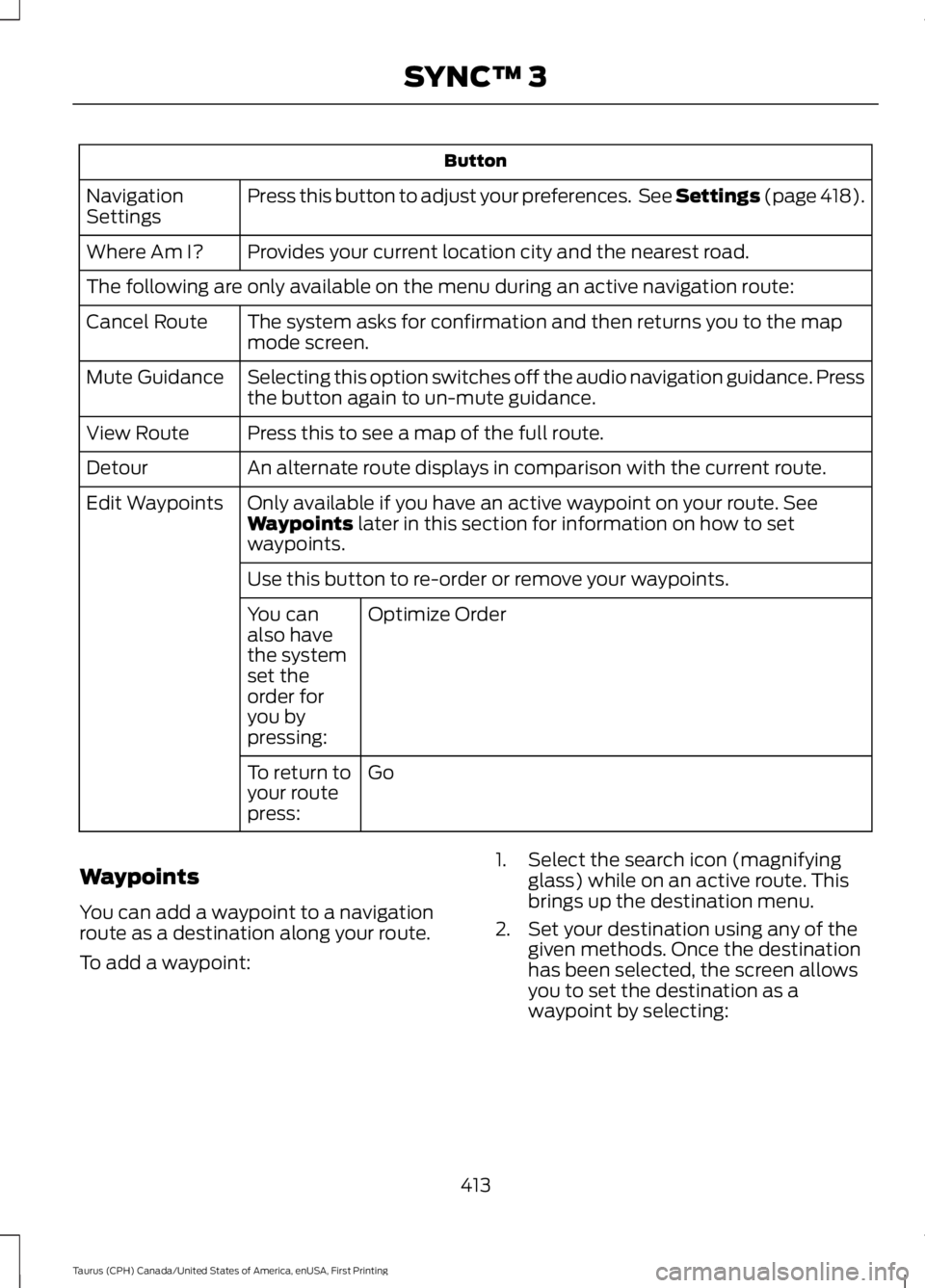
Press this button to adjust your preferences. See Settings (page 418).NavigationSettings
Provides your current location city and the nearest road.Where Am I?
The following are only available on the menu during an active navigation route:
The system asks for confirmation and then returns you to the mapmode screen.Cancel Route
Selecting this option switches off the audio navigation guidance. Pressthe button again to un-mute guidance.Mute Guidance
Press this to see a map of the full route.View Route
An alternate route displays in comparison with the current route.Detour
Only available if you have an active waypoint on your route. SeeWaypoints later in this section for information on how to setwaypoints.
Edit Waypoints
Use this button to re-order or remove your waypoints.
Optimize OrderYou canalso havethe systemset theorder foryou bypressing:
GoTo return toyour routepress:
Waypoints
You can add a waypoint to a navigationroute as a destination along your route.
To add a waypoint:
1. Select the search icon (magnifyingglass) while on an active route. Thisbrings up the destination menu.
2. Set your destination using any of thegiven methods. Once the destinationhas been selected, the screen allowsyou to set the destination as awaypoint by selecting:
413
Taurus (CPH) Canada/United States of America, enUSA, First Printing
SYNC™ 3
Page 421 of 504
Action and DescriptionMenu Item
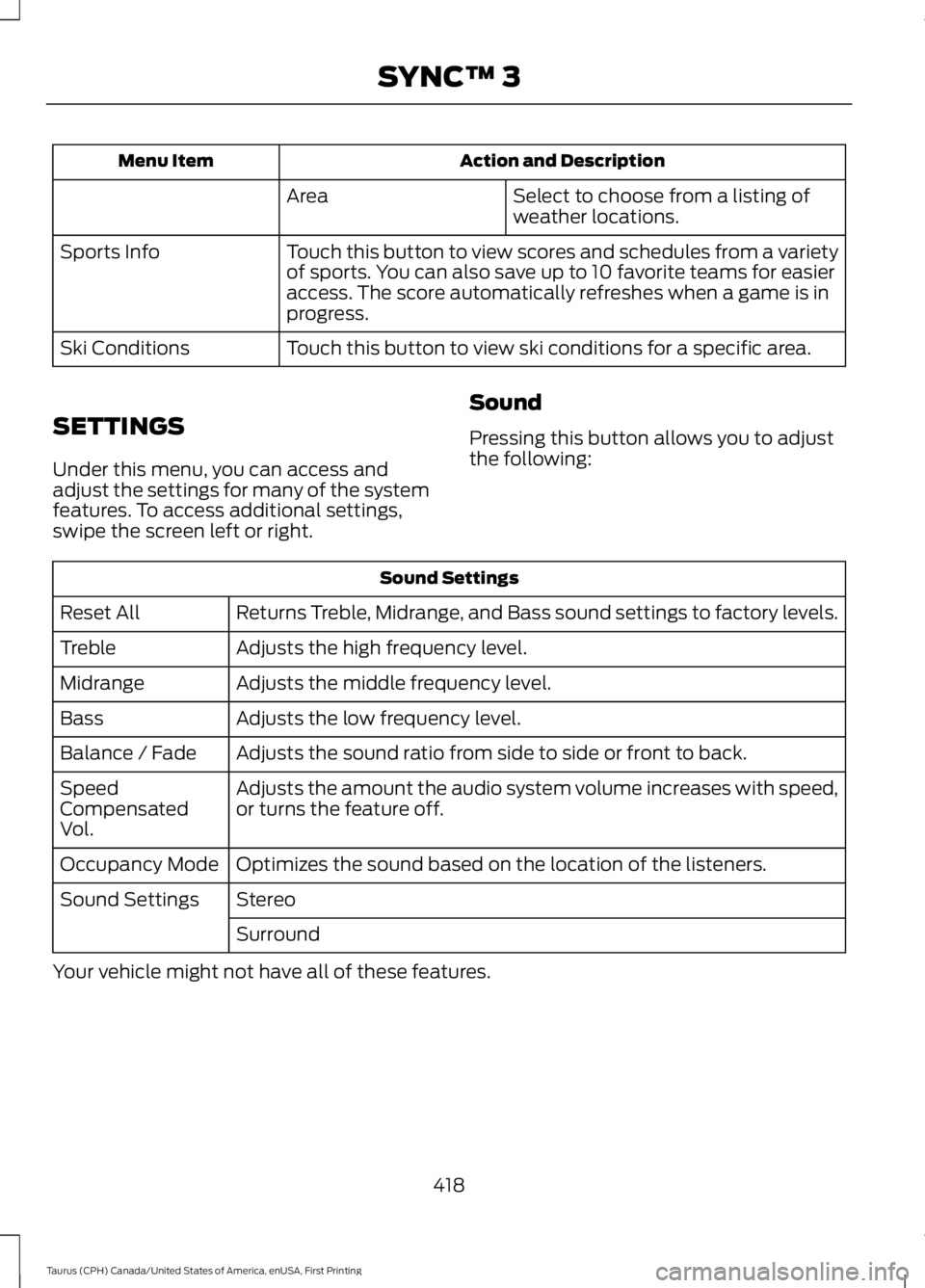
Select to choose from a listing ofweather locations.Area
Touch this button to view scores and schedules from a varietyof sports. You can also save up to 10 favorite teams for easieraccess. The score automatically refreshes when a game is inprogress.
Sports Info
Touch this button to view ski conditions for a specific area.Ski Conditions
SETTINGS
Under this menu, you can access andadjust the settings for many of the systemfeatures. To access additional settings,swipe the screen left or right.
Sound
Pressing this button allows you to adjustthe following:
Sound Settings
Returns Treble, Midrange, and Bass sound settings to factory levels.Reset All
Adjusts the high frequency level.Treble
Adjusts the middle frequency level.Midrange
Adjusts the low frequency level.Bass
Adjusts the sound ratio from side to side or front to back.Balance / Fade
Adjusts the amount the audio system volume increases with speed,or turns the feature off.SpeedCompensatedVol.
Optimizes the sound based on the location of the listeners.Occupancy Mode
StereoSound Settings
Surround
Your vehicle might not have all of these features.
418
Taurus (CPH) Canada/United States of America, enUSA, First Printing
SYNC™ 3
Page 423 of 504
Action and DescriptionMenu Item
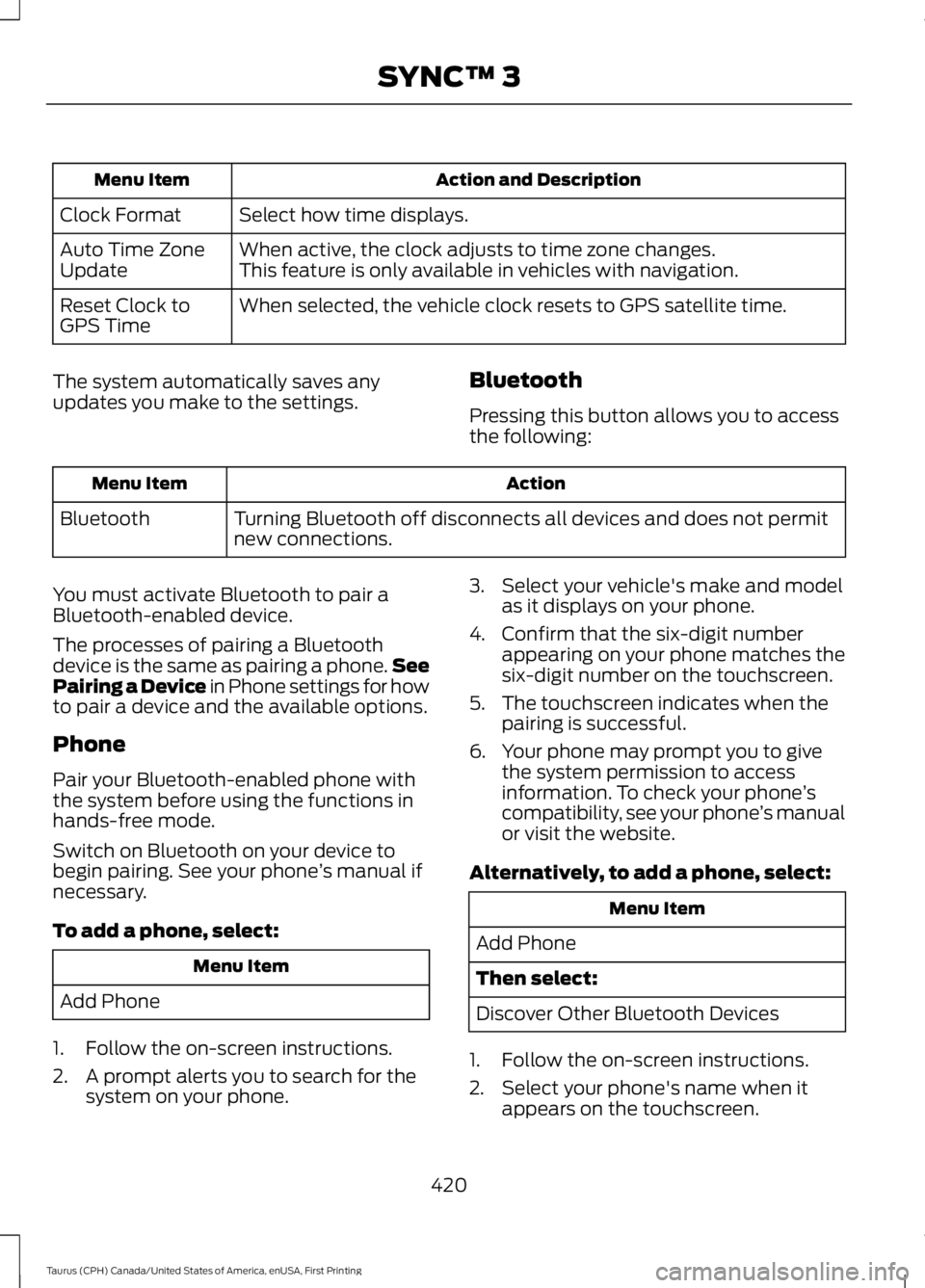
Select how time displays.Clock Format
When active, the clock adjusts to time zone changes.Auto Time ZoneUpdateThis feature is only available in vehicles with navigation.
When selected, the vehicle clock resets to GPS satellite time.Reset Clock toGPS Time
The system automatically saves anyupdates you make to the settings.Bluetooth
Pressing this button allows you to accessthe following:
ActionMenu Item
Turning Bluetooth off disconnects all devices and does not permitnew connections.Bluetooth
You must activate Bluetooth to pair aBluetooth-enabled device.
The processes of pairing a Bluetoothdevice is the same as pairing a phone.SeePairing a Device in Phone settings for howto pair a device and the available options.
Phone
Pair your Bluetooth-enabled phone withthe system before using the functions inhands-free mode.
Switch on Bluetooth on your device tobegin pairing. See your phone’s manual ifnecessary.
To add a phone, select:
Menu Item
Add Phone
1. Follow the on-screen instructions.
2. A prompt alerts you to search for thesystem on your phone.
3. Select your vehicle's make and modelas it displays on your phone.
4. Confirm that the six-digit numberappearing on your phone matches thesix-digit number on the touchscreen.
5. The touchscreen indicates when thepairing is successful.
6. Your phone may prompt you to givethe system permission to accessinformation. To check your phone’scompatibility, see your phone’s manualor visit the website.
Alternatively, to add a phone, select:
Menu Item
Add Phone
Then select:
Discover Other Bluetooth Devices
1. Follow the on-screen instructions.
2. Select your phone's name when itappears on the touchscreen.
420
Taurus (CPH) Canada/United States of America, enUSA, First Printing
SYNC™ 3
Page 435 of 504
Cell phone issues
Possible solutionPossible causeIssue
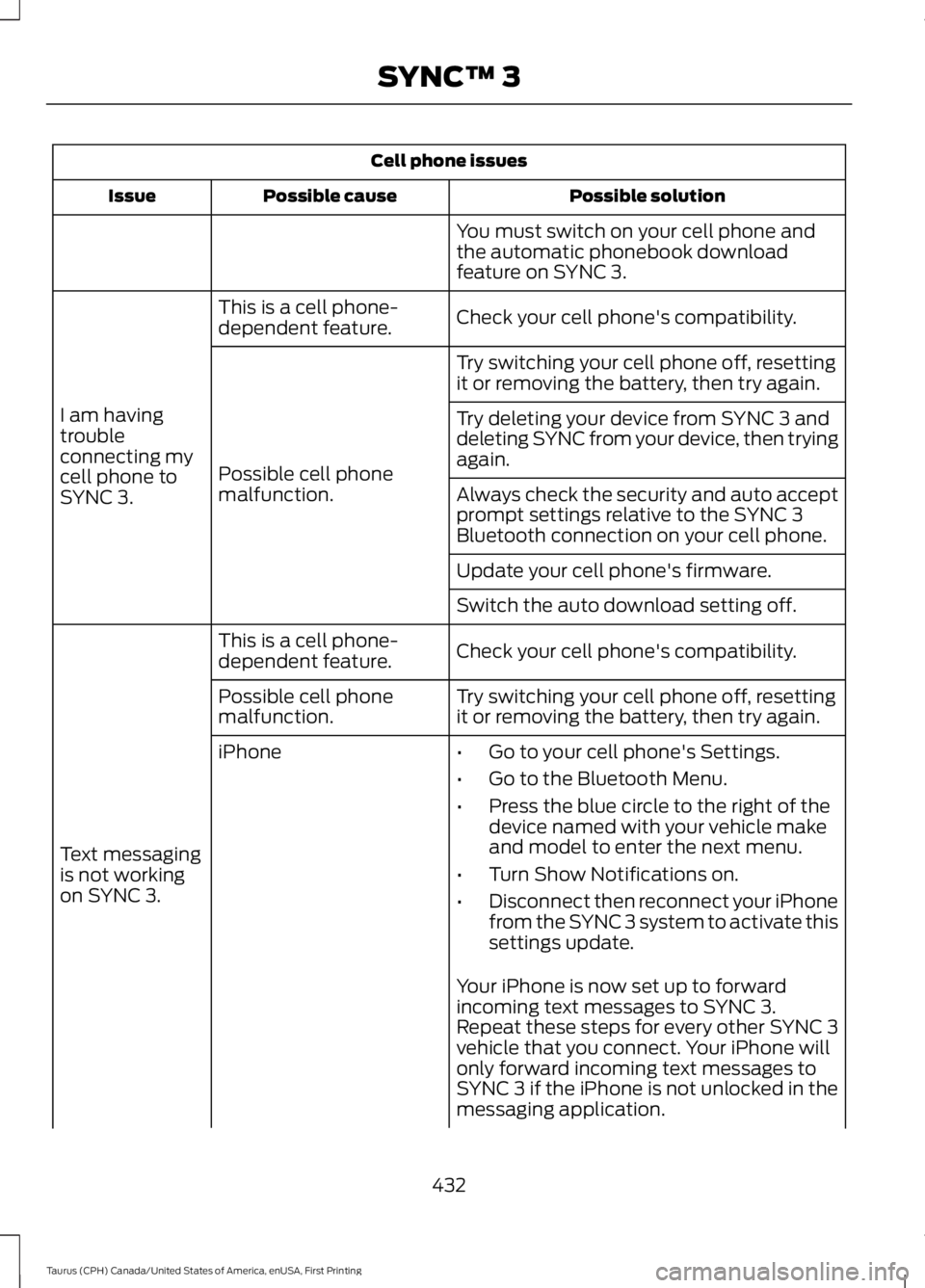
You must switch on your cell phone andthe automatic phonebook downloadfeature on SYNC 3.
Check your cell phone's compatibility.This is a cell phone-dependent feature.
I am havingtroubleconnecting mycell phone toSYNC 3.
Try switching your cell phone off, resettingit or removing the battery, then try again.
Possible cell phonemalfunction.
Try deleting your device from SYNC 3 anddeleting SYNC from your device, then tryingagain.
Always check the security and auto acceptprompt settings relative to the SYNC 3Bluetooth connection on your cell phone.
Update your cell phone's firmware.
Switch the auto download setting off.
Check your cell phone's compatibility.This is a cell phone-dependent feature.
Text messagingis not workingon SYNC 3.
Try switching your cell phone off, resettingit or removing the battery, then try again.Possible cell phonemalfunction.
iPhone•Go to your cell phone's Settings.
•Go to the Bluetooth Menu.
•Press the blue circle to the right of thedevice named with your vehicle makeand model to enter the next menu.
•Turn Show Notifications on.
•Disconnect then reconnect your iPhonefrom the SYNC 3 system to activate thissettings update.
Your iPhone is now set up to forwardincoming text messages to SYNC 3.Repeat these steps for every other SYNC 3vehicle that you connect. Your iPhone willonly forward incoming text messages toSYNC 3 if the iPhone is not unlocked in themessaging application.
432
Taurus (CPH) Canada/United States of America, enUSA, First Printing
SYNC™ 3
Page 487 of 504
Product incorporates data which is ©20XX Telstra Corporation Limited, GMHolden Limited, Intelematics AustraliaPty Ltd and Continental Pty Ltd.
B. Third Party Notices for Australia. Inaddition to the foregoing, the End-UserTerms for any Application containingRDS-TMC Traffic Codes for Australiashall contain the following notice:“Product incorporates traffic locationcodes which is © 20XX Telstra Corpora-tion Limited and its licensors.”
VII. China Territory
Personal Use Only
You agree to use this Data together with[insert name of Client Application] for thesolely personal, non-commercial purposesfor which you were licensed, and not forservice bureau, time-sharing or othersimilar purposes. Accordingly, but subjectto the restrictions set forth in the followingparagraphs, you may copy this Data onlyas necessary for your personal use to (i)view it, and (ii) save it, provided that youdo not remove any copyright notices thatappear and do not modify the Data in anyway. You agree not to otherwise reproduce,copy, modify, decompile, disassemble orreverse engineer any portion of this Data,and may not transfer or distribute it in anyform, for any purpose, except to the extentpermitted by mandatory laws.
Restrictions
Except where you have been specificallylicensed to do so by NAV2 , and withoutlimiting the preceding paragraph, you maynot (a) use this Data with any products,systems, or applications installed orotherwise connected to or incommunication with vehicles, capable ofvehicle navigation, positioning, dispatch,real time route guidance, fleetmanagement or similar applications; or (b)
with or in communication with anypositioning devices or any mobile orwireless-connected electronic or computerdevices, including without limitationcellular phones, palmtop and handheldcomputers, pagers, and personal digitalassistants or PDAs. You agree to ceaseusing this Data if you fail to comply withthese terms and conditions.
Limited Warranty
NAV2 warrants that (a) the Data willperform substantially in accordance withthe accompanying written materials for aperiod of ninety (90) days from the dateof receipt, and (b) any support servicesprovided by NAV2 shall be substantially asdescribed in applicable written materialsprovided to you by NAV2, and NAV2’ssupport engineers will make commerciallyreasonable efforts to solve any problemissues.
rigCustomer Remedies
NAV2 and its suppliers’ entire liability andyour exclusive remedy shall be, at NAV2’ssole discretion, either (a) return of the pricepaid, if any, or (b) repair or replacement ofthe Data that do not meet NAV2’s LimitedWarranty and that are returned to NAV2with a copy of your receipt. This LimitedWarranty is void if failure of the Data hasresulted from accident, abuse, ormisapplication. Any replacement Data willbe warranted for the remainder of theoriginal warranty period or thirty (30) days,whichever is longer. Neither these remediesnor any product support services offeredby NAV2 are available without proof ofpurchase from an authorized internationalsource.
484
Taurus (CPH) Canada/United States of America, enUSA, First Printing
Appendices