2017 FORD SUPER DUTY change time
[x] Cancel search: change timePage 246 of 636
Each time you start the vehicle, the system
selects the last chosen gap for the current
driver.
Disengaging the System
Press the brake pedal or press CNCL. The
last set speed displays in grey but does not
erase.
Overriding the System WARNING
If you override the system by pressing
the accelerator pedal, it does not
automatically apply the brakes to
maintain a gap from any vehicle ahead. When you press the accelerator pedal, you
override the set speed and gap distance.
The green indicator illuminates
when the system engages.
The system resumes operation
when you release the accelerator pedal.
The vehicle speed decreases to the set
speed, or to a lower speed if following a
slower vehicle.
Changing the Set Speed
• Accelerate or brake to the desired
speed, then press and release
SET+.
• Press and hold SET+ or SET- until the
desired set speed shows on the
information display. The vehicle speed
gradually changes to the selected
speed.
• Press and release
SET+ or SET-. The
set speed changes in approximately
1 mph (1 km/h)
.
• Hold the
SET+ or SET- button to
change the set speed in increments of
approximately 5 mph or 10 km/h. The system may apply the brakes to slow
the vehicle to the new set speed. The set
speed displays continuously in the
information display while the system is
active.
Resuming the Set Speed
Note:
Only use resume if you are aware of
the set speed and intend to return to it.
Press and release RES. The vehicle returns
to the previously set speed. The set speed
shows continuously in the information
display while the system is active.
Low Speed Automatic
Cancellation
The system does not function at vehicle
speeds below
12.4 mph (20 km/h). An
audible alarm sounds and the automatic
braking releases if the vehicle drops below
this speed.
Hilly Condition and Trailer Tow
Usage
Note: An audible alarm sounds and the
system shuts down if it applies brakes for
an extended period of time. This allows the
brakes to cool. The system functions
normally again when the brakes have
cooled.
Note: When towing with adaptive cruise
control, turn on Tow/Haul Mode and Diesel
Engine Brake.
Select a lower gear when the system is
active in situations such as prolonged
downhill driving on steep grades, for
example in mountainous areas. The
system needs additional engine braking in
these situations to reduce the load on the
vehicle ’s regular brake system to prevent
it from overheating.
243
Super Duty (TFE) Canada/United States of America, enUSA, First Printing Cruise Control
(If Equipped)E144529
Page 248 of 636
If something hits the front end of your
vehicle or damage occurs, the
radar-sensing zone may change. This could
cause missed or false vehicle detections.
Contact an authorized dealer to have them
check for proper coverage and operation.
System Not Available
Conditions that can cause the system to
deactivate or prevent the system from
activating when requested include:
•
A blocked sensor.
• High brake temperature.
• A failure in the system or a related
system.
Note: If you disable electronic stability
control, adaptive cruise control is not
available. See Using Stability Control
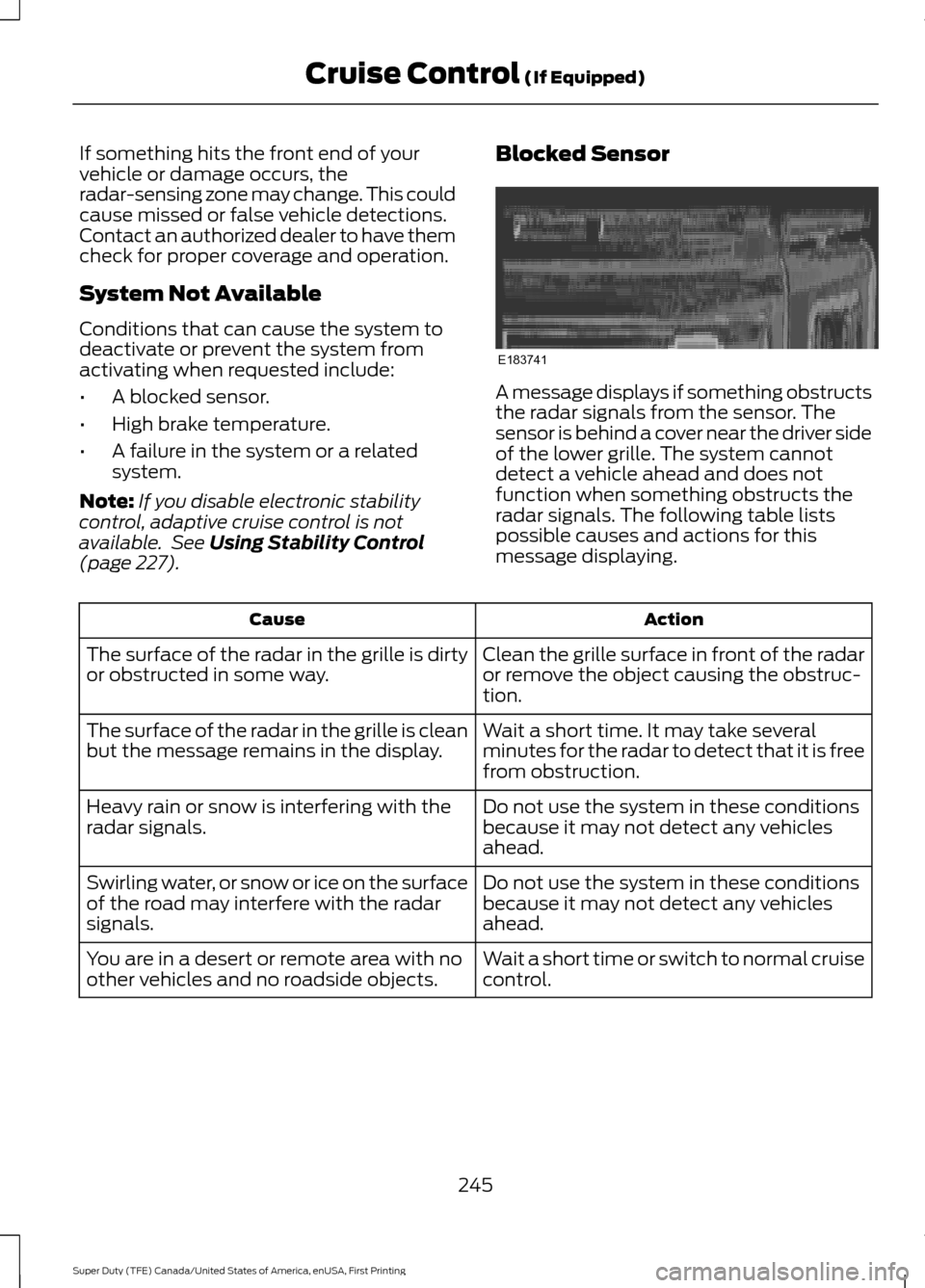
(page 227). Blocked Sensor A message displays if something obstructs
the radar signals from the sensor. The
sensor is behind a cover near the driver side
of the lower grille. The system cannot
detect a vehicle ahead and does not
function when something obstructs the
radar signals. The following table lists
possible causes and actions for this
message displaying.
Action
Cause
Clean the grille surface in front of the radar
or remove the object causing the obstruc-
tion.
The surface of the radar in the grille is dirty
or obstructed in some way.
Wait a short time. It may take several
minutes for the radar to detect that it is free
from obstruction.
The surface of the radar in the grille is clean
but the message remains in the display.
Do not use the system in these conditions
because it may not detect any vehicles
ahead.
Heavy rain or snow is interfering with the
radar signals.
Do not use the system in these conditions
because it may not detect any vehicles
ahead.
Swirling water, or snow or ice on the surface
of the road may interfere with the radar
signals.
Wait a short time or switch to normal cruise
control.
You are in a desert or remote area with no
other vehicles and no roadside objects.
245
Super Duty (TFE) Canada/United States of America, enUSA, First Printing Cruise Control
(If Equipped)E183741
Page 250 of 636
LANE KEEPING SYSTEM (If
Equipped) WARNING
The system is designed to aid the
driver. It is not intended to replace
your attention and judgment. You are
still responsible to drive with due care and
attention. Note:
The system works as long as the
camera can detect one lane marking at a
speed above
40 mph (64 km/h).
Note: The system may not function if the
camera is blocked or there is damage to the
windshield.
The Lane Keeping System automatically
detects and tracks the road lane markings
using a camera mounted behind the
interior review view mirror. The system
notifies you to stay in your lane when the
front camera detects an unintentional lane
change is likely to occur.
Switching the System On and Off
Note: The system on or off setting is stored
until it is manually changed, unless a MyKey
is detected. If the system detects a MyKey,
it defaults to on and the mode is set to alert.
Note: If a MyKey is detected, pressing the
button will not affect the on or off status of
the system. You can only change the mode
and intensity settings. Press the button located on the
center console to switch the
system on or off. System Settings
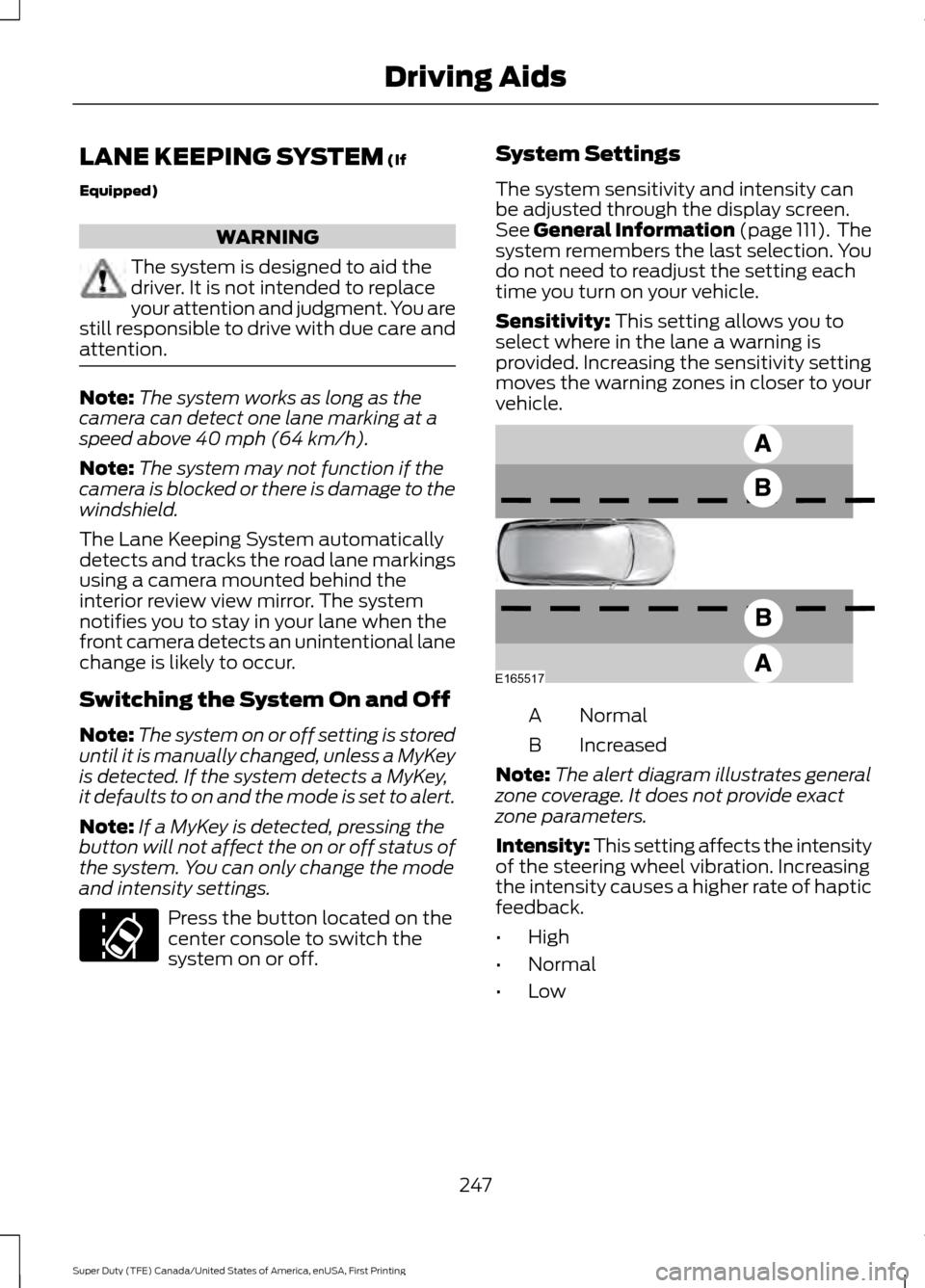
The system sensitivity and intensity can
be adjusted through the display screen.
See
General Information (page 111). The
system remembers the last selection. You
do not need to readjust the setting each
time you turn on your vehicle.
Sensitivity:
This setting allows you to
select where in the lane a warning is
provided. Increasing the sensitivity setting
moves the warning zones in closer to your
vehicle. Normal
A
Increased
B
Note: The alert diagram illustrates general
zone coverage. It does not provide exact
zone parameters.
Intensity: This setting affects the intensity
of the steering wheel vibration. Increasing
the intensity causes a higher rate of haptic
feedback.
• High
• Normal
• Low
247
Super Duty (TFE) Canada/United States of America, enUSA, First Printing Driving AidsE173233 E165517
Page 251 of 636
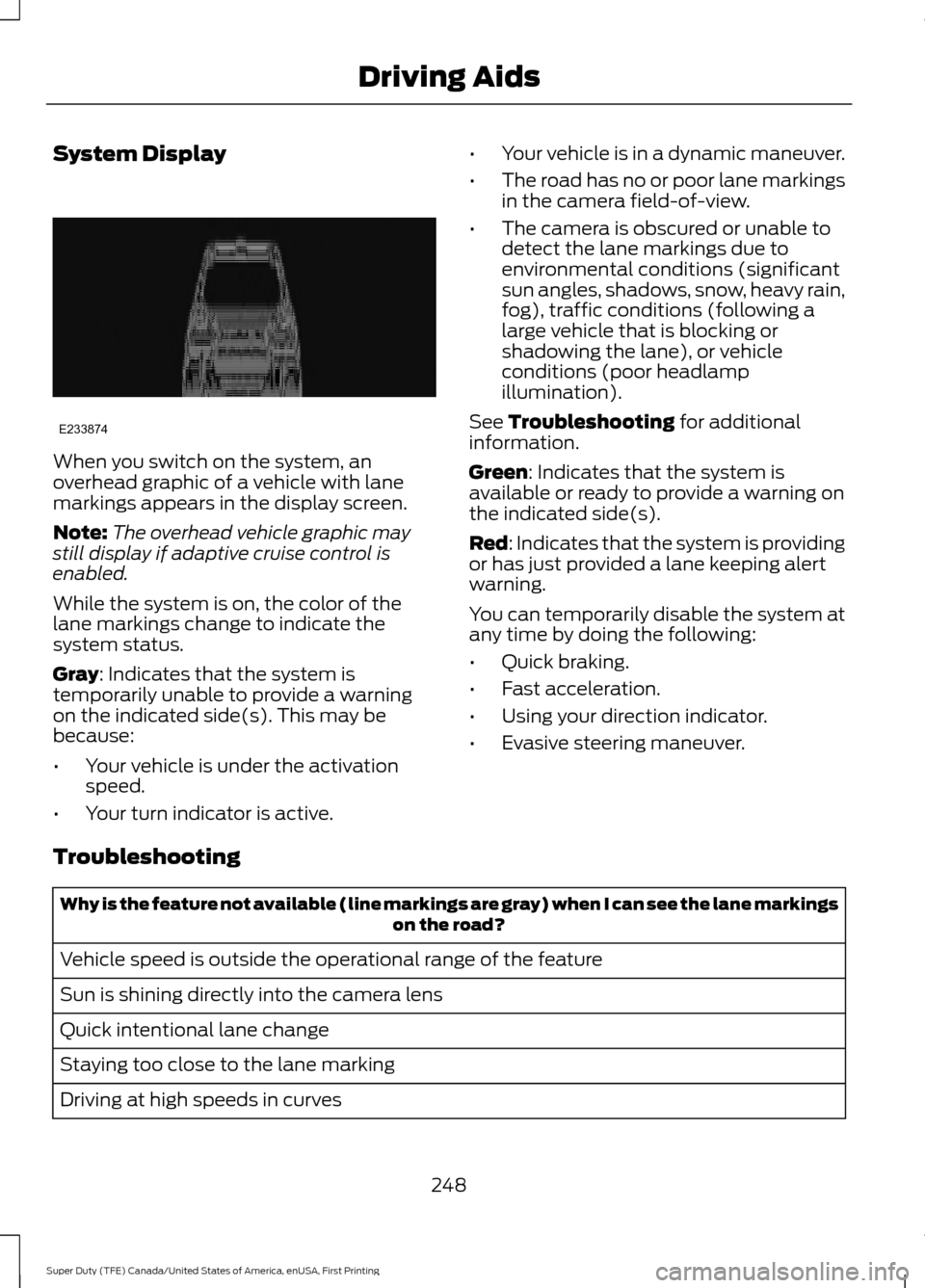
System Display
When you switch on the system, an
overhead graphic of a vehicle with lane
markings appears in the display screen.
Note:
The overhead vehicle graphic may
still display if adaptive cruise control is
enabled.
While the system is on, the color of the
lane markings change to indicate the
system status.
Gray: Indicates that the system is
temporarily unable to provide a warning
on the indicated side(s). This may be
because:
• Your vehicle is under the activation
speed.
• Your turn indicator is active. •
Your vehicle is in a dynamic maneuver.
• The road has no or poor lane markings
in the camera field-of-view.
• The camera is obscured or unable to
detect the lane markings due to
environmental conditions (significant
sun angles, shadows, snow, heavy rain,
fog), traffic conditions (following a
large vehicle that is blocking or
shadowing the lane), or vehicle
conditions (poor headlamp
illumination).
See
Troubleshooting for additional
information.
Green
: Indicates that the system is
available or ready to provide a warning on
the indicated side(s).
Red
: Indicates that the system is providing
or has just provided a lane keeping alert
warning.
You can temporarily disable the system at
any time by doing the following:
• Quick braking.
• Fast acceleration.
• Using your direction indicator.
• Evasive steering maneuver.
Troubleshooting Why is the feature not available (line markings are gray) when I can see the lane markings
on the road?
Vehicle speed is outside the operational range of the feature
Sun is shining directly into the camera lens
Quick intentional lane change
Staying too close to the lane marking
Driving at high speeds in curves
248
Super Duty (TFE) Canada/United States of America, enUSA, First Printing Driving AidsE233874
Page 260 of 636
If the power steering system breaks down
(or if the engine is turned off), you can
steer the vehicle manually, but it takes
more effort.
If the steering wanders or pulls, check for:
•
an improperly inflated tire
• uneven tire wear
• loose or worn suspension components
• loose or worn steering components
• improper vehicle alignment
If any steering components are serviced or
replaced, install new fasteners (many are
coated with thread adhesive or have
prevailing torque features which may not
be re-used). Never re-use a bolt or nut.
Torque fasteners to specifications.
A high crown in the road or high crosswinds
may also make the steering seem to
wander or pull.
Adaptive Steering (If Equipped) WARNING
The adaptive steering system has
diagnostic checks that continuously
monitor the system. If a fault is
detected a message displays in the
information display. Stop your vehicle as
soon as it is safe to do so. This warning
message may clear if the fault is no longer
present. If an adaptive steering system
warning message appears each time you
start your vehicle, have the system
checked as soon as possible. The adaptive steering system continually
changes the steering ratio with changes to
vehicle speed, optimizing the steering
response in all conditions. The system also
changes when you switch on the
transmission tow/haul feature. When you
select the tow/haul button, the adaptive
steering system reduces vehicle sensitivity
to steering inputs at higher vehicle speeds,
while maintaining the ease of parking and
maneuverability at low speeds.
Note:
The adaptive steering system is
designed with a locking device. With the
lock engaged, the adaptive steering system
remains mechanically locked at a fixed
steering ratio. You may also notice a click
when you switch the vehicle on or after you
switch it off, as the lock disengages or
engages.
Note: If your vehicle loses electrical power
or detects a fault when you are driving, the
system automatically shuts down and you
retain normal steering function with a fixed
steering ratio. During this time it is possible
that the steering wheel may not be straight
when the vehicle is driving straight ahead.
In addition, the driver may notice that the
steering wheel angle required to steer the
vehicle may be different.
Note: During parking maneuvers, the
adaptive steering system balances the driver
work load for various steering wheel inputs
and vehicle loading conditions. Under
extreme operating conditions the system
locking device may engage. This strategy
prevents overheating and permanent
damage to the adaptive steering system.
Typical steering and driving maneuvers
allow the system to cool and return to
normal operation.
257
Super Duty (TFE) Canada/United States of America, enUSA, First Printing Driving Aids
Page 275 of 636
Step 5: Enter Measurements Using the
Information Display
Using the recorded measurements, enter
the required data into the system. Follow
the on screen prompts to enter each of the
measurements taken in step 4. Use the
up/down arrows to increase or decrease
the numbers as needed. Press OK to
confirm each measurement. The screen
prompts you to add the next
measurement. Once you add your last
measurement, the information display
shows you all of your entered
measurements. You can choose to confirm
or change the measurements.
Step 6: Confirming the Sticker Location
Check the Rear View Camera display to
see if the sticker is identified by the system
and marked with a red circle.
Confirm that the red circle is correctly
located over the sticker image in the
display. The on screen prompt will ask you
to confirm this.
Note:
If the system cannot locate the
sticker try cleaning the camera lens, and
also make sure the sticker is within the zone
as indicated in step 3.
The information display shows a
confirmation message when you
successfully confirm the target.
Calibrating the System
To complete setup, drive your vehicle
straight forward between 4 mph (6 km/h)
and 24 mph (39 km/h) as directed by the
information display.
Note: Keep the steering wheel straight
during the calibration process. If the steering
wheel is in a turned position, then the
calibration pauses. The information display
prompts you to drive straight forward to
complete the calibration. The information display shows a message
during calibration and after calibration is
complete
Note:
For best results, we do not
recommend that you calibrate the system
at night.
Using Trailer Reverse Guidance
1. Shift into reverse (R) if you are not already in reverse. Press the rear
camera button to expand the menu.
2. Press the trailer icon .
3. Select your trailer on your information display.
4. While in TRG mode, you can see the camera view on the side where your
trailer is moving, or both sides when
the trailer is straight behind you. When
the views change with the trailer
direction, it's called Auto Mode. For
example, If you turn the trailer to the
right, then you see the right side of your
vehicle and trailer. You can switch this
view manually at any time by using the
arrow keys. To return to Auto Mode,
press the Auto button.
Note: Auto Mode is your default setting.
Use the view that helps you the most while
backing up your vehicle and trailer. Normal rear view camera view.
Use this feature when you want
to see your trailer hitch or what
is directly behind your vehicle. Straight back-up mode. Use this
feature when you want to keep
your trailer completely in line
with your truck. In this mode, a steering
wheel graphic shows you which way to turn
your steering wheel to keep your trailer
straight.
272
Super Duty (TFE) Canada/United States of America, enUSA, First Printing TowingE224483 E224484
Page 280 of 636
slowly turning the wheel until the trailer
is following your desired path and then
holding the wheel in that position. If
you would like to recalibrate the
system for straight backing, you can do
so with the following procedure.
•
Go into the trailer menu, select
trailer options, select change trailer
setting and then select the change
sticker option. Your saved
measurements will be displayed.
Do not change them but continue
to confirm measurements. Once
you confirm the measurements, the
system will then prompt you to
perform the calibration procedure.
Note: The system is designed to be used
with the same trailer connection every time
the trailer is chosen from the selection
menu. Using a different drawbar or a
different pin hole (on drawbars with more
than one) when connecting the drawbar to
your vehicle will affect the trailer
measurements. Take the measurements
again and update if required.
TRAILER SWAY CONTROL (If
Equipped) WARNING
Turning off trailer sway control
increases the risk of loss of vehicle
control, serious injury or death. Ford
does not recommend disabling this feature
except in situations where speed reduction
may be detrimental (such as hill climbing),
the driver has significant trailer towing
experience, and can control trailer sway
and maintain safe operation. Note:
This feature does not prevent trailer
sway, but reduces it once it begins.
Note: This feature cannot stop all trailers
from swaying. Note:
In some cases, if vehicle speed is too
high, the system may activate multiple
times, gradually reducing vehicle speed.
This feature applies your vehicle brakes at
individual wheels and, if necessary, reduces
engine power. If the trailer begins to sway,
the stability control light flashes and the
message
TRAILER SWAY REDUCE
SPEED appears in the information display.
The first thing to do is slow your vehicle
down, then pull safely to the side of the
road and check for proper tongue load and
trailer load distribution. See
Load
Carrying (page 261).
RECOMMENDED TOWING
WEIGHTS WARNING
You must use the heavy-duty
drawbar pin supplied with
your vehicle when using the
heavy-duty hitch. Failure to follow
this instruction could result in the
loss of control of your vehicle,
personal injury or death. Note:
Vehicles with a heavy-duty
hitch must use the drawbar pin
stamped 21,000 LBS. You can
obtain a replacement drawbar pin
at your Ford dealer.
Note: Make sure to take into
consideration trailer frontal area.
Do not exceed 60 feet 2
(5.6
meters 2
) trailer frontal area for
conventional trailers. Do not
exceed 75 feet 2
(6.9 meters 2
) trailer
frontal area for 5th wheel and
gooseneck trailers.
277
Super Duty (TFE) Canada/United States of America, enUSA, First Printing Towing
Page 292 of 636
When backing down a ramp during boat
launching or retrieval:
•
Do not allow the static water level to
rise above the bottom edge of the rear
bumper.
• Do not allow waves to break higher
than 6 in (15 cm) above the bottom
edge of the rear bumper.
Exceeding these limits may allow water to
enter vehicle components:
• Causing internal damage to the
components.
• Affecting driveability, emissions, and
reliability.
Replace the rear axle lubricant anytime
the rear axle has been submerged in water.
Water may have contaminated the rear
axle lubricant, which is not normally
checked or changed unless a leak is
suspected or other axle repair is required.
TOWING THE VEHICLE ON
FOUR WHEELS
Emergency Towing
If your vehicle becomes inoperable
(without access to wheel dollies,
car-hauling trailer, or flatbed transport
vehicle), it can be flat-towed (all wheels
on the ground, regardless of the powertrain
and transmission configuration) under the
following conditions:
• Your vehicle is facing forward for
towing in a forward direction.
• Place the transmission in position
N. If
you cannot move the transmission into
N
, you may need to override it. See
Transmission (page 205).
• Maximum speed is 35 mph (56 km/h).
• Maximum distance is
50 mi (80 km). WARNING
If your vehicle has a steering wheel
lock make sure the ignition is in the
accessory or on position when being
towed. Recreational Towing
Note:
Put your climate control system in
recirculated air mode to prevent exhaust
fumes from entering your vehicle. See
Climate Control
(page 145).
Follow these guidelines if you have a need
for recreational towing, such as towing
your vehicle behind a motorhome. We
designed these guidelines to prevent
damage to your transmission.
Two-wheel Drive Vehicles and
Four-wheel Drive Vehicles Equipped
with an Electronic-shift Transfer Case
Do not tow your vehicle with any wheels
on the ground, as vehicle or transmission
damage may occur. It is recommended to
tow your vehicle with all four (4) wheels
off the ground, such as when using a
car-hauling trailer. Otherwise, you cannot
tow your vehicle.
Four-wheel Drive Vehicles Equipped
with a Manual-shift Transfer Case
1. Put the transmission in position
N.
2. Put the transfer case in position
N.
3. Put the hub locks in the FREE position.
Always make sure that both hub locks
are set to the same position.
289
Super Duty (TFE) Canada/United States of America, enUSA, First Printing Towing