Page 114 of 599

Trip 1 & 2
Note:
Use the arrow buttons to choose between the following trip options. Trip 1 & 2
Digital Speed - Press OK for km/h
Trip Odometer
Trip Timer
DTE
Average Fuel
• Digital Speed - Shows a digital display of your vehicle speed.
• Trip Odometer - Registers the mileage of individual journeys.
• Trip Timer - Registers the time of individual journeys.
• DTE - Shows the approximate distance your vehicle can travel before running out of
fuel.
• Average Fuel - Shows the average fuel economy for a given trip.
Note: Press and hold OK to reset the currently displayed trip information.
Fuel Economy
Note: Use the arrow buttons to choose the desired fuel economy display. Fuel Economy
Distance to E
Instant Fuel Economy
Average Fuel Economy
Auto StartStop status
• Distance to E - Shows the approximate distance your vehicle can travel before running
out of fuel.
• Instant Fuel Economy - Shows your instantaneous fuel usage.
• Average Fuel Economy - Shows the average fuel usage based on time. Press and hold
OK to reset this value.
• Auto StartStop status - Shows the current status of the auto startstop system.
Note: You can reset your average fuel economy by pressing and holding the
OK button on
the left hand steering wheel controls.
111
F-150 (TFC) Canada/United States of America, enUSA, First Printing Information Displays
Page 115 of 599
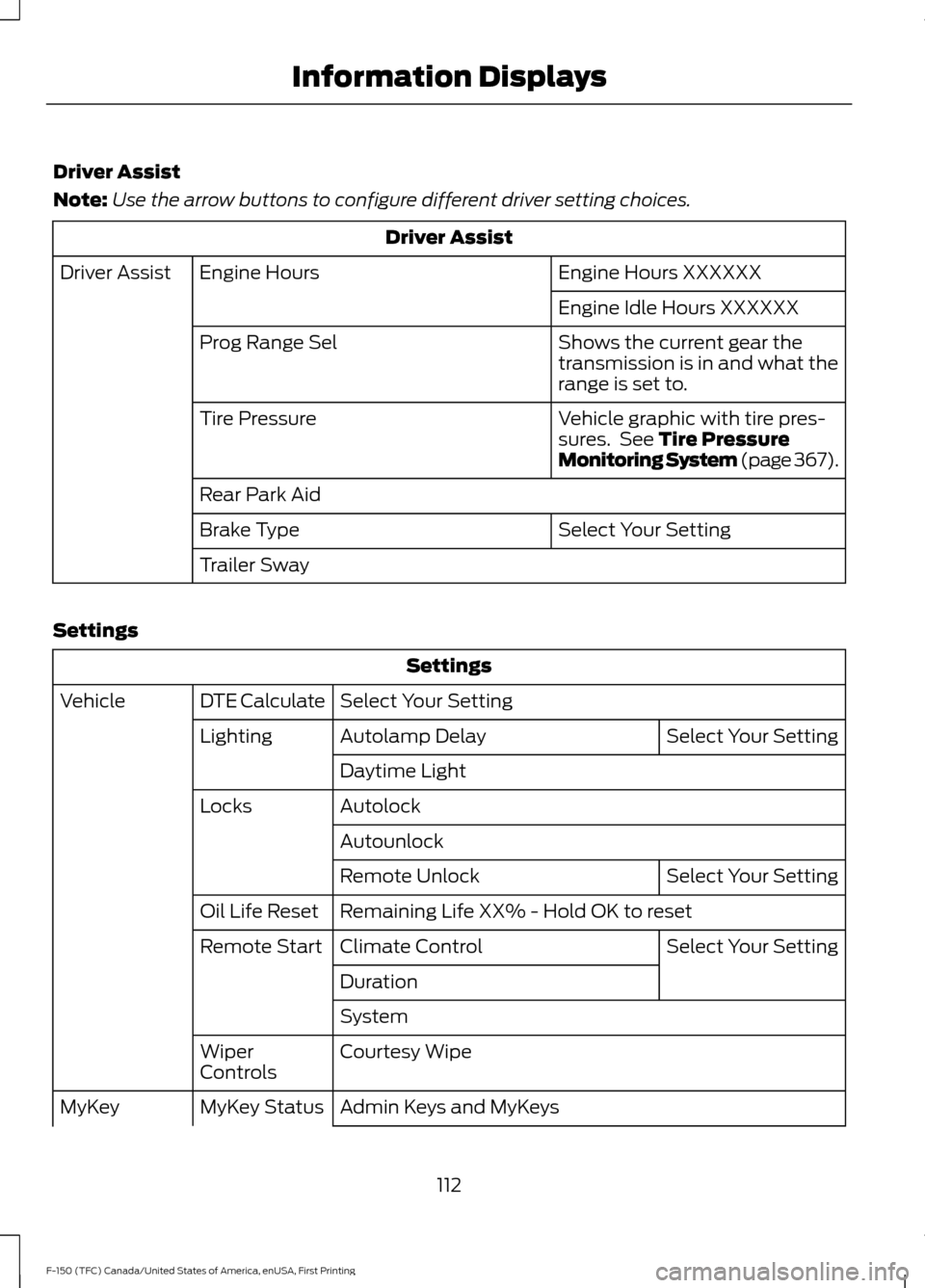
Driver Assist
Note:
Use the arrow buttons to configure different driver setting choices. Driver Assist
Engine Hours XXXXXX
Engine Hours
Driver Assist
Engine Idle Hours XXXXXX
Shows the current gear the
transmission is in and what the
range is set to.
Prog Range Sel
Vehicle graphic with tire pres-
sures. See Tire Pressure
Monitoring System (page 367).
Tire Pressure
Rear Park Aid
Select Your Setting
Brake Type
Trailer Sway
Settings Settings
Select Your Setting
DTE Calculate
Vehicle
Select Your Setting
Autolamp Delay
Lighting
Daytime Light
Autolock
Locks
Autounlock Select Your Setting
Remote Unlock
Remaining Life XX% - Hold OK to reset
Oil Life Reset
Select Your Setting
Climate Control
Remote Start
Duration
System
Courtesy Wipe
Wiper
Controls
Admin Keys and MyKeys
MyKey Status
MyKey
112
F-150 (TFC) Canada/United States of America, enUSA, First Printing Information Displays
Page 117 of 599

Display Mode
Engine Information - Oil Life, Engine Hours, Engine Idle Hours - Hold OK to Reset
MyKey Status - Admin Keys and MyKey Mileage
• DTE - Shows the approximate distance your vehicle can travel before running out of
fuel.
• Transmission Temp - Shows the trans temp value.
• Tire Pressure - Shows the tire pressure psi. See Tire Pressure Monitoring System
(page 367).
• Engine Information - Shows engine information.
• MyKey Status - Shows the status of your MyKeys.
Trip/Fuel
Note: Use the arrow buttons to choose between the following trip and fuel options. Trip/Fuel
Trip 1 or 2
Fuel Economy
Fuel History Select Your Setting
Compass
Auto StartStop status
Trip 1 or 2
• Trip Timer - Registers the time of individual journeys.
• DTE - Shows the approximate distance your vehicle can travel before running out of
fuel.
• Mi - Registers the mileage of individual journeys.
• Avg mpg - Shows the average fuel economy for a given trip.
Fuel
• Fuel Economy - Shows your instantaneous fuel usage as a bar graph and average
mpg.
• Fuel History - Shows your fuel usage based on time. The graph is updated each minute
with the fuel economy that you achieved during 30 minutes of driving.
• Auto StartStop status - Shows the current status of the auto startstop system.
Note: Press and hold
OK to reset the currently displayed information.
114
F-150 (TFC) Canada/United States of America, enUSA, First Printing Information Displays
Page 118 of 599
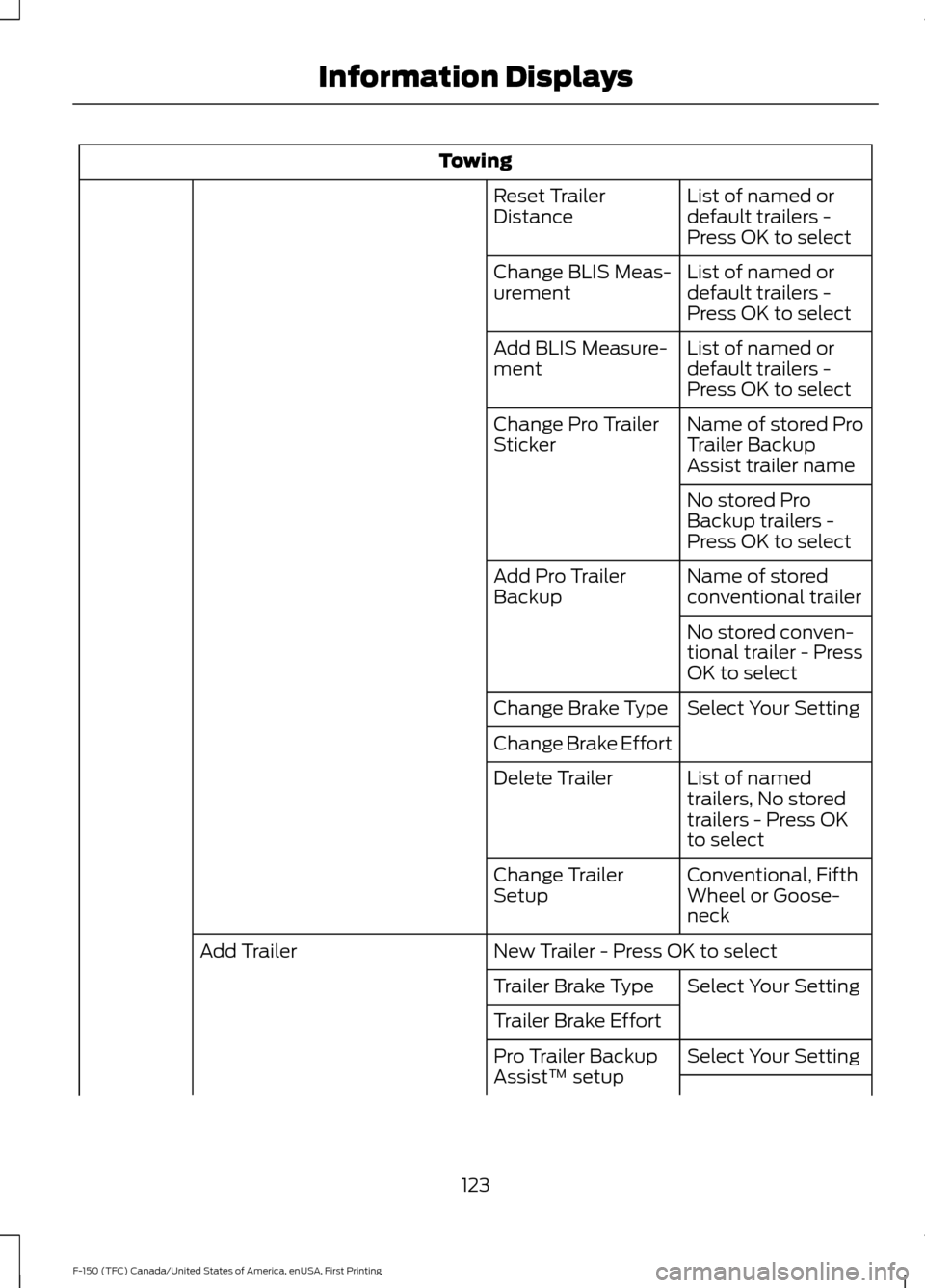
Towing
Note:
Use the arrow buttons to configure different towing setting choices.
Note: Once you select a trailer, it remains active until you set it as no longer active. An active
trailer still accumulates miles even after you physically disconnect it from your vehicle. Towing
Trailer connection status
Trailer Status
BLIS with Trailer Ready/Not Available/Not Setup/Off
Pro Trailer Backup Assist: Ready or Not Setup or Not Calibrated
active trailer name or Default Trailer
accumulated trailer miles
Trailer brake gain
Output
Trailer Sway Control
Trailer
Options
no active trailer
Select Trailer
Programmed trailers
Default TrailerList of named
trailers, No Stored
Trailers - Press OK
to rename
Rename Trailer
Change Trailer Settings
List of named or
default trailers -
Press OK to select
Reset Trailer
Distance
List of named or
default trailers -
Press OK to select
Change BLIS Meas-
urement
List of named or
default trailers -
Press OK to select
Add BLIS Measure-
ment
Name of stored Pro
Trailer Backup
Assist trailer
Change Pro Trailer
Sticker
115
F-150 (TFC) Canada/United States of America, enUSA, First Printing Information Displays
Page 124 of 599

Trip/Fuel
Select Your Setting
Compass
Auto StartStop status
Trip 1 or 2
• Trip Timer - Registers the time of individual journeys.
• DTE - Shows the approximate distance your vehicle can travel before running out of
fuel.
• Mi - Registers the mileage of individual journeys.
• Avg mpg - Shows the average fuel economy for a given trip.
Fuel
• Fuel Economy - Shows your instantaneous fuel usage as a bar graph and average
mpg.
• Fuel History - Shows your fuel usage based on time. The graph is updated each minute
with the fuel economy that you achieved during 30 minutes of driving.
• Navigation - Shows navigation turn by turn (Compass displayed when a route in
Navigation is not set).
• Auto StartStop status - Shows the current status of the auto startstop system.
Note: Press and hold OK to reset the currently displayed information.
Truck Info In this mode, off-road
information depicted with
graphics are available.
Note: Use the arrow buttons to choose between the following display options. Truck Info
Gauge View
Tire Pressure
Digital Speedometer - Press OK for km/h
121
F-150 (TFC) Canada/United States of America, enUSA, First Printing Information DisplaysE163181
Page 125 of 599
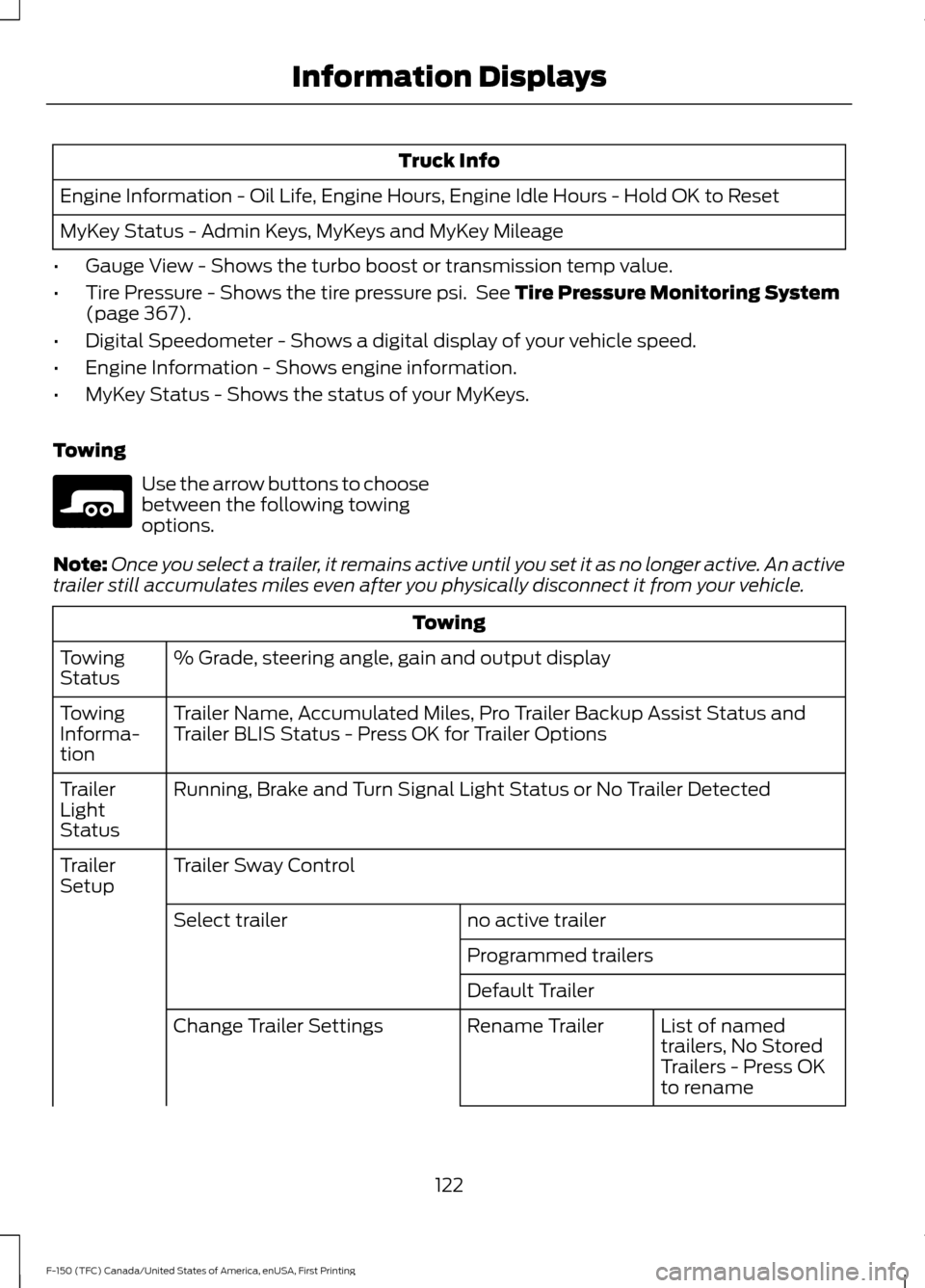
Truck Info
Engine Information - Oil Life, Engine Hours, Engine Idle Hours - Hold OK to Reset
MyKey Status - Admin Keys, MyKeys and MyKey Mileage
• Gauge View - Shows the turbo boost or transmission temp value.
• Tire Pressure - Shows the tire pressure psi. See Tire Pressure Monitoring System
(page 367).
• Digital Speedometer - Shows a digital display of your vehicle speed.
• Engine Information - Shows engine information.
• MyKey Status - Shows the status of your MyKeys.
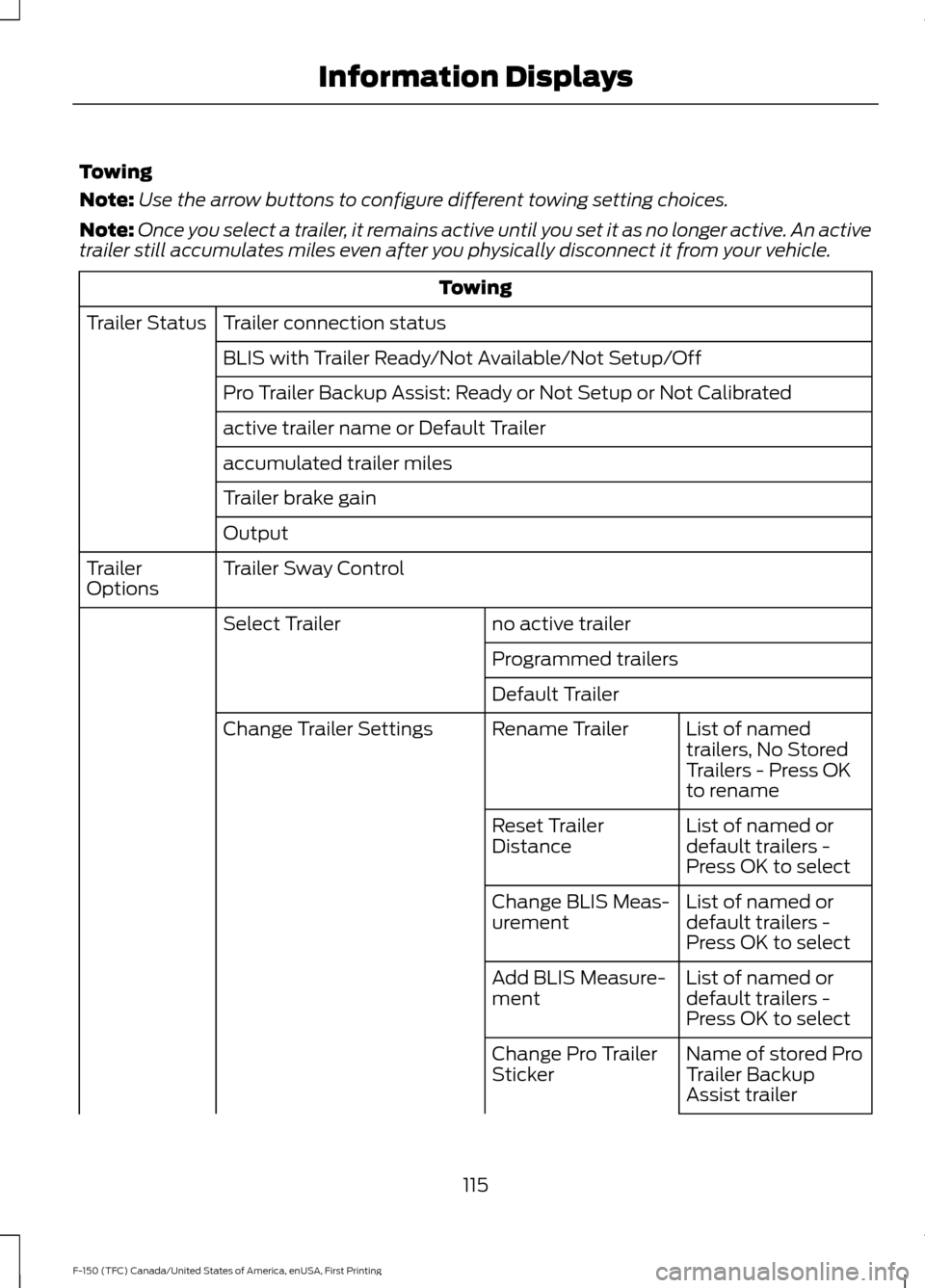
Towing Use the arrow buttons to choose
between the following towing
options.
Note: Once you select a trailer, it remains active until you set it as no longer active. An active
trailer still accumulates miles even after you physically disconnect it from your vehicle. Towing
% Grade, steering angle, gain and output display
Towing
Status
Trailer Name, Accumulated Miles, Pro Trailer Backup Assist Status and
Trailer BLIS Status - Press OK for Trailer Options
Towing
Informa-
tion
Running, Brake and Turn Signal Light Status or No Trailer Detected
Trailer
Light
Status
Trailer Sway Control
Trailer
Setup
no active trailer
Select trailer
Programmed trailers
Default TrailerList of named
trailers, No Stored
Trailers - Press OK
to rename
Rename Trailer
Change Trailer Settings
122
F-150 (TFC) Canada/United States of America, enUSA, First Printing Information DisplaysE176096
Page 126 of 599
Towing
List of named or
default trailers -
Press OK to select
Reset Trailer
Distance
List of named or
default trailers -
Press OK to select
Change BLIS Meas-
urement
List of named or
default trailers -
Press OK to select
Add BLIS Measure-
ment
Name of stored Pro
Trailer Backup
Assist trailer name
Change Pro Trailer
Sticker
No stored Pro
Backup trailers -
Press OK to select
Name of stored
conventional trailer
Add Pro Trailer
Backup
No stored conven-
tional trailer - Press
OK to select
Select Your Setting
Change Brake Type
Change Brake Effort
List of named
trailers, No stored
trailers - Press OK
to select
Delete Trailer
Conventional, Fifth
Wheel or Goose-
neck
Change Trailer
Setup
New Trailer - Press OK to select
Add Trailer
Select Your Setting
Trailer Brake Type
Trailer Brake Effort
Select Your Setting
Pro Trailer Backup
Assist™ setup
123
F-150 (TFC) Canada/United States of America, enUSA, First Printing Information Displays
Page 154 of 599
Note:
For rear seat outboard seats, you can
fold the head restraint forward for easier
removal.
Installing the Head Restraint
Align the steel stems into the guide sleeves
and push the head restraint down until it
locks.
Folding the Head Restraint
Note: The rear seat outboard head
restraints may fold forward for improved
visibility.
1. Press and hold button E.
2. Pull it back up to reset.
Front Seat Center Head Restraint
Your vehicle may be equipped with a front
row center head restraint that you cannot
adjust or remove.
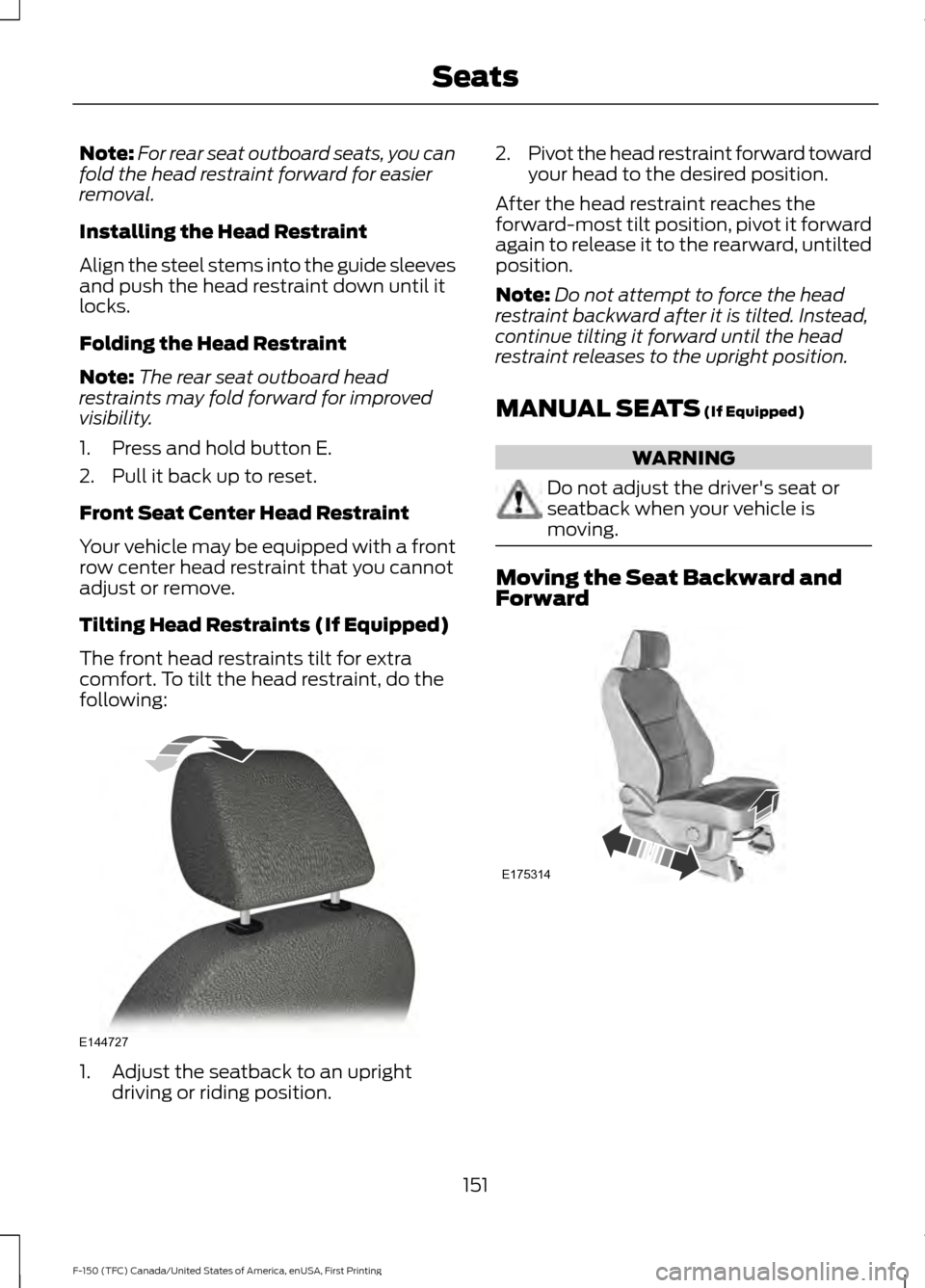
Tilting Head Restraints (If Equipped)
The front head restraints tilt for extra
comfort. To tilt the head restraint, do the
following: 1. Adjust the seatback to an upright
driving or riding position. 2.
Pivot the head restraint forward toward
your head to the desired position.
After the head restraint reaches the
forward-most tilt position, pivot it forward
again to release it to the rearward, untilted
position.
Note: Do not attempt to force the head
restraint backward after it is tilted. Instead,
continue tilting it forward until the head
restraint releases to the upright position.
MANUAL SEATS (If Equipped) WARNING
Do not adjust the driver's seat or
seatback when your vehicle is
moving.
Moving the Seat Backward and
Forward
151
F-150 (TFC) Canada/United States of America, enUSA, First Printing SeatsE144727 E175314