2017 FORD EXPLORER steering wheel
[x] Cancel search: steering wheelPage 102 of 541
GENERAL INFORMATION
WARNING
Driving while distracted can result in
loss of vehicle control, crash and
injury. We strongly recommend that
you use extreme caution when using any
device that may take your focus off the
road. Your primary responsibility is the safe
operation of your vehicle. We recommend
against the use of any hand-held device
while driving and encourage the use of
voice-operated systems when possible.
Make sure you are aware of all applicable
local laws that may affect the use of
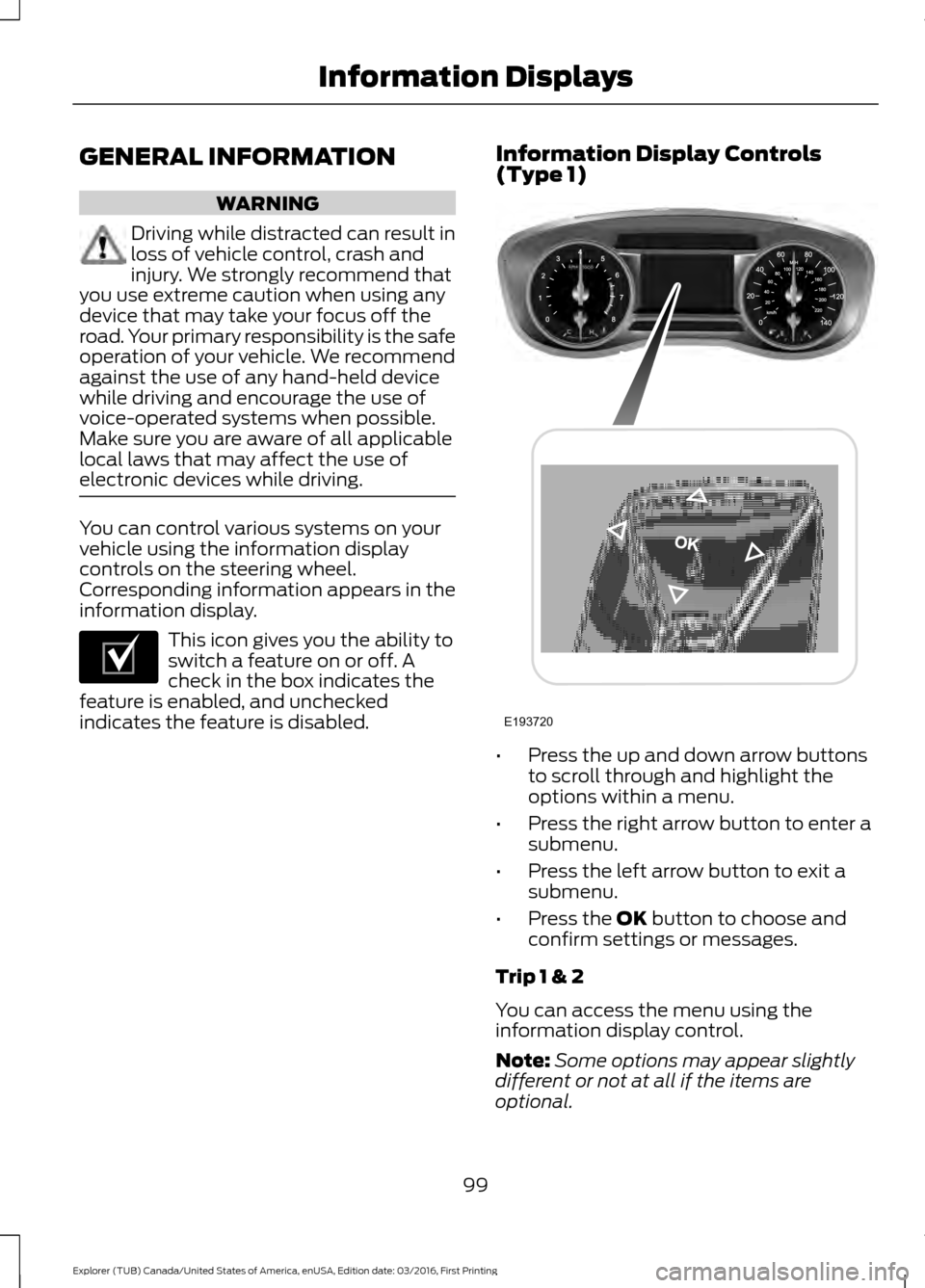
electronic devices while driving. You can control various systems on your
vehicle using the information display
controls on the steering wheel.
Corresponding information appears in the
information display.
This icon gives you the ability to
switch a feature on or off. A
check in the box indicates the
feature is enabled, and unchecked
indicates the feature is disabled. Information Display Controls
(Type 1)
•
Press the up and down arrow buttons
to scroll through and highlight the
options within a menu.
• Press the right arrow button to enter a
submenu.
• Press the left arrow button to exit a
submenu.
• Press the OK button to choose and
confirm settings or messages.
Trip 1 & 2
You can access the menu using the
information display control.
Note: Some options may appear slightly
different or not at all if the items are
optional.
99
Explorer (TUB) Canada/United States of America, enUSA, Edition date: 03/2016, First Printing Information DisplaysE204495 E193720
Page 104 of 541

•
Distance to Empty - Shows the
approximate distance your vehicle can
travel before running out of fuel.
• Instantaneous Fuel Economy - Shows
a visual graph of your instantaneous
fuel economy along with your Avg MPG
since the function was last reset.
• Average MPG — Shows the average
fuel economy since last reset.
• Fuel History - Shows a bar chart of your
fuel history.
• All Values — Shows all fuel economy
values (DTE, Inst Fuel Econ, Avg Fuel). Note:
You can reset your average fuel
economy by pressing and holding the OK
button on the left hand steering wheel
controls.
Driver Assist
In this mode, you can configure different
driver setting choices.
Note: Some options may appear slightly
different or not at all if the items are
optional. Driver Assist
Traction Ctrl
Blindspot
Cross Traffic Adaptive
or Normal
Cruise Control
Driver Alert
Hill Start Assist
Intellig. 4WD
Alert
, Aid or Alert + Aid
Mode
Lane Keeping
High
, Normal or Low
Intensity
High
, Normal or Low
Alert Sensitivity
Pre-Collision
Rear Park Aid
Tire Monitor
Trailer Sway
Settings
In this mode, you can configure different
driver setting choices. Note:
Some items are optional and may
not appear.
101
Explorer (TUB) Canada/United States of America, enUSA, Edition date: 03/2016, First Printing Information Displays
Page 109 of 541

Trip 1 & 2
All Values
• All Values — shows all trip values (Trip
Timer, Trip Odometer and Average
Fuel).
• Trip Odometer — Shows your
accumulated trip distance.
• Average Fuel — Shows your average
fuel economy for a given trip.
• Trip Timer — The timer stops when you
turn your vehicle off and restarts when
you restart your vehicle. Note:
You can reset your trip information
by pressing and holding the OK button on
the left hand steering wheel controls.
Fuel Economy
Use the left or right arrow buttons to
choose the desired fuel economy display. Fuel Economy
Inst Fuel Economy - Hold
OK to Reset
Fuel History
• Inst Fuel Economy - shows a visual
graph of your instantaneous fuel
economy, average fuel economy and
distance to empty.
• Fuel History - shows a bar chart of your
fuel history from the past 30 min,
average fuel economy and distance to
empty. Note:
You can reset your average fuel
economy by pressing and holding the
OK
button on the left hand steering wheel
controls.
Driver Assist
In this mode, you can configure different
driver setting choices.
Note: Some items are optional and may
not appear. Driver Assist
Traction Control
Blindspot
Cross Traffic Alert Adaptive
or Normal
Cruise Control
Driver Alert
Hill Start Assist
106
Explorer (TUB) Canada/United States of America, enUSA, Edition date: 03/2016, First Printing Information Displays
Page 113 of 541

Trip 1 & 2
All Values
• All Values — shows all trip values (Trip
Timer, Trip Odometer and Average
Fuel).
• Trip Odometer — Shows your
accumulated trip distance.
• Average Fuel — Shows your average
fuel economy for a given trip.
• Trip Timer — The timer stops when you
turn your vehicle off and restarts when
you restart your vehicle. Note:
You can reset your trip information
by pressing and holding the OK button on
the left hand steering wheel controls.
Fuel Economy
Use the left or right arrow buttons to
choose the desired fuel economy display. Fuel Economy
Instant Fuel Economy - Hold
OK to Reset
Fuel History
• Inst Fuel Economy - shows a visual
graph of your instantaneous fuel
economy, average fuel economy and
distance to empty.
• Fuel History - shows a bar chart of your
fuel history from the past 30 min,
average fuel economy and distance to
empty. Note:
You can reset your average fuel
economy by pressing and holding the
OK
button on the left hand steering wheel
controls.
Driver Assist
In this mode, you can configure different
driver setting choices.
Note: Some items are optional and may
not appear. Driver Assist
Traction Control Intelligent 4WD with Terrain Management System
Intelligent 4WD
Blindspot
Cross Traffic
Adaptive
or Normal
Cruise Control
Driver Alert
110
Explorer (TUB) Canada/United States of America, enUSA, Edition date: 03/2016, First Printing Information Displays
Page 118 of 541

Automatic Engine Shutdown
Action
Message
The engine is preparing to shutdown.
Engine Shuts Off In XX
Seconds
The engine has shutdown to help increase fuel economy.
Engine Shut Off For Fuel
Economy
The engine is preparing to shutdown. You can press OK onthe left steering wheel button to override the shutdown.
Engine Shuts Off in XX
Seconds Press OK to Override
Automatic High Beam Control Action
Message
The front camera sensor has reduced visibility. Clean the windshield.
Front Camera Low Visib-
ility Clean Screen
The system requires service due to a malfunction. Contact anauthorized dealer.
Front Camera Malfunc-
tion Service Required
The front camera sensor has malfunctioned. Wait a shortperiod of time for the sensor to cool down.
Front Camera Tempor-
arily Not Available
115
Explorer (TUB) Canada/United States of America, enUSA, Edition date: 03/2016, First Printing Information Displays
Page 124 of 541

Lane Keeping System
Action
Message
The system has malfunctioned. Contact an authorized dealer as soon as possible.
Lane Keeping Sys.
Malfunction Service Required
The system has detected a condition that has caused thesystem to be temporarily unavailable.
Front Camera Tempor-
arily Not Available
The system has detected a condition that requires a cleanwindshield to operate properly.
Front Camera Low Visib-
ility Clean Screen
The system has malfunctioned. Contact an authorized dealeras soon as possible.
Front Camera Malfunc-
tion Service Required
The system requests the driver to keep their hands on thesteering wheel.
Keep Hands on Steering
Wheel
Maintenance Action
Message
Stop your vehicle as soon as safely possible. Switch off the
engine. Check the oil level. If the warning stays on or continues to come on with your engine running, contact an authorized dealer as soon as possible.
LOW Engine Oil Pressure
The engine oil life remaining is 10% or less. See Engine Oil
Check (page 277).
Change Engine Oil Soon
The oil life left reaches 0%. See
Engine Oil Check (page 277).
Oil Change Required
The engine coolant temperature is excessively high.
Engine Coolant Overtem-
perature
The washer fluid is low and needs refilling.
Washer Fluid Level Low
Indicates that your vehicle is still in Transport mode. This maynot allow some features to operate properly. Contact an authorized dealer.
Transport Mode Contact
Dealer
Indicates that your vehicle is still in Factory mode. This maynot allow some features to operate properly. Contact an authorized dealer.
Factory Mode Contact
Dealer
121
Explorer (TUB) Canada/United States of America, enUSA, Edition date: 03/2016, First Printing Information Displays
Page 126 of 541

Power Steering
Action
Message
The power steering system has detected a condition thatrequires service. Contact an authorized dealer.
Steering Malfunction
Service Now
The power steering system is not working. Stop your vehicleat a safe place. Contact an authorized dealer.
Service Power Steering
Now
The power steering system has detected a condition withinthe power steering system, or passive entry or passive start system requires service. Contact an authorized dealer.
Steering Assist Fault
You need to turn the steering wheel in order to disengage thesteering lock.
Steering column lock:
Remove and re-insert
key while turning wheel to unlock
Pre-Collision Warning System Action
Message
A fault with the system has occurred. Contact an authorized dealer.
Pre-Collision Warning
Malfunction
You have a blocked sensor due to bad weather, ice, mud or
water in front of the radar sensor. You can typically clean the sensor to resolve. See Pre-Collision Assist (page 227).
Pre-Collision Warning
Not Available SensorBlocked See Manual
A fault with the system has occurred. Contact an authorized dealer.
Pre-Collision Warning
Not Available
Remote Start Action
Message
A reminder to apply the brake and push the gearshift buttonto drive your vehicle after a remote start.
To Drive: Press Brake
and Gear Shift Button
123
Explorer (TUB) Canada/United States of America, enUSA, Edition date: 03/2016, First Printing Information Displays
Page 139 of 541

Replace the filter at regular intervals. See
Scheduled Maintenance (page 483).
For additional cabin air filter information,
or to replace the filter, see an authorized
dealer.
REMOTE START
(If Equipped)
The remote start feature allows you to
pre-condition the interior of your vehicle.
The climate control system works to
achieve comfort according to your previous
settings.
Note: You cannot adjust the system during
remote start operation.
Turn the ignition on to return the system
to its previous settings. You can now make
adjustments normally, but you need to turn
certain vehicle-dependent features back
on, such as:
• Heated seats.
• Cooled seats.
• Heated steering wheel.
• Heated mirrors.
• Heated rear window.
You can adjust the default remote start
settings using the information display
controls. See
Information Displays
(page 99).
Automatic Settings
In hot weather, the system is set to
72°F
(22°C). The cooled seats are set to high
(if available, and selected to AUTO in the
information display).
In moderate weather, the system either
heats or cools (based on previous
settings). The rear defroster, heated
mirrors and heated seats do not
automatically turn on. In cold weather, the system is set to
72°F
(22°C). The heated seats are set to high
(if available, and selected to AUTO in the
information display). The rear defroster
and heated mirrors automatically turn on.
136
Explorer (TUB) Canada/United States of America, enUSA, Edition date: 03/2016, First Printing Climate Control