2017 FORD EXPLORER steering wheel
[x] Cancel search: steering wheelPage 205 of 541
Note:
The system always offers the last
detected parking space (for example, if your
vehicle detects multiple spaces while you
are driving, it offers the last one).
Note: If driven above approximately 19 mph
(30 km/h), the system shows a message to
alert you to reduce your vehicle speed.
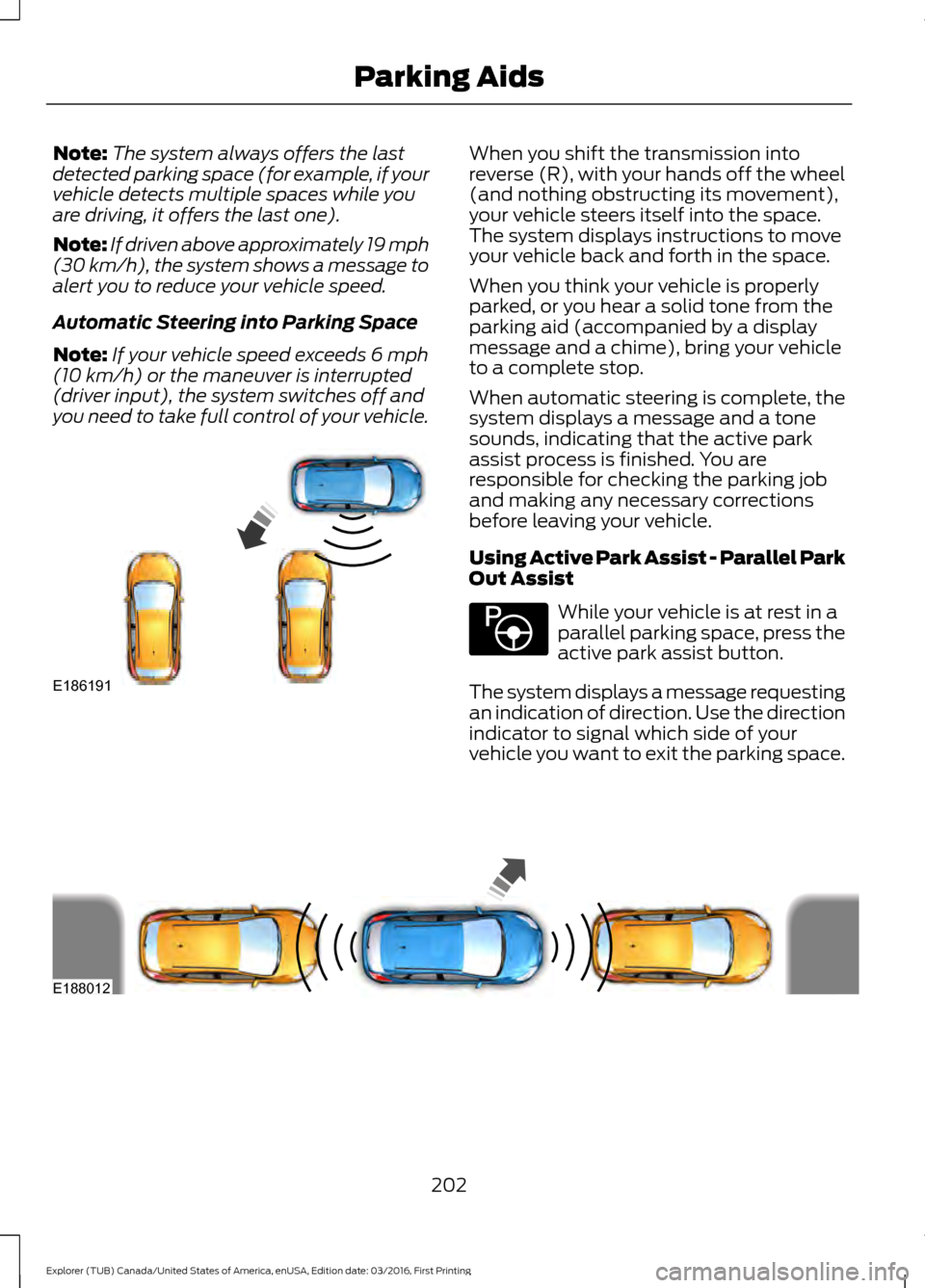
Automatic Steering into Parking Space
Note: If your vehicle speed exceeds
6 mph
(10 km/h) or the maneuver is interrupted
(driver input), the system switches off and
you need to take full control of your vehicle. When you shift the transmission into
reverse (R), with your hands off the wheel
(and nothing obstructing its movement),
your vehicle steers itself into the space.
The system displays instructions to move
your vehicle back and forth in the space.
When you think your vehicle is properly
parked, or you hear a solid tone from the
parking aid (accompanied by a display
message and a chime), bring your vehicle
to a complete stop.
When automatic steering is complete, the
system displays a message and a tone
sounds, indicating that the active park
assist process is finished. You are
responsible for checking the parking job
and making any necessary corrections
before leaving your vehicle.
Using Active Park Assist - Parallel Park
Out Assist
While your vehicle is at rest in a
parallel parking space, press the
active park assist button.
The system displays a message requesting
an indication of direction. Use the direction
indicator to signal which side of your
vehicle you want to exit the parking space. 202
Explorer (TUB) Canada/United States of America, enUSA, Edition date: 03/2016, First Printing Parking AidsE186191 E146186 E188012
Page 206 of 541
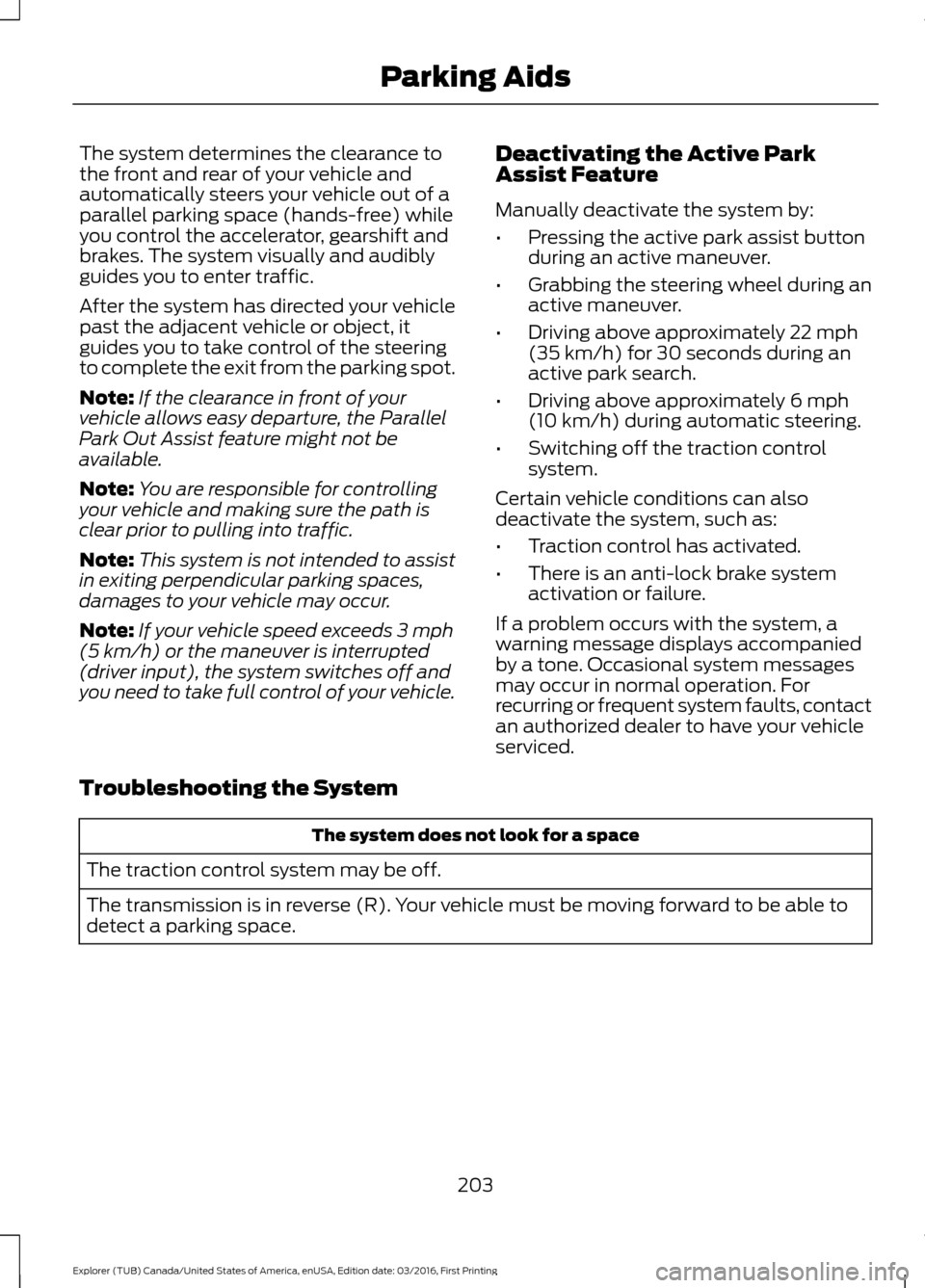
The system determines the clearance to
the front and rear of your vehicle and
automatically steers your vehicle out of a
parallel parking space (hands-free) while
you control the accelerator, gearshift and
brakes. The system visually and audibly
guides you to enter traffic.
After the system has directed your vehicle
past the adjacent vehicle or object, it
guides you to take control of the steering
to complete the exit from the parking spot.
Note:
If the clearance in front of your
vehicle allows easy departure, the Parallel
Park Out Assist feature might not be
available.
Note: You are responsible for controlling
your vehicle and making sure the path is
clear prior to pulling into traffic.
Note: This system is not intended to assist
in exiting perpendicular parking spaces,
damages to your vehicle may occur.
Note: If your vehicle speed exceeds 3 mph
(5 km/h) or the maneuver is interrupted
(driver input), the system switches off and
you need to take full control of your vehicle. Deactivating the Active Park
Assist Feature
Manually deactivate the system by:
•
Pressing the active park assist button
during an active maneuver.
• Grabbing the steering wheel during an
active maneuver.
• Driving above approximately
22 mph
(35 km/h) for 30 seconds during an
active park search.
• Driving above approximately
6 mph
(10 km/h) during automatic steering.
• Switching off the traction control
system.
Certain vehicle conditions can also
deactivate the system, such as:
• Traction control has activated.
• There is an anti-lock brake system
activation or failure.
If a problem occurs with the system, a
warning message displays accompanied
by a tone. Occasional system messages
may occur in normal operation. For
recurring or frequent system faults, contact
an authorized dealer to have your vehicle
serviced.
Troubleshooting the System The system does not look for a space
The traction control system may be off.
The transmission is in reverse (R). Your vehicle must be moving forward to be able to
detect a parking space.
203
Explorer (TUB) Canada/United States of America, enUSA, Edition date: 03/2016, First Printing Parking Aids
Page 209 of 541
The camera may not operate correctly
under the following conditions:
•
Nighttime or dark areas if one or both
reverse lamps are not operating.
• Mud, water or debris obstructs the
camera's view. Clean the lens with a
soft, lint-free cloth and non-abrasive
cleaner. You can also use the rear
washer to clean the camera. See Rear
Window Wiper and Washers (page
76).
• The rear of your vehicle is hit or
damaged, causing the camera to
become misaligned.
Camera System Settings
The rear view camera system settings can
be accessed through the display screen.
See
General Information (page 99).
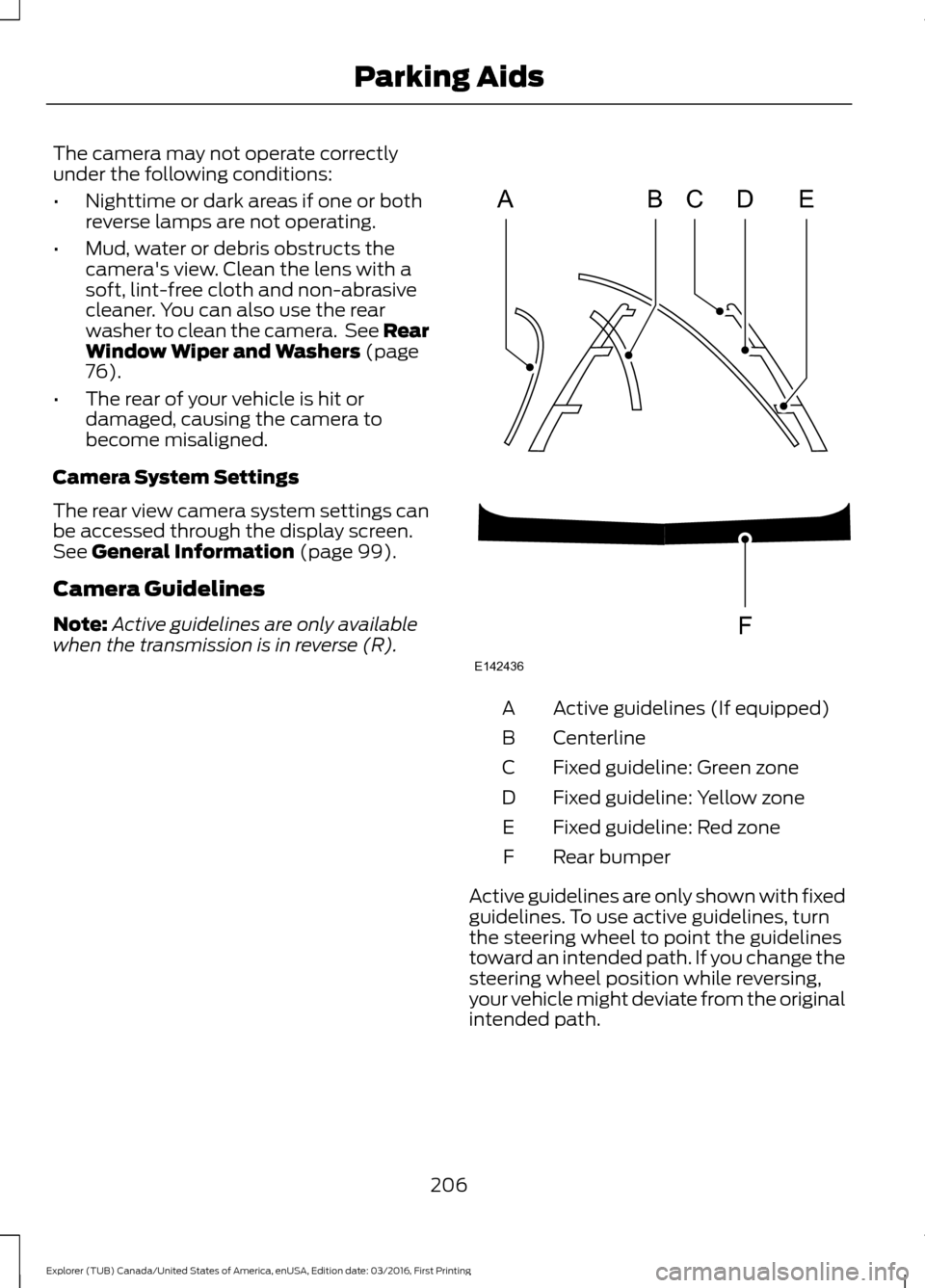
Camera Guidelines
Note: Active guidelines are only available
when the transmission is in reverse (R). Active guidelines (If equipped)
A
Centerline
B
Fixed guideline: Green zone
C
Fixed guideline: Yellow zone
D
Fixed guideline: Red zone
E
Rear bumper
F
Active guidelines are only shown with fixed
guidelines. To use active guidelines, turn
the steering wheel to point the guidelines
toward an intended path. If you change the
steering wheel position while reversing,
your vehicle might deviate from the original
intended path.
206
Explorer (TUB) Canada/United States of America, enUSA, Edition date: 03/2016, First Printing Parking AidsABCD
F
E
E142436
Page 210 of 541

The fixed and active guidelines fade in and
out depending on the steering wheel
position. The active guidelines do not
display when the steering wheel position
is straight.
Always use caution while reversing.
Objects in the red zone are closest to your
vehicle and objects in the green zone are
farther away. Objects are getting closer to
your vehicle as they move from the green
zone to the yellow or red zones. Use the
side view mirrors and rear view mirror to
get better coverage on both sides and rear
of the vehicle.
Obstacle Distance Indicator (If
Equipped) The system will provide an image of your
vehicle and the sensor zones. The zones
will highlight green, yellow and red when
the parking aid sensors detect an object in
the coverage area. Manual Zoom WARNING
When manual zoom is on, the full
area behind your vehicle may not
show. Be aware of your surroundings
when using the manual zoom feature. Note:
Manual zoom is only available when
the transmission is in reverse (R).
Note: When you enable manual zoom, only
the centerline is shown.
Selectable settings for this feature are
Zoom in (+) and Zoom out (-). Press the
symbol in the camera screen to change the
view. The default setting is Zoom OFF.
This allows you to get a closer view of an
object behind your vehicle. The zoomed
image keeps the bumper in the image to
provide a reference. The zoom is only
active while the transmission is in reverse
(R).
Rear Camera Delay
Selectable settings for this feature are ON
and OFF.
The default setting for the rear camera
delay is OFF.
When shifting the transmission out of
reverse (R) and into any gear other than
park (P), the camera image remains in the
display until:
• Your vehicle speed reaches
approximately
5 mph (8 km/h).
• You shift your vehicle into park (P).
207
Explorer (TUB) Canada/United States of America, enUSA, Edition date: 03/2016, First Printing Parking AidsE190459
Page 212 of 541
PRINCIPLE OF OPERATION
Cruise control lets you maintain a set
speed without keeping your foot on the
accelerator pedal. You can use cruise
control when your vehicle speed is greater
than 20 mph (30 km/h).
USING CRUISE CONTROL WARNINGS
Do not use cruise control on winding
roads, in heavy traffic or when the
road surface is slippery. This could
result in loss of vehicle control, serious
injury or death. When you are going downhill, your
vehicle speed may increase above
the set speed. The system will not
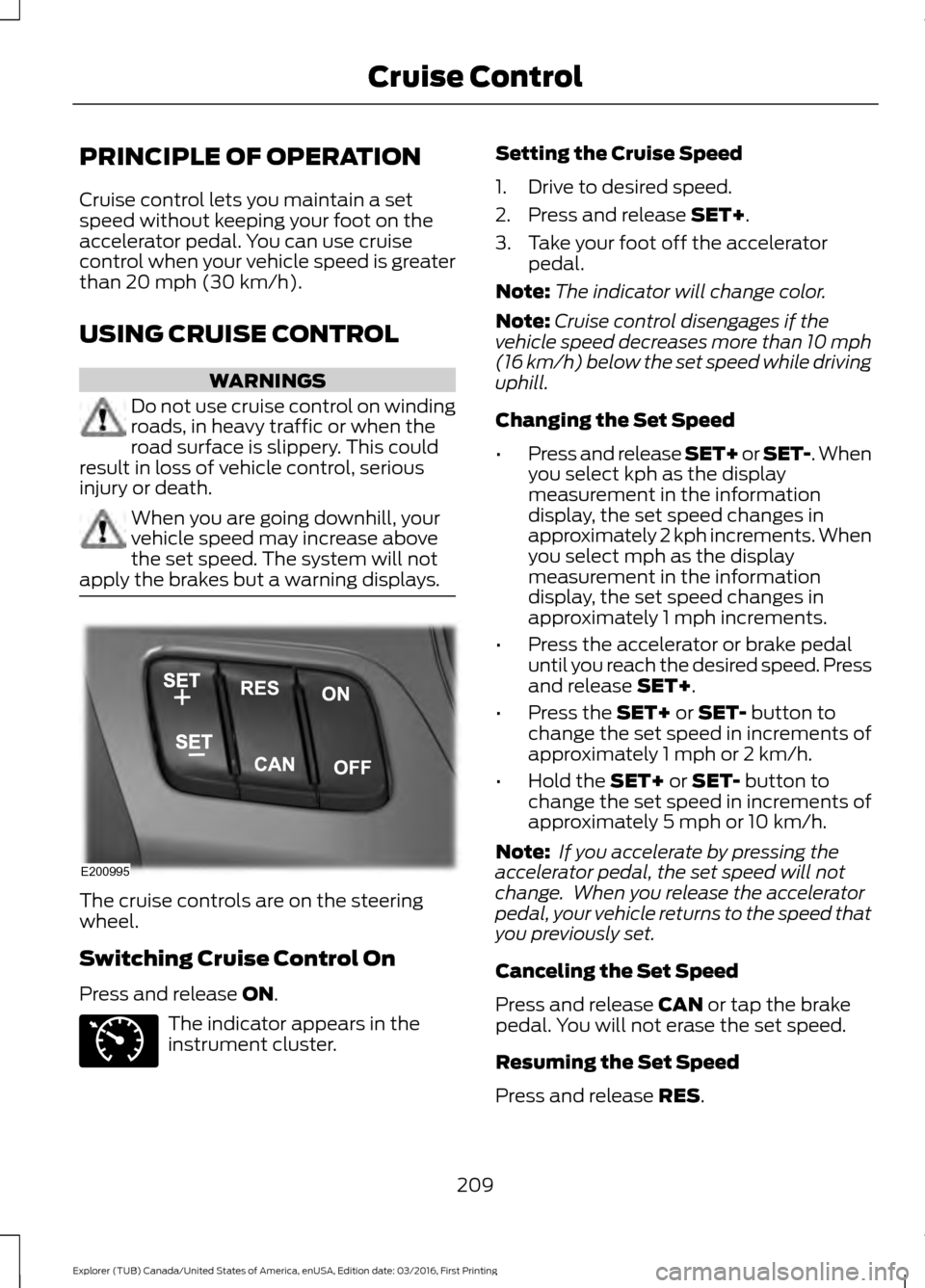
apply the brakes but a warning displays. The cruise controls are on the steering
wheel.
Switching Cruise Control On
Press and release
ON.
The indicator appears in the
instrument cluster. Setting the Cruise Speed
1. Drive to desired speed.
2. Press and release
SET+.
3. Take your foot off the accelerator pedal.
Note: The indicator will change color.
Note: Cruise control disengages if the
vehicle speed decreases more than 10 mph
(16 km/h) below the set speed while driving
uphill.
Changing the Set Speed
• Press and release SET+ or SET-. When
you select kph as the display
measurement in the information
display, the set speed changes in
approximately 2 kph increments. When
you select mph as the display
measurement in the information
display, the set speed changes in
approximately 1 mph increments.
• Press the accelerator or brake pedal
until you reach the desired speed. Press
and release
SET+.
• Press the
SET+ or SET- button to
change the set speed in increments of
approximately 1 mph or 2 km/h.
• Hold the
SET+ or SET- button to
change the set speed in increments of
approximately 5 mph or 10 km/h.
Note: If you accelerate by pressing the
accelerator pedal, the set speed will not
change. When you release the accelerator
pedal, your vehicle returns to the speed that
you previously set.
Canceling the Set Speed
Press and release
CAN or tap the brake
pedal. You will not erase the set speed.
Resuming the Set Speed
Press and release
RES.
209
Explorer (TUB) Canada/United States of America, enUSA, Edition date: 03/2016, First Printing Cruise ControlE200995 E71340
Page 213 of 541
Switching Cruise Control Off
Press and release OFF when the system
is in stand by mode or switch the ignition
off.
Note: You erase the set speed when you
switch the system off.
USING ADAPTIVE CRUISE
CONTROL
(If Equipped) WARNINGS
Always pay close attention to
changing road conditions when using
adaptive cruise control. The system
does not replace attentive driving. Failing
to pay attention to the road may result in
a crash, serious injury or death. Adaptive cruise control is not a crash
warning or avoidance system.
Adaptive cruise control does not
detect stationary or slow moving
vehicles below
6 mph (10 km/h).
Adaptive cruise control does not
detect pedestrians or objects in the
road.
Adaptive cruise control does not
detect oncoming vehicles in the
same lane.
Do not use adaptive cruise control
on winding roads, in heavy traffic or
when the road surface is slippery.
This could result in loss of vehicle control,
serious injury or death. Do not use adaptive cruise control
when towing a trailer that has trailer
brakes. The auto-brake component
of the adaptive cruise control system does
not operate the trailer brakes. Using
adaptive cruise control when towing a
trailer that has trailer brakes may result in
the loss of vehicle control, which could
result in serious injury. WARNINGS
Do not use tire sizes other than those
recommended because this can
affect the normal operation of the
system. Failure to do so may result in a loss
of vehicle control, which could result in
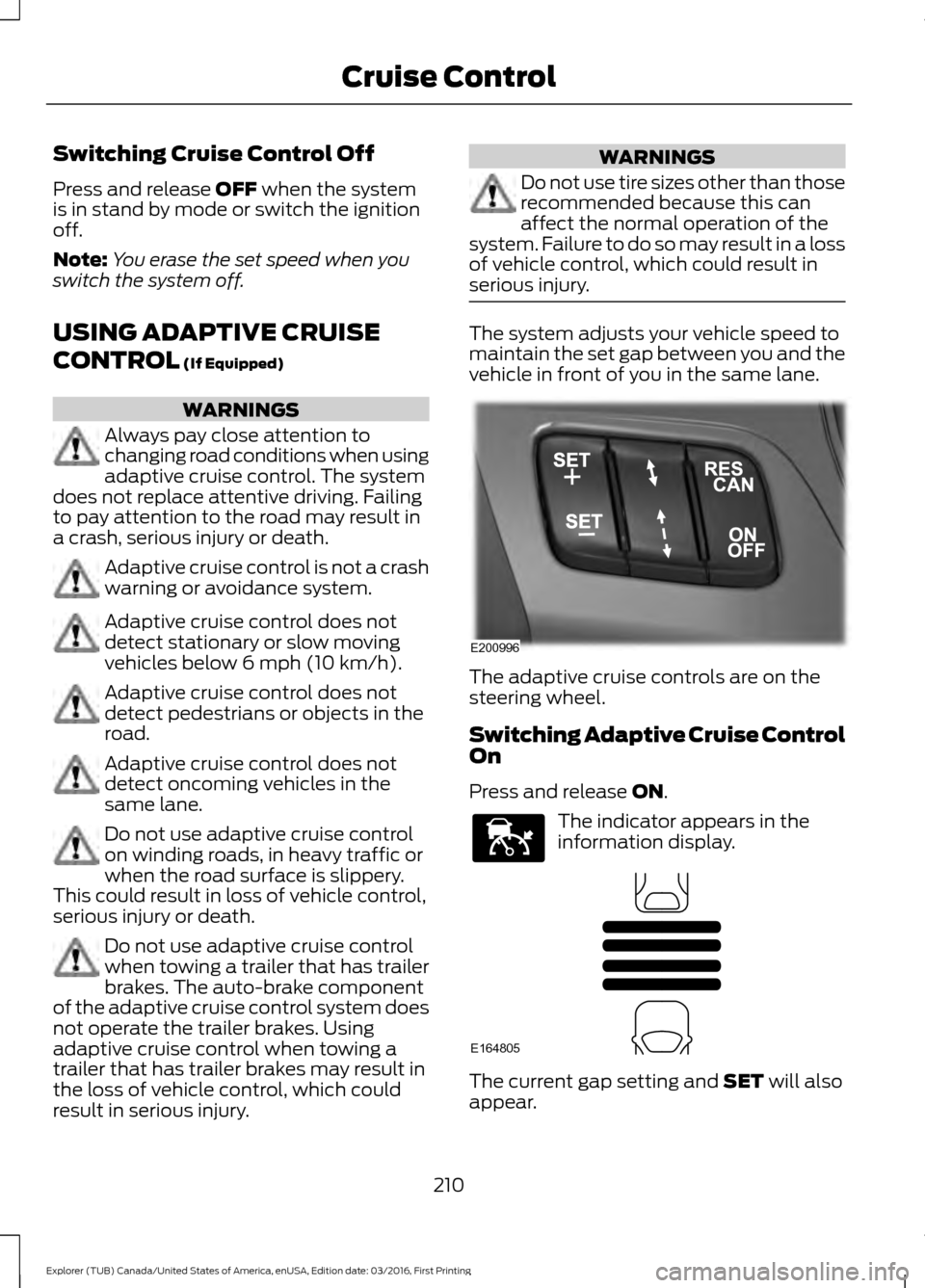
serious injury. The system adjusts your vehicle speed to
maintain the set gap between you and the
vehicle in front of you in the same lane.
The adaptive cruise controls are on the
steering wheel.
Switching Adaptive Cruise Control
On
Press and release
ON.
The indicator appears in the
information display.
The current gap setting and
SET will also
appear.
210
Explorer (TUB) Canada/United States of America, enUSA, Edition date: 03/2016, First Printing Cruise ControlE200996 E144529 E164805
Page 219 of 541

DRIVER ALERT (If Equipped)
PRINCIPLE OF OPERATION WARNING
The driver alert system is designed
to aid you. It is not intended to
replace your attention and judgment.
You are still responsible to drive with due
care and attention. Note:
The system will store the on or off
setting in the information display menu
through ignition cycles.
Note: If enabled in the menu, the system
will be active at speeds above
40 mph
(64 km/h). When below the activation
speed, the information display will inform
the driver that the system is unavailable.
Note: The system works as long as one lane
marking can be detected by the camera.
Note: If the camera is blocked or if the
windshield is damaged, the system may not
function.
Note: The system may not be available in
poor weather or other low visibility
conditions.
The system automatically monitors your
driving behavior using various inputs
including the front camera sensor.
If the system detects that your driving
alertness is reduced below a certain
threshold, the system will alert you using
a chime and a message in the cluster
display.
USING DRIVER ALERT
Switching the System On and Off
Switch the system on or off using the
information display. See
General
Information (page 99). When activated, the system will monitor
your alertness level based upon your
driving behavior in relation to the lane
markings, and other factors.
System Warnings
Note:
The system will not issue warnings
below approximately
40 mph (64 km/h).
The warning system has two stages. At
first, the system issues a temporary
warning that you need to take a rest. This
message will only appear for a short time.
If the system detects further reduction in
driving alertness, it may issue another
warning that will remain in the information
display for a longer time. You can press OK
on the steering wheel control to clear the
warning.
Resetting the System
You can reset the system by either:
• Switching the ignition off and on.
• Stopping the vehicle and then opening
and closing the driver ’s door.
LANE KEEPING SYSTEM
(If
Equipped) WARNINGS
Always drive with due care and
attention when using and operating
the controls and features on your
vehicle. At all times, you are responsible for
controlling your vehicle, supervising
the system and intervening, if
required. Failure to take care may result in
the loss of control of your vehicle, serious
personal injury or death. In cold and severe weather
conditions the system may not
function. Rain, snow and spray can
all limit sensor performance.
216
Explorer (TUB) Canada/United States of America, enUSA, Edition date: 03/2016, First Printing Driving Aids
Page 220 of 541

WARNINGS
Large contrasts in outside lighting
can limit sensor performance.
The system will not operate if the
sensor cannot track the road lane
markings.
If damage occurs in the immediate
area surrounding the sensor, have
your vehicle checked as soon as
possible. Note:
The system works above 40 mph
(64 km/h).
Note: The system works as long as the
camera can detect one lane marking.
Note: The system may not function if the
camera is blocked or there is damage to the
windshield.
Note: When Aid mode is on and the system
detects no steering activity for a short
period, the system will alert you to put your
hands on the steering wheel. The system
may detect a light grip or touch on the
steering wheel as hands off driving.
The system notifies you to stay in your lane
through the steering system and the
instrument cluster display when the front
camera detects an unintentional drift out
of your lane is likely to occur. The system
automatically detects and tracks the road
lane markings using a camera mounted
behind the interior rear view mirror.
Switching the System On and Off
Note: The system on or off setting is stored
until it is manually changed, unless a MyKey
is detected. If the system detects a MyKey
it defaults to on and the mode is set to Alert.
Note: If a MyKey is detected, pressing the
button will not affect the on or off status of
the system. Press the button on the steering
wheel stalk to switch the system
on or off.
System Settings
The system has optional setting menus
available. The system stores the
last-known selection for each of these
settings. You do not need to readjust your
settings each time you turn on the system.
Mode:
This setting allows you to select
which of the system features you can
enable. Alert only – Provides a steering wheel
vibration when the system detects an
unintended lane departure.
217
Explorer (TUB) Canada/United States of America, enUSA, Edition date: 03/2016, First Printing Driving AidsE144813 E165515 E165516