2017 FORD EXPEDITION EL reset
[x] Cancel search: resetPage 366 of 500
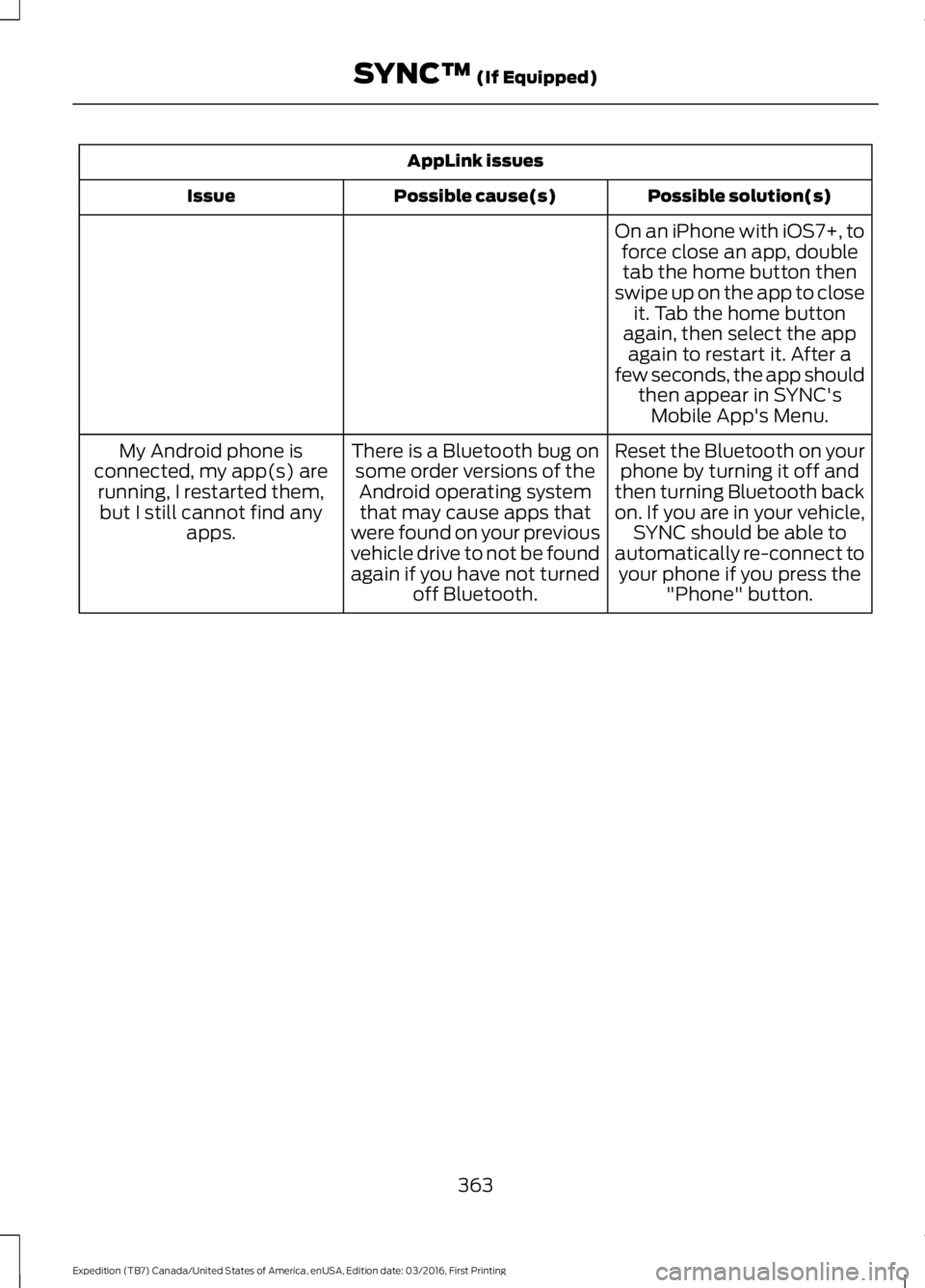
AppLink issues
Possible solution(s)Possible cause(s)Issue
On an iPhone with iOS7+, toforce close an app, doubletab the home button thenswipe up on the app to closeit. Tab the home buttonagain, then select the appagain to restart it. After afew seconds, the app shouldthen appear in SYNC'sMobile App's Menu.
Reset the Bluetooth on yourphone by turning it off andthen turning Bluetooth backon. If you are in your vehicle,SYNC should be able toautomatically re-connect toyour phone if you press the"Phone" button.
There is a Bluetooth bug onsome order versions of theAndroid operating systemthat may cause apps thatwere found on your previousvehicle drive to not be foundagain if you have not turnedoff Bluetooth.
My Android phone isconnected, my app(s) arerunning, I restarted them,but I still cannot find anyapps.
363
Expedition (TB7) Canada/United States of America, enUSA, Edition date: 03/2016, First Printing
SYNC™ (If Equipped)
Page 367 of 500
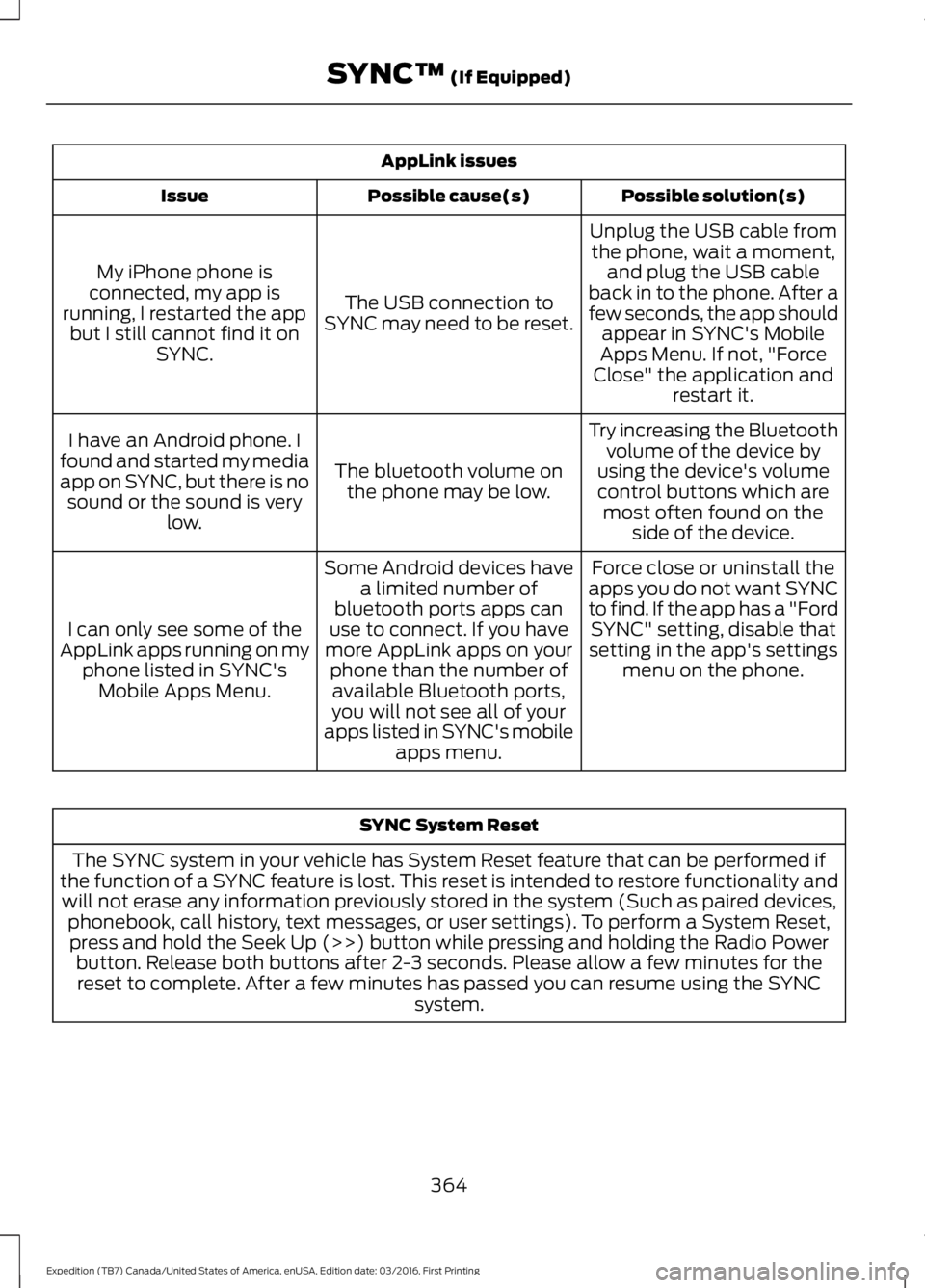
AppLink issues
Possible solution(s)Possible cause(s)Issue
Unplug the USB cable fromthe phone, wait a moment,and plug the USB cableback in to the phone. After afew seconds, the app shouldappear in SYNC's MobileApps Menu. If not, "ForceClose" the application andrestart it.
The USB connection toSYNC may need to be reset.
My iPhone phone isconnected, my app isrunning, I restarted the appbut I still cannot find it onSYNC.
Try increasing the Bluetoothvolume of the device byusing the device's volumecontrol buttons which aremost often found on theside of the device.
The bluetooth volume onthe phone may be low.
I have an Android phone. Ifound and started my mediaapp on SYNC, but there is nosound or the sound is verylow.
Force close or uninstall theapps you do not want SYNCto find. If the app has a "FordSYNC" setting, disable thatsetting in the app's settingsmenu on the phone.
Some Android devices havea limited number ofbluetooth ports apps canuse to connect. If you havemore AppLink apps on yourphone than the number ofavailable Bluetooth ports,you will not see all of yourapps listed in SYNC's mobileapps menu.
I can only see some of theAppLink apps running on myphone listed in SYNC'sMobile Apps Menu.
SYNC System Reset
The SYNC system in your vehicle has System Reset feature that can be performed ifthe function of a SYNC feature is lost. This reset is intended to restore functionality andwill not erase any information previously stored in the system (Such as paired devices,phonebook, call history, text messages, or user settings). To perform a System Reset,press and hold the Seek Up (>>) button while pressing and holding the Radio Powerbutton. Release both buttons after 2-3 seconds. Please allow a few minutes for thereset to complete. After a few minutes has passed you can resume using the SYNCsystem.
364
Expedition (TB7) Canada/United States of America, enUSA, Edition date: 03/2016, First Printing
SYNC™ (If Equipped)
Page 374 of 500

InformationOption
Missed callsOutgoing callsIncoming callsAll callsQuickdial
If you are on a call, the call information is displayed on the information display.
If you are receiving a call, you can accept it by selecting OK on the right-handsteering wheel controls.
* Depending on your vehicle options, all of these choices may not display.
Use the OK and arrow buttons on the rightside of your steering wheel to scrollthrough the available modes.
The selection menu expands and differentoptions appear.
•Press the up and down arrows to scrollthrough the modes.
•Press the right arrow to enter the mode,use the left arrow to exit the mode.
•Press the up and down arrows to makeadjustments within the chosen mode.
•Press OK to confirm your selection.
Note:If your vehicle is not equipped withnavigation, compass appears in the displayinstead of navigation. If you press the rightarrow to go into the compass menu, you cansee the compass graphic. The compassdisplays the direction in which the vehicleis traveling, not true direction (for example,if the vehicle is traveling west, the middleof the compass graphic displays west; northdisplays to the left of west though its truedirection is to the right of west).
Using the Steering Wheel Controls
Depending on your vehicle and optionpackage, you can use different controls onyour steering wheel to interact with thetouchscreen system in different ways.
VOL: Control the volume of audio output.
Mute: Mute the audio output.
Voice: Press to start a voice session. Pressagain to stop the voice prompt andimmediately begin speaking. Press andhold to end a voice session.
SEEK NEXT:
•While in radio mode, press to seekbetween memory presets.
•While in USB, Bluetooth Audio or CDmode, press to seek between songs orpress and hold to fast seek.
SEEK PREVIOUS:
•While in radio mode, press to seekbetween memory presets.
•While in USB, Bluetooth Audio or CDmode, press to seek between songs orpress and hold to fast seek.
PHONE ACCEPT: Press to answer a callor switch between calls.
PHONE REJECT: Press to end a call orreject an incoming call.
Note:On some models,SEEK NEXT maybe combined with PHONE REJECT andSEEK PREVIOUS may be combined withPHONE ACCEPT.
M: Touch the control repeatedly to switchbetween media sources (modes).
See Steering Wheel (page 65).
Using Your Bezel Controls
Depending on your vehicle and optionpackage, you may also have these controlson your instrument panel:
371
Expedition (TB7) Canada/United States of America, enUSA, Edition date: 03/2016, First Printing
SYNC™ 3 (If Equipped)
Page 375 of 500
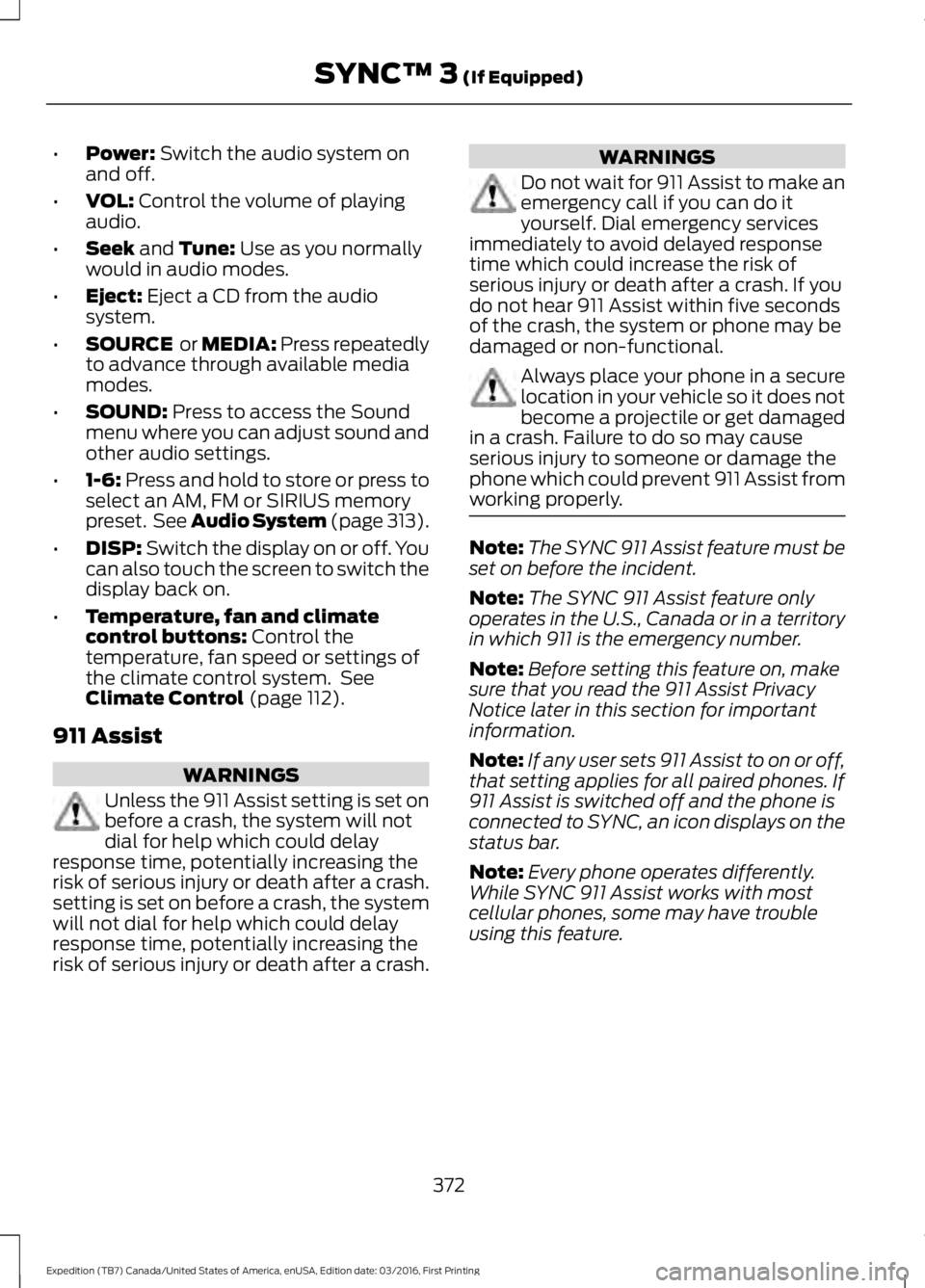
•Power: Switch the audio system onand off.
•VOL: Control the volume of playingaudio.
•Seek and Tune: Use as you normallywould in audio modes.
•Eject: Eject a CD from the audiosystem.
•SOURCE or MEDIA: Press repeatedlyto advance through available mediamodes.
•SOUND: Press to access the Soundmenu where you can adjust sound andother audio settings.
•1-6: Press and hold to store or press toselect an AM, FM or SIRIUS memorypreset. See Audio System (page 313).
•DISP: Switch the display on or off. Youcan also touch the screen to switch thedisplay back on.
•Temperature, fan and climatecontrol buttons: Control thetemperature, fan speed or settings ofthe climate control system. SeeClimate Control (page 112).
911 Assist
WARNINGS
Unless the 911 Assist setting is set onbefore a crash, the system will notdial for help which could delayresponse time, potentially increasing therisk of serious injury or death after a crash.setting is set on before a crash, the systemwill not dial for help which could delayresponse time, potentially increasing therisk of serious injury or death after a crash.
WARNINGS
Do not wait for 911 Assist to make anemergency call if you can do ityourself. Dial emergency servicesimmediately to avoid delayed responsetime which could increase the risk ofserious injury or death after a crash. If youdo not hear 911 Assist within five secondsof the crash, the system or phone may bedamaged or non-functional.
Always place your phone in a securelocation in your vehicle so it does notbecome a projectile or get damagedin a crash. Failure to do so may causeserious injury to someone or damage thephone which could prevent 911 Assist fromworking properly.
Note:The SYNC 911 Assist feature must beset on before the incident.
Note:The SYNC 911 Assist feature onlyoperates in the U.S., Canada or in a territoryin which 911 is the emergency number.
Note:Before setting this feature on, makesure that you read the 911 Assist PrivacyNotice later in this section for importantinformation.
Note:If any user sets 911 Assist to on or off,that setting applies for all paired phones. If911 Assist is switched off and the phone isconnected to SYNC, an icon displays on thestatus bar.
Note:Every phone operates differently.While SYNC 911 Assist works with mostcellular phones, some may have troubleusing this feature.
372
Expedition (TB7) Canada/United States of America, enUSA, Edition date: 03/2016, First Printing
SYNC™ 3 (If Equipped)
Page 379 of 500
Website
www.syncmaroute.ca
The website notifies you if an update isavailable. You can then select to downloadthe update.
You will need an empty USB drive. Pleasecheck the website for minimumrequirements. Once you have inserted theUSB drive into your computer, choose tostart the download. Follow the instructionsprovided to download the files to the USBdrive.
The installation of most files occurs in thebackground, and does not interrupt youruse of the system. Navigation updatescannot be installed in the background,because the files are too large.
To install the update in your vehicle,remove anything that is plugged in the USBports on the media hub and plug in theUSB drive containing the update. Whenthe USB drive is plugged in, the installationshould begin immediately. After asuccessful installation, the update isavailable the next time the vehicle isstarted.
Please reference the website for anyfurther actions.
Updating Over Wi-Fi
To update your System over Wi-Fi yourvehicle must be within the range of a Wi-Fiaccess point. Data rates may apply.
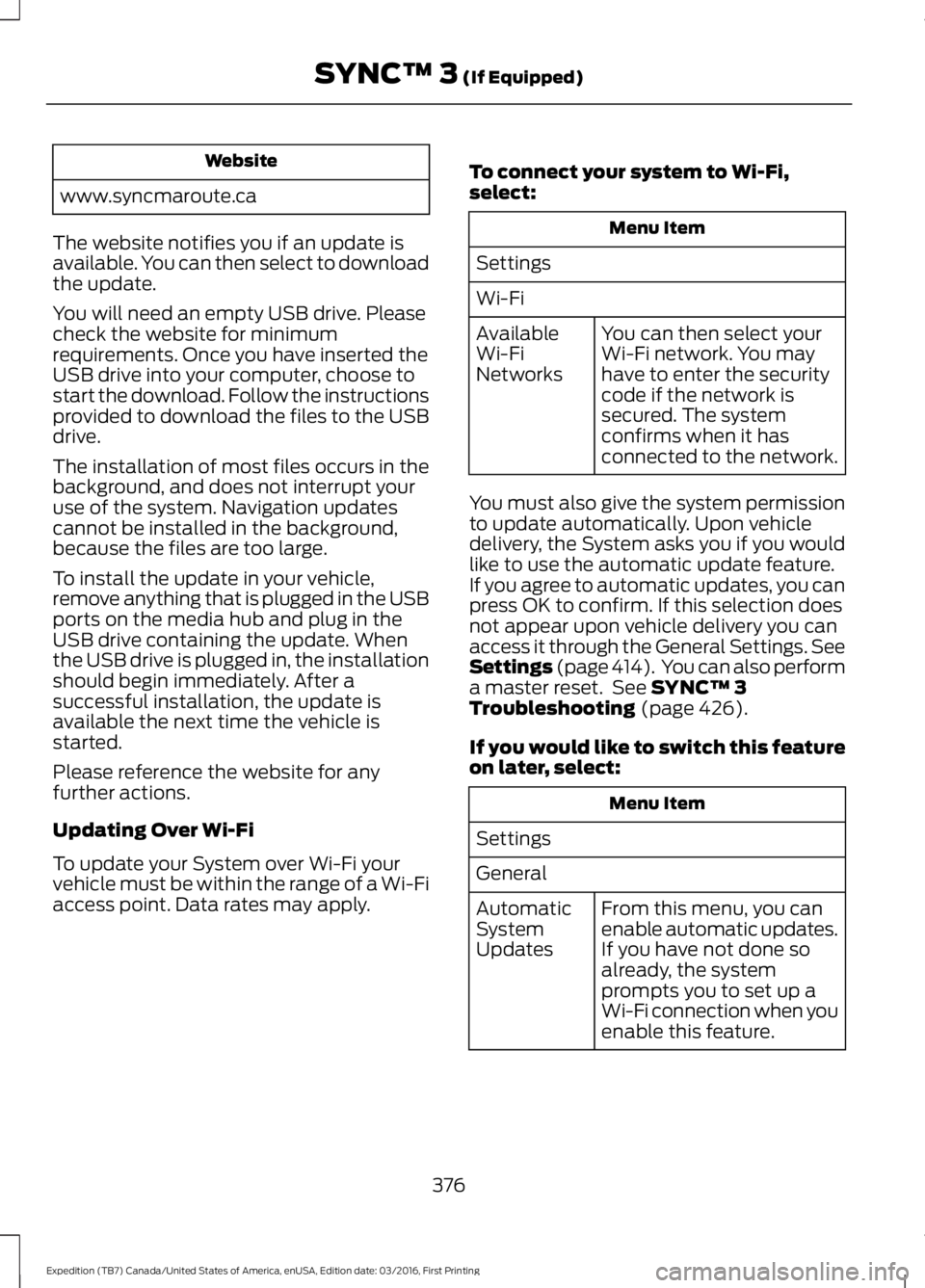
To connect your system to Wi-Fi,select:
Menu Item
Settings
Wi-Fi
You can then select yourWi-Fi network. You mayhave to enter the securitycode if the network issecured. The systemconfirms when it hasconnected to the network.
AvailableWi-FiNetworks
You must also give the system permissionto update automatically. Upon vehicledelivery, the System asks you if you wouldlike to use the automatic update feature.If you agree to automatic updates, you canpress OK to confirm. If this selection doesnot appear upon vehicle delivery you canaccess it through the General Settings. SeeSettings (page 414). You can also performa master reset. See SYNC™ 3Troubleshooting (page 426).
If you would like to switch this featureon later, select:
Menu Item
Settings
General
From this menu, you canenable automatic updates.If you have not done soalready, the systemprompts you to set up aWi-Fi connection when youenable this feature.
AutomaticSystemUpdates
376
Expedition (TB7) Canada/United States of America, enUSA, Edition date: 03/2016, First Printing
SYNC™ 3 (If Equipped)
Page 380 of 500
When Wi-Fi and automatic updates areenabled, your system checks for softwareupdates periodically. If a new version isavailable, it downloads at that time.Software downloads can take place for upto 30 minutes after you have switched yourvehicle off. The updates do not interruptthe normal use of your SYNC 3 system. Ifa download does not complete for anyreason, the download continues where itleft off at the next Wi-Fi connectedopportunity. Upon activation of an update,a banner displays on the touchscreenindicating the system update. Select theicon to see more detail. This icon displaysfor two ignition cycles.
To switch this feature off:
Menu Item
Settings
General
In this menu selection, youcan change the selectionfor automatic updates toOFF.
AutomaticSystemUpdates
Support
The SYNC support team is available tohelp you with any questions you are notable to answer on your own.
Monday-Saturday, 8:30am-8:00pm EST.
United States: 1-800-392-3673.
Canada: 1-800-565-3673.
Times are subject to change due toholidays.
Privacy Information
When you connect a cellular phone toSYNC 3, the system creates a profile withinyour vehicle that links to that cellularphone. This profile helps in offering youmore cellular features and operating moreefficiently. Among other things, this profilemay contain data about your cellularphone book, text messages (read andunread), and call history, including historyof calls when your cell phone was notconnected to the system. In addition, if youconnect a media device, the systemcreates and retains an index of supportedmedia content. The system also records ashort diagnostic log of approximately 10minutes of all recent system activity. Thelog profile and other system data may beused to improve the system and helpdiagnose any problems that may occur.
The cellular profile, media device index,and diagnostic log remain in your vehicleunless you delete them and are generallyaccessible only in your vehicle when thecellular phone or media player isconnected.
If you no longer plan to use the system oryour vehicle, we recommend you performa Master Reset to erase all storedinformation. You can find more informationabout the Master Reset in GeneralSettings. See Settings (page 414). Systemdata cannot be accessed without specialequipment and access to your vehicle'sSYNC 3 module. Ford Motor Company,Ford of Canada and The Lincoln MotorCompany do not access the system datafor any purpose other than as describedabsent consent, a court order, or whererequired by law enforcement, othergovernment authorities, or other thirdparties acting with lawful authority. Otherparties may seek to access the informationindependently of Ford Motor Company,Ford of Canada and The Lincoln MotorCompany.
377
Expedition (TB7) Canada/United States of America, enUSA, Edition date: 03/2016, First Printing
SYNC™ 3 (If Equipped)
Page 384 of 500
Climate Voice Commands
You can control the temperature of thevehicle using voice commands.
___ is a dynamic listing, meaning that forclimate voice commands it can be thedesired degrees for the temperaturesetting.
To adjust the temperature, say:
DescriptionVoice command
Adjust the temperature between 59.0°F(15°C)-86.0°F (30°C).Climate Set Temperature ___
Climate Help
Phone Voice Commands
Pairing a Phone
You can use voice commands to connectyour Bluetooth-enabled phone to thesystem.
To pair your phone, press the voice button and when prompted, say:
DescriptionVoice command
Follow the on-screen instructions to complete the pairingprocess. See Settings (page 414).Pair Phone
Making Calls
___ is a dynamic listing, meaning that forphone voice commands it can be the nameof the contact you wish to call or the digitsyou want to dial.
Press the voice button and say a command similar to the following:
DescriptionVoice command
Allows you to call a specific contact from your phonebooksuch as "Call Jenny".Call ___
Allows you to call a specific contact from your phonebookat a specific location such as "Call Jenny at Home".Call ___ at ___
Allows you to dial a specific number such as “Dial 867-5309”.Dial ___
381
Expedition (TB7) Canada/United States of America, enUSA, Edition date: 03/2016, First Printing
SYNC™ 3 (If Equipped)
Page 389 of 500
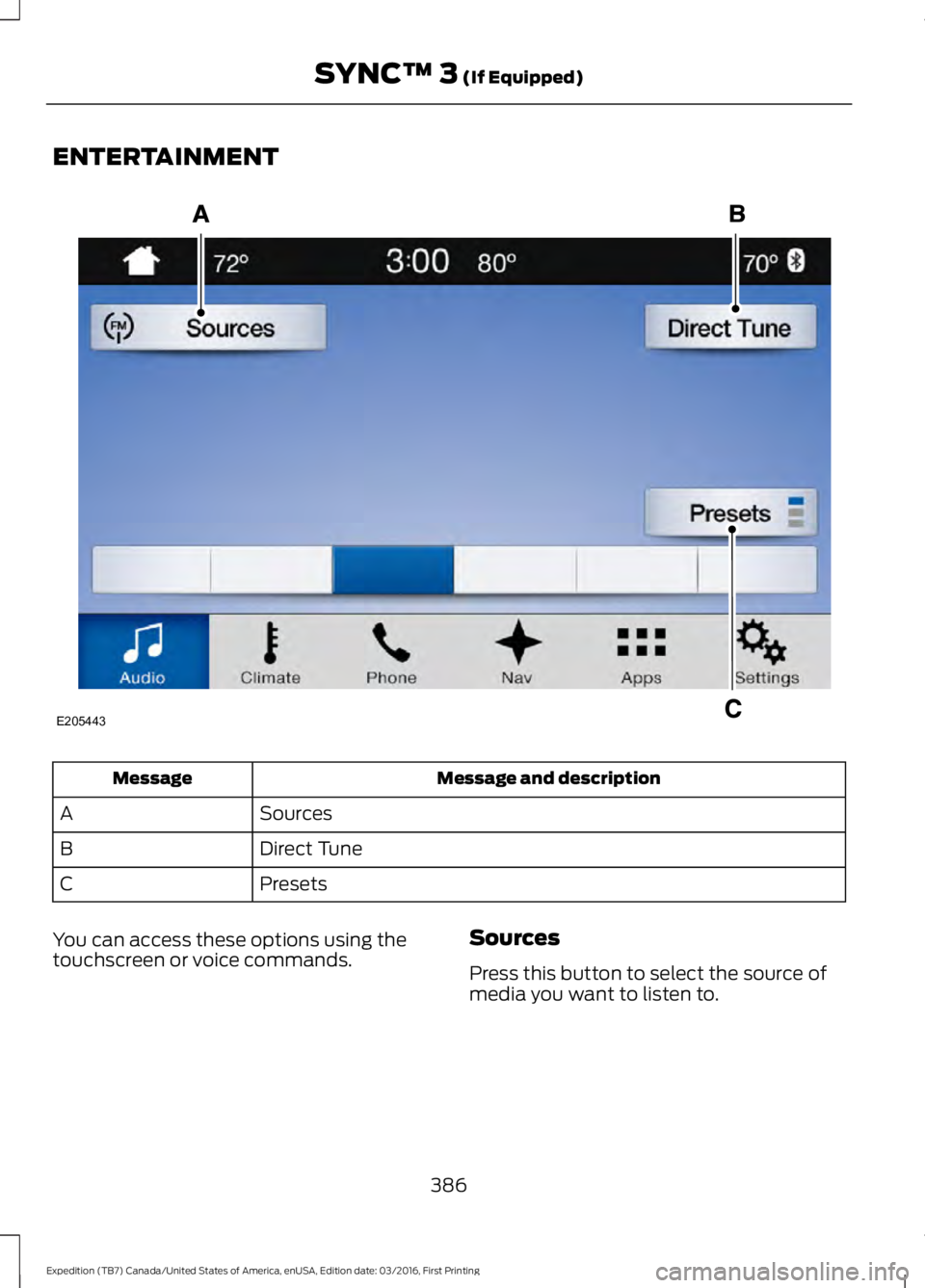
ENTERTAINMENT
Message and descriptionMessage
SourcesA
Direct TuneB
PresetsC
You can access these options using thetouchscreen or voice commands.Sources
Press this button to select the source ofmedia you want to listen to.
386
Expedition (TB7) Canada/United States of America, enUSA, Edition date: 03/2016, First Printing
SYNC™ 3 (If Equipped)E205443