Page 754 of 828
Media SourcesUsers can select content for each screen from the radio by
choosing desired content from drop down menu.
NOTE:Use the “View Screen” function to pull content
from one screen to the other in a single press of a button.
Doing this however will disable and gray out certain
player controls on the screen viewing the other screen’s
content.
Media Sources
1 – Available Sources Screen 1
2 – USB Source Playing Screen 2 752 MULTIMEDIA
Page 757 of 828
Uconnect Theater Home Screen And Controls
You can choose sources such as HDMI, USB, Apps, or
Blu-ray. You may also view content of the opposite screen
in one step by choosing the “View Screen” source card.
Uconnect Theater Home Screen
1 — Search Button (Media
Search)
2 — Power Button
3 — Settings Button
4 — Toggle Button List and
Icon View5 — Source Card Page Indica-
tor1or2
6 — Wired Headphone Volume
7 — Climate Control Button
8 — Home Button
9 — Source Cards
Source Card Selection
10
MULTIMEDIA 755
Page 758 of 828

NOTE:
•Source card order can be changed by pressing the
Settings button on the touchscreen and scrolling down
to �Source Card Order�.
• Use the “View Screen” function to pull content from
one screen to the other. Doing this however will
disable and gray out certain player controls.
General Settings
To change source card order, select “Source Card Reor-
der”, then press and hold source card on the touchscreen,
and drag and drop in desired order.
You can also adjust the following below and more.
• Brightness
• Media port lighting on and off
• Clock on and off NOTE:
System information can also be displayed under
General Settings.
Remote Settings
Under this setting, you can access the following:
• Manage Remotes
• Remote sensitivity (This adjusts the speed and sensi-
tivity of cursor on screen when using gesture pad)
Play A DVD/Blu-ray Or USB Media File From
Uconnect Radio
1. Insert a Blu-ray disc or DVD disc into the disc player with the label facing up. Or insert a USB drive into
rear Video USB port.
NOTE: The DVD/Blu-ray Disc player is located under
the radio controls in the instrument panel.
756 MULTIMEDIA
Page 759 of 828
2. Press the “Uconnect Theater” button on the touch-screen. Refer to “Accessing The System From The
Uconnect Radio” in this section for further informa-
tion.
3. Select Disc or USB from the source controls on the desired screen (1 or 2).
NOTE: To play a DVD/Blu-ray disc on both screens
simultaneously, select disc from both screen drop downs.
4. Press “Play” button on the touchscreen.
DVD Blu-ray Disc Player
1 — Disc Player (Rear)
2 — Rear Video USB Port
10
MULTIMEDIA 757
Page 765 of 828
Using The Rear Video USB Port
Plug in a jump drive, iPhone, iPod or mass storage device
and play your favorite music or movies.NOTE:
To view USB media on the rear theater screens,
insert a USB jump drive into the port on the DVD/Blu-
ray disc player. The USB jump drive port is located under
the radio controls in the instrument panel.
Use the search feature to find your music faster.
Rear Video USB Port
Search Screen
10
MULTIMEDIA 763
Page 766 of 828
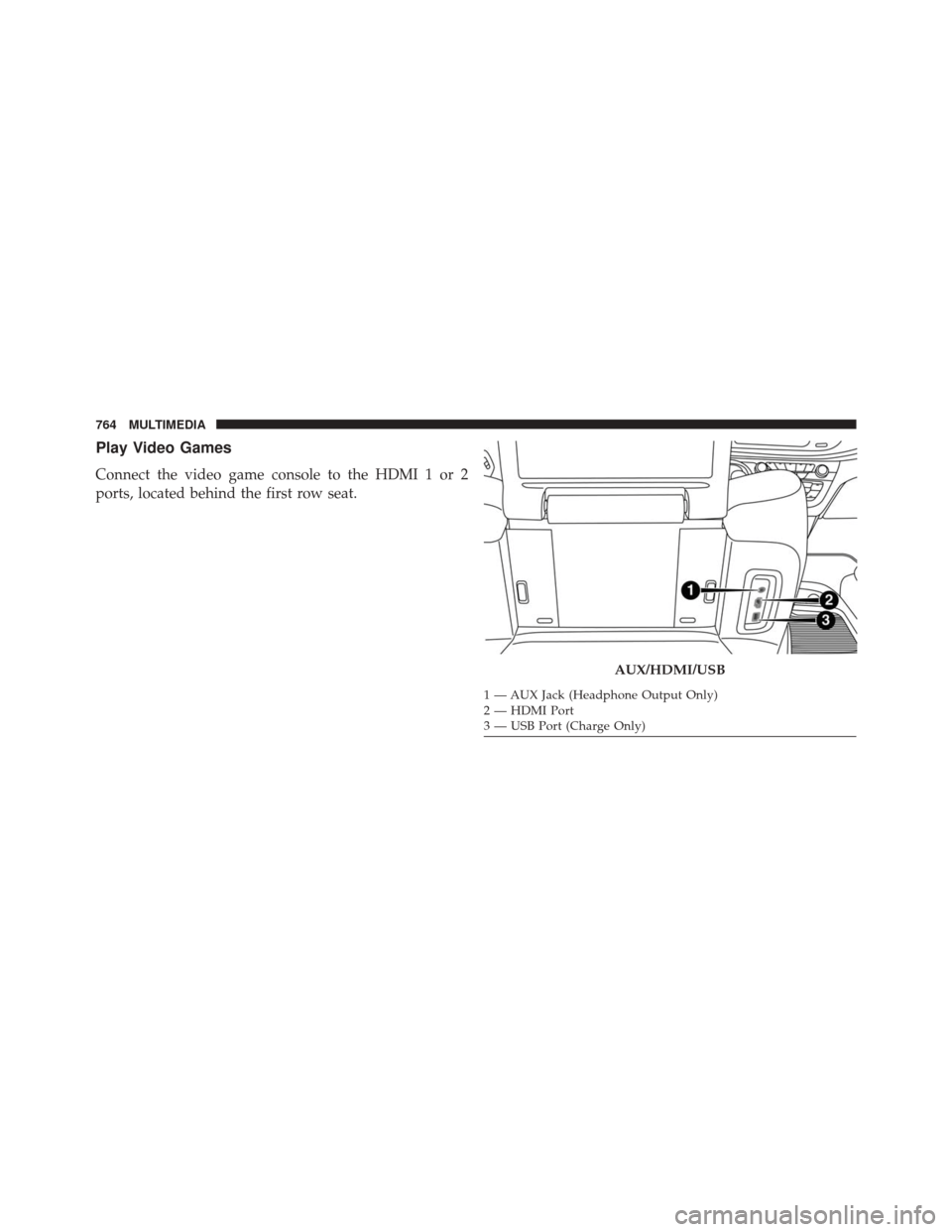
Play Video Games
Connect the video game console to the HDMI 1 or 2
ports, located behind the first row seat.
AUX/HDMI/USB
1 — AUX Jack (Headphone Output Only)
2 — HDMI Port
3 — USB Port (Charge Only)
764 MULTIMEDIA
Page 780 of 828
Media
Uconnect offers connections via USB, SD, Bluetooth and
auxiliary ports (If Equipped). Voice operation is only
available for connected USB and AUX devices. (Remote
CD player optional and not available on all vehicles.)
Push the VR button
. After the beep, say one of the
following commands and follow the prompts to
switch your media source or choose an artist.
• Change source to Bluetooth
• Change source to AUX
• Change source to USB
• Play artist Beethoven; Play album Greatest Hits; Play
song Moonlight Sonata; Play genreClassical TIP:
Press the “Browse” button on the touchscreen to see
all of the music on your AUX or USB device. Your Voice
Command must match exactlyhow the artist, album,
song and genre information is displayed.
Uconnect 5.0 Media
778 MULTIMEDIA
Page 816 of 828

Interior Appearance Care....................670
Interior Fuses ........................... .558
Interior Lights ............................117
Intermittent Wipers (Delay Wipers) .............121
Introduction ..............................4
Inverter, Power .......................... .197
iPod/USB/MP3 Control ....................743
Jack Location ........................... .560
Jack Operation ....................... .559, 639
Jump Starting ........................... .595
KeyFob.................................19 Arm The Alarm .........................38
Disarm The Alarm .......................39
Remote Battery Replacement ................26
Keyless Enter-N-Go Lock The Vehicle’s Doors ..................734
Passive Entry Programming ................734Keys
...................................19
Lane Change Assist ........................115
LaneSense ............................. .487
Lap/Shoulder Belts ....................... .306
Latches ............................... .378
Lead Free Gasoline ....................... .677
Leaks, Fluid ............................ .378
Life Of Tires ............................ .655
Liftgate ............................... .160
Light Bulbs ......................... .377, 543
Light Replacement ....................... .543
Lights ................................ .377
AirBag........................231, 342, 375
Automatic Headlights ....................111
Battery Saver ..........................116
Brake Assist Warning ....................274
Brake Warning ........................ .233
Bulb Replacement ....................537, 543
814 INDEX
Page:
< prev 1-8 9-16 17-24