Page 694 of 828

▫Media Sources ....................... .752
▫ Uconnect Theater Remote Control ..........753
▫ Uconnect Theater Home Screen And
Controls ........................... .755
▫ Play A DVD/Blu-ray Or USB Media File From
Uconnect Radio ...................... .756
▫ Blu-ray Controls – Disc Specific Functions . . . .759
▫ Uconnect Theater Apps .................760
▫ Using The Rear Video USB Port ...........763
▫ Play Video Games .....................764
▫ Headphones Operation .................765
▫ Disc Menu ......................... .768
▫ Listening To Audio With The Screen Closed . . .769
▫ Rear Climate Controls ..................769 ▫
General Information ....................770
� RADIO OPERATION AND MOBILE PHONES . .770
▫ Regulatory And Safety Information .........770
� UCONNECT VOICE RECOGNITION QUICK
TIPS ............................... .772
▫ Introducing Uconnect ...................772
▫ Get Started ......................... .773
▫ Basic Voice Commands ..................775
▫ Radio ............................. .776
▫ Media ............................. .778
▫ Phone ............................. .779
▫ Voice Text Reply ..................... .781
▫ Climate ............................ .783
692 MULTIMEDIA
Page 744 of 828
System Information
After pressing the “System Information” button on the
touchscreen the following information will be available:
•System Information
When System Information is selected, a System Informa-
tion screen will appear displaying the system software
version.
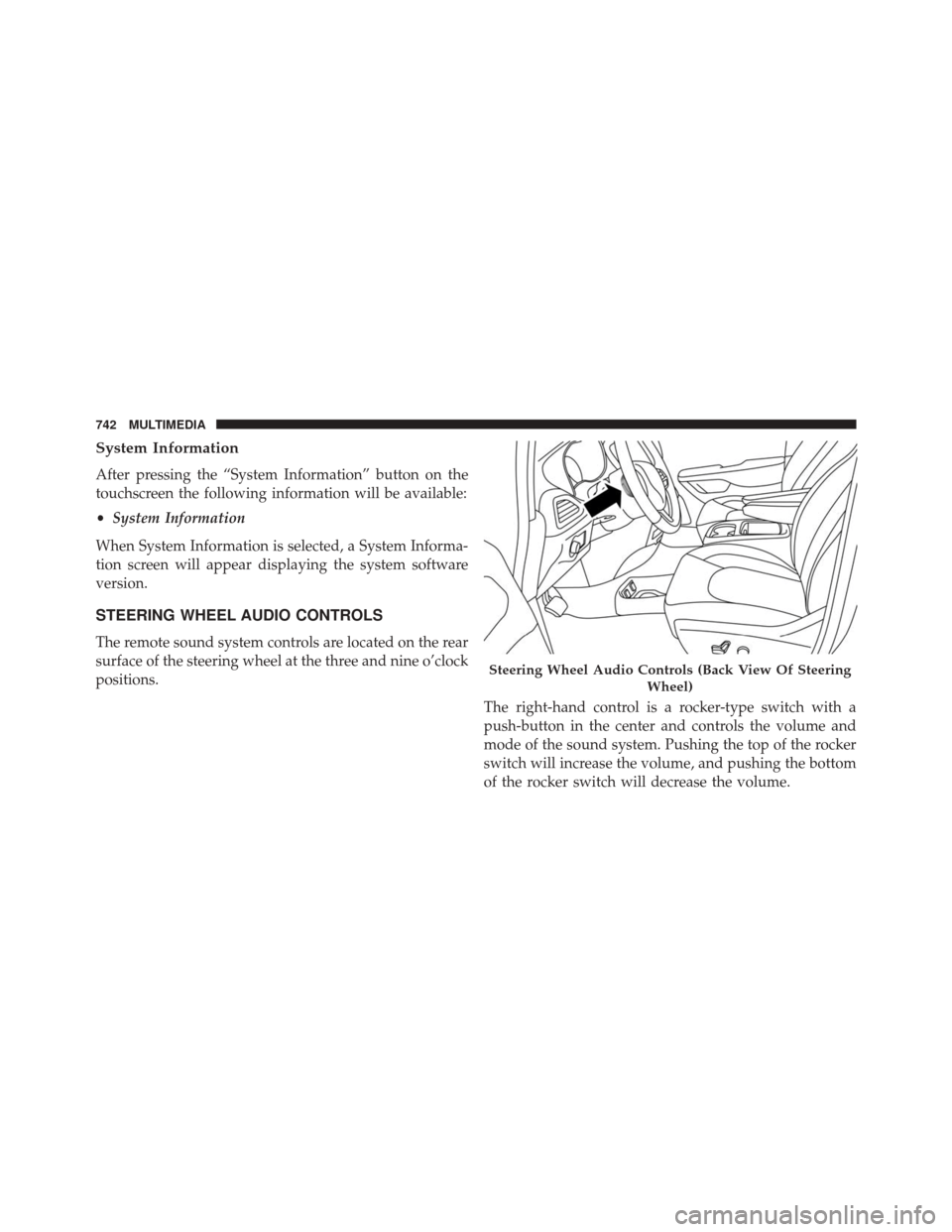
STEERING WHEEL AUDIO CONTROLS
The remote sound system controls are located on the rear
surface of the steering wheel at the three and nine o’clock
positions. The right-hand control is a rocker-type switch with a
push-button in the center and controls the volume and
mode of the sound system. Pushing the top of the rocker
switch will increase the volume, and pushing the bottom
of the rocker switch will decrease the volume.
Steering Wheel Audio Controls (Back View Of SteeringWheel)
742 MULTIMEDIA
Page 748 of 828
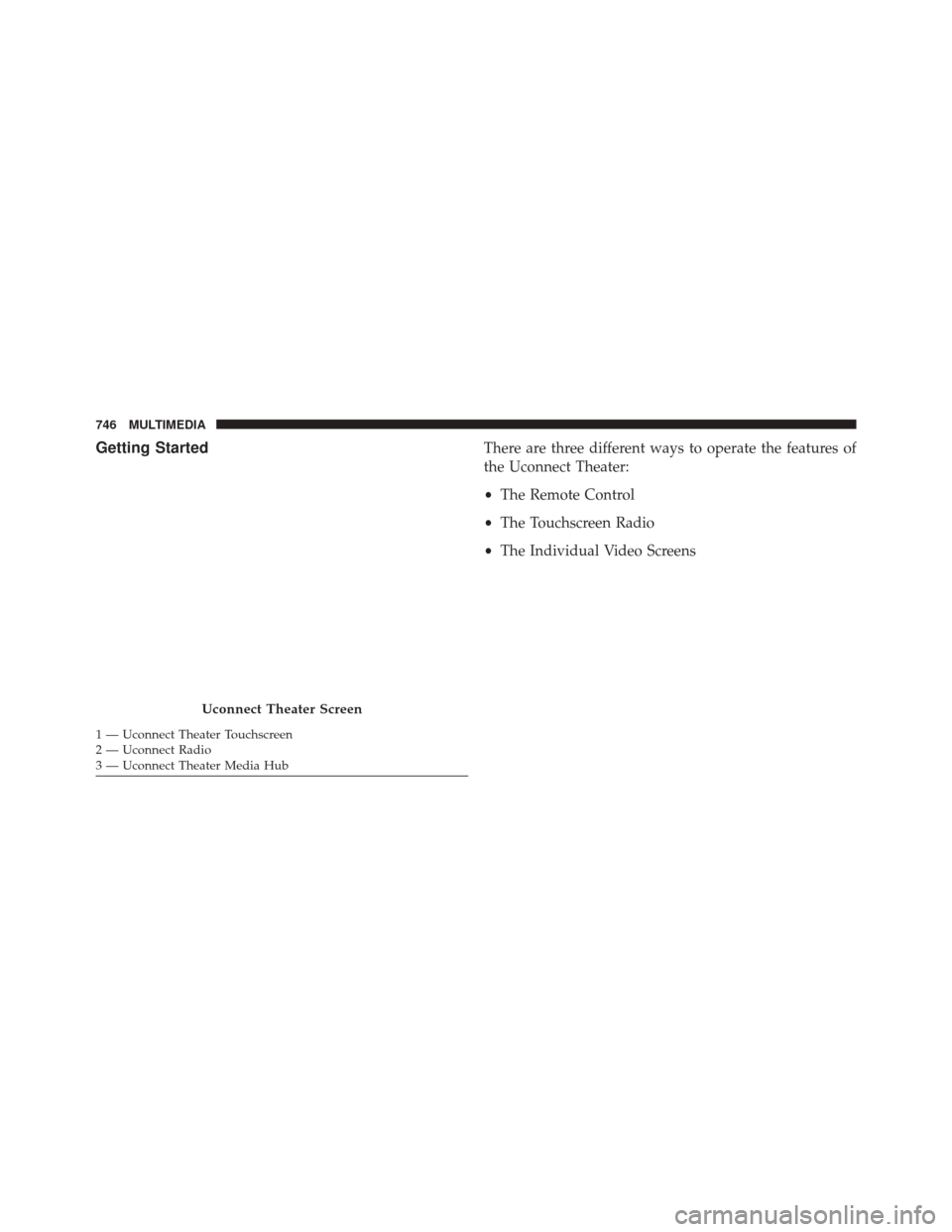
Getting StartedThere are three different ways to operate the features of
the Uconnect Theater:
•The Remote Control
• The Touchscreen Radio
• The Individual Video Screens
Uconnect Theater Screen
1 — Uconnect Theater Touchscreen
2 — Uconnect Radio
3 — Uconnect Theater Media Hub 746 MULTIMEDIA
Page 752 of 828
NOTE:
•There will be a touchscreen notification message when
pairing is successful. Repeat the above steps to pair the
second remote.
• If remote is ever non-operational, try pairing remote.
When watching a video source, pushing “Settings”
icon on the touchscreen activates the Settings
menu. These settings control the appearance of the
video on the screen. The factory default settings are
already set for optimum viewing, so there is no need
to change these settings under normal circumstances.
To change the settings, use one of the touchscreens. To
reset all values back to the original settings, select the
“Reset to Defaults” then select “YES.”
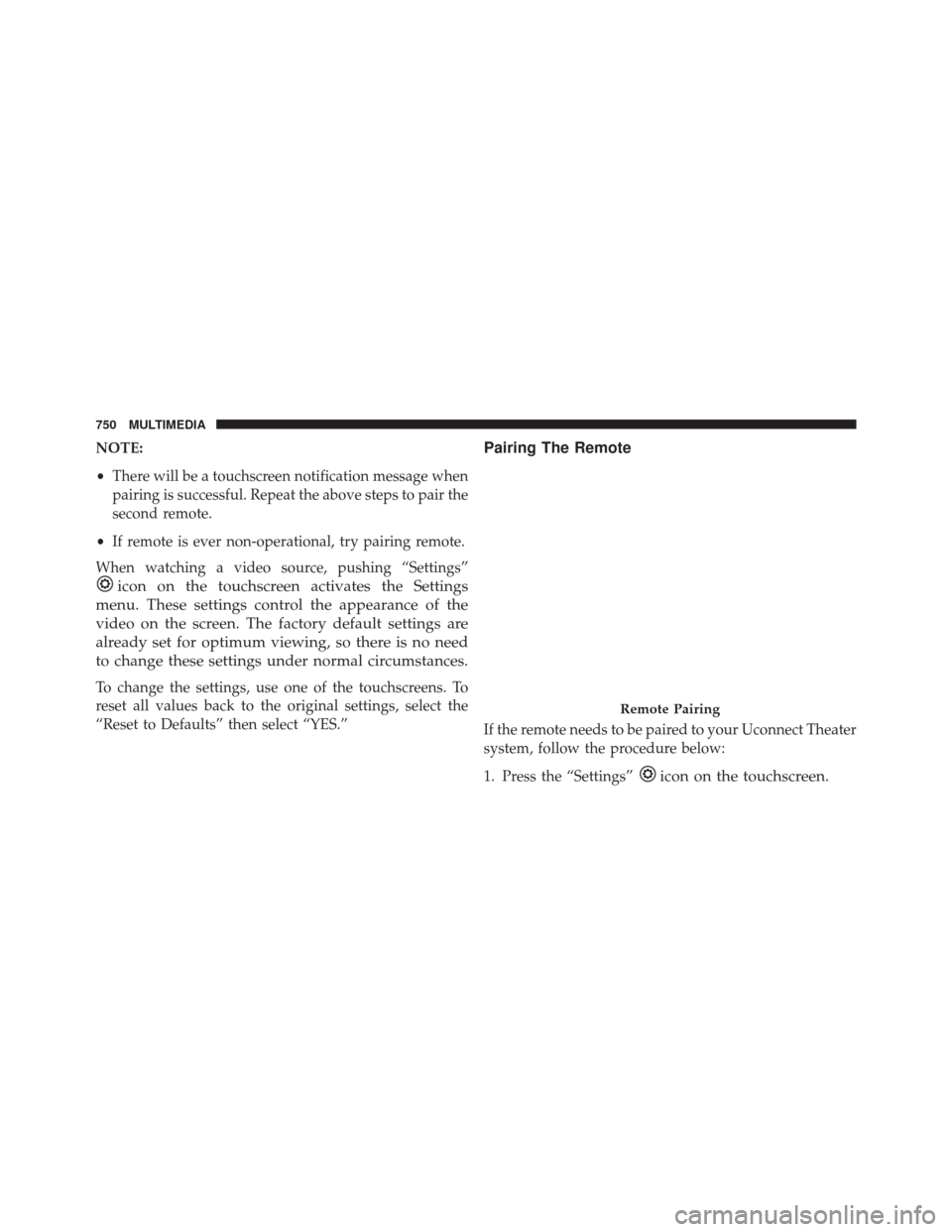
Pairing The Remote
If the remote needs to be paired to your Uconnect Theater
system, follow the procedure below:
1. Press the “Settings”
icon on the touchscreen.
Remote Pairing
750 MULTIMEDIA
Page 753 of 828

2. Press the “Remote” button on the touchscreen in thesettings menu.
3. Select “Pair Remote” and follow the on screen instruc- tions to complete the pairing process.
NOTE:
• There will be a touchscreen notification message when
pairing is successful/unsuccessful. Repeat the above
steps to pair the second remote.
• If remote is ever non-operational, try pairing remote.
• The system can accommodate up to 10 paired remote
controls.
Unpairing The Remote
In events such as updating the Uconnect Theater soft-
ware, or taking a remote to another vehicle, the remote will need to be unpaired from your Uconnect Theater
system. To unpair the remote, follow the procedure
below:
1. Select “Manage Remote Controls” from the Remote
section of �Settings and follow the on screen instruc-
tions to complete the unpairing process.
2. Push and hold the “Screen”, “Down Arrow”, and “Play/Pause” buttons for 5 seconds, or until the
remote screen indicator light flashes.
3. Once complete, the remote will be ready to pair again.
NOTE: There will be a touchscreen notification message
when unpairing is successful. Repeat the above steps to
unpair a second remote.10
MULTIMEDIA 751
Page 755 of 828
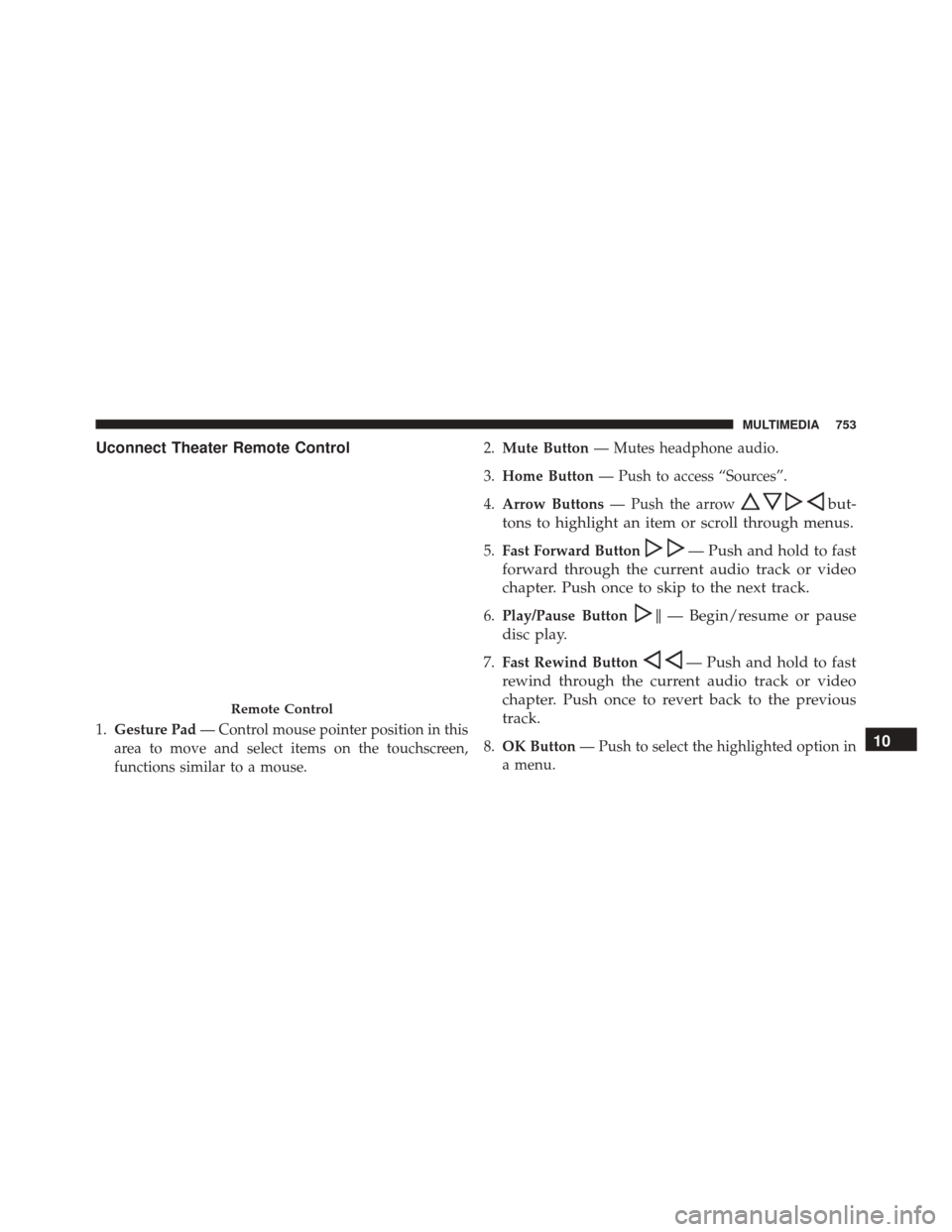
Uconnect Theater Remote Control
1.Gesture Pad — Control mouse pointer position in this
area to move and select items on the touchscreen,
functions similar to a mouse. 2.
Mute Button — Mutes headphone audio.
3. Home Button — Push to access “Sources”.
4. Arrow Buttons — Push the arrow
but-
tons to highlight an item or scroll through menus.
5. Fast Forward Button— Push and hold to fast
forward through the current audio track or video
chapter. Push once to skip to the next track.
6. Play/Pause Button�— Begin/resume or pause
disc play.
7. Fast Rewind Button— Push and hold to fast
rewind through the current audio track or video
chapter. Push once to revert back to the previous
track.
8. OK Button — Push to select the highlighted option in
a menu.
Remote Control
10
MULTIMEDIA 753
Page 756 of 828

9.Screen Selector Button — Push the screen selector to
toggle between screen 1 (Driver Side), or screen 2
(Passenger Side).
10. Back Button — Push to exit out of menus or return to
previous screen.
11 . Power Button — Turns the screen and wireless
headphone transmitter for the selected Channel on or
off.
12. Screen Indicator — Indicates which screen (1 or 2) is
being controlled by the remote control when a button
is pushed.
Replacing The Remote Control Batteries
Each remote control requires two AAA batteries for
operation. NOTE:
Perchlorate Material — special handling may
apply. Visit dtsc.ca.gov/hazardouswaste/perchlorate
To replace the batteries:
1. Locate the battery compartment on the back of the remote, then slide the battery cover downward.
2. Remove the old batteries and follow battery recycling procedures for your area.
3. Install new batteries, making sure to orient them according to the polarity diagram shown inside the
battery compartment.
4. Replace the battery compartment cover.
754 MULTIMEDIA
Page 758 of 828

NOTE:
•Source card order can be changed by pressing the
Settings button on the touchscreen and scrolling down
to �Source Card Order�.
• Use the “View Screen” function to pull content from
one screen to the other. Doing this however will
disable and gray out certain player controls.
General Settings
To change source card order, select “Source Card Reor-
der”, then press and hold source card on the touchscreen,
and drag and drop in desired order.
You can also adjust the following below and more.
• Brightness
• Media port lighting on and off
• Clock on and off NOTE:
System information can also be displayed under
General Settings.
Remote Settings
Under this setting, you can access the following:
• Manage Remotes
• Remote sensitivity (This adjusts the speed and sensi-
tivity of cursor on screen when using gesture pad)
Play A DVD/Blu-ray Or USB Media File From
Uconnect Radio
1. Insert a Blu-ray disc or DVD disc into the disc player with the label facing up. Or insert a USB drive into
rear Video USB port.
NOTE: The DVD/Blu-ray Disc player is located under
the radio controls in the instrument panel.
756 MULTIMEDIA