2017 CHEVROLET SS light
[x] Cancel search: lightPage 153 of 400

Chevrolet SS Sedan Owner Manual (GMNA-Localizing-U.S.-10122752) -2017 - crc - 8/31/16
152 Infotainment System
Switching Between Pandora andStitcher
To s w i t c h b e t w e e n P a n d o r a a n dStitcher, touch the application iconon the iPhone, iPod touch, or iPad.This is not required for Androiddevices. SeeStitcher Internet Radio0153.
Pandora Troubleshooting
Unable to Connect Device toVehicle
If the device is unable to connect tothe USB or Bluetooth:
1. Turn the vehicle off.
2. Open and close the driver door,wait about 30 seconds, and tryto connect the device again.
Unable to Start Pandora
If the device is unable to launchPandora:
.Check that the latest version ofPandora is installed.
.Check that there is an activeaccount logged into Pandora.
.Have at least one stationcreated.
.For Android and BlackBerrydevices, check that the device ispaired with the vehicle, and theBluetooth icon on the display ishighlighted.
.For iPhone, iPod touch, or iPaddevices, check that the USBcable is connected to the USBport and the screen is unlocked.
.Close Pandora on the deviceand launch again. Devices thatallow multitasking may requirean extra step to quit the Pandoraapplication. See the cell phonemanufacturer's user guide.
Thumbs Up or Thumbs DownError
If there is an error trying to rate a
track with the,or-icons, the
message“Thumbs Down Error”or“Thumbs Up Error”will display.To u c h O K t o r e t r y.
Loss of Audio
Loss of Pandora audio can happenin different ways:
.Weak or lost data connection.
.Device needs to be charged.
.Application needs to berelaunched.
.Connection between phone andradio lost.
.If any iPhone, iPod touch,or iPad is connected toBluetooth and the dockconnector, go to the Airplay iconon the device and select dockconnector or disconnect andreconnect the dock connector onthe device.
.The volume is too low. Turn upthe volume on the device.
.The battery saver and taskmanager applications on thephone can cause Pandora tofunction incorrectly. Removethose apps from the phone orremove Pandora and Bluetoothfrom the task lists.
Page 155 of 400

Chevrolet SS Sedan Owner Manual (GMNA-Localizing-U.S.-10122752) -2017 - crc - 8/31/16
154 Infotainment System
pop-up displays if the latestapplication is installed on thedevice.
Using the iPhone, iPod touch,or iPad
1. Plug the device into the USBport. The phone screen mustbe unlocked.
2. Use one of the following tolaunch:
.To u c h t h e a p p l i c a t i o n o nthe device.
.To u c h t h e S t i t c h e r i c o n o nthe Home Page.
.Pressb/gand say
“Stitcher”or“Tune Stitcher.”
.Accept any notification onthe screen of the device.
3. If Stitcher does not beginplaying, select a category andthen a station.
After Stitcher has been launched,press SRCE on the center stack orpress SRC on the steering wheelcontrols to access Stitcher features.
If nothing happens when theavailable Stitcher icon is touched,download the latest Stitcherapplication and retry.
Stitcher will always be highlightedon the Home Page when an iPhone,iPad, or iPod touch is connectedusing the USB port. To use, log intoyour account.
If the“Please See Device”messageis shown, the login screen maydisplay on the device.
If the "Please unlock your phone orrestart the app" message is shown,then the phone may be locked.Unlock the phone, close the app,then restart the app to make surethe Home Page is visible on thephone/device.
Using an Android Phone
1. Pair the Android phone usingBluetooth.
2. Use one of the following tolaunch:
.To u c h t h e a p p l i c a t i o n o nthe device.
.To u c h t h e S t i t c h e r i c o n o nthe Home Page.
.Pressb/gand say
“Stitcher”or“Tune Stitcher.”
3. If Stitcher does not beginplaying, select a category andthen a station.
After Stitcher has been launched,press SRCE on the center stack orpress SRC on the steering wheelcontrols to access Stitcher features.
If nothing happens when theavailable Stitcher icon is touched,download the latest Stitcherapplication and retry.
If the“Please See Device”messageis shown, the login screen maydisplay on the device.
If the“Please unlock your phone orrestart the app”message is shown,then the phone may be locked.Unlock the phone, close the app,then restart the app to ensureproper communication.
Page 156 of 400

Chevrolet SS Sedan Owner Manual (GMNA-Localizing-U.S.-10122752) -2017 - crc - 8/31/16
Infotainment System 155
Stitcher Menus
To u c h M e n u o n t h e S t i t c h e rmain page.
Stitcher has a menu system with thefollowing:
My On Demand Stations :Displaysalistoffavoritestationsandshows.
Select and store programs asfavorites on the device. Favoritestation lists can be created toinclude favorite shows which can beaccessed through My On DemandStations.
Stitcher Station Categories :Displays categories by topic.
When a category then sub-categoryis selected, the radio will startplaying the first program in thatsub-category.
Turn the TUNE/MENU knob todisplay the first 24 stations of thatsub-category.
Current Station Playlist :Whilelistening to a show, turn the TUNE/MENU knob to display the menu listof shows available for the currentstation.
Stitcher Features
Stitcher service has features to rateor skip shows, or change stations.
q:When touched, the currentshow is added to the favoritesstation.
,:When touched, Stitcherchanges to the next show. Thishelps Stitcher provide apersonalized listening experience.
-:When touched, Stitcher stores
this information and-is
highlighted for the remainder of theshow. This helps Stitcher provide apersonalized listening experience.
l:When touched, Stitcherchanges to the next show.
J:To u c h o n t h e i n f o t a i n m e n tdisplay to pause playback. Pressagain to resume.
Stitcher Advertisement
Stitcher may displayadvertisements. Artist name and titlemay not display and the skip trackoption is not available.
Stitcher Troubleshooting
Unable to Connect Device toVehicle
If the device is unable to connect tothe USB or Bluetooth:
1. Turn the vehicle off.
2. Open and close the driver door,wait about 30 seconds, and tryto connect the device again.
Page 157 of 400

Chevrolet SS Sedan Owner Manual (GMNA-Localizing-U.S.-10122752) -2017 - crc - 8/31/16
156 Infotainment System
The battery saver and task managerapplications on the phone cancause Stitcher to functionincorrectly. Remove those appsfrom the phone or remove Stitcherand Bluetooth from the task lists.
Unable to Start Stitcher
If the device is unable to launchStitcher:
.Check that the latest version ofStitcher is installed.
.Check that there is an activeaccount logged into Stitcher.
.For Android devices, check thatthe device is paired with thevehicle, and the Bluetooth iconon the display is highlighted.
.For iPhone, iPod touch, or iPaddevices, check that the USBcable is connected to the USBport and the screen is unlockedand the Home Page is showing.
.Close Stitcher on the device andlaunch again. Devices that allowmultitasking may require an
extra step to quit the Stitcherapplication. See the cell phonemanufacturer's user guide.
Loss of Audio
Loss of Stitcher audio can happendue to:
.Weak or lost data connection.
.Device needs to be charged.
.Application needs to berelaunched.
.Connection between phone andradio is lost.
.If any iPhone, iPod touch,or iPad is connected toBluetooth and the dockconnector, go to the Airplay iconon the device and select dockconnector or disconnect andreconnect the dock connector onthe device.
.The volume is too low. Turn upthe volume on the device.
If the connection is lost between theapplication and device, a message“Please unlock your phone or restartthe phone app and try again”willdisplay. Touch OK to retry.
If touching OK does not clear theissue, see“Please Unlock YourPhone or Restart Phone App andTry Again”under“Common StitcherMessages”following.
Common Stitcher Messages
Please Try Again Later :Ageneralerror has occurred. A dataconnection may be unavailable dueto a weak or lost signal or theStitcher service being temporarilydown. Touch OK to continue.
Paused or Audio Paused :Playback is paused on the radio or
the device. TouchJor play on the
device.
Please See Device :When the useris not logged in or whenauthentication failed, see thedevice. Touch OK to continue.Disconnect the phone from the radioand follow the Stitcher account loginprocess on the phone.
No Stations Found :Logged in butno stations have been created.To u c h O K t o c o n t i n u e .
Page 167 of 400
Chevrolet SS Sedan Owner Manual (GMNA-Localizing-U.S.-10122752) -2017 - crc - 8/31/16
166 Infotainment System
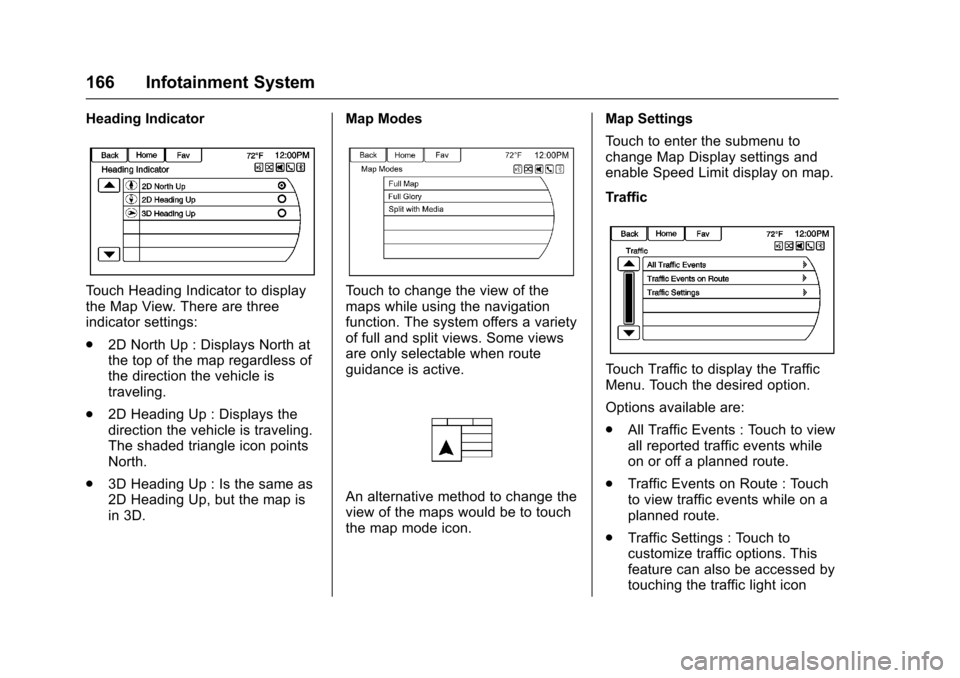
Heading Indicator
To u c h H e a d i n g I n d i c a t o r t o d i s p l a ythe Map View. There are threeindicator settings:
.2D North Up : Displays North atthe top of the map regardless ofthe direction the vehicle istraveling.
.2D Heading Up : Displays thedirection the vehicle is traveling.The shaded triangle icon pointsNorth.
.3D Heading Up : Is the same as2D Heading Up, but the map isin 3D.
Map Modes
To u c h t o c h a n g e t h e v i e w o f t h emaps while using the navigationfunction. The system offers a varietyof full and split views. Some viewsare only selectable when routeguidance is active.
An alternative method to change theview of the maps would be to touchthe map mode icon.
Map Settings
To u c h t o e n t e r t h e s u b m e n u t ochange Map Display settings andenable Speed Limit display on map.
Traffic
To u c h T r a f f i c t o d i s p l a y t h e T r a f f i cMenu. Touch the desired option.
Options available are:
.All Traffic Events : Touch to viewall reported traffic events whileon or off a planned route.
.Traffic Events on Route : Touchto view traffic events while on aplanned route.
.Traffic Settings : Touch tocustomize traffic options. Thisfeature can also be accessed bytouching the traffic light icon
Page 172 of 400

Chevrolet SS Sedan Owner Manual (GMNA-Localizing-U.S.-10122752) -2017 - crc - 8/31/16
Infotainment System 171
Destination
If route guidance is not active, touchthe Destination icon on the HomePage to access the DestinationEntry menu. Several options can beselected to plan a route by enteringdestinations. Some destinationentry items such as PreviousDestinations, Address Book, and MyHome may be grayed out if nodestination was previously enteredor saved.
Letters of the alphabet, symbols,punctuation, and numbers, whenavailable, display on the navigationdisplay as alpha/numeric keyboards.The alpha keyboard appears whendata needs to be entered.
QWERTY or ABC :To u c h t o t o g g l ebetween QWERTY or ABCkeyboard character layouts.
Symbols or ÄÖ :Use to selectsymbols.
Space :Use to enter a spacebetween characters or the words ofaname.
Delete :To u c h t o d e l e t e a nincorrect character that has beenselected.
Last 5 :To u c h t o s e l e c t a n y o f t h elast five cities or street namesentered if available.
Address Entry
To u c h t h e A d d r e s s i c o n t o a c c e s sthe Enter Address display. Set aroute by entering the state name,city name, street name, housenumber, and intersection.
If no state or province has beenentered previously, the city andstate fields are not available. Touchthe display at the right of the cityname to select a state or province.
If the state or province waspreviously set and is displayed,touch the display at the right of thecity name to change the selectedstate or province.
To m a k e n a m e s e l e c t i o n e a s i e r , t h esystem highlights only charactersthat are available after thepreviously entered one.
State :Enter a state name.
City :Enter a city name.
Street :Enter a street name.
Page 181 of 400

Chevrolet SS Sedan Owner Manual (GMNA-Localizing-U.S.-10122752) -2017 - crc - 8/31/16
180 Infotainment System
Waypoints
Up to three waypoints can be addedto the current route. The waypointscan be sorted (moved) or deleted.
To a d d a w a y p o i n t :
1. From the Destination Listmenu, touch Add Waypoint.
2. Enter the waypoint by any ofthe add destination methods.The system calculates andhighlights the route and theroute can be started.
3. To add more waypoints, touchAdd Waypoint to add thewaypoint in the order desiredon the route.
To d e l e t e a w a y p o i n t :
1. From the Route menu, touchWaypoint List.
2. Touch Delete Waypoints.
3. Select the waypoints to bedeleted. Touch Delete.
The Sort Waypoint feature allowsreorganization of the destination list.
To s o r t a w a y p o i n t :
1. From the Route menu, touchWaypoint List.
2. Touch Sort Waypoints.
3. Select the waypoint to move.
4. Select the location to move thewaypoint to.
Instead of deleting individualwaypoints, select Delete AllWaypoints to delete all waypoints atthe same time.
To s a v e a d e s t i n a t i o n l i s t a s afavorite route, select Save asFavorite.
OnStar®Destination
Download
The destination download lets anOnStar®subscriber ask an OnStarAdvisor to download a destination tothe navigation system. OnStar willsend address information andlocation coordinates of thedestination into the navigationsystem.
Using Destination Download
The navigation radio display mustbe turned on before a download.
The navigation system displays“Please wait”as the address issearched within the map database.
Page 187 of 400

Chevrolet SS Sedan Owner Manual (GMNA-Localizing-U.S.-10122752) -2017 - crc - 8/31/16
186 Infotainment System
To u c h t o d e l e t e a l l s a v e ddestinations. A Delete SavedDestinations submenu displays.Select the desired options fordeletion and touch Delete at thebottom to continue. A confirmationdisplays requesting to delete orcancel.
Guidance Alerts
To u c h t o e n a b l e t h e g u i d a n c e a l e r tpop-up to be viewed on the map oron the main displays such as audio,weather, phone, etc. A checkmarkappears to indicate the guidancealert mode is on.
Vehicle Settings
SeeVehicle Personalization0120.
Display Settings
To u c h t h e C o n f i g i c o n o n t h e H o m ePage or press CONFIG on thecenter stack, then select DisplaySettings from the list.
The following options may display:
Select icons for Home Page :To u c h t o c u s t o m i z e t h e f i r s t p a g e o fthe Home Page.
Display Off :To u c h t o t u r n o f f t h edisplay. The display will return whenany radio icons are touched or theinfotainment display is touched (ifequipped).
Map Settings :To u c h t o e n t e r t h esubmenu to change Map Displaysettings and enable Speed Limitdisplay on map.
While in Map Settings, touch MapDisplay to change the displaybackground.
Map Display :To u c h t o c h a n g e t h edisplay background.
To c h a n g e t h e o v e r a l l b r i g h t n e s ssetting for the display, use thevehicle interior lighting instrumentpanel illumination control.
Global Positioning
System (GPS)
The position of the vehicle isdetermined by using satellitesignals, various vehicle signals, andmap data.
At times, other interference such asthe satellite condition, roadconfiguration, condition of thevehicle, and/or other circumstancescan affect the navigation system'sability to determine the accurateposition of the vehicle.
The GPS shows the current positionof the vehicle using signals sent bythe GPS Satellites. When thevehicle is not receiving signals from