2017 CHEVROLET EXPRESS CARGO VAN audio
[x] Cancel search: audioPage 136 of 346
Chevrolet Express Owner Manual (GMNA-Localizing-U.S./Canada/Mexico-9967827) - 2017 - crc - 5/2/16
Infotainment System 135
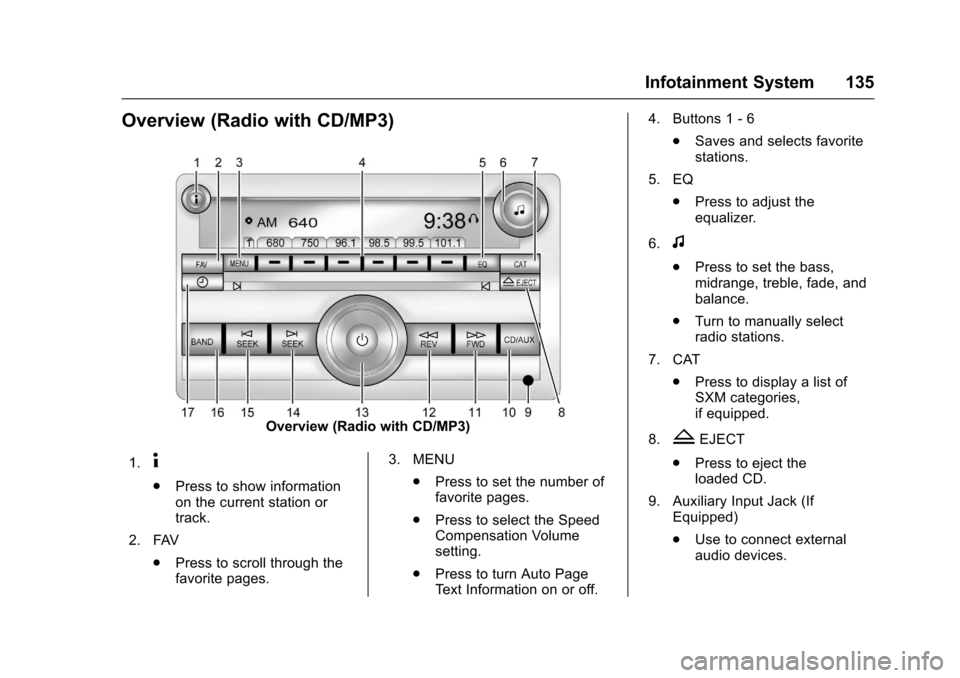
Overview (Radio with CD/MP3)
Overview (Radio with CD/MP3)
1.4
.Press to show informationon the current station ortrack.
2. FAV
.Press to scroll through thefavorite pages.
3. MENU
.Press to set the number offavorite pages.
.Press to select the SpeedCompensation Volumesetting.
.Press to turn Auto PageTe x t I n f o r m a t i o n o n o r o f f .
4. Buttons 1 - 6
.Saves and selects favoritestations.
5. EQ
.Press to adjust theequalizer.
6.f
.Press to set the bass,midrange, treble, fade, andbalance.
.Turn to manually selectradio stations.
7. CAT
.Press to display a list ofSXM categories,if equipped.
8.ZEJECT
.Press to eject theloaded CD.
9. Auxiliary Input Jack (IfEquipped)
.Use to connect externalaudio devices.
Page 138 of 346
Chevrolet Express Owner Manual (GMNA-Localizing-U.S./Canada/Mexico-9967827) - 2017 - crc - 5/2/16
Infotainment System 137
Setting the Tone (Bass/Treble)
To a d j u s t t h e b a s s o r t r e b l e :
1. Press thefknob until Bass or
Treble displays.
2. To adjust the setting, do one ofthe following:
.Turn thefknob.
.Press either¨SEEK,
or©SEEK.
EQ :Press this button to choosebass and treble equalizationsettings designed for different typesof music. Selecting MANUAL,or changing bass or treble, returnsthe EQ to the manual bass andtreble settings.
Unique EQ settings can be savedfor each source.
Adjusting the Speakers
(Balance/Fade)
BAL/FADE :To a d j u s t t h e b a l a n c eor fade:
1. Press thefknob until the
speaker control tabs display.
2. Highlight the desired speakercontrol tab by doing one of thefollowing:
.Press thefknob.
.Press the softkey under thedesired tab.
3. Adjust the setting by doing oneof the following:
.Turn thefknob clockwise
or counterclockwise.
.Press¨SEEK or©SEEK.
.Press\FWD orsREV.
To q u i c k l y a d j u s t a l l s p e a k e r a n dtone controls to the middle position,
press thefknob for more than
two seconds.
If the Rear Seat Audio (RSA) isturned on, the radio disables FADEand mutes the rear speakers.
Radio Messages
Calibration Error :The audiosystem has been calibrated for thevehicle from the factory.If Calibration Error displays, itmeans that the radio has not beenconfigured properly for the vehicleand it must be returned to yourdealer for service.
VIN or NO VIN :One of thesemessages will display when theTheftLock system has locked up theradio. Take the vehicle to yourdealer for service.
If any error occurs repeatedly or ifan error cannot be corrected,contact your dealer.
Page 142 of 346
Chevrolet Express Owner Manual (GMNA-Localizing-U.S./Canada/Mexico-9967827) - 2017 - crc - 5/2/16
Infotainment System 141
FM Stereo
FM stereo gives the best sound, butFM signals reach only about 16 to65 km (10 to 40 mi). Tall buildings orhills can interfere with FM signals,causing the sound to fade inand out.
Cellular Phone Usage
Cellular phone usage may causeinterference with the radio. Thisinterference may occur whenmaking or receiving phone calls,charging the phone's battery,or simply having the phone on. Thisinterference causes an increasedlevel of static while listening to theradio. If static is received whilelistening to the radio, unplug thecellular phone and turn it off.
Multi-Band Antenna
The multi-band antenna is on theroof of the vehicle. The antenna isused for the Navigation System,OnStar®and the SiriusXM®SatelliteRadio Service System if the vehiclehas these features. Tall buildings,hills, trees, heavy foliage, tunnels,bridges, and garages will affectreception. Keep the antenna clear ofobstructions for clear reception.Make sure there is sufficientclearance when entering garages orparking structures.
Audio Players
Avoiding Untrusted Media
Devices
When using media devices such asCDs, DVDs, Blu-Ray Discs®,SDcards, USB drives, and mobiledevices, consider the source.Untrusted media devices couldcontain files that affect systemoperation or performance. Avoid useif the content or origin cannot betrusted.
CD Player
Care of the CD Player
Do not add any label to a CD.It could get caught in the CD player.If a CD is recorded on a personalcomputer and a description label isneeded, try labeling the top of therecorded CD with a marking pen.
The use of CD lens cleaners is notadvised, due to the risk ofcontaminating the lens of the CDoptics with lubricants internal to theCD player mechanism.
Page 143 of 346
Chevrolet Express Owner Manual (GMNA-Localizing-U.S./Canada/Mexico-9967827) - 2017 - crc - 5/2/16
142 Infotainment System
Caution
If a label is added to a CD, more
than one CD is inserted into the
slot at a time, or an attempt is
made to play scratched or
damaged CDs, the CD player
could be damaged. While using
the CD player, use only CDs in
good condition without any label,
load one CD at a time, and keep
the CD player and the loading slot
free of foreign materials, liquids,
and debris.
If an error displays, see“CD PlayerMessages”later in this section.
Care of CDs
If playing a CD-R, the sound qualitycan be reduced due to CD-R orCD-RW quality, the method ofrecording, the quality of the musicthat has been recorded, and theway the CD-R or CD-RW has beenhandled. Handle them carefully.Store CD-Rs or CD-RWs in theiroriginal cases or other protectivecases and away from direct sunlight
and dust. The CD player scans thebottom surface of the disc. If thesurface of a CD is damaged, suchas cracked, broken, or scratched,the CD does not play properly or notat all. Do not touch the bottom sideof a CD while handling it; this coulddamage the surface. Pick up CDsby the outer edges or the edge ofthe hole and the outer edge.
If the surface of a CD is soiled,clean it with a soft, lint-free cloth ordampen a clean, soft cloth in a mild,neutral detergent solution mixedwith water. Make sure the wipingprocess starts from the center tothe edge.
Inserting a CD
Insert a CD partway into the slot,label side up. The player pulls it inand the CD should begin playing.
Ejecting a CD
ZEJECT :Press and release toeject the disc. Remove the CDwhen Remove Disc displays. If thedisc is not removed, after severalseconds the disc is automaticallypulled back into the player.
Playing a CD
If the ignition or radio is turned offwith a CD in the player, it stays inthe player. When the ignition orradio is turned on, the CD startsplaying where it stopped, if it wasthe last selected audio source.
When a CD is inserted, the CDsymbol displays on the left side ofthe radio display. As each new trackstarts to play, the track numberdisplays.
The CD player can play the smaller8cm (3in) single CDs with anadapter ring. Full-size CDs and thesmaller CDs are loaded in the samemanner.
CD/AUX :Press to cycle betweenCD or Auxiliary when listening to theradio. The CD icon and a messageshowing the disc and/or tracknumber will display when a CD is inthe player. Press again and thesystem automatically searches foran auxiliary input device; seeAuxiliary Devices0146.Ifaportable audio player is notconnected,“No Input Device Found”displays.
Page 144 of 346
Chevrolet Express Owner Manual (GMNA-Localizing-U.S./Canada/Mexico-9967827) - 2017 - crc - 5/2/16
Infotainment System 143
4:Press to display additional textinformation related to the currentsong. If information is available, thesong title information displays onthe top line of the display and artistinformation displays on the bottomline. When information is notavailable, NO INFO displays.
f:Turn to select tracks on the CDthat is currently playing.
©SEEK :Press to go to the start ofthe current track if more than10 seconds on the CD have played.
Press to go to the previous track ifless than 10 seconds on the CDhave played.
Press and hold, or press multipletimes, to continue moving backwardthrough the tracks on the CD.
¨SEEK :Press to go to the nexttrack.
Press and hold, or press multipletimes, to continue moving forwardthrough the tracks on the CD.
sREV :Press and hold to reverseplayback quickly within a track.
\FWD :Press and hold toadvance playback quickly within atrack.
RDM :For Radios with CD/MP3.Press to listen to tracks in random,rather than sequential order.
To u s e r a n d o m :
1. Press the softkey under theRDM tab until Random CurrentDisc displays.
2. Press the softkey again to turnoff random play.
MP3-Supported Files
Radios with CD/MP3 have thecapability of playing an MP3 CD-Ror CD-RW disc.
Format
Radios that have the capability ofplaying MP3s can play .mp3 or .wmafiles that were recorded onto aCD-R or CD-RW disc. The files canbe recorded with the following fixedbit rates: 32 kbps, 40 kbps, 56 kbps,64 kbps, 80 kbps, 96 kbps, 112 kbps,128 kbps, 160 kbps, 192 kbps,224 kbps, 256 kbps, and 320 kbps oravariablebitrate.
Compressed Audio or Mixed ModeDiscs
The radio can play discs thatcontain both uncompressed CDaudio and MP3 files. If both formatsare on the disc, the radio reads allMP3 files first, then theuncompressed CD audio files.
CD-R- or CD-RW-Supported Fileand Folder Structure
The radio supports:
.Up to 50 folders.
.Up to eight folders in depth.
.Up to 50 playlists.
.Up to 255 files.
.Playlists with an .m3u or .wplextension.
.Files with an .mp3, .wma, or .cdafile extension.
Root Directory
The root directory is treated as afolder. Files are stored in the rootdirectory when the disc or storagedevice does not contain folders.
Page 145 of 346
Chevrolet Express Owner Manual (GMNA-Localizing-U.S./Canada/Mexico-9967827) - 2017 - crc - 5/2/16
144 Infotainment System
Files accessed from the rootdirectory of a CD display asF1 ROOT.
Empty Folder
Folders that do not contain files areskipped, and the player advances tothe next folder that contains files.
Order of Play
Compressed audio files areaccessed in the following order:
.Playlists (Px).
.Files stored in the root directory.
.Files stored in folders in the rootdirectory.
Tracks are played in the followingorder:
.Play begins from the first track inthe first playlist and continuessequentially through all tracks ineach playlist. When the lasttrack of the last playlist hasplayed, play continues from thefirst track of the first playlist.
.Play begins from the first track inthe first folder and continuessequentially through all tracks in
each folder. When the last trackof the last folder has played,play continues from the firsttrack of the first folder.
File System and Naming
The song name that displays is thesong name contained in the ID3 tag.If the song name is not present inthe ID3 tag, then the radio displaysthe file name without the extension(such as .mp3) as the track name.
Track names longer than 32characters or four pages areshortened. The display does notshow parts of words on the lastpage of text, and the extension ofthe file name is not displayed.
Preprogrammed Playlists
CDs that have preprogrammedplaylists created using WinAmp®,MusicMatch®,orRealPlayer®
software can be accessed; however,there is no playlist-editing capabilityusing the radio. These playlists aretreated as special folders containingcompressed audio song files.
Playlists that have an .m3u or .plsfile extension and are stored on aUSB device may be supported bythe radio with a USB port.
Playlists can be changed by using
the softkeys below theScand
cTtabs, thefknob, the©SEEK
button, or the¨SEEK button. An
MP3 CD-R or CD-RW that has beenrecorded without using file folderscan be played. If a CD-R or CD-RWcontains more than the maximum of50 folders, 15 playlists, and512 folders and files, the playerallows access and navigates up tothe maximum, but all items over themaximum are not accessible.
Playing an MP3
4:Press to display additional textinformation related to the currentsong. If information is available, thesong title information displays onthe top line of the display and artistinformation displays on the bottomline. When information is notavailable, NO INFO displays.
f:Turn to select MP3s on the CDcurrently playing.
Page 147 of 346
Chevrolet Express Owner Manual (GMNA-Localizing-U.S./Canada/Mexico-9967827) - 2017 - crc - 5/2/16
146 Infotainment System
To e x i t m u s i c n a v i g a t o r m o d e , p r e s sthe softkey below the Back tab toreturn to normal MP3 playback.
CD Player Messages
CHECK DISC :If this messagedisplays and/or the CD ejects, itcould be for one of the followingreasons:
.It is very hot. When thetemperature returns to normal,the CD should play.
.The road is very rough. Whenthe road becomes smoother, theCD should play.
.The CD is dirty, scratched, wet,or upside down.
.The air is very humid. If so, waitabout an hour and try again.
.There was a problem whileburning the CD.
.The label is caught in the CDplayer.
If the CD is not playing correctly, forany other reason, try a knowngood CD.
If any error occurs repeatedly or ifan error cannot be corrected,contact your dealer. If the radiodisplays an error message, write itdown and provide it to your dealerwhen reporting the problem.
Auxiliary Devices
Using the Auxiliary Input Jack
Radios with an auxiliary input jackon the lower right side of thefaceplate can connect to an externalaudio device such as an iPod®,MP3 player, or CD player, for use asanother source for audio listening.This input jack is not an audiooutput; do not plug headphones intothe front auxiliary input jack.
Drivers are encouraged to set upany auxiliary device while thevehicle is in P (Park). SeeDefensive Driving0165for moreinformation on driver distraction.
To u s e a p o r t a b l e a u d i o p l a y e r ,connect a 3.5 mm (1/8 in) cable tothe radio's front auxiliary input jack.When a device is connected, press
the radio CD/AUX button to beginplaying audio from the device overthe vehicle speakers.
For optimal sound quality, increasethe portable audio device's volumeto the loudest level.
It is always best to power theportable audio device through itsown battery while playing.
O:Turn clockwise orcounterclockwise to increase ordecrease the volume of the portableplayer. Additional volumeadjustments might have to be madefrom the portable device if thevolume is not loud or soft enough.
BAND :If equipped, press to listento the radio when a portable audiodevice is playing. The portableaudio device continues playing.
CD/AUX :If equipped, press to playaCDwhenaportableaudiodeviceis playing. Press again and thesystem begins playing audio fromthe connected portable audio player.If a portable audio player is notconnected,“No Input Device Found”displays.
Page 148 of 346
Chevrolet Express Owner Manual (GMNA-Localizing-U.S./Canada/Mexico-9967827) - 2017 - crc - 5/2/16
Infotainment System 147
SRCE :If equipped, press to listento the radio when a portable audiodevice is playing. The portableaudio device continues playing.
Press to play a CD when a portableaudio device is playing. Press againand the system begins playingaudio from the connected portableaudio player. If a portable audioplayer is not connected,“No InputDevice Found”displays.
Using the USB Port
Radios with a USB port can controlaUSBstoragedeviceoraniPod®
using the radio buttons and knobs.See“Playing an MP3”inCD Player0141for information about how toconnect and control a USB storagedevice or an iPod.
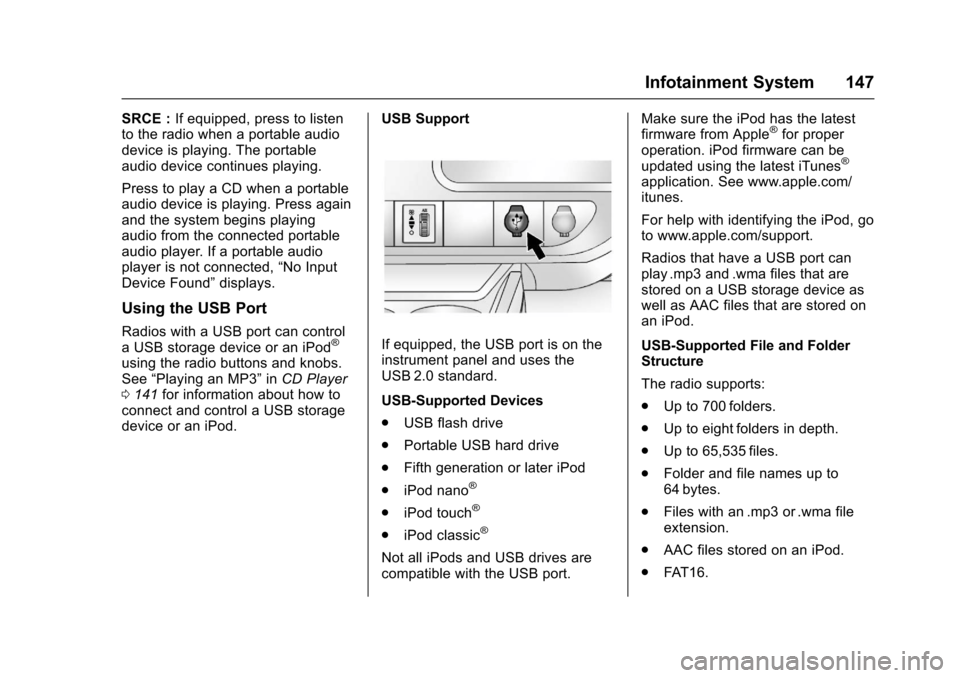
USB Support
If equipped, the USB port is on theinstrument panel and uses theUSB 2.0 standard.
USB-Supported Devices
.USB flash drive
.Portable USB hard drive
.Fifth generation or later iPod
.iPod nano®
.iPod touch®
.iPod classic®
Not all iPods and USB drives arecompatible with the USB port.
Make sure the iPod has the latestfirmware from Apple®for properoperation. iPod firmware can beupdated using the latest iTunes®
application. See www.apple.com/itunes.
For help with identifying the iPod, goto www.apple.com/support.
Radios that have a USB port canplay .mp3 and .wma files that arestored on a USB storage device aswell as AAC files that are stored onan iPod.
USB-Supported File and FolderStructure
The radio supports:
.Up to 700 folders.
.Up to eight folders in depth.
.Up to 65,535 files.
.Folder and file names up to64 bytes.
.Files with an .mp3 or .wma fileextension.
.AAC files stored on an iPod.
.FAT 1 6 .