2017 CHEVROLET COLORADO ESP
[x] Cancel search: ESPPage 115 of 419
Chevrolet Colorado Owner Manual (GMNA-Localizing-U.S./Canada/Mexico-10122675) - 2017 - crc - 8/22/16
114 Instruments and Controls
Units :Presspwhile Units is
displayed to enter the Units menu.Choose U.S. or metric units by
pressingVwhile the desired item is
highlighted.
Info Pages :Presspwhile Info
Pages is displayed to enter the InfoPages menu and select the items tobe displayed in the Info app. SeeDriver Information Center (DIC)(Base Level)0126orDriverInformation Center (DIC)(Uplevel)0129.
Speed Warning :The SpeedWarning display allows the driver toset a speed that they do not want toexceed. To set the Speed Warning,
presspwhen Speed Warning is
displayed. Pressworxto adjust
the value. PressVto set the speed.
Once the speed is set, this feature
can be turned off by pressingV
while viewing this page. If theselected speed limit is exceeded, apop-up warning is displayed with achime.
Speedometer
The speedometer shows thevehicle's speed in either kilometersper hour (km/h) or miles perhour (mph).
Odometer
The odometer shows how far thevehicle has been driven, in eitherkilometers or miles.
Trip Odometer
The trip odometer shows how farthe vehicle has been driven sincethe trip odometer was last reset.
The trip odometer is accessed andreset through the Driver InformationCenter (DIC). SeeDriverInformation Center (DIC) (BaseLevel)0126orDriver InformationCenter (DIC) (Uplevel)0129.
Tachometer
The tachometer displays the enginespeed in revolutions perminute (rpm).
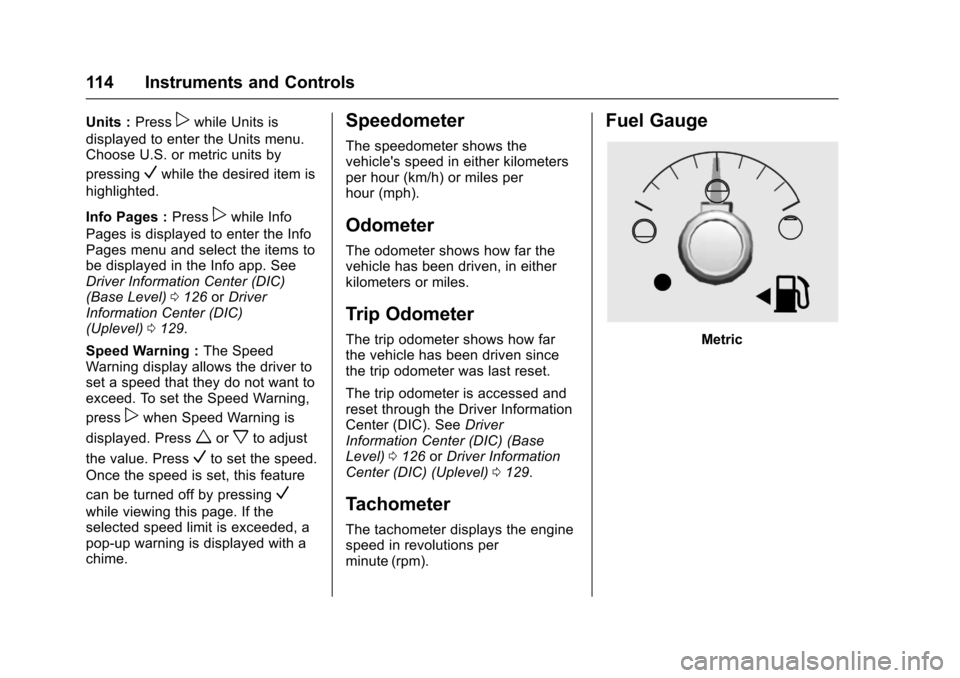
Fuel Gauge
Metric
Page 127 of 419

Chevrolet Colorado Owner Manual (GMNA-Localizing-U.S./Canada/Mexico-10122675) - 2017 - crc - 8/22/16
126 Instruments and Controls
Door Ajar Light (Uplevel
Cluster)
This light comes on when a door isopen or not securely latched. Beforedriving, check that all doors areproperly closed.
Information Displays
Driver Information Center
(DIC) (Base Level)
The DIC displays information aboutyour vehicle. It also displayswarning messages if a systemproblem is detected. SeeVehicleMessages0132.Allmessagesappear in the DIC display in thecenter of the instrument cluster.
DIC Operation and Displays
The DIC has different displayswhich can be accessed by using theDIC buttons on the turn signal lever.
DIC Buttons
1.SET/CLR:Press to set,or press and hold to clear, themenu item displayed.
2.wx:Use the band to scroll
through the items ineach menu.
3.MENU:Press to display theTrip/Fuel Menu, the VehicleInformation Menu, and theECO Menu. This button is alsoused to return to or exit the lastscreen displayed on the DIC.
If the vehicle has a diesel engine,see the Duramax diesel supplementfor additional DIC pages.
Trip/Fuel Menu (TRIP) Items
Press MENU on the turn signallever until the TRIP menu displays.
Usewxto scroll through the
menu items. Not all items areavailable on every vehicle. Thefollowing is a list of all possiblemenu items:
Digital Speed :Displays how fastthe vehicle is moving in eitherkilometers per hour (km/h) or milesper hour (mph). The speedometercannot be reset.
Page 140 of 419
Chevrolet Colorado Owner Manual (GMNA-Localizing-U.S./Canada/Mexico-10122675) - 2017 - crc - 8/22/16
Instruments and Controls 139
TO EXIT 4WD LOW SLOW
TO XXX
If a four-wheel drive shift out ofFour-Wheel Drive Low is requested,but the vehicle speed is too high,this message will display until thecorrect vehicle speed is reached.
TO EXIT 4WD LOW SHIFT TO
NEUTRAL
If a four-wheel drive shift out ofFour-Wheel Drive Low is requested,and the vehicle speed is correct, butthe transmission is not inN(Neutral), this message willdisplay until the transmission isshifted to N (Neutral).
TRANSMISSION HOT IDLE
ENGINE
This message displays and a chimemay sound if the transmission fluidin the vehicle gets hot. Driving withthe transmission fluid temperaturehigh can cause damage to thevehicle. Stop the vehicle and let itidle to allow the transmission tocool. This message clears and thechime stops when the fluidtemperature reaches a safe level.
When towing, use Tow/Haul Modeto prevent damage to the engine ortransmission. SeeTo w / H a u lMode0245.
VEHICLE IN 4WD LOW
This message will display if thevehicle is driven in Four-WheelDrive Low for about 10 minutesabove 72 km/h (45 mph).
Vehicle Reminder
Messages
ICE POSSIBLE DRIVE
WITH CARE
This message is displayed when iceconditions are possible.
Vehicle Speed Messages
REDUCE SPEED FOR HILL
DESCENT CONTROL
This message displays whenattempting to enable Hill DescentControl (HDC) when the vehiclespeed is too high. SeeHill DescentControl (HDC)0258.
Vehicle
Personalization
Use the audio system controls toaccess the personalization menusfor customizing vehicle features.
The following are all possiblepersonalization features. Dependingon the vehicle, some may not beavailable.
Base Radio Audio SystemControls
MENU :Press the center of theknob to enter menus and selectmenu items. Turn the knob to scrollthrough the menus.
oBACK :Press to return to theprevious menu or exit.
Uplevel Radio Audio SystemControls
1. Touch the desired feature todisplay a list of availableoptions.
2. Touch to select the desiredfeature setting.
Page 155 of 419
Chevrolet Colorado Owner Manual (GMNA-Localizing-U.S./Canada/Mexico-10122675) - 2017 - crc - 8/22/16
154 Infotainment System
The infotainment system has built-infeatures intended to help avoiddistraction by disabling somefunctions when driving. Thesefunctions may gray out when theyare unavailable. Many infotainmentfeatures are also available throughthe instrument cluster and steeringwheel controls.
Before driving:
.Become familiar with theoperation, faceplate buttons, andscreen buttons.
.Set up the audio by presettingfavorite stations, setting thetone, and adjusting thespeakers.
.Set up phone numbers inadvance so they can be calledeasily by pressing a singlebutton or by using a single voicecommand if equipped withBluetooth phone capability.
SeeDefensive Driving0215.
To p l a y t h e i n f o t a i n m e n t s y s t e m w i t hthe ignition off, seeRetainedAccessory Power (RAP)0237.
Theft-Deterrent Feature
TheftLock®is designed todiscourage theft of the vehicle'sradio by learning a portion of theVehicle Identification Number (VIN).The radio does not operate if it isstolen or moved to a differentvehicle.
Page 165 of 419
Chevrolet Colorado Owner Manual (GMNA-Localizing-U.S./Canada/Mexico-10122675) - 2017 - crc - 8/22/16
164 Infotainment System
Selecting a Station
Seek Tuning
If the radio station is not known:
Press7or6to automatically
search for available radio stations.
Manual Tuning
Continue touchingtoruto
manually change the radio station.
Direct Tune
From the AM or FM menu:
1. Touch Tune.
2. Enter the station number.
3. Touch Go ortoruto go to
the previous or next station.
Favorite
1. TouchSorTto scroll through
the favorites.
2. Touch the station to select it.
Station List
1. From the AM or FM menu,touch MENU.
2. Select Station List.
3. TouchQorRto scroll through
the list. Touch the station toselect it.
Update Station List
1. From the AM or FM menu,touch MENU, then touchUpdate Station List. Thebroadcasting list updating willbegin.
2. During the AM or FMbroadcasting list update, touchCancel to stop the updates.
Storing a Station as a Favorite
Stations from all bands can bestored in any order in the favoritepages.
Up to 25 stations can be stored.
Storing Stations
To s t o r e t h e s t a t i o n t o a p o s i t i o n i nthe list, touch the correspondingbutton 1✓5untilabeepisheard.
1. Select the desired station.
2. TouchSorTto select the
desired page of savedfavorites.
3. Touch and hold any of thepreset buttons to save thecurrent radio station to thatbutton of the selectedfavorites page.
To c h a n g e a p r e s e t b u t t o n , t u n e t othe new desired radio station andtouch and hold the preset button.
Satellite Radio (Base
Radio)
SiriusXM®Satellite Radio
Service
Vehicles with a SiriusXM satelliteradio tuner and a valid SiriusXMsatellite radio subscription canreceive SiriusXM programming.
SiriusXM is a satellite radio servicebased in the 48 contiguous UnitedStates and 10 Canadian provinces.SiriusXM satellite radio has a widevariety of programming andcommercial-free music, coast tocoast, and in digital-quality sound.Aservicefeeisrequiredtoreceivethe SiriusXM service. Seewww.siriusxm.com or call
Page 167 of 419
Chevrolet Colorado Owner Manual (GMNA-Localizing-U.S./Canada/Mexico-10122675) - 2017 - crc - 8/22/16
166 Infotainment System
2. Touch the preset button tolisten to the channel saved tothat button.
Using the SiriusXM Menu
Operation
1. Touch MENU on the SXMinfotainment display.
2. Touch the menu to select thedesired item or to display thedetail menu item.
3. Touch0to return to the
previous menu.
Channel List
1. Touch SXM Channel List fromthe SXM menu. The channellist is displayed.
2. TouchQorRto find the
desired channel. Tune to thechannel by selecting it.
Tone Settings
From the tone settings menu, thesound features can be set up forSiriusXM audio and each audioplayer’sfunctions.
1. Touch Tone Settings. The tonesettings screen is displayed.See“To n e S e t t i n g s”under“Base Radio with Touchscreen”inAM-FM Radio (Base Radio)0161orAM-FM Radio (BaseRadio withTo u c h s c r e e n )0163.
2. Touch OK.
Auto Volume
1. Touch Auto Volume. See“AutoVolume”under“Base Radiowith Touchscreen”inAM-FMRadio (Base Radio)0161orAM-FM Radio (Base Radio withTo u c h s c r e e n )0163.
2. Touch OK.
Categories
1. Touch Categories.
2. TouchQorRto find the
desired category. Touch thecategory to select it.
Explicit Content Filter
When on, only a filtered list ofchannels will be received. When off,all regular SXM programmingsubscribed to will be received.
1. Touch SXM Explicit Filter.
2. Select On or Off.
Radio Reception
Frequency interference and staticcan occur during normal radioreception if items such as cell phonechargers, vehicle convenienceaccessories, and external electronicdevices are plugged into theaccessory power outlet. If there isinterference or static, unplug theitem from the accessory poweroutlet.
FM
FM signals only reach about 16 to65 km (10 to 40 mi). Although theradio has a built-in electronic circuitthat automatically works to reduceinterference, some static can occur,especially around tall buildings orhills, causing the sound to fade inand out.
Page 168 of 419
Chevrolet Colorado Owner Manual (GMNA-Localizing-U.S./Canada/Mexico-10122675) - 2017 - crc - 8/22/16
Infotainment System 167
AM
The range for most AM stations isgreater than for FM, especially atnight. The longer range can causestation frequencies to interfere witheach other. Static can occur whenthings like storms and power linesinterfere with radio reception. Whenthis happens, try reducing the trebleon the radio.
SiriusXM Satellite Radio
Service
If equipped, SiriusXM SatelliteRadio Service provides digital radioreception. Tall buildings or hills caninterfere with satellite radio signals,causing the sound to fade in andout. In addition, traveling or standingunder heavy foliage, bridges,garages, or tunnels may cause lossof the SiriusXM signal for a periodof time.
Cell Phone Usage
Cell phone usage, such as makingor receiving phone calls, charging,or just having the phone on may
cause static interference with theradio. Unplug the phone or turn it offif this happens.
Multi-Band Antenna
The multi-band antenna is on theroof of the vehicle. The antenna isused for OnStar, the SiriusXMSatellite Radio Service System, andGPS (Global Positioning System),if the vehicle has these features.Keep the antenna clear ofobstructions for clear reception.
Items on the roof of the vehicle caninterfere with the performance of theradio system and OnStar (ifequipped). Make sure themulti-band antenna is notobstructed.
Pandora Internet Radio
If equipped, Pandora®is a freeInternet radio service that streamspersonalized radio stations basedon artists, tracks, genres, andcomedians. Create stations usingthe Pandora website or Smartphone
application, then use-or,to
personalize stations. To set up an
account, or for more information, goto www.pandora.com. Pandora maynot be available in Canada orMexico.
AphoneortabletwithInternetconnection and the Pandoraapplication installed is required.Personal cell phone data plans areused. Make sure the latest versionis installed on the device.
Launching Pandora
Connect an iPhone to the USB port,or connect Android®or BlackBerry®
through Bluetooth. SeeBluetooth(Overview)0187orBluetooth(Infotainment Controls - BaseRadio)0188orBluetooth (VoiceRecognition)0192orBluetooth(Infotainment Controls - Base Radiowith Touchscreen)0197.Forfirsttime use, set up the stations beforeconnecting to the vehicle. ThePandora icon will be available onthe Home Page.
When Pandora is chosen, thePandora logo will populate on thescreen and the system will display“Acquiring Pandora Radio Station.”Launch times can be significant.
Page 172 of 419
Chevrolet Colorado Owner Manual (GMNA-Localizing-U.S./Canada/Mexico-10122675) - 2017 - crc - 8/22/16
Infotainment System 171
The USB port uses the USB 2.0standard. External devices such asiPhones/iPods®and USB storagedevices may be connected.
USB MP3 Player and USB Drives
.The USB MP3 players and USBdrives connected must complywith the USB Mass StorageClass specification (USB MSC).
.Hard disk drives are notsupported.
.Supported file system is FAT32.
To p l a y a U S B d e v i c e :
1. Connect the USB.
2. Press MEDIA on the faceplateuntil the connected device isshown.
While the USB source is active,press the corresponding faceplatebutton for the icons on the screen tooperate USB function:
.t
.u
.j/r
.Z
USB Menu
Press MENU to display the USBmenu and the following may display:
Browse :Select to display the filesand folders on the USB device.
To n e S e t t i n g s :Select to adjustBass, Midrange, Treble, Balance,Fade, and EQ (Equalizer). See“To n e S e t t i n g s”inAM-FM Radio(Base Radio)0161orAM-FMRadio (Base Radio withTo u c h s c r e e n )0163.
Auto Volume :If equipped, see“Auto Volume”inAM-FM Radio(Base Radio)0161orAM-FMRadio (Base Radio withTo u c h s c r e e n )0163.
EQ :If equipped, this featureadjusts the equalizer settings. See“EQ (Equalizer) Settings”inAM-FMRadio (Base Radio)0161orAM-FM Radio (Base Radio withTo u c h s c r e e n )0163.
Playing from an iPod®/iPad®/
iPhone®
For supported devices, see yourdealer.
There may be problems withoperation and function in thefollowing situations:
.When connecting a device withamorerecentversionofthefirmware installed than issupported by the infotainmentsystem.
.When connecting a device onwhich firmware from otherproviders is installed.
To c o n n e c t a n d c o n t r o l a d e v i c e :
1. Connect one end of thestandard USB cable to thedevice's dock connector.
2. Connect the other end to theUSB port in the center stack.
3. Press MEDIA to select thesource.
The music information displays onthe radio’sdisplayandbeginsplaying through the vehicle’saudiosystem.