2017 AUDI TT ROADSTER audio
[x] Cancel search: audioPage 115 of 314
Voice recognition system
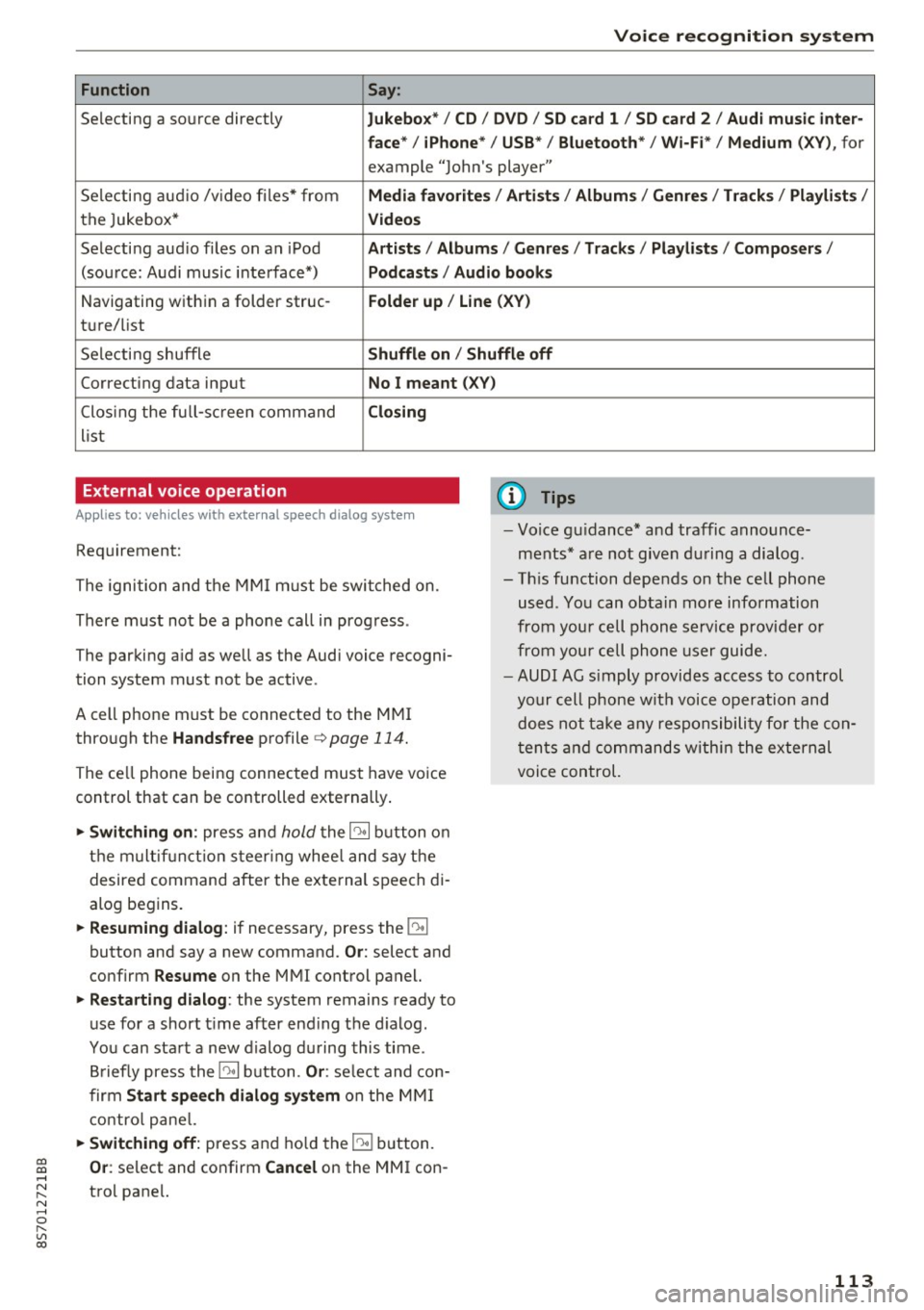
Function Say:
Selecting a so urce directly Jukebo x*/ CD/ DV D/ SD ca rd 1 / SD card 2 / Audi mu sic inter-
face * / iPhon e* / USB * / Bluetooth * / Wi -Fi * / Medium
(XV ), for
example "Jolhn's player"
Selecting aud io /v ideo files* from
Media favorite s/ Artists / Album s/ Genr es/ Track s/ Playli st s /
the Jukebox* Videos
Selecti ng aud io files on an iPod A rtists / Albums / Genre s/ Track s/ Playlists /Compos ers/
(sou rce: Audi music interface*) Podcast s / Audio books
Navigating w ith in a folder struc-Folder up / Line (XV )
tu re/list
Selecti ng shuffle
Shuffl e on / Shuffle off
Correcting data input No I meant (X V)
Clos ing the fu ll- sc reen command Closing
list
External voice operation
Applies to: veh icles with external speech dialog system
Requirement:
The ignition and the MMI m ust be swi tched on.
There must not be a phone call in progress .
The parki ng aid as well as the Audi voice recogni
tion system must not be active.
A cell phone must be connected to the MMI through the
Handsfree profile ¢page 114.
The ce ll phone being connected must have vo ice
control that can be controlled externally .
... Switching on : press and hold the 10• 1 button o n
the m ult if u nct ion s teer ing whee l and say the
desired command after the external speech di
alog begins .
... Resuming dialog : if necessary, press the 10•1
button and say a new command. Or: select and
confirm
R esume on the MMI control panel.
... Restarting dialog : the system remains ready to
use for a short t ime after end ing the d ialog.
You can sta rt a new dialog du ring this time .
B riefly press the
10• 1 button. Or : select and con
firm
Start sp eec h dialog sy stem on the M MI
contro l pane l.
... Switching off: press and ho ld the 51 b utton.
(D Tips
- Vo ice gu idance* and traffic announce
ments * are not given du ring a dialog .
- Th is function depends on the cell phone
used . You can obtain more information
from your cell phone service provider or
from your cell phone user guide.
- AUDI AG s imply provides access to control
your cell phone wit h voice opera tion and
does not take any responsibility fo r the con
t en ts and commands within the external
voice control.
~ Or : select and confirm Cancel on the MMI con-....
~ trol pane l. N ..... 0 r---
"' c:o
113
Page 133 of 314
co
co
.... N
" N .... 0
" "' c:o
-Set up destinations in your MMI using your
m yA udi acc ount or online map view
¢ page 147.
-Onli ne traffic i nfo rmat ion: receive up-to-the
minute traffic information about accidents,
road construction and other incidents
¢ page 148.
-Map updates *: import navigation map updates
in your MMI using an SD card .
@ Tips
-For the Map update Audi connect service us
ing an SD card, check the current software
version in your vehicle and compare it with
my.aud iu sa. com to see if a new version is
available . You can also have the new naviga
tion data installed by an Audi dealer, which
can be done for an add itiona l charge.
- More information on
map updat es can be
found in the
Audi c onnect Operating Man
ual under
m y.audiusa .com .
Audi connect services on the phone
Applies to: vehicles with Audi connect
The follow ing Audi connect serv ices are currently
ava ilable:
Storing contacts on your computer using your
m yAudi Ac count and loading the contacts into
the MMI directory ¢page 123.
Audi connect services in the Media menu
Applies to: vehicles with Wi- Fi audio player and Audi connect
-Wi-Fi audi o play er: you can access the media
center through Wi-Fi connected media players
(such as smartphones)
¢ page 160.
- Online m edia : offers access to different online
med ia services and operation through the MMI
using the
Audi MMI connect app .
(D Tips
For mo re information on the Wi-Fi a udio p lay
er and supported devices, contact an author
ized Audi dealer or authorized Audi Service Facility.
Audi c onn ect
Additional options
Applies to: vehicles with Audi connect
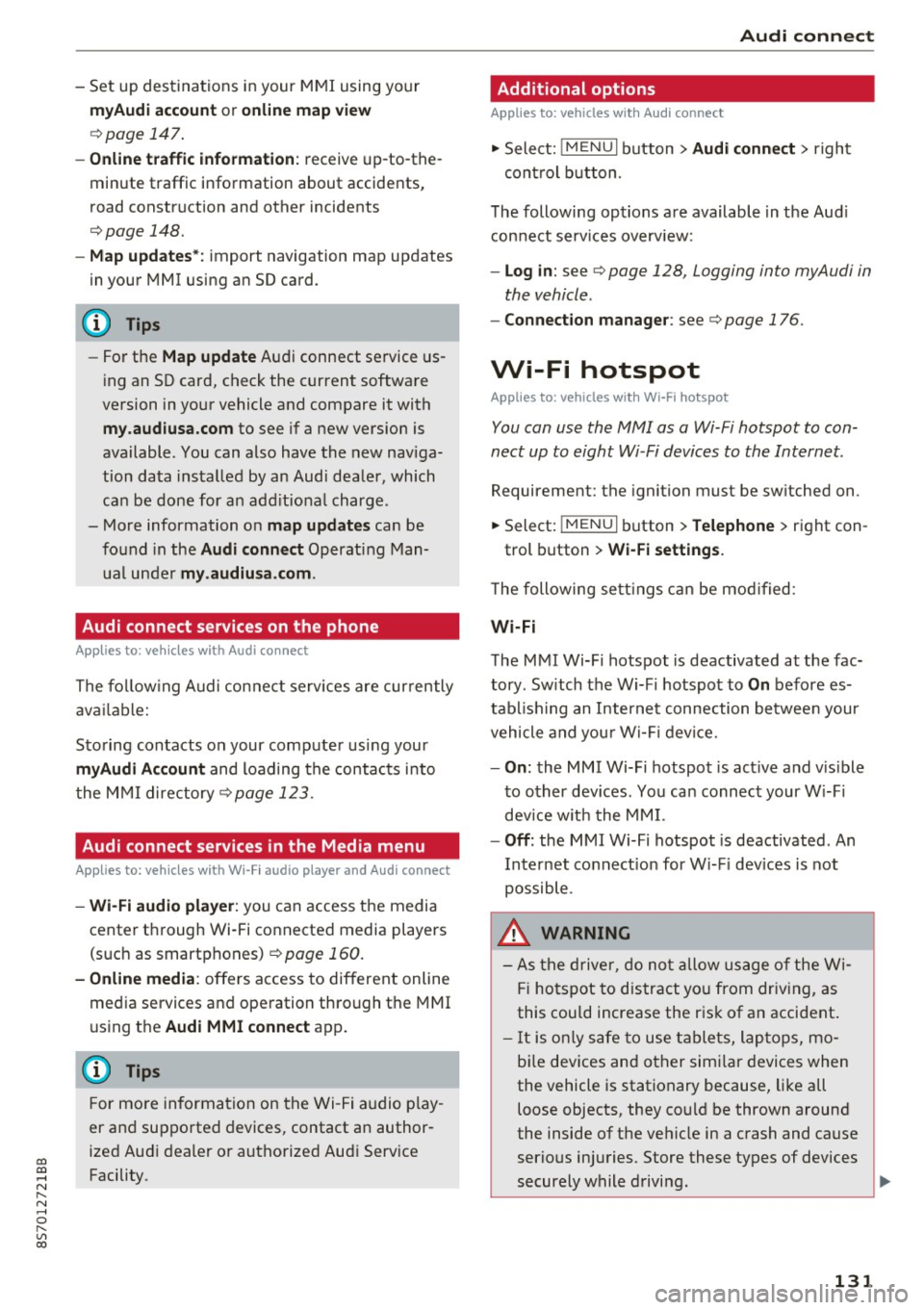
., Select: !M ENUI button> Audi conn ect> right
cont rol button .
The following options are available in the Aud i
connect serv ices overv iew :
-Lo g in: see ¢ page 128, Logging into myAudi in
the vehicle .
-Connect ion manage r: see¢ page 176.
Wi-Fi hotspot
Applies to: vehicles with Wi-Fi hotspot
You can use the MMI as a Wi-Fi hotspot to con
nect up to eight Wi-Fi devices to the Internet.
Requirement: the ignition must be sw itched on .
.. Select:
!MENU I button> Telephone > right con-
trol button >
Wi-Fi setting s.
The following sett ings can be mod ified:
Wi -Fi
The MMI Wi-Fi hotspot is deactivated at the fac
tory . Sw itch the Wi-F i hotspot to
On before es
tab lishing an Internet connection between your
vehicle and you r Wi -Fi device.
- On : the MMI Wi-Fi hotspot is act ive and v is ible
to other dev ices. You can connect your W i-F i
dev ice w ith the MM I.
-Off : the MMI Wi-Fi hotspot is deactivated . An
Internet connect ion for W i- Fi dev ices is not
possible .
_&. WARNING
-As the driver, do not allow usage of the Wi
Fi hotspot to distract you from driving, as
this could increase the risk of an accident .
-It is only safe to use tablets, laptops, mo
bi le devices and other simi lar devices when
the vehicle is stationary because, like all loose objects, they could be thrown around
the inside of the vehicle in a crash and cause
serious injuries . Store these types of devices
securely while driving.
~
1 31
Page 134 of 314
Audi connect
- Do not u se any Wi-Fi devices within range of
the a irbags while d riving. Also read the
warnings in the chapter¢
page 196.
@ Note
You are respons ib le for a ll precautions taken
for data protection, anti-virus p rotection and
protection against loss of data on mobile de
vices that are used to access the Internet throug h the Wi-Fi hotspot .
(D Tips
-A separate, paid mobile s ubsc ription may be
needed to use the Wi-F i hotspot. You can
obtai n mo re informatio n from your cell
phone service provider .
- In vehicles without Aud i connect*, the use
of the Wi -Fi hotspot is only possib le for the
Wi-Fi audio playe r* . A da ta connection to
th e I nte rnet cannot b e establi she d.
- Addi tional informat io n can be found under
www.audiusa .com /audiconnect .
Configuring the data
connection
Appl ies to: vehicles w ith Audi co nnect
To use Audi connect services, a data connect ion
must be configured .
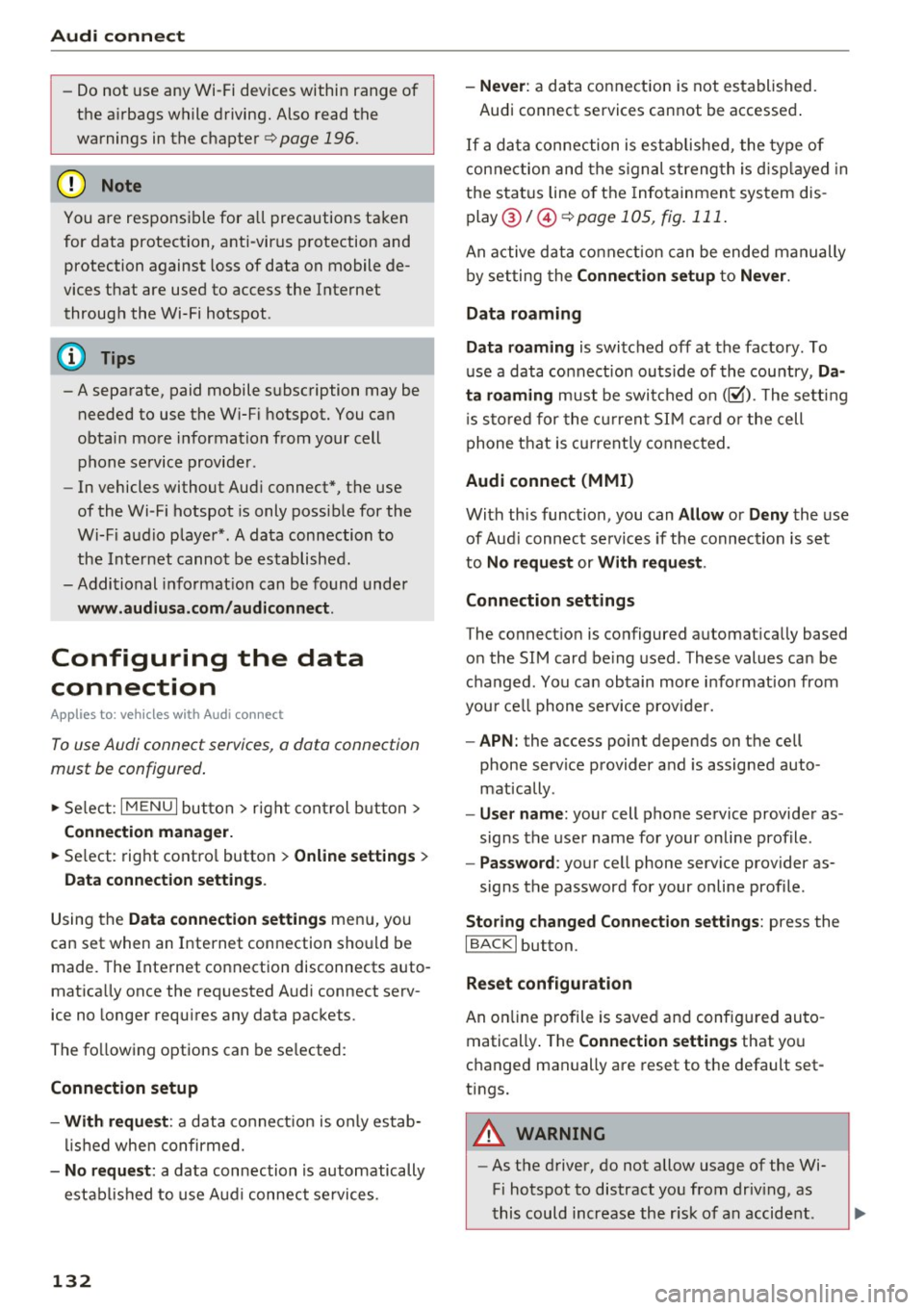
.,. Select: I M ENU I but ton > right cont rol b utt on>
Connection manager.
.,. Se lect: rig ht contro l button > Online settings >
Data connection settings .
Using the Data connection settings menu, you
can set when an I nternet connection sho uld be
made . The Inte rnet connection disconnects auto
mat ica lly once the requested A ud i connect serv
ice no longe r requ ires any data pac kets.
The fo llow ing options can be se lected:
Connection setup
- With request :
a data co nnect io n is only es tab
li sh ed whe n co nfirmed.
- No request : a data connection is automatically
estab lish ed to use A udi connec t se rvices .
132
-Never : a data connect ion is not established.
Audi connect services cannot be accessed .
I f a da ta conne ction is est ablishe d, the ty pe of
connection and the s ignal streng th is d isp layed in
t h e sta tus line o f the Info tainment sys tem dis
p lay @/@ ¢
page 105, fig. 111 .
An active data co nne ct ion can be ende d m anually
by set ting the
Connection setup t o Never.
Data roaming
Data roaming
is swi tched off at the factory. To
u se a data co nnection outs ide of the cou ntry,
Da·
ta roaming
must be swi tched on (~ ). The se tting
i s s to red for the cur rent S IM card o r the cell
p hone t hat is c urrent ly conne cted.
Audi connect (MMI)
With th is func tion, you can Allow or Deny the use
of Aud i connec t se rvic es if the connec tion is s et
to
No request or With request .
Connection settings
The connect io n is co nfigured automat ica lly based
o n the SIM card be ing used. These values can be
c h anged . You can obtain more i nfo rmation from
yo ur cell phone serv ice prov ider.
- APN : the access point depends on t he cell
phone service p rovider a nd is assigned auto
mat ically .
-User name : your cell phone se rvice provider as
signs the use r name for your on line profile .
-Password : your cell phone serv ice provider as-
signs the password for your on line profile .
Storing changed Connection settings: press the
IBACKI button.
Reset configuration
An on line p ro file is saved an d config ured au to
matically . The
Connection settings that yo u
c h anged manually are reset to t he default set
tings.
A WARNING
- As t he d river, do not allow usage of the Wi
Fi hotspot to distract you from driv ing, as
t his could increase the r isk of an accid ent.
Page 158 of 314
Media
Media
Introduction
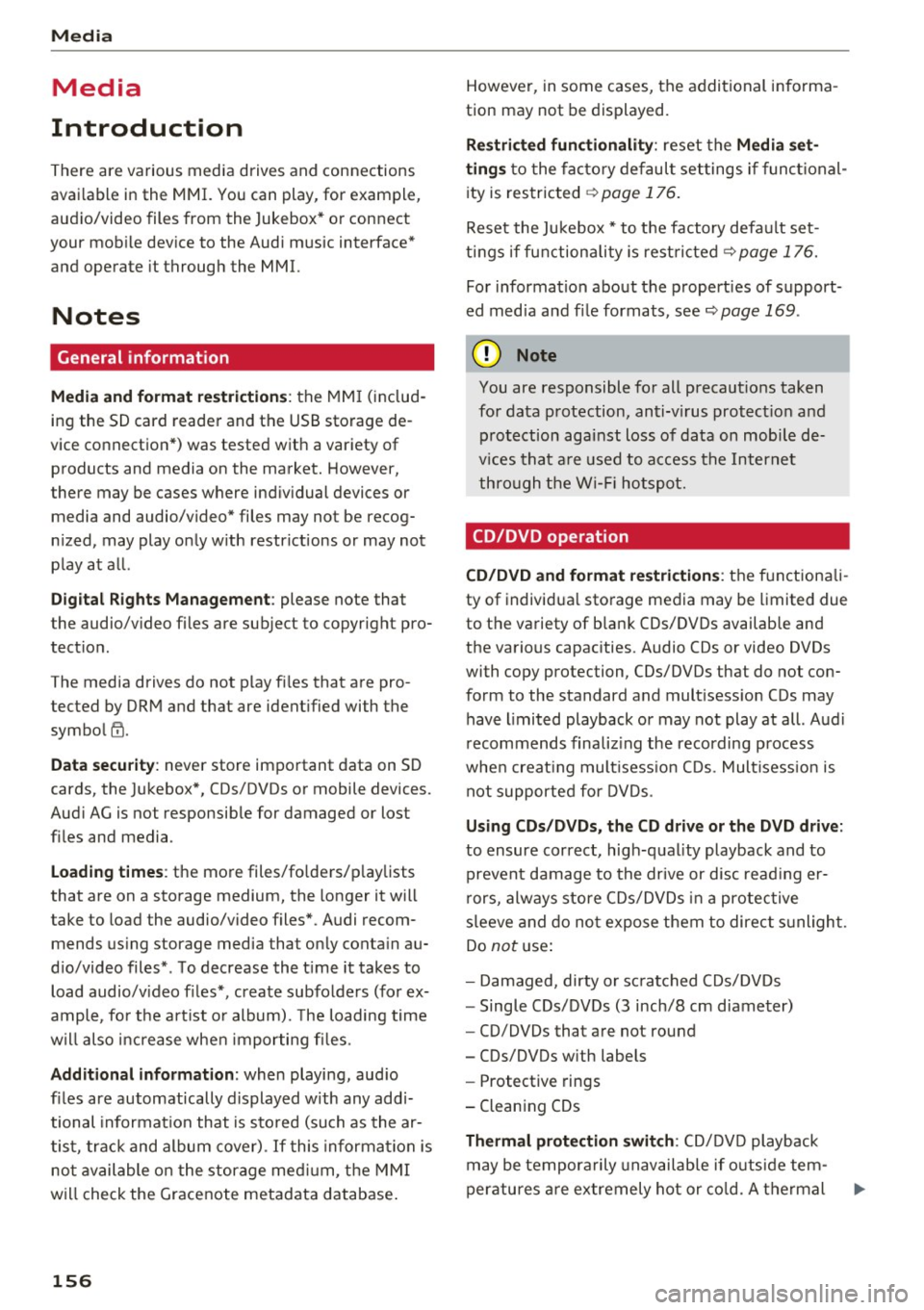
There are various media drives and connections
available in the MMI. You can play , for example,
audio/video files from the Jukebox* or connect
your mobile device to the Audi music interface*
and operate it through the MMI.
Notes
General information
Media and format restrictions:
the MMI (includ
ing the SD card reader and the USB storage de
vice connection*) was tested with a variety of products and media on the market. However,
there may be cases where individual devices or media and audio/video* files may not be recog
nized, may play only with restrictions or may not
play at all.
Digital Rights Management: please note that
t he audio/video files are subject to copyright pro
tection .
The media drives do not play files that are pro
tected by ORM and that are identified with the
symbol
!'.TI.
Data security: never store important data on SD
cards, the Jukebox*, CDs/DVDs or mobile devices.
Audi AG is not responsible for damaged or lost
files and media .
Loading times: the more files/folders/playlists
that are on a storage medium, the longer it will
take to load the audio/video files* . Audi recom
mends using storage media tha t only contain au
dio/video files* . To decrease the time it takes to
load audio/video files*, create subfolders (for ex
ample , for the artist or album). The loading time
will also increase when importing files.
Additional information: when playing, audio
files are automatically displayed with any addi
tional information that is stored (such as the ar
tist, track and album cover).
If this information is
not available on the storage medium, the MMI
will check the Grace note metadata database.
156
However, in some cases, the additional informa
tion may not be displayed.
Restricted functionality: reset the Media set
tings
to the factory default settings if functional
ity is restricted
¢ page 176.
Reset the Jukebox* to the factory default set
tings if functionality is restricted
¢page 176.
For information about the properties of support
ed media and file formats, see
¢ page 169 .
((D} Note
You are responsible for all precautions taken
for data protection, anti-virus protection and
protection against loss of data on mobile de
vices that are used to access the Internet
through the Wi-Fi hotspot.
CD/DVD operation
CD/DVD and format restrictions:
the functionali
ty of individual storage media may be limited due
to the variety of blank CDs/DVDs available and
the various capacities . Aud io CDs or video DVDs
with copy protection, CDs/DVDs that do not con
form to the standard and multisession CDs may
have limited playback or may not play at all. Audi
recommends finalizing the recording process
when creating multisession CDs . Multisession is
not supported for DVDs .
Using CDs/DVDs, the CD drive or the DVD drive:
to ensure correct, high-quality playback and to
prevent damage to the drive or disc reading er
rors, always store CDs/DVDs in a protective
sleeve and do not expose them to direct sunlight.
Do
not use:
- Damaged, dirty or scratched CDs/DVDs
- Single CDs/DVDs (3 inch/8 cm diameter)
- CD/DVDs that are not round
- CDs/DVDs with labels
- Protective rings
- Cleaning CDs
Thermal protection switch : CD/DVD playback
may be temporarily unavailable if outside tem
peratures are extremely hot or cold. A thermal
Page 159 of 314
CD
CD
.... N
" N .... 0 r--. V, co
protection switch is installed to protect the CD/
DVD and the laser.
Laser devices: laser devices are divided into safe
ty classes 1 to 4 in accordance with DIN IEC 76
(CO) 6/VDE 0837. The various types of audio
equipment install ed conform to safety class
1.
T he laser uses so little power or is shielded so
there is no danger when it is used correctly .
Media drives
SD card reader
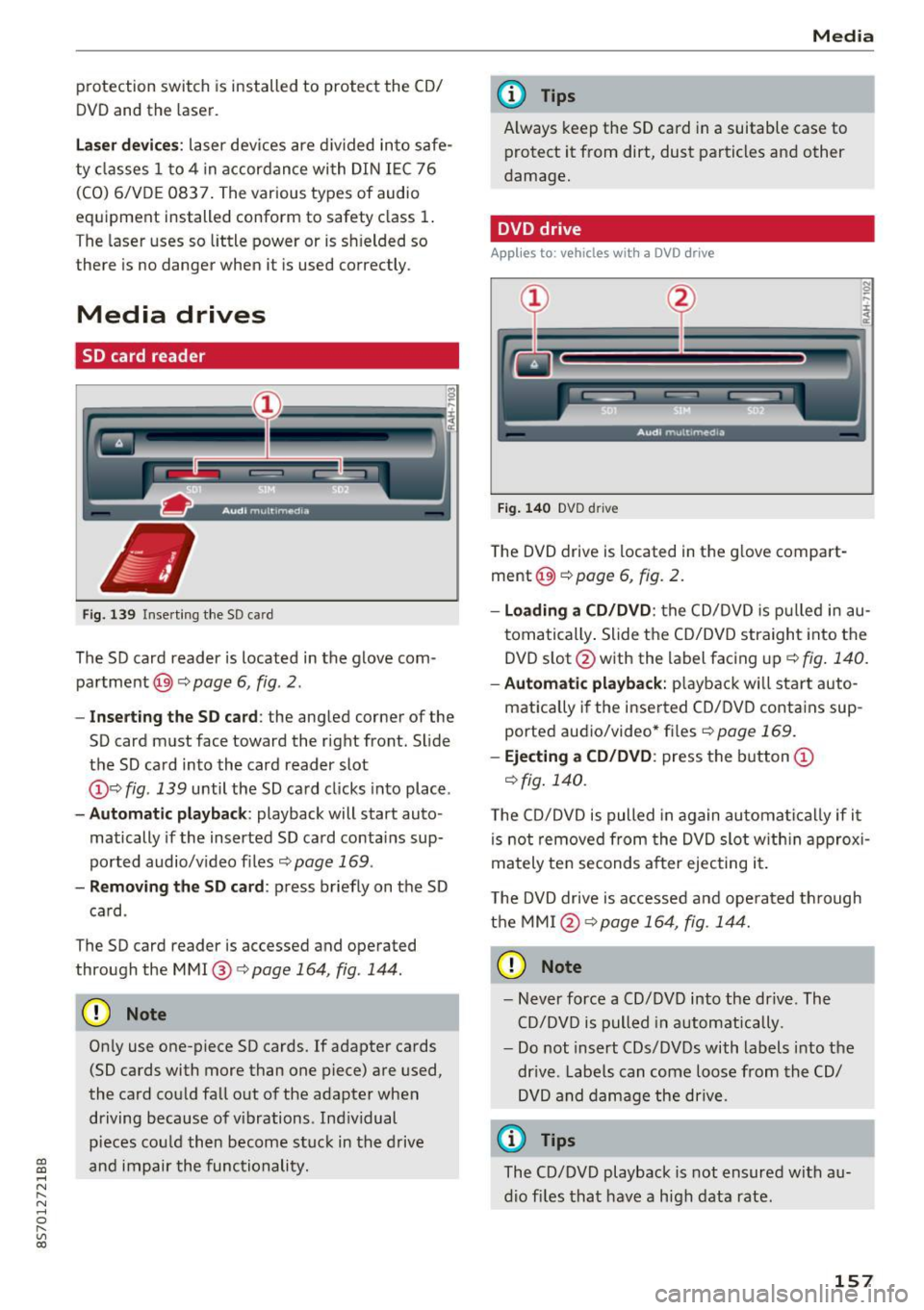
Fig. 139 In serting the SD ca rd
The SD card reader is located in the glove com
partment @)¢
page 6, fig. 2.
- Inserting the SD card: the angled corner of the
SD card must face toward the right front. Slide
the SD card into the card reader slot
@ ¢fig . 139 until the SD card clicks into place .
-Automatic playback: playback will start auto ·
matically if the inserted SD card contains sup
ported audio/video files ¢
page 169.
-Removing the SD card: press briefly on the SD
card .
The SD card reader is accessed and operated
through the MMI@¢
page 164, fig. 144.
CD Note
Only use one-piece SD cards. If adapter cards
(SD cards with more than one piece) are used ,
the card could fall out of the adapter when
driving because of vibrations . Individual
pieces could then become stuck in the drive
and impair the functionality.
Media
(D Tips
Always keep the SD card in a suitable case to
protect it from dirt, dust particles and other
damage.
DVD drive
Appl ies to : veh icles w ith a DVD drive
Fig. 140 DVD drive
The DVD drive is located in the glove compart
ment @)
c::> page 6, fig. 2.
-Loading a CD/DVD: the CD/DVD is pulled in au
tomatically. Slide the CD/DVD straight into the
DVD slot @with the label facing up
c::>fig. 140.
- Automatic playback: playback will start auto-
matically if the inserted CD/DVD contains sup
ported audio/video* files
c::> page 169.
- Ejecting a CD/DVD : press the button (D
c::> fig. 140.
The CD/DVD is pulled in again automatically if it
is not removed from the DVD slot within approxi
mately ten seconds after ejecting it.
The DVD drive is accessed and operated through
the MMI @c::>page
164, fig . 144.
CD Note
- Never force a CD/DVD into the drive. The
CD/DVD is pulled in automatically .
- Do not insert CDs/DVDs with labels into the
drive . Labels can come loose from the CD/
DVD and damage the drive.
(D Tips
The CD/DVD playback is not ensured with au
dio files that have a high data rate .
157
Page 160 of 314
Media
CD drive
Applies to: vehicles with a CD drive
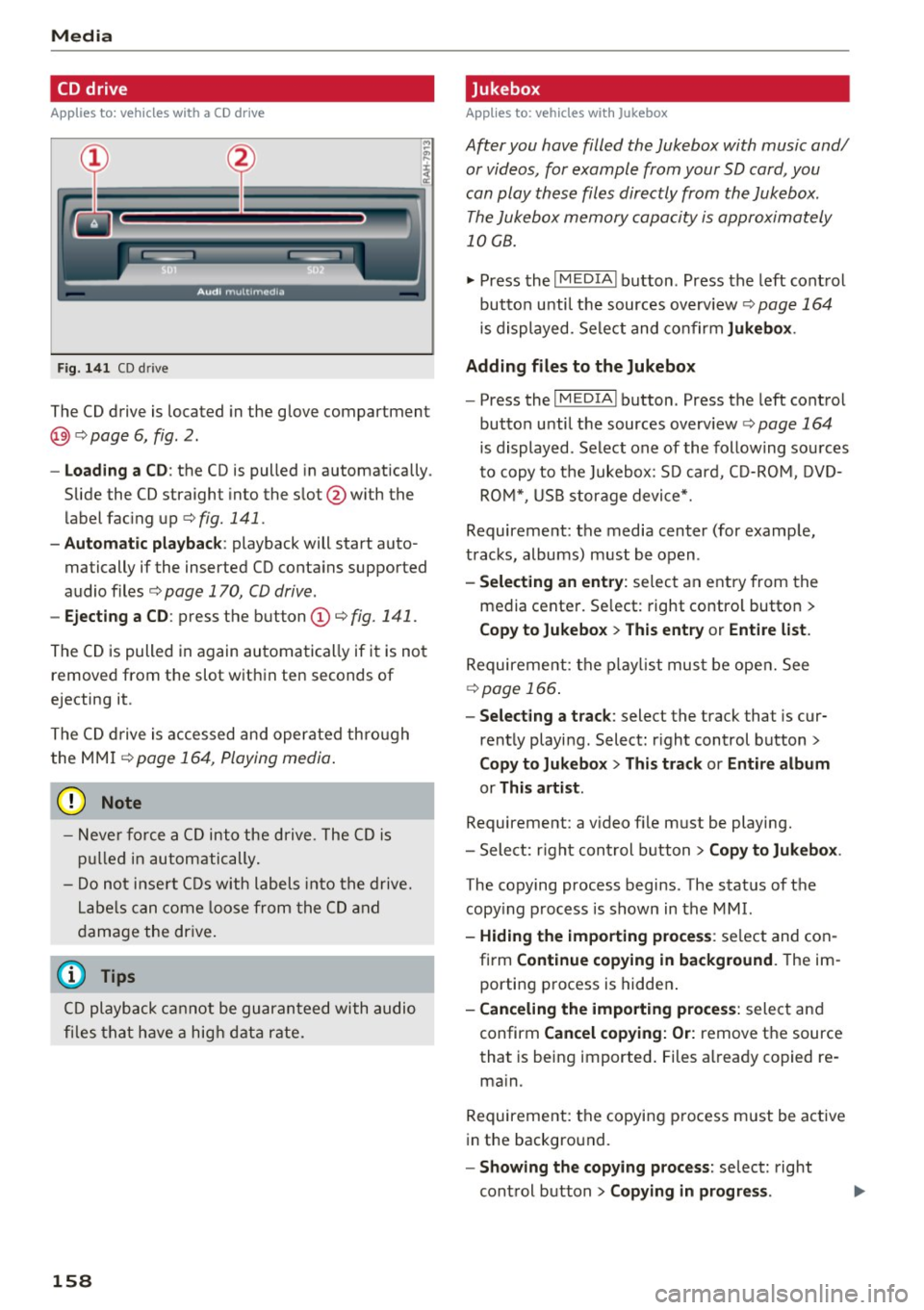
Fig. 141 CD drive
The CD drive is located in the glove compartment
@ r=>page 6, fig. 2.
- Loading a CD : the CD is pulled in automatically .
Slide the CD straight into the s lot @ with the
label fac ing up
r=> fig. 141 .
-Automatic playbac k: playback will start auto
matically if the inserted CD conta ins supported
audio files
r=> page 170, CD drive .
-Ejecting a CD : press the button (Dr=> fig. 141 .
The CD is pulled in again automatically if it is not
removed from the slot w ith in ten seconds of
ejecting it.
The CD d rive is accessed and operated thro ugh
the MMI
r=> page 164 , Playing media .
(D Note
- Never force a CD into the drive . The CD is
p ull ed in automatically .
- Do not i nse rt CDs with labels into the drive.
L abe ls can come loose from the CD and
damage the dr ive.
@ Tips
CD playback ca nnot be guaranteed with audio
files that h ave a hig h data r ate.
158
· Jukebox
Applies to: vehicles with Jukebox
After you have filled the Jukebox with music and/
or videos, for example from your SD card , you
can play these files directly from the Jukebox .
The Jukebox memory capacity is approximately
10 GB .
.,. Press the I M EDIA ! button . Press the left cont rol
button unti l the sources overv iew
r=> page 164
is displayed. Select and co nfirm Jukebo x.
Adding files to the Jukebox
- Press the IM EDIA ! button . Press the left control
button until the sources overv iew
r=> page 164
is displayed . Select one of the following sou rces
to copy to the Jukebox: SD card, C D-RO M, D VD
RO M*, USB storage device*.
Requirement: the media center (for example,
tracks, albums) must be open .
-Selecting an entr y: select an entry from the
media cente r. Se lect : right contro l button >
Copy to Jukebox > Th is entry or Entire list .
Requirement: the p layli st mus t be ope n. See
r=> page 166 .
-Selec ting a track : select the track that is cur
rent ly playing . Select : right control button>
Copy to Jukebo x> This trac k or Entire album
or This artist.
Requirement: a v ideo f ile must be playing.
- Sele ct: r ight cont rol b utton>
Copy to Jukebo x.
The copying process begins. The status of the
copy ing p rocess is shown in the MMI.
- Hiding the importing pro ces s: se lect and con
firm
Continue cop ying in background . The im
porting p rocess is hidden .
-Canceling the impo rt ing process : select and
confirm
Can cel cop ying : O r: remove the source
that is being imported . Files already copied re
ma in.
Requirement: the copying p rocess m ust be active
in the background.
- Showing the copying proces s: select: right
cont rol button >
Copying in progre ss.
Page 161 of 314

co
co
.... N
" N .... 0
" "' c:o
When importing, the audio files a re automatical
l y sorted into the media center categor ies based
on the stored addit ional info rmation
c:> page 165. The copied video files are stored in
the media ce nter under the
Videos category.
Playing the Ju kebo x
Req uirement: the J ukebox must contain audio/
vi deo fi les
c:> page 158, Adding files to the Juke
box.
The Jukebox is a ccesse d and ope rated thr ou gh
the MMI
(D c:> page 164, fig . 144.
Displaying Jukebox memory capacity
Select: r igh t control button > Jukebox memory
capacity .
Inform ation abou t the J ukebox memory
c a pacity an d the numbe r of store d tra cks is dis
p layed .
Deleting tracks from the Jukebox1
)
Req uirement: the Ju kebox must contain audio/
video fi les.
- Deleting an entry : select an entry from the
Jukebox media center. Select: rig ht cont ro l but
ton
> Delete from Jukebox > This entry or En
tire list .
- The s tatus of the de leti ng p rocess is shown in
the MMI. Jukebox playback stops d uring the de
l eting process a nd starts again au tomatically
on ce the dele tio n i s comp lete.
(D Note
D o not import au dio/video files when the en
g in e is t urned off because this will d rain the
ve hicl e battery.
(D Tips
-Tracks fro m aud io C Ds cannot be impo rted
t o the Jukebox for leg al re as ons.
- Files that have al rea dy been import ed are
a utomat ica lly r ecogn ized and ca n not be
cop ied to the Juk eb ox again.
- It is no t possib le to play audio/v ideo* files
i n the C D/D V D* drive while import ing the m.
l) Not in th e Playba ck view .
Media
-The Jukebox does not provi de a n export
function d ue to legal reasons .
- F iles o r trac ks w ithout store d ad di tional in
formatio n are listed as
Unknown . Audi rec
ommends adding a dditio nal info rmation
(such as ID3 tags) to a udio f iles.
- Reset the J ukebox to t he factory default set
tings when selling your vehicle
c:> page 176 .
Bluetooth audio player
Applies to: vehicles with Bluetooth
With the Bluetooth audio player, you con ploy
music wirelessly from your Bluetooth-capable
device (such as a cell phone) through the MMI.
Requirement: the vehicle must be stationa ry and
the Bluetooth function on your Bl uetooth device
and the
Bluetooth audio player c:> page 177 in
t h e MMI m ust both be switched on .
-Connecting a Bluetooth de vice : press the
! MEDI Ai button. Press the left control button
until t he source overv iew is d isp layed. Select
and confirm
Bluetooth audio player @
Gpoge 164, fig. 145.
-If necessa ry, select and co nfirm, Not connected
> Connect Bluetooth audio player . The Blue
t ooth dev ice searc h starts . Fo llow the inst ruc
tions in the M MI.
- Select and confirm the des ired Bluetooth de
vice from the list. The M MI generates a PIN fo r
t he co nne ction.
- Select and confirm
Yes .
-Enter the PIN for connect ing on your Bl uetooth
dev ice.
Or : if the PIN is already displayed on
your Bl uetoo th device, confi rm it in the Blue
t ooth device and in the MMI. The t ime a llowed
for e ntering the P IN is lim ite d t o ap prox ima tely
3 0 seconds.
T he media is s tarted and operated thro ugh the
mobile device o r the MMI, de pending on t he de
vice be ing used.
@ Tips
- Check fo r any connection reques ts on you r
B lu etoo th devi ce .
159
Page 162 of 314
Media
-Multiple Bluetooth audio players can be
connected to the MMI, but only one mobile
device can be active.
- Bluetooth protocols AVRCP ( 1.0/1.3/1.4)
and A2DP are supported.
- Note the volume se tting on your Bluetooth
device. A udi recommends setting your mo
bile device to the maxim um vo lume when
us ing it as a Bluetooth audio player.
- The supported media functions (such as
shuffle) depend on the Bluetooth device be
i ng used.
- For more information on the supported de
vices, visit
www.audi.com /bluetooth or
contact your author ized Audi dealer or au
thorized Audi Service Facility.
Wi-Fi audio player
A ppl ies to: ve hicles w ith Wi-F i
Using the Wi-Fi audio player media source on the
MMI, you can connect and operate your Wi-Fi-ca
pable media player (su ch as a smartphone) to
wirelessly play music from your media player
li
brary. The media player is connected through the
vehicle's Wi-Fi hotspot . A UPnP Server opp or an
integrated UPnPIDLNA server on your media
player is required to access your media player
li
brary.
Req uirement: the Wi-Fi function on your media
p layer must be switched on. The
Audi MMI con
nect
app or a UPnP server app must be installed
on your med ia player .
Or: you must be us ing a
media player wit h an integrated UPnP/DLNA
server .
-Connecting a media player : press the I MEDIA!
button. Press the left control button unti l the
sources overview
c::;,page 164 is d isp layed. Se
lect and co nfirm
W i-Fi audio player
(J) c::;, page 164, fig . 145.
- If necessary, select a nd confirm Wi -Fi off >
Turn on Wi-Fi
to activate Wi-Fi in the MMI. Se
lect
Wi-Fi settings , if necessary. Select the
same settings on the wire less media player
that are used for the Wi -Fi hotspot .
-Start ing the Wi -Fi audio pl ayer : start the Audi
MMI conne ct
app or a UPn P serve r app . Or: al
low medi a shar ing o n your medi a player.
160 Operating the medi
a playe r:
the med ia p layer is
operated through the MMI.
- Press the left control b utton repeatedly until
the
Folders menu item appears . Select and con
firm
Folders.
- Playing mu sic from the media player:
select
and confirm
Media cent er.
Web radio :
see c::;, page 161.
A WARNING
-As t he d river, do not allow usage of the Wi
Fi ho tspot to distract you from driv ing, as
this could increase the r isk of an accide nt.
- It is o nly safe to use tablets, laptops, mo
b ile devices and other s imilar devices when
t he vehicle is stat ionary because , like all
loose objec ts, they co uld be thrown a round
t he inside o f th e ve hicle in a crash and ca u se
serious inju ries. Store these types of devices
secure ly w hile d riving .
- Do no t use any W i-Fi devices wit hin range of
t he airbags while dr iv ing. A lso rea d the
warn ings in the chapter
¢page 196.
(D Note
You are re spon sib le fo r all pre ca utio ns taken
fo r d ata p rotection, an ti- v irus pro te cti on and
protection ag ain st loss o f data on mobi le de
v ices that a re used to access the Internet
thro ugh the W i-F i hotspot .
(D Tips
-The Wi-Fi connec tion is reconf igure d when
inserting or removin g the m ini SIM ca rd in
t h e SIM card reader*. There may be a tem
porary interr upt ion in aud io playback, de
pend ing o n the media player.
- Always read the chapter
c::;, page 133, About
Audi connect.
- Please note that a Wi-Fi connection does
not automatically make it possible to use
t h e Internet. For addit ional information,
see
c::;, page 127.
-To avoid interr upt ions during playback, de
act ivate the power sav ing funct io n on the
media player or co nnect it to a cha rger.