2017 AUDI Q7 phone
[x] Cancel search: phonePage 44 of 402

Opening and closing
this. Move the lid slowly to reduce the
amount of force needed .
- When the trailer socket is being used (for
example, for a bicycle rack), the luggage
compartment lid can be opened and closed
using the handle or the foot motion activa
tion (vehicles with convenience key*) .
Opening/closing the luggage compartment
lid with foot motion activation (kicking
movement)
Applies to: vehicles with convenience key and sensor-control
led luggage compartment lid
Fig. 31 Rear of th e ve hicle: fo ot move ment
You can open and close the luggage compar t
ment lid wi th foot mo tion activation.
Requirements: you must be carrying your vehicle
key with you. You must be standing at the center
behind the lugg age compartment lid. You should
be approximately 8 in (20 cm) from the rear of
the vehicle . T he ignition must be switched off .
Make sure you have firm footing .
- Move your foot back and forth below the bump
er
Q fig . 31. Do not touch the bumper. The lug
gage compartment lid will open/close once the system detects the movement .
The luggage compartmen t lid will only open/
close if you perform the movement as described.
This prevents the luggage compartment lid from opening or closing due to similar movements,
such as when you walk between the rear of the
vehicle and your garage door .
The closing of the luggage compartment lid is in
dicated by a warning signal and can be canceled by making the described movement again .
The foot movement does not lock the vehicle .
42
General information
In some situations, the function may be limited
or temporarily unavailable . This may happen if:
- the luggage compartment lid was closed imme
diately before
- you park close to a hedge and the branches
move back and forth under the vehicle for a
long period of time
-you clean your vehicle, for example with a pres
sure washer or in a car wash
- there is heavy rain
- the bumper is very dirty, for example after driv -
ing on salt-covered roads
- there is interference to the radio signal from
the vehicle key, such as from cell phones or re
mote controls
.&,. WARNING
- Pay careful attention when closing the lug
gage compartment lid. Otherwise, you could
cause serious injury to yourself or others de
spite the pinch protection.
- To reduce the risk of pinching injuries, al
ways make sure that no one is in the operat
ing area of the luggage compartment lid ; in
cluding the hinge areas and the upper and
lower edge of the luggage compartment lid .
- Never drive with the luggage compartment
lid ajar or open, because poisonous gases
can enter the vehicle interior and create the
risk of asphyxiation.
- If there is a luggage rack (such as a bicycle
rack) on the luggage compartment lid, the
luggage compartment lid may not open
completely under certain circumstances or it
could close by itself if open due to the extra
weight. To reduce the risk of injury, the open luggage compartment lid must there
fore have additional support or the cargo
must first be removed from the rack.
Page 159 of 402

u (0 ...... N r--. N ...... 0
0
:E
On/Off knob
CD ¢ fig. 158 until the MMI
switches off. If the MMI has been sw itched off
manually, it does
not switch on again automati
ca lly the next time the ignition is switched on .
Addition al functions :
- Ad ju sting th e volum e:
turn the On/Off knob CD
<=>fig . 158 .
-Muting : press the On/Off knob CD c> fig. 158
briefly .
-Select ing the pre viou s/nex t fun ct ion ( for ex
amp le , a radi o stat ion /tra ck ):
press the On/Off
knob
CD <=> fig . 158 brief ly toward the left l
t>r>I .
-Fast forwardi ng/rew inding (for example
so ng s):
press and hold the On/Off knob CD
¢ fig. 158 toward the left l
.,& WARNING
Adjust the volume of the audio system so that
signa ls from outside the vehicle, such as po
lice and fire sirens, can be heard eas ily at all
times.
@ Tips
The MM I switches off au tomatically if the en
gi ne is not r unning and the vehicle battery is
low.
Infotainment system
display
E xtending /retrac ting
The Infotainment system d isplay automatically
extends and retracts when you switch the MMI
on and off.
- Manuall y extending /retracting : press the C:I
button @ c> page 8, fig. 2.
When the MMI is switched on and the display is retracted, you can use certa in functio ns with the
On/Off knob and the MMI joystick funct ion
¢ page 156.
Multi M edia I nterfac e
(D Tips
-If the vehicle has a cell phone prep*, the In
fotainment system display will automat ica l
ly extend whenever there is an incoming
phone call.
- There may be delays when extending or re
tracting the display.
Information on display images
T he display version depends on v ehicle equip
ment.
87 6 MHz
88.7 MHz
J
900 MHz
90.5 MHz
91 5 MHz
96 6 MHz
·--------·----
F ig . 1 59 Display ve rs io n A
Fi g. 160 Disp la y ve rs ion B
f
Additional content (such as album cover and map
ma ter ial) is shown on display ve rsion B, if appli
cable
CD <=> fig . 160. Because the other conten t
shown on the disp lays is nearly identical between
the two versions, this manua l will primari ly de
scribe display version A .
157
Page 167 of 402

u co ...... N r-... N ...... 0
0
:E: '
Symbol /Description Description
CD IL IST lorB Switches to the iresults list.
@ Input field
Displays the cur rent input.
® Results list Displays a list with suggestions based on the letters already
en-
tered.
@
+
Sw itches from lowe r case to upper case letters or from upper case
to lower case letters .
® E
Open additional speller options, for example Close sp ell er and C le ar
input field
® 11
& 71 Character sets and specia
l characters
0 laou l
Displays accented characters (suc h as a,~, fi, i::i).
Switches from letter to number input or from number to letter in-
® 1123!/ !ABC!
put.
® Adds a space in the input field . ..........
@ Character se lection Highlig hts the selected character.
@ ...
Inserts the suggested word* when you push the control knob up .
@ <&] Deletes the character to the left o f the cursor.
(D Tips
Opening free text search
Accented characters are not available for ev
ery letter. ..
Select: !MENU! button> desired menu item
(such as Te lephon e).
.,. Keep tu rning the cont rol knob to the left until
t he
free t ext s ear ch inp ut fie ld CD ~ fig. 173
appears. Or : push the control knob up to open
the input field
CD -
Free text search
Applies to: veh icles with free text search
Using the free text search, you can select the or
der that the search terms are entered in the in
put field.
F ig. 173 Diagram: free text search on telep hone
Fr ee text search is ava ilab le in the Vehicle *, Ra
dio *, Med ia* , Telephone* , Na vig ation *
and Audi
c onne ct *
menus . T
he handwrit ing recognition fo r the MMI touch
contro l pad* is automatically activated. S imply
sta rt writing.
Free text search for an entry
.,. Enter one o r more search terms in any order in
to the input field. The ind iv idual sea rch te rms
must be separated by spaces when e nte ring.
An input suggest ion to complete the entry* @
r:>
fig. 173 is shown depending on the input. Ad
ditional e ntries that co nta in the entered search
te rms are listed In the results list@r:>
fig. 173.
If the desired term is still not displayed, enter
additional letters until it is displayed.
165
Page 168 of 402
Multi Media Interface
It is often enough just to enter the first letters of
the search term in order for it to display in the re
sults list . For example, in the
Telephone* menu,
write the in itials of the contact being searched
separated by a space.
Selecting the input suggestion to complete
the entry
Requirement: an input suggestion to complete
the entry* ®
r:> fig. 173 must be displayed.
.,. MMI touch input* : press the control knob. Or:
press on the MMI touch control pad *.
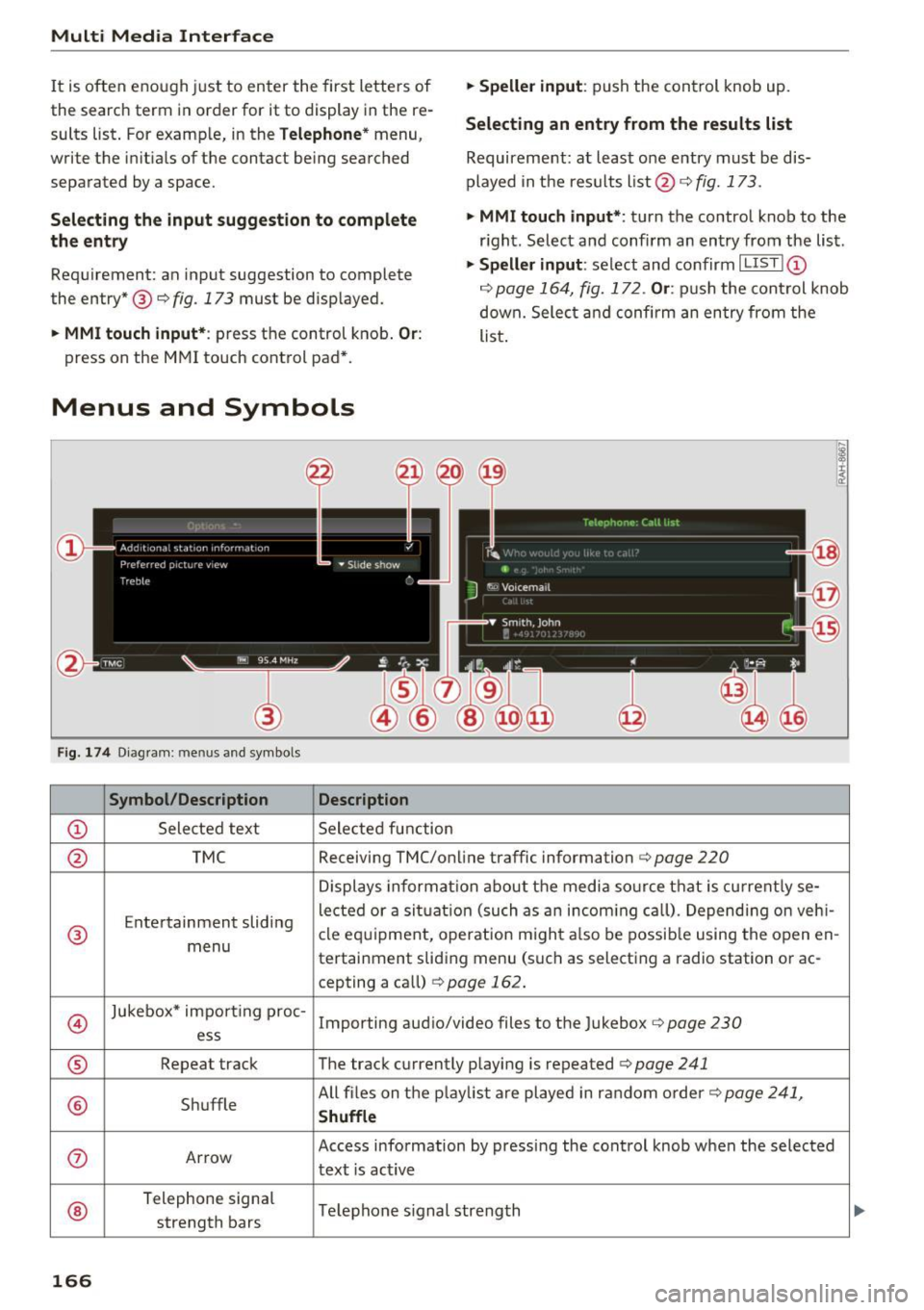
Menus and Symbols
F ig. 174 Diag ram : me nus and symbols
Symbol /Description Description
@ Selected text Selected function
.,. Speller input : push the control knob up.
Selecting an entry from the results list
Requirement: at least one entry must be dis
played in the results list @ ¢
fig. 173.
.,. MMI touch input*:
turn the control knob to the
r ight. Select and confirm an entry from the list .
.,. Speller input: select and confirm I LIST!@
c:> page 164, fig. 172. Or : push the cont rol knob
down. Select and confirm an entry from the
list .
@ TMC Receiving TMC/online traffic
information
c:::> page 220
Displays informat ion about the media source that is current ly se-
Entertainment sliding lected or a
situation (such as an incom ing call) . Depending on veh i-
® cle
equipment, operation m ight also be possible using the open en-
menu tertainment sliding menu (such as selecting a radio station or ac-
cepting a call)
¢ page 162.
©
Jukebox* impo rt ing proc-
Importing audio/video files to the Jukebox r:> page 230
ess
® Repeat track The track currently playing is repeated <=:>page 241
® Shuffle All files on the
playlist are played in random order c:>page 241,
Shuffle
(J) Arrow Access information by pressing the control knob when the selected
text
is act ive
®
Telephone signal
Telephone s ignal strength
strength bars
166
Page 169 of 402

u co ...... N r-... N ...... 0
0
:E: '
@
@
@
@
@)
@
@
@
@
@
@
@
@
Symbol/Description
Exclamation point on the
telephone
Data connect ion signa l
strength bars*
2G/3G/LTE* Mute
Roaming
Importing process
Options menu* Bluetooth*
Scroll bars
Input field
MMI touch* Knob
Che ck boxes
Selection list
Multi Media Interfac e
Description
In di cates missed calls
S igna l strength for the active data co nnect io n, or
PIN: ente r the PIN (SI M)
PUK : enter the PUK
Network coverage for the act ive data connection ~
page 196
2G: GSM networ k
3G: UM TS netwo rk
LTE* : LT E network
The audio source is muted
q page 253
Outside the the mo bile netwo rk fo r the connec ted ce ll phone or the
inserted S IM caird
Import/update the contacts in the directo ry or the call lists
Select and confirm context -dependent func tions as we ll as settings
within a menu
item
Bluetoo th device connected~ page 231 or~ page 176
Name of a long list
Move within lists using the control knob
Informat io n that c an be cha nged using t he let ter/num be r speller
qpage 164 or the M MI to uch* ~page 160.
Poss ible to operate using the MMI touch c ontrol pad*
Setting fo r the selected funct ion by turning the control knob
You can sw itch certain functions on~ or offO by pressing t he con-
trol knob.
Settings for the selected f unction that a re accessed by pressing the
control knob
167
Page 170 of 402

Voice recognition system
• Telephone
• Audi connect •
Favorites
• Call (XV)
• Navigation
• Directory
• Radio
• Media
• Sound •
Enter number
• Redial
• Read new text message
• Navigate to
(XY)
• Enter address/destination
• Help • Online destinations
• Help Speech dialog system
• Help Telephone •
Cancel route guidance
• Map
• Help Audi connect •
Line
(XV)
• Help Navigation
• Help
Map
• Help Radio •
Next page/ previous page
• Cancel
• No. I meant (XV)
• He lp Media • Correction
TE ,EPflON ~
• Enter number • Call list
• Delete number/ correction • Redial
• Directory
• Call
(XV)
• Call mailbox
• Telephone favorites
· business/ private/ land tine
I mobile
• Nav igate to
(XV)
• Start I cancel route guidance
• Directory
• Last destinations •
Block route for (XV) miles
I Block
the next section
• Route list
• Calculate alternative routes
• Nav igation favorites
• Drive home
• Enter address •
Online destinations
• Special destination
• Enter country
I town I street/ state
• Exclude route/ Exclude route for
(XV) km/ m
• Map
• Day map/ Night map
• 2D driving position map/ 20 north position map/ 3D map/ Destination map/ Overview map
~UJDI CONNECT
• Audi connect
• Travel Information/ Parking Information
• Fuel prices
• Weather
RADIO
• Radio presets
• FM
• FM /AM/ SIRIUS XM
• Station (XY) / Frequency (XV)
• Traffic announcement on
I off
Fig. 175 Comm and overv iew
168
•
• Flight Information
• City events
• Online news
• Twitter
MEDIA
• Jukebox
• CD
I DVD
• SD card l / SD card 2
• Audi music Interface/ I Pod/ USB / Bluetooth /
WI -Fl/ Med ium (XV)
• Media favorites / Artists / Albums / Genres /
Tracks/ Playllsts / Videos
• Folder up
• Random playback on/ off
Page 171 of 402

u co ...... N r-... N ...... 0
0
:E: '
Appl ies to: veh icles wit h vo ice recog nitio n system
You con operate many Infotainment functions
conveniently by speaking .
Requirements: the ign ition and the MM I must be
switched on
~ page 156, there must not be any
phone call in progress and the park ing system
must not be active .
~ Switching on: briefly press the~ button @
~page 14, fig. 11 on the m ultifunction steer
ing whee l and say the desired command after
the
Beep .
~ Switching off : press and hold the~ button.
Or: press the [2] butto n.
~ Pau se : say the command Pause . To resume,
press the~ button.
~ Correcting : say the command Corre ction . Or :
simply say a new command during an an
nouncement
c::> page 249.
Input assistance
The system gu ides you throug h the input with
v isua l and audio feedbac k.
- Vi sua l input as sistan ce: after switching on
vo ice recogn it io n, a display w ith a selection of
poss ible commands appears. This command
display can be sw itched on o r off . Se lect:
IMENU I button> Setting s> left cont rol button
> MMI setting s > Speech dialog system .
- Audio input a ssis tance :
to have the poss ible
commands read, tu rn the voice recognition sys
tem on and say
Help.
For the s yst em to understand you:
Speak clearly and dist inctly at a normal vo lume .
Speak louder when d riving faste r.
Emphasize the words in the commands evenly
and do not leave long pauses .
C lose the doors, the windows and the sunroof* to
reduce background noise . Make sure that passen
gers are not speaking when you are giving a voice
command .
Voice recognition system
Do not direct the air vents toward the hands-free
microphone, which is on the roof headliner near
t h e front inte rior lights .
Only use the system from the dr iver's seat be
ca use the hands -free microphone is directed to
ward that seat .
Additional settings
See c::> page 249, Speech dialog system .
A WARNING
-Dire ct your full attention to dr iv ing. As the
driver, you have complete responsibility for
safety in traffic . Only use the functions in
such a way that you a lways maintain com
p lete contro l over your vehicle in all traffic
situations.
- Do not use the voice recognition system in
emergencies beca use your voice may change
in stressful situations. It may take longer to
d ial the number or the system may not be
able to dial it at all. Dial the emergency number manually.
@ Tips
- The d ialog pauses when there is an incom
ing phone call and will continue if you ig
nore the call. The d ialog ends if you answer
the ca ll.
- You can select an item in the list using ei
ther the vo ice recognit ion system or the
cont rol knob.
Command overview
information
Appl ies to: ve hicles w ith vo ice recognit ion system
T he following overv iews des cribe the comma nds
t h at can be used to operate the MMI using the
voice recognition system.
Alte rnative commands a re separate d using a"/ ",
for example say:
Telephone / (or) Navigation /
(or) Radio.
Sequences of commands used to perfo rm an ac
t ion are iden tified w it h a"> ", fo r ex ample say:
Ente r addre ss > (t hen) Enter country /state . ..,.
169
Page 172 of 402
Voice recognition system
The majority shown are main commands . This
system also recognizes synonyms in ce rtain cas- es
. For a Business addre ss, you can also say busi
ness , work , office or at the office .
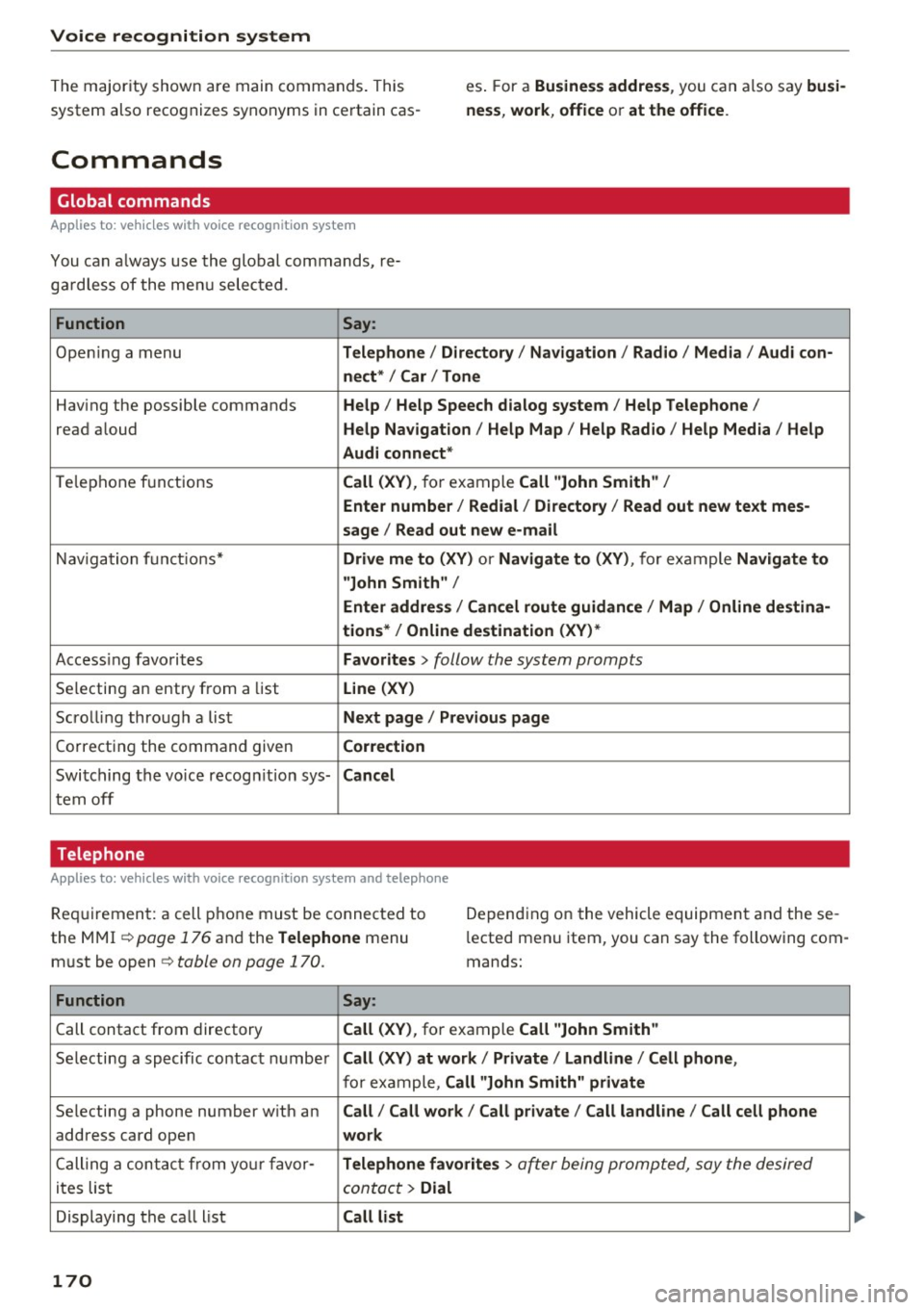
Commands
Global commands
Applies to: vehicles with voice recogn ition system
You can a lways use th e global commands, re
g ar dless of the me nu selec ted.
Function Say:
Opening a menu Telephone / Directory / Navigation / Radio / Media / Audi con-
nect * /Car / Tone
Hav ing the possible commands Help / Help Speech dialog system / Help Telephone /
read aloud Help Navigation / Help Map / Help Radio / Help Media / Help
Audi connect*
T elephone f unctions Call (XV) , for example Call "John Smith" /
Enter number / Redial / Directory / Read out new text mes-
sage
I Read out new e -ma il
Nav ig at ion f un ct io ns* Drive me to (XY ) or Navigate to (XV) , for example Navigate to
"John Smith" /
Enter address / Cancel route guidance / Map / Online destina-
tions* / Online destination (XV )*
Accessing favorites Favorites > follow the system prompts
Selecting a n entry from a list Line (XV)
Scro llin g thro ugh a lis t Next page / Previous page
Co rrecting the command given Correction
Swi tching the voice recog nition sys-Cancel
tern off
Telephone
Applies to: vehicles with voice recognition system and telephone
Requ ir emen t: a cell phone must be connected to
the MMI
¢page 176 and the Telephone menu
m ust be open ¢
table on page 170.
Depend ing on the vehicle equipmen t and these
l ected men u item, you can say the following com
mands:
Function Say:
Call contact from directory Call (XV), for example Call "John Smith"
Se lecting a specific co ntac t nu mbe r Call (XV) at work / Private / Land line / Cell phone ,
for ex am ple, Call "John Smith" private
Selecting a phone number w ith an Call / Call work / Call private / Call land line / Call cell phone
address card open work
Ca lling a con tac t fr om yo ur favor-Telephone favorites > a~er being prompted, say the desired
ites lis t contac t > Dial
Displaying the ca ll list Call list
170