Page 110 of 369
109
Entering a DestinationMap Input
Navigation
Map Input
HMENU button More Search Methods Map Input
Use the Interface Dial to manually select an icon or a location on the map screen as
the destination.
You are prompted to define the map area to display.
1.Rotate i to select an item. Press
u .
The following items are available:
• Current Position : Your current location is centered on the map.
• Province : You are prompted to select the state.
2Selecting the State or Province P. 91
• City : You are prompted to select the city.
2Selecting a City P. 92
• USA, Canada and Mexico: Your current location is displayed on a map of the
country.
Continued
Page 111 of 369
110
Entering a DestinationMap Input
Navigation
2.Scroll the map to position the
cursor over your desired
destination, adjusting the map
scale as necessary.
If the address is not the desired
location, scroll the map to
another location and try again.
3. Press u to display the route
calculation menu.
2 Calculating the Route P. 112
4. Rotate i to select Set as
Destination. Press u.
1Map Input
Auto Zoom
Press u repeatedly on the map to zoom in (to
the scale 400m) whil e scrolling the map.
Information icons are disp layed at scales from
1.6km to 400m. Place/landmark icons are
displayed at 200m or less. Roads are displayed at
400m or less.
If you select multiple icons within the cursor
radius, you are prompted to select one of the
items from a list.
2 Selecting a Destination on the Map P. 137
Page 112 of 369
111
Entering a DestinationCoordinate
Navigation
Coordinate
HMENU button More Search Methods Coordinate
Specify a location using latitude and longitude map coordinates. 1.Enter the latitude and select OK.
2. Enter the longitude and select OK.
3. Move w to scroll the map to
position the cursor over your
desired destination, adjusting the
map scale as necessary.
If the address is not the desired
location, scroll to another
location and try again.
4. Press u to display the route
calculation menu.
2 Calculating the Route P. 112
5. Rotate i to select Set as
Destination. Press u.
1Coordinate
Latitude and longitude mu st be entered up to
the seconds’ value.
Page 118 of 369
117
Driving to Your DestinationViewing the Route
Navigation
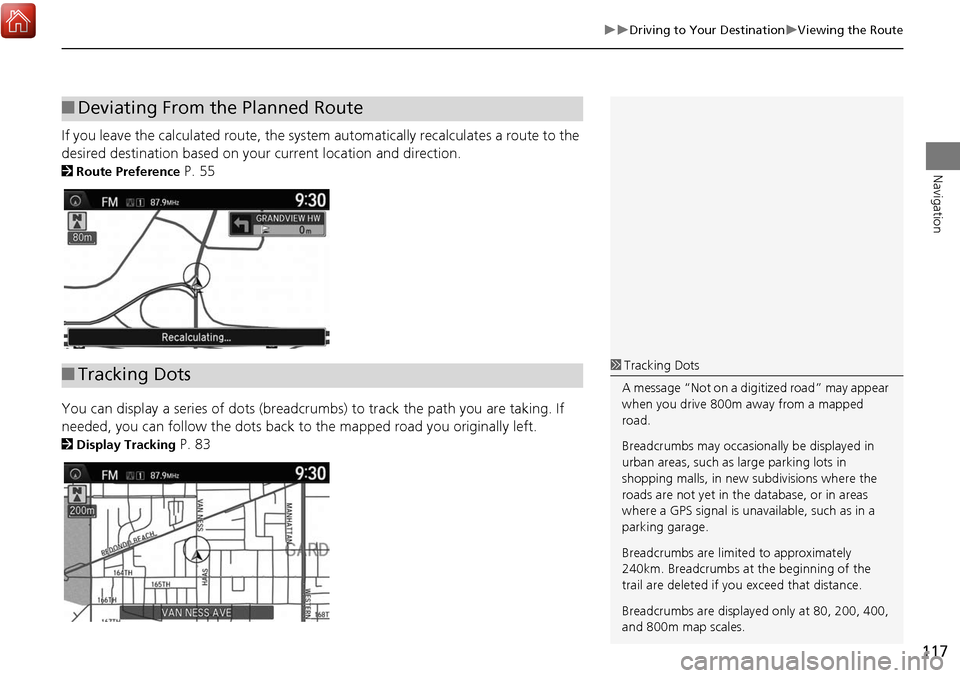
If you leave the calculated route, the system automatically recalculates a route to the
desired destination based on your current location and direction.
2Route Preference P. 55
You can display a series of dots (breadcrumbs) to track the path you are taking. If
needed, you can follow the dots back to the mapped road you originally left.
2Display Tracking P. 83
■Deviating From the Planned Route
■Tracking Dots1 Tracking Dots
A message “Not on a digi tized road” may appear
when you drive 800m away from a mapped
road.
Breadcrumbs may occasionally be displayed in
urban areas, such as large parking lots in
shopping malls, in new subdivisions where the
roads are not yet in the database, or in areas
where a GPS signal is unavailable, such as in a
parking garage.
Breadcrumbs are limite d to approximately
240km. Breadcrumbs at the beginning of the
trail are deleted if you exceed that distance.
Breadcrumbs are displaye d only at 80, 200, 400,
and 800m map scales.
Page 121 of 369
120
Navigation
Map Menu
Displaying the Map Menu
Use the Map Menu to control the icons displayed on the screen and to display traffic
information and messages. You can also use the Map Menu to find locations or to
cancel the route.
1.On the map screen, press u.
The Map Menu is displayed on
the map screen.
2. Rotate i to select an item. Press
u .
The following item s are available:
• Voice: Select to hear the voice guidance when en route.
2Listening to Voice Guidance P. 118
1Map Menu
If you scroll the map while en route, press the
NAV (or BACK ) button to return to the current
position map screen, then press u.
Page 122 of 369
121
Map MenuDisplaying the Map Menu
Navigation
•Guidance Volume : Adjusts the navigation system volume level.
• Map/Guidance : Allows you to select the map and guidance settings (display
mode, icons to display on the map, map orientation, map color, and 3D view
angle), display your current location an d an overview of the map features.
2Guidance Mode P. 64
2Showing Icons on Map P. 71
2Color P. 73
2View (Map Orientation) P. 76
23D Angle Adjustment P. 77
2Current Location P. 78
2Map Legend P. 79
• Pause Guidance : Pauses your current route.
2Pausing the Route P. 128
• Resume Guidance : Resumes your current route. This item is displayed while the
route guidance is paused.
• Hide Traffic Flow : Hides the current traffic flow indicator on the map screen.
2Hide Traffic Flow P. 122
• Directions : Displays a list of the guidance points.
2Directions P. 123
• Search Nearby: Allows you to find the nearest place/landmark (e.g., nearest gas
station) by specifying a category. You ca n then add the location to the list of
destinations, set as a waypoint, or set as your destination.
2Find Nearest Place P. 136
• Traffic Incidents: Displays a list of the traffic incidents around your current
location or on your current route.
2 Traffic Rerouting™ P. 125
1Map Menu
Directions
The system provides highway exit information
only in the U.S.
Traffic Incidents
You must have an AcuraL ink Real-Time Traffic™
subscription to receive traffic information.
2 AcuraLink
® P. 268
The incident icons are displayed on the 8km or
less map scale.
2 Map Scale and Functions P. 80
Page 126 of 369
125
Map MenuTraffic Rerouting™
Navigation
Traffic Rerouting™
When driving to your destination, the system automatically searches for a faster
route based on traffic flow information and traffic incidents.
2 AcuraLink Real-Time Traffic™ P. 14
2Traffic Rerouting P. 59
H ENTER button (on map)
Traffic Incidents
Manually avoid specific incidents and/or congestion on your route: 1.Rotate i to select an incident
from the list. Press u.
The system displays the map
screen and the incident location.
1Traffic Rerouting
This feature requires an AcuraLink Real-Time
Traffic™ subscription.
AcuraLink Real-Time Traffic™ is a subscription
service. For more information, contact an Acura
dealer or visit www.acura.ca/owners/acuralink .
Automatic traffic rerouting may not provide a
detour route dependi ng on circumstances.
■Traffic Rerouting™ Manually
Continued
Page 131 of 369
130
Changing Your RouteAdding Waypoints
Navigation
HMENU button (when en route) Destination List Add New Destination
Find Along Route
1.Rotate i to select a search
method to add a waypoint. Press
u .
The following item s are available:
• Search Around: Searches in a spiral pattern around the location you select.
• Search Along : Searches within a “corridor” on either side of the locations you
select.
2.Rotate i to select a waypoint
category (e.g., GAS STATION).
Press u.
■Adding Waypoints from the Route Menu1 Adding Waypoints
Search method
“Search around” method
“Search along” method


