Page 29 of 275
LC200_Navi_OM60N15U_(U)
15.07.08 16:48
Basic function
2
291. Basic information before operation
1Select the desired character screen
buttons.
1Press the “SETUP” button.
2Select “Display”.
Character screen buttons in
lists
Some lists contain character screen
buttons, “ABC”, “DEF” etc., which al-
low a direct jump to list entries that be-
gin with the same letter as the
character screen button.
INFORMATION
●Every time the same character screen
button is selected, the list starting with
the subsequent character is displayed.
Screen adjustment
The contrast and brightness of the
screen display and the image of the
camera display can be adjusted. The
screen can also be turned off, and/or
changed to either day or night mode.
(For information regarding audio/visual
screen adjustment:
P.115)
Page 30 of 275

LC200_Navi_OM60N15U_(U)
15.07.08 16:48
301. Basic information before operation
3Select the items to be set.
1Select “Day Mode”.
In the following conditions, the display’s
condition is not changed to night mode
even if headlight switch is turned on:
• The instrument panel light control dial is
turned fully to the upper.
• The vehicle is in a bright area, such as
outside in direct sunlight.
1Select “General” or “Camera”.
2Select the desired item.
“Display (General)” screen only: Select
“” or “” to select the desired display.
No.FunctionPage
Select to turn the screen off.
To turn it on, press any but-
ton on the audio panel.
Select to turn day mode on/
off.30
Select to adjust the screen
display.
30Select to adjust the camera
display.
Changing between day and
night mode
Depending on the position of the head-
light switch, the screen changes to day
or night mode. This feature is available
when the headlight is switched on.
INFORMATION
●If the screen is set to day mode with the
headlight switch turned on, this condition
is memorized even with the engine
turned off.
Adjusting the contrast/
brightness
The contrast and brightness of the
screen can be adjusted according to
the brightness of your surroundings.
Screen buttonFunction
“Contrast” “+”Select to strengthen the
contrast of the screen.
“Contrast” “-”Select to weaken the
contrast of the screen.
“Brightness” “+”Select to brighten the
screen.
“Brightness” “-”Select to darken the
screen.
Page 31 of 275
LC200_Navi_OM60N15U_(U)
15.07.08 16:48
Basic function
2
311. Basic information before operation
Linking multi-information
display and navigation
system
The following functions of the naviga-
tion system are linked with the multi-in-
formation display in the instrument
cluster:
Navigation
Audio
etc.
These functions can be operated using
multi-information display control
switches on the steering wheel. For de-
tails, refer to “Owner’s Manual”.
Page 33 of 275

LC200_Navi_OM60N15U_(U)
15.07.08 16:48
Basic function
2
332. Bluetooth® settings
7Select “OK” when the connection sta-
tus changes from “Connecting...” to
“Connected”.
If an error message is displayed, follow
the guidance on the screen to try again.
1Turn the Bluetooth® connection setting
of your audio player on.
This function is not available when the
Bluetooth® connection setting of your
audio player is set to off.
2Press the “AUDIO” button.
3Select “Source”.
4Select “Bluetooth*”.
5Select “Connect”.
6Select “Yes” to register a audio player.
7Follow the steps in “Registering a
Bluetooth
® phone for the first time”
from step 5. (P.32)
*: The Bluetooth
® word mark and logos
are registered trademarks owned by
Bluetooth SIG, Inc.
Registering a Bluetooth® audio
player for the first time
To use the Bluetooth
® Audio, it is nec-
essary to register an audio player with
the system.
Once the player has been registered, it
is possible to use the Bluetooth
® Au-
dio.
This operation cannot be performed
while driving.
For details about registering a
Bluetooth
® device: P.37
Page 34 of 275
LC200_Navi_OM60N15U_(U)
15.07.08 16:48
342. Bluetooth® settings
Profiles
This system supports the following services.
Bluetooth®
DeviceSpec.FunctionRequire-
mentsRecom-
mendations
Bluetooth®
Phone/
Bluetooth®
Audio
PlayerBluetooth® Specification
Registering a
Bluetooth®
deviceVe r. 2 . 0Ver.3.0
+EDR
Bluetooth®
DeviceProfileFunctionRequire-
mentsRecom-
mendations
Bluetooth®
Phone
HFP (Hands-Free Profile)Hands-free
systemVe r. 1 . 0Ve r. 1 . 6
OPP (Object Push Profile)Transferring the
contactsVe r. 1 . 1Ve r. 1 . 2
PBAP (Phone Book Access
Profile)Ve r. 1 . 0Ve r. 1 . 1
MAP (Message Access Profile)Bluetooth®
phone messageVe r. 1 . 0
SPP (Serial Port Profile)“Entune App
Suite” functionVe r. 1 . 1
Bluetooth®
Audio
Player
A2DP (Advanced Audio Distribu-
tion Profile)
Bluetooth®
audio systemVe r. 1 . 0Ve r. 1 . 2
AVRCP (Audio/Video Remote
Control Profile)Ve r. 1 . 0Ve r. 1 . 4
Page 37 of 275

LC200_Navi_OM60N15U_(U)
15.07.08 16:48
Basic function
2
372. Bluetooth® settings
1Display the “Bluetooth* Setup” screen.
(P.36)
2Select “Add”.
When another Bluetooth® device is con-
nected
To disconnect the Bluetooth® device,
select “Yes”.
When 5 Bluetooth® devices have al-
ready been registered
A registered device needs to be replaced.
Select “Yes”, and select the device to be
replaced.
3When this screen is displayed, search
for the device name displayed on this
screen on the screen of your
Bluetooth
® device.
For details about operating the Bluetooth®
device, see the manual that comes with it.
To cancel the registration, select “Can-
cel”.
*: The Bluetooth® word mark and logos
are registered trademarks owned by
Bluetooth SIG, Inc.
4Register the Bluetooth® device using
your Bluetooth
® device.
A PIN-code is not required for SSP
(Secure Simple Pairing) compatible
Bluetooth
® devices. Depending on the
type of Bluetooth® device being con-
nected, a message confirming registra-
tion may be displayed on the Bluetooth
®
device’s screen. Respond and operate the
Bluetooth® device according to the confir-
mation message.
5Check that the following screen is dis-
played when registration is complete.
The system waits for connection requests
coming from the registered device.
At this stage, the Bluetooth
® functions are
not yet available.
6Select “OK” when the connection sta-
tus changes from “Connecting...” to
“Connected”.
If an error message is displayed, follow
the guidance on the screen to try again.
Registering a Bluetooth® device
Up to 5 Bluetooth
® devices can be reg-
istered.
Bluetooth
® compatible phones (HFP)
and audio players (AVP) can be regis-
tered simultaneously.
This operation cannot be performed
while driving.
Page 38 of 275

LC200_Navi_OM60N15U_(U)
15.07.08 16:48
382. Bluetooth® settings
1Display the “Bluetooth* Setup” screen.
(P.36)
2Select “Remove”.
3Select the desired device.
4Select “Yes” when the confirmation
screen appears.
5Check that a confirmation screen is
displayed when the operation is com-
plete.
*: The Bluetooth
® word mark and logos
are registered trademarks owned by
Bluetooth SIG, Inc.
1Display the “Bluetooth* Setup” screen.
(P.36)
2Select the device to be connected.
Supported profile icons will be displayed.
: Phone
: Audio player
: Phone/“Entune App Suite” service
The profile icon for a currently connected
device will be displayed in color.
Selecting a profile icon which is not cur-
rently connected will switch the device
linked to that icon.
*: The Bluetooth® word mark and logos
are registered trademarks owned by
Bluetooth SIG, Inc.
Deleting a Bluetooth® device
INFORMATION
●When deleting a Bluetooth® phone, the
contact data will be deleted at the same
time.
Connecting a Bluetooth® device
Up to 5 Bluetooth
® devices (Phones
(HFP) and audio players (AVP)) can be
registered.
If more than 1 Bluetooth
® device has
been registered, select which device to
connect to.
If the desired Bluetooth® device is not
on the list, select “Add” to register the
device. (P. 3 7 )
Page 39 of 275
LC200_Navi_OM60N15U_(U)
15.07.08 16:48
Basic function
2
392. Bluetooth® settings
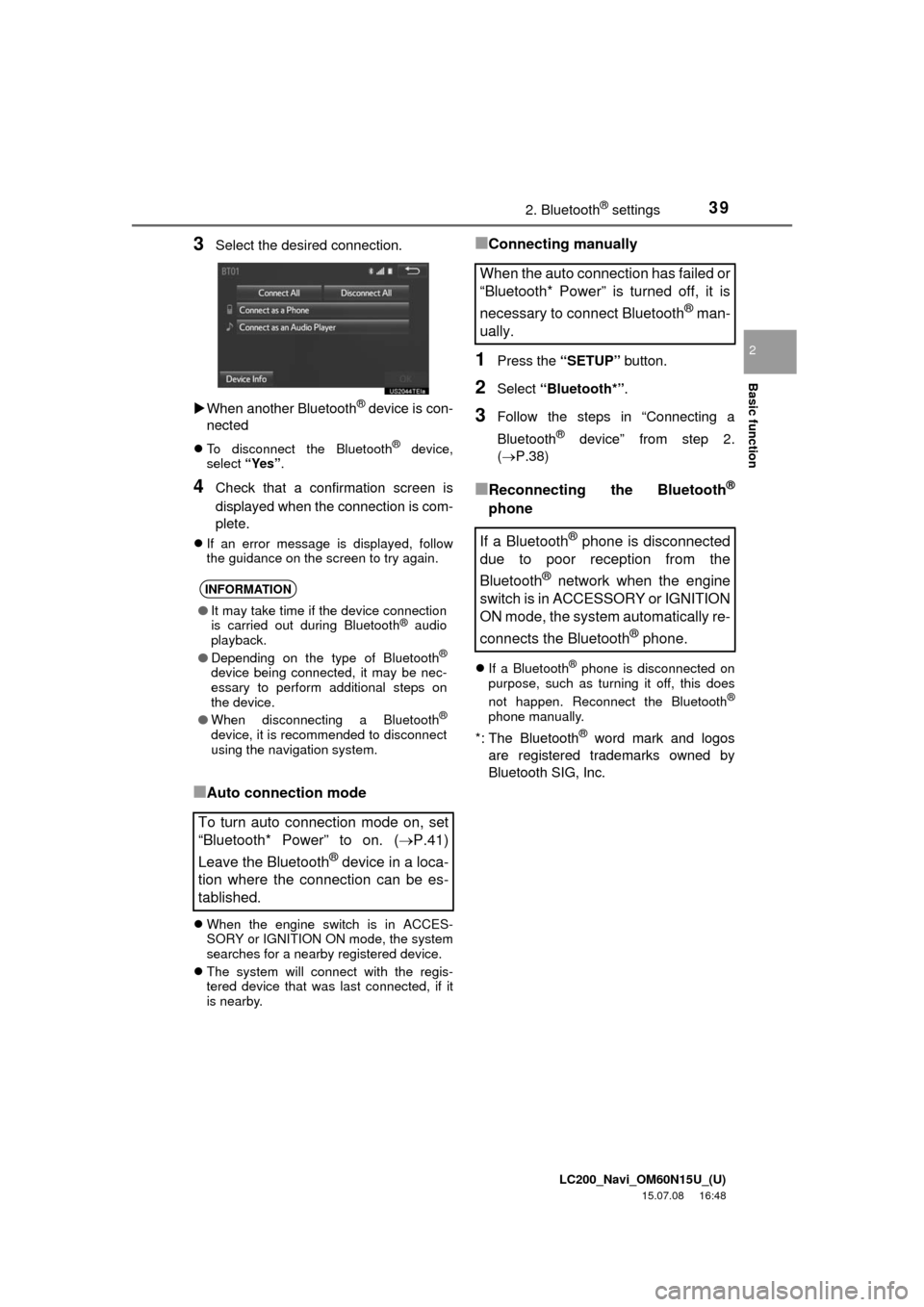
3Select the desired connection.
When another Bluetooth
® device is con-
nected
To disconnect the Bluetooth® device,
select “Yes”.
4Check that a confirmation screen is
displayed when the connection is com-
plete.
If an error message is displayed, follow
the guidance on the screen to try again.
■Auto connection mode
When the engine switch is in ACCES-
SORY or IGNITION ON mode, the system
searches for a nearby registered device.
The system will connect with the regis-
tered device that was last connected, if it
is nearby.
■Connecting manually
1Press the “SETUP” button.
2Select “Bluetooth*”.
3Follow the steps in “Connecting a
Bluetooth
® device” from step 2.
(P.38)
■Reconnecting the Bluetooth®
phone
If a Bluetooth® phone is disconnected on
purpose, such as turning it off, this does
not happen. Reconnect the Bluetooth
®
phone manually.
*: The Bluetooth® word mark and logos
are registered trademarks owned by
Bluetooth SIG, Inc.
INFORMATION
●It may take time if the device connection
is carried out during Bluetooth® audio
playback.
●Depending on the type of Bluetooth
®
device being connected, it may be nec-
essary to perform additional steps on
the device.
●When disconnecting a Bluetooth
®
device, it is recommended to disconnect
using the navigation system.
To turn auto connection mode on, set
“Bluetooth* Power” to on. (P.41)
Leave the Bluetooth
® device in a loca-
tion where the connection can be es-
tablished.
When the auto connection has failed or
“Bluetooth* Power” is turned off, it is
necessary to connect Bluetooth
® man-
ually.
If a Bluetooth
® phone is disconnected
due to poor reception from the
Bluetooth
® network when the engine
switch is in ACCESSORY or IGNITION
ON mode, the system automatically re-
connects the Bluetooth
® phone.


