2016 SUBARU OUTBACK Power
[x] Cancel search: PowerPage 181 of 572

&Security indicator light
This indicator light shows the status of the
alarm system. It also indicates operation
of the immobilizer system.
!Alarm system
It blinks to show the driver the operational
status of the alarm system. For detailed
information, refer to“Alarm system”F2-
28.
!Immobilizer system
The security indicator light starts blinking
in the following conditions.
For models with“keyless access with
push-button start system”:
.Immediately after the push-button igni-
tion switch is turned to the“OFF”position.
.Immediately after the driver’s door is
opened or closed when all of the following
conditions are met.
–The push-button ignition switch is in
the“ON”or“ACC”position.
–The access key is outside the
vehicle.
–The engine is not running.
–In the event that an unauthorized
key is used (for example, the key is
unregistered or the ID code does not
match), the power is not switched to
“ON”and the security indicator lightcontinues blinking.
For models without“keyless access
with push-button start system”:
.Approximately 60 seconds after the
ignition switch is turned from the“ON”
position to the“ACC”or“LOCK”position.
.Immediately after the key is pulled out.
If the indicator light does not blink in the
above conditions, it may indicate that
immobilizer system may be malfunction-
ing. Contact your nearest SUBARU dealer
immediately.
In the event that an unauthorized key (for
example, an unauthorized duplicate) is
used, the security indicator light illumi-
nates. For details about the immobilizer
system, refer to“Immobilizer”F2-4.
NOTE
.The security indicator light remains
off in the following conditions. It means
that the matching of the ID code is
completed and the immobilizer system
is deactivated, and it does not indicate
a malfunction.
Models with“keyless access with
push-button start system”:
–while the engine is running
–the push-button ignition switchhas been turned to the“ON”or
“ACC”position and the driver’s
door has not been opened or closed
Models without“keyless access
with push-button start system”:
–while the engine is running
–for approximately 60 seconds
after the ignition switch is turned
from the“ON”position to the
“ACC”or“LOCK”position
–when the ignition switch is in the
“ON”position.
.Even if a malfunction occurs, such
as the security indicator light flashes
irregularly, it will not affect the func-
tionality of the immobilizer system.
Instruments and controls/Warning and indicator lights
–CONTINUED–3-29
Page 232 of 572

Audio/Audio set
&Base display audio set (if equipped)
1) Power/VOLUME knob
2) Eject button
3) AUDIO/TUNE knob
4) HOME button5) APPS button
6) Display
7) SEEK/TRACK buttons
The audio set will operate only when the
ignition switch is in the“ACC”or“ON”
position.
.Power and audio controls: refer to
“Basic operation”F5-18.
.STARLINK (if equipped): refer to
“STARLINK”F5-26.
.Radio operation: refer to“AM/FM radio”
F5-28.
.Satellite radio operation (if equipped):
refer to“SiriusXM Satellite Radio”F5-37.
.aha
TM: refer to“ahaTMby HARMAN”
F5-44.
.Pandora
®(if equipped): refer to“Pan-
dora®”F5-50.
.CD (compact disc) player operation:
refer to“CD”F5-53.
.USB storage device: refer to“USB
memory”F5-55.
.iPod operation: refer to“iPod”F5-56.
.Bluetooth
®audio: refer to“Bluetooth
audio”F5-58.
.Auxiliary input jack: refer to“AUX”F5-
61.
.Hands-free phone system: refer to
“Hands-free phone system”F5-71.
5-4
Page 235 of 572

&Tips for operating the audio/
visual system
CAUTION
To avoid damage to the audio/visual
system:
.Be careful not to spill beverages
over the audio/visual system.
.Do not put anything other than an
appropriate disc into the disc
slot.
NOTE
The use of a cell phone inside or near
the vehicle may cause a noise from the
speakers of the audio/visual system
which you are listening to. However,
this does not indicate a malfunction.
!Radio
Usually, a problem with radio reception
does not mean there is a problem with the
radio—it is just the normal result of
conditions outside the vehicle.
For example, nearby buildings and terrain
can interfere with FM reception. Power
lines or phone wires can interfere with AM
signals. And of course, radio signals have
a limited range. The farther the vehicle isfrom a station, the weaker its signal will
be. In addition, reception conditions
change constantly as the vehicle moves.
Here, some common reception problems
that probably do not indicate a problem
with the radio are described.
!FM
Fading and drifting stations: Generally, the
effective range of FM is about 25 miles (40
km). Once outside this range, you may
notice fading and drifting, which increase
with the distance from the radio transmit-
ter. They are often accompanied by
distortion.
Multi-path: FM signals are reflective,
making it possible for 2 signals to reach
the vehicle’s antenna at the same time. If
this happens, the signals will cancel each
other out, causing a momentary flutter or
loss of reception.
Static and fluttering: These occur when
signals are blocked by buildings, trees or
other large objects. Increasing the bass
level may reduce static and fluttering.
Station swapping: If the FM signal being
listened to is interrupted or weakened, and
there is another strong station nearby on
the FM band, the radio may tune in the
second station until the original signal can
be picked up again.!AM
Fading: AM broadcasts are reflected by
the upper atmosphere—especially at
night. These reflected signals can inter-
fere with those received directly from the
radio station, causing the radio station to
sound alternately strong and weak.
Station interference: When a reflected
signal and a signal received directly from
a radio station are very nearly the same
frequency, they can interfere with each
other, making it difficult to hear the broad-
cast.
Static: AM is easily affected by external
sources of electrical noise, such as high
tension power lines, lightening or electrical
motors. This results in static.
!SiriusXM (if equipped)
.Cargo loaded on the roof luggage
carrier, especially metal objects, may
adversely affect the reception of SiriusXM
Satellite Radio.
.Alternation or modifications carried out
without appropriate authorization may in-
validate the user’s right to operate the
equipment.
Audio/Audio set
–CONTINUED–5-7
Page 245 of 572
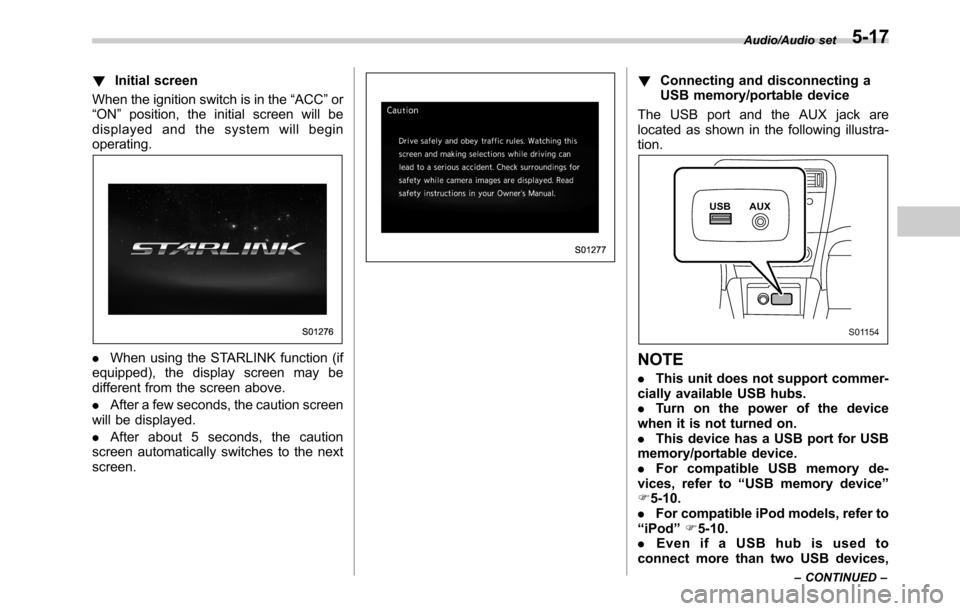
!Initial screen
When the ignition switch is in the“ACC”or
“ON”position, the initial screen will be
displayed and the system will begin
operating.
.When using the STARLINK function (if
equipped), the display screen may be
different from the screen above.
.After a few seconds, the caution screen
will be displayed.
.After about 5 seconds, the caution
screen automatically switches to the next
screen.
!Connecting and disconnecting a
USB memory/portable device
The USB port and the AUX jack are
located as shown in the following illustra-
tion.
NOTE
.This unit does not support commer-
cially available USB hubs.
.Turn on the power of the device
when it is not turned on.
.This device has a USB port for USB
memory/portable device.
.For compatible USB memory de-
vices, refer to“USB memory device”
F5-10.
.For compatible iPod models, refer to
“iPod”F5-10.
.Even if a USB hub is used to
connect more than two USB devices,
Audio/Audio set
–CONTINUED–5-17
Page 246 of 572
Audio/Audio set
only the first two connected devices
will be recognized.
&Basic operation
This section describes some of the basic
features of the audio/visual system. Some
information may not pertain to your sys-
tem.
Your audio/visual system works when the
ignition switch is turned to the“ACC”or
“ON”position.
CAUTION
To prevent the battery from being
discharged, do not leave the audio/
visual system on longer than neces-
sary when the engine is not running.
NOTE
Some functions can also be operated
by using the voice command system.
For details, refer to“Voice command
system”F5-81.!Turning the system on and off
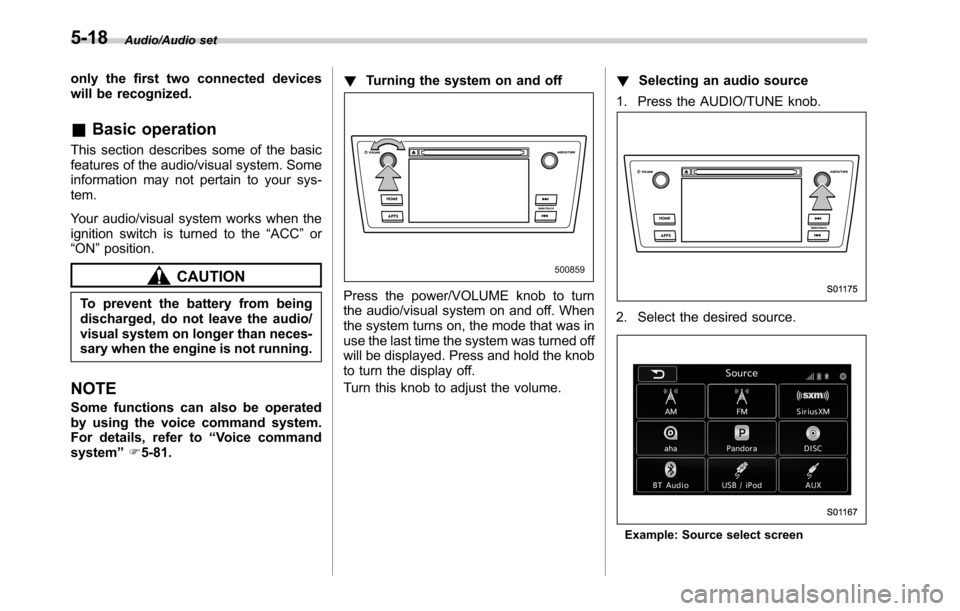
Press the power/VOLUME knob to turn
the audio/visual system on and off. When
the system turns on, the mode that was in
use the last time the system was turned off
will be displayed. Press and hold the knob
to turn the display off.
Turn this knob to adjust the volume.!Selecting an audio source
1. Press the AUDIO/TUNE knob.
2. Select the desired source.
Example: Source select screen
5-18
Page 260 of 572
Audio/Audio set
select the desired multicast channel.
NOTE
.HD RadioTMstations can be preset.
.An orange
HD)(HD)) will be dis-
played on the screen when in digital.
The
HD)(HD)) will first appear in a gray
color indicating the station is indeed
(an analog and) a digital station. Once
the digital signal is acquired, the logo
will change to a bright orange color.
.The song title and artist name will
appear on the screen when available by
the radio station. The radio station can
send album pictures when available.
.As a user works through the analog
radio stations, (where applicable) the
radio receiver will automatically tune
from an analog signal to a digital signal
within 5 seconds.
!Preserving a music information
Tag information in the music broadcasting
is preserved in the system and transmits
to an iPod.
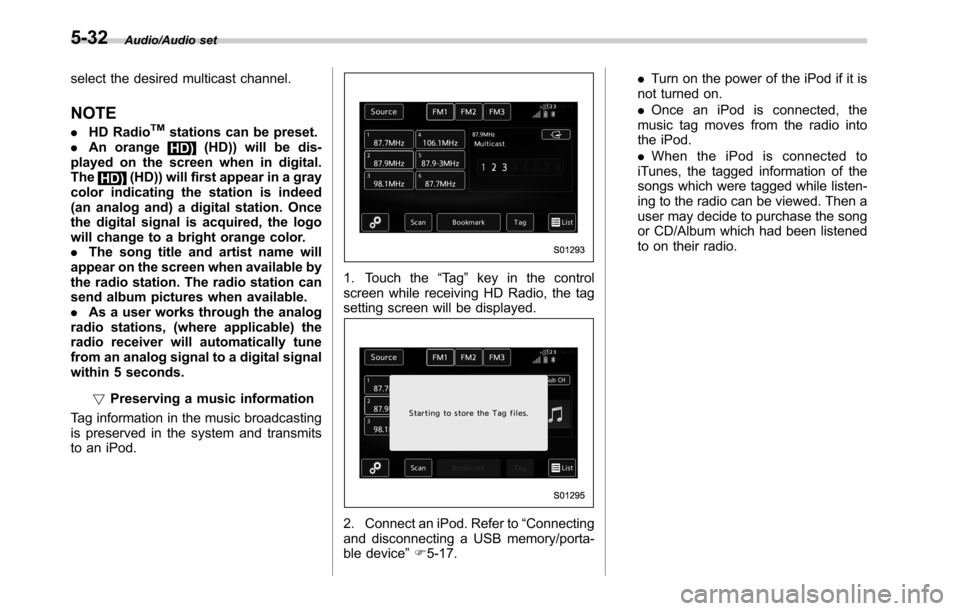
1. Touch the“Ta g”key in the control
screen while receiving HD Radio, the tag
setting screen will be displayed.
2. Connect an iPod. Refer to“Connecting
and disconnecting a USB memory/porta-
ble device”F5-17..Turn on the power of the iPod if it is
not turned on.
.Once an iPod is connected, the
music tag moves from the radio into
the iPod.
.When the iPod is connected to
iTunes, the tagged information of the
songs which were tagged while listen-
ing to the radio can be viewed. Then a
user may decide to purchase the song
or CD/Album which had been listened
to on their radio.
5-32
Page 323 of 572

Interior light......................................................... 6-2
Dome light.......................................................... 6-2
Map light............................................................. 6-2
Cargo area light (Outback)................................... 6-3
OFF delay timer.................................................. 6-4
Sun visors........................................................... 6-4Vanity mirror with light........................................ 6-5
Storage compartment......................................... 6-6Glove box........................................................... 6-6
Center console.................................................... 6-6
Overhead console............................................... 6-7
Pocket................................................................ 6-7
Cup holder........................................................... 6-8Front passenger’s cup holder.............................. 6-8
Rear passenger’s cup holder............................... 6-9
Bottle holders...................................................... 6-9
Accessory power outlets................................... 6-10
Ashtray (if equipped)......................................... 6-12
Coat hook........................................................... 6-13Shopping bag hook........................................... 6-14
Legacy.............................................................. 6-14
Outback............................................................ 6-14
Convenient grip (Outback)................................ 6-14
Floor mat............................................................ 6-15
Cargo area cover (Outback–if equipped)....... 6-16
Using the cover................................................. 6-16
To install the front cover.................................... 6-17
To remove the front cover.................................. 6-17
To remove the cover housing ............................. 6-17
Stowage of the cargo area cover........................ 6-18
To take out the stowed cover housing................ 6-19
To install the cover housing............................... 6-19
Convenient tie-down hooks (Outback)............. 6-19
Under-floor storage compartment.................... 6-20
Rear view camera.............................................. 6-21
How to use the rear view camera....................... 6-22
Viewing range on the screen.............................. 6-23
Help line............................................................ 6-24
Interior equipment
6
Page 332 of 572
Interior equipment/Accessory power outlets
trim can be used to hold beverage bottles
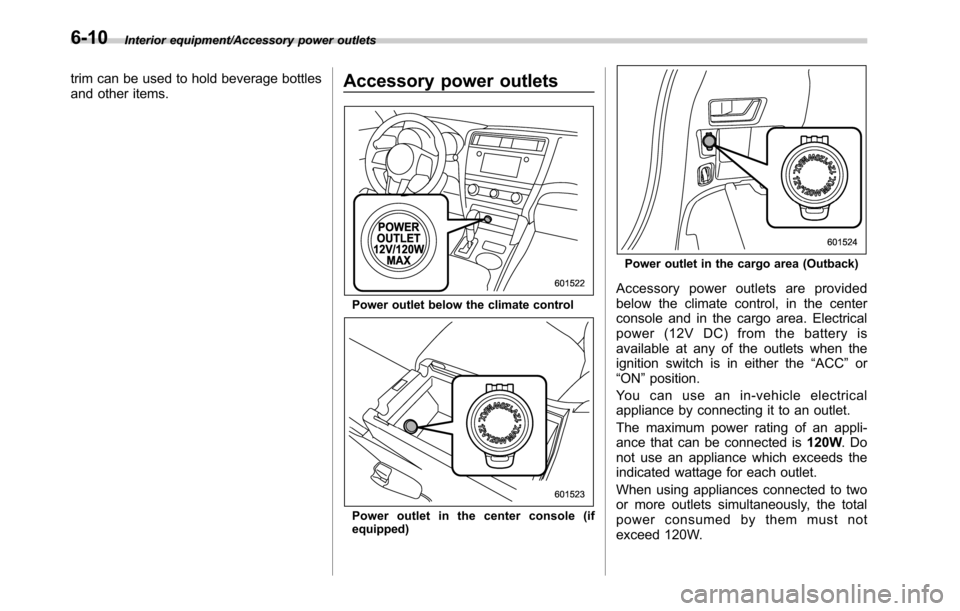
and other items.Accessory power outlets
Power outlet below the climate control
Power outlet in the center console (if
equipped)
Power outlet in the cargo area (Outback)
Accessory power outlets are provided
below the climate control, in the center
console and in the cargo area. Electrical
power (12V DC) from the battery is
available at any of the outlets when the
ignition switch is in either the“ACC”or
“ON”position.
You can use an in-vehicle electrical
appliance by connecting it to an outlet.
The maximum power rating of an appli-
ance that can be connected is120W.Do
not use an appliance which exceeds the
indicated wattage for each outlet.
When using appliances connected to two
or more outlets simultaneously, the total
power consumed by them must not
exceed 120W.
6-10