Page 188 of 594

&Safety precautions
WARNING
Always pay adequate attention to
safe driving when operating the
multi function display while the
vehicle is in motion. When operation
of the multi function display is
disturbing your awareness and abil-
ity to concentrate on driving, stop
the vehicle in a safe place before
performing operations on the
screen. Also, do not concentrate
on the display while driving. Doing
so may cause you to look away from
the road and could result in an
accident.
&Features
The multi function display has the follow-
ing functions.
Description Page
Displays useful messages, such
as warning information, etc. 3-46
Displays basic screens (e.g. fuel
consumption screen, etc.) 3-47
Sets and adjusts maintenance
notification 3-74
Registers driving history 3-77
Sets and customizes car opera-
tion 3-78
Also, the multi function display can also be
used to set and initialize the multi function
display itself.
NOTE
When the vehicle is in motion, certain
functions and selections may not be
available.
&
Locations
Multi function display
1) Outside temperature indicator
2) Top display (For the display setting, refer
to“Top display setting ”F 3-66.)
3) Clock
4) Driving information display (For the dis-
Instruments and controls/Multi function display
–CONTINUED –
3-43
Page 189 of 594
Instruments and controls/Multi function display
played contents, refer to “Basic screens ”
F 3-47.)
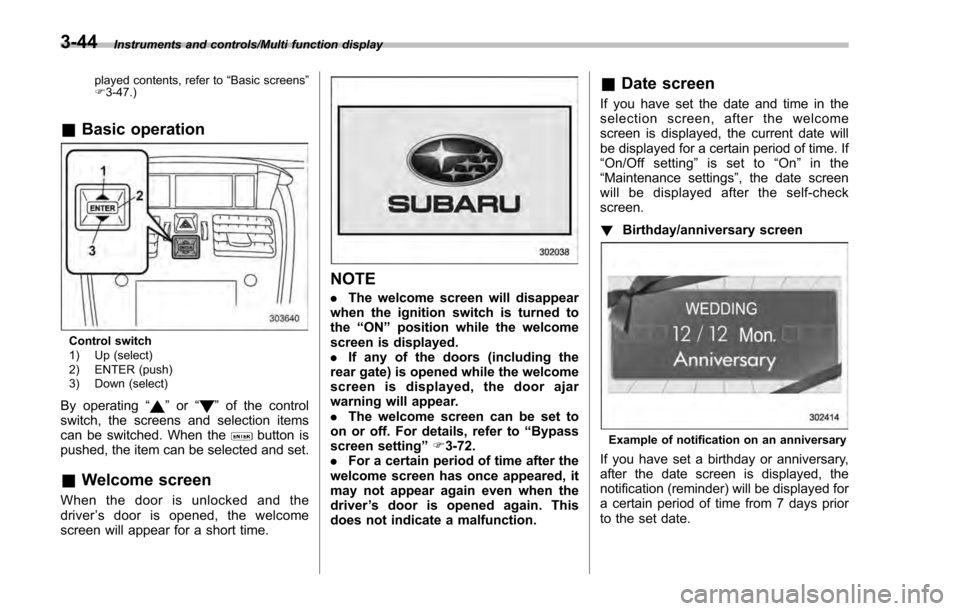
& Basic operation
Control switch
1) Up (select)
2) ENTER (push)
3) Down (select)
By operating “”or “”of the control
switch, the screens and selection items
can be switched. When the
button is
pushed, the item can be selected and set.
& Welcome screen
When the door is unlocked and the
driver ’s door is opened, the welcome
screen will appear for a short time.
NOTE
. The welcome screen will disappear
when the ignition switch is turned to
the “ON ”position while the welcome
screen is displayed.
. If any of the doors (including the
rear gate) is opened while the welcome
screen is displayed, the door ajar
warning will appear.
. The welcome screen can be set to
on or off. For details, refer to “Bypass
screen setting ”F 3-72.
. For a certain period of time after the
welcome screen has once appeared, it
may not appear again even when the
driver ’s door is opened again. This
does not indicate a malfunction.
& Date screen
If you have set the date and time in the
selection screen, after the welcome
screen is displayed, the current date will
be displayed for a certain period of time. If
“On/Off setting ”is set to “On ”in the
“ Maintenance settings” , the date screen
will be displayed after the self-check
screen.
! Birthday/anniversary screen
Example of notification on an anniversary
If you have set a birthday or anniversary,
after the date screen is displayed, the
notification (reminder) will be displayed for
a certain period of time from 7 days prior
to the set date.
3-44
Page 190 of 594
NOTE
.Displaying the birthday/anniversary
screen can be set to on or off. Refer to
“Bypass screen setting” F3-72.
. Up to five items can be set for
birthdays and anniversaries respec-
tively. Refer to “Selection screen ”F 3-
54.
& Ending screen
If“Eco Summary ”is set to “On”in the
“Bypass screen setting ”, the“Fuel con-
sumption results screen” will be displayed
before the screen turns off when the
ignition switch is turned to the “LOCK” /
“ OFF ”position.
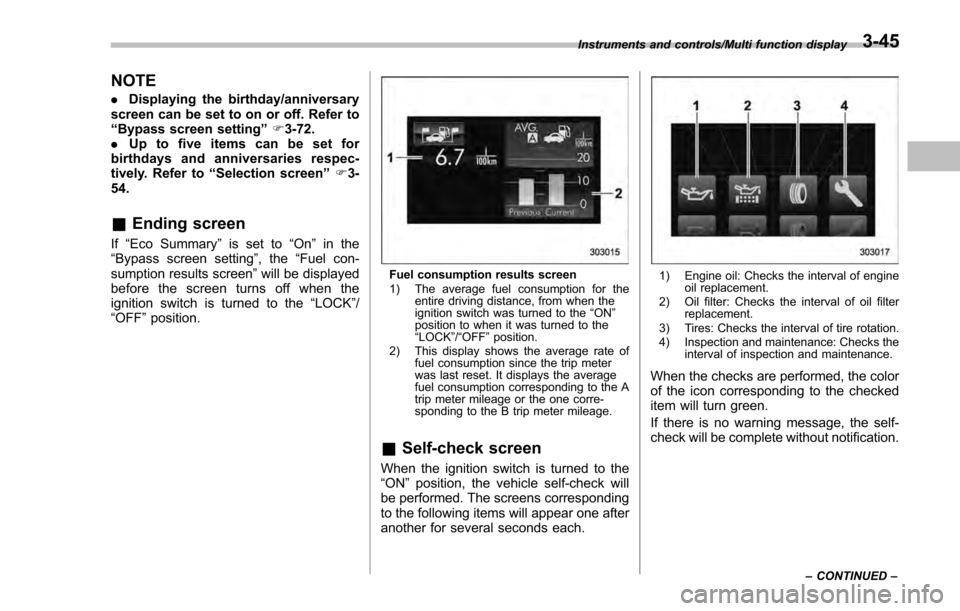
Fuel consumption results screen
1) The average fuel consumption for the
entire driving distance, from when the
ignition switch was turned to the “ON ”
position to when it was turned to the
“ LOCK ”/“ OFF ”position.
2) This display shows the average rate of fuel consumption since the trip meter
was last reset. It displays the average
fuel consumption corresponding to the A
trip meter mileage or the one corre-
sponding to the B trip meter mileage.
&Self-check screen
When the ignition switch is turned to the
“ON ”position, the vehicle self-check will
be performed. The screens corresponding
to the following items will appear one after
another for several seconds each.
1) Engine oil: Checks the interval of engine oil replacement.
2) Oil filter: Checks the interval of oil filter replacement.
3) Tires: Checks the interval of tire rotation.
4) Inspection and maintenance: Checks the interval of inspection and maintenance.
When the checks are performed, the color
of the icon corresponding to the checked
item will turn green.
If there is no warning message, the self-
check will be complete without notification.
Instruments and controls/Multi function display
–CONTINUED –3-45
Page 192 of 594

&Basic screens
! Basic screen items
These are the basic screens of the multi
function display.
Item Page
Information bar 3-47
Fuel consumption screen 3-48
ECO gauge screen (if
equipped) 3-49
ECO history screen 3-49
Vehicle activation status
screen 3-50
EyeSight screen (models with
the EyeSight system) 3-51
Triple meter screen 3-51
Guidance screen 3-52
Clock/calendar screen 3-52
By operating the
“”or “”switch on the
steering wheel, you can switch the screen
that is always displayed. Also, when the
button is pressed and held, the
selection screen can be displayed. For
details about the selection screen, refer to
“Selection screen ”F 3-54. !
Information bar
1) Information bar
2) Outside temperature indicator
3) Top display
4) Clock
While the ignition switch is in the “ACC ”or
“ON ”position, the outside temperature
indicator, clock, etc. will be shown on the
information bar.
!Outside temperature indicator
This displays the outside temperature
between −40 8F( −408 C) and 122 8F
(50 8C).
Icy road surface warning screen
When the outside temperature becomes
37 8F(3 8C) or less, the icy road surface
warning screen interrupts to inform the
driver that the road surface may be frozen.
NOTE
. The outside temperature indicator
shows the temperature around the
sensor. Therefore, the temperature in-
dication may differ from the actual
outside air temperature.
. The icy road surface warning screen
should be treated only as a guide. Be
sure to check the condition of the road
surface before driving.
. Once the icy road surface warning
screen is displayed, it will not be
displayed again unless the outside
Instruments and controls/Multi function display
–CONTINUED –3-47
Page 193 of 594

Instruments and controls/Multi function display
temperature has increased to 418F
(5 8C) or higher.
! Top display
One of the following items can be dis-
played on the top display.
. Average fuel consumption correspond-
ing to the driving distance of each trip
meter
. Current fuel consumption (This may
not be displayed when driving at a low
speed.)
. Driving range on remaining fuel
For details about the setting of the top
display, refer to “Top display setting ”F 3-
66.
NOTE
The driving range on the remaining fuel
is calculated using the average fuel
consumption of the last 19 miles (30
km) driven. This value may be different
from the values calculated using the
average fuel consumption correspond-
ing to the driving distance of each trip
meter or the current fuel consumption. !
Clock
The clock can be displayed in either 12-
hour display or 24-hour display. For details
about the setting, refer to “Current date
and time setting ”F 3-57.
NOTE
If the vehicle battery is disconnected,
the clock shown in the information bar
will be reset. Set the time again after
the vehicle battery is connected. For
details about the setting, refer to “To p
display setting ”F 3-66. !
Fuel consumption screen
1) Average fuel consumption corresponding
to the driving distance of each trip meter
2) Current fuel consumption
3) Driving range on remaining fuel
The displayed location can be custo-
mized. For details, refer to “Fuel consump-
tion screen setting ”F 3-67.
3-48
Page 195 of 594
Instruments and controls/Multi function display
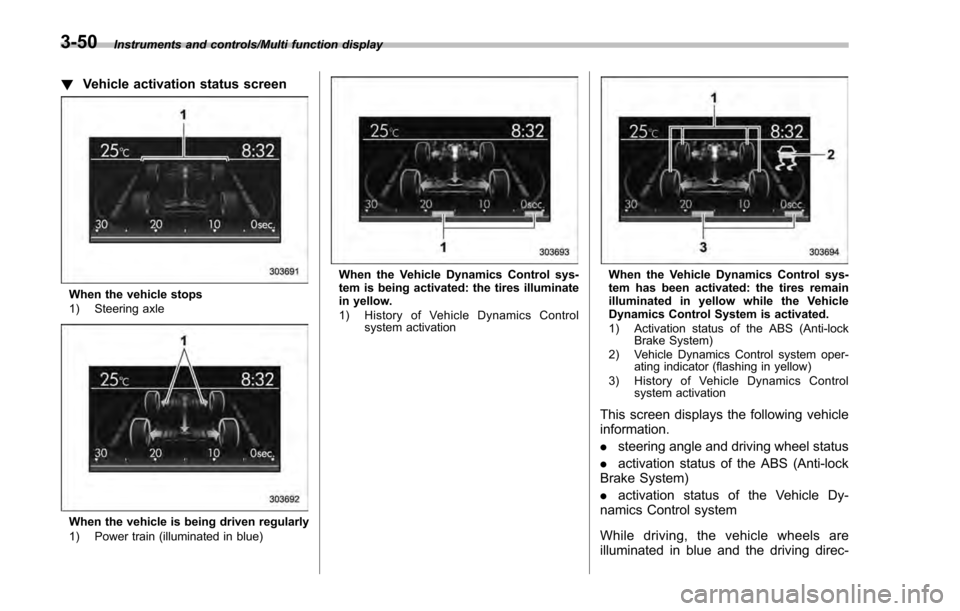
!Vehicle activation status screen
When the vehicle stops
1) Steering axle
When the vehicle is being driven regularly
1) Power train (illuminated in blue)
When the Vehicle Dynamics Control sys-
tem is being activated: the tires illuminate
in yellow.
1) History of Vehicle Dynamics Control
system activationWhen the Vehicle Dynamics Control sys-
tem has been activated: the tires remain
illuminated in yellow while the Vehicle
Dynamics Control System is activated.
1) Activation status of the ABS (Anti-lockBrake System)
2) Vehicle Dynamics Control system oper- ating indicator (flashing in yellow)
3) History of Vehicle Dynamics Control system activation
This screen displays the following vehicle
information.
.steering angle and driving wheel status
. activation status of the ABS (Anti-lock
Brake System)
. activation status of the Vehicle Dy-
namics Control system
While driving, the vehicle wheels are
illuminated in blue and the driving direc-
3-50
Page 197 of 594
Instruments and controls/Multi function display
ItemDetails
Average vehicle speed (Average
vehicle speed for the entire driving
time from when the trip meter was
reset)
Lifetime fuel consumption
Engine oil temperature
Accelerator opening ratio
Journey time (the time that has
elapsed since the ignition switch
was turned to the“ON ”position) (if
equipped)
Journey distance (the distance
that has been driven since the
ignition switch was turned to the
“ ON ”position)
Average fuel consumption for the
entire driving distance from when
the ignition switch was turned to
the “ON ”position
Boost pressure
! Guidance screen
When thebutton is pressed and held,
the selection screen can be displayed.
The displayed contents can be set or
customized from the selection screen. For
details, refer to “Selection screen” F3-54. !
Clock/calendar screenClock (analog format)
Clock (digital format)
3-52
Page 198 of 594
Calendar
1) Today’s date
2) Birthday/Anniversary
In addition to the clock/calendar, the out-
side temperature and average fuel con-
sumption can also be displayed.
You can select clock (analog format),
clock (digital format) or calendar. The
clock/calendar can also be set so that it
is not displayed. For details, refer to
“Clock/calendar screen setting ”F 3-71.
Instruments and controls/Multi function display
–CONTINUED –3-53

