2016 NISSAN TITAN warning
[x] Cancel search: warningPage 284 of 636
Press theSEEK/TRACK while an audio
file on the USB device is playing to advance one
track. Press the
SEEK/TRACK several
times to skip forward several tracks. If the last
track in a folder on the USB device is skipped, the
first track of the next folder is played.
Random and repeat play mode
While files on a USB device are playing, the play
pattern can be altered so that songs are repeated
or played randomly.
Random
Touch the “Random” key to apply a random play
pattern to the USB device. When the Random
mode is active, the icon will illuminate. By touch-
ing the “Random” key again, the ”Random
Folder” key appears. By touching the “Random”
key once more, the “Random All” key appears. To
cancel Random mode, touch the “Random” key
until no icons are illuminated.
Repeat
Touch the “Repeat” key to apply a repeat play
pattern to the USB device. When the Repeat
mode is active, the icon will illuminate. By touch-
ing the “Repeat” key again, the ”Repeat Track”
key appears. By touching the “Repeat” key once
more, the “Repeat Folder” key appears. . To can-
cel Repeat mode, touch the “Repeat” key until no
icons are illuminated.
iPod®* PLAYER OPERATION
WITHOUT NAVIGATION SYSTEM (if
so equipped)
Connecting iPod®
WARNING
Do not connect, disconnect, or operate the
USB device while driving. Doing so can be
a distraction. If distracted you could lose
control of your vehicle and cause an acci-
dent or serious injury.
CAUTION
● Do not force the USB device into the
USB port. Inserting the USB device
tilted or up-side-down into the port may
damage the port. Make sure that the
USB device is connected correctly into
the USB port.
● Do not grab the USB port cover (if so
equipped) when pulling the USB device
out of the port. This could damage the
port and the cover.
● Do not leave the USB cable in a place
where it can be pulled unintentionally.
Pulling the cable may damage the port.
Refer to your device manufacturer’s owner infor-
mation regarding the proper use and care of the
device.
To connect an iPod® to the vehicle so that the
iPod® can be controlled with the audio system
controls and display screen, use the USB con-
nection port located on the center console below
the heater and air conditioner controls. Connect
the iPod®-specific end of the cable to the iPod®
and the USB end of the cable to the USB con-
nection port on the vehicle. If your iPod® sup-
ports charging via a USB connection, its battery
LHA3794
Monitor, climate, audio, phone and voice recognition systems4-73
Page 286 of 636
All Repeat: all songs in the current list are re-
peated.
Repeat Off: no repeat play pattern is applied.
RANDOM (RDM)
When the RDM button is pressed while a track is
being played, the play pattern can be changed as
follows:
Shuffle Off→Track Shuffle →Album Shuffle →
Shuffle Off
Track Shuffle: the tracks in the current list will be
played randomly.
Album Shuffle: the albums in the current list will
be played randomly.
Shuffle Off: no random play pattern is applied.
BACK button
When the
BACK button is pressed, it re-
turns to the previous menu.
iPod®* PLAYER OPERATION WITH
NAVIGATION SYSTEM (if so
equipped)
Connecting iPod®
WARNING
Do not connect, disconnect, or operate the
USB device while driving. Doing so can be
a distraction. If distracted you could lose
control of your vehicle and cause an acci-
dent or serious injury.
CAUTION
● Do not force the USB device into the
USB port. Inserting the USB device
tilted or up-side-down into the port may
damage the port. Make sure that the
USB device is connected correctly into
the USB port.
● Do not grab the USB port cover (if so
equipped) when pulling the USB device
out of the port. This could damage the
port and the cover.
● Do not leave the USB cable in a place
where it can be pulled unintentionally.
Pulling the cable may damage the port.
Refer to your device manufacturer’s owner infor-
mation regarding the proper use and care of the
device.
To connect an iPod® to the vehicle so that the
iPod® can be controlled with the audio system
controls and display screen, use the USB connec-
tion port located on the center console below the
heater and air conditioner controls. Connect the
iPod®-specific end of the cable to the iPod® and
the USB end of the cable to the USB connection
port on the vehicle. If your iPod® supports charg-
ing via a USB connection, its battery will be
charged while connected to the vehicle with the
ignition switch in the ACC or ON position.
LHA3794
Monitor, climate, audio, phone and voice recognition systems4-75
Page 299 of 636
WARNING
●The Mobile Entertainment System is
designed for rear seat passenger view-
ing only.
● It is unlawful in most jurisdictions for a
person to drive a motor vehicle which is
equipped with a television viewer or
screen that is located in the motor ve-
hicle at any point forward of the back of
the driver’s seat, or that is visible, di-
rectly or indirectly, to the driver while
operating the vehicle.
● In the interest of safety, the monitors
should never be installed where they
will be visible, directly or indirectly, by
the operator of the motor vehicle.
● If your vehicle is equipped with a wire-
less rear seat audio system or any other
wireless infrared device, make sure it is
powered off when operating the Rear
Seat Entertainment System. If both sys-
tems are powered on at the same time,
the two systems may obstruct each
other, possibly creating undesirable au-
dio interference through the wireless
headphones. ●
For safety reasons, when changing
video discs it is recommended that the
vehicle is not in motion, and that you do
not allow children to unfasten safety
belts to change discs or make any ad-
justments to the system. System adjust-
ments can be accomplished using the
remote control unit, while safety belts
remain fastened.
CAUTION
● Be sure to run the vehicle engine while
using the system. Using this system
without running the engine can result in
a battery drain. To avoid the risk of
battery drain, please remember to turn
off the system when the vehicle is not in
use. Do not touch the inner pins of the
jacks on the front panel. Electrostatic
discharge may cause permanent dam-
age to the system.
NOTE:
Depending on the USB device, it may or
may not charge when connected to the USB
connection port. Not all devices are able to
charge when connected to the USB connec-
tion port. Each monitor includes a built-in dual channel
infrared transmitter for use with wireless head-
phones. The wireless headphones must be used
within a line of sight from the transmitter as infra-
red transmission, like visible light, travels only in a
straight line.
When placing the headphones on your head,
make sure to observe the Left and Right orienta-
tion. The headphones must be oriented correctly
(facing forward) in order to receive the audio
signal. Press the power button on the head-
phones, then select channel “A” to listen to moni-
tor A, or channel “B” to listen to monitor B. Adjust
the audio level using the volume control on each
headphone.
There is a 3.5mm stereo headphone output jack
on each monitor which can be used with any
standard stereo headphone with an in-line vol-
ume control (wired headphones sold separately) .
The system includes a built-in infrared receiver
for use with the included wireless remote control.
For additional information, refer to “Remote con-
trol operation” in this section.
NISSAN MOBILE ENTERTAINMENT
SYSTEM (MES) (if so equipped)
4-88Monitor, climate, audio, phone and voice recognition systems
Page 304 of 636
REMOTE CONTROL OPERATION
Before attempting to operate your remote con-
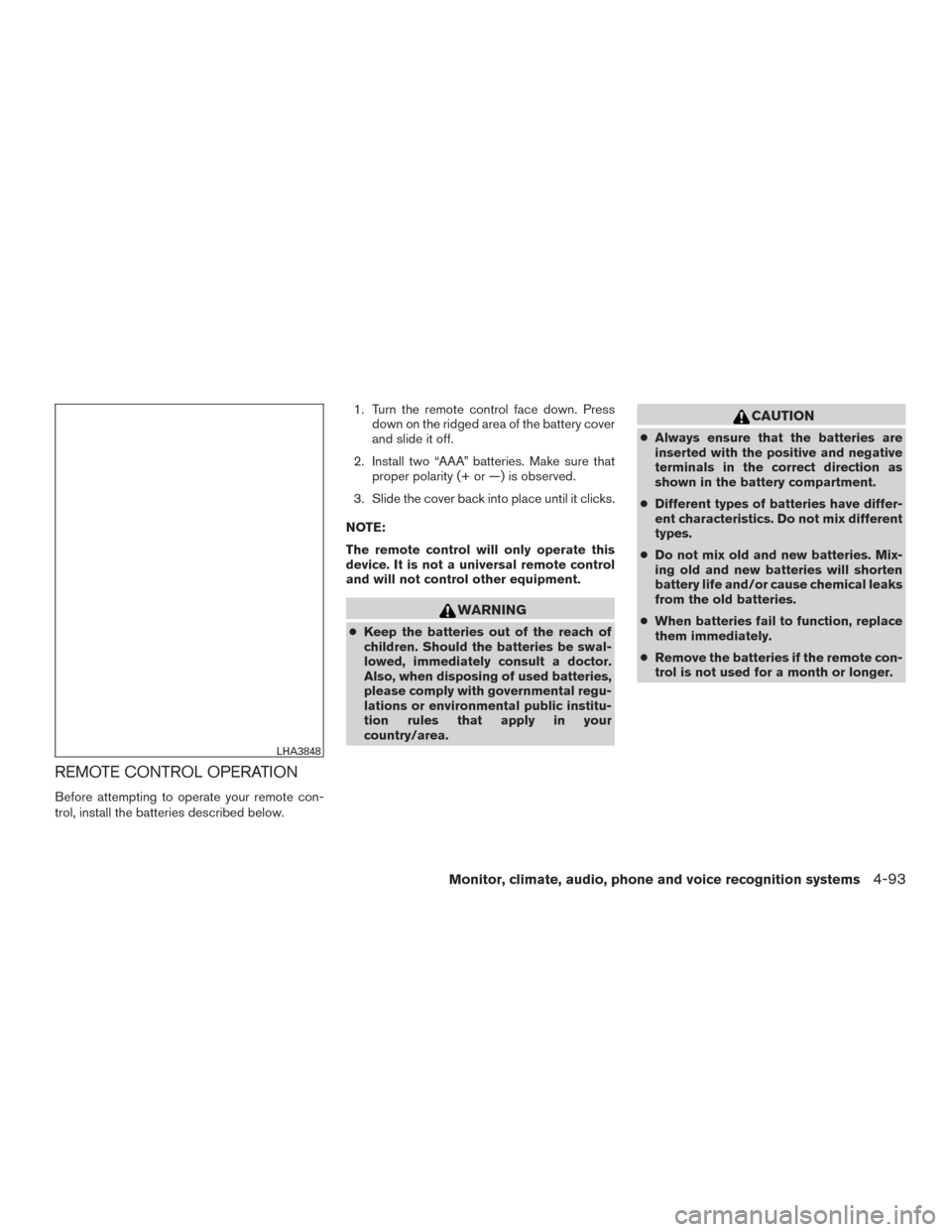
trol, install the batteries described below.1. Turn the remote control face down. Press
down on the ridged area of the battery cover
and slide it off.
2. Install two “AAA” batteries. Make sure that proper polarity (+ or —) is observed.
3. Slide the cover back into place until it clicks.
NOTE:
The remote control will only operate this
device. It is not a universal remote control
and will not control other equipment.
WARNING
● Keep the batteries out of the reach of
children. Should the batteries be swal-
lowed, immediately consult a doctor.
Also, when disposing of used batteries,
please comply with governmental regu-
lations or environmental public institu-
tion rules that apply in your
country/area.
CAUTION
● Always ensure that the batteries are
inserted with the positive and negative
terminals in the correct direction as
shown in the battery compartment.
● Different types of batteries have differ-
ent characteristics. Do not mix different
types.
● Do not mix old and new batteries. Mix-
ing old and new batteries will shorten
battery life and/or cause chemical leaks
from the old batteries.
● When batteries fail to function, replace
them immediately.
● Remove the batteries if the remote con-
trol is not used for a month or longer.
LHA3848
Monitor, climate, audio, phone and voice recognition systems4-93
Page 321 of 636
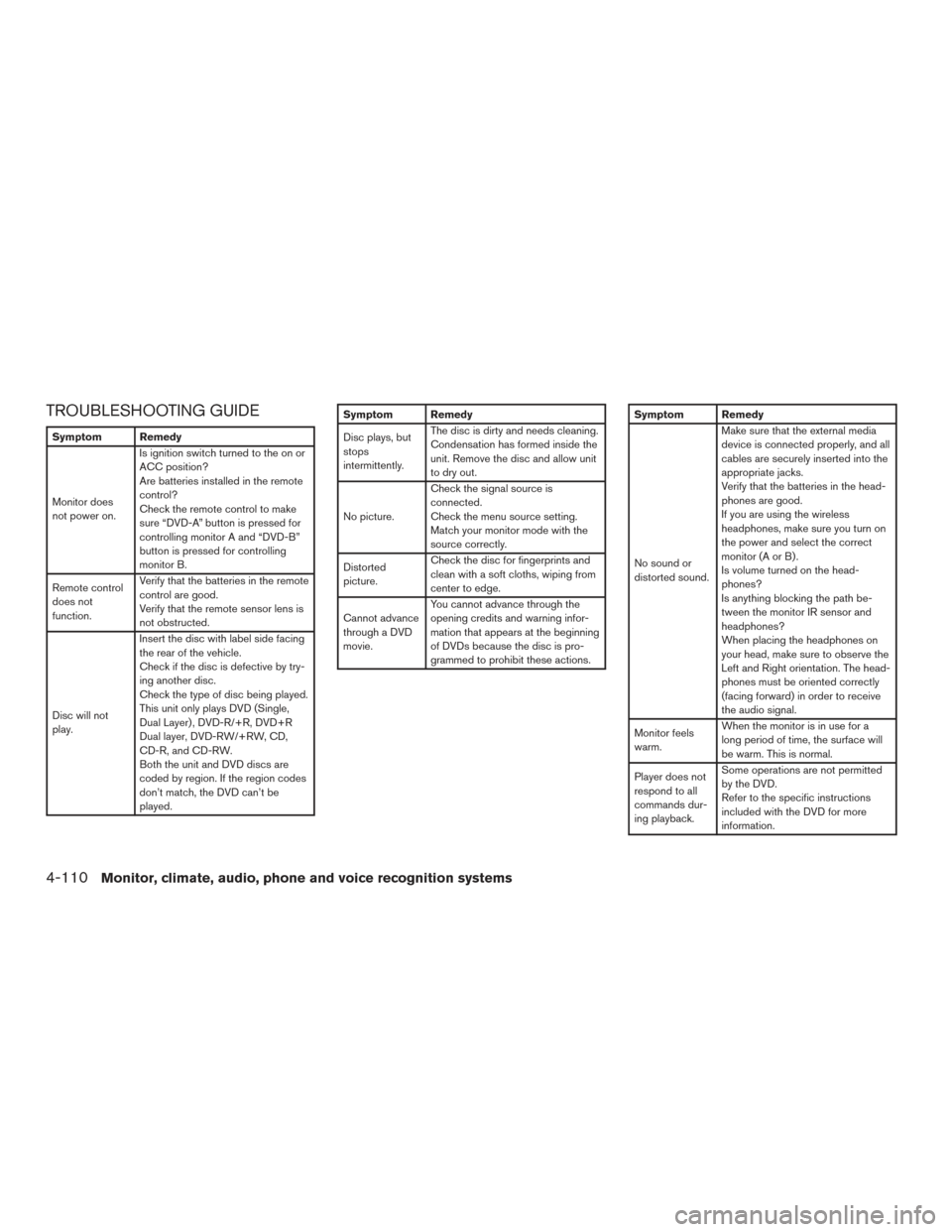
TROUBLESHOOTING GUIDE
Symptom Remedy
Monitor does
not power on.Is ignition switch turned to the on or
ACC position?
Are batteries installed in the remote
control?
Check the remote control to make
sure “DVD-A” button is pressed for
controlling monitor A and “DVD-B”
button is pressed for controlling
monitor B.
Remote control
does not
function. Verify that the batteries in the remote
control are good.
Verify that the remote sensor lens is
not obstructed.
Disc will not
play. Insert the disc with label side facing
the rear of the vehicle.
Check if the disc is defective by try-
ing another disc.
Check the type of disc being played.
This unit only plays DVD (Single,
Dual Layer) , DVD-R/+R, DVD+R
Dual layer, DVD-RW/+RW, CD,
CD-R, and CD-RW.
Both the unit and DVD discs are
coded by region. If the region codes
don’t match, the DVD can’t be
played.
Symptom Remedy
Disc plays, but
stops
intermittently.
The disc is dirty and needs cleaning.
Condensation has formed inside the
unit. Remove the disc and allow unit
to dry out.
No picture. Check the signal source is
connected.
Check the menu source setting.
Match your monitor mode with the
source correctly.
Distorted
picture. Check the disc for fingerprints and
clean with a soft cloths, wiping from
center to edge.
Cannot advance
through a DVD
movie. You cannot advance through the
opening credits and warning infor-
mation that appears at the beginning
of DVDs because the disc is pro-
grammed to prohibit these actions.Symptom Remedy
No sound or
distorted sound.Make sure that the external media
device is connected properly, and all
cables are securely inserted into the
appropriate jacks.
Verify that the batteries in the head-
phones are good.
If you are using the wireless
headphones, make sure you turn on
the power and select the correct
monitor(AorB).
Is volume turned on the head-
phones?
Is anything blocking the path be-
tween the monitor IR sensor and
headphones?
When placing the headphones on
your head, make sure to observe the
Left and Right orientation. The head-
phones must be oriented correctly
(facing forward) in order to receive
the audio signal.
Monitor feels
warm. When the monitor is in use for a
long period of time, the surface will
be warm. This is normal.
Player does not
respond to all
commands dur-
ing playback. Some operations are not permitted
by the DVD.
Refer to the specific instructions
included with the DVD for more
information.
4-110Monitor, climate, audio, phone and voice recognition systems
Page 323 of 636
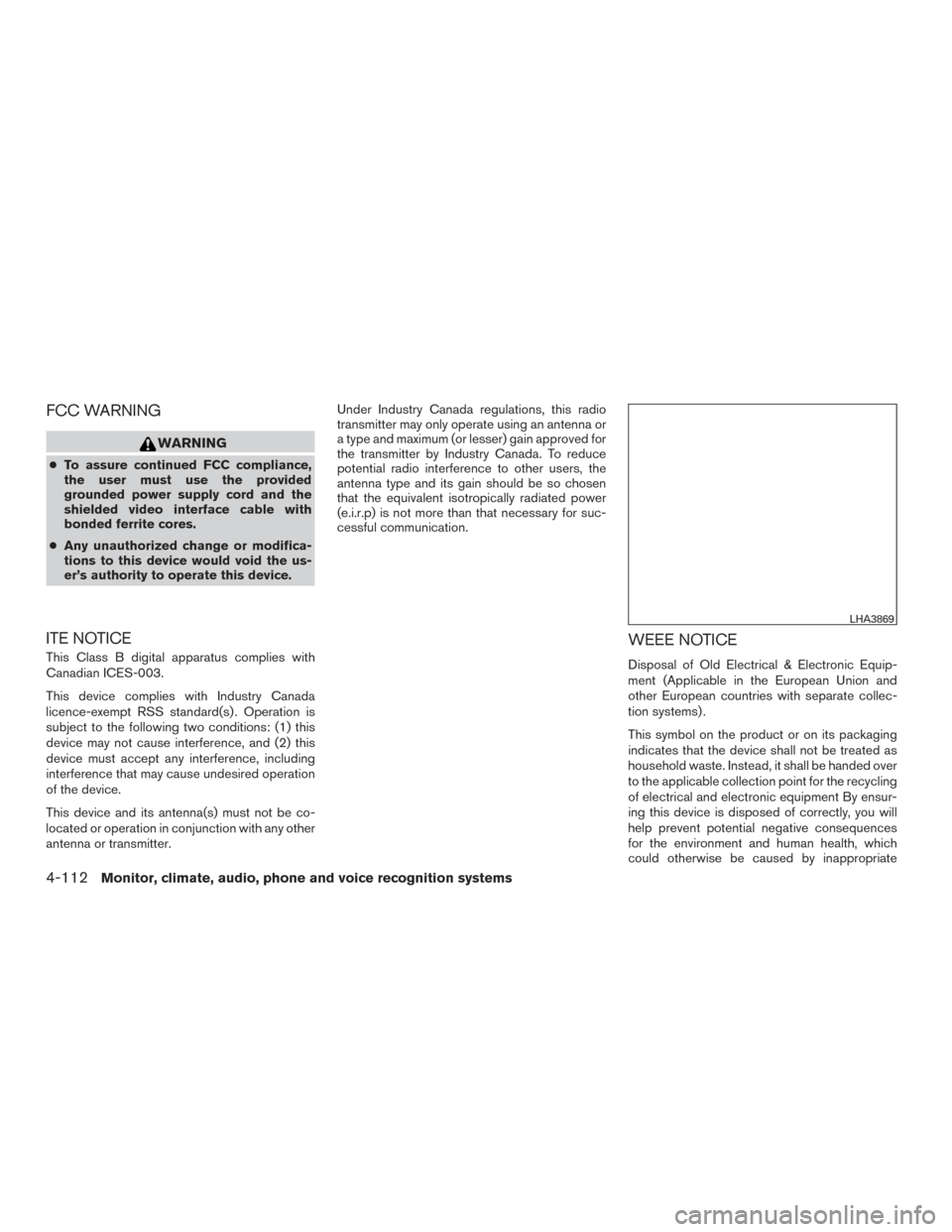
FCC WARNING
WARNING
●To assure continued FCC compliance,
the user must use the provided
grounded power supply cord and the
shielded video interface cable with
bonded ferrite cores.
● Any unauthorized change or modifica-
tions to this device would void the us-
er’s authority to operate this device.
ITE NOTICE
This Class B digital apparatus complies with
Canadian ICES-003.
This device complies with Industry Canada
licence-exempt RSS standard(s) . Operation is
subject to the following two conditions: (1) this
device may not cause interference, and (2) this
device must accept any interference, including
interference that may cause undesired operation
of the device.
This device and its antenna(s) must not be co-
located or operation in conjunction with any other
antenna or transmitter. Under Industry Canada regulations, this radio
transmitter may only operate using an antenna or
a type and maximum (or lesser) gain approved for
the transmitter by Industry Canada. To reduce
potential radio interference to other users, the
antenna type and its gain should be so chosen
that the equivalent isotropically radiated power
(e.i.r.p) is not more than that necessary for suc-
cessful communication.
WEEE NOTICE
Disposal of Old Electrical & Electronic Equip-
ment (Applicable in the European Union and
other European countries with separate collec-
tion systems) .
This symbol on the product or on its packaging
indicates that the device shall not be treated as
household waste. Instead, it shall be handed over
to the applicable collection point for the recycling
of electrical and electronic equipment By ensur-
ing this device is disposed of correctly, you will
help prevent potential negative consequences
for the environment and human health, which
could otherwise be caused by inappropriate
LHA3869
4-112Monitor, climate, audio, phone and voice recognition systems
Page 324 of 636
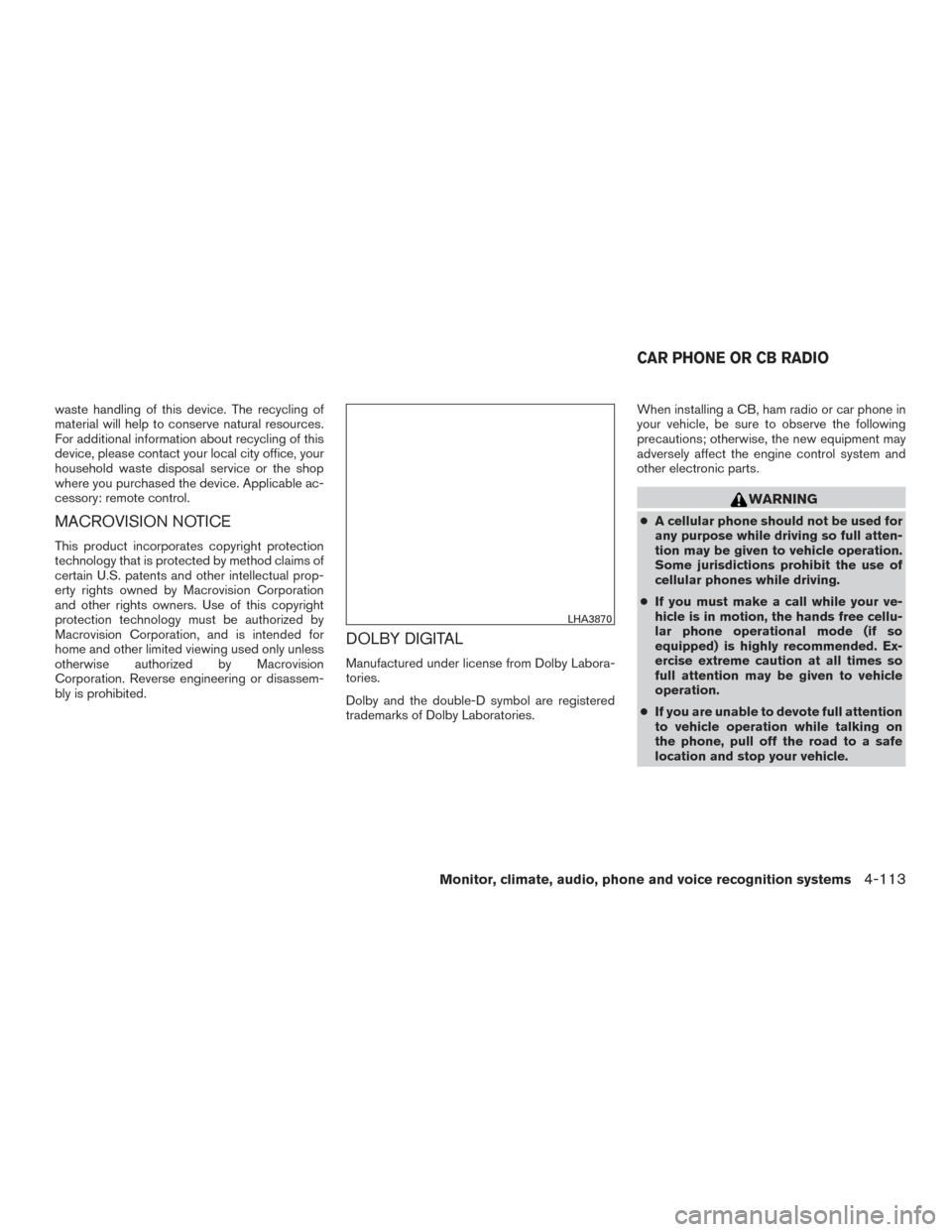
waste handling of this device. The recycling of
material will help to conserve natural resources.
For additional information about recycling of this
device, please contact your local city office, your
household waste disposal service or the shop
where you purchased the device. Applicable ac-
cessory: remote control.
MACROVISION NOTICE
This product incorporates copyright protection
technology that is protected by method claims of
certain U.S. patents and other intellectual prop-
erty rights owned by Macrovision Corporation
and other rights owners. Use of this copyright
protection technology must be authorized by
Macrovision Corporation, and is intended for
home and other limited viewing used only unless
otherwise authorized by Macrovision
Corporation. Reverse engineering or disassem-
bly is prohibited.
DOLBY DIGITAL
Manufactured under license from Dolby Labora-
tories.
Dolby and the double-D symbol are registered
trademarks of Dolby Laboratories.When installing a CB, ham radio or car phone in
your vehicle, be sure to observe the following
precautions; otherwise, the new equipment may
adversely affect the engine control system and
other electronic parts.
WARNING
●
A cellular phone should not be used for
any purpose while driving so full atten-
tion may be given to vehicle operation.
Some jurisdictions prohibit the use of
cellular phones while driving.
● If you must make a call while your ve-
hicle is in motion, the hands free cellu-
lar phone operational mode (if so
equipped) is highly recommended. Ex-
ercise extreme caution at all times so
full attention may be given to vehicle
operation.
● If you are unable to devote full attention
to vehicle operation while talking on
the phone, pull off the road to a safe
location and stop your vehicle.
LHA3870
CAR PHONE OR CB RADIO
Monitor, climate, audio, phone and voice recognition systems4-113
Page 325 of 636
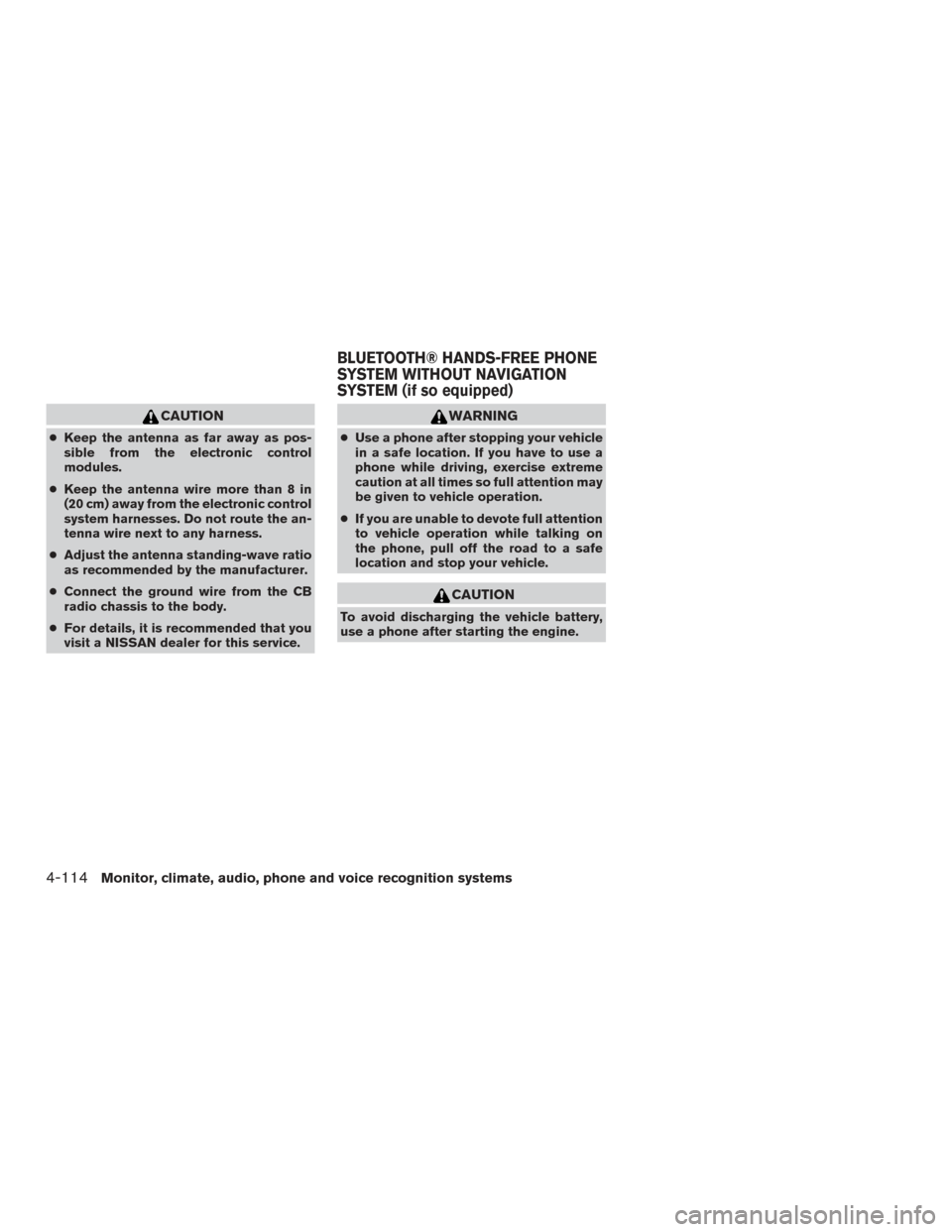
CAUTION
●Keep the antenna as far away as pos-
sible from the electronic control
modules.
● Keep the antenna wire more than 8 in
(20 cm) away from the electronic control
system harnesses. Do not route the an-
tenna wire next to any harness.
● Adjust the antenna standing-wave ratio
as recommended by the manufacturer.
● Connect the ground wire from the CB
radio chassis to the body.
● For details, it is recommended that you
visit a NISSAN dealer for this service.
WARNING
● Use a phone after stopping your vehicle
in a safe location. If you have to use a
phone while driving, exercise extreme
caution at all times so full attention may
be given to vehicle operation.
● If you are unable to devote full attention
to vehicle operation while talking on
the phone, pull off the road to a safe
location and stop your vehicle.
CAUTION
To avoid discharging the vehicle battery,
use a phone after starting the engine.
BLUETOOTH® HANDS-FREE PHONE
SYSTEM WITHOUT NAVIGATION
SYSTEM (if so equipped)
4-114Monitor, climate, audio, phone and voice recognition systems