2016 NISSAN NV PASSENGER VAN wheel
[x] Cancel search: wheelPage 232 of 380
2. this device must accept any interference,including interference that may cause unde-
sired operation of the device.
IC Regulatory information
– Operation is subject to the following two con- ditions: (1) this device may not cause interfer-
ence, and (2) this device must accept any
interference, including interference that may
cause undesired operation of the device.
– This Class B digital apparatus meets all re- quirements of the Canadian Interference-
Causing Equipment Regulations.
BLUETOOTH® is a
trademark owned by
Bluetooth SIG, Inc.
and licensed to
Bosch.
VOICE COMMANDS
You can use voice commands to operate various
Bluetooth® Hands-Free Phone System features
using the NISSAN Voice Recognition system. For
additional information, refer to “NISSAN Voice
Recognition System” in this section.
Voice Prompt Interrupt
While using the voice recognition system, the
system voice can be interrupted to allow the user
to speak commands. While the system is speak-
ing, press the
button on the steering
wheel. The system voice will stop and a tone will
be heard. After the tone, speak desired command
(displayed on the touch-screen) .
One Shot Call
To use the system faster, you may speak the
second level commands with the main menu
command on the main menu. For example, press
the
button and after the tone say, “Call
Redial”.
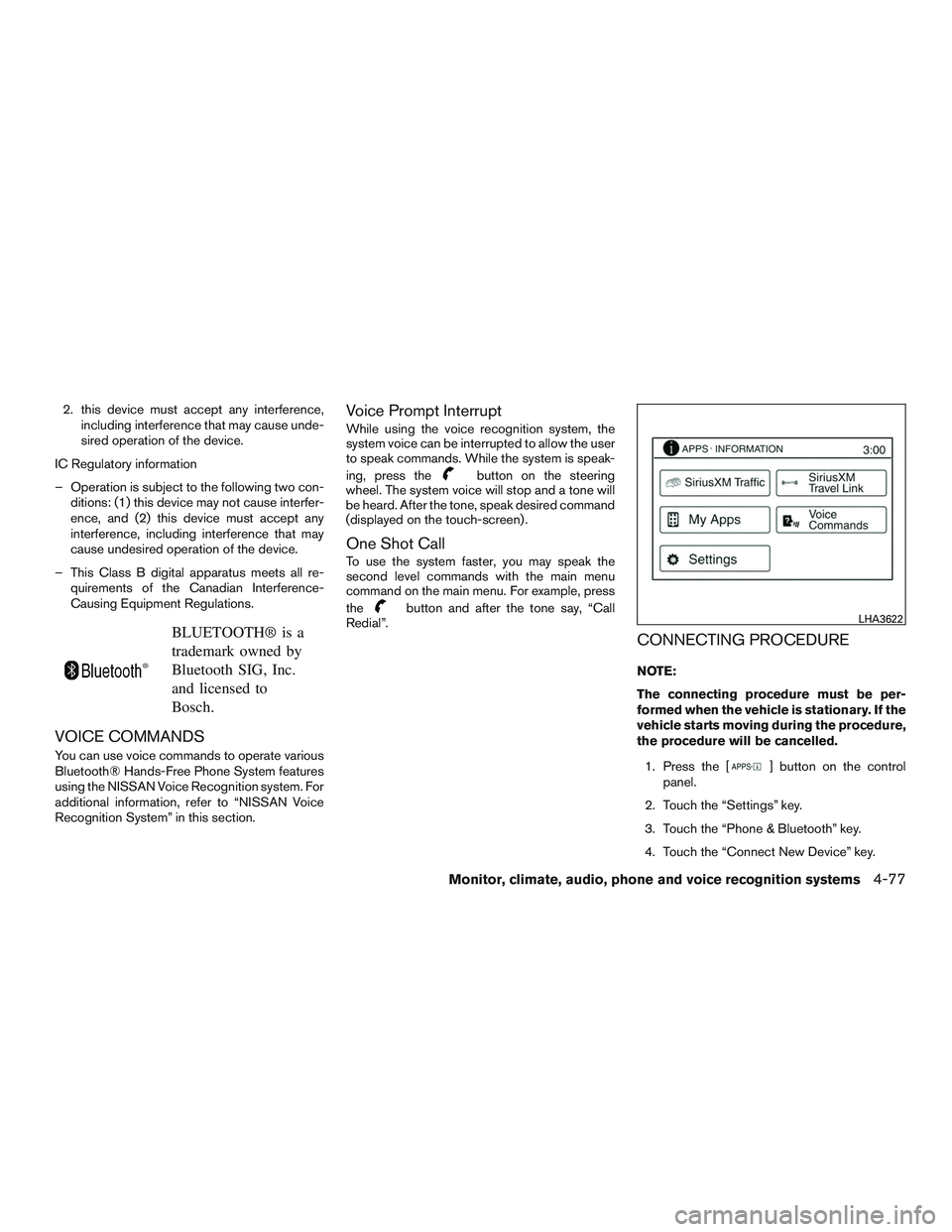
CONNECTING PROCEDURE
NOTE:
The connecting procedure must be per-
formed when the vehicle is stationary. If the
vehicle starts moving during the procedure,
the procedure will be cancelled.
1. Press the [
] button on the control
panel.
2. Touch the “Settings” key.
3. Touch the “Phone & Bluetooth” key.
4. Touch the “Connect New Device” key.
LHA3622
Monitor, climate, audio, phone and voice recognition systems4-77
Page 233 of 380
5. Initiate the connecting process from thehandset. The system will display the mes-
sage: “Is PIN XXXXXX displayed on your
Bluetooth device?”. If the PIN is displayed
on your Bluetooth® device, select “Yes” to
complete the pairing process.
For additional information, refer to the
Bluetooth® device’s Owner’s Manual.
VEHICLE PHONEBOOK
To access the vehicle phonebook:
1. Press the
button on the control panel.
2. Touch the “Phonebook” key.
3. Choose the desired entry from the displayed list.
4. The number of the entry will be displayed on the screen. Touch the number to initiate di-
aling.
NOTE:
To scroll quickly through the list, touch the
“A-Z” key in the upper right corner of the
screen. Turn the TUNE knob to choose a
letter or number and then press the
ENTER/AUDIO button. The list will move to
the first entry that begins with that number
or letter.
MAKING A CALL
To make a call, follow the procedure below: 1. Press the
button on the control panel.
The “Phone” screen will appear on the dis-
play.
2. Select one of the following options to make a call:
● “Phonebook”: Select the name from an entry
stored in the vehicle phonebook.
● “Call Lists”: Select the name from the in-
coming, outgoing or missed.
● “Redial”: Dial the last outgoing call from the
vehicle.
● “
”: Input the phone number manually
using a keypad displayed on the screen. For
additional information, refer to “How to use
the touch-screen” in this section.
RECEIVING A CALL
When a call is placed to the connected phone,
the display will change to phone mode.
To accept the incoming call, either:
● Press the
button on the steering
wheel, or
● Touch the
icon on the screen. To reject the incoming call, either:
● Press the
button on the steering
wheel, or
● Touch the red phone icon on the screen.
DURING A CALL
While a call is active, the following options are
available on the screen:
● “Handset”
Select this option to switch control of the
phone call over to the handset.
● “Mute Mic.”
Select this option to mute the microphone.
Select again to unmute the microphone.
● Red phone (
) icon
Select to end the phone call.
ENDING A CALL
To end a phone call, select the red phone ()
icon on the screen or press the
button on
the steering wheel.
4-78Monitor, climate, audio, phone and voice recognition systems
Page 234 of 380
TEXT MESSAGING
WARNING
●Laws in some jurisdictions may restrict
the use of “Text-to-Speech.” Check lo-
cal regulations before using the
feature.
● Laws in some jurisdictions may restrict
the use of some of the applications and
features, such as social networking and
texting. Check local regulations for any
requirements.
● Use the text messaging feature after
stopping your vehicle in a safe location.
If you have to use the feature while
driving, exercise extreme caution at all
times so full attention may be given to
vehicle operation.
● If you are unable to devote full attention
to vehicle operation while using the text
messaging feature, pull off the road to a
safe location and stop your vehicle. NOTE:
Many phones may require special permis-
sion to enable text messaging. Check the
phone’s screen during Bluetooth® pairing.
For some phones, you may need to enable
‘Notifications’ in the phone’s Bluetooth®
menu for text messages to appear on the
head unit. For additional information, refer
to the phone’s Owner’s Manual.
Text message integration requires that the
phone support MAP (Message Access Pro-
file) for both receiving and sending text
messages. Some phones may not support
all text messaging features. Please refer to
www.nissanusa.com/bluetooth or
www.nissan.ca/bluetooth for compatibility
information. For additional information, re-
fer to the phone’s Owner’s Manual.
The system allows for the sending and receiving
of text messages through the vehicle interface.
Sending a text message:
1. Press the
button on the steering
wheel.
2. Say “Phone” after the tone.
3. Say “Send Text” after the tone. 4. The system will provide a list of available
commands in order to determine the recipi-
ent of the text message. Choose from the
following:
● To (a name)
● Enter Number
● Missed Calls
● Incoming Calls
● Outgoing Calls
For additional information, refer to “Voice
commands” in this section.
5. Once a recipient is chosen, the system prompts for which message to send. Nine
predefined messages are available as well
as three custom messages. To choose one
of the predefined messages, speak one of
the following after the tone:
● “Driving, can’t text”
● “Call me”
● “On my way”
● “Running late”
● “Okay”
● “Yes”
● “No”
Monitor, climate, audio, phone and voice recognition systems4-79
Page 235 of 380
●“Where are you?”
● “When?”
To send one of the custom messages, say
“Custom Messages”. If more than one cus-
tom message is stored, the system will
prompt for the number of the desired cus-
tom message. For additional information, re-
fer to “Bluetooth® settings” in this section.
Reading a received text message:
1. Press the
button on the steering
wheel.
2. Say “Phone” after the tone.
3. Say “Read Text” after the tone.
The text message, sender and delivery time are
shown on the screen. Use the tuning
switch
to scroll through all text messages if
more than one are available. Press the
button to exit the text message screen. Press
the
button to access the following options
for replying to the text message:
● Call Back
Speak this command to call the sender of
the text message using the Bluetooth®
Hands-Free Phone System. ●
Send Text
Speak this command to send a text message
response to the sender of the text message.
● Read Text
Speak this command to read the text mes-
sage again.
● Previous Text
Speak this command to move to the previ-
ous text message (if available) .
● Next Text
Speak this command to move to the next text
message (if available) .
NOTE:
Text messages are only displayed if the
vehicle speed is less than 5 mph (8 km/h).
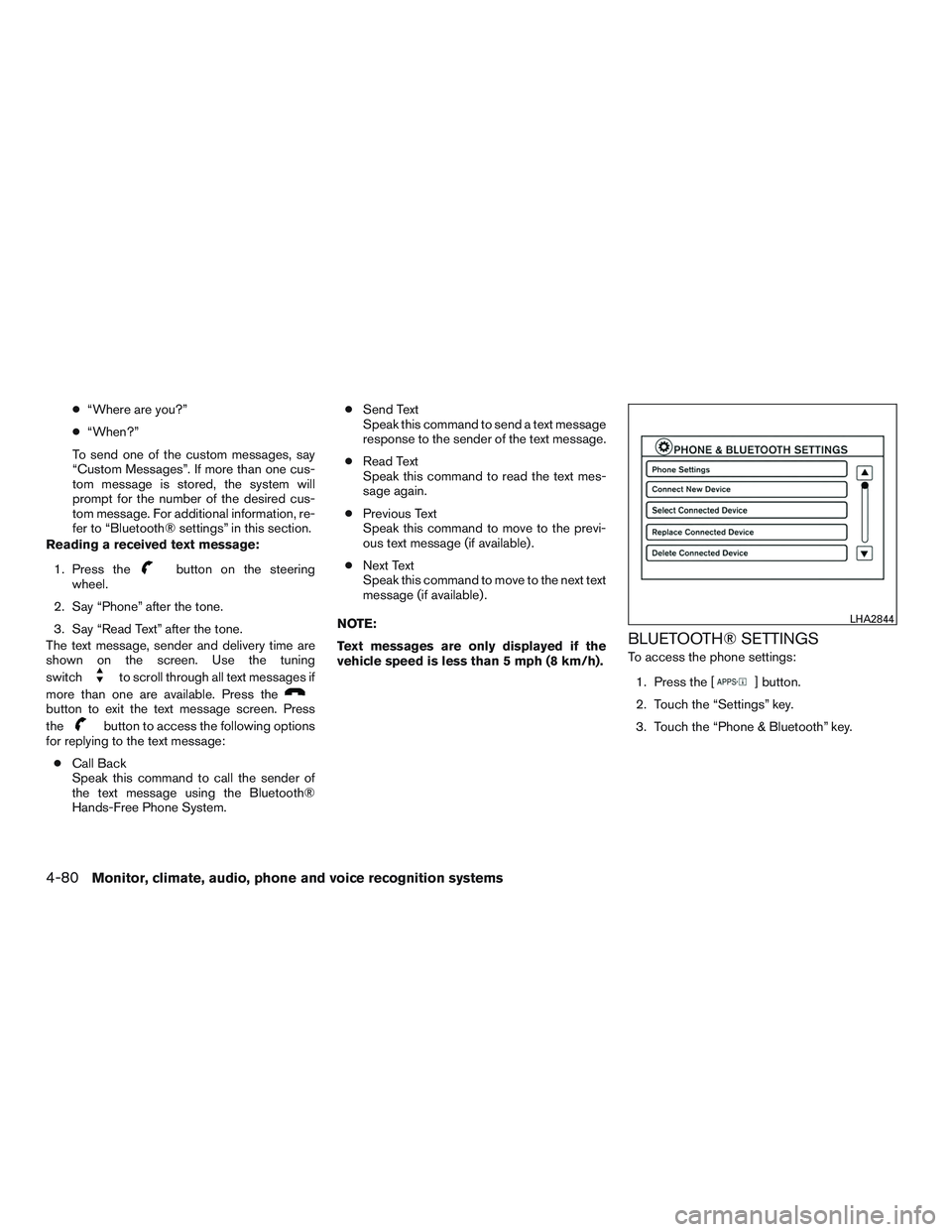
BLUETOOTH® SETTINGS
To access the phone settings: 1. Press the [
] button.
2. Touch the “Settings” key.
3. Touch the “Phone & Bluetooth” key.
LHA2844
4-80Monitor, climate, audio, phone and voice recognition systems
Page 237 of 380
![NISSAN NV PASSENGER VAN 2016 Owners Manual PHONE SETTINGS
To access the phone settings:1. Press the [
] button.
2. Touch the “Settings” key.
3. Touch the “Phone & Bluetooth” key.
4. Touch the “Phone Settings” key and adjust the fol](/manual-img/5/58179/w960_58179-236.png "NISSAN NV PASSENGER VAN 2016 Owners Manual PHONE SETTINGS
To access the phone settings:1. Press the [
] button.
2. Touch the “Settings” key.
3. Touch the “Phone & Bluetooth” key.
4. Touch the “Phone Settings” key and adjust the fol")
PHONE SETTINGS
To access the phone settings:1. Press the [
] button.
2. Touch the “Settings” key.
3. Touch the “Phone & Bluetooth” key.
4. Touch the “Phone Settings” key and adjust the following settings as desired:
● Sort Phonebook By:
Select “First Name” or “Last Name” to
choose how phonebook entries are alpha-
betically displayed on the screen.
● Use Phonebook From:
Select “Handset” to use the phone’s phone-
book. Select “SIM” to use the phonebook on
the SIM card. Select “Both” to use both
sources.
● Download Phonebook Now:
Select to download the phonebook to the
vehicle from the chosen source.
● Record Name for Phonebook Entry:
Select to record a name for a phonebook
entry for use with the NISSAN Voice Recog-
nition System. ●
Text Messaging:
Select to toggle the text message function-
ality on or off.
● Show Incoming Text:
Select to toggle text notification on or off.
● Auto Reply:
Select to toggle auto reply functionality on or
off.
● Auto Reply Message:
Select to choose a message that is sent
when the auto reply function is activated.
● Use Vehicle’s Signature:
Select to toggle on or off the addition of the
vehicle signature to outgoing messages.
● Custom Text Messages:
Select the predefined messages that are
used by the system. The NISSAN Voice Recognition system allows
hands-free operation of the systems equipped on
this vehicle, such as the phone and navigation
systems.
To operate NISSAN Voice Recognition, press
the
button located on the steering wheel.
When prompted, speak the command for the
system you wish to activate. The command given
is picked up by the microphone and performed
when it is properly recognized. NISSAN Voice
Recognition will provide a voice response as well
as a message in the center display to inform you
of the command results.
USING THE SYSTEM
Initialization
When the ignition switch is in the ON position,
NISSAN Voice Recognition is initialized, which
takes a few seconds. When completed, the sys-
tem is ready to accept voice commands. If
the
button is pressed before the initializa-
tion completes, the system will announce: “Voice
Recognition System not ready. Please wait.”
NISSAN VOICE RECOGNITION
SYSTEM (if so equipped)
4-82Monitor, climate, audio, phone and voice recognition systems
Page 238 of 380
Giving voice commands
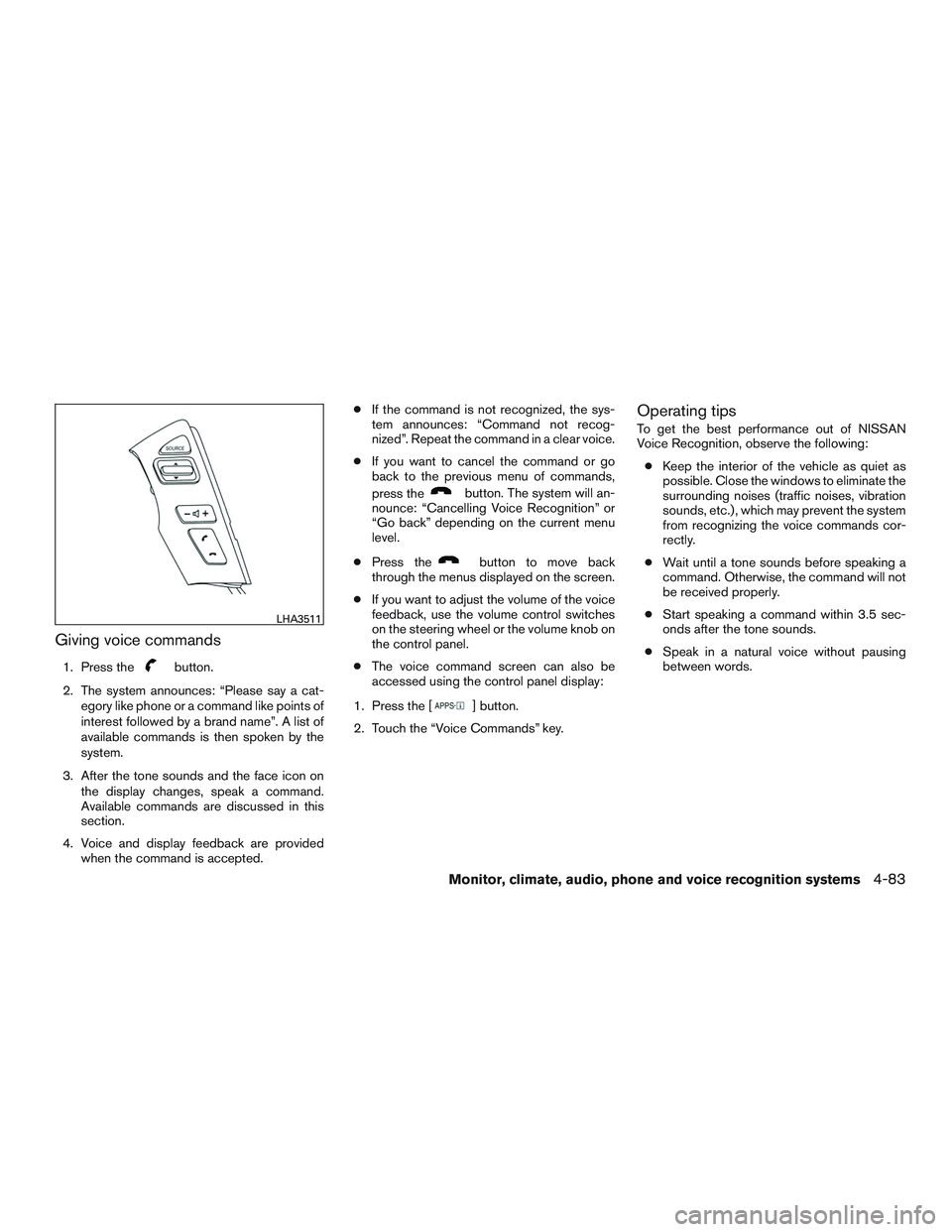
1. Press thebutton.
2. The system announces: “Please say a cat- egory like phone or a command like points of
interest followed by a brand name”. A list of
available commands is then spoken by the
system.
3. After the tone sounds and the face icon on the display changes, speak a command.
Available commands are discussed in this
section.
4. Voice and display feedback are provided when the command is accepted. ●
If the command is not recognized, the sys-
tem announces: “Command not recog-
nized”. Repeat the command in a clear voice.
● If you want to cancel the command or go
back to the previous menu of commands,
press the
button. The system will an-
nounce: “Cancelling Voice Recognition” or
“Go back” depending on the current menu
level.
● Press the
button to move back
through the menus displayed on the screen.
● If you want to adjust the volume of the voice
feedback, use the volume control switches
on the steering wheel or the volume knob on
the control panel.
● The voice command screen can also be
accessed using the control panel display:
1. Press the [
] button.
2. Touch the “Voice Commands” key.
Operating tips
To get the best performance out of NISSAN
Voice Recognition, observe the following: ● Keep the interior of the vehicle as quiet as
possible. Close the windows to eliminate the
surrounding noises (traffic noises, vibration
sounds, etc.) , which may prevent the system
from recognizing the voice commands cor-
rectly.
● Wait until a tone sounds before speaking a
command. Otherwise, the command will not
be received properly.
● Start speaking a command within 3.5 sec-
onds after the tone sounds.
● Speak in a natural voice without pausing
between words.
LHA3511
Monitor, climate, audio, phone and voice recognition systems4-83
Page 246 of 380
WARNING
●The exhaust gas and the exhaust sys-
tem are very hot. Keep people, animals
or flammable materials away from the
exhaust system components.
● Do not stop or park the vehicle over
flammable materials such as dry grass,
waste paper or rags. They may ignite
and cause a fire.
CAUTION
● Do not use leaded gasoline. Deposits
from leaded gasoline will seriously re-
duce the three-way catalyst’s ability to
help reduce exhaust pollutants.
● Keep your engine tuned up. Malfunc-
tions in the ignition, fuel injection, or
electrical systems can cause overrich
fuel flow into the three-way catalyst,
causing it to overheat. Do not keep driv-
ing if the engine misfires, or if notice-
able loss of performance or other un-
usual operating conditions are
detected. Have the vehicle inspected
promptly by a NISSAN dealer. ●
Avoid driving with an extremely low fuel
level. Running out of fuel could cause
the engine to misfire, damaging the
three-way catalyst.
● Do not race the engine while warming it
up.
● Do not push or tow your vehicle to start
the engine.
DRIVING PRECAUTIONS
Utility vehicles have a significantly higher
rollover rate than other types of vehicles.
They have larger tires and higher ground clear-
ance than passenger cars to make them capable
of performing in a variety of applications. This
gives them a higher center of gravity than ordinary
cars. An advantage of higher ground clearance is
a better view of the road, allowing you to antici-
pate problems. However, they are not designed
for cornering at the same speeds as conventional
2-wheel drive vehicles any more than low-slung
sports cars are designed to perform satisfactorily
under off-road conditions. If at all possible, avoid
sharp turns at high speeds. As with other vehicles
of this type, failure to operate this vehicle cor-
rectly may result in loss of control or vehicle
rollover. In a rollover crash, an unbelted person is
significantly more likely to die than a person wear-
ing a seat belt. A loaded vehicle with a higher center of gravity
may handle differently than an unloaded vehicle.
The risk of loss of control or vehicle rollover
increases as more cargo is loaded in the vehicle.
The risk increases because the cargo placed in
the vehicle raises the vehicle’s center of gravity .
As a result, the van handles differently from other
ordinary passenger vehicles and it has less resis-
tance to rollover which can make it more difficult
to control in an emergency situation. Placing any
load on the roof also raises the center of gravity
and increases the potential for rollover. Do not
overload your vehicle and make sure the load is
evenly distributed.
To reduce the risk of loss of control or vehicle
rollover drive at slower speed, avoid abrupt steer-
ing changes and increase your following distance
and allow for increased stopping distance.
Be sure to read the driving safety precautions in
this section.
TIRE PRESSURE MONITORING
SYSTEM (TPMS)
Each tire, including the spare (if provided) ,
should be checked monthly when cold and in-
flated to the inflation pressure recommended by
the vehicle manufacturer on the vehicle placard
or tire inflation pressure label. (If your vehicle has
tires of a different size than the size indicated on
Starting and driving5-3
Page 247 of 380
the vehicle placard or tire inflation pressure label,
you should determine the proper tire inflation
pressure for those tires.)
As an added safety feature, your vehicle has been
equipped with a Tire Pressure Monitoring System
(TPMS) that illuminates a low tire pressure telltale
when one or more of your tires is significantly
under-inflated. Accordingly, when the low tire
pressure telltale illuminates, you should stop and
check all your tires as soon as possible, and
inflate them to the proper pressure. Driving on a
significantly under-inflated tire causes the tire to
overheat and can lead to tire failure. Under-
inflation also reduces fuel efficiency and tire tread
life, and may affect the vehicle’s handling and
stopping ability.
Please note that the TPMS is not a substitute for
proper tire maintenance, and it is the driver’s
responsibility to maintain correct tire pressure,
even if under-inflation has not reached the level to
trigger illumination of the TPMS low tire pressure
telltale.
Your vehicle has also been equipped with a
TPMS malfunction indicator to indicate when the
system is not operating properly. The TPMS mal-
function indicator is combined with the low tire
pressure telltale. When the system detects a
malfunction, the telltale will flash for approxi-
mately 1 minute and then remain continuouslyilluminated. This sequence will continue upon
subsequent vehicle start-ups as long as the mal-
function exists. When the malfunction indicator is
illuminated, the system may not be able to detect
or signal low tire pressure as intended. TPMS
malfunctions may occur for a variety of reasons,
including the installation of replacement or alter-
nate tires or wheels on the vehicle that prevent
the TPMS from functioning properly. Always
check the TPMS malfunction telltale after replac-
ing one or more tires or wheels on your vehicle to
ensure that the replacement or alternate tires and
wheels allow the TPMS to continue to function
properly.
Additional information
● Since the spare tire is not equipped
with the TPMS, the TPMS does not
monitor the tire pressure of the spare
tire.
● The TPMS will activate only when the vehicle
is driven at speeds above 16 mph (25 km/h).
Also, this system may not detect a sudden
drop in tire pressure (for example a flat tire
while driving) . ●
The low tire pressure warning light does not
automatically turn off when the tire pressure
is adjusted. After all your tires are inflated to
the recommended pressure, the vehicle
must be driven at speeds above 16 mph
(25 km/h) to activate the TPMS and turn off
the low tire pressure warning light. Use a tire
pressure gauge to check the tire pressure.
● The CHECK TIRE pressure warning ap-
pears in the vehicle information display when
the low tire pressure warning light is illumi-
nated and low tire pressure is detected. The
CHECK TIRE pressure warning turns off
when the low tire pressure warning light
turns off.
● The CHECK TIRE pressure warning does
not appear if the low tire pressure warning
light illuminates to indicate a TPMS malfunc-
tion.
5-4Starting and driving