2016 MITSUBISHI OUTLANDER ad blue
[x] Cancel search: ad bluePage 368 of 464

To play iPod/USB memory device tracks via voice op
eration (vehicles with
Bluetooth® 2.0 interface)
7-40 Comfort controls
7
2. After the voice guide says “Would you like to play by Artist, Album, Playlist orGenre?,” say
“Playlist”.
3. After the voice guide
says “What Playlist
would you like to play?,” say the playlist name.4. If there is only one ma
tch, the system pro-
ceeds to step 6. 5. If there are two or more matches, thevoice guide will say “More than one match was found, would you like to play
6. After the voice gui
de says “Playing
the voice recognition
mode and starts playback.
N00772500010
1. Say “Play” on the main menu.
2. After the voice guide says “Would you like to play by Artist, Album, Playlist orGenre?,” say “Genre”. 3. After the voice guide says “What Genre would you like to play?,” say the music type.4. If there is only one ma
tch, the system pro-
ceeds to step 6. 5. If there are two or more matches, thevoice guide will say “More than one match was found, would you like to play
NOTE
The Bluetooth
® 2.0 interface starts recogniz-
ing the connected device. If the connected device
cannot be recognized
or a connection error
occurs, the Bluetooth
®
2.0 interface starts
an appropriate voice
guide. Follow the voice guide.NOTE
If you say “Playlist
step 3. If the device has no pl
aylist, the voice guide
will say “There are no playlists stored ondevice” and the system returns to step 2.
NOTE
If you say “No” to three or all playlist names uttered by the system, the voice guide willsay “Playlist not found,
please try again” and
the system returns to step 2.NOTE
If the confirmation function is active, the voice guide confirms if
the playlist name is
correct. If the playlist name is correct, say “Yes”. If not, say “No”. After the voice guide says “Playlist not found, please try again,”the system returns to step 2. Refer to “Con- firmation function sett
ing” on page 5-196.
To search by genre
NOTE
The Bluetooth
® 2.0 interface starts recogniz-
ing the connect
ed device.
If the connected device
cannot be recognized
or a connection error occurs, the Bluetooth
®
2.0 interface starts
an appropriate voice
guide. Follow the voice guide.NOTE
If you say “Genre
BK0223400US.book 40 ページ 2015年2月13日 金曜日 午後12時15分
Page 369 of 464
Listen to Bluetooth Audio (if so equipped)
Comfort controls 7-41
7
6. After the voice gui
de says “Playing
the voice recognition
mode and starts playback.
N00717500020
This product can play back tracks on com-mercially-available Blue
tooth-capable audio
devices.
Regarding how to connect your Bluetooth device, refer to “Connecting the Bluetooth
®
2.0 interface and Blue
tooth device” on page
5-199. Operation methods belo
w describe situations
once connection ha
s been completed.
1. Press the MEDIA key to set Bluetooth Audio as the source. The selected source is indicated on the display.
NOTE
If you say “No” to three
or all genres uttered
by the system, the voice guide will say“Genre not found, please try again” and thesystem returns to step 2.NOTE
If the confirmation f
unction is active, the
voice guide confirms if
the genre is correct.
If the genre is correct, say “Yes”. If not, say“No”. After the voice
guide says “Genre not
found, please try again,” the system returns to step 2. Refer to “Confirmation functionsetting” on page 5-196.
Listen to Bluetooth Audio
(if
so equipped)
CAUTION Never hold these devices in your hand to operate while driving, as this is dangerous. Do not leave the Bluetooth audio device unattended in the vehicle. Depending on how the de
vices are handled,
audio files being damage
d or lost, therefore
it is recommended that
data be backed up.
NOTE
Depending on the type
of Bluetooth-capable
audio devices, usage may not be possible, or functions that can be us
ed may be restricted.
Confirm together with the user manuals for the commercially-availa
ble Bluetooth-capa-
ble audio devices. Depending on the type
of Bluetooth-capable
audio devices, volume
levels may differ.
There is the danger of loud volumes, so prior to use, it is recommended that you turn the volume down. “Adjust Volume” (P.7-25)
Depending on the status of the Bluetooth audio device, it
may take some time until the
device is recognized,
or playback starts.
Bluetooth audio device
specifications and
settings may mean that connection is not possible, or result in
differences in operation
or display. Depending on audio data in the Bluetooth audio device, track in
formation may not be
displayed correctly.
Depending on the status of the vehicle and device, the iPod/iPhone
may not play back
after starting
the engine.
Connect a Bluetooth-capable Audio Device
NOTE
If the iPod/iPhone is c
onnected via Bluetooth
as a Bluetooth-capable
audio device, then do
not connect the iPod/iP
hone using an iPod
cable. Connection us
ing both methods will
result in erroneous operation.
Play Bluetooth Audio
NOTE
BK0223400US.book 41 ページ 2015年2月13日 金曜日 午後12時15分
Page 370 of 464

Listen to Bluetooth Audio (if so equipped) 7-42 Comfort controls
7
2. Press the 5 key. Bluetooth Audio play- back starts.
Press the key or key to select the track. This enables selection of
the next or previous
track. Hold down the 3 key or the 4 key. Fast forward/rewind is possible. Repeat playback, random
playback, and scan
playback are possible.
Press the 1RPT key. Repeat playback of the track currently being played. Press the 2RDM key. Play the tracks in the Bluetooth Audio device in a random order. Press the SCAN key. Play the first 10 seconds of each of the tracks on the whole Bluetooth Audio device in order.
NOTE
Hold down the 5 key to pause. Press the 6 key to stop.
Select the Track (File)
Fast Forward or Rewind
Switch Playback Mode
Repeat Playback (RPT)
NOTE
Each time the 1RPT key is pressed, this switches in the order Repeat OFF, 1 track repeat, All track repe
at, and Repeat OFF.
Random Playback (RDM)
NOTE
Pressing again will cancel.
Scan Playback (SCAN)
NOTE
Press this button again during playback if you wish to hear that track, and that trackwill play normally.
BK0223400US.book 42 ページ 2015年2月13日 金曜日 午後12時15分
Page 372 of 464
Audio Quality and Volume Balance Adjustment 7-44 Comfort controls
7
This switches in the order “Channel name”, “Category name”, “A
rtist name”, “Track
name”, and “Composer name”. This switches in the order “Disc title”, “Track title”, and “Ope
rating status”.
This switches in the order “Folder title”, “File title”, and “Ope
rating status”.
Hold down the INFO key. This switches the ID3tag display. Each time INFO key is
pressed, this switches
in the order “Album
name”, “Track name”,
“Artist name”, “Genre name”*, and “Operat- ing status”.
N00718200024
This switches in the order “Albums”, “Track name”, “Artist name”, “Genre name”, and “Operating status”.
N00718300025
Operating details are the same as in “DuringiPod Playback” (P.7-44).
N00718400026
Change audio quality settings. 1. Press the /SEL key to select settings items. Each time the /SEL key is pressed, this switches in the order BASS, TREBLE, FADER, BALANCE, SCV, and Cancel. 2. Turn the /SEL key to adjust.
During Satellite Radio Reception
(if so equipped)
NOTE
The channel and cate
gory have a maximum
display of 8 characters
. The other items have
a maximum display
of 36 characters.
During CD-DA playback
NOTE
If there is no text information to display, then “NO TITLE” is displayed.
During MP3/WMA/AAC Play- back
NOTE
If there is no text information to display, then “NO TITLE” is displayed.
Display the ID3tag
*:Displayed when playing back audio files on a USB device (vehicles with a Bluetooth
® 2.0 interface).
NOTE
During display of the ID3tag, hold down the INFO key to switch to the folder title display. The genre name displa
y may not be possible.
During iPod Playback
NOTE
If there is no text information to display, then “NO TITLE” is displayed. Displayed genre name
in equipment by type
(vehicles with a Bluetooth
® 2.0 interface).
The genre name displa
y may not be possible.
During Bluetooth
® 2.0 Audio Play-
back
(if so equipped)
Audio Quality and Volume Balance Adjustment Adjust Audio Quality and Vol- ume Balance
BK0223400US.book 44 ページ 2015年2月13日 金曜日 午後12時15分
Page 373 of 464
System Settings
Comfort controls 7-45
7
N00718500072
Change system settings
such as product time.
1. Press the MENU key. 2. Press the /SEL key to select settings items.
Each time the /SEL key is pressed, this switches in the order Satellite radio set- tings*
1, Gracenote DB*
2, PHONE set-
tings, Adjust time, and Cancel. 3. Turn the /SEL key to set.4. Press the /SEL key to determine. This completes settings, and displays the next settings item.
Adjust-ment items
Tu r n c o u n t e r - clockwise
Turn clockwise
BASS -6 to 0
(low low-pass volume)
0 to +6 (high low-pass volume)
TRE- BLE
-6 to 0 (Low high-pass volume)
0 to +6 (High high-pass volume)
FADER CENTER to
REAR 11 (emphasize REAR)
FRONT 11 to CENTER (emphasize FRONT)
BAL- ANCE
LEFT 11 to CENTER (emphasize LEFT)
CENTER to RIGHT 11 (emphasize RIGHT)
SCV OFF, LOW
(Low vehicle compensated volume effect)
MID, HIGH (High vehicle compensated volume effect)
System Settings
*1: Displayed when a satellite tuner is con- nected.
*2: Displayed when playing back audio files (vehicles with a Bluetooth
® 2.0 interface).
BK0223400US.book 45 ページ 2015年2月13日 金曜日 午後12時15分
Page 375 of 464
System Settings
Comfort controls 7-47
7
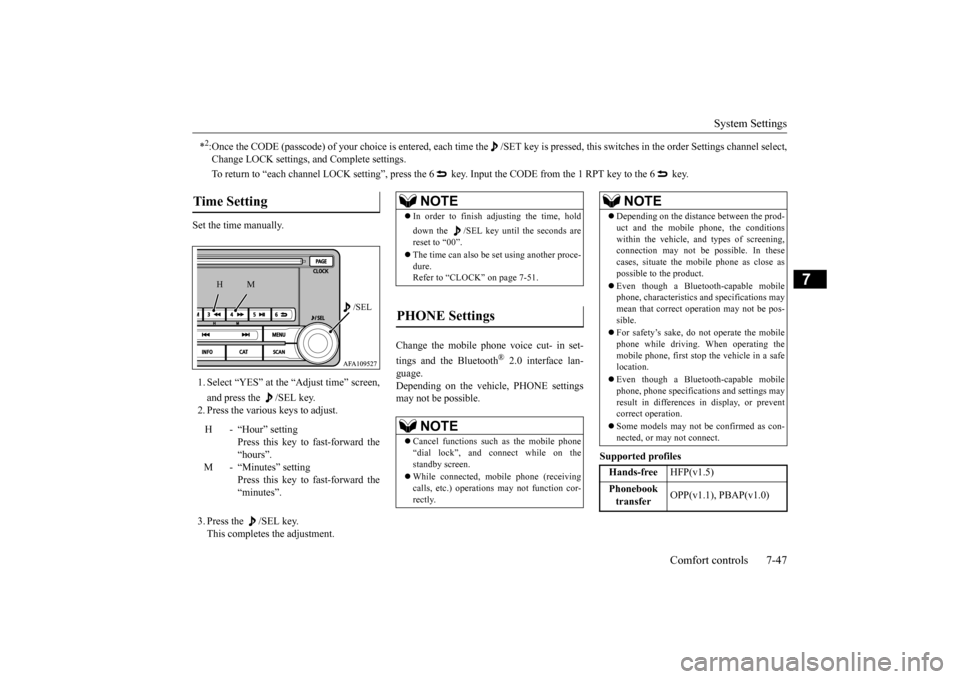
Set the time manually. 1. Select “YES” at the “Adjust time” screen, and press the /SEL key. 2. Press the various keys to adjust. 3. Press the /SEL key. This completes the adjustment.
Change the mobile phone voice cut- in set- tings and the Bluetooth
® 2.0 interface lan-
guage. Depending on the vehi
cle, PHONE settings
may not be possible.
Supported profiles
*2:Once the CODE (passcode) of your choice is
entered, each time the /SET
key is pressed, this switch
es in the order Settings chan
nel select,
Change LOCK settings,
and Complete settings.
To return to “each channel LOCK se
tting”, press the 6 key. Input the CODE from the 1 RPT key to the 6 key.
Time Setting
H - “Hour” setting
Press this key to fast-forward the “hours”.
M - “Minutes” setting
Press this key to fast-forward the “minutes”.
/SEL
M
H
NOTE
In order to finish adjusting the time, hold down the /SEL key unt
il the seconds are
reset to “00”. The time can also be
set using another proce-
dure. Refer to “CLOCK” on page 7-51.
PHONE Settings
NOTE
Cancel functions such as the mobile phone “dial lock”, and connect while on the standby screen. While connected, mobile phone (receiving calls, etc.) operations
may not function cor-
rectly.
Depending on the distan
ce between the prod-
uct and the mobile
phone, the conditions
within the vehicle, and types of screening, connection may not be
possible. In these
cases, situate the mobile phone as close as possible to the product. Even though a Bluet
ooth-capable mobile
phone, characteristics an
d specifications may
mean that correct ope
ration may not be pos-
sible. For safety’s sake, do not operate the mobile phone while driving. When operating the mobile phone, first stop the vehicle in a safe location. Even though a Bluet
ooth-capable mobile
phone, phone specificati
ons and settings may
result in differences in display, or prevent correct operation. Some models may not
be confirmed as con-
nected, or may not connect.Hands-free
HFP(v1.5)
Phonebook transfer
OPP(v1.1), PBAP(v1.0)
NOTE
BK0223400US.book 47 ページ 2015年2月13日 金曜日 午後12時15分
Page 376 of 464
System Settings 7-48 Comfort controls
7
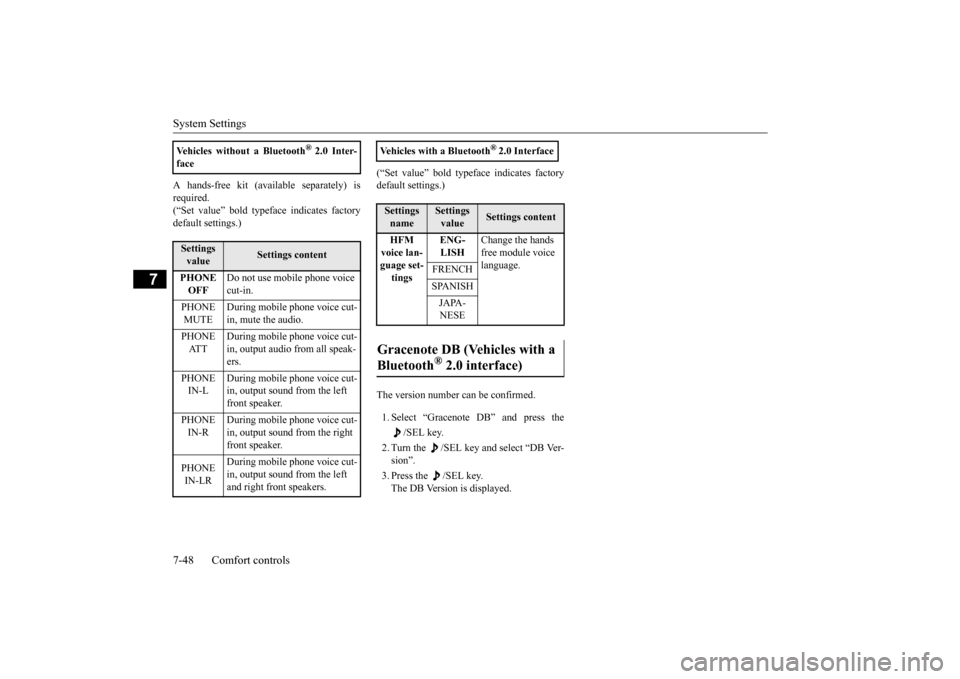
A hands-free kit (available separately) is required. (“Set value” bold typefa
ce indicates factory
default settings.)
(“Set value” bold typefa
ce indicates factory
default settings.) The version number can be confirmed. 1. Select “Gracenote
DB” and press the
/SEL key.
2. Turn the /SEL key and select “DB Ver- sion”. 3. Press the /SEL key. The DB Version is displayed.
Vehicles without a Bluetooth
® 2.0 Inter-
faceSettings value
Settings content
PHONE OFF
Do not use mobile phone voice cut-in.
PHONE MUTE
During mobile phone voice cut- in, mute the audio.
PHONE AT T
During mobile phone voice cut- in, output audio from all speak- ers.
PHONE IN-L
During mobile phone voice cut- in, output sound from the left front speaker.
PHONE IN-R
During mobile phone voice cut- in, output sound from the right front speaker.
PHONE IN-LR
During mobile phone voice cut- in, output sound from the left and right front speakers.
Vehicles with a Bluetooth
® 2.0 Interface
Settings name
Settings value
Settings content
HFM voice lan- guage set-tings
ENG- LISH
Change the hands free module voice language.
FRENCH SPANISH JAPA- NESE
Gracenote DB (Vehicles with a Bluetooth
® 2.0 interface)
BK0223400US.book 48 ページ 2015年2月13日 金曜日 午後12時15分
Page 426 of 464
Fuses 9-28 Vehicle care and maintenance
9
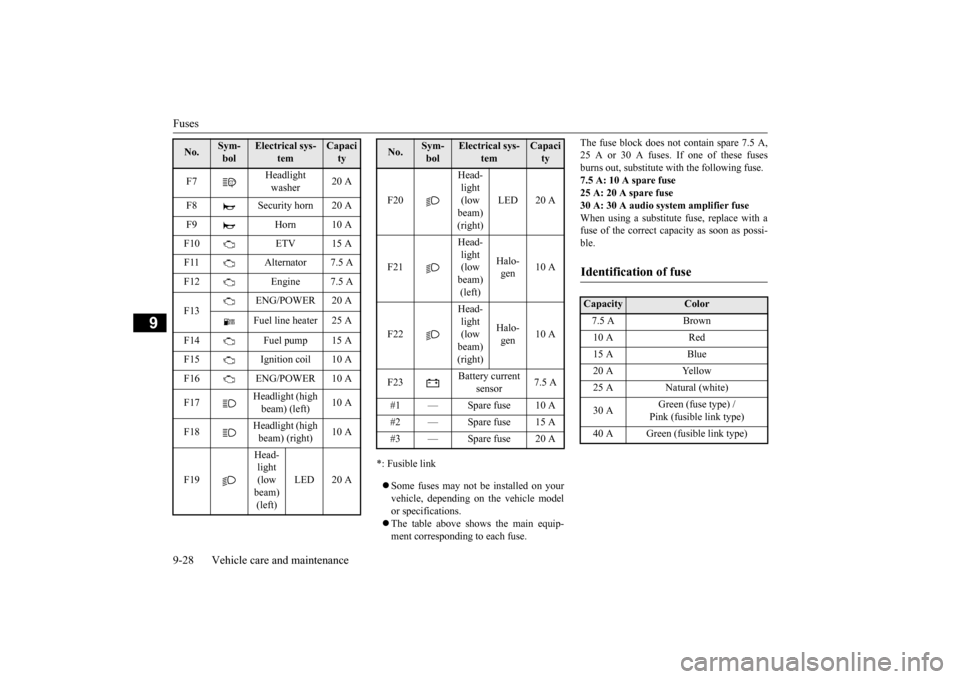
*: Fusible link Some fuses may not be installed on your vehicle, depending on
the vehicle model
or specifications. The table above show
s the main equip-
ment corresponding to each fuse.
The fuse block does not contain spare 7.5 A, 25 A or 30 A fuses. If one of these fusesburns out, substitute wi
th the following fuse.
7.5 A: 10 A spare fuse 25 A: 20 A spare fuse30 A: 30 A audio system amplifier fuse When using a substitute fuse, replace with a fuse of the correct capacity as soon as possi-ble.
F7
Headlight washer
20 A
F8 Security horn 20 A F9 Horn 10 AF10 ETV 15 A F11 Alternator 7.5 A F12 Engine 7.5 A F13
ENG/POWER 20 A Fuel line heater 25 A
F14 Fuel pump 15 A F15 Ignition coil 10 A F16 ENG/POWER 10 A F17
Headlight (high beam) (left)
10 A
F18
Headlight (high beam) (right)
10 A
F19
Head- light (low beam) (left)
LED 20 A
No.
Sym- bol
Electrical sys-
tem
Capacity
F20
Head- light (low beam) (right)
LED 20 A
F21
Head- light (low beam) (left)
Halo- gen
10 A
F22
Head- light (low beam) (right)
Halo- gen
10 A
F23
Battery current
sensor
7.5 A
#1 — Spare fuse 10 A #2 — Spare fuse 15 A #3 — Spare fuse 20 ANo.
Sym- bol
Electrical sys-
tem
Capacity
Identification of fuse Capacity
Color
7.5 A Brown 10 A Red 15 A Blue 20 A Yellow 25 A Natural (white) 30 A
Green (fuse type) / Pink (fusible link type)
40 A Green (fusible link type)
BK0223400US.book 28 ページ 2015年2月13日 金曜日 午後12時15分