2016 MERCEDES-BENZ GL-Class Nav
[x] Cancel search: NavPage 108 of 246
SIRIUS XM service
Displaying SIRIUS XM service informa-
tion
You can display the SIRIUS XM service infor-
mation.
XTo switch to navigation mode: press the
Ø button.
XTo show the menu: slide6the control-
ler.
XTo select Traffic: turn and press the con-
troller.
XSelect SIRIUS Service.
The provider's phone number (SIRIUS XM)
and the serial number of your service mod-
ule are displayed.
Registering the SIRIUS XM service
XCall the provider telephone number shown on the COMAND display.
iYou can also have the satellite service
activated online. To do so, visit the SIRIUS
XM Radio website at
http://www.sirius.com (USA).
Once the connection has been established:
XFollow the service employee's instructions.
The activation process may take up to
10 minutes.
If registration is not included when purchas-
ing the system, your credit card details will be
required to activate your account.
Updating the digital map
Introduction
The digital maps generated by the map soft-
ware become outdated in the same way as
conventional road maps. Optimal route guid-
ance can only be provided by the navigation
system in conjunction with the most up-to-
date map software.
Information about new versions of the digital
map can be obtained from an authorized Mercedes-Benz Center. You can have the dig-
ital map updated there using a data medium,
or you can update it yourself.
For North American countries, it is possible to
update the map data for COMAND free of
charge for a period of three years. Information
on the availability of this service for your vehi-
cle can be obtained from your authorized
Mercedes-Benz Center.
Entitlement to the free update
For the first three years after your vehicle is
registered, you are entitled to all available
updates to the map software for COMAND.
They are usually installed during a regular
vehicle service. After this period, you can pur-
chase further updates from your authorized
Mercedes-Benz Center.
The free updates relate to the vehicle and not
to an individual. If there is a change of own-
ership within the three years after first regis-
tration, the new owner is entitled to the map
software updates.
Updating at an authorized Mercedes-
Benz Center
If an update for your map software is availa-
ble, you will receive it free of charge at your
authorized Mercedes-Benz Center during
your vehicle's annual service. You can
arrange a separate appointment for this at
your authorized Mercedes-Benz Center on
request.
The update can only be performed:
Rat an authorized Mercedes-Benz Center
Rfor navigation data for North America
The map software is not provided on DVD.
Carrying out a manual update
After the free update of the map data has
expired or when buying map data, you can
update the data yourself.
The update process may take some time (up
to 45 minutes), depending on the size of the
106Map functions
Navigation
Page 109 of 246
digital map. The update will be completed
more quickly if the vehicle is stationary. If you
start the update with the engine switched off
and the starter battery has insufficient power,
COMAND may automatically switch off. This
protects the battery. In order to prevent this,
a suitable power supply to the vehicle must be
maintained.
Navigation functions
Calling up the navigation system
menu
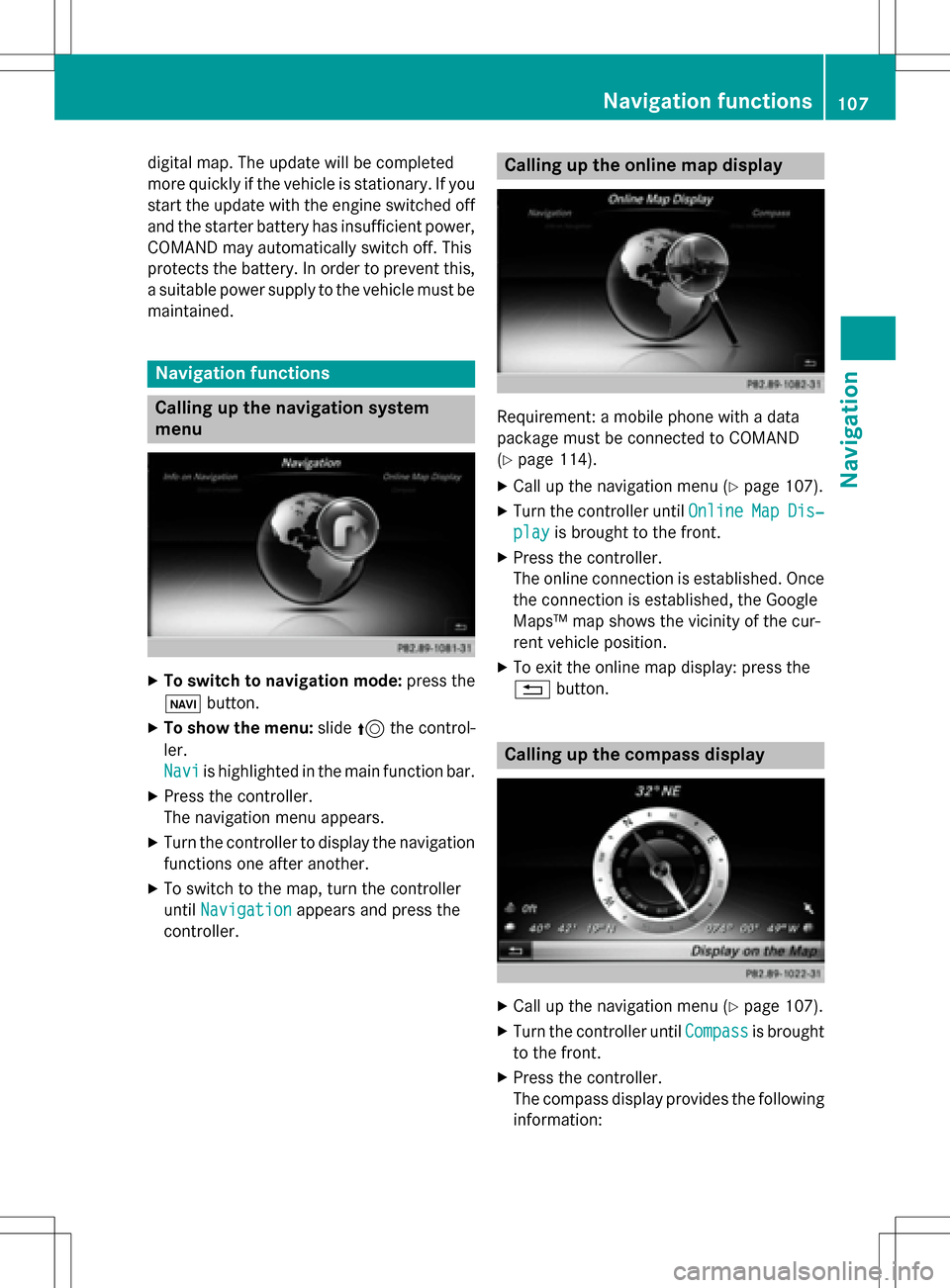
XTo switch to navigation mode: press the
ß button.
XTo show the menu: slide5the control-
ler.
Navi
is highlighted in the main function bar.
XPress the controller.
The navigation menu appears.
XTurn the controller to display the navigation
functions one after another.
XTo switch to the map, turn the controller
until Navigation
appears and press the
controller.
Calling up the online map display
Requirement: a mobile phone with a data
package must be connected to COMAND
(
Ypage 114).
XCall up the navigation menu (Ypage 107).
XTurn the controller until OnlineMapDis‐
playis brought to the front.
XPress the controller.
The online connection is established. Once
the connection is established, the Google
Maps™ map shows the vicinity of the cur-
rent vehicle position.
XTo exit the online map display: press the
%button.
Calling up the compass display
XCall up the navigation menu (Ypage 107).
XTurn the controller until Compassis brought
to the front.
XPress the controller.
The compass display provides the following information:
Navigation functions107
Navigation
Z
Page 110 of 246

RThe current direction of travel with bear-
ing (360 degree format) and compass
direction
RLongitude and latitude coordinates in
degrees, minutes and seconds
RHeight (rounded off) above sea level
RNumber of GPS satellites from which
a signal can be received
XTo selectShowonMap: turn and press the
controller.
XTo exit the compass display: press the
% button.
Info on navigation
XCall up the navigation menu (Ypage 107).
XTurn the controller until InfoonNaviga‐
tionis brought to the front.
XPress the controller.
The Digital Operator's Manual is opened at
the section on navigation.
108Navigation functions
Navigation
Page 111 of 246
Problems with the navigation system
ProblemPossible causes/consequences andMSolutions
COMAND does not
resume route guidance
after the journey has
been interrupted.Route guidance is canceled if you interrupt the journey for more
than two hours.
"Interrupting the journey" refers to stopping the vehicle.
"Continuing route guidance" refers to switching COMAND back on
and driving on.
XContinue route guidance manually (Ypage 91).
ProblemPossible causes/consequences andMSolutions
COMAND is unable to
determine the vehicle's
position.COMAND has to redetermine the position of the vehicle if the
vehicle has been transported.
Example:
RAfter transporting the vehicle by ferry
RAfter transporting the vehicle by motorail
XStart the vehicle and pull away.
COMAND determines the vehicle's position. Depending on the
driving situation, this may take some time.
Route guidance may be restricted during the determination of
the vehicle's position.
When positioning is complete, route guidance is resumed with
navigation announcements and route guidance displays.
ProblemPossible causes/consequences andMSolutions
The digital map is not
compatible with the
vehicle software.The data medium containing the digital map cannot be used for the
update.
XTo confirm the message: press the controller.
XRemove the data medium.
XHave the data medium checked at an authorized Mercedes-Benz
Center.
ProblemPossible causes/consequences andMSolutions
COMAND asks for an
activation code during
the map update.The digital map is secured with an activation code.
XConsult an authorized Mercedes-Benz Center.
Problems with the navigation system109
Navigation
Z
Page 112 of 246

ProblemPossible causes/consequences andMSolutions
The map software
update has failed.The digital map can be loaded with a DVD, SD memory card or USB
stick.
XCheck the readability of the data medium, e.g. in a PC.
XTo restart the update: insert the DVD.
or
XInsert an SD memory card or USB stick.
COMAND asks for an activation code during the map update. The
code must be validated in the vehicle.
XSwitch on the ignition.
XTo restart the update: insert the DVD.
or
XInsert an SD memory card or USB stick.
COMAND's integrated hard disk is defective.
XConsult an authorized Mercedes-Benz Center.
110Problems with the navigation system
Navigation
Page 129 of 246

Saving a contact
Saved contacts are indicated in the phone
book by different symbols (
Ypage 124).
XCall up the phone book (Ypage 123).
XSearch for and highlight a contact from themobile phone d(
Ypage 124).
XTo select G: slide 9the controller.
XTo select Save: turn and press the control-
ler.
The contact has now been saved. The con-
tact is identified by the ¥symbol in the
phone book.
iSaved contacts are also displayed in the
address book.
Saving or editing the contact data on
COMAND does not change the contacts on
the mobile phone. If automatic calling up of
phone contacts is activated, COMAND dis-
plays the copy ¥with the changed data.
Deleting a contact
You can delete contacts that have been
added, supplemented, saved or imported in
COMAND.
If there are one or several phone numbers
saved under the contact, the contact is
deleted from the phone book and the address
book.
If there are additional entries under the con-
tact, such as a navigable destination, only the
phone numbers are deleted. The contact is
retained in the address book with the remain-
ing entries.
XCall up the phone book (Ypage 123).
XSearch for and highlight a contact in the
phone book (
Ypage 124).
XTo select G: slide 9the controller.
XTo select Delete: turn and press the con-
troller.
A prompt appears asking whether the con-
tact should be deleted.
XTo select Yes: turn and press the controller.
The phone number is deleted.
or
XTo select No: turn and press the controller.
The process is canceled.
Closing the phone book
XTo select &from the character bar: turn
the controller and press to confirm.
or
XPress the %button.
Address book
Introduction
Always pay attention to traffic conditions.
Familiarize yourself with the address book
functions before beginning your journey.
You can use COMAND when the road and
traffic conditions permit. You could otherwise
become involved in an accident in which you
or others could be injured.
The address book displays all the contacts
from the various sources (mobile phone,
memory card, USB device, COMAND phone
book, navigation).
You can use the contacts to make telephone
calls, navigate and to write messages.
If a mobile phone is connected to COMAND
and automatic calling up is activated
(
Ypage 132), the mobile phone's contacts
are displayed in the address book. If you dis- connect the mobile phone from COMAND,
these contacts are no longer displayed in the
address book.
When you import, save, edit or add contacts,
they will be saved in COMAND. These con-
tacts will remain there even when you con-
nect COMAND to a different mobile phone.
You can view these contacts even without a
mobile phone.
Address book127
Telephone
Z
Page 131 of 246

Using the touchpad
You determine the first letter of the contact
you are looking for with the first character you
enter.
XDraw the letter on the touchpad surface.
The first contact with the selected first
character is highlighted in the address
book.
Further information on handwriting recog-
nition on the touchpad (
Ypage 27).
XDraw additional letters on the touchpad
surface one after another.
XTo complete the search and return to the
address book: press the touchpad.
XTo select and call the contact: glide up or
down and press.
Adding a new contact
You can enter address data directly into the
address book. If you store telephone num-
bers in the COMAND phone book, these are
also saved in the address book. If you store a
navigation destination, COMAND creates an
address book entry which includes the com-
plete navigable address data.
XCall up the address book (Ypage 128).
XTo switch to the menu bar: slide 6the
controller.
XTo select New: turn and press the controller.
The surname and first name input lines are
displayed.
XEnter characters using the controller
(
Ypage 33) or the number keypad or the
touchpad (
Ypage 27) depending on the
vehicle's equipment.
XEnter characters using the controller
(
Ypage 33) or the number keypad.
XTo save the surname and first name: select
¬.
The details for the contact are displayed.
XTo add a desired entry (e.g. Add E-Mail
Address): turn and press the controller.
Depending on the type of entry, the corre-
sponding input menu appears.
XEnter characters using the controller
(
Ypage 33) or the number keypad or the
touchpad (
Ypage 27) depending on the
vehicle's equipment.
XEnter characters using the controller
(
Ypage 33) or the number keypad.
XTo finish and save an entry: select ¬.
Displaying contact details
XCall up the address book (Ypage 128).
XTo select a contact: turn and press the con-
troller.
The details for the contact are displayed.
The entries can be categorized as follows:
\ Business details
6 Home details
iAn address book entry can contain the
following information:
Rname
Rfirst name
Rcompany
Rup to five telephone numbers
Rtwo email addresses
RInternet address
Rtwo addresses
Rgeo-coordinates
Address book129
Telephone
Z
Page 132 of 246

Adding information to a contact
Amaximum of fiv etelephon enumber scan be
saved for on econtact .
XCall up th eaddress book (Ypage 128).
XTo selectacontact :tur nand press th econ-
troller .
The details for th econtact are displayed.
XTo add th edesired entr y(e.g. AddE-Mail
Addres s): turnand press th econtroller .
Dependin gon th etyp eof entry, th ecorre-
sponding input men uappears.
XEnte rcharacters usin gth econtroller
(
Ypage 33 )or th enumber keypad or th e
touchpad (
Ypage 27)depending on th e
vehicle's equipment.
XEnte rcharacters usin gth econtroller
(
Ypage 33) or th enumber keypad.
XTo finish and sav ean entry: select ¬.
Startingroute guidance to an address
or geo-coor dinates
If an address wit h a ZIPcode is saved, th e
address can be used for rout eguidance .If th e
ZIP code canno tbe assigned to an exact
address ,you can adjust th edestination sub-
sequently usin gth econtroller .
XCall up theaddress book (Ypage 128).
XTo selectacontact :tur nand press th econ-
troller .
The details for th econtact are displayed.
XTo select th eaddress or geo-coordinates:
tur nand press th econtroller .
The navigation men uis displayed.
XTo select Start:slide 6and press th e
controller .
The rout eto th edestination address is cal-
culated and rout eguidance starts.
Makes a call
XCall up th eaddr essbook (Ypage 128).
XTo select acontact :tur nand pre ssthecon-
troller .
The details for th econtact are displayed.
XTo select atelephon enumber :tur nand
press th econtroller .
The number is dialed .Further information
about th efunction sduring acall
(
Ypage 120).
Sending text messages
XCall up th eaddress book (Ypage 128).
XTo selectacontact :tur nand pre ssthecon-
troller .
The details for th econtact are displayed.
XTo highligh tth etelephon enumber :tur nth e
controller .
XTo select G:slide9 thecontroller .
XTo select SendTex tMessag e:tur nand
press th econtroller .
The entr yfields for ate xt message are dis-
played (
Ypage 142).
Observ eth erequirements for th emessage
function (
Ypage 138).
Sending e-mail
XCall up th eaddr essbook (Ypage 128).
XSelectan entry: tur nand pre ssthecontrol -
ler .
The details for th econtact are displayed.
XTo select an e-mail address :tur nand pre ss
th econtroller .
The entr yfields for an e-mail are displayed
(
Ypage 142).
Observ eth erequirements for th emessage
function (
Ypage 138).
130Address book
Telephone