2016 MERCEDES-BENZ GL-Class Nav
[x] Cancel search: NavPage 100 of 246
XTo accept the proposed detour: press the
controller.
XTo reject the proposed detour and continue
with the original route: turn the controller
and press to confirm.
The original route is continued.
Storing destinations
General notes
In the "Last destinations" memory, the fol-
lowing are stored:
Rdestinations and intermediate destinations
according to the route calculation
Rthe current vehicle position or the crosshair
position, if these are saved
Rpersonal routes
If the memory is full, COMAND overwrites the
oldest destination.
You can save destinations permanently in the
address book (
Ypage 98) and on an SD
memory card (
Ypage 99). For instance, this
is possible immediately after entering an
address.
For further information on the address book,
see (
Ypage 127)
Storing the destination in the address
book
Storing as a new contact
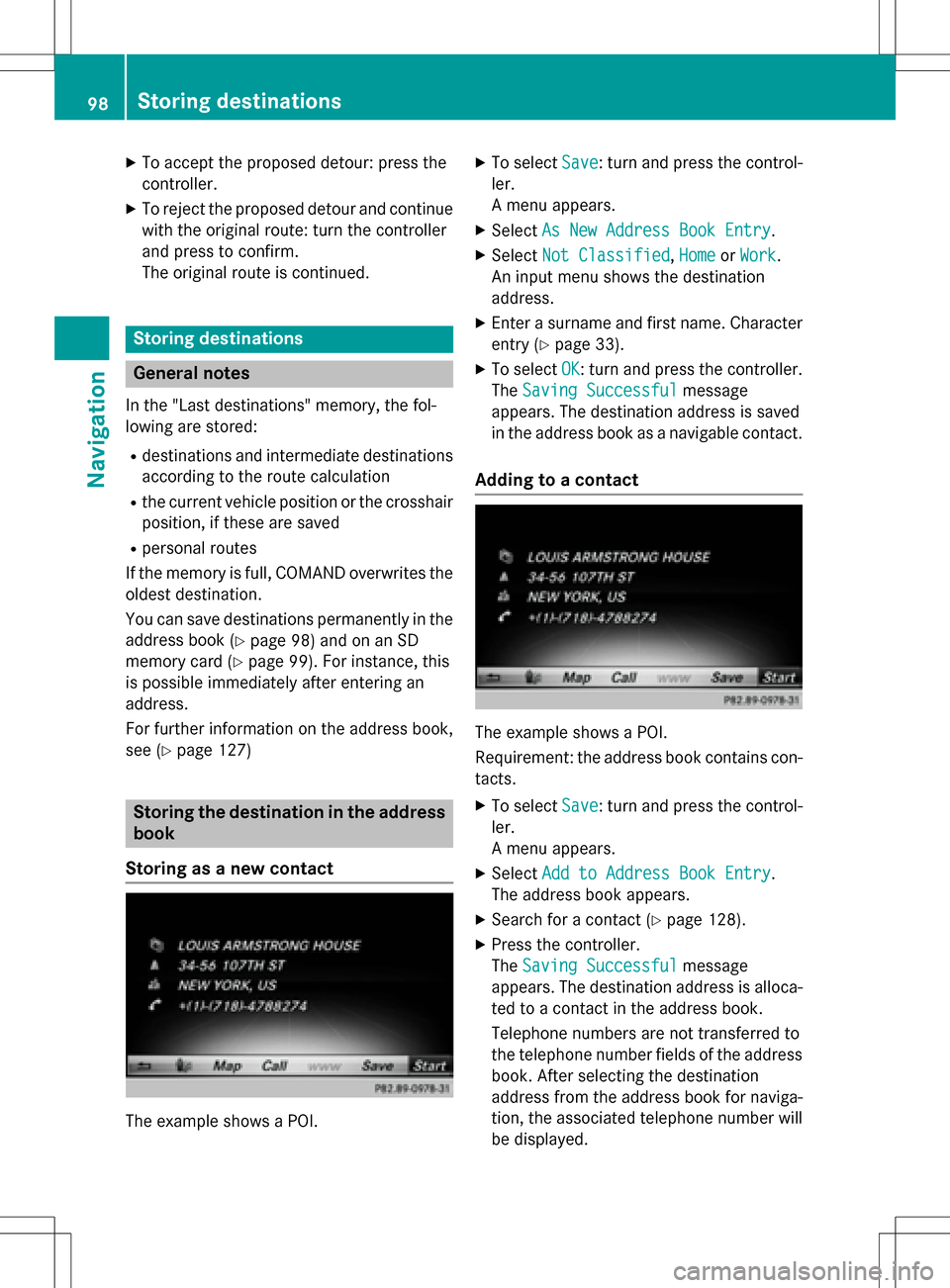
The example shows a POI.
XTo select Save: turn and press the control-
ler.
A menu appears.
XSelect As New Address Book Entry.
XSelectNot Classified,Homeor Work.
An input menu shows the destination
address.
XEnter a surname and first name. Character
entry (
Ypage 33).
XTo select OK: turn and press the controller.
The Saving Successful
message
appears. The destination address is saved
in the address book as a navigable contact.
Adding to a contact
The example shows a POI.
Requirement: the address book contains con-
tacts.
XTo select Save: turn and press the control-
ler.
A menu appears.
XSelect Add to Address Book Entry.
The address book appears.
XSearch for a contact (Ypage 128).
XPress the controller.
The Saving Successful
message
appears. The destination address is alloca-
ted to a contact in the address book.
Telephone numbers are not transferred to
the telephone number fields of the address
book. After selecting the destination
address from the address book for naviga-
tion, the associated telephone number will
be displayed.
98Storing destinations
Navigation
Page 101 of 246
If the contact already has two destination
addresses, a prompt will appear asking if a
destination address should be overwritten.
XSelectYesorNo.
If you select Yes
, a list showing both des-
tination addresses appears.
XTo select the destination address: turn and
press the controller.
The destination address is overwritten.
Saving destination to the SD memory
card
XInsert the SD memory card (Ypage 183).
XDisplay a POI, for example.
XTo select Save: turn and press the control-
ler.
A menu appears.
XSelect To Memory Card.
XSelectNot Classifiedor, if available,
select a category that you have created
yourself.
An input menu appears.
XEnter a surname and first name. Character
entry (
Ypage 34).
XSelect OK.
The Saving Successful
message
appears. The destination is saved to the SD
memory card.
Saving the current vehicle position
Using the Map
XTo switch to navigation mode: press the
ß button.
XWhen the map is shown, press and hold the
COMAND controller until you hear a tone.
The current vehicle position is saved to the
"Last destinations" memory.
If an SD memory card is inserted, the cur-
rent vehicle position will also be saved in
theNot Classified
category.
Using the menu
XTo switch to navigation mode: press the
ß button.
XTo show the menu: slide6the control-
ler.
XTo select Position: turn and press the
controller.
XSelect Save.
XStore the destination in the address book
(
Ypage 98).
XSave the destination to the SD card
(
Ypage 99).
Saving the crosshair position
XTo switch to navigation mode: press the
ß button.
XTo display the crosshair: press the con-
troller.
XMove the map to the desired position
(
Ypage 66).
XTo show the menu: press the controller.
XTo selectPosition: turn and press the
controller.
XSelect Save.
XStore the destination in the address book
(
Ypage 98).
XSave the destination to the SD card
(
Ypage 99).
Editing the last destinations
Storing destinations99
Navigation
Z
Page 102 of 246
XTo switch to navigation mode:press the
ß button.
XTo show the menu: slide6the control-
ler.
XTo select Destination: turn and press the
controller.
XSelect From Last Destinations.
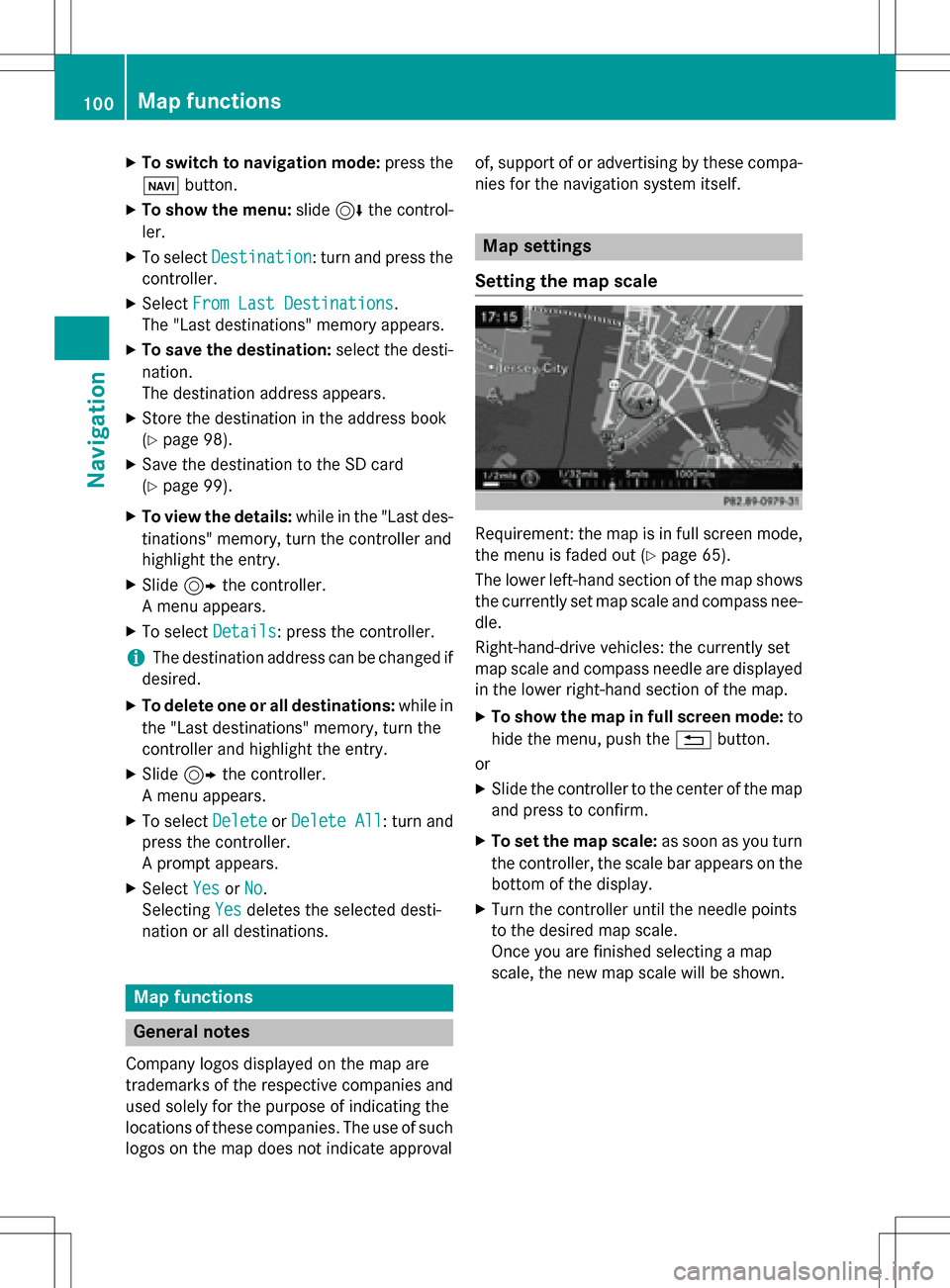
The "Last destinations" memory appears.
XTo save the destination: select the desti-
nation.
The destination address appears.
XStore the destination in the address book
(
Ypage 98).
XSave the destination to the SD card
(
Ypage 99).
XTo view the details: while in the "Last des-
tinations" memory, turn the controller and
highlight the entry.
XSlide 9the controller.
A menu appears.
XTo select Details: press the controller.
iThe destination address can be changed if
desired.
XTo delete one or all destinations: while in
the "Last destinations" memory, turn the
controller and highlight the entry.
XSlide 9the controller.
A menu appears.
XTo select DeleteorDelete All: turn and
press the controller.
A prompt appears.
XSelect YesorNo.
Selecting Yes
deletes the selected desti-
nation or all destinations.
Map functions
General notes
Company logos displayed on the map are
trademarks of the respective companies and
used solely for the purpose of indicating the
locations of these companies. The use of such
logos on the map does not indicate approval of, support of or advertising by these compa-
nies for the navigation system itself.
Map settings
Setting the map scale
Requirement: the map is in full screen mode,
the menu is faded out (
Ypage 65).
The lower left-hand section of the map shows
the currently set map scale and compass nee-
dle.
Right-hand-drive vehicles: the currently set
map scale and compass needle are displayed
in the lower right-hand section of the map.
XTo show the map in full screen mode: to
hide the menu, push the %button.
or
XSlide the controller to the center of the map
and press to confirm.
XTo set the map scale: as soon as you turn
the controller, the scale bar appears on the bottom of the display.
XTurn the controller until the needle points
to the desired map scale.
Once you are finished selecting a map
scale, the new map scale will be shown.
100Map functions
Navigation
Page 103 of 246
Selecting map orientation
XTo switch to navigation mode:press the
ß button.
XTo show the menu: slide6the control-
ler.
XTo select Options: turn and press the con-
troller.
XSelect Map Orientation.
The #dot indicates the current setting.
XTurn and press the controller.
The map orientation is set.
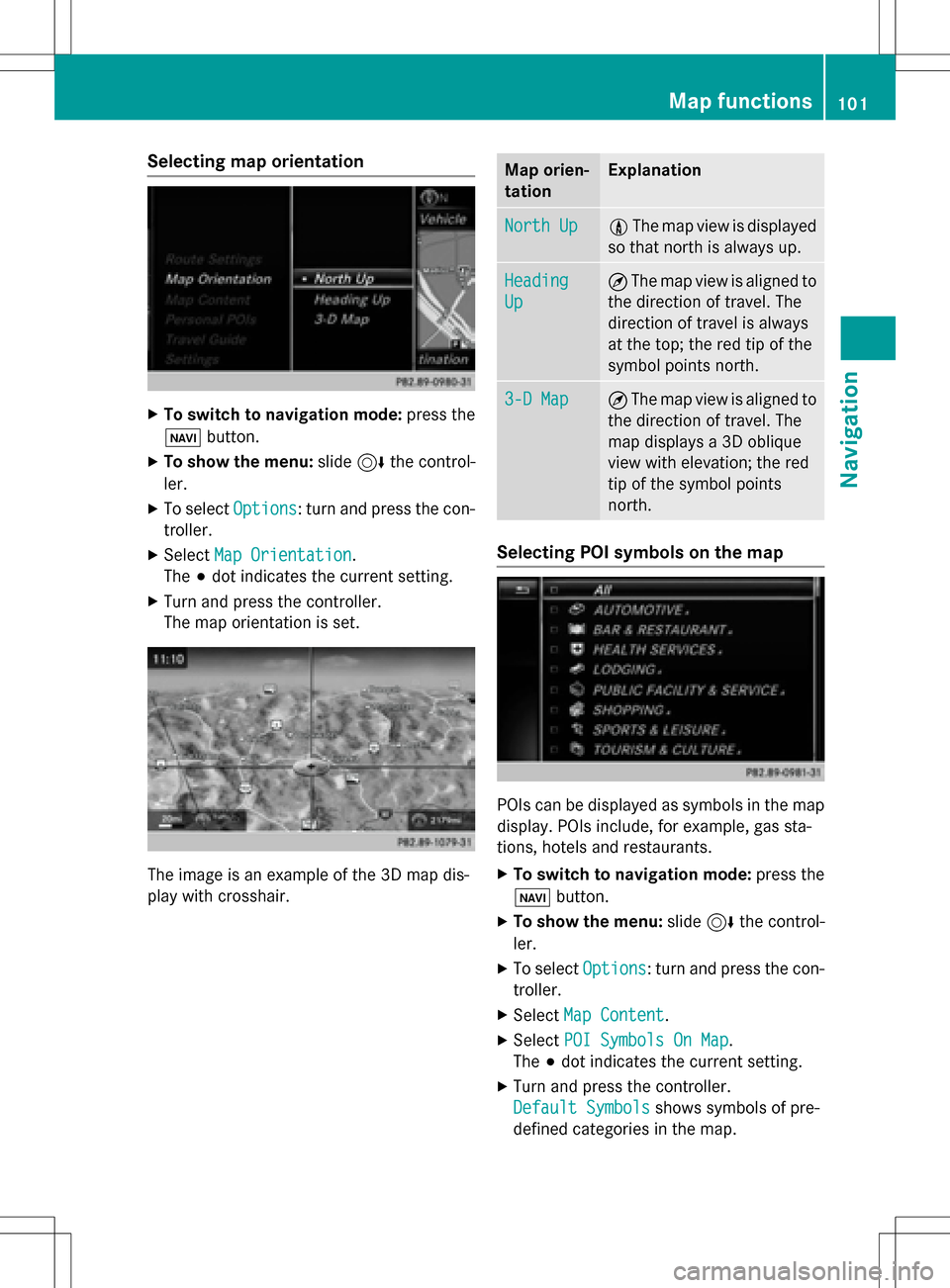
The image is an example of the 3D map dis-
play with crosshair.
Map orien-
tationExplanation
North Up0 The map view is displayed
so that north is always up.
Heading
Up
¤ The map view is aligned to
the direction of travel. The
direction of travel is always
at the top; the red tip of the
symbol points north.
3-D Map¤ The map view is aligned to
the direction of travel. The
map displays a 3D oblique
view with elevation; the red
tip of the symbol points
north.
Selecting POI symbols on the map
POIs can be displayed as symbols in the map
display. POIs include, for example, gas sta-
tions, hotels and restaurants.
XTo switch to navigation mode: press the
ß button.
XTo show the menu: slide6the control-
ler.
XTo select Options: turn and press the con-
troller.
XSelect Map Content.
XSelectPOI Symbols On Map.
The #dot indicates the current setting.
XTurn and press the controller.
Default Symbols
shows symbols of pre-
defined categories in the map.
Map functions101
Navigation
Z
Page 104 of 246
Custom Symbolsallows symbols to be
selected from other/all available catego-
ries.
XTurn and press the controller.
You have the option of selecting symbols to
be displayed Oor not displayed ªon the
map.
The list shows all symbols that are contained
on the digital map across all countries. How-
ever, not all points of interest are available in
all countries. As a result, certain point of
interest symbols may not be displayed on the
map, even if the symbol display is switched
on.
Selecting text information on the map
At the bottom of the display, you can specify
whether to display geo-coordinates or not to
display text information for the street you are
currently on.
XTo switch to navigation mode: press the
ß button.
XTo show the menu: slide6the control-
ler.
XTo select Options: turn and press the con-
troller.
XSelect Map Content.
XSelectText Information On Map.
The #dot indicates the current setting.
XTurn and press the controller.
Current Street
shows the current street
at the bottom of the display.
Geo-coordinates
shows the longitude
and latitude, elevation and number of sat-
ellites received.
The elevation shown may deviate from the
actual elevation.
XTurn and press the controller.
Displaying the range on the map
The range can be displayed on the map for
electric vehicles. A circle appears around the
current vehicle position. For further information on range, see the vehi-
cle Operator's Manual.
XTo switch to navigation mode:
press the
ß button.
XTo show the menu: slide6the control-
ler.
XTo select Options: turn and press the con-
troller.
XSelect Map Content.
XSelectRange on Map.
Switch the display in the map on Oor off
ª.
Switching highway information on/off
While driving on the highway, gas stations,
rest stops, rest areas and highway exits are
displayed along with their immediate distan-
ces from the current vehicle position
(
Ypage 89).
XTo switch to navigation mode: press the
ß button.
XTo show the menu: slide6the control-
ler.
XTo select Options: turn and press the con-
troller.
XSelect Map Content.
XSelectHighway Information.
Switch the display in the map on Oor off
ª. Further information (
Ypage 89).
Traffic Sign Assist
The function is available depending on the
equipment installed in the vehicle.
The map shows traffic signs detected by Traf-
fic Sign Assist (see the vehicle Operator's
Manual).
XTo switch to navigation mode: press the
ß button.
XTo show the menu: slide6the control-
ler.
XTo select Options: turn and press the con-
troller.
102Map functions
Navigation
Page 105 of 246
XSelectMap Content.
XSelectTraffic Sign Assist.
Switch the display in the map on Oor off
ª.
Displaying the next crossroads
If route guidance is not active, the next cross-
roads can be displayed at the upper edge of
the display.
XTo switch to navigation mode: press the
ß button.
XTo show the menu: slide6the control-
ler.
XTo select Options: turn and press the con-
troller.
XSelect Map Content.
XSelectNext Intersecting Street.
Switch the display in the map on Oor off
ª.
Showing the map version
The number of the map data version is shown.
Information about new versions of the digital
map can be obtained from an authorized
Mercedes-Benz Center.
XTo switch to navigation mode: press the
ß button.
XTo show the menu: slide6the control-
ler.
XTo select Options: turn and press the con-
troller.
XSelect Map Content.
XSelectMap Version.
Information on the current map version is
shown.
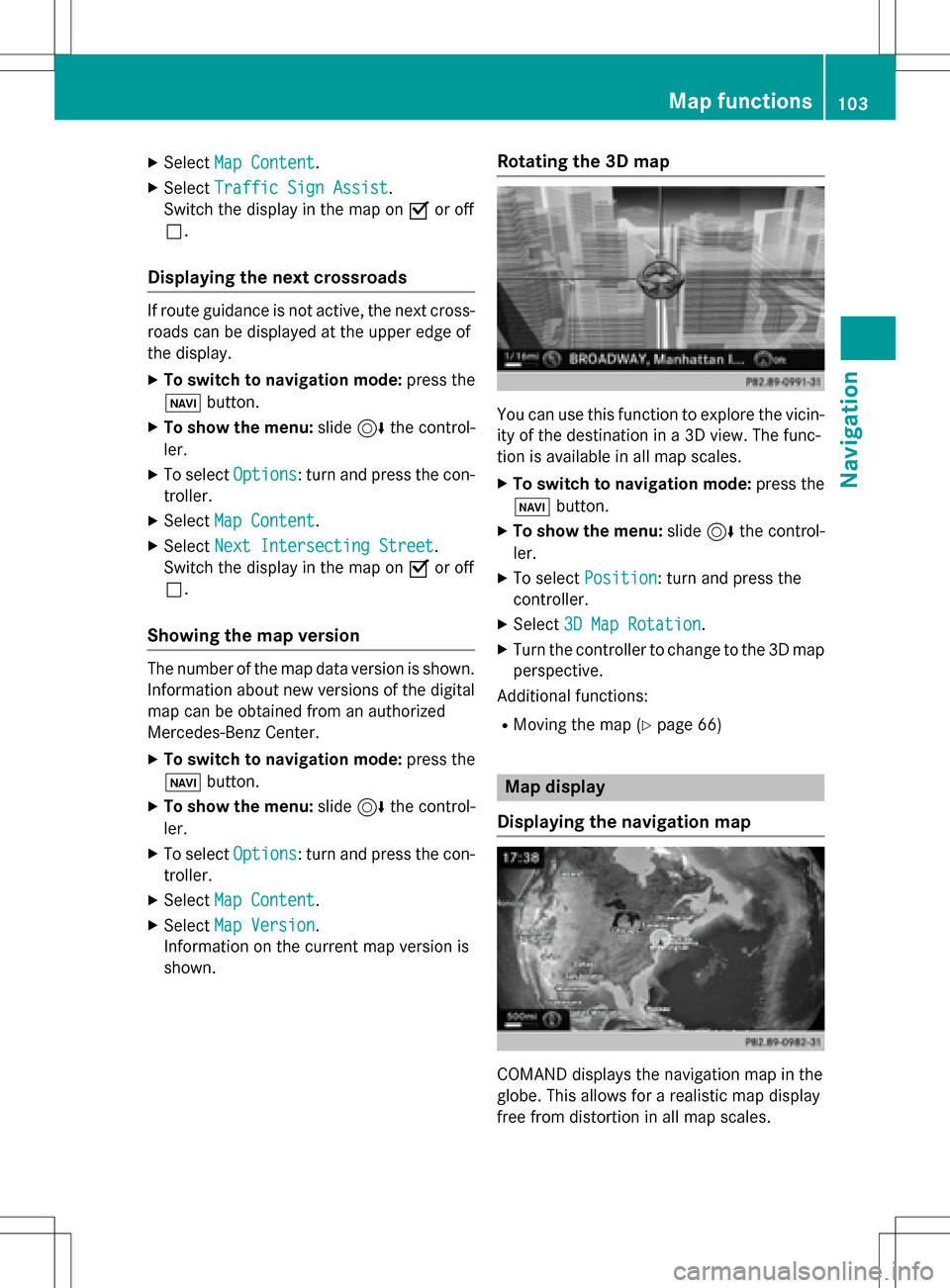
Rotating the 3D map
You can use this function to explore the vicin-
ity of the destination in a 3D view. The func-
tion is available in all map scales.
XTo switch to navigation mode: press the
Ø button.
XTo show the menu: slide6the control-
ler.
XTo select Position: turn and press the
controller.
XSelect 3D Map Rotation.
XTurn the controller to change to the 3D map
perspective.
Additional functions:
RMoving the map (Ypage 66)
Map display
Displaying the navigation map
COMAND displays the navigation map in the
globe. This allows for a realistic map display
free from distortion in all map scales.
Map functions103
Navigation
Z
Page 106 of 246
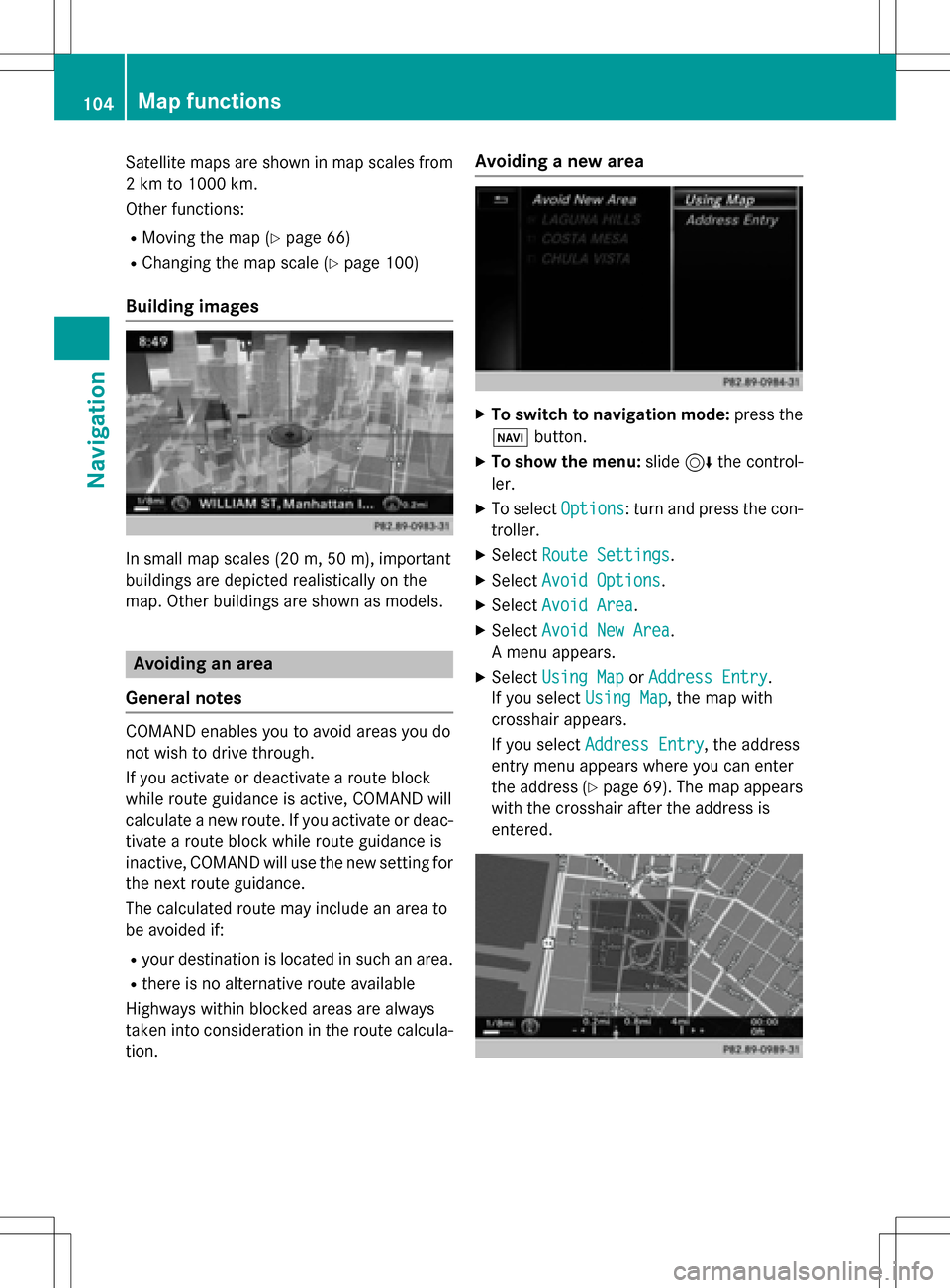
Satellite maps are shown in map scales from
2 km to 1000 km.
Other functions:
RMoving the map (Ypage 66)
RChanging the map scale (Ypage 100)
Building images
In small map scales(20m, 50 m), important
buildings are depicted realistically on the
map. Other buildings are shown as models.
Avoiding an area
General notes
COMAND enables you to avoid areas you do
not wish to drive through.
If you activate or deactivate a route block
while route guidance is active, COMAND will
calculate a new route. If you activate or deac-
tivate a route block while route guidance is
inactive, COMAND will use the new setting for
the next route guidance.
The calculated route may include an area to
be avoided if:
Ryour destination is located in such an area.
Rthere is no alternative route available
Highways within blocked areas are always
taken into consideration in the route calcula-
tion.
Avoiding a new area
XTo switch to navigation mode: press the
Ø button.
XTo show the menu: slide6the control-
ler.
XTo select Options: turn and press the con-
troller.
XSelect Route Settings.
XSelectAvoid Options.
XSelectAvoid Area.
XSelectAvoid New Area.
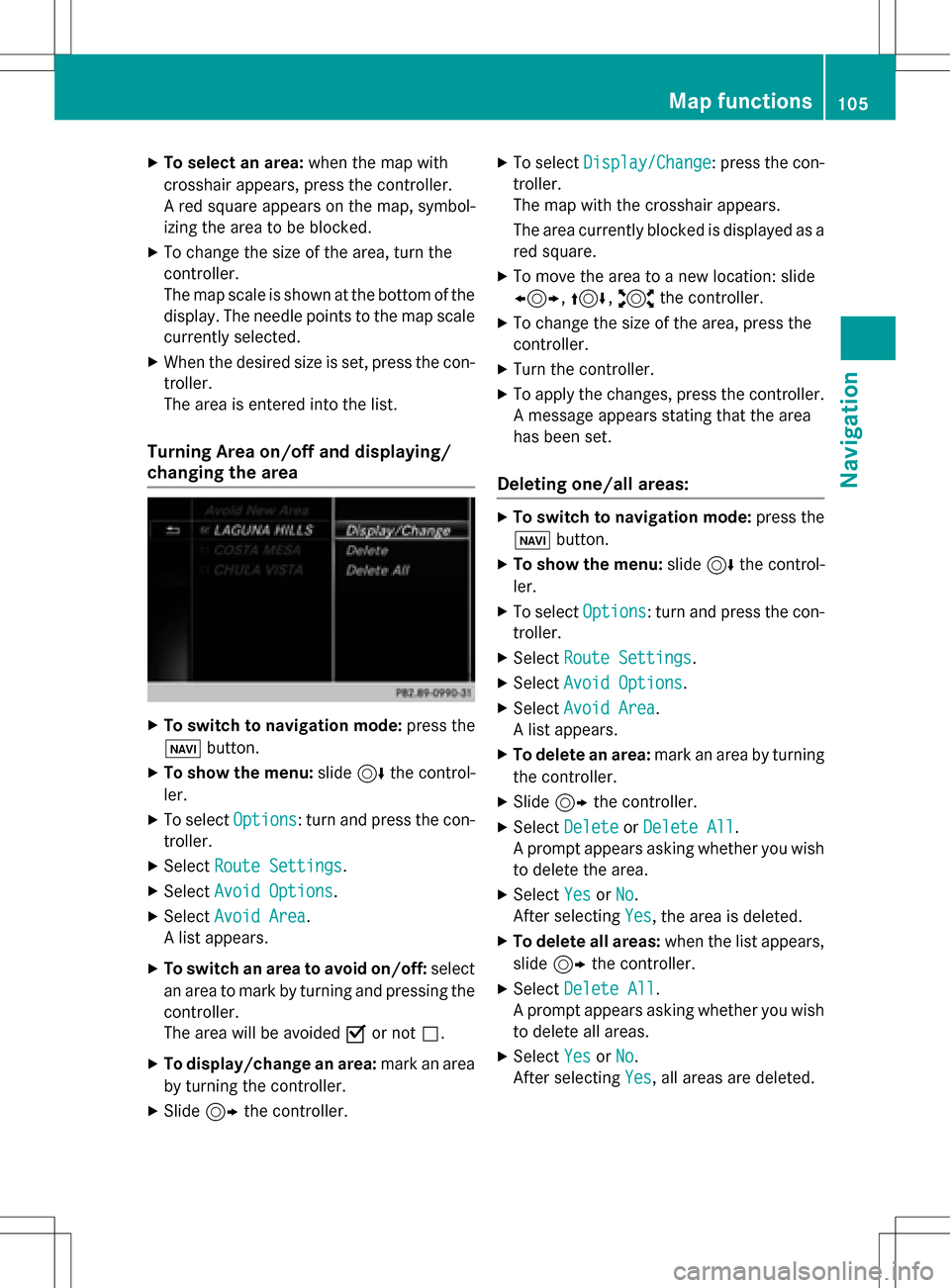
A menu appears.
XSelect Using MaporAddress Entry.
If you select Using Map
, the map with
crosshair appears.
If you select Address Entry
, the address
entry menu appears where you can enter
the address (
Ypage 69). The map appears
with the crosshair after the address is
entered.
104Map functions
Navigation
Page 107 of 246
XTo select an area:when the map with
crosshair appears, press the controller.
A red square appears on the map, symbol-
izing the area to be blocked.
XTo change the size of the area, turn the
controller.
The map scale is shown at the bottom of the
display. The needle points to the map scale
currently selected.
XWhen the desired size is set, press the con- troller.
The area is entered into the list.
Turning Area on/off and displaying/
changing the area
XTo switch to navigation mode: press the
ß button.
XTo show the menu: slide6the control-
ler.
XTo select Options: turn and press the con-
troller.
XSelect Route Settings.
XSelectAvoid Options.
XSelectAvoid Area.
A list appears.
XTo switch an area to avoid on/off: select
an area to mark by turning and pressing the
controller.
The area will be avoided Oor not ª.
XTo display/change an area: mark an area
by turning the controller.
XSlide 9the controller.
XTo select Display/Change: press the con-
troller.
The map with the crosshair appears.
The area currently blocked is displayed as a
red square.
XTo move the area to a new location: slide
1, 4,2the controller.
XTo change the size of the area, press the
controller.
XTurn the controller.
XTo apply the changes, press the controller.
A message appears stating that the area
has been set.
Deleting one/all areas:
XTo switch to navigation mode: press the
ß button.
XTo show the menu: slide6the control-
ler.
XTo select Options: turn and press the con-
troller.
XSelect Route Settings.
XSelectAvoid Options.
XSelectAvoid Area.
A list appears.
XTo delete an area: mark an area by turning
the controller.
XSlide 9the controller.
XSelect DeleteorDelete All.
A prompt appears asking whether you wish
to delete the area.
XSelect YesorNo.
After selecting Yes
, the area is deleted.
XTo delete all areas: when the list appears,
slide 9 the controller.
XSelect Delete All.
A prompt appears asking whether you wish
to delete all areas.
XSelect YesorNo.
After selecting Yes
, all areas are deleted.
Map functions105
Navigation
Z