2016 MERCEDES-BENZ E-CLASS ESTATE wheel
[x] Cancel search: wheelPage 238 of 565
%
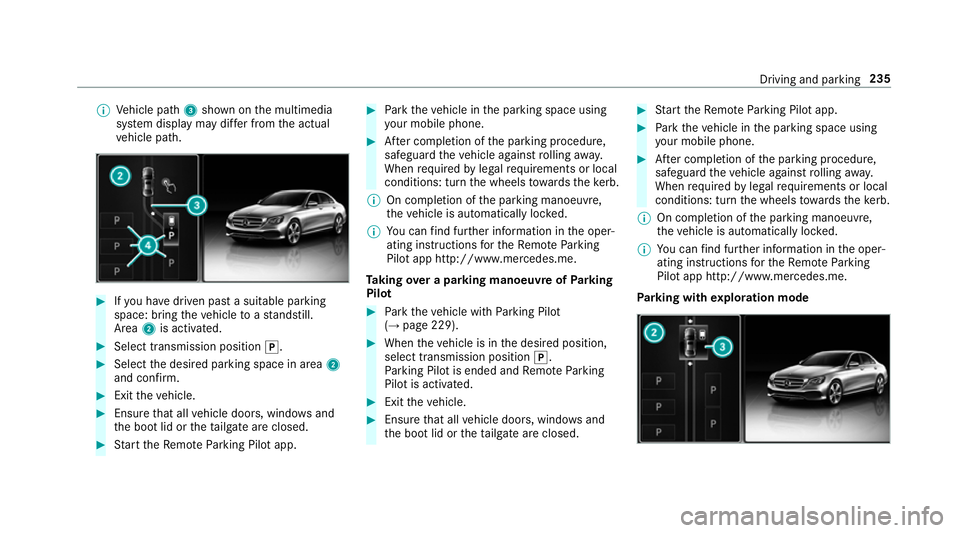
Vehicle path 3shown on the multimedia
sy stem display may dif fer from the actual
ve hicle path. #
Ifyo u ha vedriven past a suitable parking
space: bring theve hicle toast andstill.
Area 2is activated. #
Select transmission position j.#
Select the desired parking space in area 2
and confi rm. #
Exit theve hicle. #
Ensure that all vehicle doors, windo wsand
th e boot lid or theta ilgate are closed. #
Start theRe mo teParking Pilot app. #
Park theve hicle in the parking space using
yo ur mobile phone. #
After completion of the parking procedure,
safeguard theve hicle against rolling away.
When requ ired bylegal requirements or local
conditions: turn the wheels towa rdsth eke rb.
% On completion of the parking manoeuvre,
th eve hicle is automatically loc ked.
% You can find fur ther information in the oper‐
ating instructions forth eRe mo teParking
Pilot app http://www.me rcedes.me.
Ta king over a parking manoeuv reofParking
Pilot #
Park theve hicle with Parking Pilot
(→ page 229). #
When theve hicle is in the desired position,
select transmission position j.
Pa rking Pilot is ended and Remo teParking
Pilot is activated. #
Exit theve hicle. #
Ensure that all vehicle doors, windo wsand
th e boot lid or theta ilgate are closed. #
Start theRe mo teParking Pilot app. #
Park theve hicle in the parking space using
yo ur mobile phone. #
After completion of the parking procedure,
safeguard theve hicle against rolling away.
When requ ired bylegal requirements or local
conditions: turn the wheels towa rdsth eke rb.
% On completion of the parking manoeuvre,
th eve hicle is automatically loc ked.
% You can find fur ther information in the oper‐
ating instructions forth eRe mo teParking
Pilot app http://www.me rcedes.me.
Pa rking with explo ration mode Driving and pa
rking 235
Page 247 of 565
Ac
tivating/deactivating Blind Spot Assi stor
Ac tive Blind Spot Assi st
Multimedia sy stem:
, Vehicle .
k Assistance .
Blind
Spot Assist #
Activate Oor deacti vate ª the function. Ac
tive Lane Keeping Assist Fu
nction of Active Lane Keeping Assist Ac
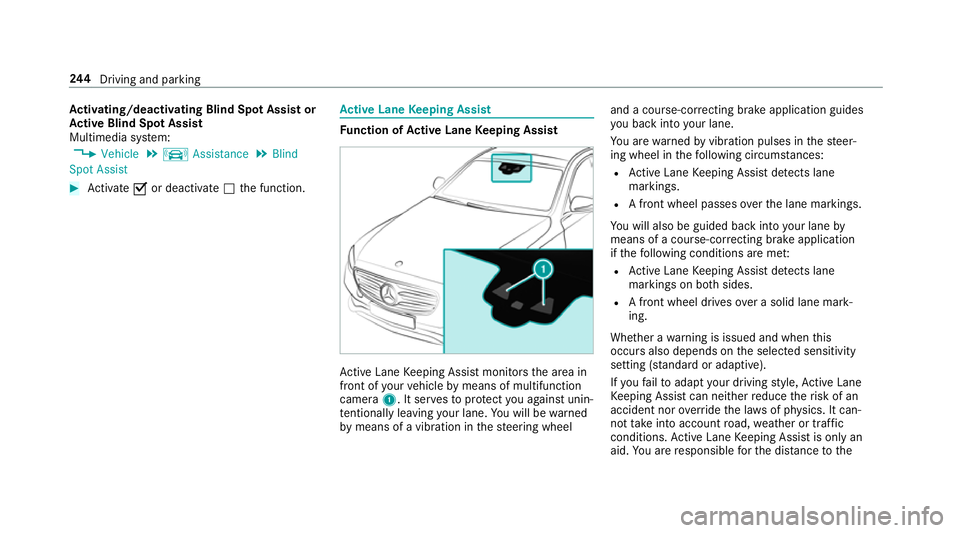
tive Lane Keeping Assist monitors the area in
front of your vehicle bymeans of multifunction
camera 1. It ser vesto protect you against unin‐
te ntional lyleaving your lane. You will be warned
by means of a vibration in thesteering wheel and a course-cor
recting brake application guides
yo u back into your lane.
Yo u are warned byvibration pulses in thesteer‐
ing wheel in thefo llowing circums tances:
R Active Lane Keeping Assist de tects lane
markings.
R A front wheel passes over the lane markings.
Yo u will also be guided back into your lane by
means of a course-cor recting brake application
if th efo llowing conditions are me t:
R Active Lane Keeping Assist de tects lane
markings on bo thsides.
R A front wheel drives over a solid lane mark‐
ing.
Whe ther a warning is issued and when this
occurs also depends on the selected sensitivity
setting (s tanda rdor adaptive).
If yo ufa ilto adapt your driving style, Ac tive Lane
Ke eping Assist can neither reduce therisk of an
accident nor override the la wsof ph ysics. It can‐
not take into account road, weather or traf fic
conditions. Active Lane Keeping Assist is only an
aid. You are responsible forth e dis tance tothe 244
Driving and pa rking
Page 254 of 565
Un
coupling a trailer &
WARNING Risk of being crushed and
becoming trapped when uncoupling a
trailer
When uncoupling a trailer wi than engaged
ine rtia-activated brake, your hand may
become trapped between theve hicle and the
trailer dr awbar. #
Do not uncouple trailers with an
engaged overrun brake. &
WARNING Risk of becoming trapped
when disconnecting the trailer cable
Ve hicles with le vel control sy stem: the
ve hicle lo werswhen the trailer cable is dis‐
connected.
This could result in you or other people
becoming trapped if your or their limbs are
between theve hicle body and the tyres or
underneath theve hicle. #
Make sure nobody is underneath the
ve hicle or in the immediate vicinity of th
e wheel ar ches when you disconnect
th e trailer cable. *
NO
TEDama getothere ar bumper from
ins talling adap ter cables or adapte r plugs The
following parts could be damaged when
re tracting the ball neck fully electrically:
R bumper
R adap ter cable
R adapte r plug #
Alw aysre mo vethe adap ter cable or
adapte r plug before retracting the ball
neck fully electrically. #
Safeguard the trailer against rolling away. #
Disconnect the electrical connection
between theve hicle and the trailer. #
Uncouple the trailer. #
Place the pr otective co ver on the ball head. Bicycle
rack &
WARNING Risk of an accident when
using the bicycle rack incor rectly
The bicycle rack may become de tach ed from
th eve hicle in thefo llowing cases:
R the permissible load capacity of the
trailer hitch is exceeded.
R the bicycle rack is used incor rectl y.
R the bicycle rack is secured tothe ball
neck beneath the ball head.
Obser vethefo llowing foryo ur ow n sa fety
and that of other road users:
R always adhere tothe permissible load
capacity of the trailer hitch.
R only use the bicycle rack totranspo rt
bicycles.
R always mount the bicycle rack properly by
attaching tothe ball head and the ball
neck guide pin, if possible. Driving and parking
251
Page 258 of 565
Ve
hicles with Traf fic Sign Assist and wide‐
screen cockpit: detected instructions and traf‐
fi c signs appear in the speedome ter
( → page 239).
* NO
TEEngine dama gedue toexc essively
high engine speeds The engine will be damaged if
you drive with
th e engine in theov errevving range. #
Do not drive wi th the engine in theove r‐
re vving range. The fuel supply is inter
rupted toprotect the
engine when there d band in rev counter 3
(o ve rrev ving range) is reached.
During no rmal operating conditions, coolant
te mp erature display 4may rise to120 °C. &
WARNING Danger of bu rns when open‐
ing the bonn et
If yo u open the engine bonn etwhen the
engine has overheated or during a fire inthe
engine compartment, you could come into contact with hot
gases or other escaping
operating fluids. #
Before opening the bonn et, allow the
engine tocool down. #
Intheeve nt of a fire inthe engine com‐
partment, keep the engine bonn et
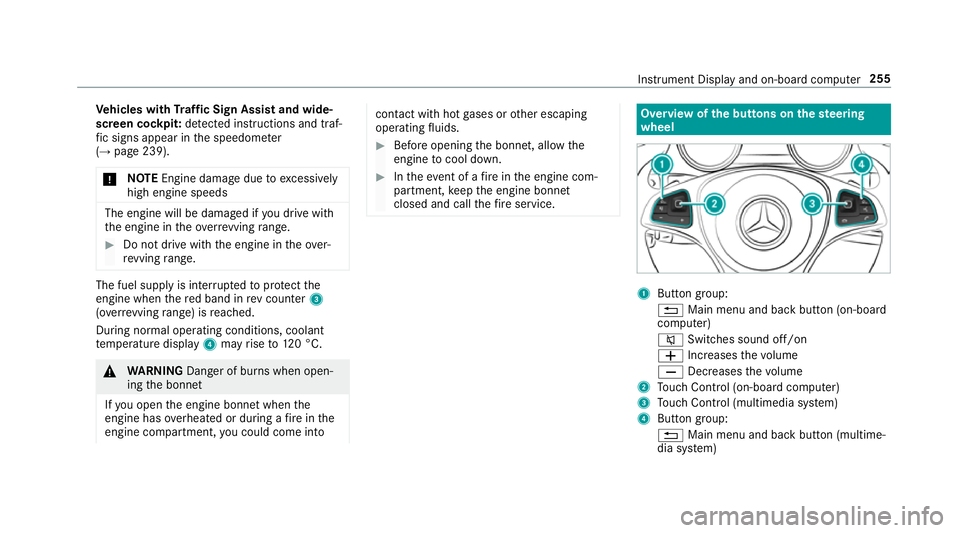
closed and call thefire service. Overview of
the but tons on thest eering
wheel 1
Button group:
% Main menu and ba ckbutton (on-board
computer)
8 Switches sound off/on
W Increases thevo lume
X Decreases thevo lume
2 Touch Control (on-board co mputer)
3 Touch Control (multimedia sy stem)
4 Button group:
% Main menu and back button (multime‐
dia sy stem) Instrument Display and on-board computer
255
Page 259 of 565
ó
LINGU ATRO NIC or Voice Cont rol Sys‐
tem
6 Makes/accepts a call
~ Rejects/ends a call Ope
rating the on-board co mputer &
WARNING Risk of di stra ction from infor‐
mation sy stems and communications
equipment
If yo u operate information and communica‐
tions equipment integ rated in theve hicle
when driving, you will be distracted from the
traf fic situation. This could also cause youto
lose control of theve hicle. #
Only operate this equipment when the
traf fic situation permits. #
Ifyo u cannot be sure of this, stop the
ve hicle whilst paying attention toroad
and traf fic conditions and ope rate the
equipment with theve hicle stationar y. Yo
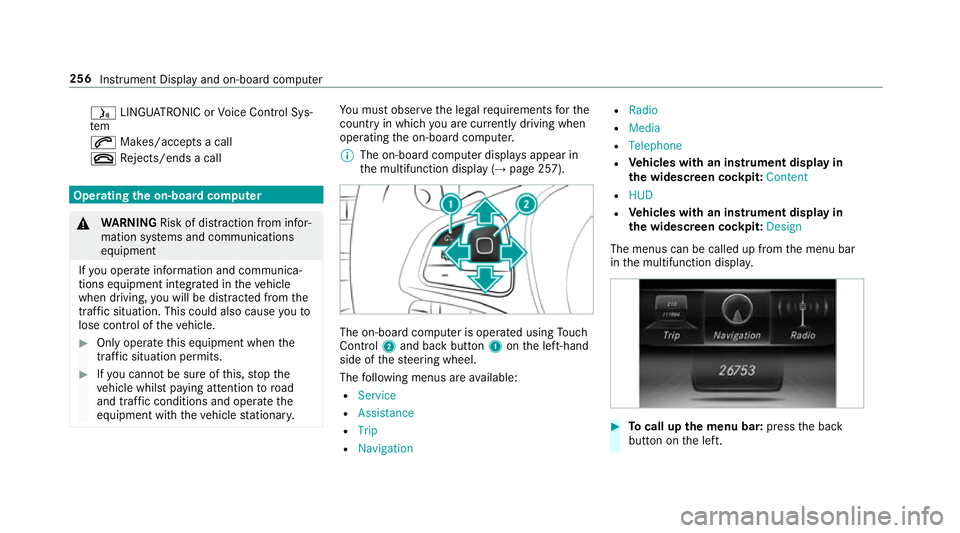
u must obse rveth e legal requirements forthe
country in whi chyou are cur rently driving when
operating the on-board computer.
% The on-board computer displa ysappear in
th e multifunction display (→ page 257). The on-board computer is operated using
Touch
Control 2and back but ton1 onthe left-hand
side of thesteering wheel.
The following menus are available:
R Service
R Assistance
R Trip
R Navigation R
Radio
R Media
R Telephone
R Vehicles with an instrument display in
th e widescreen cockpit: Content
R HUD
R Vehicles with an instrument display in
th e widescreen cockpit: Design
The menus can be called up from the menu bar
in the multifunction displa y. #
Tocall up the menu bar: pressthe back
button on the left. 256
Instrument Display and on-board computer
Page 267 of 565
R
Updating data...: the call list is being upda‐
te d.
R Importing contacts... :th e conta cts from the
mobile phone or from a storage medium are
impor ted.
Ac cepting/rejecting a call
When youre cei vea call, a message appears in
th e Head-up-Display Incoming call.#
Swipe upwards or down wards on the left-
hand Touch Control and select 6(Accept)
or ~ (Reject). #
Press the left-hand Touch Control.
The call may be accep ted/rejec ted using the
6 or~ buttons on thesteering wheel. Setting display content
On-board computer:
, Content
% This function is only available forve hicles
with a widescreen cockpit. Yo
u can select thefo llowing display con tent:
R Right display: select contents forth eright-
hand display content (Progressive style)
R Assist. graphic (Progressivestyle)
R Power meter : power me ter (Progressive
st yle)
R Revs :re v counter ( ClassicandSport styles)
R Power meter : power me ter (Classic and
Sport styles)
R Date (Progressive style)
R Navigation
R ECO display
R Consumption #
Toselect display content: swipe upwards
or down wards on the left-hand side of Touch
Control. #
Press the left-hand Touch Control.
Classic andSport style: the selected display
conte nts are shown in theright-hand instru‐
ment displa y. Progressive
style: the selected display con‐
te nt appears on the left-hand side of the
instrument displa y.
Contents forri ght-hand display contents
(Progressive style) #
Select Right display and pressthe left-hand
side of Touch Control. #
Swipe upwards or down wards on the left-
hand side of Touch Control toselect display
content. #
Press the left-hand Touch Control.
The selected displ aycontent appea rson the
ri ght-hand side of the instrument displa y. Ad
justing the head-up display settings in the
on-board co mputer On-board computer:
, HUD
The following head-up display settings can be
adjus ted:
R Position
R Brightness 264
Instrument Display and on-board computer
Page 270 of 565
Operating saf
ety &
WARNING Risk of di stra ction from infor‐
mation sy stems and communications
equipment
If yo u operate information and communica‐
tions equipment integ rated in theve hicle
when driving, you will be distracted from the
traf fic situation. This could also cause youto
lose control of theve hicle. #
Only operate this equipment when the
traf fic situation permits. #
Ifyo u cannot be sure of this, stop the
ve hicle whilst paying attention toroad
and traf fic conditions and ope rate the
equipment with theve hicle stationar y. &
WARNING Risk of di stra ction from oper‐
ating mobile communication equipment
while theve hicle is in motion
If yo u operate mobile communication equip‐
ment when driving, you will be distracted from
the tra ffic situation. This could also
cause youto lose control of theve hicle.
Only operate this equipment when theve hi‐
cle is stationar y. Fo
ryo ur ow n sa fety, al ways obser vethefo llow‐
ing points when operating mobile communica‐
tions equipment and especially your voice con‐
trol sy stem:
R Obser vethe legal requ irements forth e coun‐
try in which you are driving.
R While driving, on ly operate mobile communi‐
cations equipment and your voice control
sy stem when the tra ffic conditions permit it.
Yo u may otherwise be distracted from the
traf fic conditions and cause an accident,
inju ring yourself and others.
R Do not use thevo ice control sy stem in an
emer gency as your voice can change and
yo ur telephone call can be unnecessarily
dela yed.
R Familiarise yourself with thevo ice control
sy stem functions before starting the journe y. Operation
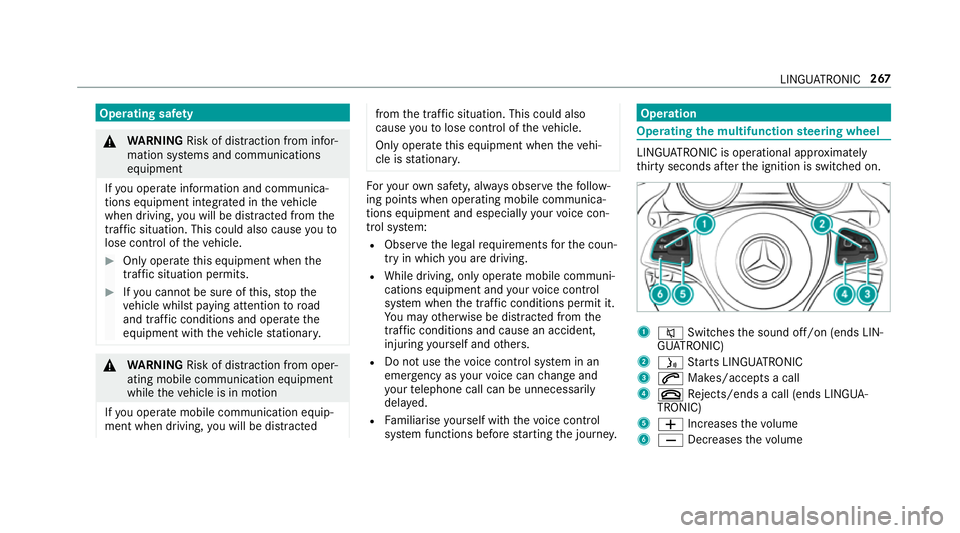
Operating
the multifunction steering wheel LINGU
ATRO NIC is operational appr oximately
th irty seconds af terth e ignition is switched on. 1
8 Switches the sound off/on (ends LIN‐
GU ATRO NIC)
2 ó Starts LINGU ATRO NIC
3 6 Makes/accepts a call
4 ~ Rejects/ends a call (ends LINGUA‐
TRONIC)
5 W Increases thevo lume
6 X Decreases thevo lume LINGU
ATRO NIC 267
Page 271 of 565
Vo
ice prom pting #
Tostart or continue a dialogue: pressthe
ó button on the multifunction steering
wheel.
Yo u can say a command af ter an acou stic
signal. #
Tocor rect an ent ry:say theCorrection
command. #
Toselect an entry from the selection lis t:
say the line number or the conte nts. #
Tobrows eth e selection lis t:say theCon-
tinue orBack command. #
Tointer rupt the dialogue: saythePause
command. #
Tocancel the dialogue: saytheCancel
command. Operable functions
Yo
u can use the LINGU ATRO NIC voice control
sy stem tooperate thefo llowing equipment
re ga rdless of thefe atures:
R Telephone R
Text messa ges
R Navigation
R Address book
R Radio
R Audio (memory card, Media Inter face, USB
and Blu etoo th®
audio)
R TV
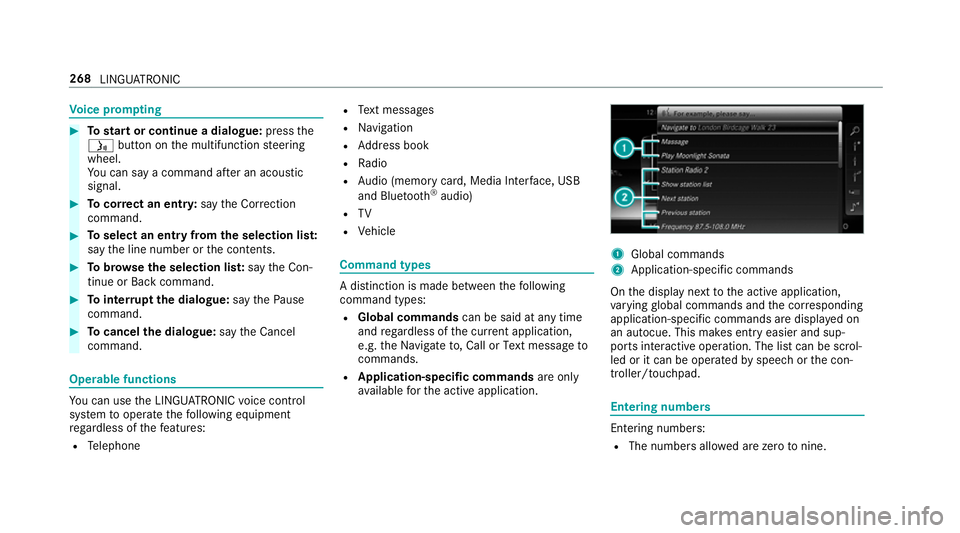
R Vehicle Command types
A distinction is made between
thefo llowing
command types:
R Global commands can be said at any time
and rega rdless of the cur rent application,
e.g. theNavigate to, CallorText message to
commands.
R Application-specific commands are only
av ailable forth e active application. 1
Global commands
2 Application-specific commands
On the display next tothe active application,
va rying global commands and the cor responding
application-specific commands are displa yed on
an autocue. This makes ent ryeasier and sup‐
ports interactive operation. The list can be scrol‐
led or it can be operated byspeech or the con‐
troller/touchpad. Entering numbers
Ente
ring numbe rs:
R The numbers allo wed are zerotonine . 268
LINGUATRONIC