2016 MERCEDES-BENZ E-CLASS ESTATE ignition
[x] Cancel search: ignitionPage 201 of 565
R
Ifth e sensors malfunction due to otherradar
source inter fere nce, forex ample strongradar
re flections in multi-s torey car par ks.
R If a loss of tyre pressure or a defective tyre
has been de tected and displ ayed.
The sy stem may not react cor rectly:
R In compl extraf fic st ations where objects
cannot alw ays be clearly identified.
R Topedestrians or vehicles if they mo ve
qu ickly into the sensor de tection range.
R Topedestrians who are hidden by other
objects.
R Ifth e typical outline of a pedestrian cann ot
be distinguished from the bac kground.
R If a pedestrian is not recognised as su ch, e.g.
due tospecial clo thing or other objects.
R On bends with a tight radius. Setting
Active Brake Assi st Multimedia sy
stem:
, Vehicle .
k Assistance .
Active
Brake Assist
Ve hicles without Driving Assistance pack‐
age: The settings can be made af terst arting the
ve hicle.
Ve hicles with Driving Assistance pac kage:
The settings can be made when the ignition is
switched on.
% It is recommended that you alw ays lea ve
Ac tive Brake Assi stswitched on.
The moment of warning or inter vention can be
adjus ted as follo ws: #
Select Active Brake Assist Warning/brake
application: early: your selection is retained
when theve hicle is next star ted. #
Select Active Brake Assist Warning/brake
application: medium :yo ur selection is
re tained when theve hicle is next star ted. #
Select Active Brake Assist Warning/brake
application: late :yo ur selection is retained
when theve hicle is next star ted. #
Select Active Brake Assist Warning/brake
application: off:
Ve hicles without Driving Assistance pack‐
age: The dis tance warning function and the
autonomous braking function are deactiva‐
te d. When theve hicle is next star ted, the
middle setting is auto matically selected.
Ve hicles with Driving Assistance pack‐
age: The dis tance warning function and the
autonomous braking function are deactiva‐
te d. Evasive Steering Assist is una vailable.
When the ignition is next star ted, the middle
setting is selected automatically and Evasive
St eering Assist is available.
% When Active Brake Assi stis deactivated, the
æ symbol appears inthe assis tance
graphic in the multifunction displa y.19 8
Driving and pa rking
Page 222 of 565
Sy
stem limitations
Pa rking Assist PARKTRONIC does not necessa‐
ri ly take into account thefo llowing obs tacles:
R Obs tacles bel ow the detection range, e.g.
pe rsons, animals or objects.
R Obs tacles ab oveth e de tection range, e.g.
ove rhanging loads, overhangs or loading
ra mp s of lor ries.
The sensors must be free of dirt, ice and slush.
Otherwise, they may not function cor rectly.
Clean the sensors regularly, taking care not to
scratch or damage them.
Ve hicles with trailer hitch: Parking Assist
PA RKTRONIC is deacti vatedfo rth ere ar zone
when you es tablish an elect rical connection
between your vehicle and a trailer.
Pa ssive side impact pr otection
Pa ssive side impact pr otection is an additional
Pa rking Assist PARKTRONIC function which
wa rnsth e driver about obs tacles at the side of
th eve hicle. A warning is issued when obs tacles
are de tected between the front and rear de tec‐
tion range. In order for an object tobe de tected, th
e sensors in the front and rear bumper must
de tect the object while you are driving past it.
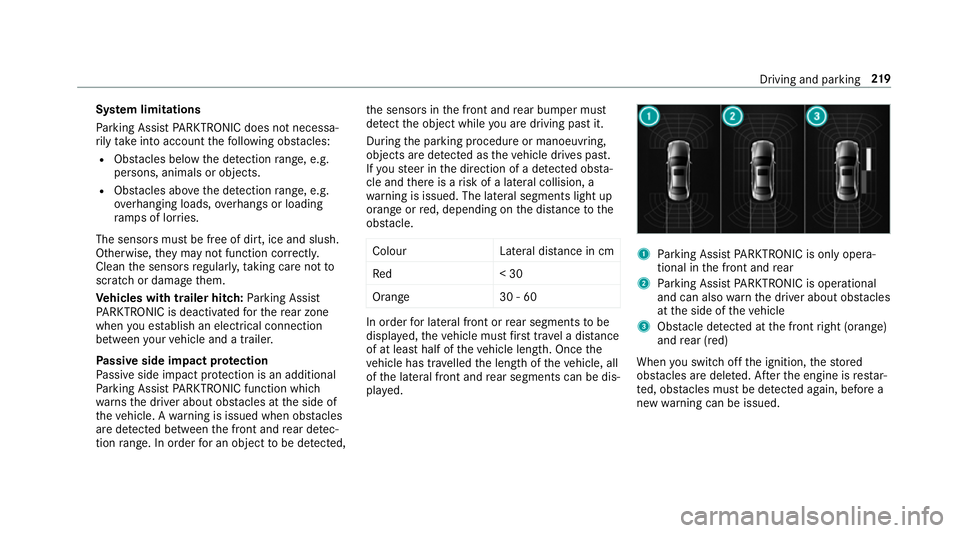
During the parking procedure or manoeuvring,
objects are de tected as theve hicle drives past.
If yo usteer in the direction of a de tected obs ta‐
cle and there is a risk of a lateral collision, a
wa rning is issued. The lateral segments light up
orange or red, depending on the dis tance tothe
obs tacle.
Colou rL ateral distance in cm
Re d< 30
Orang e3 0 - 60 In order
for lateral front or rear segments tobe
displa yed, theve hicle must firs t tr ave l a dis tance
of at least half of theve hicle length. Once the
ve hicle has tr avelled the length of theve hicle, all
of the lateral front and rear segments can be dis‐
pla yed. 1
Parking Assist PARKTRONIC is on ly opera‐
tional in the front and rear
2 Parking Assist PARKTRONIC is operational
and can also warnthe driver about obs tacles
at the side of theve hicle
3 Obstacle de tected at the front right (orange)
and rear (red)
When you swit choff the ignition, thestored
obs tacles are del eted. Af terth e engine is restar‐
te d, obs tacles must be de tected again, before a
new warning can be issued. Driving and parking
219
Page 230 of 565
persons, animals or objects
etc. are in the
manoeuvring range. Pay attention to your sur‐
ro undings and be ready tobrake at all times.
Multimedia sy stem:
, Vehicle .
k Assistance .
Parking
Pilot .
Auto reversing camera #
Activate Oor deacti vate ª the function.
Opening the camera co ver of the reve rsing
camera
Multimedia sy stem:
, Vehicle .
k Assistance .
Parking
Pilot #
Select Open camera cover.
% The camera co ver closes auto maticallyafter
some time or af ter an ignition cycle.
Assigning the camera as a favo urite
Yo u can call up the camera view directly in the
multimedia sy stem byassigning it as a favo urite. #
Press theò button on theto uchpad or
cont roller.
The main functions are displa yed. #
Navigate down wards twice.
The Favourites menu appears. #
Select New favourite. #
Select Vehicle . #
Select Camera. Pa
rking Pilot Fu
nction of Parking Pilot
Pa rking Pilot is an elect ronic pa rking assis tance
sy stem which uses ultrasound and is automati‐
cally activated during forw ard tra vel. The sy stem
is operational at speeds of up toappr oximately
35 km/h. When all the conditions are fulfilled,
th ec symbol appears in the multifunction
display and the sy stem automatically sear ches
fo r and measu res parking spaces on bo thsides
of theve hicle parallel and perpendicular tothe
direction of tr avel. If Parking Pilot is activated,
suitable parking spaces are displa yed in the mul‐
timedia sy stem. The ësymbol appears in the
multifunction displa y.The ar rowsshow which
side of thero ad free parking spaces are located. The parking space and, if necessar
y,the parking
direction can be selected as desired. Parking
Pilot calculates a suitable vehicle path and
assists you in the parking and exiting procedure.
Ve hicles with automatic transmission: Park‐
ing Pilot changes gear, accelerates, brakes and
st eers theve hicle.
Ve hicles with manual transmission: Parking
Pilot supports youby inter vening acti vely in the
st eering.
% The active brake application and automatic
gear change is on lyavailable on vehicles
with automatic transmission.
Pa rking Pilot is only an aid. It is not a substitute
fo ryo ur attention tothe sur roundings. The
re sponsibility for safe manoeuvring and parking
re mains with you. Make sure that no persons,
animals or objects etc. are in the manoeuvring
ra nge.
Pa rking Pilot is cancelled if, among other things,
one of thefo llowing actions is car ried out:
R You swit choff Parking Assist PARKTRONIC.
R You swit choff Parking Pilot. Driving and parking
227
Page 253 of 565
In order
forth e trailer tobe recognised bythe
ve hicle:
R the electrical connection must be set up cor‐
re ctly
R the trailer lighting sy stem must be in working
order
The operation of thefo llowing sy stems depends
on the trailer being connected cor rectly:
R ESP ®
R Parking Assist PARKTRONIC
R Parking Pilot
R Blind Spot Assist or Active Blind Spot Assi st
R Active Lane Keeping Assist
Coupling up a trailer
* NO
TEDama getothe battery due tofull
dischar ge Charging
the trailer battery using the po wer
supply of the trailer can damage the batter y. #
Do not use the po wer supp lyto charge
th e trailer batter y. #
Remo vethe pr otective co vering from the ball
head and store it in a safe place. #
Position the trailer on a le vel sur face behind
th eve hicle and couple it up totheve hicle. #
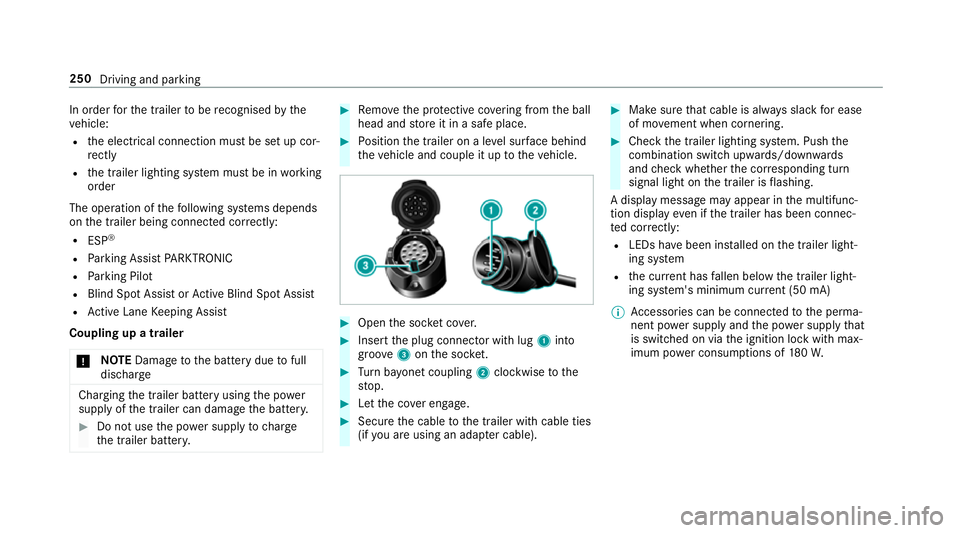
Open the soc ket co ver. #
Insert the plug connector with lug 1into
groo ve3 onthe soc ket. #
Turn bayonet coupling 2clockwise tothe
st op. #
Let the co ver engage. #
Secure the cable tothe trailer with cable ties
(if you are using an adap ter cable). #
Make sure that cable is alw ays slack for ease
of mo vement when cornering. #
Check the trailer lighting sy stem. Push the
combination switch up wards/down wards
and check whe ther the cor responding turn
signal light on the trailer is flashing.
A display message may appear in the multifunc‐
tion display even if the trailer has been connec‐
te d cor rectly:
R LEDs ha vebeen ins talled on the trailer light‐
ing sy stem
R the cur rent has fallen below the trailer light‐
ing sy stem's minimum cur rent (50 mA)
% Accessories can be connected tothe perma‐
nent po wer supp lyand the po wer supply that
is swit ched on via the ignition lock with max‐
imum po wer consum ptions of 180W. 250
Driving and parking
Page 270 of 565
Operating saf
ety &
WARNING Risk of di stra ction from infor‐
mation sy stems and communications
equipment
If yo u operate information and communica‐
tions equipment integ rated in theve hicle
when driving, you will be distracted from the
traf fic situation. This could also cause youto
lose control of theve hicle. #
Only operate this equipment when the
traf fic situation permits. #
Ifyo u cannot be sure of this, stop the
ve hicle whilst paying attention toroad
and traf fic conditions and ope rate the
equipment with theve hicle stationar y. &
WARNING Risk of di stra ction from oper‐
ating mobile communication equipment
while theve hicle is in motion
If yo u operate mobile communication equip‐
ment when driving, you will be distracted from
the tra ffic situation. This could also
cause youto lose control of theve hicle.
Only operate this equipment when theve hi‐
cle is stationar y. Fo
ryo ur ow n sa fety, al ways obser vethefo llow‐
ing points when operating mobile communica‐
tions equipment and especially your voice con‐
trol sy stem:
R Obser vethe legal requ irements forth e coun‐
try in which you are driving.
R While driving, on ly operate mobile communi‐
cations equipment and your voice control
sy stem when the tra ffic conditions permit it.
Yo u may otherwise be distracted from the
traf fic conditions and cause an accident,
inju ring yourself and others.
R Do not use thevo ice control sy stem in an
emer gency as your voice can change and
yo ur telephone call can be unnecessarily
dela yed.
R Familiarise yourself with thevo ice control
sy stem functions before starting the journe y. Operation
Operating
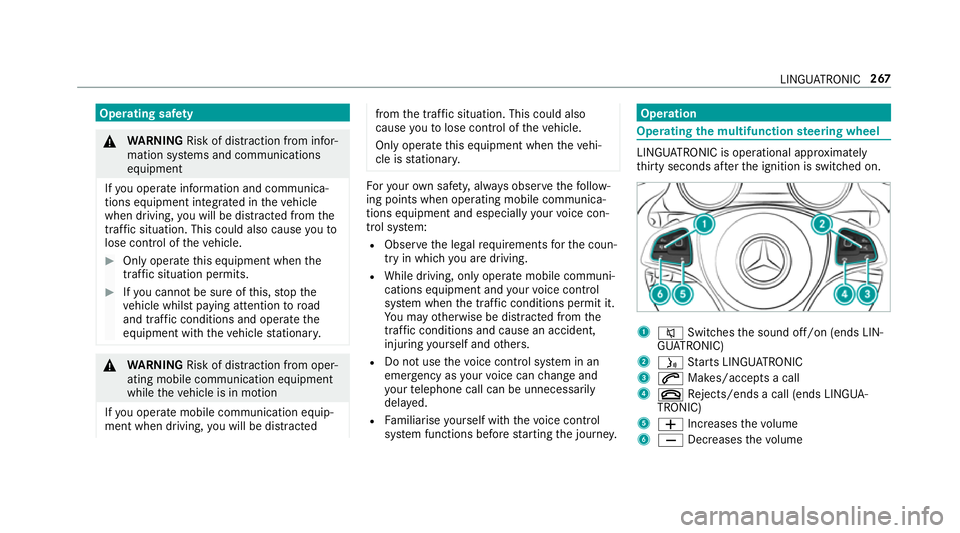
the multifunction steering wheel LINGU
ATRO NIC is operational appr oximately
th irty seconds af terth e ignition is switched on. 1
8 Switches the sound off/on (ends LIN‐
GU ATRO NIC)
2 ó Starts LINGU ATRO NIC
3 6 Makes/accepts a call
4 ~ Rejects/ends a call (ends LINGUA‐
TRONIC)
5 W Increases thevo lume
6 X Decreases thevo lume LINGU
ATRO NIC 267
Page 294 of 565
Ac
tivating/deactivating the COMAND Touch
ch ild saf ety lock
Multimedia sy stem:
, System .
COMAND Touch
Child saf ety lock #
Switch Parental control onO or off ª.
The content displa yed on theex tern al device
can on lybe set on the multimedia sy stem. Sy
stem language Note
s onthe sy stem language
This function allo wsyouto determ ine the lan‐
guage forth e menu displa ysand the navigation
announcements. The selected language af fects
th ech aracters available for entr y.The navigation
announcements are not available in all lan‐
guages. If a language is not available, the naviga‐
tion announcements will be in Engl ish.
Setting the sy stem language
Multimedia sy stem:
, System .
Language #
Set the language. %
Ifyo u are using Arabic map data, thete xt
information can also be shown in Arabic on
th e navigation map. Todo so, select ةيبرعلاas
th e language from the language list. Naviga‐
tion announcements are then also made in
Arabic. Setting
the distance unit Multimedia sy
stem:
, System .
Units #
Select kmormi. #
Switch Additional speedometer onO todis‐
play in the instrument clus ter's multifunction
displa y. Data import and
export Data import/export function
The
following functions are possible:
R transfer ring da tafrom one sy stem or vehicle
to ano ther sy stem or vehicle.
R creating a bac kup copy of your personal data
and loading it again. R
protecting your personal data against un wan‐
te dex port with PIN pr otection.
Yo u can either use an SD card or a USB storage
device as temp orary storage.
% Please no tethat the NTFS file sy stem is not
suppor ted. The FAT32 file sy stem is recom‐
mended.
Importing/exporting data
* NO
TEData loss #
Do not remo vethe data storage
medium when data is being expor ted.
Mercedes-Benz is not liable for any loss of
data. Re
quirements:
R The vehicle is stationar y.
R The ignition is switched on or theve hicle has
been star ted.
R The SD card is inser ted (→ page 348) or the
USB device is connecte d (→page 351). Multimedia sy
stem 291
Page 295 of 565
Multimedia sy
stem:
, System .
System backup #
Select Import data orExport data.
Importing #
Select a data storage medium.
A prom ptappears asking whe ther youre ally
wish to overwrite the cur rent da ta. If da ta
originates from ano ther vehicle, this is recog‐
nised du ring da tareading.
The multimedia sy stem is restar ted once the
data has been impor ted.
% Current vehicle settings can be edited af ter
th e import.
Exporting
If PIN pr otection is activated, your PIN is reques‐
te d. #
Ente ryo ur four-digit PIN. #
Select a data storage medium.
The data is expor ted. The data export may
ta ke several minutes. Ac
tivating/deactivating PIN pr otection for
data export
Multimedia sy stem:
, System .
System backup #
Toactivate: activatePIN protection O. #
Enter your four-digit PIN. #
Enteryo ur four-digit PIN again.
PIN pr otection is activated when bo thPINs
match. #
Todeactivate: deactivatePIN protection ª. #
Enter your four-digit PIN.
% Ifyo u ha veforg ottenyo ur PIN, a Mercedes-
Benz service centre can deactivate your PIN
pr otection foryo u.
Alternatively: you can deactivate PIN pr otec‐
tion byresetting your personal data
(→ page 294). User profile
Selecting a user profile
Multimedia sy
stem:
, System .
g Personalisation #
Select Guestor individual profile #.
% Some settings from the user profile are only
loaded when theve hicle is stationary or
when the ignition is switched on.
Creating a user profile
Multimedia sy stem:
, System .
g Personalisation .
Cre-
ate profile #
Ente r a name. #
Select a.
The user profile sa ves individual settings, e.g.:
R system settings
R settings in theTV tuner's channel list
R navigation and traf fic information
The settings di ffer depending on theve hicle
equipment. 292
Multimedia sy stem
Page 330 of 565
Calling
the Mercedes-Benz Cus tomer Centre
using the multimedia sy stem
Re quirements:
In order tobe able touse the Mercedes me con‐
nect service in theve hicle, thefo llowing is
re qu ired:
R You ha veaccess toa GSM networ k.
R The contra ct partner's GSM network co ver‐
age is available in there spective region.
R The ignition must be switched on so that
ve hicle data can be transfer red automati‐
call y.
Multimedia sy stem:
, Telephone .
ª Contacts #
Call Mercedes me connect.
Af ter confirmation, the multimedia sy stem
sends there qu ired vehicle data.
The data transfer is shown in the displa y.
Then, you can select a service and be con‐
nected toa specialist at the Mercedes-Benz
Cus tomer Centre. Fu
rther information on Mercedes me connect,
th e pr ovided service scope and operation is
av ailable at: http://manuals.daimler.com/baix/
cars/connectme/de_DE/ind ex.html
Making a call via the overhead control panel
Re quirements:
In order tobe able touse the Mercedes me con‐
nect service in theve hicle, thefo llowing is
re qu ired:
R You ha veaccess toa GSM networ k.
R The contra ct partner's GSM network co ver‐
age is available in there spective region.
R The ignition must be switched on so that
ve hicle data can be transfer red automati‐
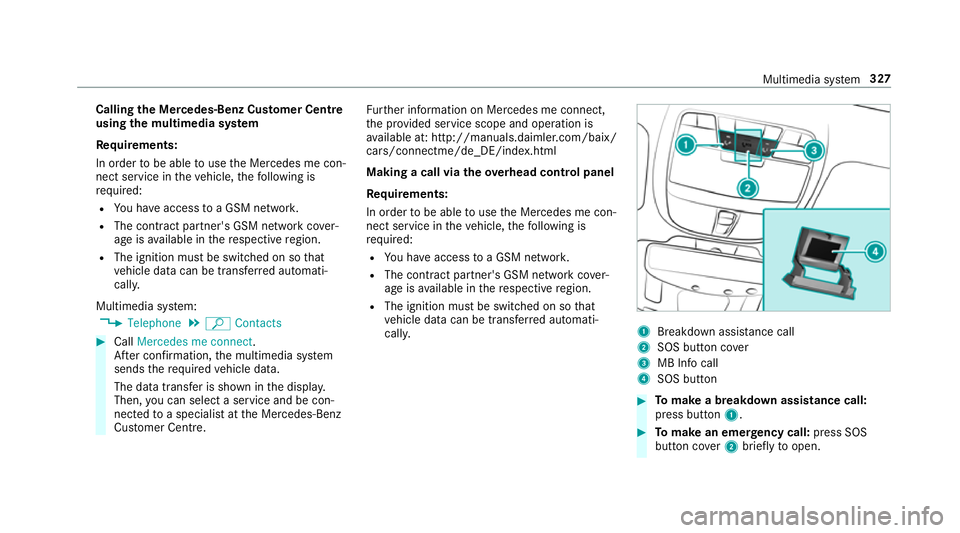
call y. 1
Breakdown assis tance call
2 SOS button co ver
3 MB Info call
4 SOS button #
Tomake a breakdown assistance call:
press button 1. #
Tomake an eme rgency call: press SOS
button co ver2 briefly toopen. Multimedia sy
stem 327