2016 MERCEDES-BENZ E-CLASS ESTATE display
[x] Cancel search: displayPage 319 of 565
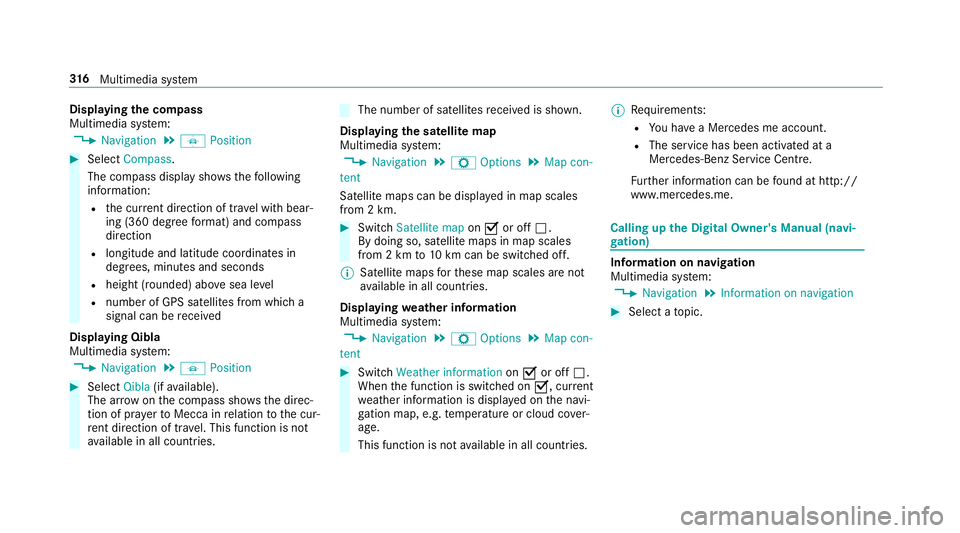
Displaying
the compass
Multimedia sy stem:
, Navigation .
Á Position #
Select Compass.
The compass display sho wsthefo llowing
information:
R the cur rent di rection of tr avel with bear‐
ing (360 deg reefo rm at) and compass
direction
R longitude and latitude coo rdinates in
degrees, minutes and seconds
R height (rounded) abo vesea le vel
R number of GPS sa tellites from which a
signal can be recei ved
Displaying Qibla
Multimedia sy stem:
, Navigation .
Á Position #
Select Qibla(ifavailable).
The ar rowonthe compass sho wsthe direc‐
tion of pr ayer toMecca in relation tothe cur‐
re nt di rection of tr avel. This function is not
av ailable in all countries. The number of satellites
recei ved is shown.
Displaying the satellite map
Multimedia sy stem:
, Navigation .
Z Options .
Map con-
tent
Satellite maps can be displa yed in map scales
from 2 km. #
Switch Satellite map onO or off ª.
By doing so, satellite maps in map scales
from 2 km to10 km can be switched off.
% Satelli temaps forth ese map scales are not
av ailable in all countries.
Displ aying weather information
Multimedia sy stem:
, Navigation .
Z Options .
Map con-
tent #
Switch Weather information onO or off ª.
When the function is switched on O, current
we ather information is displa yed on the navi‐
ga tion map, e.g. temp erature or cloud co ver‐
age.
This function is not available in all countries. %
Requirements:
R You ha vea Mercedes me account.
R The service has been activated at a
Mercedes-Benz Service Cent re.
Fu rther information can be found at http://
www.mercedes.me. Calling up
the Digital Owner's Manual (navi‐
ga tion) In
fo rm ation on navigation
Multimedia sy stem:
, Navigation .
Information on navigation #
Select a topic. 316
Multimedia sy stem
Page 328 of 565
Yo
u can obtain fur ther information about set‐
tings and suppor ted functions of Blue tooth®
-
capable mobile phones from a Mercedes-Benz
service centre or at: http://www.mercedes-
benz.com/connect
Some mobile phones require fur ther settings
af te r being connected tothe multimedia sy stem
(see manufacturer's Owner's Manual).
New messages are identified bythe1 symbol
in the multimedia sy stem's display and an audi‐
ble signal.
R The multimedia sy stem displa ys the100
ne we sttext messa ges.
R The ú symbol is displa yed when the
mobile phone's messa gememory is full.
Confi guring thete xt messages displa yed
Multimedia sy stem:
, Telephone .
Z Options .
Call up
messages #
Select ¥.
A menu with thefo llowing options is shown:
R All messages R
New and unread messages
R New messages
R Off (The text messa ges are not displa yed
automaticall y.) #
Select an option.
Re ading text messages
Multimedia sy stem:
, Telephone .
i Text message
Re ading a text message #
Select a text messa ge.
The message text is displ ayed.
Using there ad-aloud function #
Highlight thete xt messa ge. #
Select ¥. #
Select +Read aloud .
The text messa geisread aloud.
Composing and sending a text message
Multimedia sy stem:
, Telephone .
i Text message #
Navigate tothe left twice. #
Select Write new text message.
Ad ding a recipient #
Select Press to add recipient. #
Select the conta ct.
Dictating text #
Select Press to dictate.
The App forth e dictation function is loaded.
If th ere was no prior Internet connection, a
connection is now es tablished. #
Tostart the dictation function: press the con‐
troller or touchpad. #
Say your message.
The dic tation ends au tomatical lyafte ryou
ha ve finished speaking.
Af terth evo ice message has been processed,
it is shown as text.
Editing text #
Select thewo rd. Multimedia sy
stem 325
Page 333 of 565
in
theeve nt of a breakdown or a similar situa‐
tion.
Messages in the multimedia sy stem displa y:
SOS READY : emergency call available
SOS NOT READY: the ignition is not on or there
is a malfunction with the emer gency call sy stem.
During an active emer gency call, Gappears
in the displa y.
Yo u can find more information on there gional
av ailability of the Mercedes-Benz emer gency call
sy stem at: http://www.mercedes-benz.com/
connect_ecall
% If an emer gency call is una vailable, a mes‐
sage tothis ef fect also appea rsinthe multi‐
function display of the instrument clus ter.
Au tomatic eme rgency call
Re quirements:
R The ignition is switched on.
R The star ter battery has been suf ficiently
ch arge d.
If re stra int sy stems such as airbags or seat belt
te nsioners ha vebeen activated af ter an acci‐ dent,
the Mercedes-Benz emer gency call sy stem
may automatically initiate an emer gency call.
The emergency call has been made:
R avo ice connection is made tothe Mercedes-
Benz emer gency call centre.
R a messa gewith accident data is transmitted
to the Mercedes-Benz emer gency call centre.
The Mercedes-Benz emergency call centre
can transmit theve hicle position data toone
of the public emer gency services call cen‐
tres.
R in cer tain situations additional data is trans‐
mit tedto the Mercedes-Benz emer gency call
centre.
This allo wsmeasu resfo rre scue, reco very or
to wing toa Mercedes-Benz service centre to
be initiated quickl y.
If yo ur vehicle is equipped with an SOS button in
th eove rhead control panel, it flashes until the
emer gency call has been compl eted.
It is not possible toimmediately end an auto‐
matic emer gency call. If
th e Mercedes-Benz emer gency call sy stem
cann otconnect tothe Mercedes-Benz emer‐
ge ncy call centre, the emer gency call is au tomat‐
ical lysent tothe public emer gency services call
centre.
If no connection can be made tothe public
emer gency services, a releva nt messa ge
appears in the displa y. #
Dial the emer gency call number 999 or 11 2
on your mobile phone.
If an eme rgency call has been initiated:
R remain in theve hicle, if thero ad and traf fic
conditions permit youto do so, until a voice
connection is es tablished with the emer‐
ge ncy call centre operator.
R onthe basis of the call, the operator decides
whe ther it is necessary todeploy rescue
te ams and/or the police tothe accident site.
R if no vehicle occupant answers, an ambu‐
lance is sent totheve hicle immediatel y.330
Multimedia sy stem
Page 345 of 565
%
Set the access data in accordance with your
data pac kage . Otherwise, additional costs
may occu r.Yo u can contact your mobile
phone network pr ovider toobtain the precise
access data.
Switching the Blu etoo th®
pr ofile
Re quirement:
The mobile phone supports the DUN and PAN
Blu etoo th®
profiles.
Multimedia sy stem:
, System .
ö Connectivity .
Inter-
net settings #
Toswitch from DUN toPAN: select mobile
phone. #
Select ¥. #
Select Change configuration. #
Activate OAutomatic configuration.
The Internet connection is au tomatical lycon‐
fi gured using thePA N Blue tooth®
profile. #
Toswitch from PANto DUN: select mobile
phone. #
Select ¥. #
Select Change configuration . #
Deactivate ªAutomatic configuration. #
Select Configure settings using COMAND. #
Con figure the Internet connection using pre‐
set or manual access data (→ page 340)
Editing the access data
Re quirement:
The mobile phone supports the Blue tooth®
DUN
profile.
Multimedia sy stem:
, System .
ö Connectivity .
Inter-
net settings #
Highlight a mobile phone. #
Select ¥. #
Select Change configuration . #
For mobile phones with PAN and DUN:
select Configure settings using COMAND. #
Configure the Internet connection using pre‐
set or manual access data (→ page 340)Cancelling Internet access permission
for a
mobile phone
Multimedia sy stem:
, System .
ö Connectivity .
Inter-
net settings #
Highlight a mobile phone. #
Select ¥. #
Select Delete configuration. #
Select Yes.
Displaying mobile phone details
Multimedia sy stem:
, System .
ö Connectivity .
Inter-
net settings #
Highlight a mobile phone. #
Select ¥. #
Select Details.
Establishing an Internet connection
Multimedia sy stem:
, Connect #
Forex ample, select zBrowser . 342
Multimedia sy stem
Page 346 of 565
%
The multimedia sy stem usually es tablishes
th e Internet connection automaticall y.Ifthe
multimedia sy stem is not connected tothe
Internet, the Internet connection is es tab‐
lished when an Internet application is used. Connection
status Overview of connection
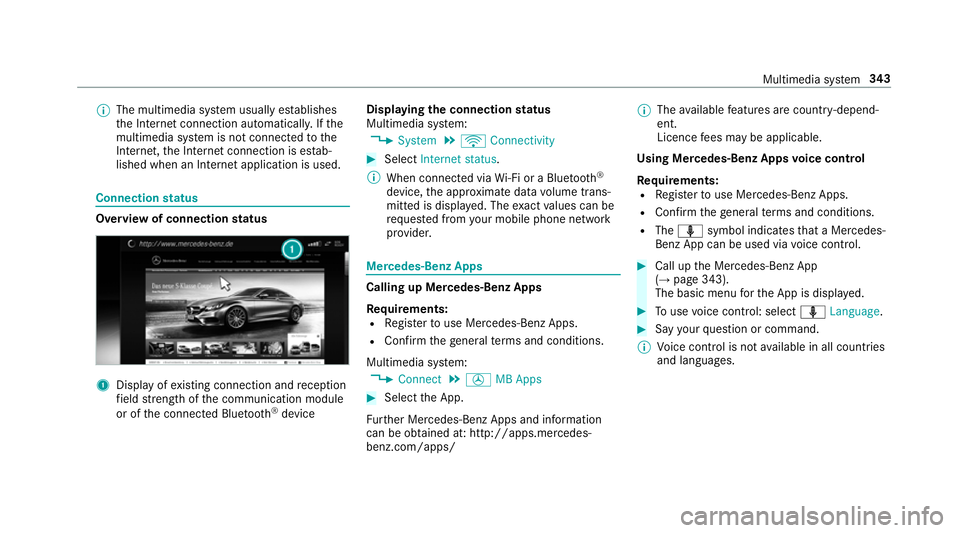
status 1
Displ ayofexisting connection and reception
fi eld stre ngth of the communication module
or of the connected Blue tooth®
device Displaying
the connection status
Multimedia sy stem:
, System .
ö Connectivity #
Select Internet status .
% When connected via Wi-Fi or a Blu etoo th®
device, the appr oximate data volume trans‐
mit ted is displa yed. The exact values can be
re qu ested from your mobile phone network
pr ov ider. Mercedes-Benz Apps
Calling up Mercedes-Benz Apps
Re
quirements:
R Regis terto use Mercedes-Benz Apps.
R Con firm thege neral term s and conditions.
Multimedia sy stem:
, Connect .
Ú MB Apps #
Select the App.
Fu rther Mercedes-Benz Apps and information
can be obtained at: http://apps.mercedes-
benz.com/apps/ %
The available features are countr y-depend‐
ent.
Licence fees may be applicable.
Using Mercedes-Benz Apps voice control
Re quirements:
R Regis terto use Mercedes-Benz Apps.
R Con firm thege neral term s and conditions.
R The o symbol indicates that a Mercedes-
Benz App can be used via voice control. #
Call up the Mercedes-Benz App
(→ page 343).
The basic menu forth e App is displa yed. #
Touse voice control: select oLanguage. #
Say your question or command.
% Voice control is not available in all countries
and languages. Multimedia sy
stem 343
Page 349 of 565
Multimedia sy
stem:
, Radio .
Ý Internet radio #
Select TuneIn radio.
The Internet radio display appears. The last
st ation set starts playing.
% The connection quality depends on the local
mobile phone reception. In
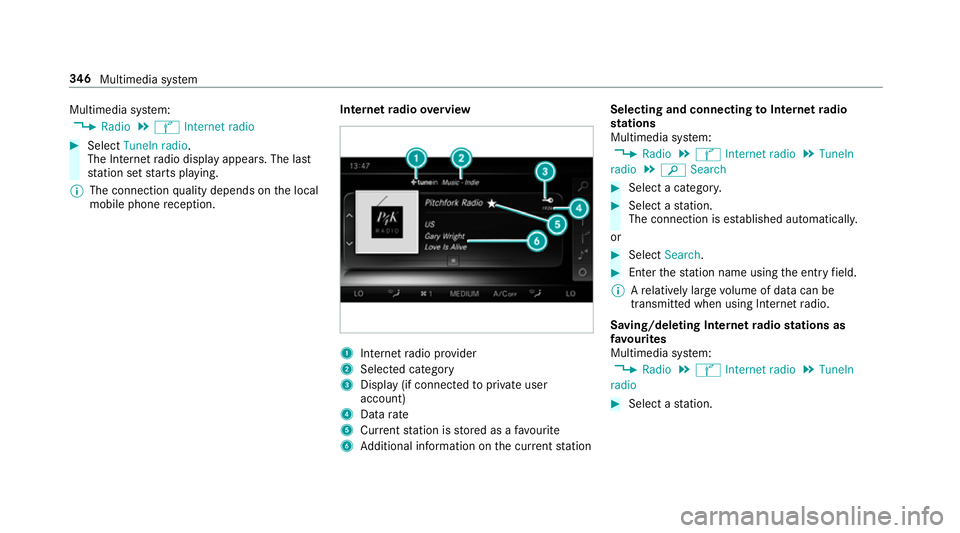
tern etradio overview 1
Inte rn et radio pr ovider
2 Selec ted category
3 Display (if connec tedto private user
account)
4 Data rate
5 Current station is stored as a favo urite
6 Additional information on the cur rent station Selecting and connecting
toInternet radio
st ations
Multimedia sy stem:
, Radio .
Ý Internet radio .
TuneIn
radio .
è Search #
Select a categor y. #
Select a station.
The connection is es tablished automaticall y.
or #
Select Search. #
Enter thest ation name using the entry field.
% Arelatively lar gevolume of data can be
transmitte d when using Internet radio.
Saving/deleting Internet radio stations as
fa vo urites
Multimedia sy stem:
, Radio .
Ý Internet radio .
TuneIn
radio #
Select a station. 346
Multimedia sy stem
Page 354 of 565
Connecting USB devices
* NO
TEDama gecaused byhigh temp era‐
tures High
temp eratures can damage USB devices. #
Remo vethe USB device af ter use and
ta ke it out of theve hicle. The multimedia connection unit is
found in the
stow age compartment under the armrest and
has two USB ports. Depending on theve hicle's
equipment, additional USB ports may be found
in thestow age compartment of the cent recon‐
sole or rear folding compartment. #
Connect the USB device tothe USB port.
Pla yable music files are pla yed back only if
th e cor responding media display is activated.
% Use the USB port identified byç touse
Apple CarPlay™ and Android Auto™. Selecting a track
Multimedia sy
stem:
, Media
Vi ath e skip function #
Toskip backwards or forw ards toa track:
navigate up or down.
Vi ath e cur rent track list #
Select è. #
Select Current track list. #
Select a tra ck.
Selecting playback options
Multimedia sy stem:
, Media .
Z Options
Playing back similar trac ks #
Select Play similar tracks.
A track li stwith similar trac ksis created and
pla yed bac k.
Playback mode #
Select Play mode. #
Select Normal track sequence.
The cur rent track li stis pla yed in the order it
appears on the data storage medium. #
Select Random playback of the current track
list.
The cur rent track li stis pla yed in random
orde r. #
Select Random playback of the current
medium.
All trac kson the active data storage medium
are pla yed in random orde r.
% The available playback options depend on
th e connected media source.
Pa use and playback function
Multimedia sy stem:
, Media #
Press theto uchpad. #
Topause playback: select Ë. #
Tocontinue playba ck:select Ì.
Fa st forw ard/r ewind #
Press theto uchpad. #
Slide the controller tothe left or right 1. Multimedia sy
stem 351
Page 362 of 565
Ac
tivating Blue tooth ®
audio
Multimedia sy stem:
, Media .
à Devices #
Select áBluetooth audio.
The multimedia sy stem activates the connec‐
te d Blue tooth®
audio equipment.
Swit ching Blue tooth ®
audio equipment via
NFC
Requ irements:
Obser vethe no tes on using NFC (→ page319).
The Bluetoo th®
audio overview is displa yed
( → page 359). #
Lightly press the NFC area on the mobile
phone (see the manufacturer's operating
instructions).
If th e mobile phone has already been author‐
ised on the multimedia sy stem as Blue tooth®
audio equipment, it is now connec ted. If
th e mobile phone is authorised on the mul‐
timedia sy stem as Blue tooth®
audio equip‐
ment forth efirs t time, it is connected af ter
confirming the instructions forth e mobile
phone (see the manufacturer's operating
instructions).
De-authorising (de-regis tering) Blue tooth ®
audio equipment
Multimedia sy stem:
, Telephone .
á Connect device -
Mobile phone #
Select Blue tooth®
audio equipment. #
Select ¥De-authorise. #
Select Yes. Ra
dio Switching on the
radio Multimedia sy
stem:
, Radio #
Alternatively: press the$ button.
The radio display appears. You will hear the
last station pla yed on the last frequency
band selected. Multimedia sy
stem 359