Page 441 of 688

WARNING!(Continued)
DURING OR AFTER AN ACCIDENT), THE
UCONNECT FEATURES, APPS AND SERVICES,
AMONG OTHERS, WILL NOT OPERATE.
•Modifications to any part of the 9-1-1 Call system
could cause the air bag system to fail when you
need it. You could be injured if the air bag system
is not there to help protect you.
9-1-1 Call System Limitations
Vehicles sold in Canada and MexicoDO NOThave 9-1-1
Call system capabilities.
9-1-1 or other emergency line operators in Canada and
Mexico may not answer or respond to 9-1-1 system calls.
If the 9-1-1 Call system detects a malfunction, any of the
following may occur at the time the malfunction is
detected, and at the beginning of each ignition cycle:•The overhead console lights located on the Assist and
9-1-1 buttons will continuously be illuminated red.
•The Device Screen will display the following message
“Vehicle device requires service. Please contact your
dealer.”
•An In-Vehicle Audio message will state “Vehicle de-
vice requires service. Please contact your dealer.”
WARNING!
•Ignoring the Assist and 9-1-1 buttons light could
mean you will not have 9-1-1 Call services. If the
Assist and 9-1-1 buttons light is illuminated, have
an authorized dealer service the 9-1-1 Call system
immediately.
(Continued)
8
IN CASE OF EMERGENCY 439
Page 483 of 688
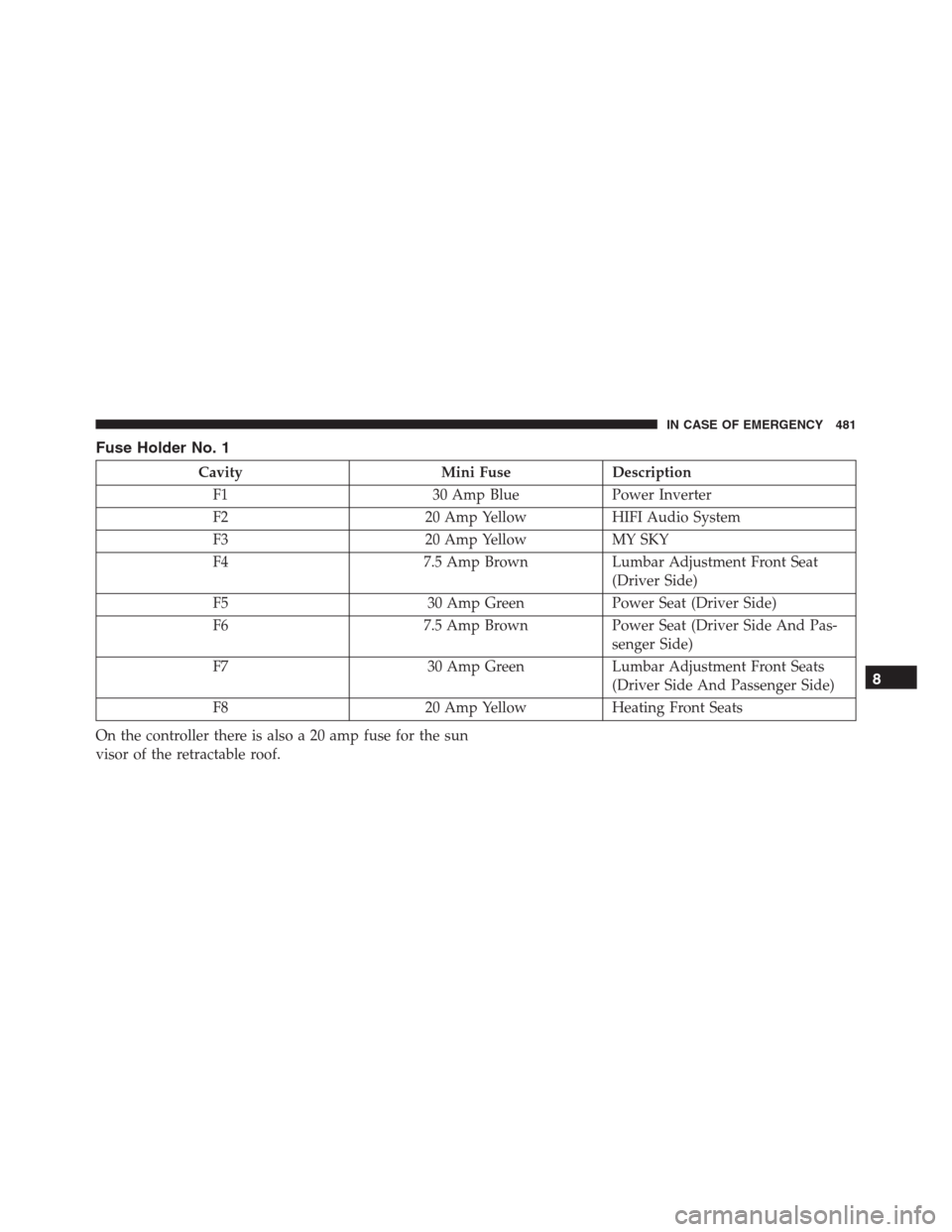
Fuse Holder No. 1
Cavity Mini Fuse Description
F1 30 Amp Blue Power Inverter
F2 20 Amp Yellow HIFI Audio System
F3 20 Amp Yellow MY SKY
F4 7.5 Amp Brown Lumbar Adjustment Front Seat
(Driver Side)
F5 30 Amp Green Power Seat (Driver Side)
F6 7.5 Amp Brown Power Seat (Driver Side And Pas-
senger Side)
F7 30 Amp Green Lumbar Adjustment Front Seats
(Driver Side And Passenger Side)
F8 20 Amp Yellow Heating Front Seats
On the controller there is also a 20 amp fuse for the sun
visor of the retractable roof.
8
IN CASE OF EMERGENCY 481
Page 605 of 688
MULTIMEDIA
CONTENTS
�CYBERSECURITY.......................605
�UCONNECT SETTINGS..................606
▫Buttons On The Faceplate................608
▫Buttons On The Touchscreen..............608
▫Customer Programmable Features —
Uconnect 5.0 Settings..................608
▫Customer Programmable Features —
Uconnect 6.5AN Settings................624
�UCONNECT RADIOS...................640
�USB/MEDIA PLAYER CONTROL —
IF EQUIPPED.........................641�STEERING WHEEL AUDIO CONTROLS......642
▫Radio Operation......................643
▫Media Mode.........................643
�RADIO OPERATION AND MOBILE DEVICES . .644
▫Regulatory And Safety Information.........644
�UCONNECT VOICE RECOGNITION
QUICK TIPS..........................646
▫Introducing Uconnect...................646
▫Get Started..........................647
▫Basic Voice Commands..................648
11
Page 610 of 688

Buttons On The Faceplate
Buttons on the faceplate are located below, and beside the
Uconnect system in the center of the instrument panel. In
addition, there is a Scroll/Enter control knob located on
the right side. Turn the control knob to scroll through
menus and change settings (i.e., 30, 60, 90), push the
center of the control knob one or more times to select or
change a setting (i.e., ON, OFF).
Your Uconnect system may also have Display Off and
back arrow buttons on the faceplate.
Push the Display Off button on the faceplate to turn off
the Uconnect screen. Push the Display Off button on the
faceplate a second time to turn the screen on.
Push the Back Arrow button on the faceplate to exit out
of a Menu or certain option on the Uconnect system.
Buttons On The Touchscreen
Buttons on the touchscreen are accessible on the
Uconnect touchscreen.
Customer Programmable Features — Uconnect
5.0 Settings
Push the + MORE button on the faceplate, then press the
“Settings” button on the touchscreen to display the
settings menu screen. In this mode the Uconnect system
allows you to access programmable features that may be
equipped such as Display, Clock, Safety/Assistance,
Lights, Doors & Locks, Engine Off Options, Compass
Settings, Audio, Phone/Bluetooth, Radio Setup, Restore
Settings and Clear Personal Data.
NOTE:Only one touchscreen area may be selected at a
time.
When making a selection, press the button on the touch-
screen to enter the desired mode. Once in the desired
mode, press and release the preferred setting and make
608 MULTIMEDIA
Page 613 of 688

choose from a 12 hour or 24 hour format. Press the
corresponding arrow above and below the current time
to adjust, then select “AM” or “PM.”
•Show Time Status
When in this display, you may turn on or shut off the
digital clock in the status bar. To change the Show Time
Status setting press the “Show Time Status” button on the
touchscreen and select from “ON” or “OFF.”
•Set Date
When in this display, you may set the date manually.
Press the “Set Date” button on the touchscreen then press
the corresponding arrows above and below the current
date to adjust.
•Sync Time — If Equipped
When in this display, you may sync the time with GPS.
Press the “Sync Time” button on the touchscreen and
select from “ON” or “OFF.”Safety/Assistance
After pressing the “Safety/Assistance” button on the
touchscreen the following settings will be available:
•ParkView Backup Camera — If Equipped
When the vehicle is shifted out of REVERSE (with camera
delay turned OFF), the rear camera mode is exited and
the navigation or audio screen appears again. When the
vehicle is shifted out of REVERSE (with camera delay
turned ON), the rear view image with dynamic grid lines
will be displayed for up to 10 seconds after shifting out of
“REVERSE” unless the forward vehicle speed exceeds
8 mph (13 km/h), the transmission is shifted into PARK
or the ignition is switched to the OFF position.
•ParkView Backup Camera — If Equipped
To change the setting, press the “On” or “Off” button
until it is highlighted.
11
MULTIMEDIA 611
Page 623 of 688

metallic objects). A message will appear on the touch-
screen when the compass has been successfully cali-
brated.
NOTE:Keep magnetic materials away from the top of the
instrument panel, such as Mobile Phones, Laptops and
Radar Detectors. This is where the compass module is
located, and it can cause interference with the compass
sensor, and it may give false readings.
Audio
After pressing the “Audio” button on the touchscreen the
following settings will be available:
•Equalizer
When in this display you may adjust the Bass, Mid and
Treble settings. Adjust the settings with the “+” and “–”
setting buttons on the touchscreen or by selecting any
point on the scale between the “+” and “–” buttons on the
touchscreen.NOTE:Bass/Mid/Treble allow you to simply slide your
finger up or down to change the setting as well as press
directly on the desired setting.
•Balance/Fade
When in this display you may adjust the Balance and
Fade settings.
•Speed Adjusted Volume
This feature increases or decreases volume relative to
vehicle speed. To change the Speed Adjusted Volume
press the “Off,” “1,” “2” or “3” button on the touchscreen.
•Surround Sound — If Equipped
This feature provides simulated surround sound mode.
To make your selection, press the “Surround Sound”
button on the touchscreen, select “On” or “Off”.
11
MULTIMEDIA 621
Page 624 of 688

•Loudness — If Equipped
Loudness improves sound quality at lower volumes. To
make your selection, press the “Loudness” button on the
touchscreen, then choose “Yes” or “No.” The button will
highlight indicating that the setting has been selected.
•AUX Volume Offset — If Equipped
This feature provides the ability to tune the audio level
for portable devices connected through the AUX input.
To make your selection, press the “AUX Volume Offset”
button on the touchscreen, select “On” or “Off”.
•Auto-On Radio
The Radio automatically turns on when vehicle is in run
or will recall whether it was on or off at last ignition off.
To make your selection, press the “Loudness” button on
the touchscreen, select “On,” “Off” or “Recall Last”.Phone/Bluetooth
After pressing the “Phone/Bluetooth” button on the
touchscreen the following settings will be available:
•Paired Phones
This feature shows which phones are paired to the
Phone/Bluetooth system. For further information, refer
to the Uconnect Supplement Manual.
SiriusXM Setup — If Equipped
After pressing the “SiriusXM Setup” button on the touch-
screen, the following settings will be available:
•Channel Skip
SiriusXM can be programmed to designate a group of
channels that are the most desirable to listen to or to
exclude undesirable channels while scanning. To make
your selection, press the “Channel Skip” button on the
touchscreen, select the channels you would like to skip.
622 MULTIMEDIA
Page 626 of 688

Clear Personal Data
After pressing the “Clear Personal Data Settings” button on
the touchscreen the following settings will be available:
•Clear Personal Data
When this feature is selected it will remove personal data
including Bluetooth devices and presets. To remove
personal information, press the “Clear Personal Data”
button and a pop-up will appear asking�Are you sure
you want to clear all personal data?” select “OK” to
Clear, or “Cancel” to exit. Once the data has been cleared,
a pop up appears stating�Personal data cleared”.
Customer Programmable Features — Uconnect
6.5AN Settings
Press the Settings button to display the menu setting
screen. In this mode the Uconnect system allows you to
access programmable features that may be equipped
such as Display, Clock, Safety & Driving Assistance,Lights, Doors & Locks, engine Off Options, Audio,
Phone/Bluetooth, SiriusXM Setup, Restore Settings De-
faults, Clear Personal Data and System Information.
NOTE:
•Only one touchscreen area may be selected at a time.
•Depending on the vehicles options, feature settings
may vary.
When making a selection, press the button on the touch-
screen to enter the desired mode. Once in the desired
mode, press and release the preferred setting and make
your selection. Once the setting is complete, either press
the Back Arrow button on the touchscreen to return to the
previous menu, or press the “X” button on the touch-
screen to close out of the settings screen. Pressing the Up
or Down Arrow button on the right side of the screen will
allow you to toggle up or down through the available
settings.
624 MULTIMEDIA