Page 333 of 642
4-70
Multimedia System
Information
iPod®is a registered trademark of
Apple Inc. iPod®mobile digital device
sold separately. The Bluetooth®word
mark and logos are registered trade-
marks owned by Bluetooth SIG, Inc.
and any use of such marks by
Hyundai is under license. SiriusXM
services require a subscription sold
separately, or as a package, by Sirius
XM Radio Inc. If you decide to con-
tinue service after your trial, the sub-
scription plan you choose will auto-
matically renew thereafter and you
will be charged according to your cho-
sen payment method at then-current
rates. Fees and taxes apply. To cancel
you must call SiriusXM at 1-866-635-
2349. See SiriusXM Customer
Agreement for complete terms at
www.siriusxm.com. SiriusXM U.S.
satellite and data services are avail-
able only in the 48 contiguous USA,
DC and PR (with coverage limita-
tions). SiriusXM satellite service is
also available in Canada; see www.sir-
iusxm.ca. All fees and programming
subject to change.
(Continued)(Continued)
Sirius, XM and all related marks and
logos are trademarks of Sirius XM
Radio Inc. Android™ is a trademark
of Google, Inc. BlackBerry is a regis-
tered trademark of Research In
Motion Limited (RIM). All other
marks, channel names and logos are
the property of their respective own-
ers. All rights reserved.
i
Page 337 of 642
4-74
Multimedia System
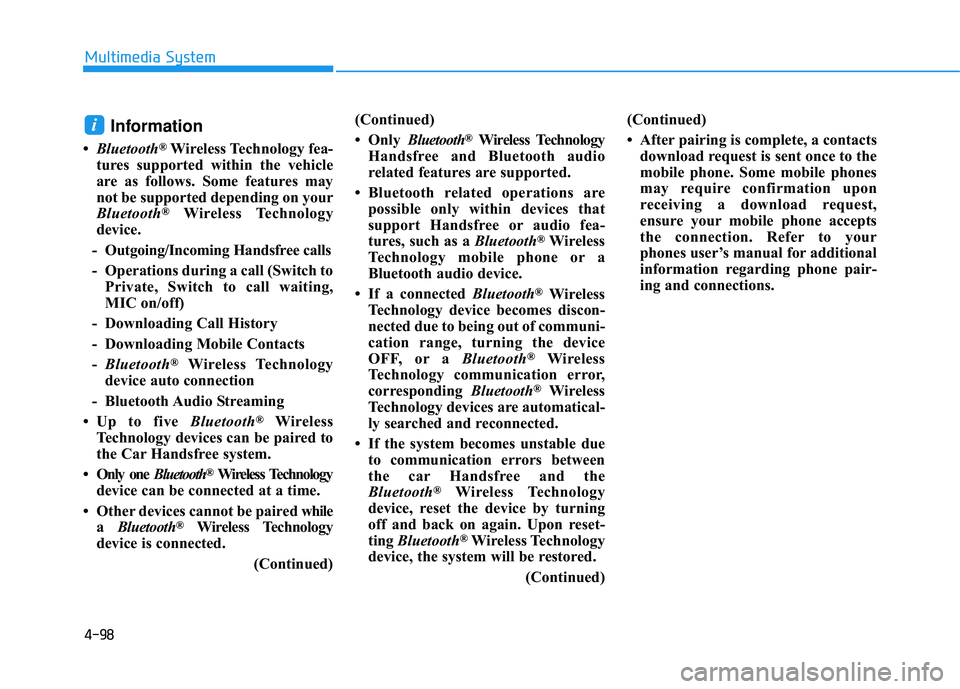
NameDescription
- When pressed in the phone screen, displays call history screen
- When pressed in the dial screen, makes a call
- When pressed in the incoming call screen, answers the call
- When pressed during call waiting, switches to waiting call (Call Waiting)
- When pressed in the
Bluetooth®Wireless
Technology Handsfree wait mode, redials the last call
- When pressed during a
Bluetooth®Wireless
Technology Handsfree call, switches call back to mobile phone (Private)
- When pressed while calling on the mobile phone, switches call back to
Bluetooth®
Wireless Technology Handsfree (Operates onlywhen Bluetooth®Wireless TechnologyHandsfree is connected)
Ends phone call
Page 342 of 642
4-79
Multimedia System
4
MMeedd iiaa MM ooddee
Pressing the key will change
the operating mode in order of CD
➟
USB(iPod®) ➟ AUX ➟ My Music ➟BT
Audio.
If [Mode Pop up] is turned on within
[Display], then pressing the
key will display the Media
Pop-up Mode screen.
Turn the tune knob to highlight
each of the operating modes. Press
the know to select the desired mode.
Information
The media mode pop up screen can be
displayed only when there are two or
more media modes turned on.
Title Icon
When a Bluetooth®Wireless
Technology, iPod®, USB, or AUX
device is connected or a CD is
inserted, the corresponding mode
icon will be displayed.
Icon Title
Bluetooth®Wireless Technology
CD
iPod®
USB
AUX
i
MEDIA
SETUP
MEDIA
Page 357 of 642
4-94
Multimedia System
Information - Using the
Bluetooth®Wireless Technology
audio mode
Bluetooth
®Wireless Technology
Audio Mode can be used only when a Bluetooth
®Wireless Technology
phone has been connected.
Bluetooth
®Wireless Technology
Audio Mode will not be available
when connecting mobile phones that
do not support this feature.
While Bluetooth
®Wireless Technology
Audio is playing, if the Bluetooth®
Wireless Technology phone is con-
nected, then the music will also stop.
Moving the Track up/down while playing Bluetooth
®Wireless Technology
audio mode may result in pop noises
in some mobile phones.
Bluetooth
®Wireless Technology
streaming audio may not be sup-
ported in some mobile phones.
(Continued)(Continued)
When returning to Bluetooth
®
Wireless Technology Audio mode
after ending a call, the mode may
not automatically restart in some
mobile phones.
Receiving an incoming call or mak- ing an outgoing call while playing
Bluetooth
®Wireless Technology
Audio may result in audio interfer-
ence.
BB lluu eettoo ootthh®®WW iirr ee llee ssss
T
T eecchh nnoo lloo ggyy AAuuddiioo MM ooddee
Using Bluetooth®Wireless
Technology Audio Mode
Playing/Pausing Bluetooth®
Wireless TechnologyAudio
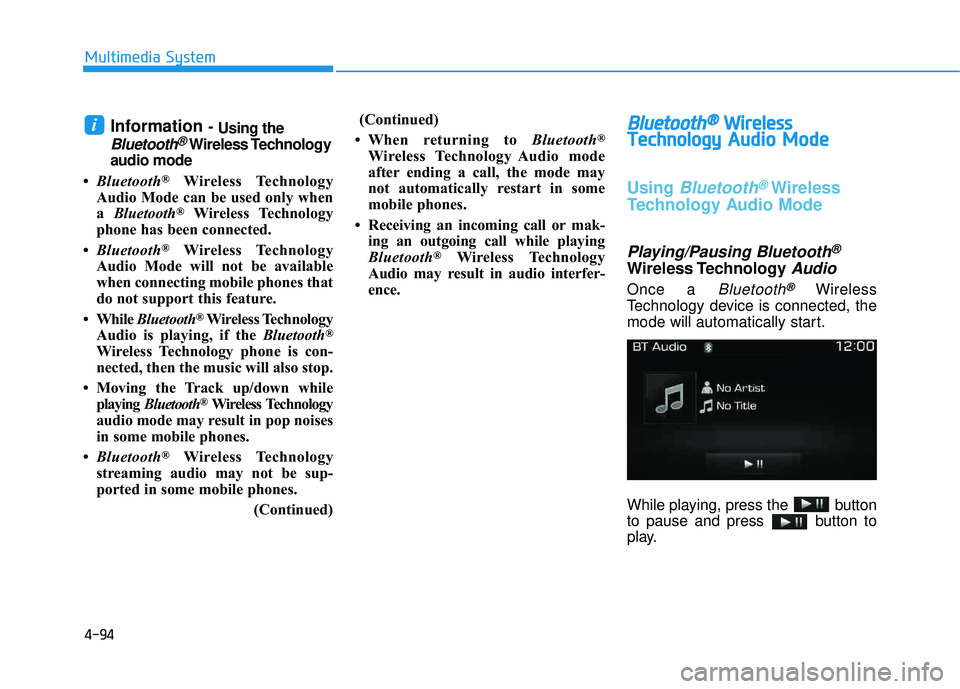
Once a Bluetooth®Wireless
Technology device is connected, the
mode will automatically start.
While playing, press the button
to pause and press button to
play.
i
Page 358 of 642
4-95
Multimedia System
4
Information
The play/pause feature may operate
differently depending on the mobile
phone.
Changing Files
Press the , key to
move to the previous or next file.
Setting Connection
If a Bluetooth®Wireless Technology
device has not been connected, press
the key [Phone] button to
display the
Bluetooth®Wireless
Technology connection screen.
It is possible to use the pair phone,
connect/disconnect and delete fea-
tures from your
Bluetooth®Wireless
Technology phone.
Information
If the Bluetooth®Wireless Technology
audio is not operating properly,
check whether the feature is turned
off at [Phone] [Streaming
Audio]. If the feature is off, turn back
on and try again.
If music is not yet playing from your mobile device after converting to
Bluetooth
®Wireless Technology
Audio mode, pressing the play but-
ton once may start playing the mode.
Check to see that music is playing
from the Bluetooth
®Wireless
Technology device after convertingto Bluetooth
®Wireless Technology
Audio Mode.
Information - Pairing through
[PHONE] Setup
The Bluetooth
®and Voice Recognition
Manual is provided in two versions
due to software version differences.
Before reading the manual, check the following.
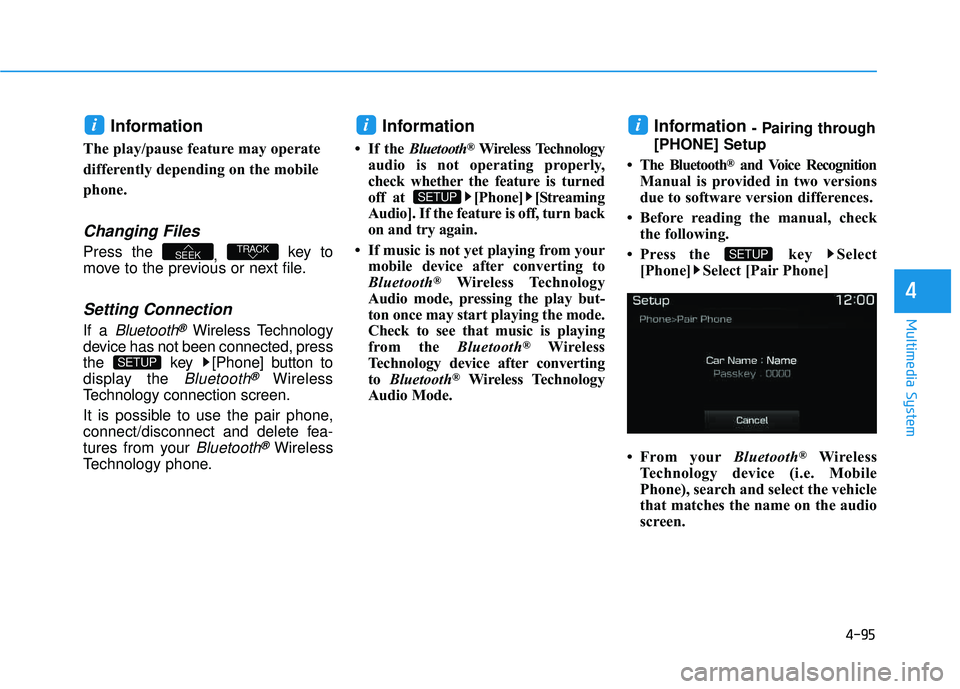
Press the key Select [Phone] Select [Pair Phone]
From your Bluetooth
®Wireless
Technology device (i.e. Mobile
Phone), search and select the vehicle
that matches the name on the audio
screen.
SETUP
i
SETUP
i
SETUP
TRACKSEEK
i
Page 359 of 642
4-96
Multimedia System
Pairing a Bluetooth®Wireless
Technology Device
What is Bluetooth® Wireless
Technology Pairing?
Pairing refers to the process of syn-
chronizing your
Bluetooth®Wireless
Technology phone or device with the
car audio system for connection.
Pairing is necessary to connect anduse the
Bluetooth®Wireless Technology
feature.
Pairing Key / Key
on the Steering Remote
Controller
When No Devices have been
Paired
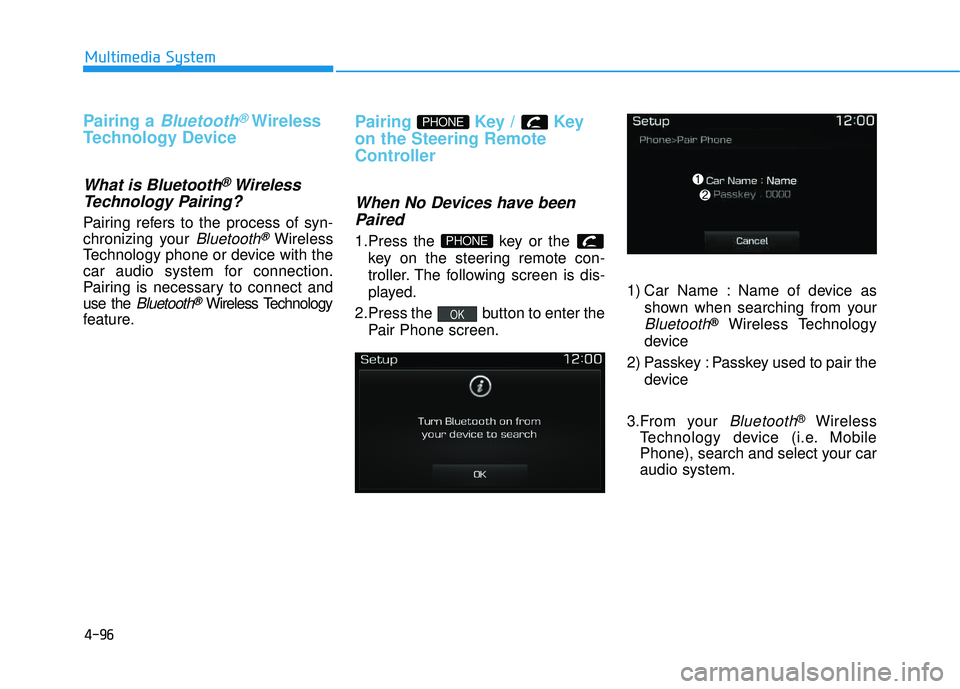
1.Press the key or the key on the steering remote con-
troller. The following screen is dis-
played.
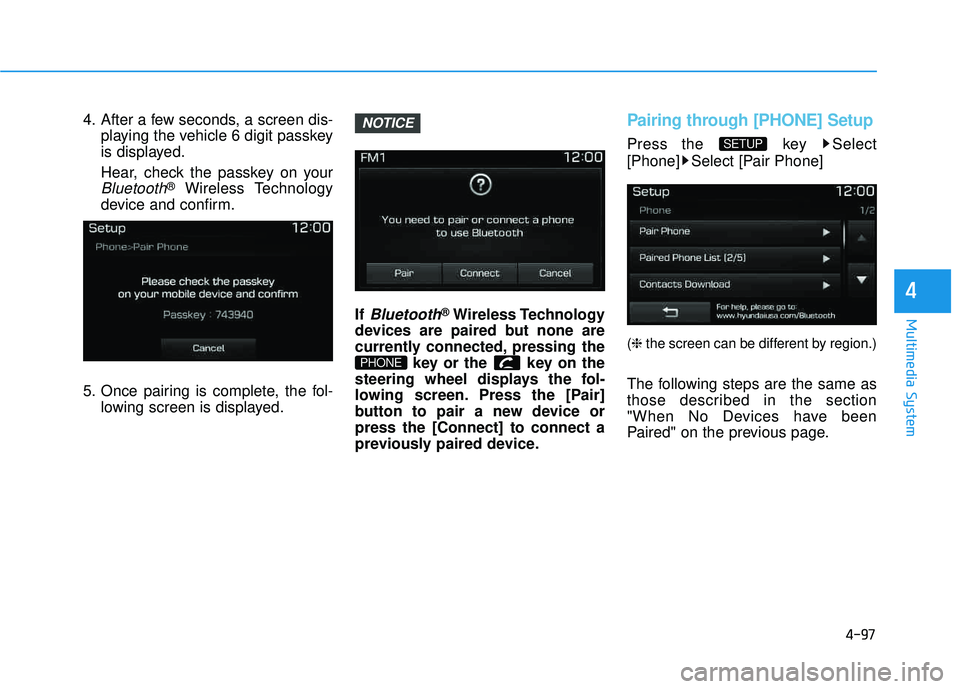
2.Press the button to enter the Pair Phone screen. 1) Car Name : Name of device as
shown when searching from your
Bluetooth®Wireless Technology
device
2) Passkey : Passkey used to pair the device
3.From your
Bluetooth®Wireless
Technology device (i.e. Mobile
Phone), search and select your caraudio system.
OK
PHONE
PHONE
Page 360 of 642
4-97
Multimedia System
4
4. After a few seconds, a screen dis-playing the vehicle 6 digit passkey
is displayed.
Hear, check the passkey on your
Bluetooth®Wireless Technology
device and confirm.
5. Once pairing is complete, the fol- lowing screen is displayed. If
Bluetooth®Wireless Technology
devices are paired but none are
currently connected, pressing the key or the key on the
steering wheel displays the fol-
lowing screen. Press the [Pair]
button to pair a new device orpress the [Connect] to connect a
previously paired device.
Pairing through [PHONE] Setup
Press the key Select
[Phone] Select [Pair Phone]
( ❈ the screen can be different by region.)
The following steps are the same as
those described in the section
"When No Devices have been
Paired" on the previous page.
SETUP
PHONE
NOTICE
Page 361 of 642
4-98
Multimedia System
Information
Bluetooth®Wireless Technology fea-
tures supported within the vehicle
are as follows. Some features may
not be supported depending on your
Bluetooth
®Wireless Technology
device.
- Outgoing/Incoming Handsfree calls
- Operations during a call (Switch to Private, Switch to call waiting,
MIC on/off)
- Downloading Call History
- Downloading Mobile Contacts - Bluetooth
®Wireless Technology
device auto connection
- Bluetooth Audio Streaming
Up to five Bluetooth
®Wireless
Technology devices can be paired to
the Car Handsfree system.
Only one Bluetooth
®Wireless Technology
device can be connected at a time.
Other devices cannot be paired while
a Bluetooth
®Wireless Technology
device is connected.
(Continued)(Continued)
Only
Bluetooth
®Wireless Technology
Handsfree and Bluetooth audio
related features are supported.
Bluetooth related operations are possible only within devices that
support Handsfree or audio fea-
tures, such as a Bluetooth
®Wireless
Technology mobile phone or a
Bluetooth audio device.
If a connected Bluetooth
®Wireless
Technology device becomes discon-
nected due to being out of communi-
cation range, turning the device
OFF, or a Bluetooth
®Wireless
Technology communication error,
corresponding Bluetooth
®Wireless
Technology devices are automatical-
ly searched and reconnected.
If the system becomes unstable due to communication errors between
the car Handsfree and the
Bluetooth
®Wireless Technology
device, reset the device by turning
off and back on again. Upon reset-
ting Bluetooth
®Wireless Technology
device, the system will be restored.
(Continued)(Continued)
After pairing is complete, a contacts
download request is sent once to the
mobile phone. Some mobile phones
may require confirmation upon
receiving a download request,
ensure your mobile phone accepts
the connection. Refer to your
phones user’s manual for additional
information regarding phone pair-
ing and connections.
i
![HYUNDAI TUCSON 2016 Owners Manual 4-79
Multimedia System
4
MMeedd iiaa MM ooddee
Pressing the key will change
the operating mode in order of CD
➟
USB(iPod®) ➟ AUX ➟ My Music ➟BT
Audio.
If [Mode Pop up] is turned on with](/manual-img/35/56201/w960_56201-341.png "HYUNDAI TUCSON 2016 Owners Manual 4-79
Multimedia System
4
MMeedd iiaa MM ooddee
Pressing the key will change
the operating mode in order of CD
➟
USB(iPod®) ➟ AUX ➟ My Music ➟BT
Audio.
If [Mode Pop up] is turned on with")